

SmartPOS Business
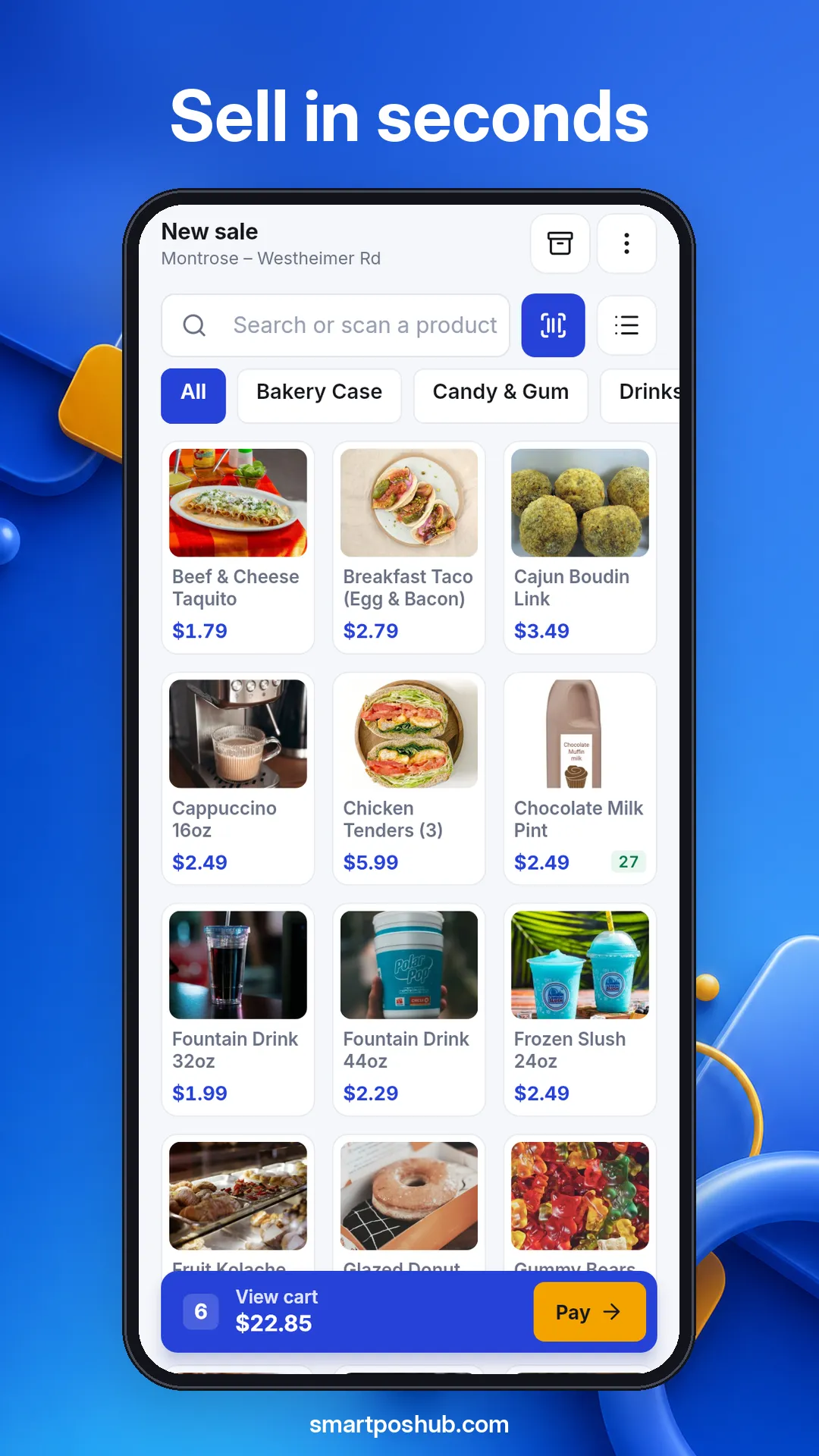
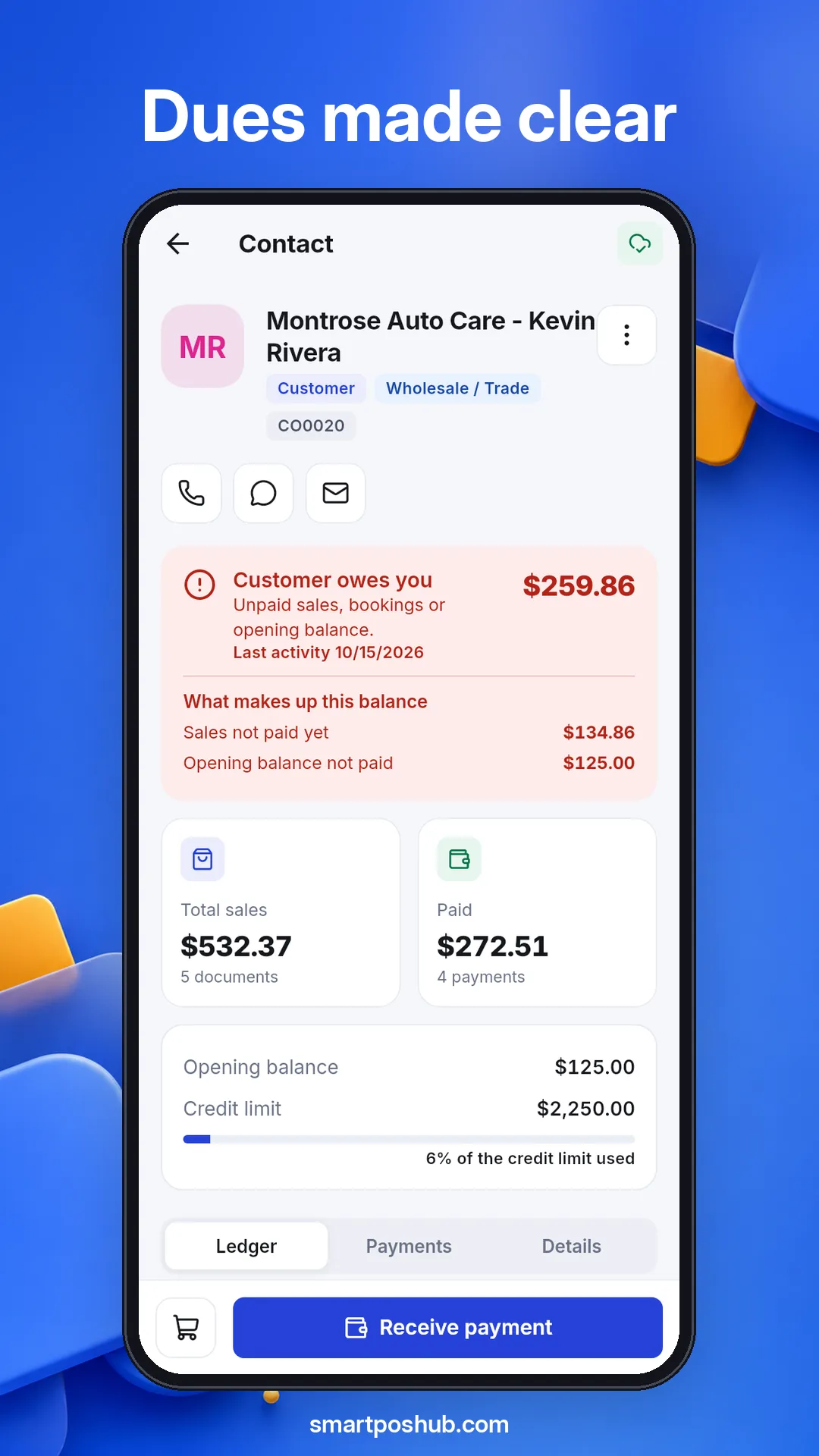
For owners and staff (Android). Sell and scan, take part payments, manage stock and purchases, see customer balances, chat with shoppers and keep selling offline.
SmartPOS Hub documentation
Clear, step-by-step guides for owners, managers and cashiers — from your first location to your first sale, credit customers, modules, your online store and the SmartPOS Business app.
Try:
These docs show you how to set up and run your business on SmartPOS Hub, the point-of-sale and inventory system at app.smartposhub.com. Pick your business type for a guided setup, or jump straight to a task such as adding products, taking a part payment or turning on a module.
Step-by-step setup
Each guide walks you from an empty account to your first sale: locations, Product Library, prebuilt data, products and the POS — in the order that suits your trade.
Most-read guides
Mobile apps
Your staff run the shop from the SmartPOS Business app. Your customers order, scan and chat with you in the SmartPOS Shopper app.
For owners and staff (Android). Sell and scan, take part payments, manage stock and purchases, see customer balances, chat with shoppers and keep selling offline.
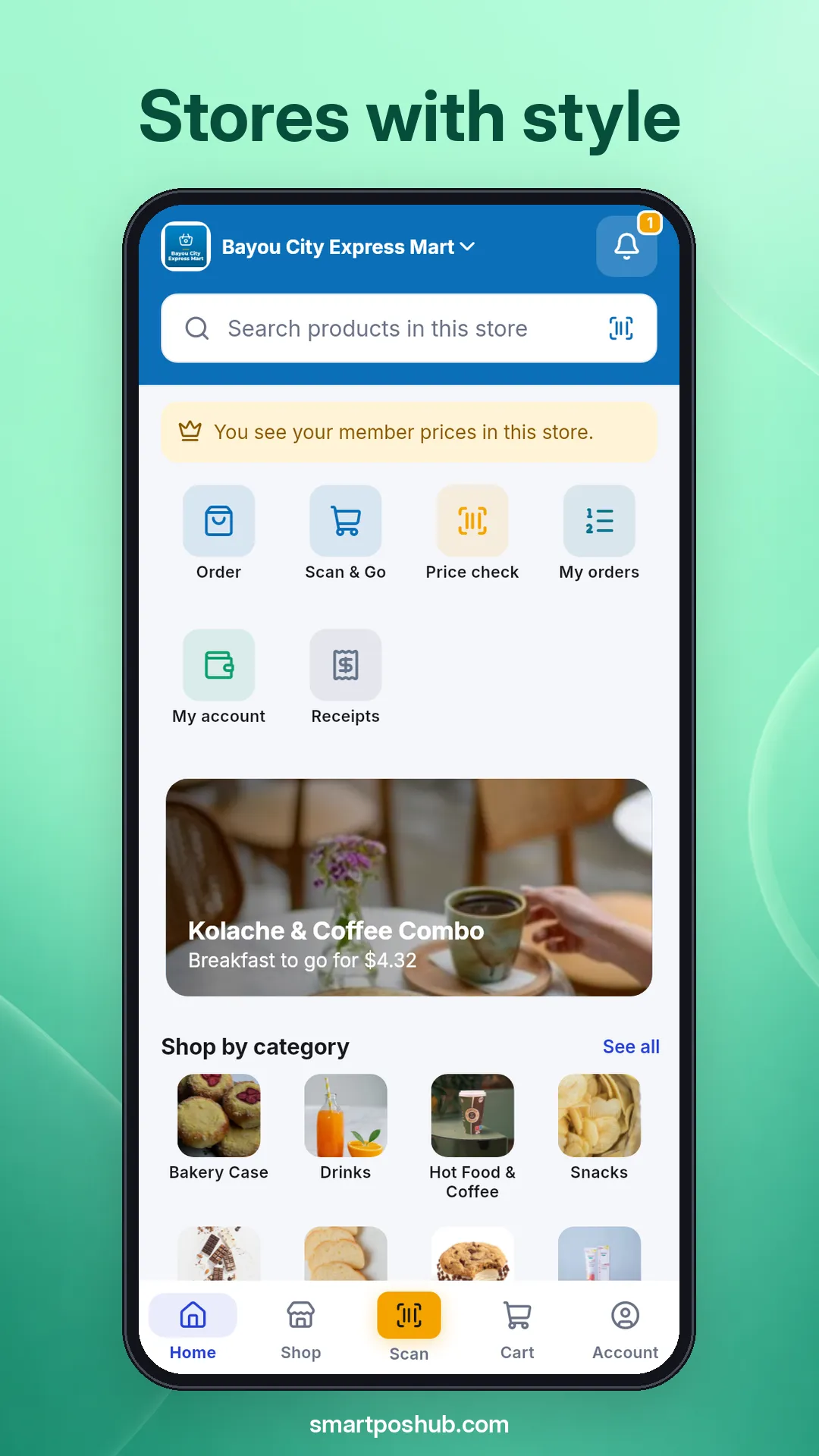
For your customers. They find your store, order online, use Scan & Go, see receipts and balances, and chat with you. Help for shoppers lives on its own site.
Everything in one place
Look up a term, fix a common problem, or ask our team. You can also book a free demo call to set up your shop together.
Start with the setup guide for your business type. Each guide takes you in order through adding your locations, using the Product Library, importing prebuilt data, adding products and making your first sale. If your trade is not listed, follow Getting started and then turn on the modules you need.
There are step-by-step guides for restaurants and cafés, marts and grocery stores, pharmacies, tech stores (mobiles and computers), AC, fridge and appliance stores, and electronics stores. Other businesses use the Getting started section together with the module pages.
Record the sale with a partial payment and SmartPOS Hub keeps the remaining amount as due on the sale and on the customer's ledger. You add each later payment against the same sale until it is fully paid. The Credit and part payments guide shows every step with screenshots.
A module works when three things are true. Your plan includes it, its switch is on in Settings, and your user role has permission to use it. Every module page has a How to turn it on box that lists all three.
Yes. The SmartPOS Business app lets owners and staff sell, scan barcodes, take payments, manage stock and customers, chat with shoppers and keep selling offline. The Business app section explains installing it, signing in and each screen.
Shoppers have their own help site for the SmartPOS Shopper app. These docs cover the business side, such as setting up your online store, order links, Scan and Go and chat, so your customers can use them.
The screenshots come from sample businesses in different countries, so you will see dollars, dirhams or rupees. Your own screens show the currency you set for your business, and every step works the same way.
Yes. Every page has a Copy page button and a View as .md link that give you the page as plain Markdown, and the site publishes llms.txt files that list and bundle all guides for AI tools.
Use the contact page on smartposhub.com. The support team answers within four business hours in your market and replies in English, Urdu, Arabic or Spanish.