
Restaurant & café setup guide for SmartPOS Hub
This guide walks a restaurant, café, diner, pizza shop or fast-food counter through a complete SmartPOS Hub setup, in order. Follow the steps one by one and you finish with a working menu, kitchen display, floor plan, waiter roles, dine-in, takeaway and delivery orders, open tabs, online ordering and a daily close routine.
Who this guide is for
Section titled “Who this guide is for”- Sit-down restaurants and diners with tables, waiters and a kitchen.
- Cafés and coffee shops that sell at the counter, often with sizes, milks and extras.
- Pizza, burger and fast-food shops with takeaway, delivery and riders.
- Multi-branch restaurant groups that need one menu across several locations.
If you sell mostly packaged goods, use the Mart & grocery guide instead.
What you will set up
Section titled “What you will set up”- Business settings and locations: name, currency, time zone, logo and one location per branch.
- Turn on the restaurant modules: Tables, Modifiers, Kitchen, Service staff, Bookings and Types of service.
- Import the prebuilt restaurant setup: menu categories, modifier sets, tables, kitchen stations, types of service and staff roles.
- Menu items and modifiers: dishes with sizes, toppings, sauces and nested options.
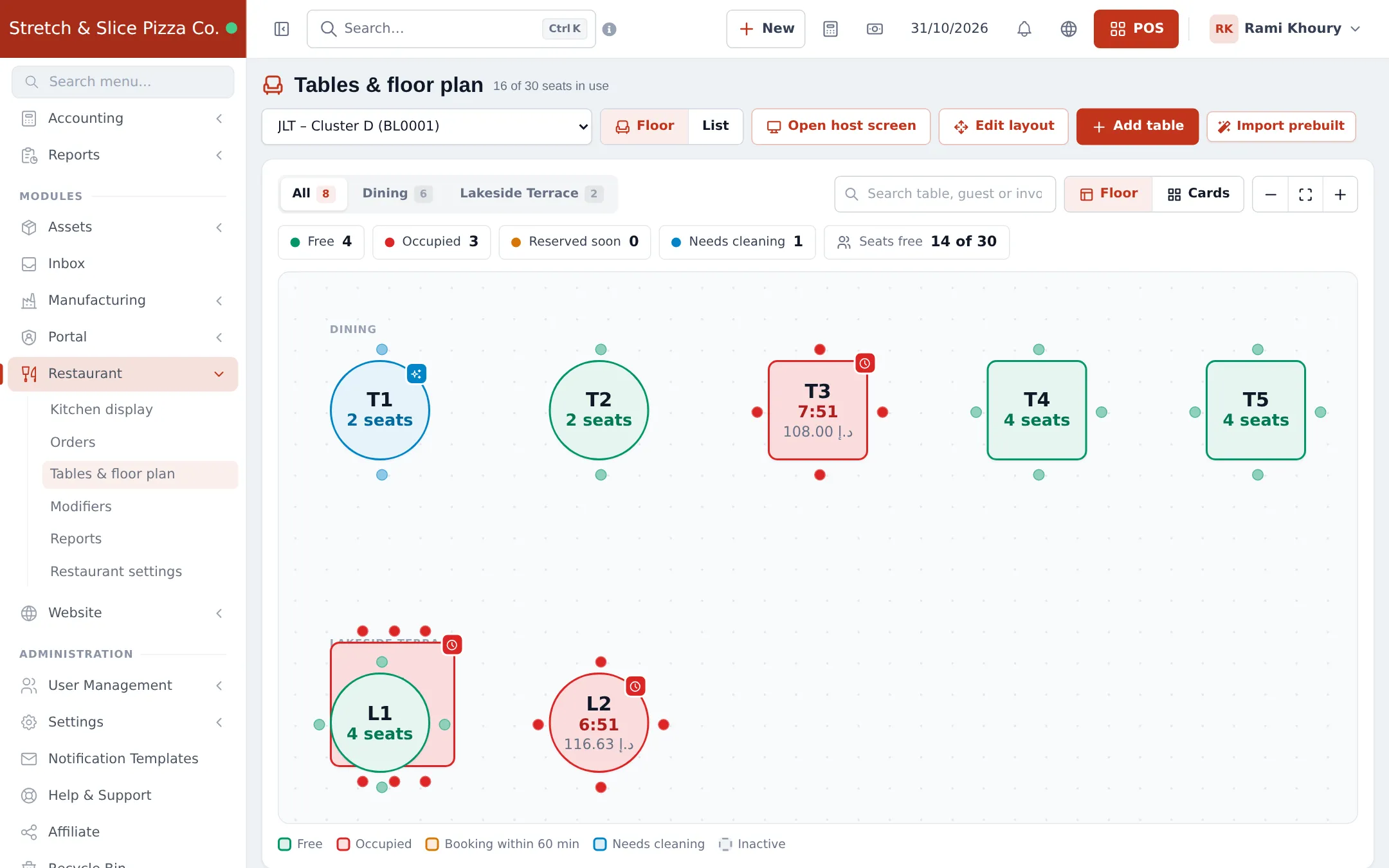
- Tables and floor plan: areas, seats and the live floor view.
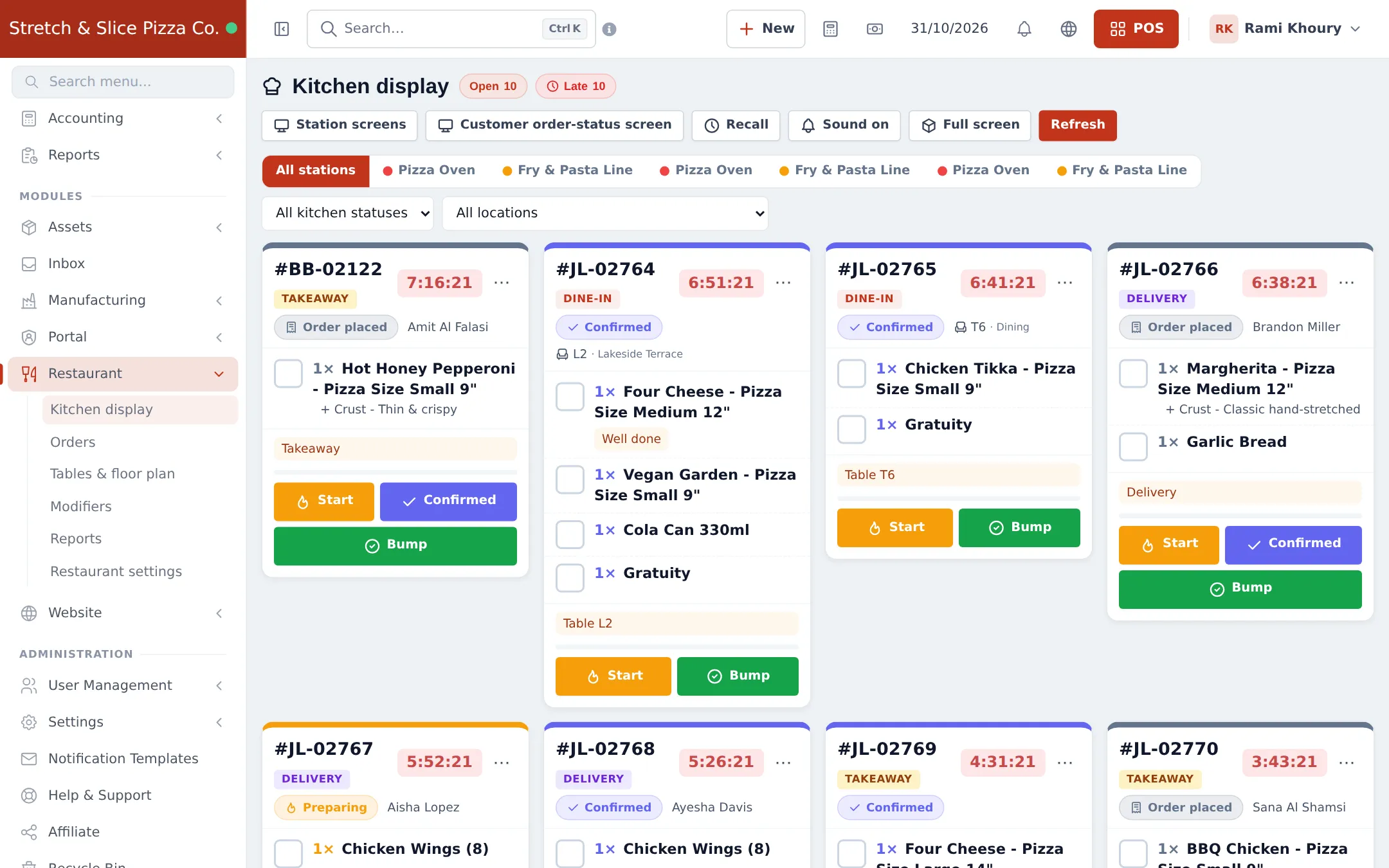
- Kitchen display and stations: order statuses, station screens and routing.
- Order types, Orders board and delivery: dine-in, takeaway, delivery and riders.
- Take an order at the POS: order → kitchen → bill → payment.
- Open tabs and split payments: eat now, pay later, and paying with several methods.
- Online ordering, table QR and the Shopper app.
- Daily operations: opening, service, close and reports.
- Go-live checklist.
Modules to turn on
Section titled “Modules to turn on”| Module | Where to switch it on | Needed for |
|---|---|---|
| Tables | Settings › Business Settings › Modules | Dine-in, floor plan, table QR ordering |
| Modifiers | Settings › Business Settings › Modules | Sizes, toppings, sauces, extras |
| Kitchen | Settings › Business Settings › Modules | Kitchen display, order statuses, station screens |
| Service staff | Settings › Business Settings › Modules | Waiters with their own order list |
| Bookings | Settings › Business Settings › Modules | Table reservations and the walk-in waitlist |
| Types of service | Settings › Business Settings › Modules (Sales & stock group) | Dine-in, takeaway and delivery with their own prices and packing charges |
| Open tabs | Restaurant › Restaurant settings › Open tabs | Eat first, pay later |
| Website and Widgets | Depends on your plan, see Online store overview | Online menu, table QR ordering |
| Shopper app | Settings › Shopper app & Scan & Go | Ordering and reservations from the SmartPOS Shopper app |
You can find the full list of switches in All modules.
Time needed
Section titled “Time needed”| Part | Typical time |
|---|---|
| Steps 1–3 (settings, modules, prebuilt import) | 30–45 minutes |
| Step 4 (menu and modifiers) | 1–2 hours for 50–100 items |
| Steps 5–7 (tables, kitchen, order types) | 30–45 minutes |
| Steps 8–10 (test orders, tabs, online ordering) | 30 minutes |
| Staff training | 15 minutes per role |
Shared guides you will use
Section titled “Shared guides you will use”Frequently asked questions
How long does it take to set up a restaurant on SmartPOS Hub?
Most restaurants are ready in two to four hours. Turning on the modules and importing the prebuilt setup takes under 30 minutes; most of the time goes into entering your own menu prices, modifiers and tables.
Do I need a special plan for the restaurant features?
No. Tables, kitchen display, modifiers, waiters, order statuses and open tabs are part of SmartPOS Hub and are switched on in Settings › Business Settings › Modules. Some extras, such as the online store, widgets, the Shopper app and bookings, depend on your plan.
Can one account run several branches?
Yes. Each branch is a business location with its own tables, kitchen station screens, receipt layout and cash register. Menu items can be sold in all or some locations.
Can guests eat first and pay at the end?
Yes. Turn on Open tabs in Restaurant settings. The waiter keeps a running tab per table or guest name, sends each round to the kitchen and takes one payment at the end.
Does the kitchen need a printer?
No. The Kitchen display shows every order as a ticket on any screen or tablet. You can still print kitchen tickets if you prefer paper.
Can customers order from their table with a QR code?
Yes. Create an Online menu widget under Website › Widgets and print the table QR codes. Each code opens your menu with dine-in and the table already chosen, and the order arrives on the kitchen display.
Do waiters need a computer?
No. Waiters can take orders on a phone or tablet with the SmartPOS Business app or in the web POS in a browser. Each waiter sees only their own orders and tabs.
Can I handle delivery orders and riders?
Yes. Create a Delivery type of service, add a Delivery driver role, and assign each delivery order to a rider on the Orders board. Riders see only the deliveries assigned to them.
Will the setup work for a café or bakery counter without tables?
Yes. Leave Tables switched off and use takeaway orders with the kitchen display, or no kitchen at all. Turn on only the modules you need.
Can I try it before setting up my own restaurant?
Yes. The public restaurant demo accounts listed on smartposhub.com show a full pizza shop, diner and café with real-looking orders. They are read-only samples and reset every few days.