
Business settings reference - every tab explained
This page is the reference for Settings › Business Settings in SmartPOS Hub: what every tab controls and when to change it. It is for owners and managers who want to fine-tune how the system works. For the short list to fill in on day one, see Business settings for first-time setup.
How the page works
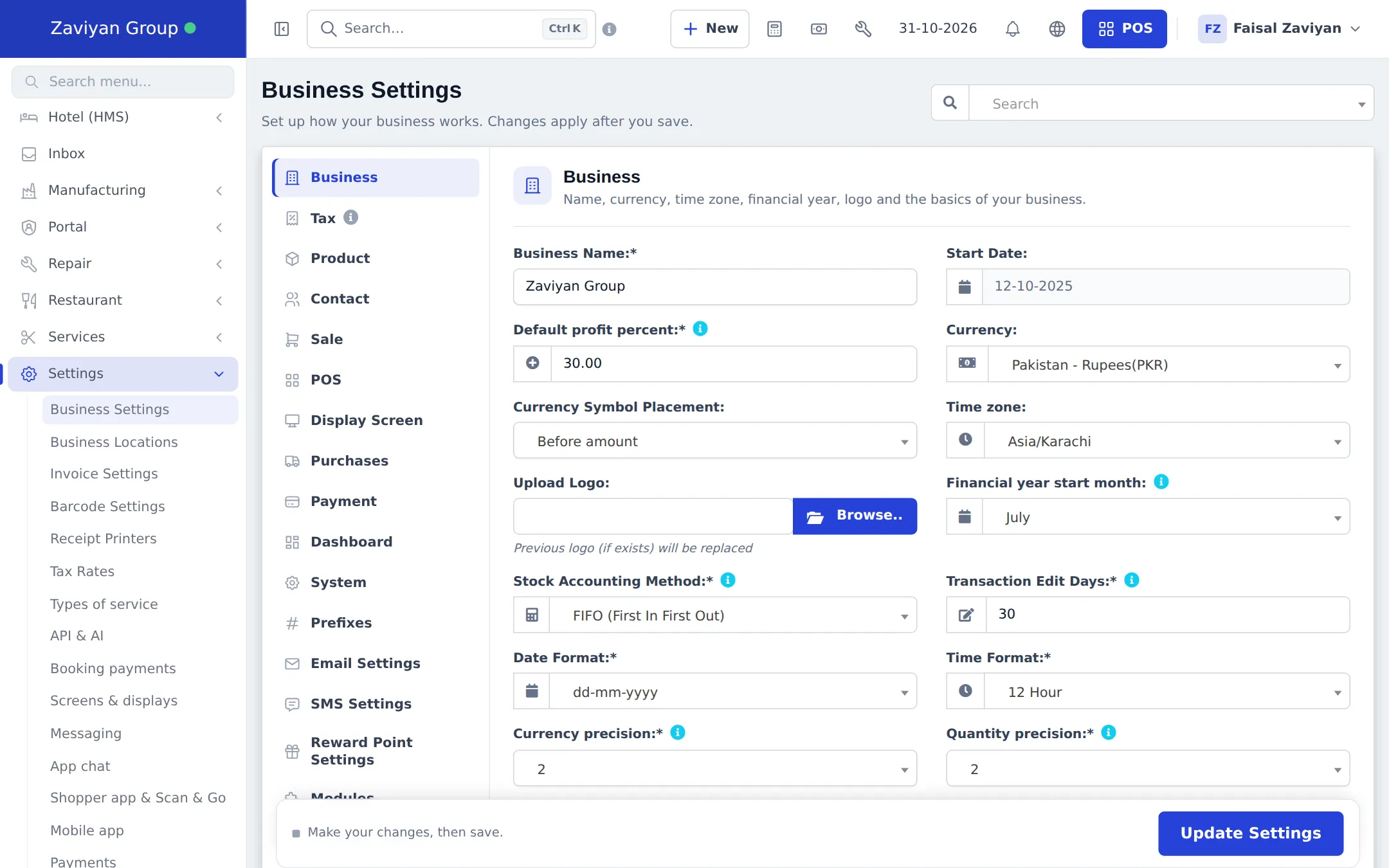
Section titled “How the page works”- Tabs are on the left (a scrollable row on phones). Each tab starts with a short explanation.
- Tick boxes appear as switches.
- Search at the top right finds any setting by name and takes you to it.
- Update Settings in the sticky bar at the bottom saves all tabs at once. The page remembers the last tab you used.
- Permission needed: the business settings permission (owners and Admin have it).
Tab by tab
Section titled “Tab by tab”Business
Section titled “Business”Business name, start date, Default profit percent (suggested markup), Currency and Currency Symbol Placement, Time zone, Upload Logo, Financial year start month, Stock Accounting Method (for example FIFO), Transaction Edit Days, Date Format, Time Format, Currency precision, Quantity precision, and two extra business codes (Code 1 name / Code 1, for example a registration number) that can print on invoices.
Tax 1 Name / Tax 1 No. and Tax 2 Name / Tax 2 No.: your registration numbers for invoices. Enable inline tax in purchase and sell lets you pick a tax per line. Rates themselves: Tax rates.
Product
Section titled “Product”SKU prefix, Enable Product Expiry and On Product Expiry (what to do with expired stock), Enable Brands, Enable Categories, Enable Sub-Categories, Enable Price & Tax info, Default Unit, Enable Sub Units, Enable Racks / Enable Row / Enable Position, Enable Warranty, Enable secondary unit and Is product image required?
Contact
Section titled “Contact”Default credit limit for new customers. Credit sales: Customer credit limits and advances.
Default Sale Discount, Default Sale Tax, Sales Item Addition Method (add a new line or increase quantity when the same item is scanned), Amount rounding method, Sales price is minimum selling price, Allow Overselling, Enable Sales Order, Is pay term required?, Sales Commission Agent and Commission Calculation Type, Is commission agent required?, Enable payment link.
Keyboard shortcuts for POS V1 and V2 (each labelled with the screen it works on), and switches to hide POS buttons: Disable Multiple Pay, Disable Express Checkout, Disable Draft, Disable Suspend Sale. See POS overview.
Display Screen
Section titled “Display Screen”Enable Customer display screen for a second monitor facing the customer. Design and links: Settings › Screens & displays. See Devices and printers.
Purchases
Section titled “Purchases”Enable editing product price from purchase screen, Enable Purchase Status, Enable Lot number, Enable purchase order, Enable Purchase Requisition. See Purchases.
Payment
Section titled “Payment”Cash Denominations (for example 10, 20, 50, 100, 500), Enable cash denomination on (POS, closing the register…), Enable cash denomination for payment methods, and Strict check (the counted notes must match the amount).
Dashboard
Section titled “Dashboard”View Stock Expiry Alert For a number of days ahead.
System
Section titled “System”Appearance (colour theme for the whole business; see Appearance and theme), Default datatable page entries (rows per table page) and Show help text.
Prefixes
Section titled “Prefixes”Prefixes for document numbers: Purchase, Purchase Return, Purchase Requisition, Purchase Order, Stock Transfer, Stock Adjustment, Sell Return, Expenses, Contacts, payment references, Business Location, Username, Subscription No., Draft, Sales Order. Sale invoice numbers come from invoice schemes instead: Invoice and receipt settings.
Email Settings
Section titled “Email Settings”- Use SmartPOS Hub e-mail (recommended): nothing to set up; e-mails show your business name and Replies go to your address.
- Use my own e-mail server: send from your own address with Host, Port, Encryption, Username, Password, From Address and From Name.
SMS Settings
Section titled “SMS Settings”- Use SmartPOS Hub SMS (recommended): nothing to set up; includes a monthly SMS allowance.
- Use my own SMS gateway: choose a supported provider or Custom HTTP (any SMS API) and enter its details.
What the messages say: Notification templates.
Reward Point Settings
Section titled “Reward Point Settings”Enable Reward Point, the display name, how much a customer spends per point, minimum order to earn, maximum points per order, redeem value per point, minimum order and points to redeem, maximum redeem per order, and the Reward Point expiry period. See Reward points.
Modules
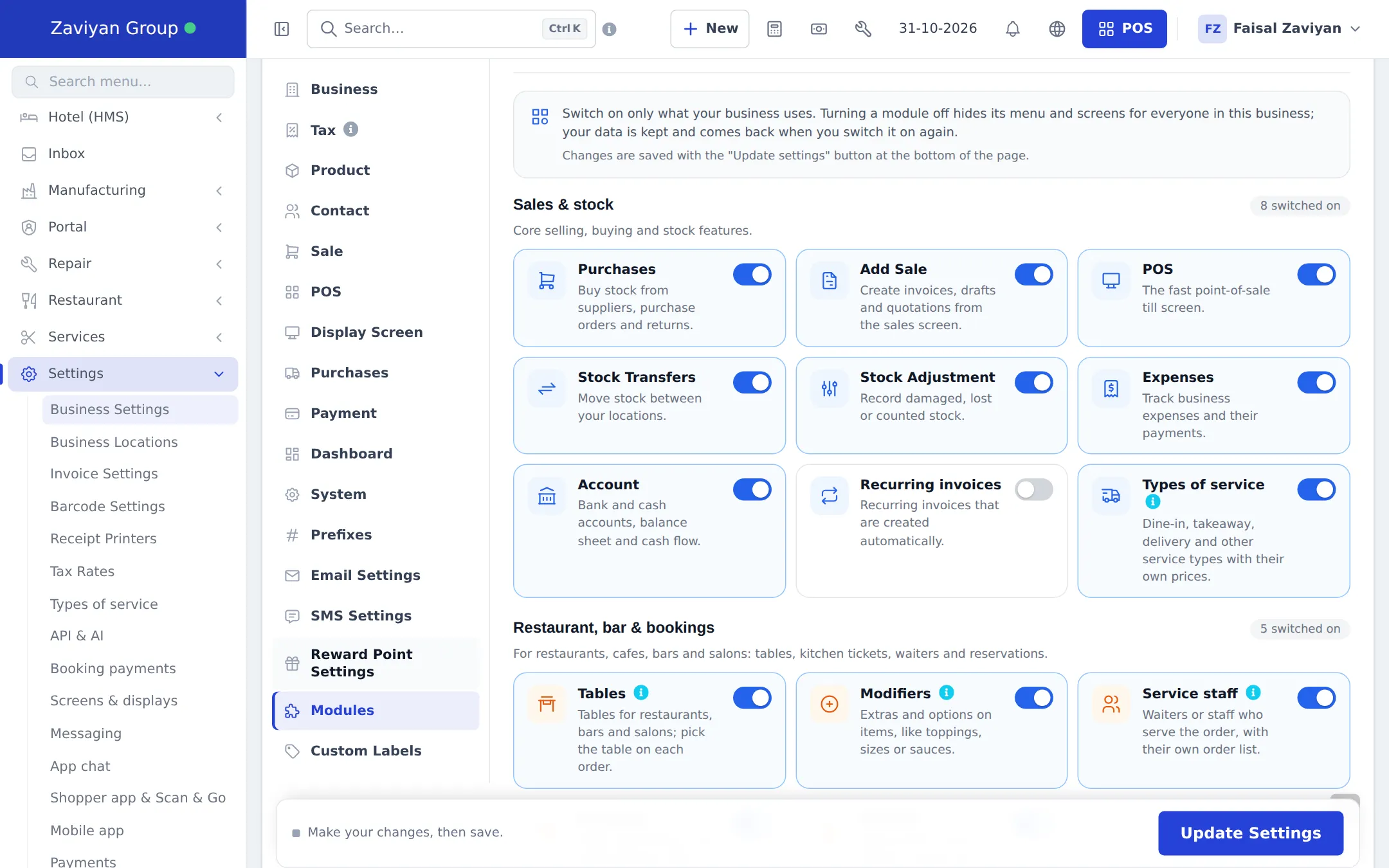
Section titled “Modules”Switch features on or off for the whole business, grouped by area with a “switched on” count per group. Examples: Purchases, POS, Stock Transfers, Expenses, Account, Tables, Modifiers, Kitchen, Bookings, Repair module, Hotel Management (HMS), Gym management module, Manufacturing, Product Library, Website & online store, Mobile app, Offline POS, Gift cards, Shipping & delivery and more. Each card explains the module. See All modules.
Custom Labels
Section titled “Custom Labels”- Custom Payment 1 to 7: name your own payment methods (mobile wallets, delivery apps, vouchers).
- Custom Field 1, 2… in several groups (for example products, contacts, locations and users): give a field a name and it appears on that form.
On a phone
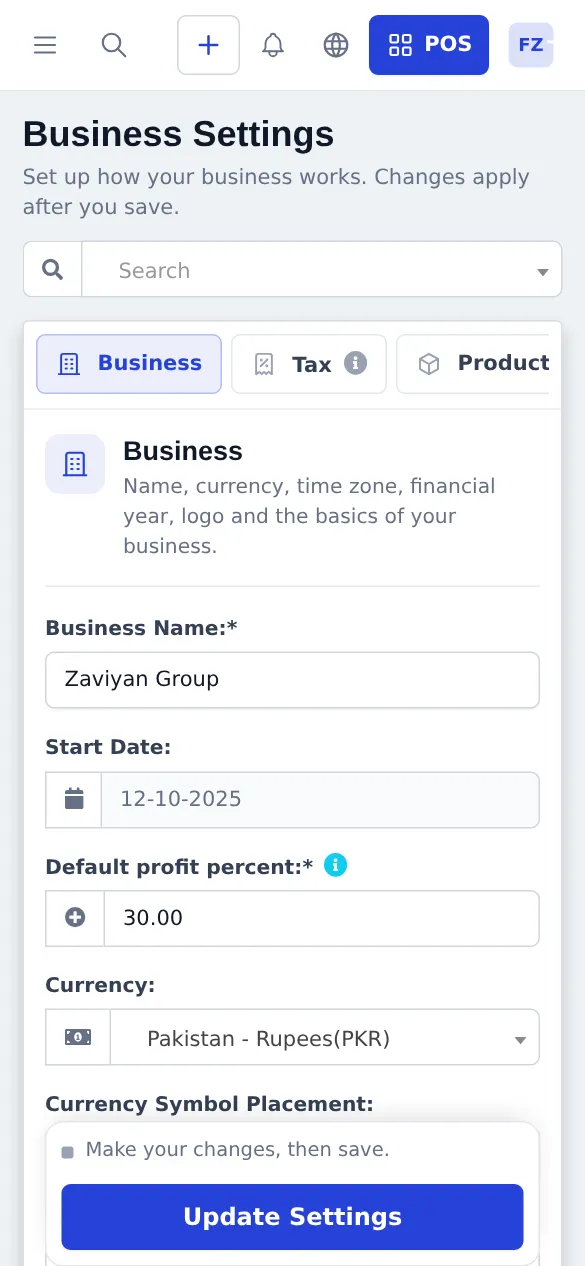
Section titled “On a phone”The tabs turn into a scrollable row of chips at the top, fields stack in one column, and Update Settings stays at the bottom.
- Change one thing, save, test. Many settings change what the POS does immediately for every user.
- Write down what you changed and when, so you can undo it if something behaves differently.
- Ask your accountant before changing the stock accounting method or financial year after you have started trading.
Related pages
Section titled “Related pages”Frequently asked questions
Where is Business Settings?
In the left menu, Settings, Business Settings. Press Ctrl + K and type a setting name to jump straight to it.
Do I have to save each tab separately?
No. One Update Settings button at the bottom saves every tab at once. The bar warns you when there are unsaved changes.
How do I find one setting among hundreds?
Use the Search box at the top right of the page. It opens the right tab, scrolls to the field and highlights it.
Which settings are per location instead?
Address, invoice numbering, receipt layout, price group, payment methods and auto-print are set per location under Settings, Business Locations.
How do I add my own payment method, like a mobile wallet?
On the Custom Labels tab, rename Custom Payment 1 to 7, save, then tick the method on each location that accepts it.
Can I use my own e-mail address to send invoices?
Yes. On Email Settings choose Use my own e-mail server and enter your mail server details. Otherwise e-mails are sent for you with your business name, and replies come back to you.
Is SMS included?
Yes. Use SmartPOS Hub SMS includes a monthly allowance (shown on the SMS Settings tab). You can connect your own SMS gateway instead for no monthly limit from us.
What happens to data when I switch a module off?
The module's menus and screens disappear for everyone, but its data is kept and comes back when you switch it on again.
Why can I not see the Modules tab or a module on it?
Only users with the business settings permission see this page, and a module not in your plan is not listed. Check Settings, Package Subscription.