
Credit sales and part payments (pay later in instalments)
This page shows how to sell on credit in SmartPOS Hub: a customer takes goods with no payment, or pays part now (for example 20 %) and the rest later in one or more instalments. You will see every screen of a real example, from the sale to the last payment, plus credit limits, reminders and the mobile app.
How credit works in one minute
Section titled “How credit works in one minute”- Every sale has a total, a total paid and a sell due (what is still owed).
- The payment status follows the money: Due (nothing paid), Partial (some paid), Paid (all paid). You never set it by hand.
- What a customer owes from all their sales adds up to their Balance due, shown on the customer page and in the ledger.
- You can collect the money later from the sale (Add payment), from the customer page (Add payment), from the customers list (Pay) or at the POS (Receive Payment next to the customer).
- A credit limit on the customer stops new credit sales once their unpaid total would go above it.
| Payment status | Means | Shown as |
|---|---|---|
| Due | Nothing paid yet | Orange badge |
| Partial | Some money received, a balance is still due | Blue badge |
| Paid | The full total was received | Green badge |
| Overdue (filter) | Due or Partial and older than the customer’s pay term | Sales list filter Payment Status › Overdue |
The worked example
Section titled “The worked example”We sold goods for 1,000 (in your currency) to the customer Docs Demo – Ayesha Khan, who has a credit limit of 2,000 and a pay term of 30 days. She paid in three parts:
| Date / step | Paid now | Paid so far | Still due | Status | Where it was recorded |
|---|---|---|---|---|---|
| Day 1 – the sale | 200 (20 %) cash | 200 | 800 | Partial | POS › Multiple Pay |
| Day 10 – second payment | 500 (50 %) bank transfer | 700 | 300 | Partial | All sales › Actions › Add payment |
| Day 30 – final payment | 300 (30 %) cash | 1,000 | 0 | Paid | Customer page › Add payment |
On Day 1 she also took a small item worth 79 with no payment at all (Credit Sale), so you can see a Due sale next to the others.
Before you start
Section titled “Before you start”-
Add the customer. A credit sale needs a named customer — Walk-In Customer cannot owe you money. Go to Contacts › Customers › Add (or press the + next to the customer box in the POS). See Customers & contacts.
-
Set the credit limit and pay term in the Balance & credit section of the customer form:
- Credit Limit — the most this customer may owe at one time. Keep blank for no limit. You can set a default for new customers in Settings › Business Settings › Contact › Default credit limit.
- Pay term — how many days or months they have to pay (for example 30 Days). Sales older than this count as Overdue.
- Opening Balance — only if the customer already owed you money before you started using SmartPOS Hub.
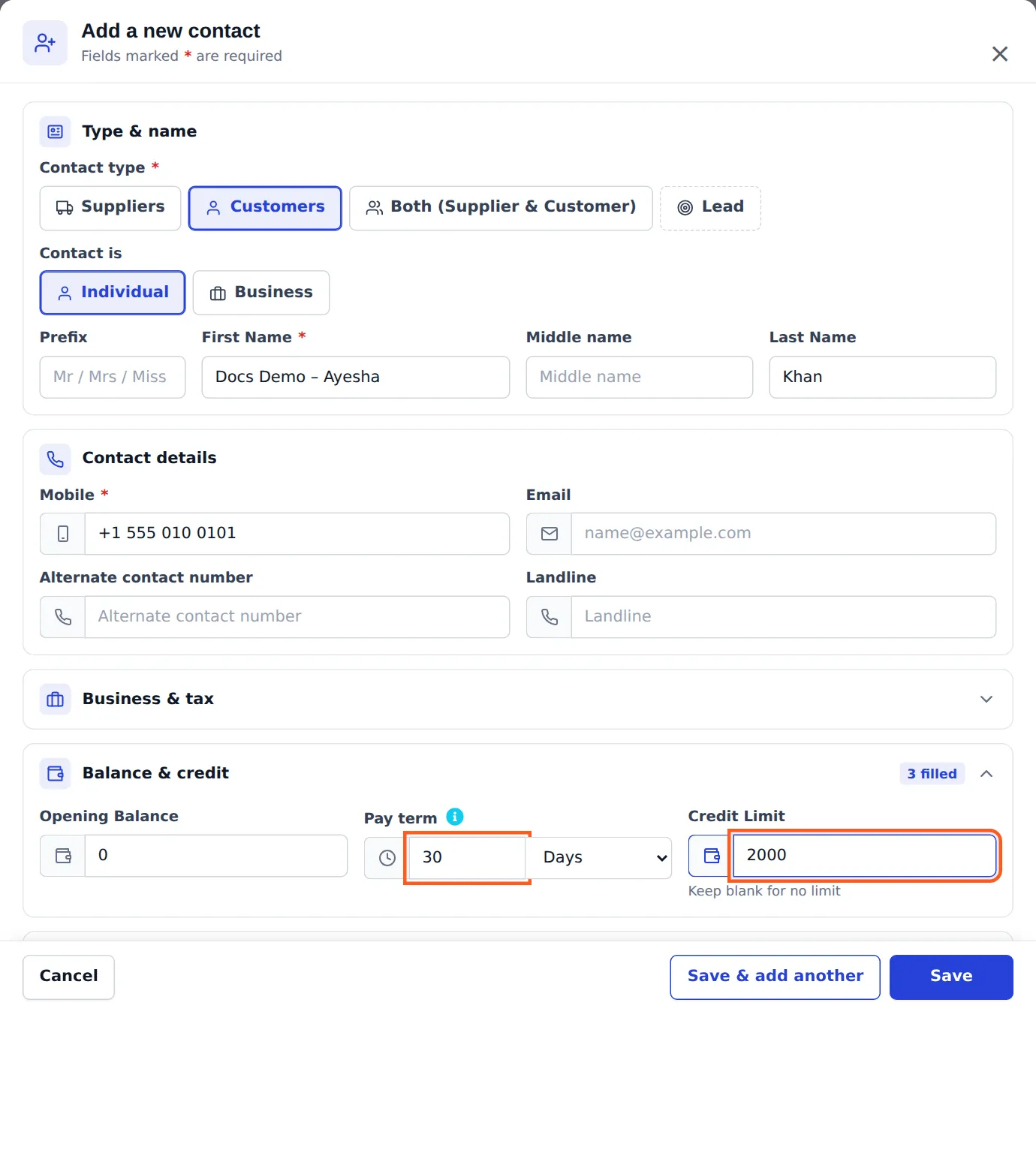
Customer form: pay term 30 days and a credit limit of 2,000. -
Open the cash register if your POS asks for it (see Cash register and closing).
Step 1 – Sell and take 20 % now (Partial)
Section titled “Step 1 – Sell and take 20 % now (Partial)”-
Open POS (top bar). In the customer box, search for the customer and pick them. Once a customer owes money, the POS shows Customer Due under their name.
-
Add the products (scan, search or tap the tiles). Check the Total Payable — here 1,000.00.
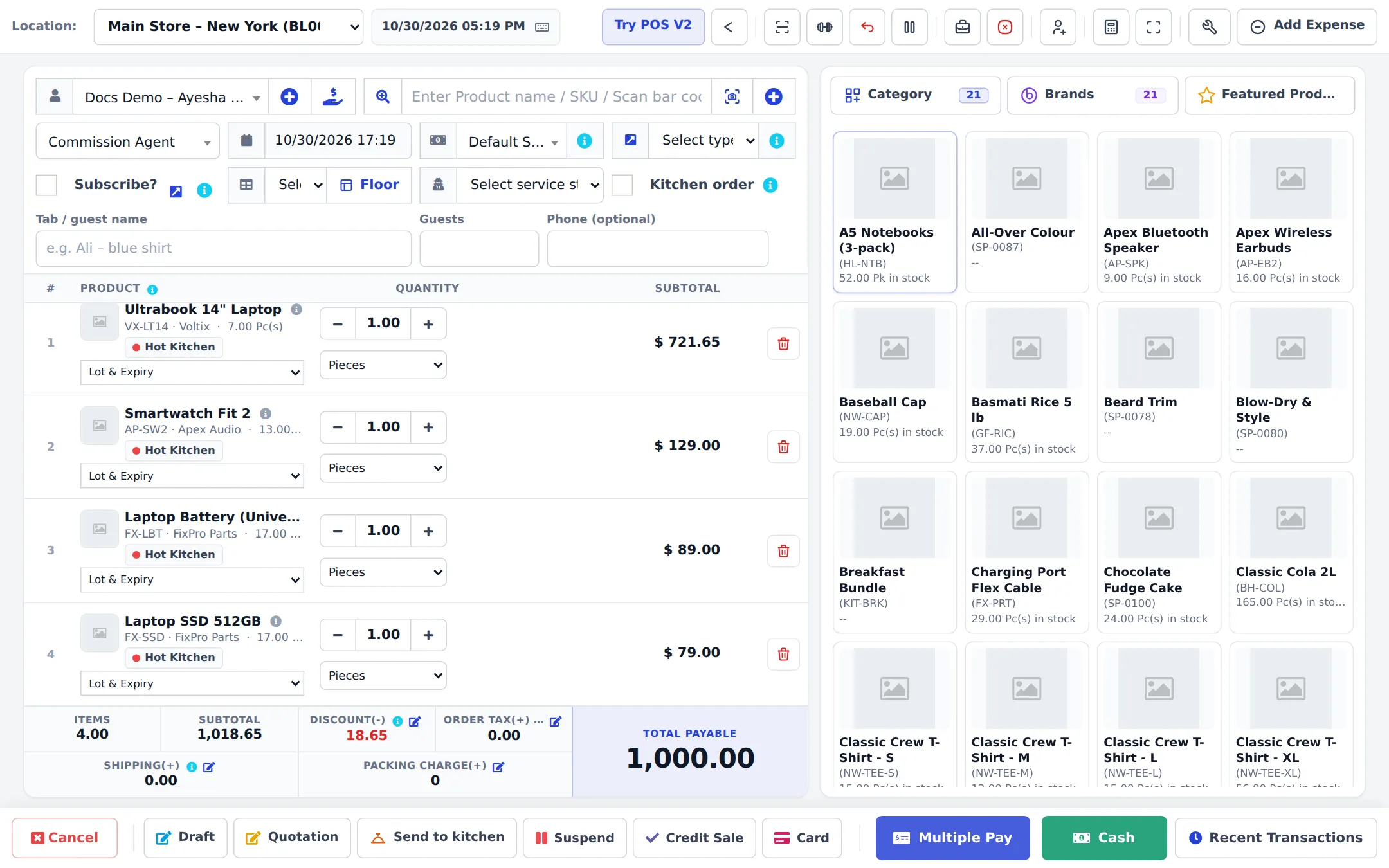
The cart for our credit customer: Total Payable 1,000.00. -
Press Multiple Pay (not Cash — Cash assumes the full amount is paid).
-
In the Payment window type the part the customer pays now in Amount — here 200 — and choose the Payment Method (Cash, Card, Bank Transfer…). If you count notes with Cash Denominations, the amount fills in from the notes.
-
Look at the summary on the right: Total Paying 200.00 and Balance 800.00 (in red). The balance is the part that goes on the customer’s account.
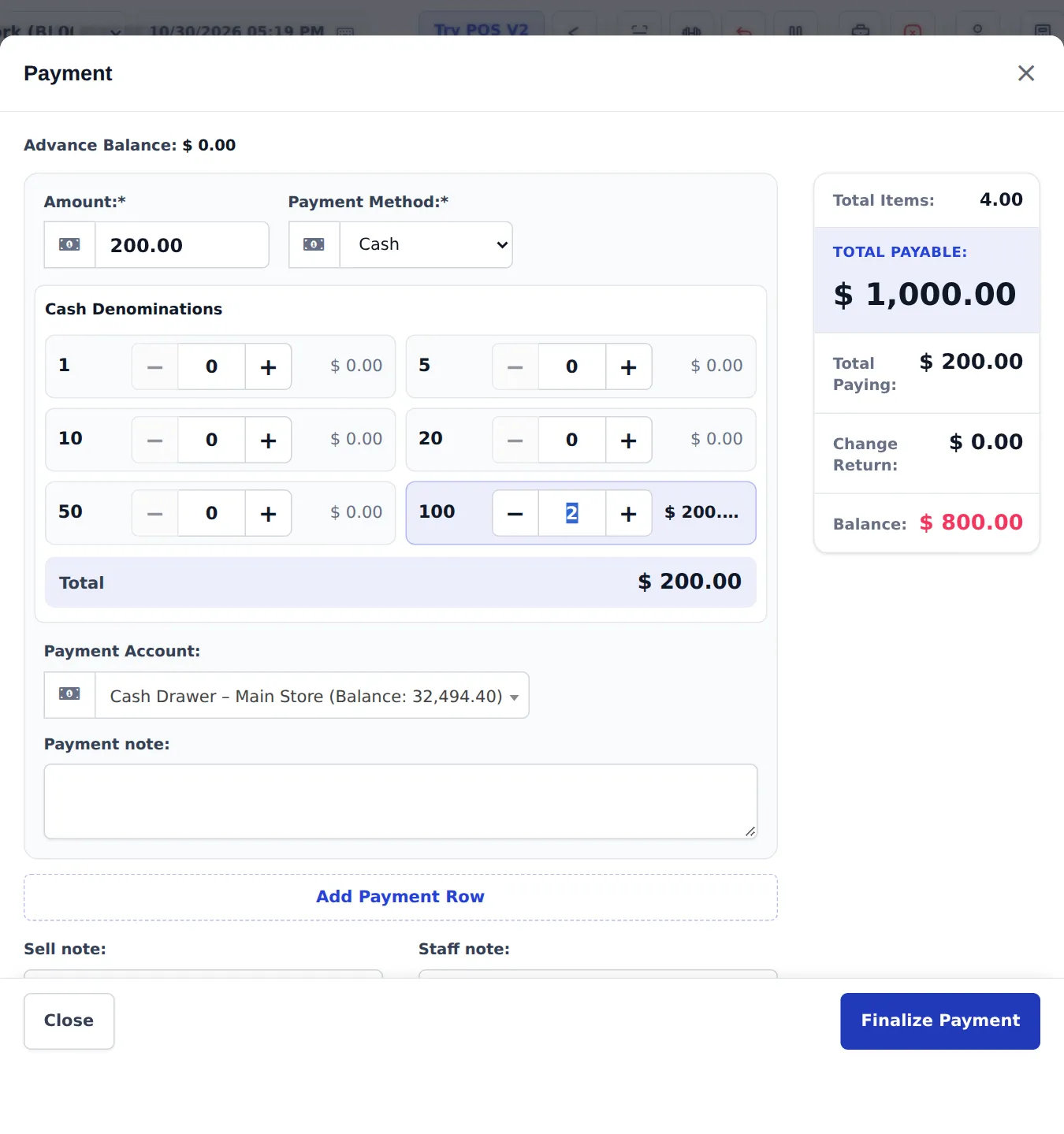
Multiple Pay: 200 paid now, 800 left as due. -
Press Finalize Payment. The POS asks “Paid amount is less than the payable amount. Please press OK to submit the sale.” Press OK.
The sale is saved with payment status Partial: total 1,000, paid 200, sell due 800. The receipt prints as usual and shows the payment and the amount still due.
Full credit: sell with no payment (Due)
Section titled “Full credit: sell with no payment (Due)”-
Pick the customer and add the products, as above.
-
Press Credit Sale in the bottom bar. There is no payment window: the sale is saved straight away with nothing paid.
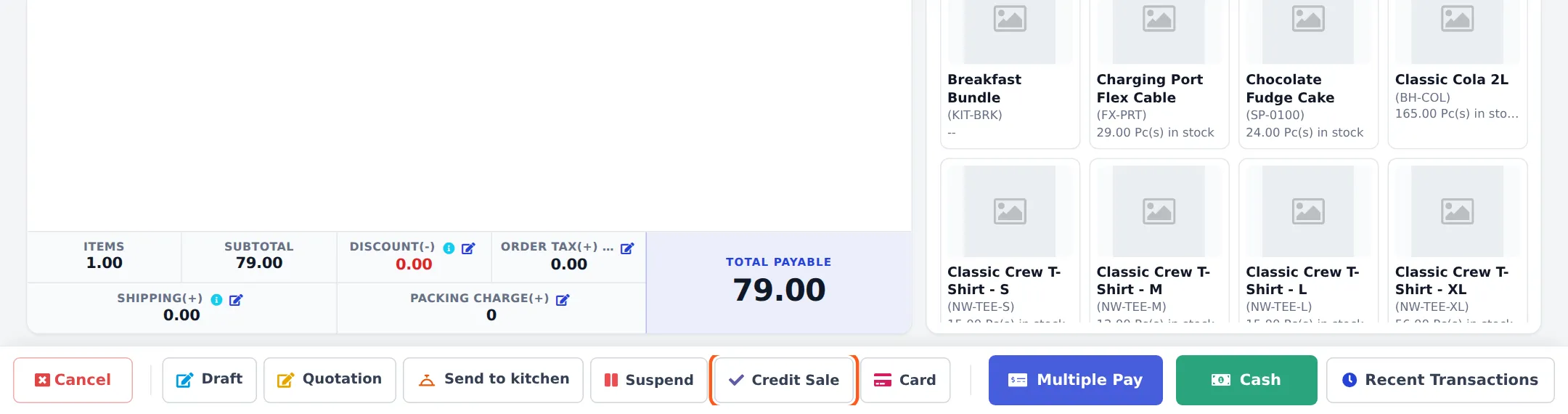
Credit Sale saves the sale with no payment.
The sale gets the status Due and its full amount is added to the customer’s balance due. In the app, the same thing is Pay later (credit).
When the credit limit stops a sale
Section titled “When the credit limit stops a sale”If the new sale would push the customer’s unpaid total above their Credit Limit, SmartPOS Hub refuses to save it and explains why — for example “Limit: 2,000.00 · Already due: 879.00 · This sale: 1,790.95 (would make 2,669.95). Take a payment now, or raise the limit on the customer’s page.”
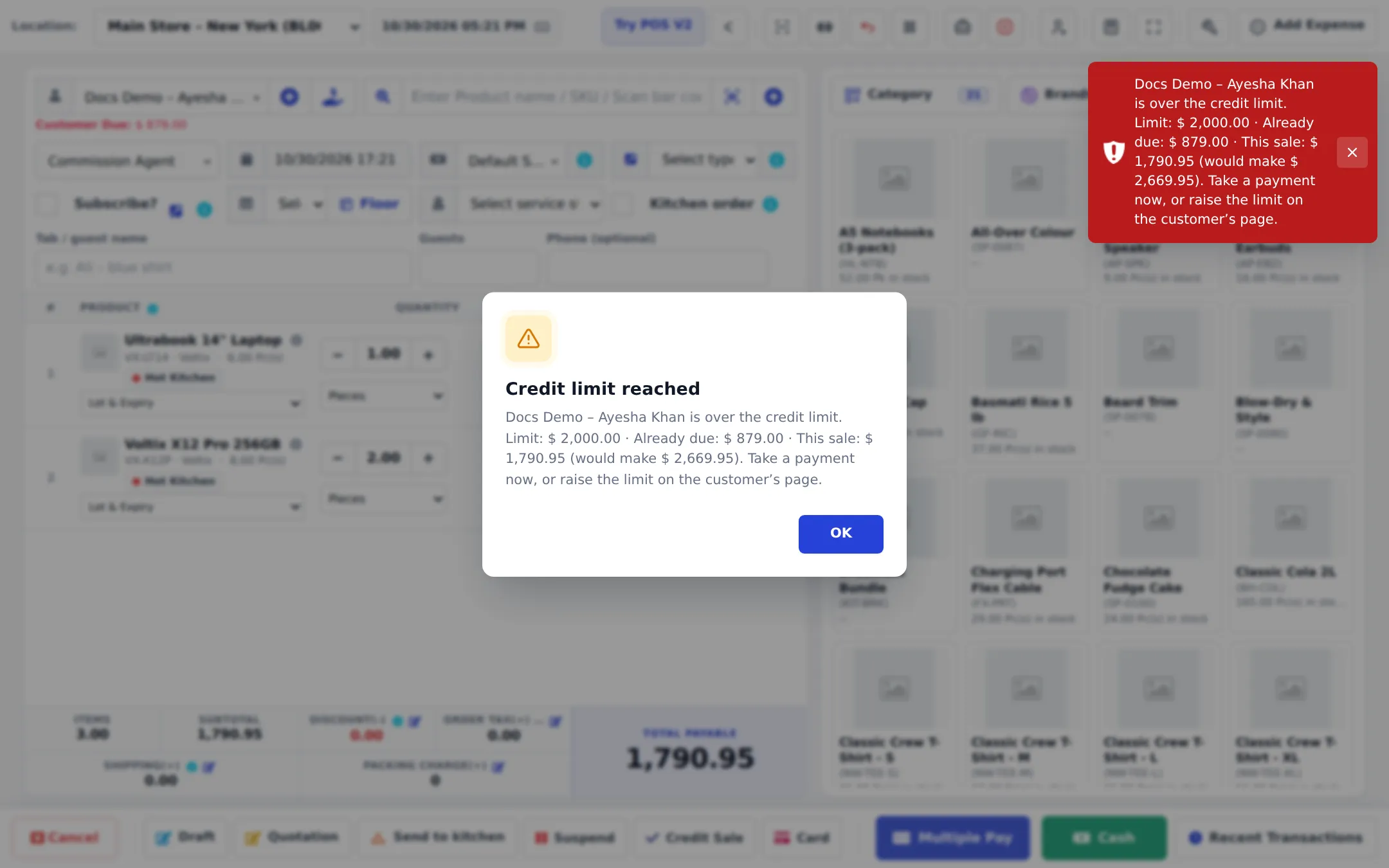
What you can do:
- Take a bigger payment now (Multiple Pay) so the amount left due fits the limit.
- Collect an older due first (see Step 3), then sell.
- Raise the limit: customer page › Edit › Balance & credit › Credit Limit.
Drafts, quotations and sales orders are not checked, because they are not final sales yet. The check counts only unpaid final sales.
Step 2 – Record the 50 % payment on the sale (still Partial)
Section titled “Step 2 – Record the 50 % payment on the sale (still Partial)”Use this when the customer pays for a specific invoice.
-
Go to Sell › All sales. Type the customer’s name in the search box to find their sales. You can see the Payment Status, Total paid and Sell Due of each one.
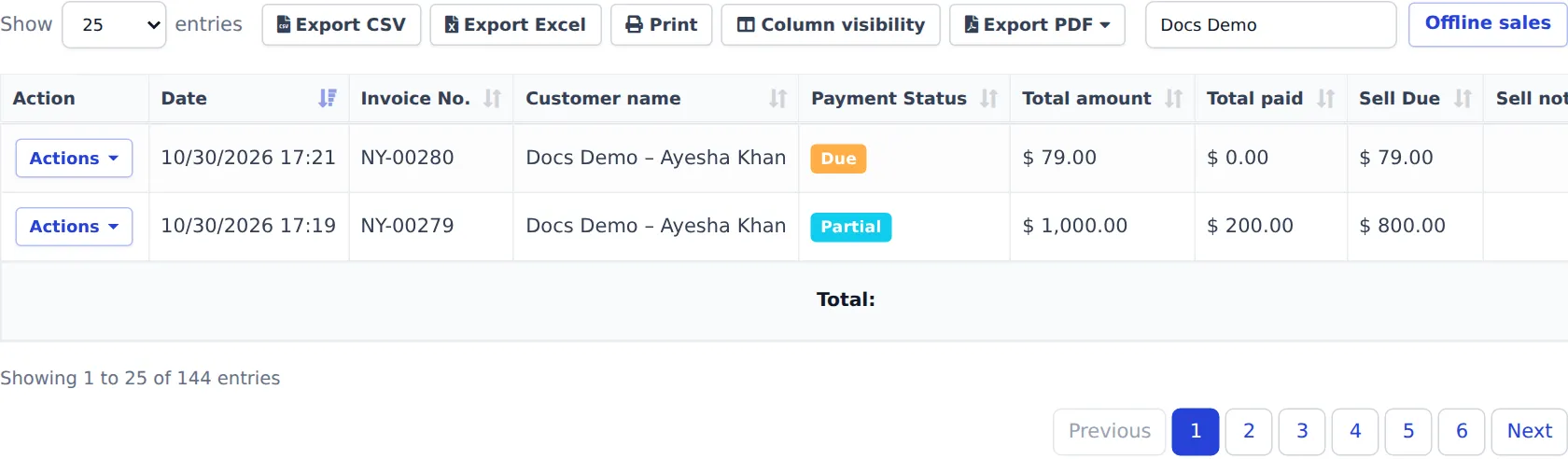
After day 1: one Partial sale and one Due sale. -
On the sale, open Actions › Add payment.
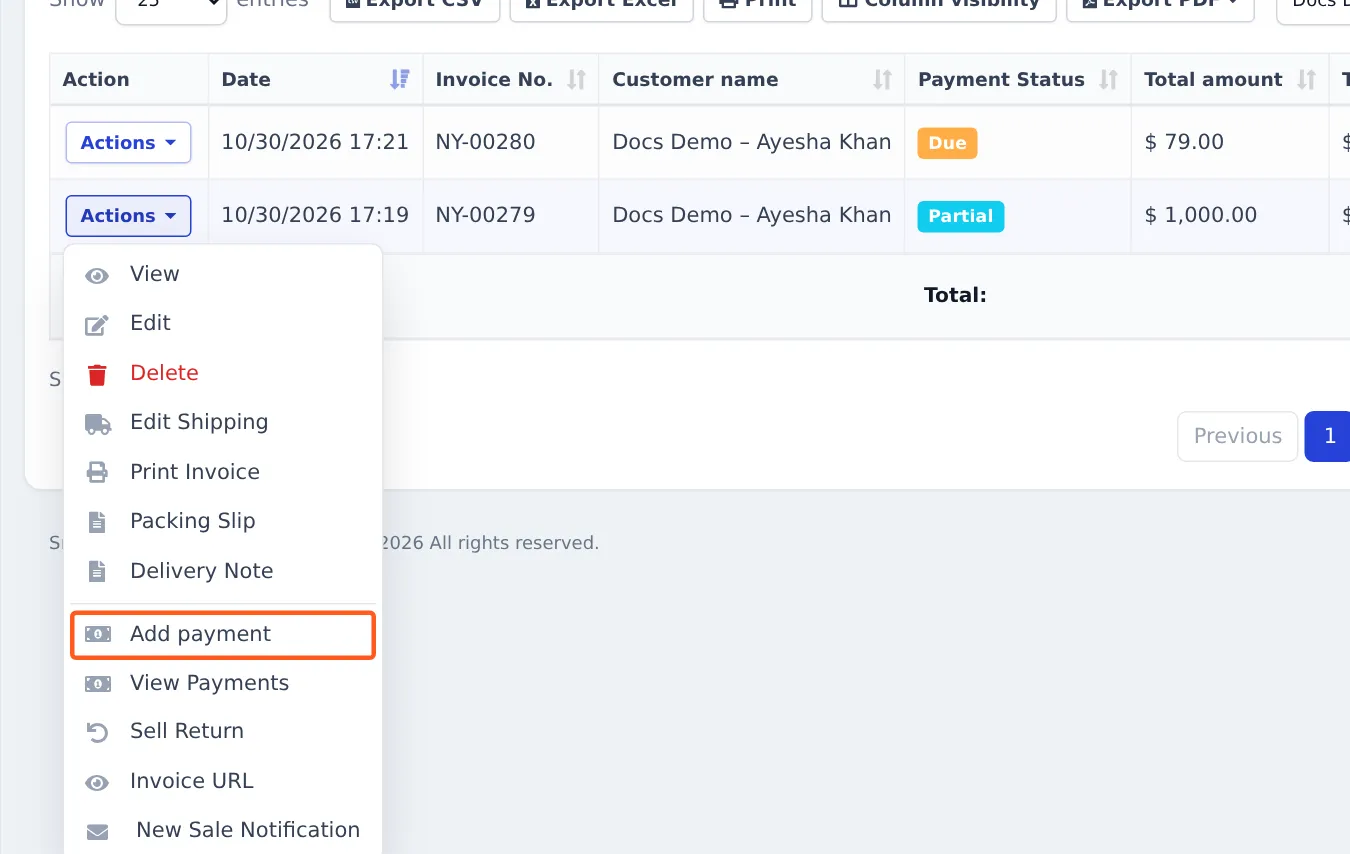
Actions › Add payment on the sale. -
In the Add payment window, check the customer, invoice and total. Then fill in:
- Payment Method — here Bank Transfer (extra fields such as Bank Account No appear for some methods).
- Paid on — the date and time the money arrived.
- Amount — here 500.
- Payment Account — where the money landed (cash drawer, bank account). Optional, but it keeps Payment accounts right.
- Payment Note and Attach Document (for example a bank slip) — optional.
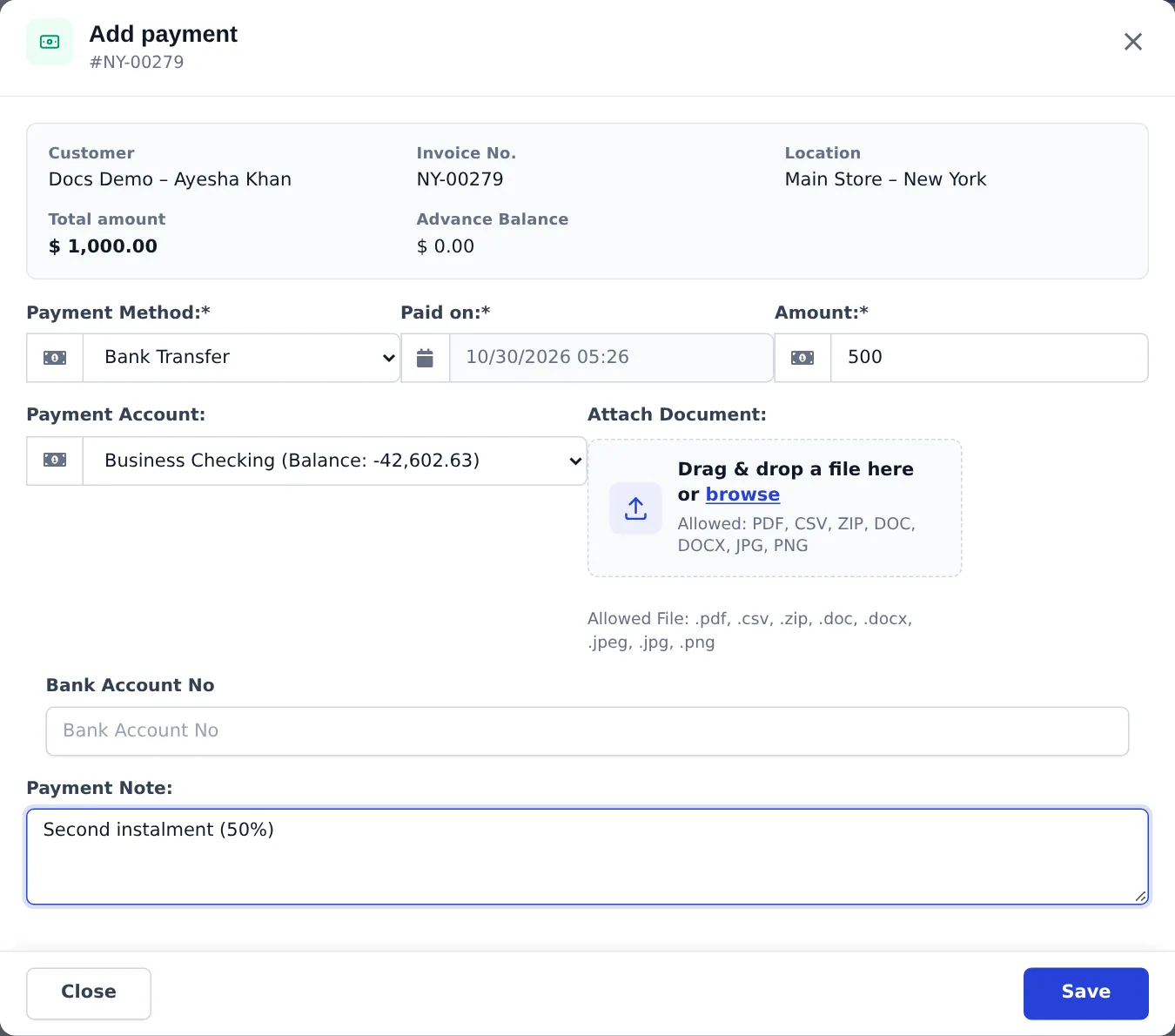
Add payment: the 500 second instalment. -
Press Save.
The sale now shows paid 700, due 300, still Partial. To see every payment of a sale, open Actions › View Payments:
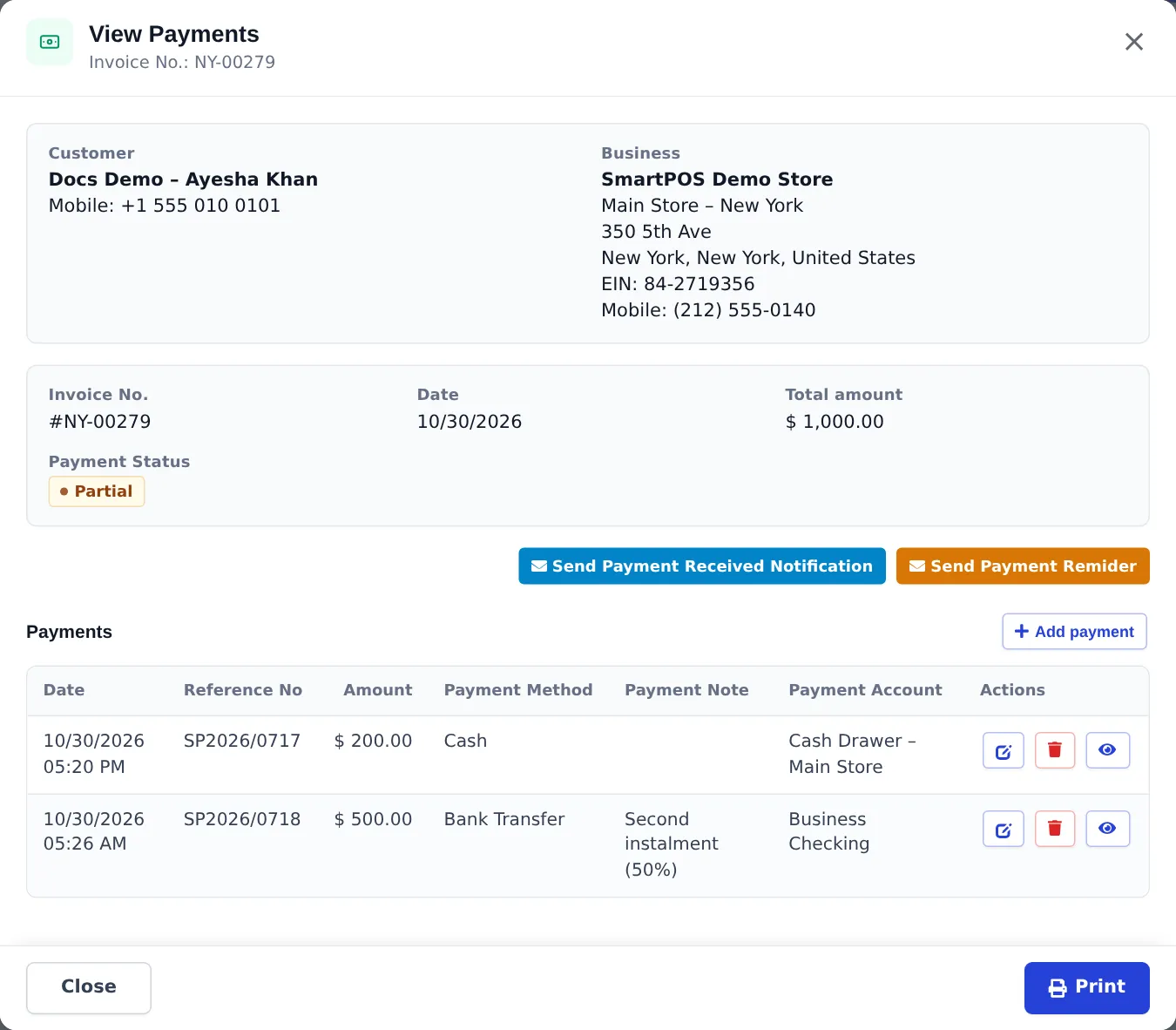
From this window you can also press Send Payment Remider to send the customer a reminder (e-mail or SMS, if set up) or Send Payment Received Notification after a payment.
Step 3 – Collect the rest from the customer page (Paid)
Section titled “Step 3 – Collect the rest from the customer page (Paid)”Use this when the customer comes in and says “I want to pay what I owe”, without naming an invoice.
-
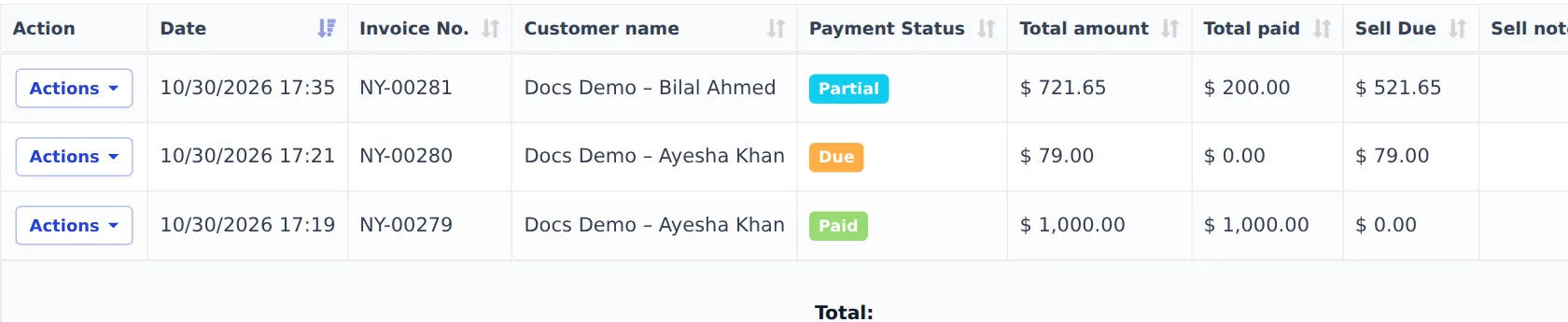
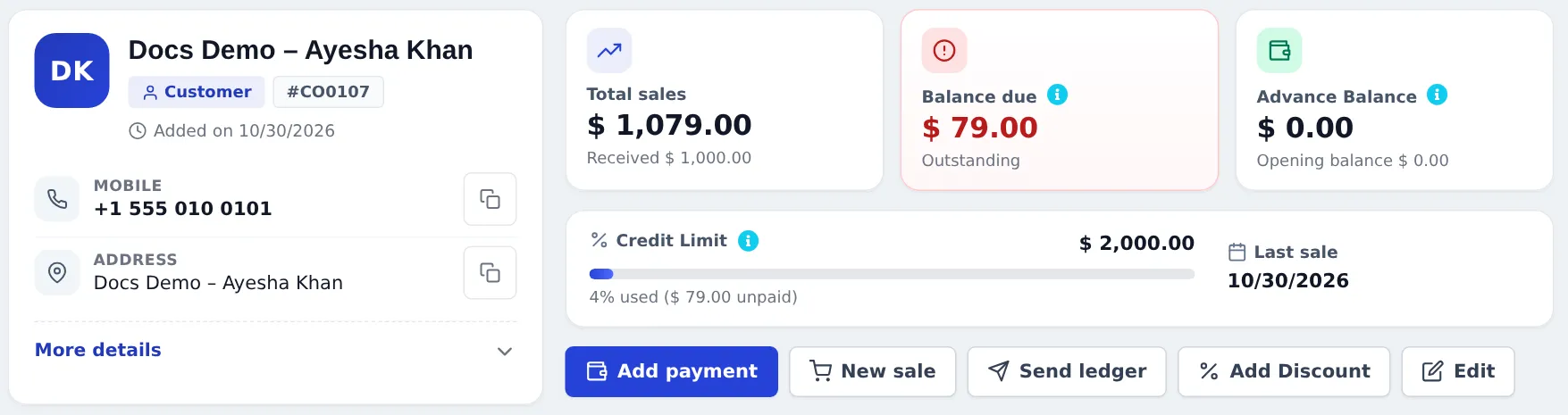
Open the customer: Contacts › Customers, then click the name (or use Switch contact at the top of any contact page). The cards at the top show Total sales, Balance due, Advance Balance and the Credit Limit bar (19% used (379.00 unpaid)).
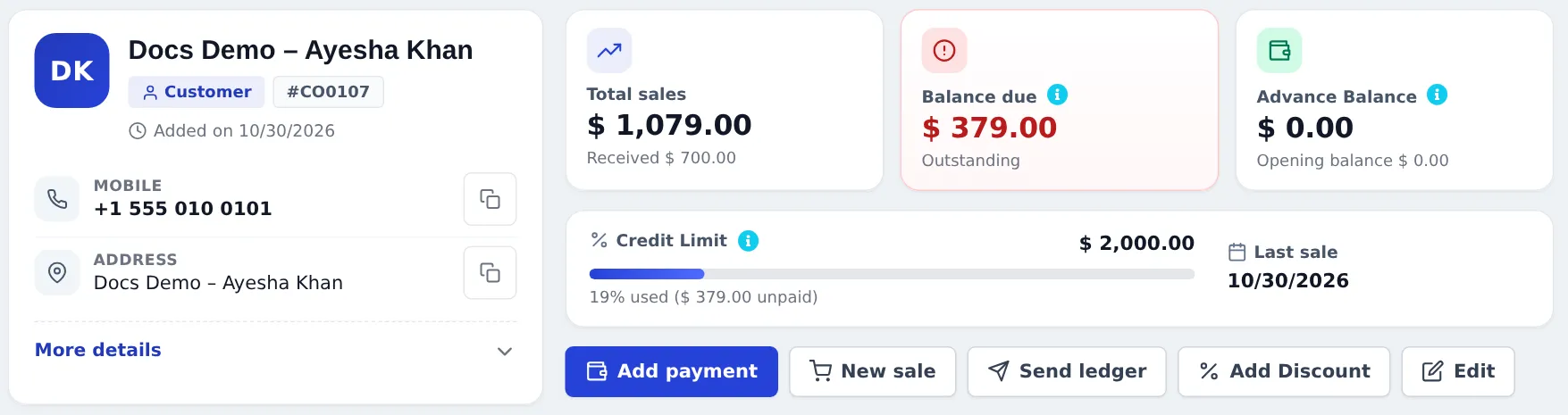
Before the final payment: 379 still due (300 on the first sale + 79 on the credit sale). -
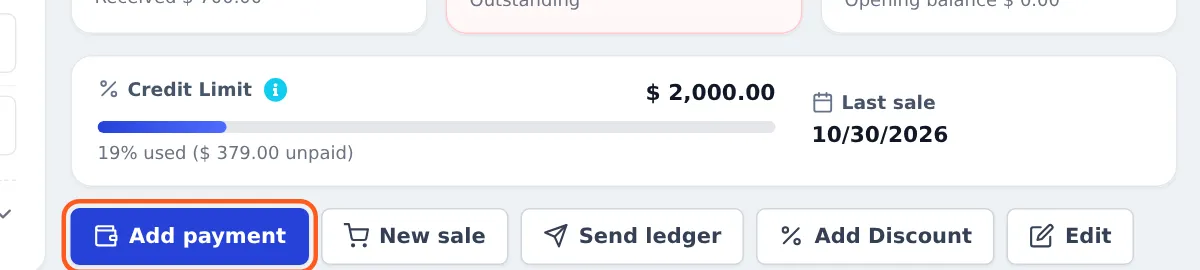
Press Add payment in the quick actions. The same window opens from Contacts › Customers › Actions › Pay, and at the counter from the Receive Payment button (hand icon) next to the customer box in POS V1.
-
The window shows Total Sale, Total Paid, Total Sale Due and the opening balance. The Amount is filled with everything due — change it to what the customer pays now. Here we enter 300, method Cash, account Cash Drawer – Main Store.
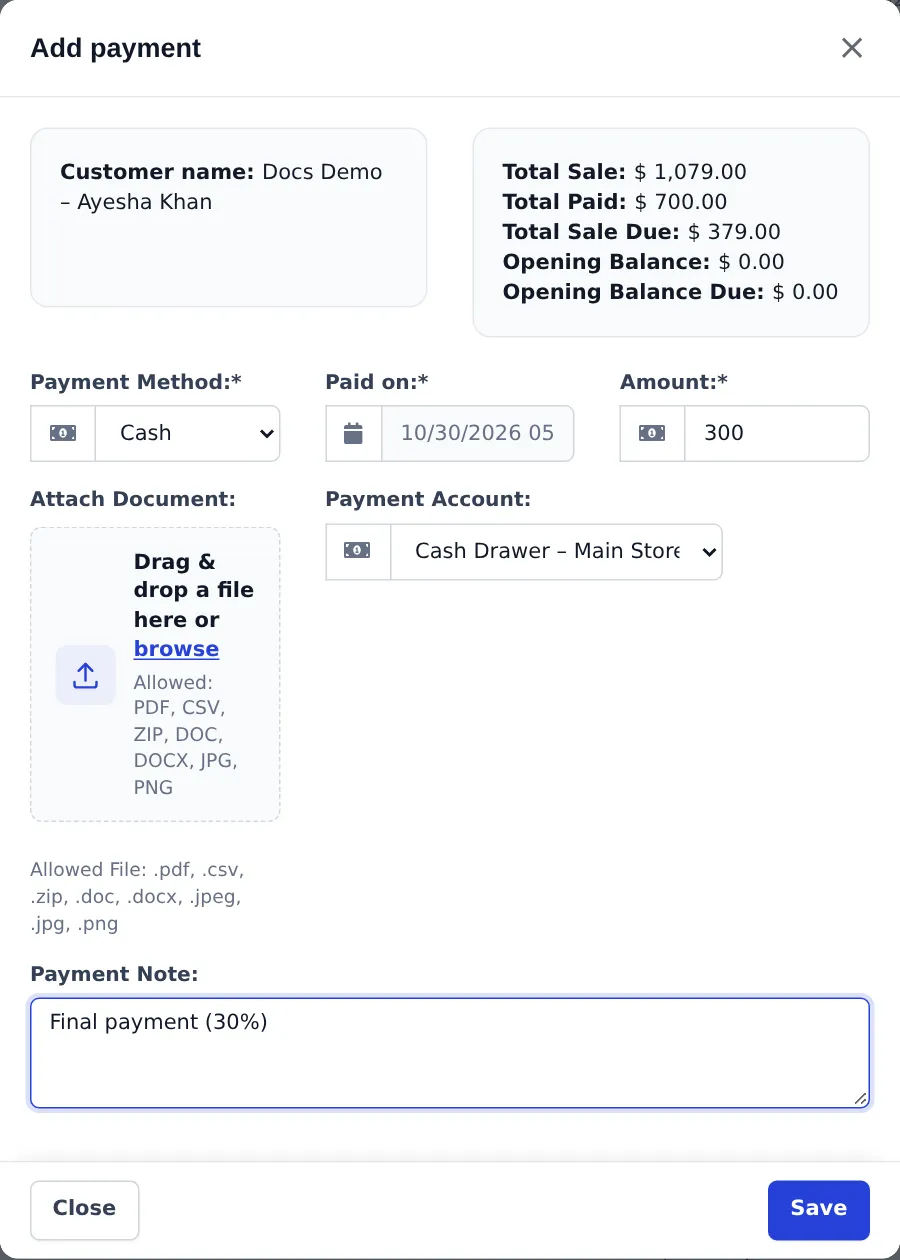
Pay due from the customer page. -
Press Save.
SmartPOS Hub spreads the money over the customer’s oldest unpaid sales first. The 300 covered the rest of the 1,000 sale, which is now Paid; the newer 79 credit sale is still Due.
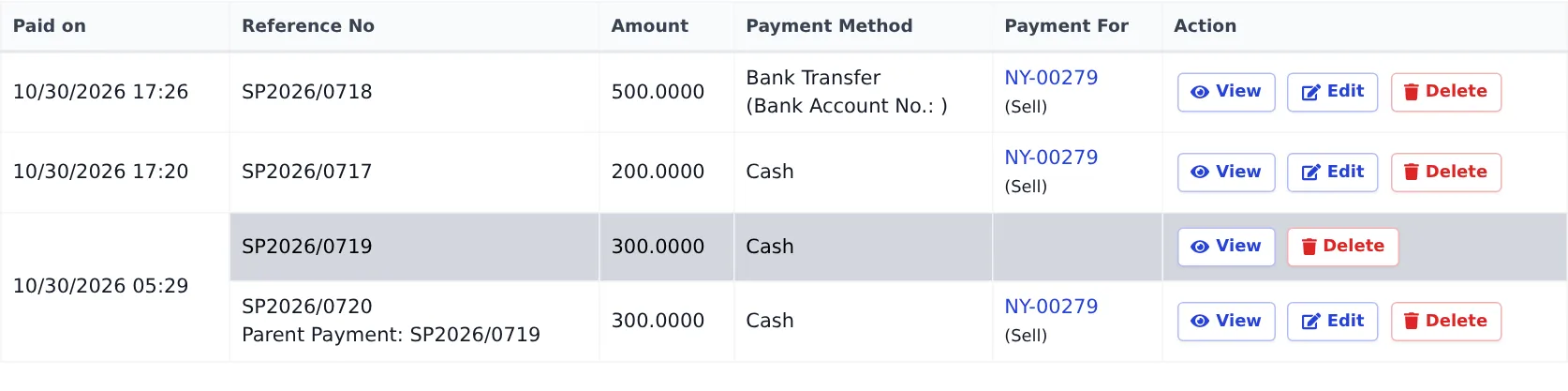
In the customer’s Payments tab, a payment taken this way shows as one parent payment with the part used for each invoice under it (Parent Payment: …):
Check the customer ledger and balance
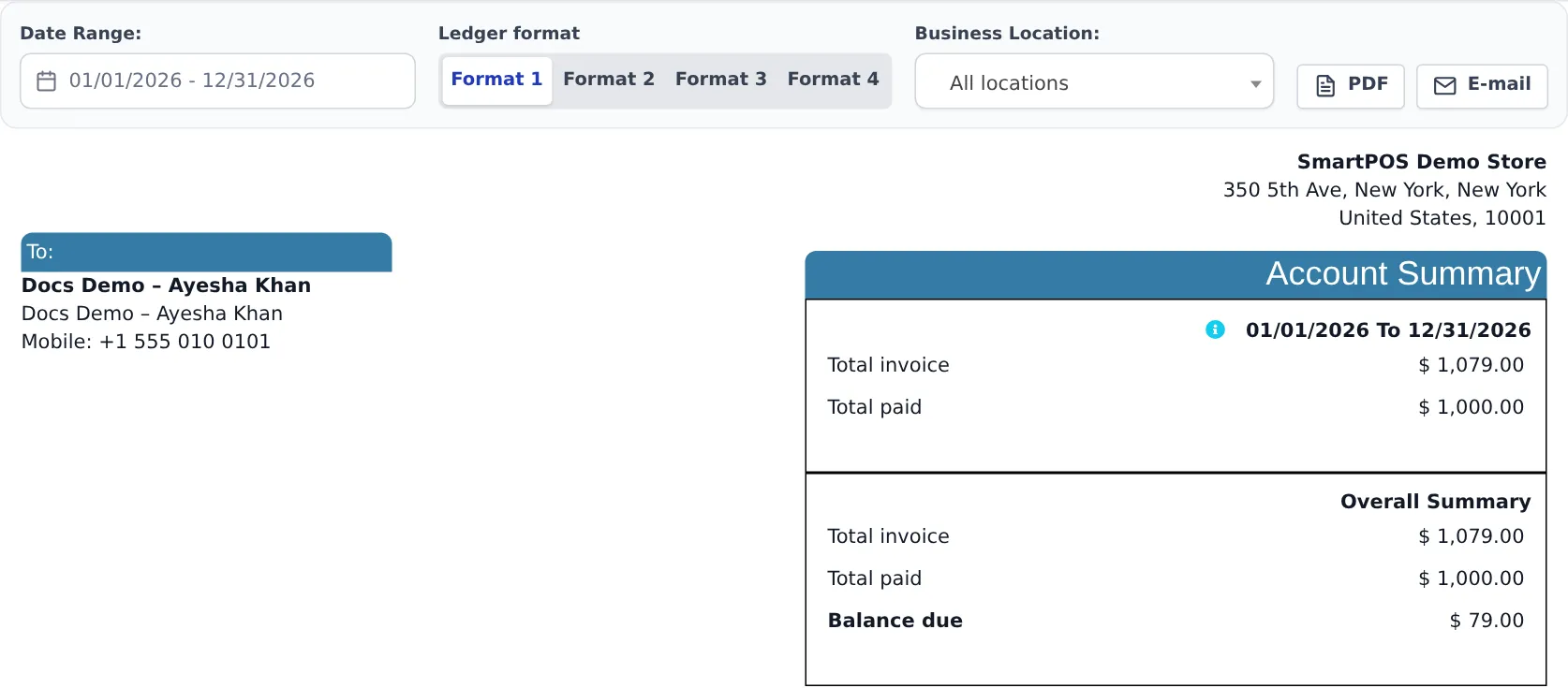
Section titled “Check the customer ledger and balance”Open the customer’s Ledger tab. The Account Summary shows Total invoice, Total paid and Balance due for the chosen dates and overall; the table below lists every sale and payment with debit and credit. Use PDF or E-mail to send it to the customer, and Ledger format to choose the layout.
More: Customer ledger and statements.
What the invoice shows
Section titled “What the invoice shows”The printed invoice (and the online Invoice URL) always lists the payments taken so far and what is still due:
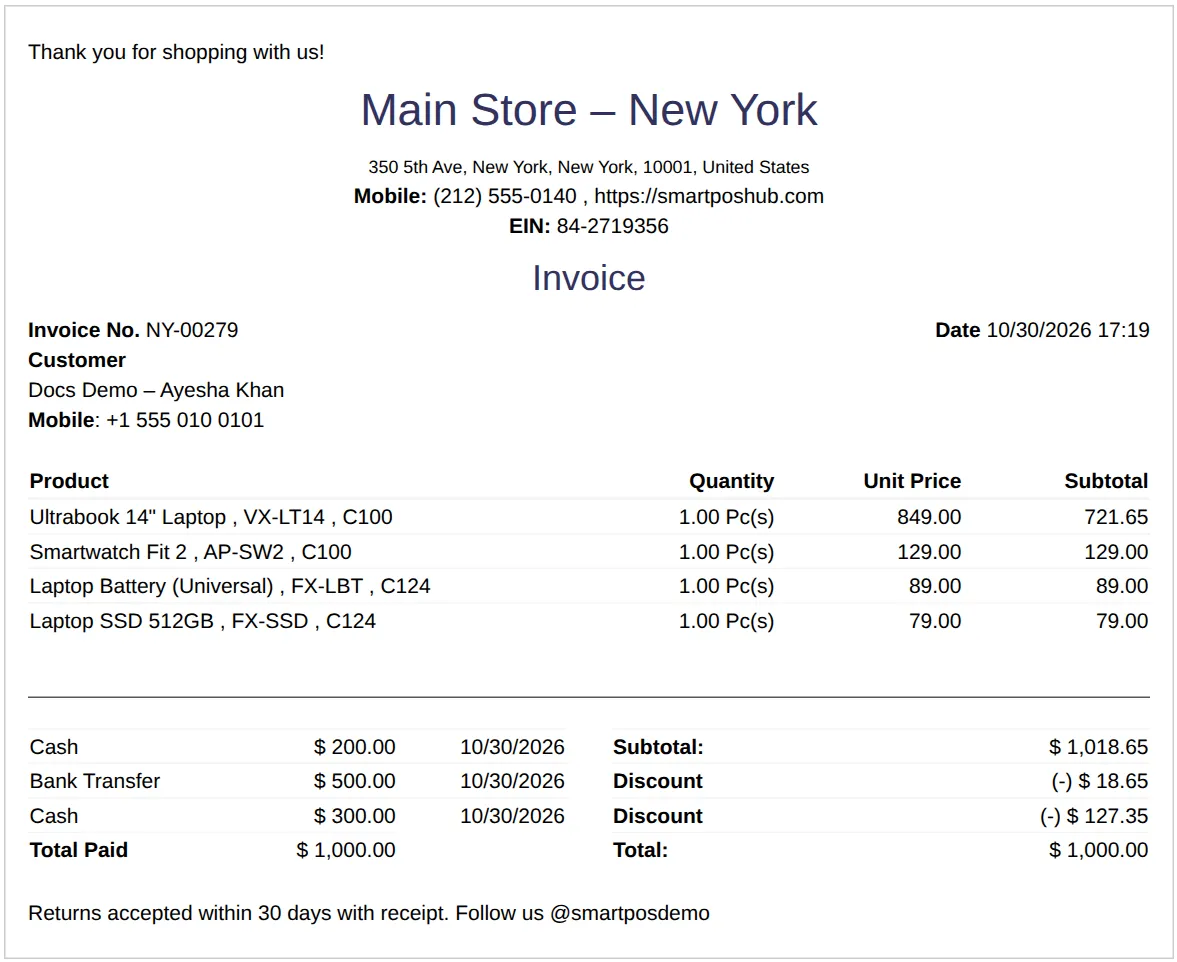
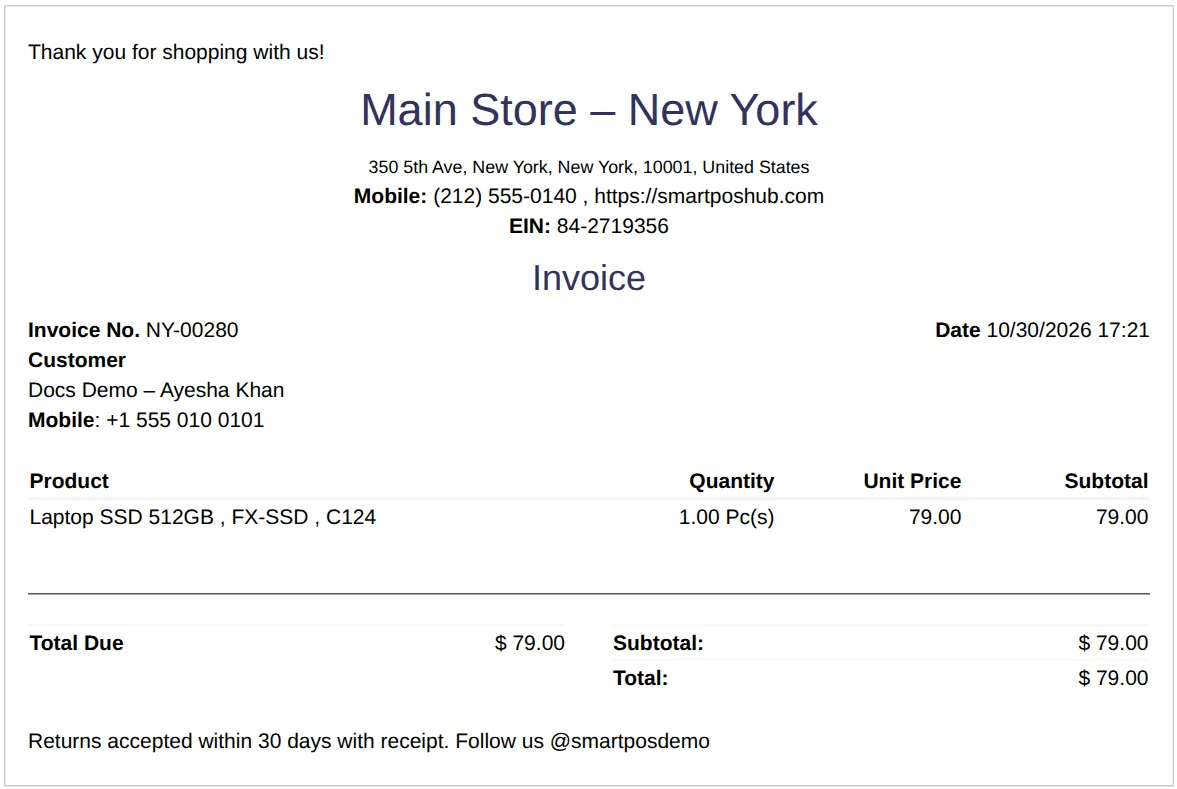
Reprint at any time from All sales › Actions › Print Invoice, so the customer gets an updated copy after each instalment. The invoice layout decides the exact look — see Receipts and invoice layouts.
Advance payments and customer balance
Section titled “Advance payments and customer balance”- Balance due = everything still unpaid: sales, hotel bookings and gym memberships, the opening balance, minus returns, ledger discounts and everything paid. Positive means the customer owes you; negative means you owe them (for example a return that was not refunded yet).
- Advance Balance is money the customer left with you to spend later. It is separate from balance due.
- To take an advance: customer page › Add payment, and enter more than what is due (or pay when nothing is due). The extra is kept as advance.
- To use it: in the POS payment window or in Add payment, choose the method Store credit (advance). The POS shows Advance Balance at the top of the payment window. If the customer doesn’t have enough, you get “Required advance balance not available”.
- Store credit from returns also lands here — see Gift cards and store credit.
Details: Customer credit limits and advances.
Due dates, overdue sales and reminders
Section titled “Due dates, overdue sales and reminders”- The customer’s Pay term (for example 30 days) sets when a sale becomes overdue. You can also set a pay term on a single sale in Sell › Add Sale.
- Find overdue sales: Sell › All sales › Filters › Payment Status › Overdue. The home dashboard has a Sales Payment Due list.
- Reports › Payment by Age groups unpaid invoices by how many days they are late (1–15, 15–30 … 90+). See Sales reports.
- Send a reminder from View Payments › Send Payment Remider, or let SmartPOS Hub send it automatically when an invoice becomes overdue: open Notification Templates in the sidebar, pick the payment reminder template and switch on Auto Send Email or Auto Send SMS. Messages go out by e-mail or SMS only when those are set up for your business.
- The customer can also see their invoices, payments and statement in the customer portal.
Online orders and the Shopper app
Section titled “Online orders and the Shopper app”Shoppers cannot choose “buy on credit” in your online store or the SmartPOS Shopper app; they can only use the payment options you switched on (see Payments for online orders). Orders paid later — for example cash on delivery or pay at pickup — arrive as sales that stay Due until you record the payment, exactly as above. If you want a regular customer to pay online, send them the invoice link (Actions › Invoice URL); when invoice payment links are set up in Settings › Payments, they can pay it there. See Payment methods.
In the SmartPOS Business app
Section titled “In the SmartPOS Business app”The same credit flow works on the phone:
- Sell: in the payment screen, enter less than the Amount due (it shows “… will be due”) or choose Pay later (credit) — “The balance is added to the customer’s account.” If the sale goes above the customer’s credit limit you see Over the credit limit, and the server refuses it just like the web POS.
- Collect on a sale: open the sale (Partly paid badge, Paid and Due amounts) and tap Add payment.
- Collect from the customer: open the customer and tap Receive payment. The header explains the balance in plain words — Customer owes you, You owe this customer or All settled — with What makes up this balance, and the credit limit bar.
- Send the ledger: customer › Ledger › Export (PDF, Excel or CSV, any period) and share it on WhatsApp or e-mail.
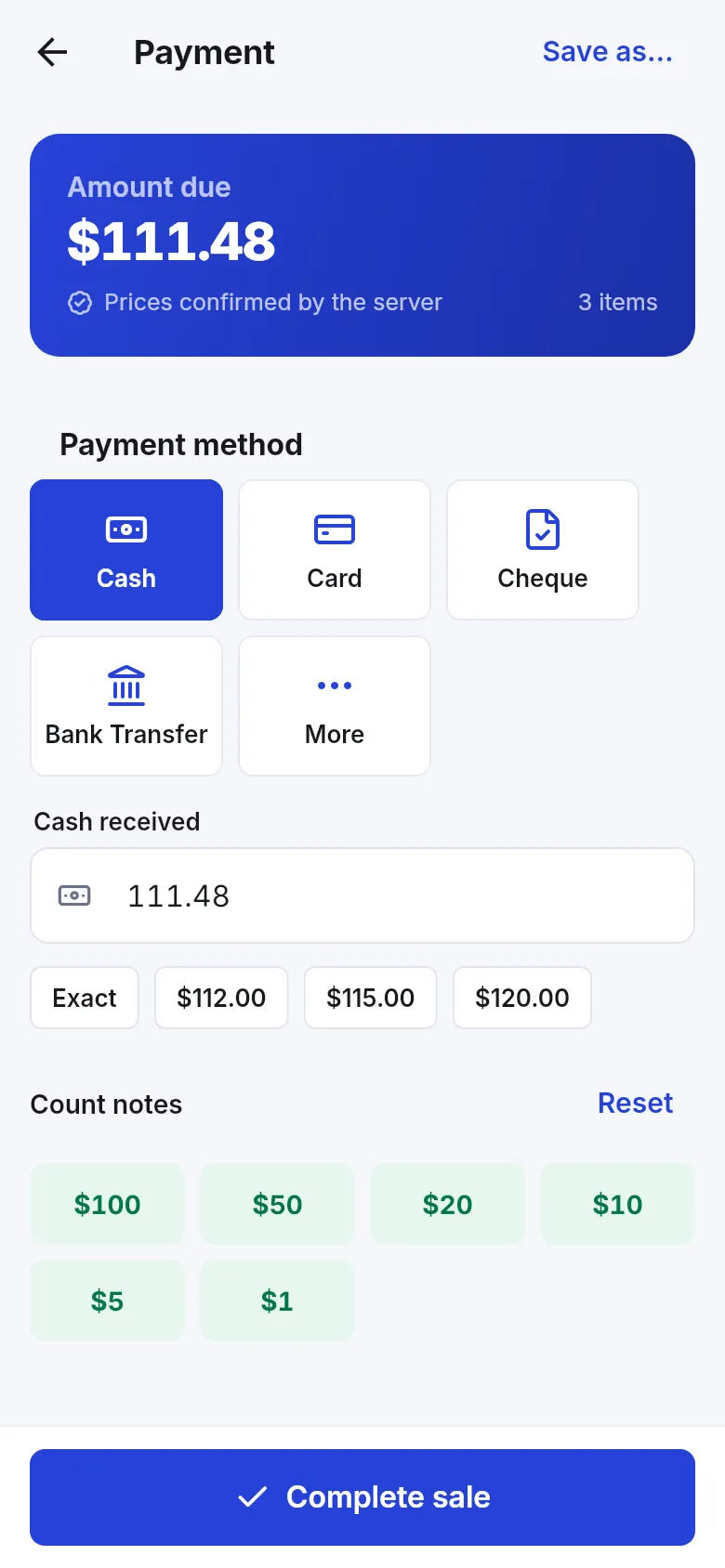
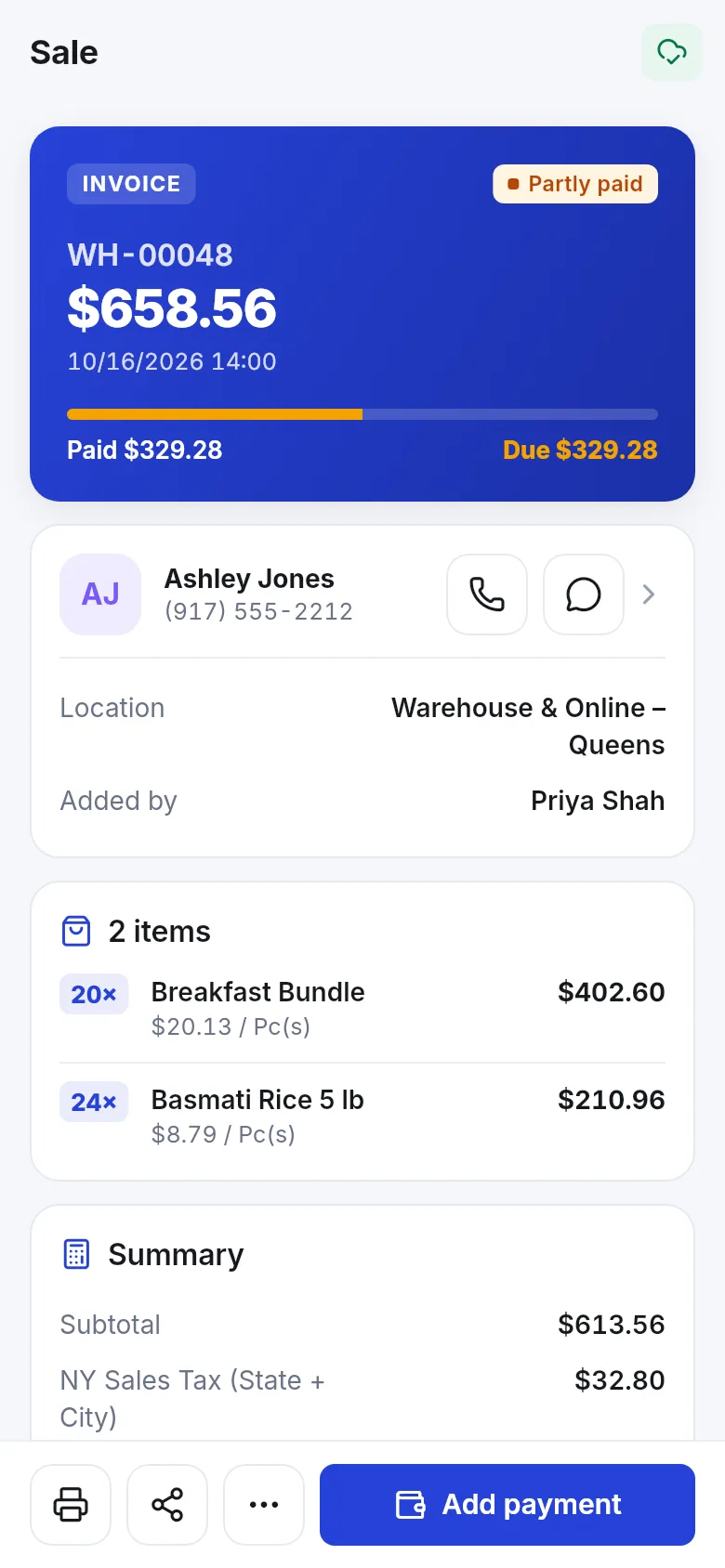
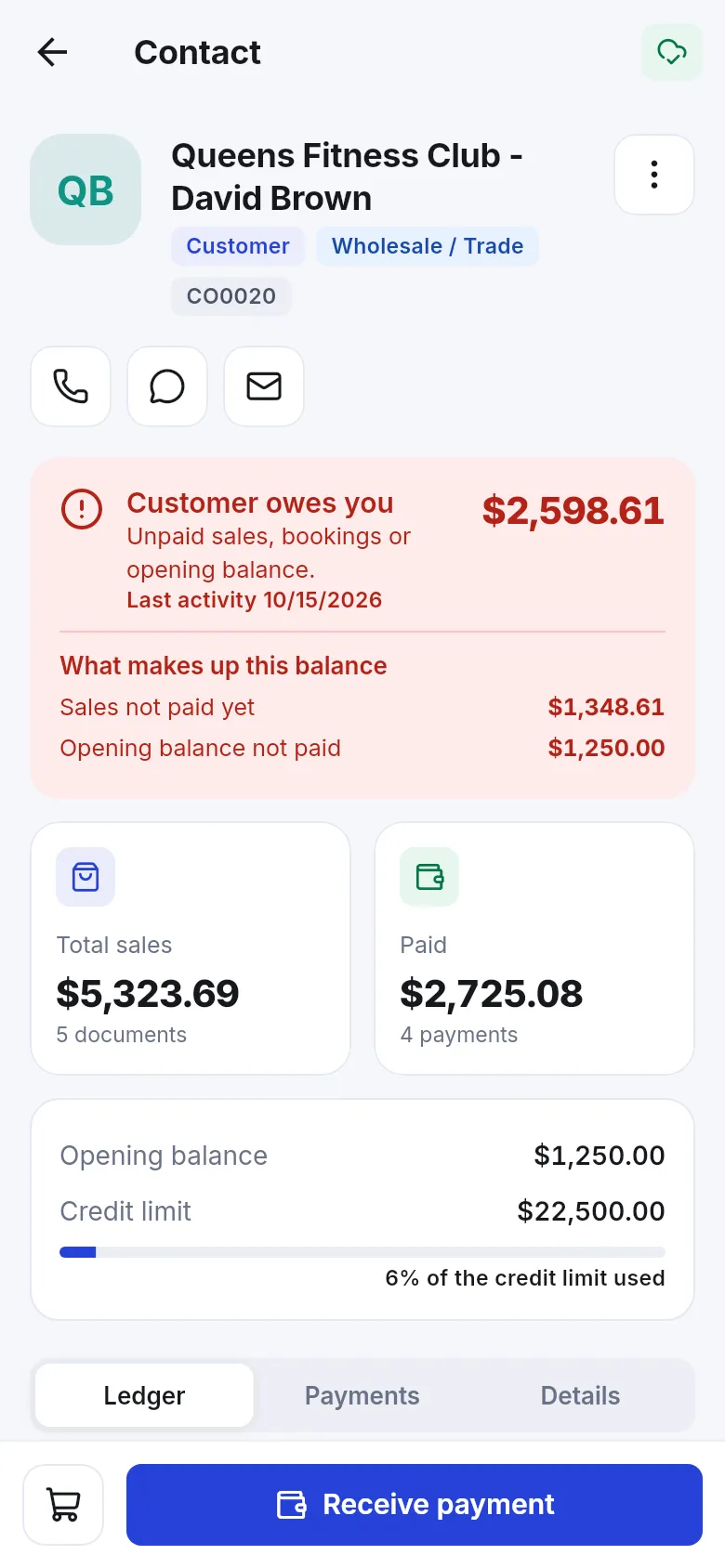
More: Customers and ledger in the app.
The supplier side
Section titled “The supplier side”Buying on credit from a supplier works the same way in reverse: a purchase can be saved unpaid or part-paid, its payment status is Due / Partial / Paid, and you pay later with Add payment on the purchase or Pay on the supplier. See Supplier payments and credit.
Tips and mistakes to avoid
Section titled “Tips and mistakes to avoid”- Don’t press Cash for a part payment. Cash finishes the sale as fully paid. Use Multiple Pay and type the amount.
- Pick the right date in Paid on. Payments count in reports and the cash register on that date.
- Choose a Payment Account for every payment, so cash drawer and bank balances match.
- Use the customer page for lump sums, the sale’s Add payment for one invoice. Both update the same balance.
- Wrong payment? Fix it in View Payments (edit or delete) instead of adding a negative payment.
- Set credit limits for customers who buy on credit often — it is the only automatic stop.
Related pages
Section titled “Related pages”Frequently asked questions
Can a customer take goods with no payment at all?
Yes. Pick the customer at the POS and press Credit Sale. The whole amount is saved as due on the customer's account and the sale shows the status Due. Walk-In Customer cannot buy on credit, so add the customer first.
Can a customer pay in three instalments, for example 20 %, 50 % and 30 %?
Yes. Take the first amount in the Multiple Pay window, then record each later amount with Add payment on the sale or Add payment on the customer page. The status moves from Partial to Paid when the last amount is in.
What is the difference between Due, Partial and Paid?
Due means nothing has been paid yet, Partial means some money was received and a balance is left, and Paid means the full total was received. The status updates by itself every time you record a payment.
Why did the POS block my credit sale?
The customer has a credit limit and this sale would push the unpaid total above it. The message shows the limit, what is already due and what this sale would add. Take a payment now, or raise the limit on the customer's page.
Which button should I use for a later payment, Add payment on the sale or on the customer?
Use Add payment on the sale when the customer pays for one specific invoice. Use Add payment on the customer page (or Pay in the customers list) when they pay a lump sum; it is spread over their oldest unpaid invoices first.
What happens if the customer pays more than they owe?
When you take the payment from the customer page, any amount above what is due is kept as advance balance. You can use it on the next sale with the payment method Store credit (advance).
Do part-paid sales count in my sales reports?
Yes. A sale counts as revenue on the sale date for its full total. The money received shows in the payment reports and the cash register on the day each payment is taken, and the unpaid part stays in receivables until it is paid.
Can I do credit sales from the SmartPOS Business app?
Yes. In the app's payment screen choose Pay later (credit), or enter less than the total. Later, open the customer and tap Receive payment, or open the sale and tap Add payment.