
Record a purchase and add stock from a supplier
A purchase is how stock you buy from a supplier enters SmartPOS Hub. This page shows owners and store managers how to record a purchase, choose the receiving location, enter costs, lot numbers and expiry dates, and leave part of the bill unpaid so you can settle it later.
Before you start
Section titled “Before you start”- You have at least one supplier in Contacts › Suppliers (you can also add one from the purchase form with the + button).
- Your products exist (see Add products). The Add new product button on the purchase form creates one on the spot.
- Your role has the Add purchase permission (User Management › Roles, group Purchase). To record payments, it also needs Add purchase payment.
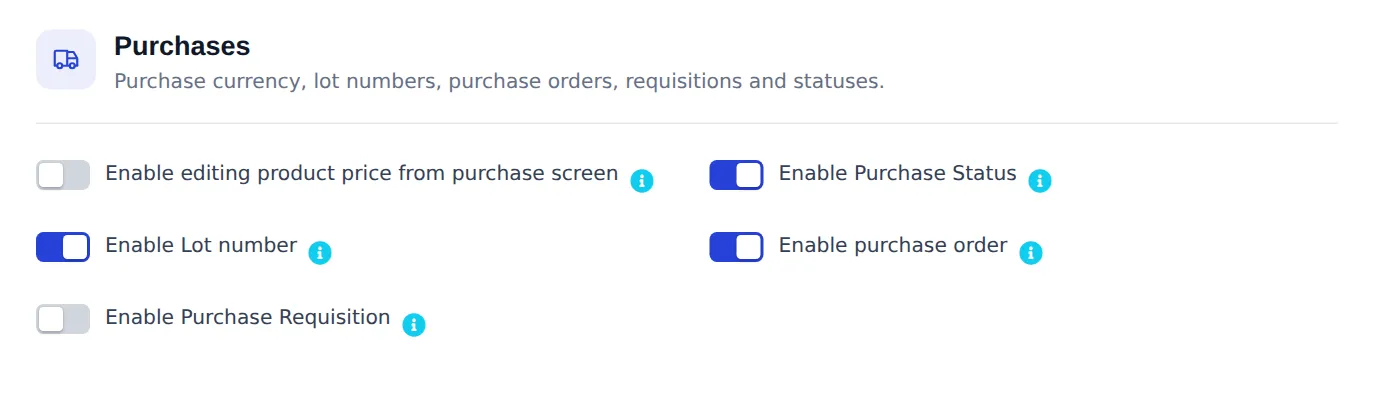
- Optional switches live in Settings › Business Settings › Purchases: Enable Purchase Status, Enable Lot number, Enable purchase order, Enable Purchase Requisition and Enable editing product price from purchase screen.
Record a purchase
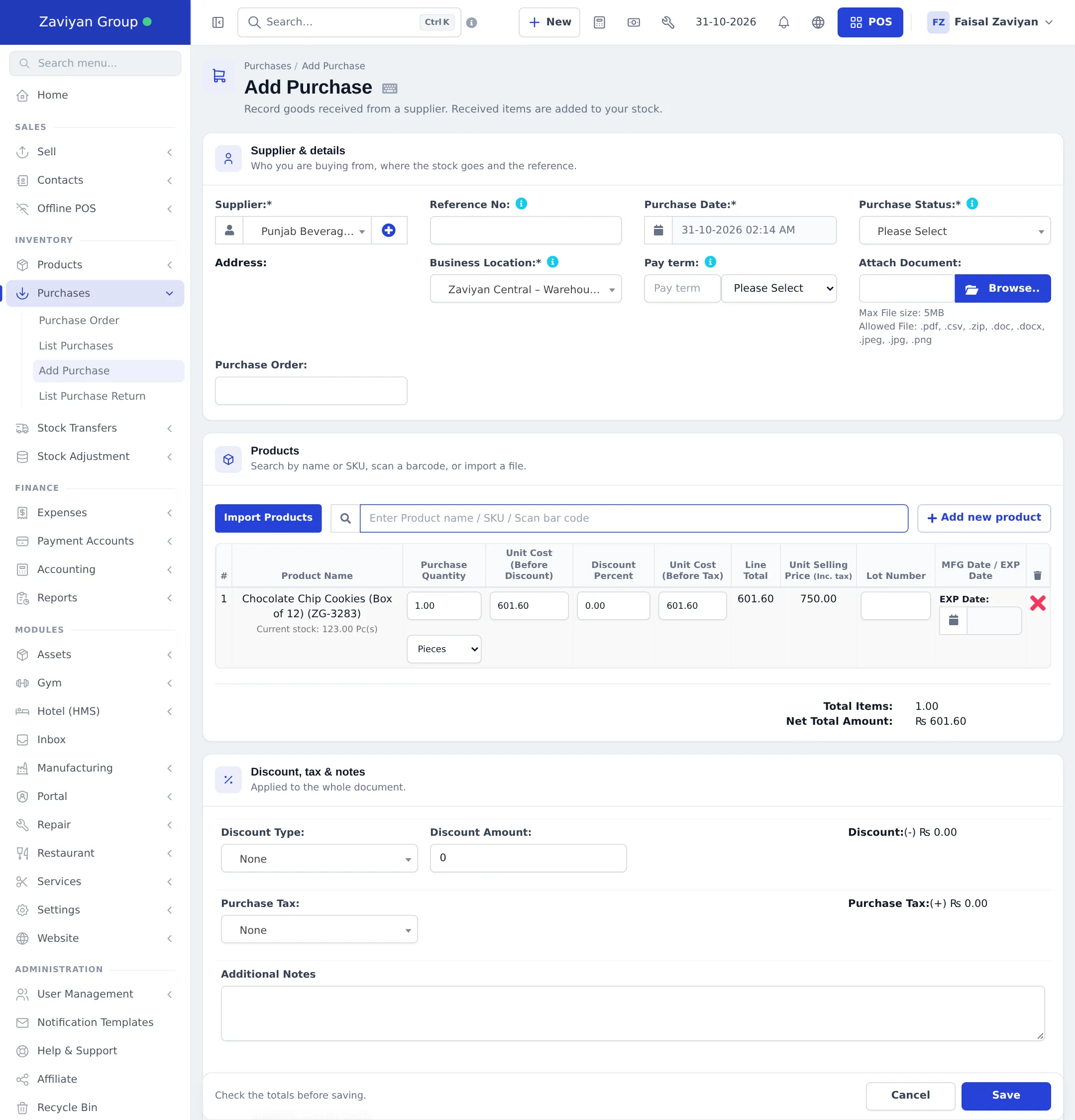
Section titled “Record a purchase”- Open Purchases › Add Purchase (or + New › Add Purchase in the top bar).
- Under Supplier & details, pick the Supplier. Leave Reference No empty to get the next number automatically.
- Check the Purchase Date, then choose the Purchase Status:
- Received: the goods are in. Stock goes up as soon as you save.
- Ordered or Pending: the bill is recorded, but stock does not change yet.
- Choose the Business Location that receives the goods. In a multi-location business this decides which branch’s stock goes up.
- Optional: set a Pay term (for example 30 days) so you can see when the bill is due, attach the supplier’s invoice under Attach Document, and link a Purchase Order if you ordered these goods earlier (Purchase orders).
- Under Products, type a product name or SKU, or scan its barcode, in Enter Product name / SKU / Scan bar code. Each product becomes a line. To load many lines at once, use Import Products and fill the template.
- On each line, enter the Purchase Quantity (switch the unit, for example from pieces to a box, if the product has sub-units), the Unit Cost (Before Discount) and any Discount Percent. If lots or expiry are switched on, fill Lot Number and EXP Date too.
- Under Discount, tax & notes, add a bill-level discount or Purchase Tax if the supplier charged one. Add freight or loading costs in Shipping & extra costs.
- Under Add payment, enter what you paid now, the Payment Method and, if you use them, the Payment Account. Enter 0 if you are buying on credit.
- Click Save.
What happens after you save
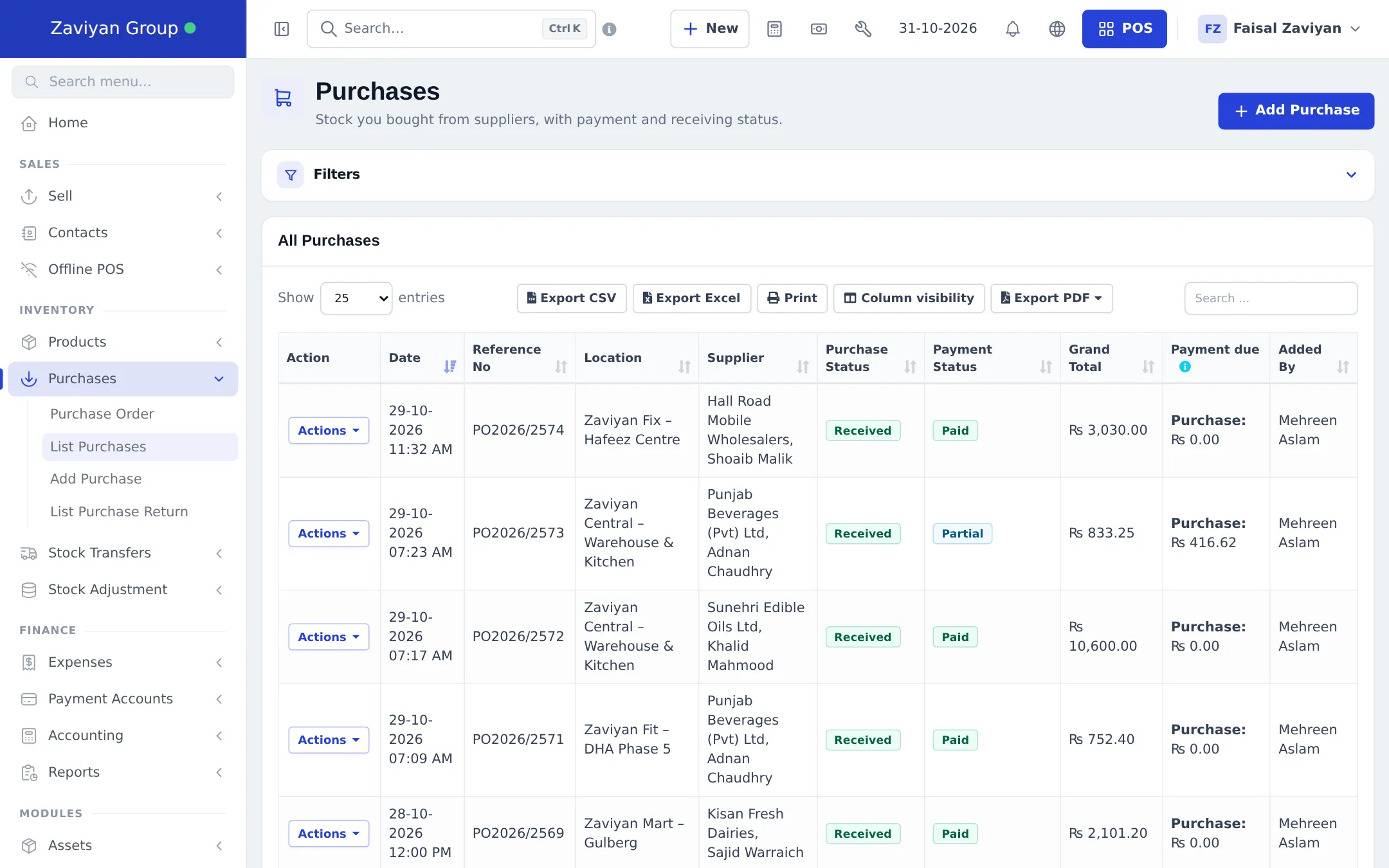
Section titled “What happens after you save”- With status Received, the quantity is added to the chosen location and the line cost becomes the product’s latest purchase price (used for profit reports).
- The purchase appears in Purchases › List Purchases with its Purchase Status, Payment Status (Paid, Partial or Due) and Payment due.
- What you did not pay is added to the supplier’s Balance due. See Supplier payments and credit.
View, edit or change a purchase
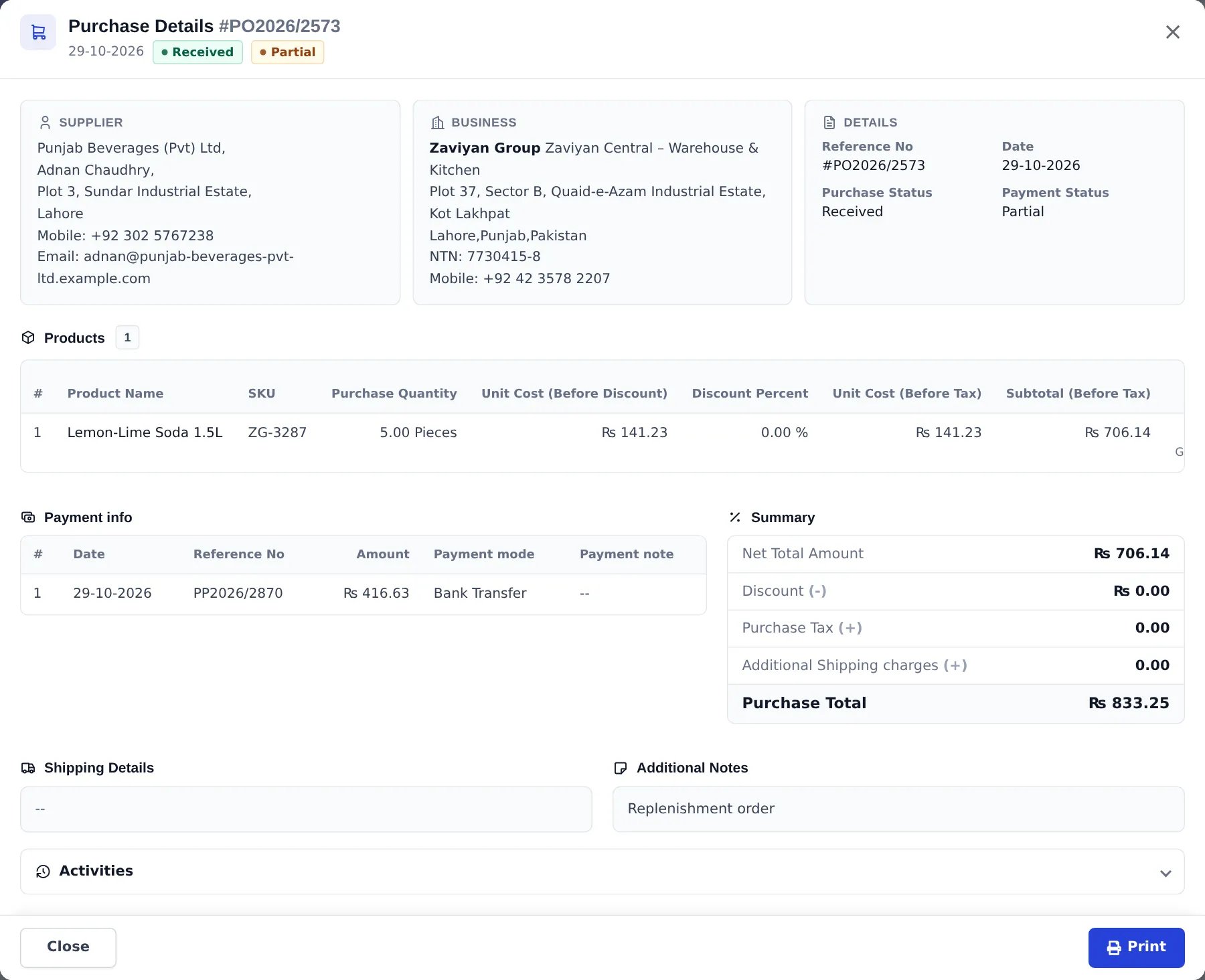
Section titled “View, edit or change a purchase”Open Actions on any row of List Purchases:
| Action | What it does |
|---|---|
| View | Opens the purchase: supplier, business, products, payments, totals, notes and activity history. Print gives a copy for your files. |
| Edit | Change lines, prices or status. Stock is recalculated. |
| Add payment / View payments | Pay the supplier now or see earlier payments. |
| Update Status | Change Ordered or Pending to Received when the goods arrive. |
| Purchase Return | Send some or all items back to the supplier. |
| Labels | Print barcode labels for the items you just received. |
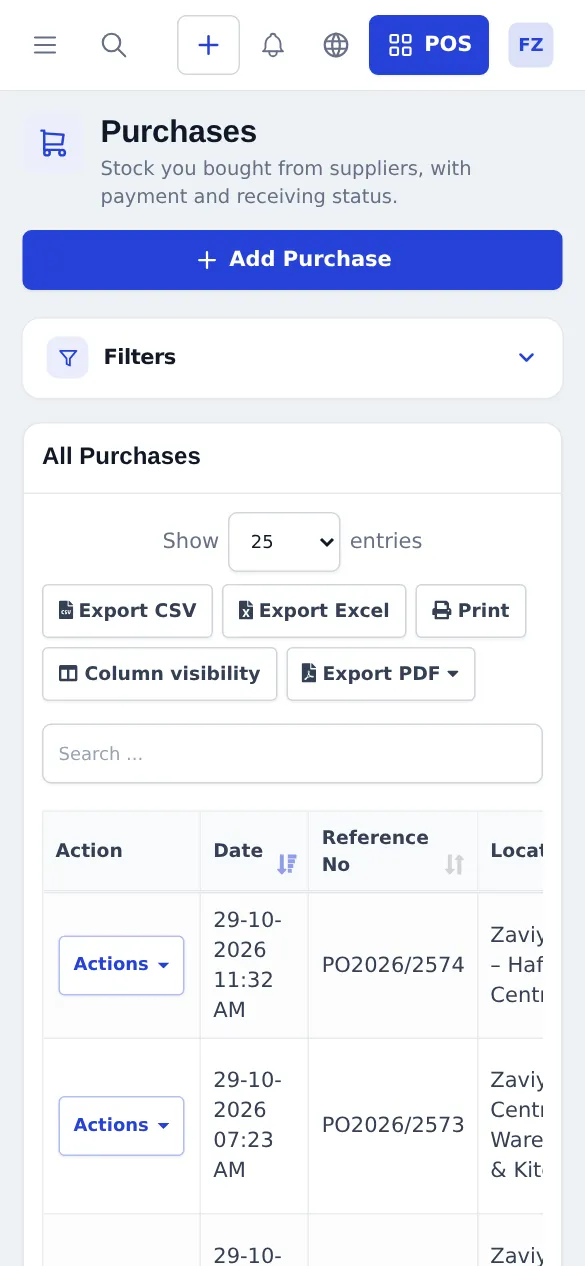
On a phone, the list keeps its filters and the table scrolls sideways inside its card:
Receive goods with the Business app
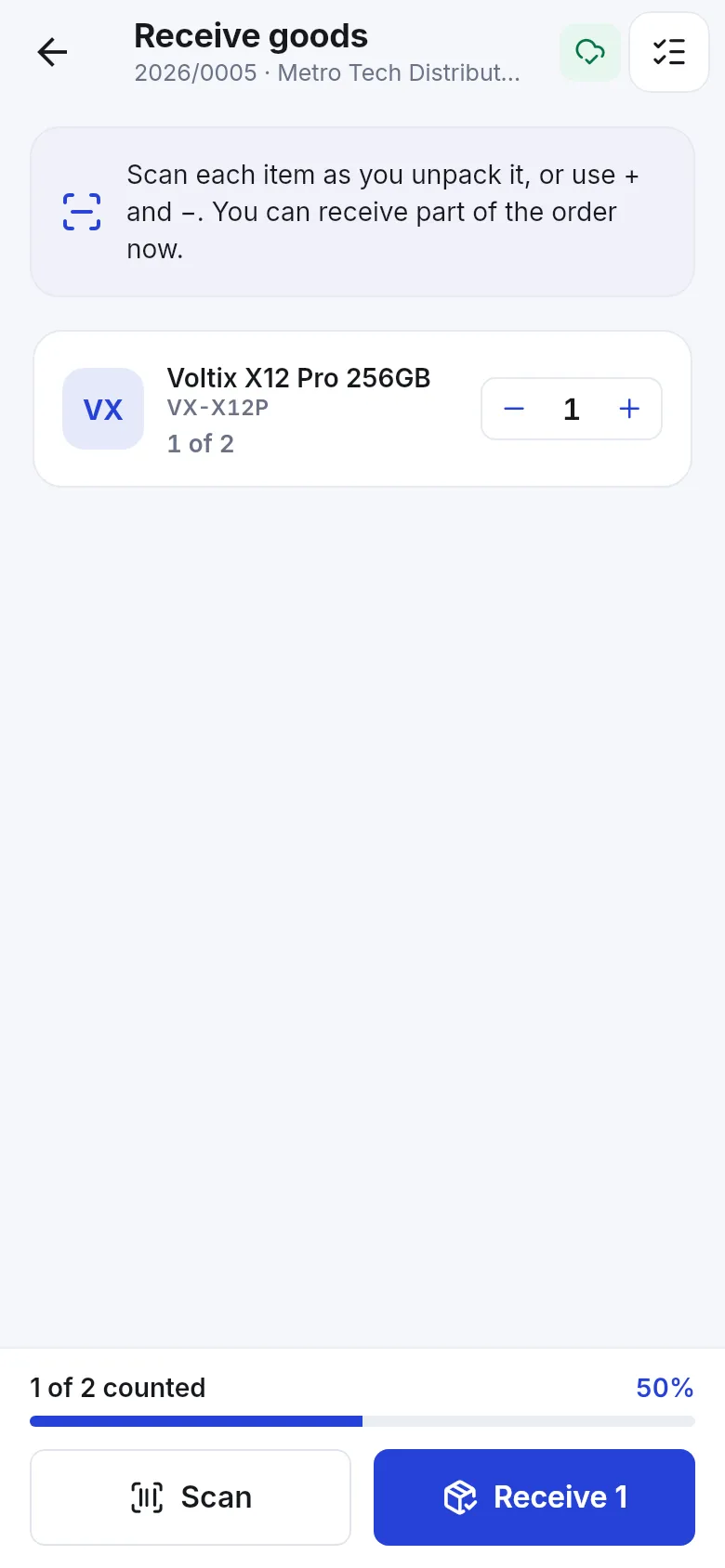
Section titled “Receive goods with the Business app”In the SmartPOS Business app, open a purchase that is still ordered and tap Receive goods. Scan each item as you unpack it, or use + and –. You can receive part of the order now and the rest later.
Tips and mistakes to avoid
Section titled “Tips and mistakes to avoid”- Status matters. A purchase left at Ordered never adds stock. If stock looks too low after a delivery, check the purchase status first.
- One location per purchase. If one supplier delivery is split between branches, either enter one purchase per branch or receive it all at your warehouse and transfer the rest.
- Cost drives profit. Enter the real unit cost, including discounts. Shipping and extra costs are added to the bill total.
- Use lots and expiry for anything that goes off. Turn them on before your first purchase, so every batch is recorded. See Expiry and batches.
Related pages
Section titled “Related pages”Frequently asked questions
When does a purchase add stock?
Only when its Purchase Status is Received. A purchase saved as Ordered or Pending records the bill but does not change stock until you change the status to Received.
Can I save a purchase without paying the supplier?
Yes. Leave the payment amount at zero or pay part of it. The purchase shows as Due or Partial and the balance is added to what you owe that supplier.
Which location receives the stock?
The Business Location you pick on the purchase. Each purchase belongs to one location; to move goods on to other branches afterwards, use a stock transfer.
Can I update the selling price while entering a purchase?
Yes, if Enable editing product price from purchase screen is switched on in Business Settings under Purchases. The line then lets you change the unit selling price, which updates the product.
How do I return goods to a supplier?
Open Purchases › List Purchases, choose Actions › Purchase Return on the original purchase, enter the quantities going back and save. The return lowers stock and what you owe.
Can I enter a purchase from my phone?
Yes. The SmartPOS Business app has Purchases, where you can create a purchase and receive goods by scanning each item as you unpack it.