
All SmartPOS Hub modules and how to turn them on
SmartPOS Hub is built from modules: Restaurant, Bookings, Hotel, Gym, Repair, Bookkeeping, Website and more. This page lists every module, what it does, which business types use it, and how to turn it on, so owners and admins can switch on exactly what their shop needs and nothing else.
The three gates: plan, switch, permission
Section titled “The three gates: plan, switch, permission”Every module is checked in the same order, on the web, in the POS, in the SmartPOS Business app and in the API:
| Gate | Where you control it | What staff see when it is closed |
|---|---|---|
| 1. Plan | Settings › Package Subscription shows the modules your plan includes | A “not included in your plan” page with a link to see plans |
| 2. Switch | Settings › Business Settings › Modules (some modules also have their own settings page) | A “module is turned off” page for admins, a plain “not allowed” message for other staff |
| 3. Permission | User Management › Roles — tick the module’s permissions for each role | The menu item is hidden and the page shows “Unauthorized action” |
The Admin role always has every permission, so for an admin only gates 1 and 2 matter. Some small tools (Screens & displays, Invoice designer, Recycle Bin, Camera scan, Open tabs, Size charts, Account security) have no plan or switch: they are controlled by permissions only.
Switch a module on or off
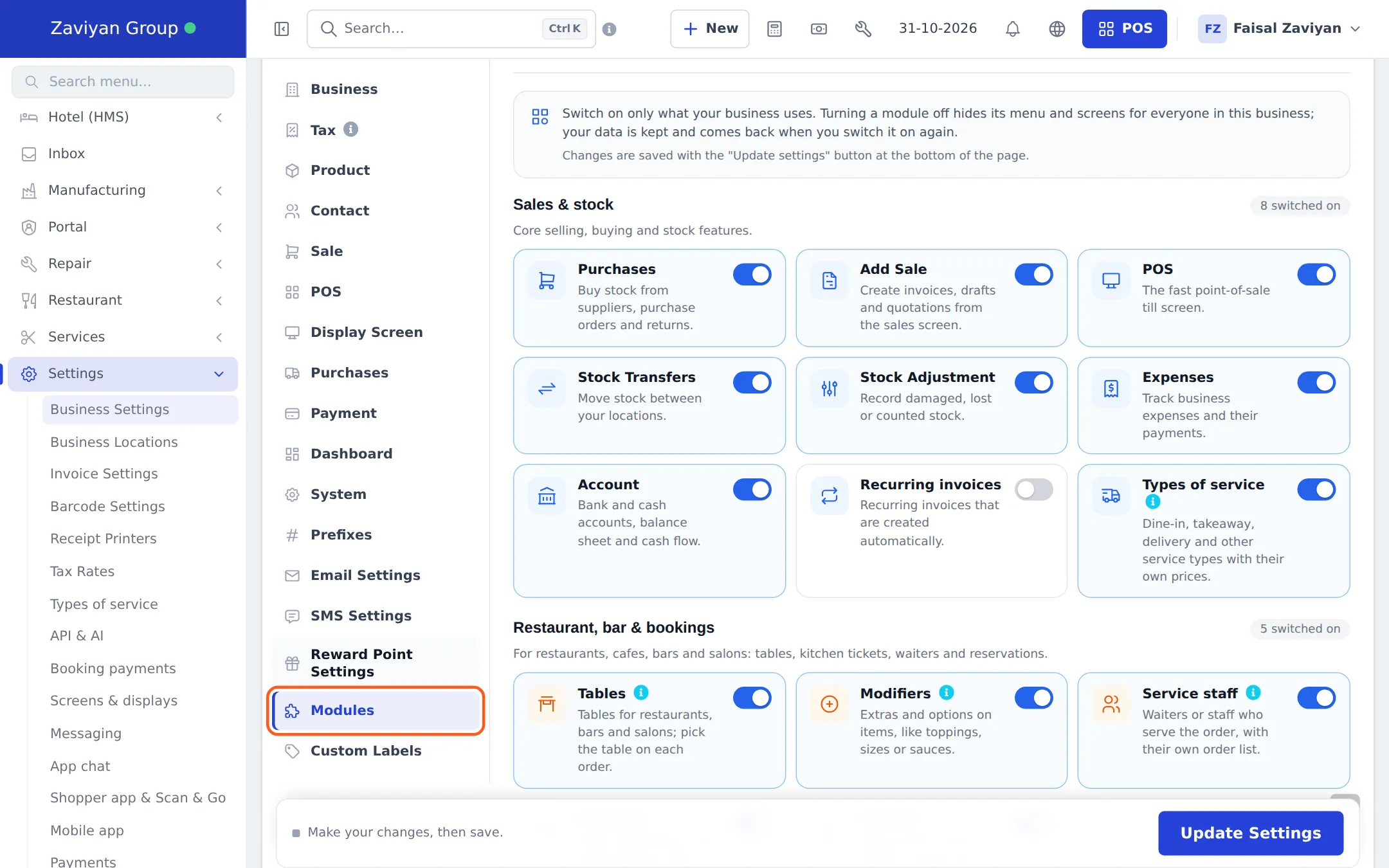
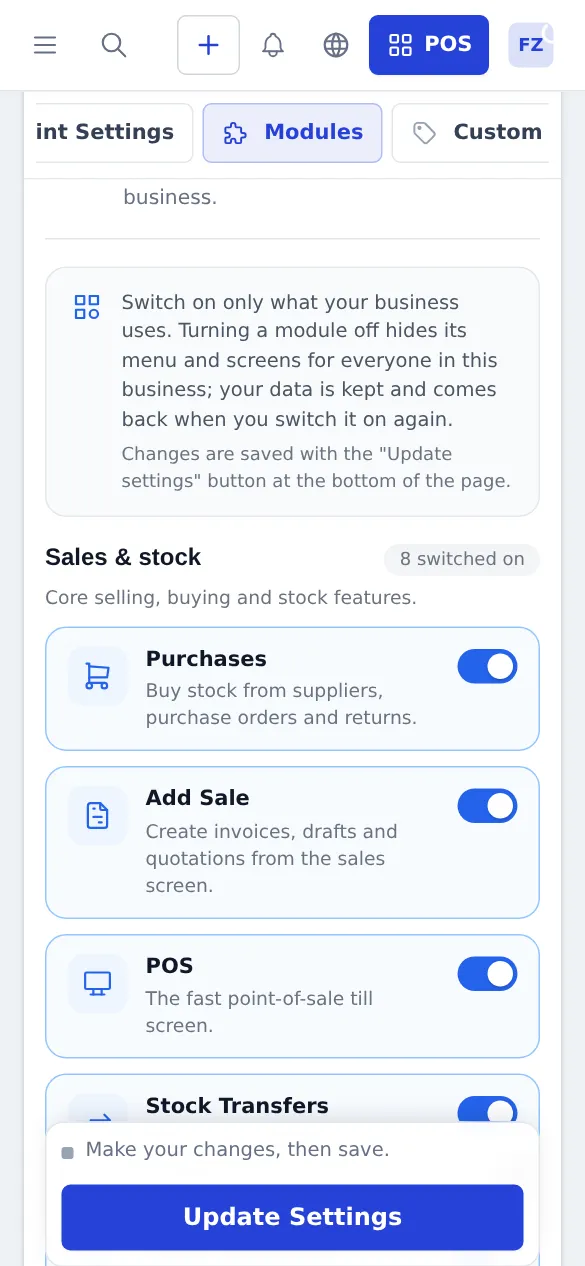
Section titled “Switch a module on or off”- Open Settings › Business Settings and choose the Modules tab on the left.
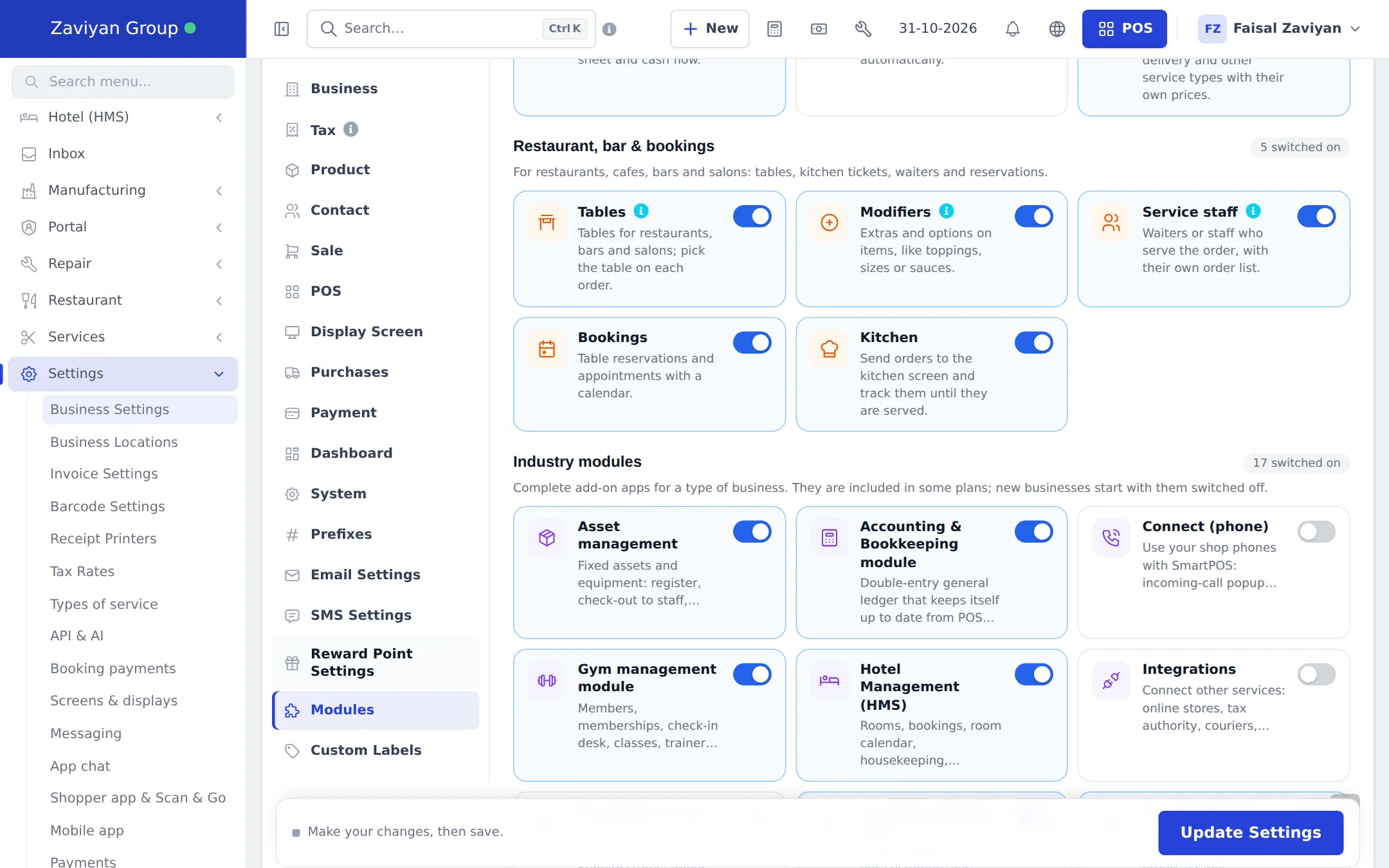
- Find the module card. Modules are grouped into Sales & stock, Restaurant, bar & bookings and Industry modules.
- Turn the switch on the card on (blue) or off (gray). A card with a dashed border and a Not in your plan chip cannot be switched until your plan includes it.
- Press Update Settings at the bottom of the page. The menu updates for everyone in the business.
- Open User Management › Roles, edit each role that should use the module, and tick its permissions.
All modules
Section titled “All modules”“Plan + switch” means the module must be in your plan and switched on in Settings › Business Settings › Modules. “Switch” means no plan gate. “Permission” means it is always available and only role permissions control it.
Restaurant, bookings and service businesses
Section titled “Restaurant, bookings and service businesses”| Module | What it does | Used by | Turn on | Guide |
|---|---|---|---|---|
| Restaurant | Tables and floor plan, kitchen display, order statuses, waiters and restaurant reports | Restaurants, cafés, diners, fast food, food trucks, bakeries | Switch (Tables, Kitchen, Modifiers, Service staff) | Restaurant |
| Open tabs | Keep a table or bar tab open, add rounds, then bill and pay once | Bars, cafés, restaurants | Permission (follows Tables / Kitchen) | Open tabs |
| Modifiers | Extras and options on items, like toppings, sizes or sauces, with their own prices | Restaurants, cafés, pizza, bakeries | Switch (Modifiers) | Modifiers |
| Screens & displays | Customer display, kitchen station screens, host screen, room board and TV boards | Restaurants, marts, hotels, any counter | Permission | Screens & displays |
| Order options | Details the customer gives per item: prescription, logo, engraving, measurements, cake message | Pharmacies, bakeries, print shops, tailors, opticians | Plan + switch | Order options |
| Bookings | Table reservations and appointments on a calendar | Restaurants, salons, spas, barbers | Switch (Bookings) | Bookings |
| Services | Service menu, staff hours, online appointments, checkout to POS and commission | Salons, spas, barbers, car washes, clinics | Plan + switch | Services |
| Hotel (HMS) | Rooms, bookings, room calendar and board, housekeeping, seasonal rates, guest folios | Hotels, resorts, guest houses | Plan + switch | Hotel |
| Gym | Members, memberships, check-in desk, classes, trainers, workout and diet plans | Gyms, fitness studios, clubs | Plan + switch | Gym |
| Repair | Job sheets, device models, estimates, on-site visits and repair status lookup | Mobile and laptop repair, tech stores, appliance service | Plan + switch | Repair |
| Booking payments | Deposits and online payments for bookings, appointments and memberships | Hotels, gyms, salons, spas | Follows the booking module | Booking payments |
Selling and catalog tools
Section titled “Selling and catalog tools”| Module | What it does | Used by | Turn on | Guide |
|---|---|---|---|---|
| POS V2 | The newer full-screen POS with product grid, shortcuts and the same features as the classic POS | Every business that sells at a counter | Switch (POS) | POS V2 |
| Offline POS | Keep selling when the internet drops; sales sync when the connection is back | Marts, pharmacies, restaurants, any shop with patchy internet | Plan + switch | Offline POS |
| Camera scan | Scan barcodes with the device camera instead of a scanner | Small shops, mobile sellers, stock counts | Permission | Camera scan |
| Product barcodes | Barcodes for every product and variation, generated and printed on labels | Marts, pharmacies, electronics, boutiques | Permission | Product barcodes |
| Product Library | Ready-made product catalogs with barcodes, images and descriptions to import | Marts, pharmacies, electronics, tech stores | Plan + switch | Product Library |
| Prebuilt imports | One-click starter lists: categories, brands, units, tax rates, roles and more by industry | Every new business | Permission | Prebuilt |
| Size charts | Size guides per product, category or brand for each market | Boutiques, clothing and shoe stores | Permission | Size charts |
| Returns & gift cards | Return policy and reasons, returned-items report, gift cards for refunds and as a payment method | Retail of every kind | Gift cards: plan + switch; returns: permission | Returns & gift cards |
| Payments hub | Payment gateways and offline methods (bank transfer, wallets, COD) with proof review | Online stores, delivery businesses | Plan + switch (Offline payment methods) | Payments hub |
| Shipping & delivery | Couriers or your own riders: labels, tracking, dispatch board, COD settlement | Online stores, pharmacies, marts that deliver | Plan + switch | Shipping |
| Tax authority (FBR) | Report sales and returns to FBR and print the FBR invoice number and QR code | Businesses in Pakistan registered with FBR | Plan + switch | Tax authority (FBR) |
Back office
Section titled “Back office”| Module | What it does | Used by | Turn on | Guide |
|---|---|---|---|---|
| Accounting & Bookkeeping | Double-entry books kept up to date from sales, purchases and expenses; reconciliation and budgets | Any business that wants full accounts, multi-location groups | Plan + switch | Bookkeeping |
| Manufacturing | Recipes and bills of materials, production orders, wastage and costing | Bakeries, food production, workshops, small factories | Plan + switch | Manufacturing |
| Asset management | Equipment register, check-out to staff, maintenance, depreciation and audits | Groups, hotels, gyms, restaurants with equipment | Plan + switch | Asset management |
| Invoice designer | Invoice and receipt templates for your industry with live preview | Every business | Permission | Invoice designer |
| Account security | Two-step sign-in, sessions, login history and security rules by role | Every business | Permission (Settings › Security) | Account security |
| Recycle Bin | Restore deleted products, contacts and records, or delete them for good | Every business | Permission | Recycle Bin |
Customers, online and messaging
Section titled “Customers, online and messaging”| Module | What it does | Used by | Turn on | Guide |
|---|---|---|---|---|
| Leads & recovery carts | People who are not customers yet, from forms, newsletter and abandoned carts | Online stores, service businesses | Plan + switch | Leads |
| Customer & partner portal | Customers, suppliers and riders sign in to see invoices, orders and deliveries | Wholesale, B2B, delivery businesses | Switch | Portal |
| Messaging | SMS, e-mail and WhatsApp conversations in one Inbox and on each contact | Every business that talks to customers | Plan + switch | Messaging |
| Shopper app chat | Customers message you from the SmartPOS Shopper app | Stores listed in the Shopper app | Plan + switch (needs Messaging) | App chat |
| Integrations | Connect online stores, tax authority, couriers, SMS and e-mail providers | Businesses using other services | Plan + switch | Integrations |
| E-commerce sync | Sync products, stock, prices and orders with WooCommerce or Shopify | Shops that already run an online store | Plan + switch | E-commerce sync |
| Connect (phone) | Caller popup with the customer’s last orders, click-to-call, SMS through your phone SIM | Pharmacies, restaurants that take phone orders | Plan + switch | Connect |
| Website & online store | Website builder, online store with checkout, customer accounts and your own domain | Any business selling online | Plan + switch | Website |
| Widgets | Embed products, buttons and chat from your store on any other website | Businesses with an existing website | Comes with Website | Widgets |
| Mobile app | Staff use the SmartPOS Business app on Android phones and tablets | Every business | Plan + switch | Mobile app |
| Shopper app & Scan & Go | Customers check prices, scan their own items and see receipts in the SmartPOS Shopper app | Marts, pharmacies, retail | Plan + switch | Shopper app |
| API & AI | API keys and AI connections to work with your data from other tools | Businesses with developers or AI assistants | Plan + permission | API & AI |
Which modules does my business need?
Section titled “Which modules does my business need?”| Business type | Switch on first | Often useful |
|---|---|---|
| Restaurant or café | Tables, Kitchen, Modifiers, Service staff, Bookings | Open tabs, Screens & displays, Offline POS, Manufacturing (recipes) |
| Mart or grocery | Product Library, Offline POS | Camera scan, Product barcodes, Shopper app & Scan & Go, Shipping |
| Pharmacy | Product Library, Order options (prescriptions) | Offline POS, Connect (phone), Shipping, Tax authority (FBR) |
| Tech store (mobiles and computers) | Repair, Product Library | Product barcodes, Returns & gift cards, Website |
| AC, fridge and appliance store | Repair (service jobs) | Shipping (delivery), Asset management, Bookkeeping |
| Electronics store | Product Library, Product barcodes | Returns & gift cards, Website, E-commerce sync |
| Salon, spa or barber | Services, Bookings | Booking payments, Messaging |
| Hotel or resort | Hotel (HMS) | Booking payments, Asset management, Screens & displays |
| Gym | Gym | Booking payments, Asset management |
| Group with many locations | Bookkeeping | Asset management, Manufacturing, Portal |
See the setup guide for your type under Setup by business type, for example the restaurant overview or the mart overview.
Related pages
Section titled “Related pages”Frequently asked questions
What is a module in SmartPOS Hub?
A module is a set of screens for one job, like Restaurant, Gym, Repair or Bookkeeping. You switch on only the modules your business uses, so menus stay short and staff only see what they need.
Why can't I see a module in my menu?
One of three gates is closed. Your plan may not include it, it may be switched off in Settings › Business Settings › Modules, or your role may not have its permission. Check them in that order.
Does switching a module off delete my data?
No. Turning a module off only hides its menu and screens for everyone in the business. Your records stay saved and come back as soon as you switch it on again.
Who can switch modules on and off?
Anyone whose role can open Business Settings, which is normally the Admin role. Changes save when you press Update Settings at the bottom of the page.
A module card says "Not in your plan". What do I do?
Your current plan does not include that module. Use the See plans link on the card or open Settings › Package Subscription to move to a plan that includes it, or contact support.
Do modules cost extra?
Industry modules are included in some plans and not in others. Core features such as Purchases, POS, Tables or Kitchen have no plan gate; you only switch them on.
If I switch a module off, do its past sales disappear from my reports?
No. Money already taken through a module, such as gym memberships, hotel bookings or repair invoices, stays in Profit and Loss and the tax report even while the module is switched off.
Do modules also work in the SmartPOS Business app?
Many do. Restaurant, Open tabs, Bookings, Services, Hotel, Gym, Repair, Bookkeeping, Manufacturing, Assets, gift cards and offline selling all have screens in the app, and the app follows the same plan, switch and permission rules.
Can I give a cashier access to only part of a module?
Yes. Each module adds its own permissions to the Roles page, for example Hotel check-in without delete, or Services own appointments only. Tick only what the role needs.
Why does a staff member see a "turned off" page?
The module is in your plan but switched off for the business. An admin can switch it on in Settings › Business Settings › Modules; staff without settings access just see a plain "not allowed" message.