
Mart, grocery & convenience store setup guide
This guide sets up a supermarket, grocery store, kiryana / general store or convenience store on SmartPOS Hub, from your first location to a busy checkout and a clean daily close. It is written for owners and managers; cashiers can jump to the checkout and daily pages.
Who this guide is for
Section titled “Who this guide is for”- Supermarkets and marts with thousands of barcoded items, several tills and often a warehouse.
- Kiryana and general stores that sell loose items by weight and give regular customers credit (khata).
- Convenience stores and mini marts that need very fast scanning and low-stock alerts.
- Multi-branch grocery chains that move stock between branches.
What you will set up
Section titled “What you will set up”- Locations and warehouse: shops, warehouse, business settings for retail.
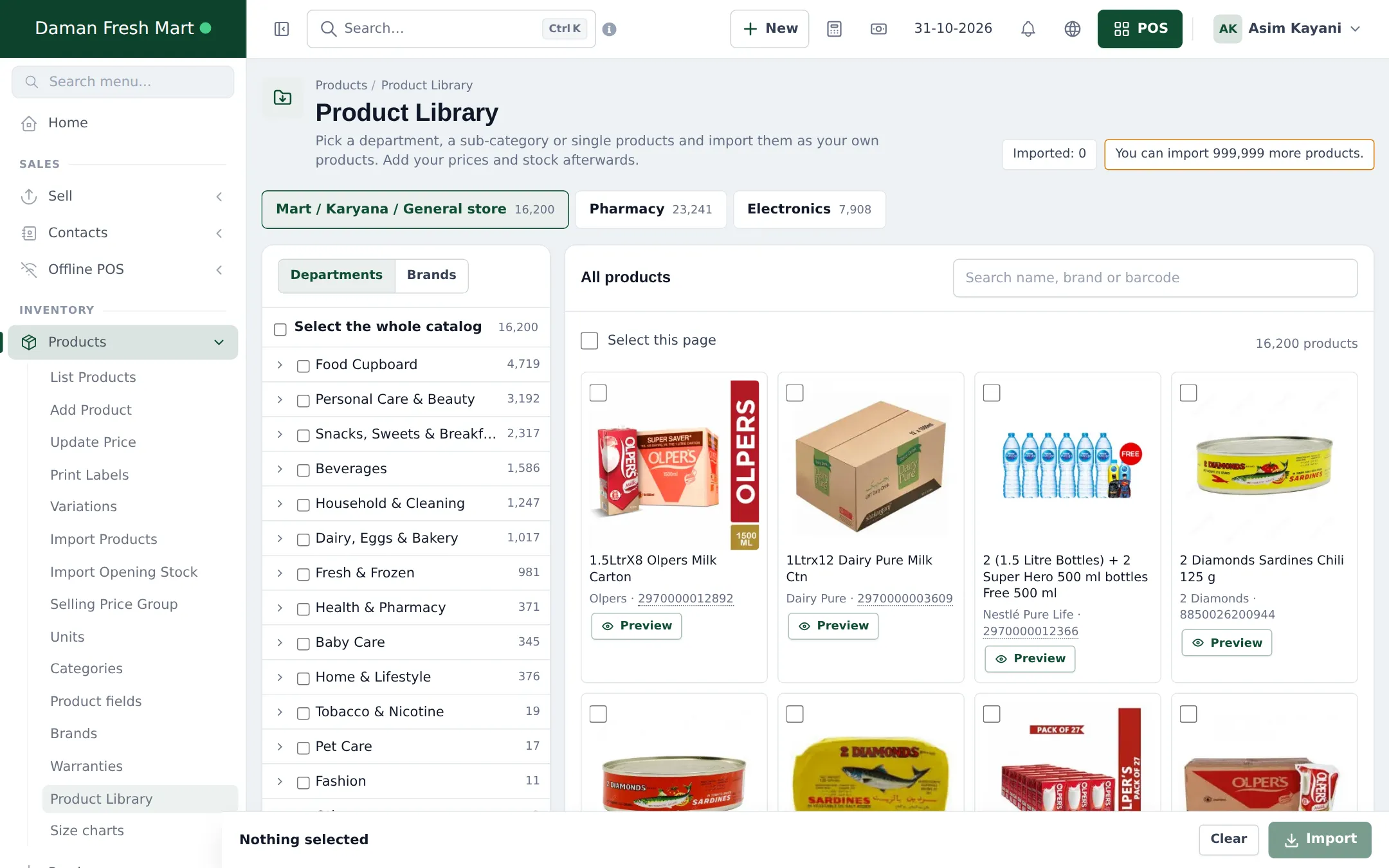
- Product Library: Mart catalog: import ready-made grocery products.
- Import prebuilt categories, brands and units.
- Barcodes, weighed items and labels.
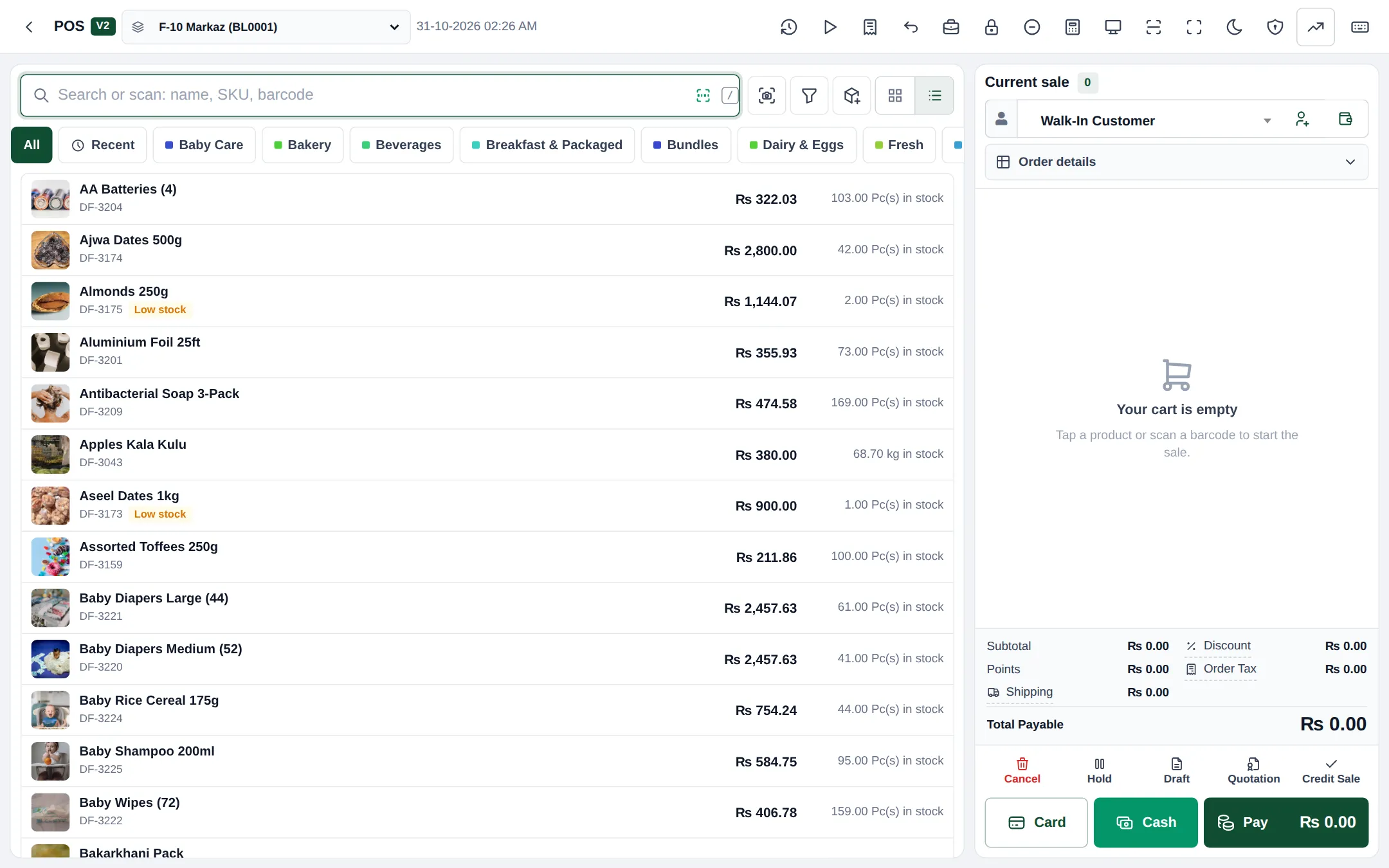
- Fast checkout: scanner, camera scan, cash notes, payments.
- Customer credit (khata): pay later, instalments, limits.
- Purchases from suppliers.
- Stock transfers, low stock and stock counts.
- Scan & Go, Shopper app and online store.
- Daily operations: open, sell, close, reports.
- Go-live checklist.
Modules to turn on
Section titled “Modules to turn on”| Module | Where | Needed for |
|---|---|---|
| POS, Purchases, Stock Transfers, Stock Adjustment | Settings › Business Settings › Modules (Sales & stock) | Selling, buying, moving and correcting stock |
| Product Library | Settings › Business Settings › Modules, if your plan includes it | Importing the Mart catalog |
| Enable Sub Units | Business Settings › Product | Selling in packs and cartons as well as pieces |
| Enable Weighing Scale | Business Settings › POS | Scale-printed barcodes for loose items |
| Offline POS | Settings › Business Settings › Modules | Selling during internet outages |
| Shopper app & Scan & Go | Settings › Shopper app & Scan & Go | Customers ordering and self-scanning |
| Website | Depends on your plan | Online store, delivery orders |
See All modules for the full list and plan details.
Time needed
Section titled “Time needed”| Part | Typical time |
|---|---|
| Locations and settings | 20 minutes |
| Product Library and prebuilt imports | 30–60 minutes |
| Prices and opening stock | 2–4 hours (depends on product count) |
| Labels, scanner test, staff logins | 1 hour |
| Shopper app and online store | 30 minutes |
Demo accounts
Section titled “Demo accounts”The public grocery, convenience store and kiryana demo accounts listed on smartposhub.com show a working mart with two or more branches, a warehouse, imported library products, purchases, transfers and credit customers. They are read-only samples that reset every few days.
Frequently asked questions
Do I have to type in thousands of grocery products?
No. The Product Library's Mart catalog has more than 16,000 ready-made grocery products with names, barcodes, brands, categories and many photos. Pick departments and import them, then add your prices and stock.
Can I use my existing barcode scanner?
Yes. Any USB or Bluetooth scanner that types the code and presses Enter works in the POS. Phones and tablets can also scan with the camera.
Can customers buy on credit and pay later (khata)?
Yes. Pick the customer, take part of the payment or none, and the rest stays as due on their ledger. They can pay it off in any number of instalments. You can set a credit limit per customer.
Can I sell loose items by weight?
Yes. Use kg with decimal quantities, or turn on Weighing Scale barcodes so labels printed by your scale add the right weight at the POS.
How do I handle a warehouse and several shops?
Add each shop and the warehouse as business locations. Receive purchases into the warehouse and move stock to shops with stock transfers.
What happens if a scanned barcode is not in my products?
The POS opens a No product found window where you can add a new product with that barcode or link the code to an existing product, without leaving the sale.
Can customers scan their own items?
Yes. With Scan & Go in the SmartPOS Shopper app, customers scan items as they shop and show a cart code at the counter; the cashier loads the cart in one scan.
Does the POS work if the internet goes down?
Yes. The Offline POS and the SmartPOS Business app keep selling offline and sync later.
How long does setup take?
With the Product Library and prebuilt imports, a single shop is ready in half a day. Most of the time goes into prices, opening stock and labels.