
Product Library – import ready-made products in bulk
The Product Library is a shared, ready-made product catalog you can import from instead of typing every item. Pick a department, a brand or single products from the Mart, Pharmacy or Electronics catalog, check what will be created, and import thousands of products with names, barcodes, photos and categories in one go.
What is in the library
Section titled “What is in the library”| Catalog | What you get | Typical shops |
|---|---|---|
| Mart / Karyana / General store | Groceries, personal care, snacks, beverages, household, dairy, fresh, baby care and more in a 3-level department tree | Marts, grocery and convenience stores, kiryana shops |
| Pharmacy | Medicines and non-medicine products, with the sale structure (tablet, strip, box) where it is known | Pharmacies and medical stores |
| Electronics | Mobiles and tablets, computers, ACs, home and kitchen appliances, TVs, audio, wearables and accessories, with variations such as storage and colour | Electronics, mobile, appliance and AC & fridge stores |
Each product carries a name, brand (often with logo), category path, barcode, photo where available, short and full description, and specifications. The counts next to each catalog tab show how many products it holds.
Before you start
Section titled “Before you start”- Add your business locations first. Imported products are made available in the locations you choose.
- Decide if you track stock for these items. Manage stock for these products is ticked by default.
- If you charge tax on every item, add the tax rate first in Settings › Tax Rates so you can pick it during the import.
Browse a catalog
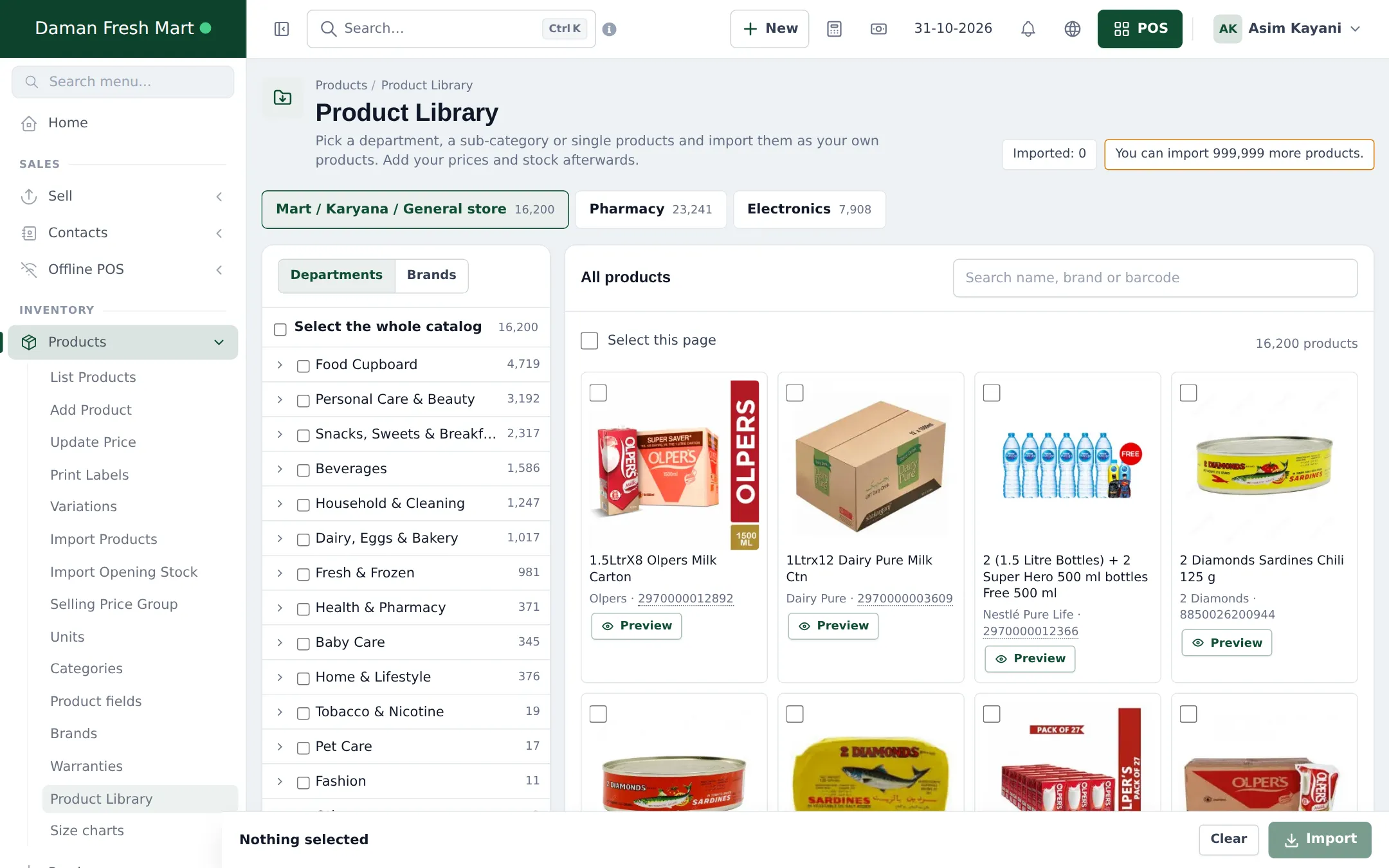
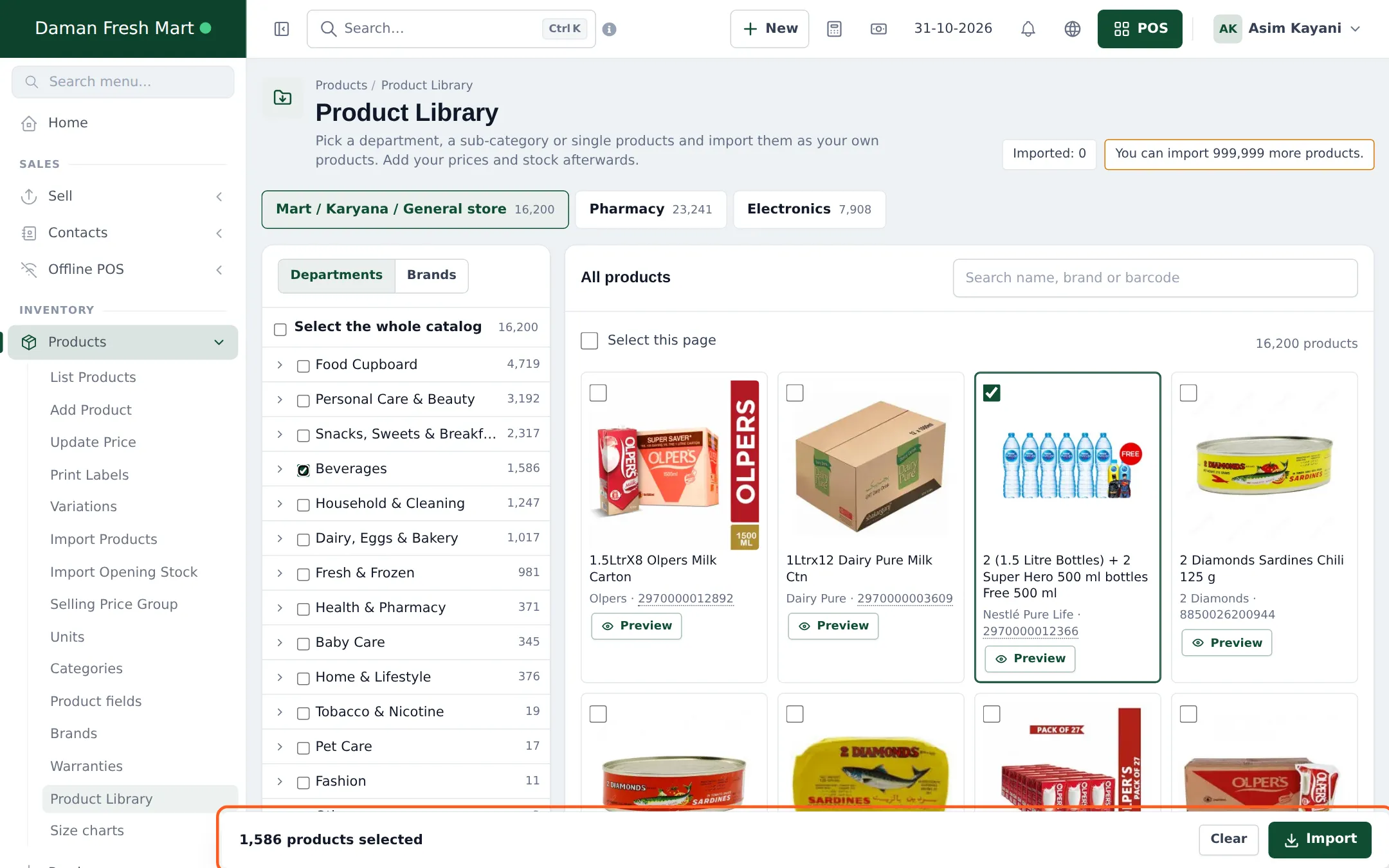
Section titled “Browse a catalog”- Open Products › Product Library.
- Click a catalog tab at the top: Mart / Karyana / General store, Pharmacy or Electronics.
- In the left panel, Departments shows the department tree with product counts. Click the arrow to open sub-categories, or click a name to show only that department in the grid.
- Use Search name, brand or barcode above the grid to find a product. You can type or scan a barcode.
- The header shows Imported (how many you already imported) and how many more products your plan allows.
Filter by brand
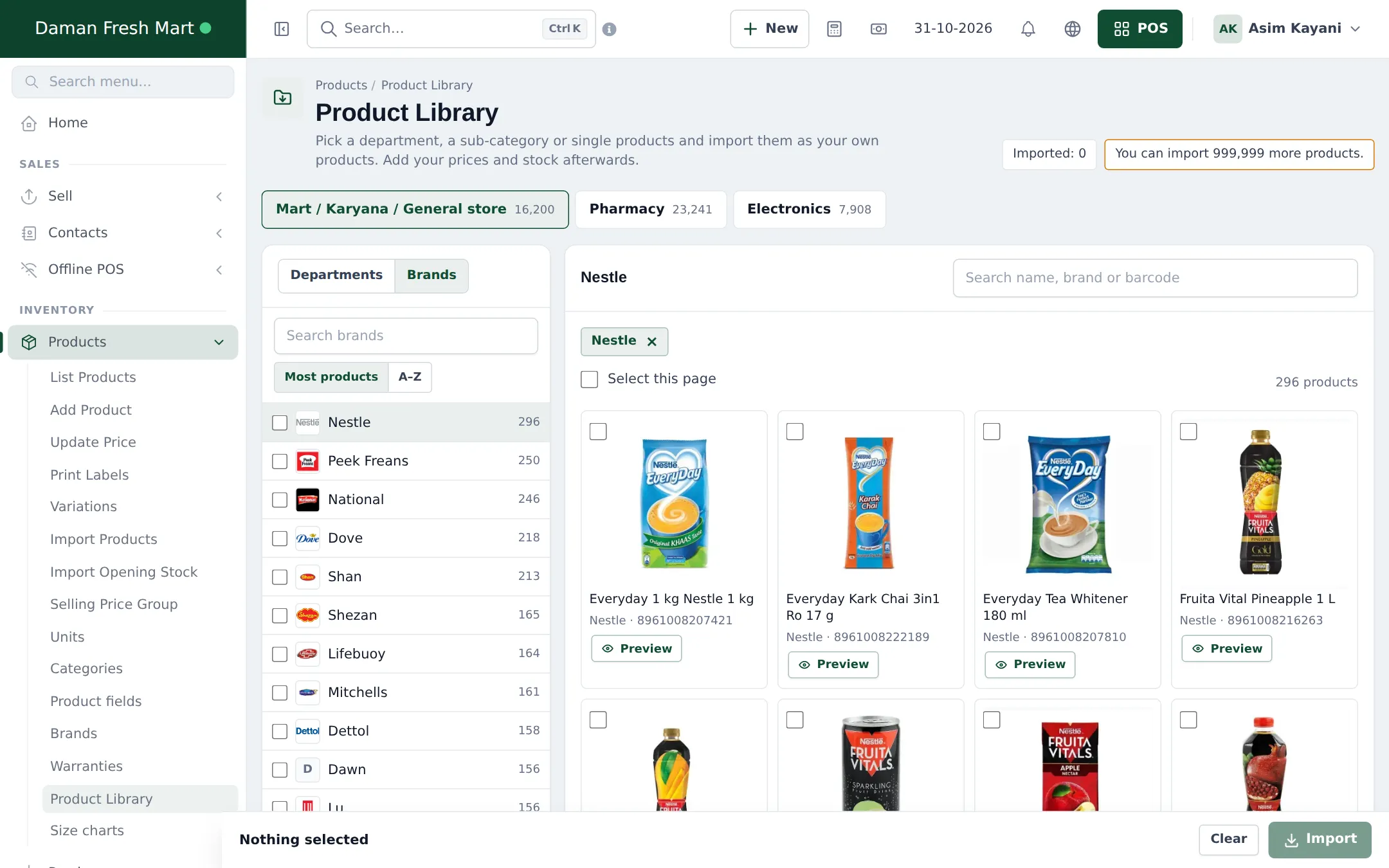
Section titled “Filter by brand”Switch the left panel to Brands to see every brand of the catalog (or of the department you opened) with its logo and product count. Sort by Most products or A–Z, or search brands. Click a brand name to filter the grid; a chip such as Nestle × appears above the grid, and you can combine it with a department and a search.
Preview a product before you import
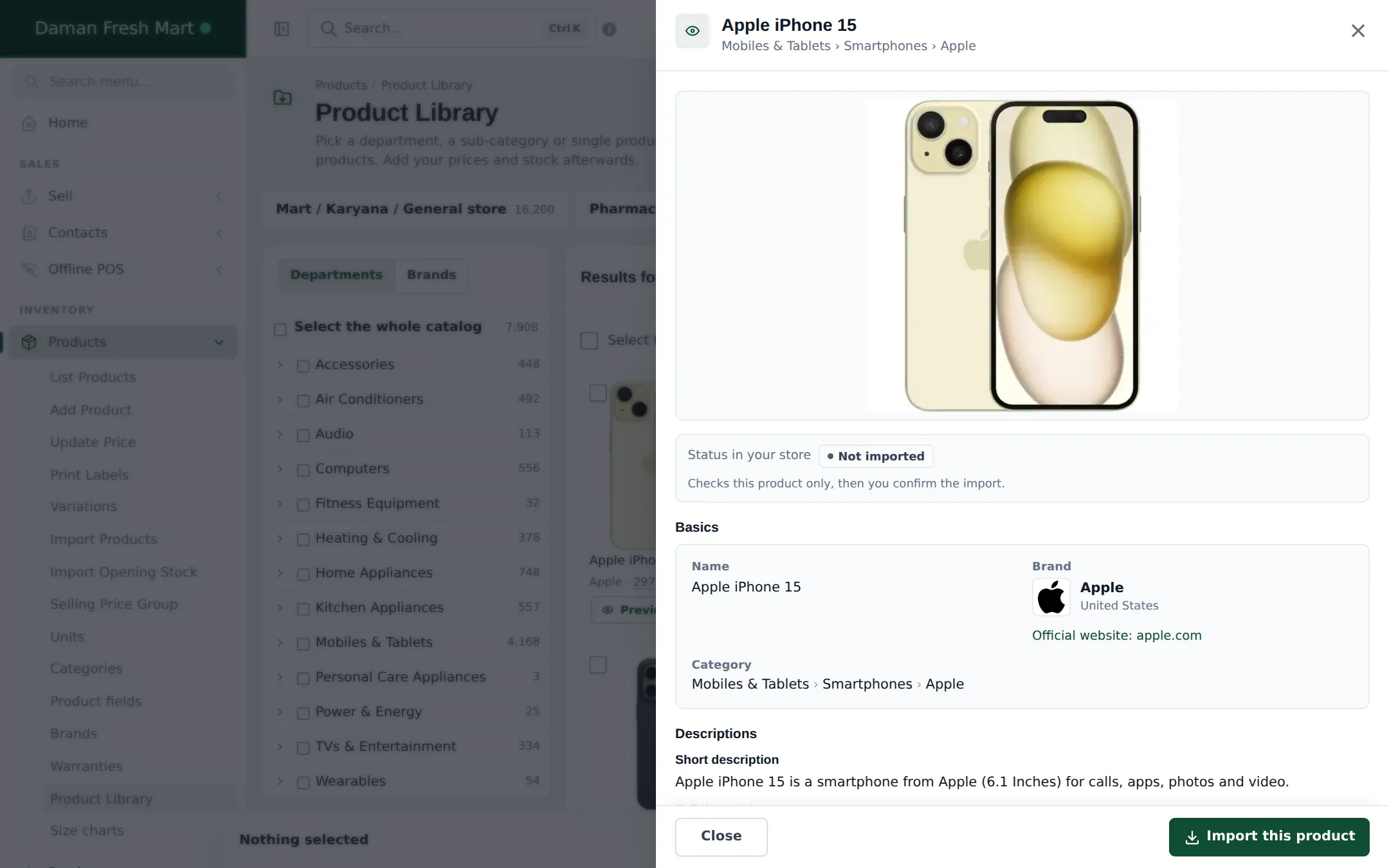
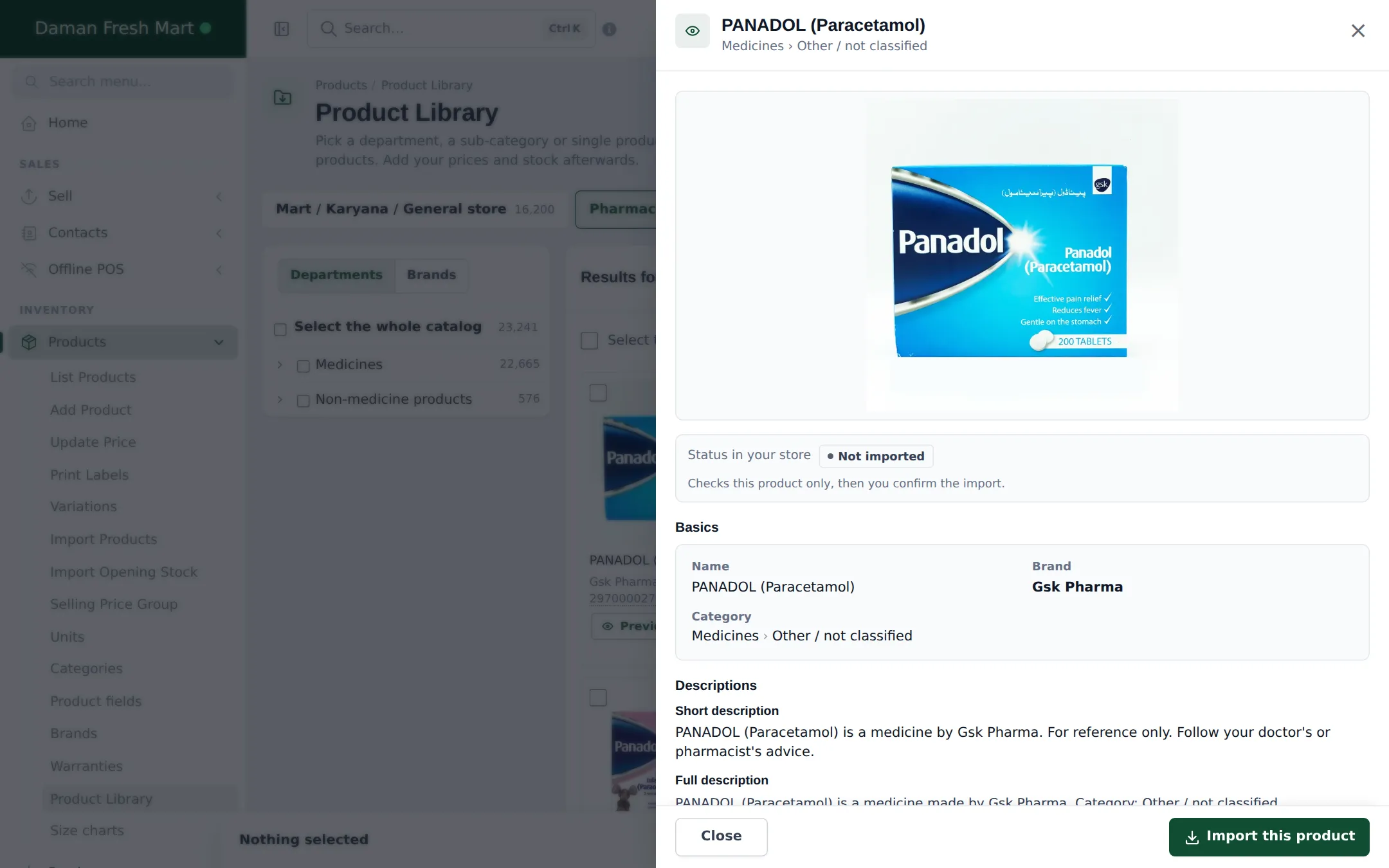
Section titled “Preview a product before you import”Every product card has a Preview button. It opens a side panel (a full screen sheet on phones) with everything the library knows about that item:
- photos (click to enlarge, with a photo per variation where there is one),
- Status in your store: Not imported, Already in your store, or the same barcode found in your store,
- Basics: name, brand with country and official website, and the category path,
- Descriptions, a Variations table with barcodes, Specifications grouped by topic, and Units (for example how many tablets are in a strip).
From the panel you can click Import this product to import only this one item, or Close. If the product is already in your store you see Open product instead.
Select what to import
Section titled “Select what to import”You can select at any level, and mix them:
| To select | Do this |
|---|---|
| A whole department or sub-category | Tick its box in Departments. Ticking a parent includes everything under it. |
| Every product of a brand | Tick the brand’s box in Brands (inside the department you opened, if any). |
| The products on the current page | Tick Select this page. |
| Single products | Tick the box on each product card. |
| Everything | Tick Select the whole catalog. |
To leave one product out of a ticked department, untick that product’s card. The bar at the bottom always shows what is selected, for example 1,586 products selected, with Clear and Import.
Check the import, then import
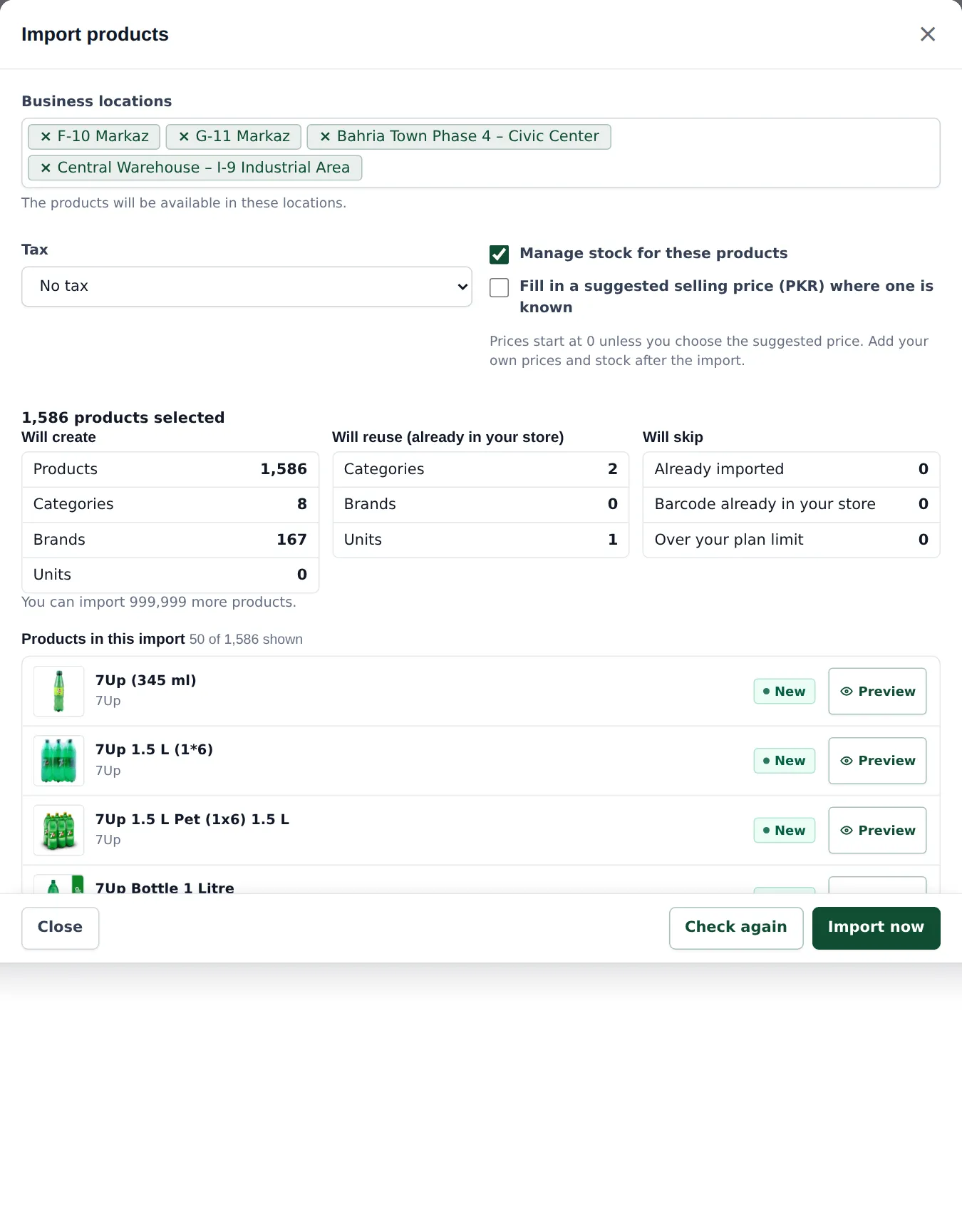
Section titled “Check the import, then import”- Click Import in the bottom bar. The Import products window opens and checks your selection straight away. Nothing is created yet.
- Under Business locations, keep or remove the locations that should sell these products.
- Pick a Tax or leave No tax.
- Keep Manage stock for these products ticked if you count stock for them. In the Mart catalog you can also tick Fill in a suggested selling price (PKR) where one is known.
- Read the check. Will create counts new products, categories, brands and units. Will reuse (already in your store) shows categories, brands and units you already have, which are matched by name instead of duplicated. Will skip lists products that are Already imported, whose Barcode already in your store, or that are Over your plan limit.
- Scroll Products in this import to see each product with a status chip (New, Already in store and so on). Each row has its own Preview.
- If you changed the options, click Check again. When the numbers look right, click Import now. A progress bar shows the import; you can keep working and come back. When it finishes, click Open the product list.
What happens after the import
Section titled “What happens after the import”- Each product becomes your own product in Products › List Products, with its category path, brand, unit, barcode and photo.
- Categories and brands are created only where they were missing; existing ones with the same name are reused.
- In the Pharmacy catalog, medicines get a base unit such as Tablet plus sub-units such as Strip of 10 (Tablet) and Box of 20 (Tablet), so you can sell a loose tablet, a strip or a box. Stock is counted in the base unit. See Categories, brands and units.
- Electronics products with several versions (for example storage and colour) become variable products.
- The Recent imports table at the bottom of the page lists each import with its date, status and products created.
Next steps
Section titled “Next steps”- Set selling prices: Prices and discounts.
- Add the stock you have now: Opening stock, or receive it with a purchase.
- Print shelf labels: Barcodes and labels.
Tips and mistakes to avoid
Section titled “Tips and mistakes to avoid”- Import a department or brand at a time rather than the whole catalog. A smaller list is easier to price and check.
- If a product you sell is missing, add it by hand or scan its barcode in the POS and choose Add new product with this barcode.
- The Fill in a suggested selling price option is a starting point. Always check prices against your own costs.
- Imports run one at a time per business. If you see “An import is already running”, wait for it to finish.
On a phone
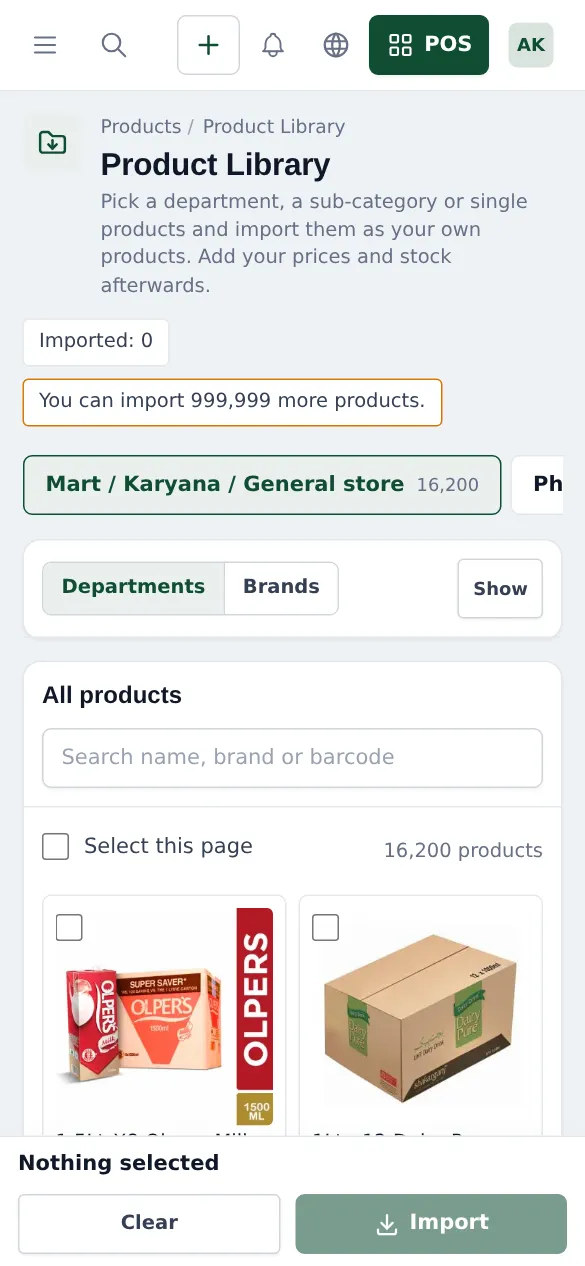
Section titled “On a phone”The Product Library works in a phone browser too: the department panel folds behind Show, and the selection bar stays at the bottom.
Related pages
Section titled “Related pages”Frequently asked questions
Does the Product Library add prices and stock?
No. Products arrive with name, barcode, photo, description, category, brand and unit. Prices start at 0 and stock is empty, so you add your own prices and stock after the import. In the Mart catalog you can optionally fill in a suggested selling price in PKR where one is known.
Can I import the same product twice by mistake?
No. The import check skips products you already imported and products whose barcode is already in your store, and shows them as Already imported or Barcode already in your store.
Are imported products still editable?
Yes. After the import each product is your own product. You can rename it, change its category, add prices, sub-units, extra barcodes and stock like any product you typed in by hand.
What does the dotted barcode under a product mean?
A dotted barcode is an in-store barcode made by the library because no manufacturer barcode is known for that item. It works at the till and on labels, and you can replace it with your own code later.
Why don't I see Products › Product Library?
Three things must all be true. Your plan must include the Product Library, the Product Library switch must be on in Settings › Business Settings › Modules, and your role needs the permission Import products from the Product Library. It is off by default for every new business.
Can I choose which locations get the products?
Yes. The Import products window lists your Business locations. All are selected by default; remove any location that should not sell these products.
How many products can I import?
The page shows how many more products your plan allows, for example You can import 999,999 more products. Products over that limit are skipped and counted as Over your plan limit.
Is the Product Library the same as Import prebuilt?
No. The Product Library adds real products with barcodes and photos. Import prebuilt adds setup lists such as categories, brands, units, tax rates and roles.