
Add and manage multiple business locations
This guide shows how to add more than one shop, branch or warehouse to SmartPOS Hub and how each location keeps its own stock, prices, invoice numbers, receipts, payment methods and staff. It is for owners of growing or multi-branch businesses. Adding a location takes about five minutes.
How locations work
Section titled “How locations work”Each business location is a separate place with:
| Per location | Where you set it |
|---|---|
| Address, phone, e-mail, website | The location form |
| Stock of every product | Purchases, opening stock and transfers into that location |
| Prices (optional) | Default Selling Price Group on the location |
| Invoice numbering | Invoice scheme for POS / Invoice scheme for sale |
| Receipt design | Invoice layout for POS / Invoice layout for sale |
| Payment methods and where the money goes | Payment Options on the location |
| POS quick buttons | POS featured products |
| Auto-print and printer type | The location’s Settings button |
| Which staff can work there | Access locations on each user |
Your first location is created at sign-up with your business name. Every new location counts against your plan’s limit.
Before you start
Section titled “Before you start”- Check your plan allows another location: Settings › Package Subscription › Usage & limits.
- Optional but recommended: create an invoice scheme for the new branch first, so its invoices have their own prefix. See Invoice and receipt settings.
- If the branch will sell at different prices, create a selling price group first. See Selling price groups.
See your locations
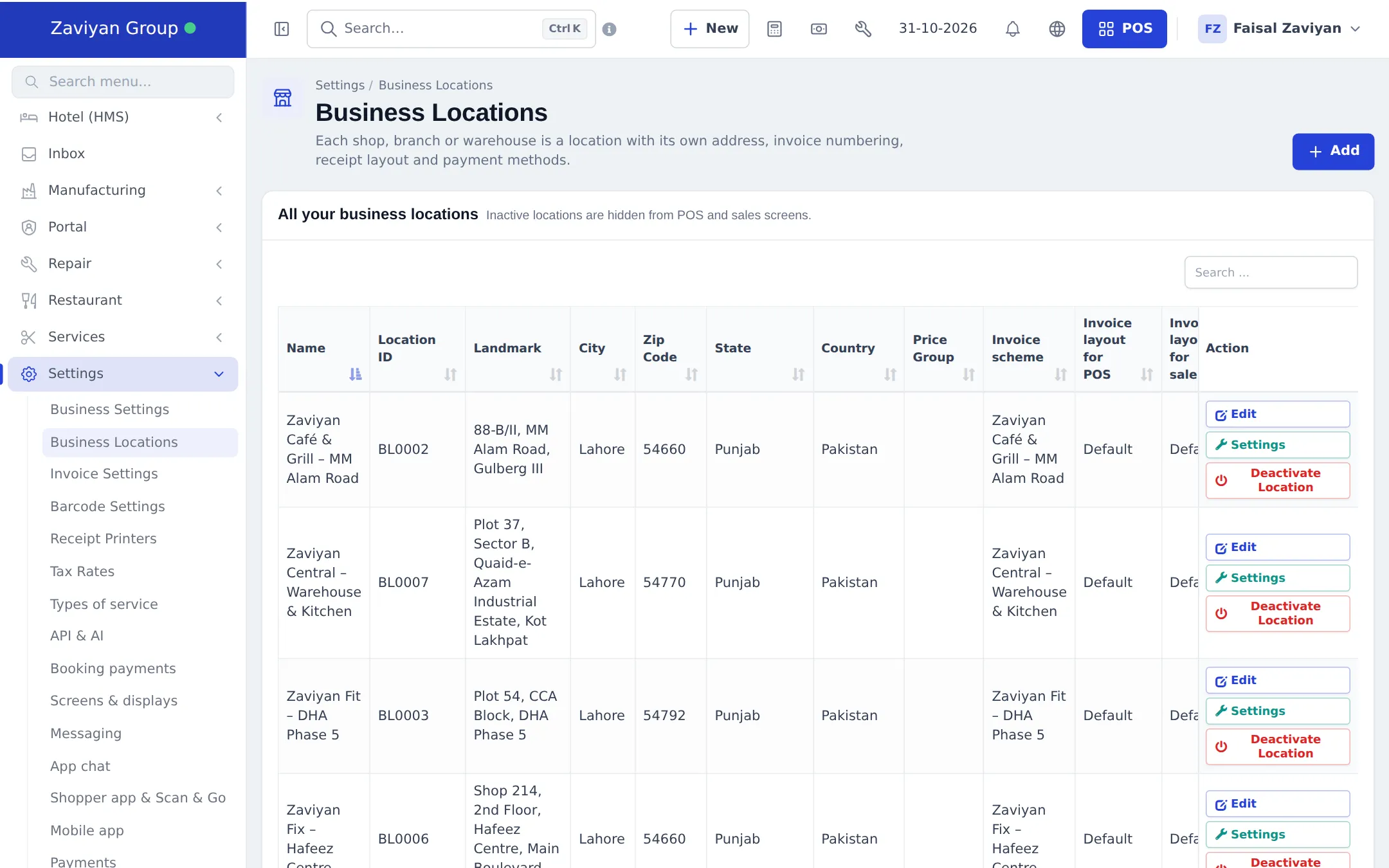
Section titled “See your locations”Open Settings › Business Locations. The list shows each location with its Location ID, address, Price Group, Invoice scheme and invoice layouts, and the buttons Edit, Settings and Deactivate Location.
Add a location
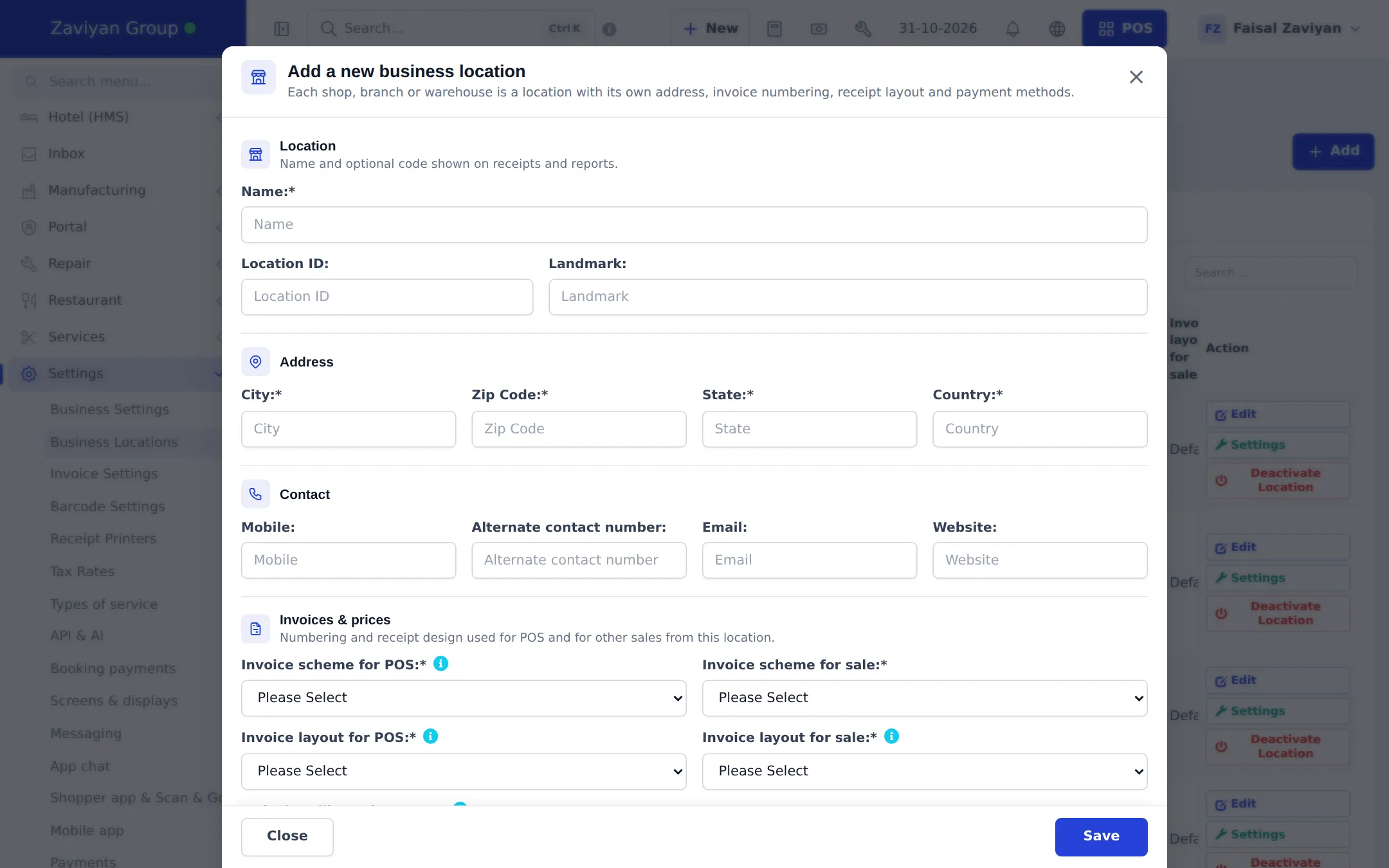
Section titled “Add a location”- On Settings › Business Locations, click + Add. The Add a new business location window opens.
- Location: type the Name (shown on receipts and reports). Location ID is an optional short code such as BL0008; leave it empty to get one automatically. Landmark is optional.
- Address: fill in City, Zip Code, State and Country (all required).
- Contact: Mobile, Alternate contact number, Email and Website (optional; they print on receipts that show them).
- Invoices & prices: choose the Invoice scheme for POS and Invoice scheme for sale (numbering), the Invoice layout for POS and Invoice layout for sale (receipt design), and optionally the Default Selling Price Group.
- Custom fields: fill in if your business uses location custom fields.
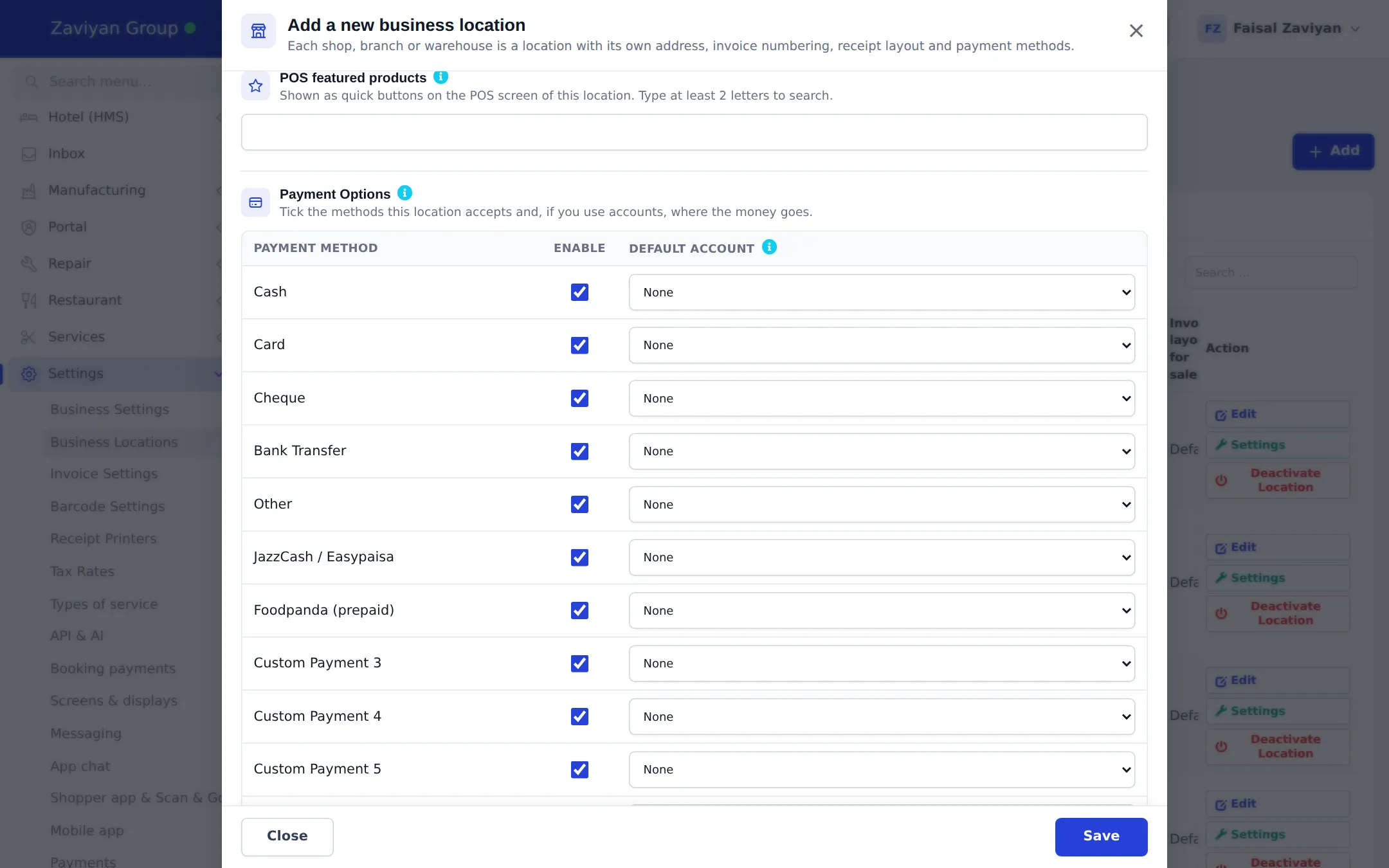
- POS featured products: type at least two letters and pick the products that should appear as quick buttons on this location’s POS.
- Payment Options: tick each payment method this location accepts. If you use payment accounts, pick the Default Account where that money goes (for example the branch’s cash drawer or bank account).
- Click Save.
Location settings: auto-print and printer
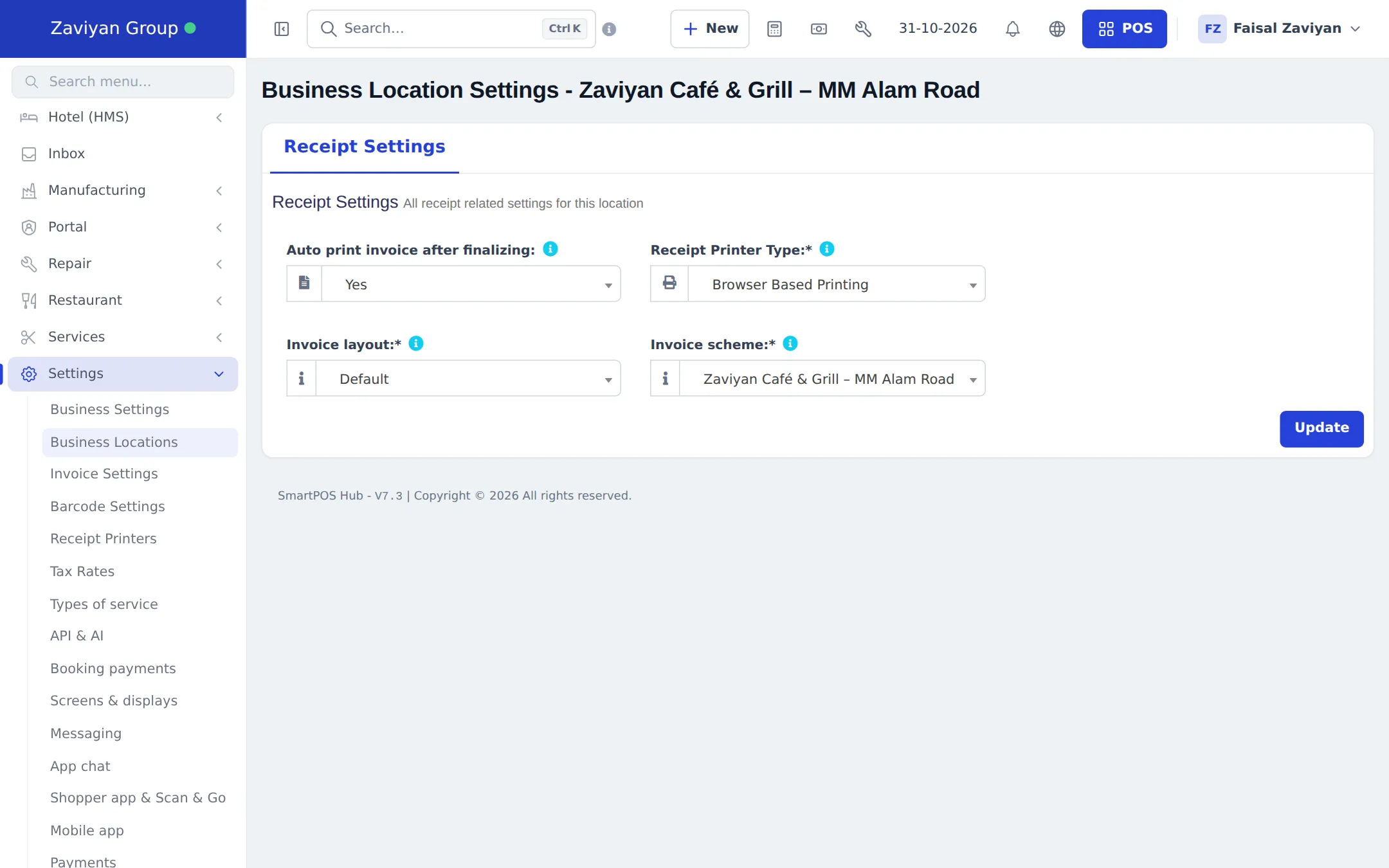
Section titled “Location settings: auto-print and printer”Click Settings next to a location to open Business Location Settings. Under Receipt Settings choose:
- Auto print invoice after finalizing: Yes prints (or opens) the receipt straight after each sale.
- Receipt Printer Type: Browser Based Printing (the browser’s print window) or a configured receipt printer. See Receipt printers and barcode printers.
- Invoice layout and Invoice scheme for this location.
Click Update to save.
Location-wise stock
Section titled “Location-wise stock”Every product has a separate stock quantity in each location.
- Opening stock asks for a quantity per location. See Opening stock.
- Purchases are received into one location. See Purchases.
- Stock transfers move stock from one location to another, for example from a warehouse to the shops. See Stock transfers.
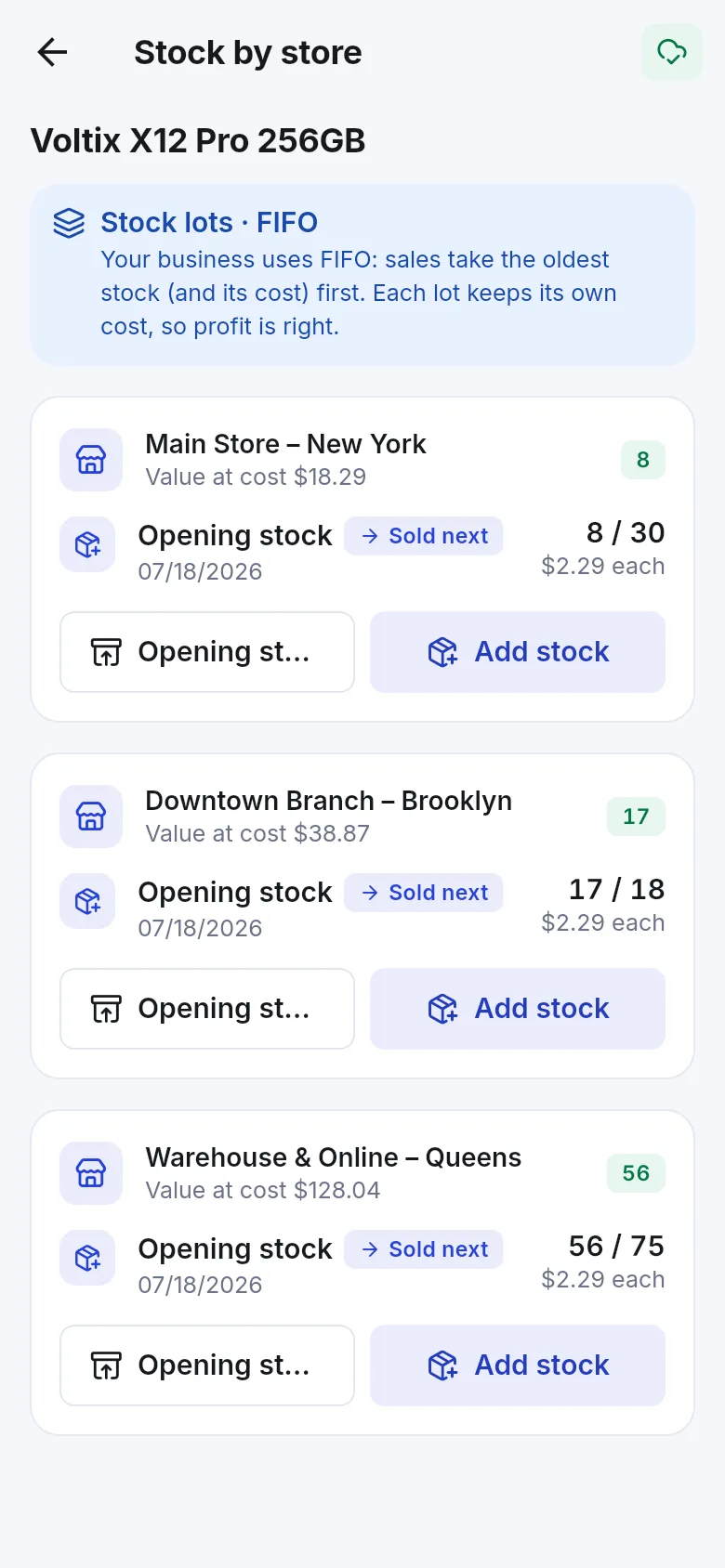
- The Stock Report and the product View window show stock per location. In the SmartPOS Business app, Stock by store shows each location’s quantity and value at cost.
Location-wise prices
Section titled “Location-wise prices”To charge different prices in different branches (for example airport shop vs high street):
- Create a selling price group, for example “Airport prices”, under Products › Selling Price Group.
- Set that group’s price on each product (on the product form or with Products › Update Price).
- Edit the location and choose the group as its Default Selling Price Group.
Sales at that location now start with the group’s prices. Products without a group price use the normal selling price. Details: Selling price groups.
Location-wise invoice numbers
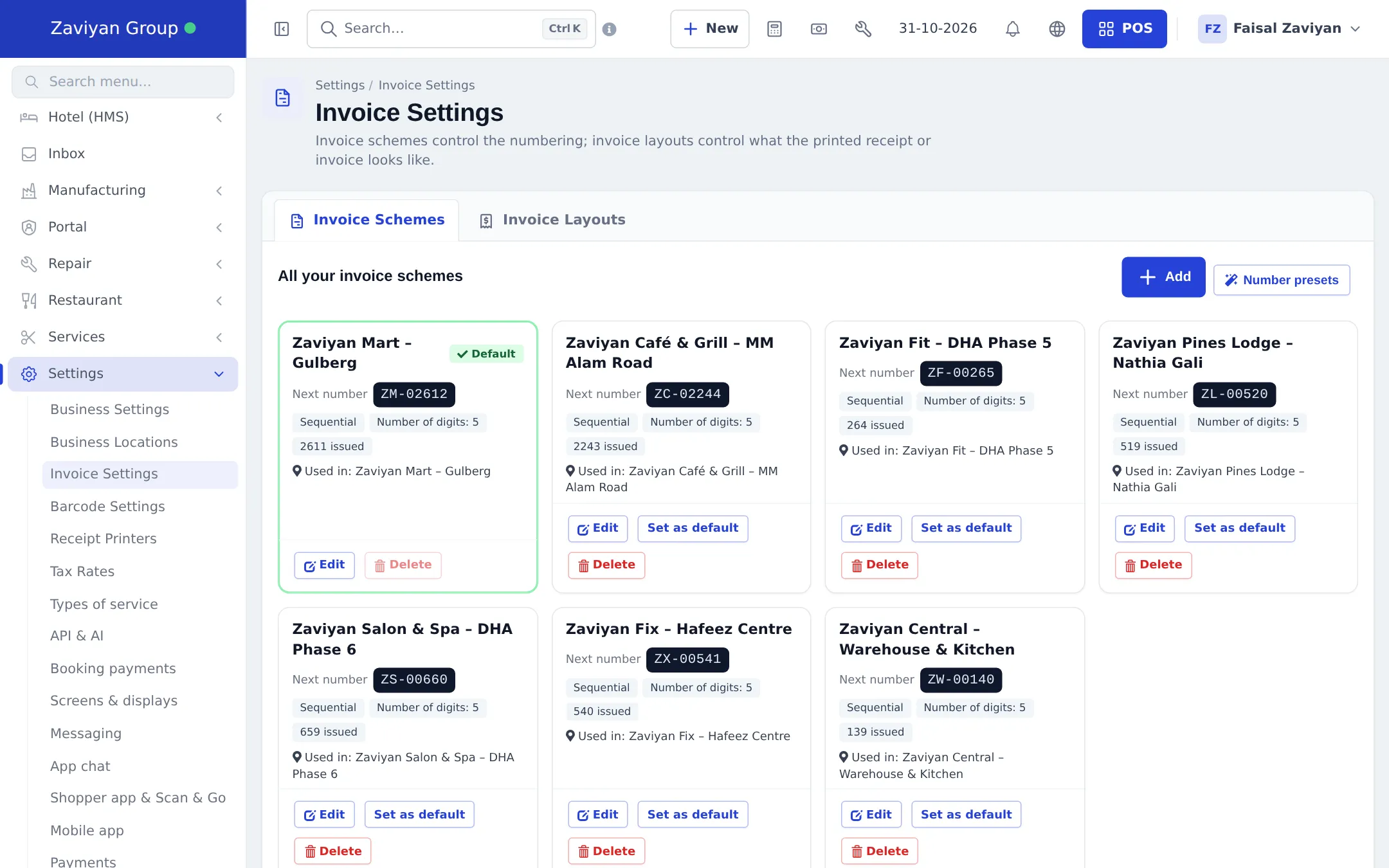
Section titled “Location-wise invoice numbers”Each location can number its invoices differently, for example ZM-02612 for the mart and ZC-02244 for the café. Under Settings › Invoice Settings › Invoice Schemes each scheme card shows the Next number and where it is Used in. Number presets adds a ready-made scheme per location in one click.
Staff per location
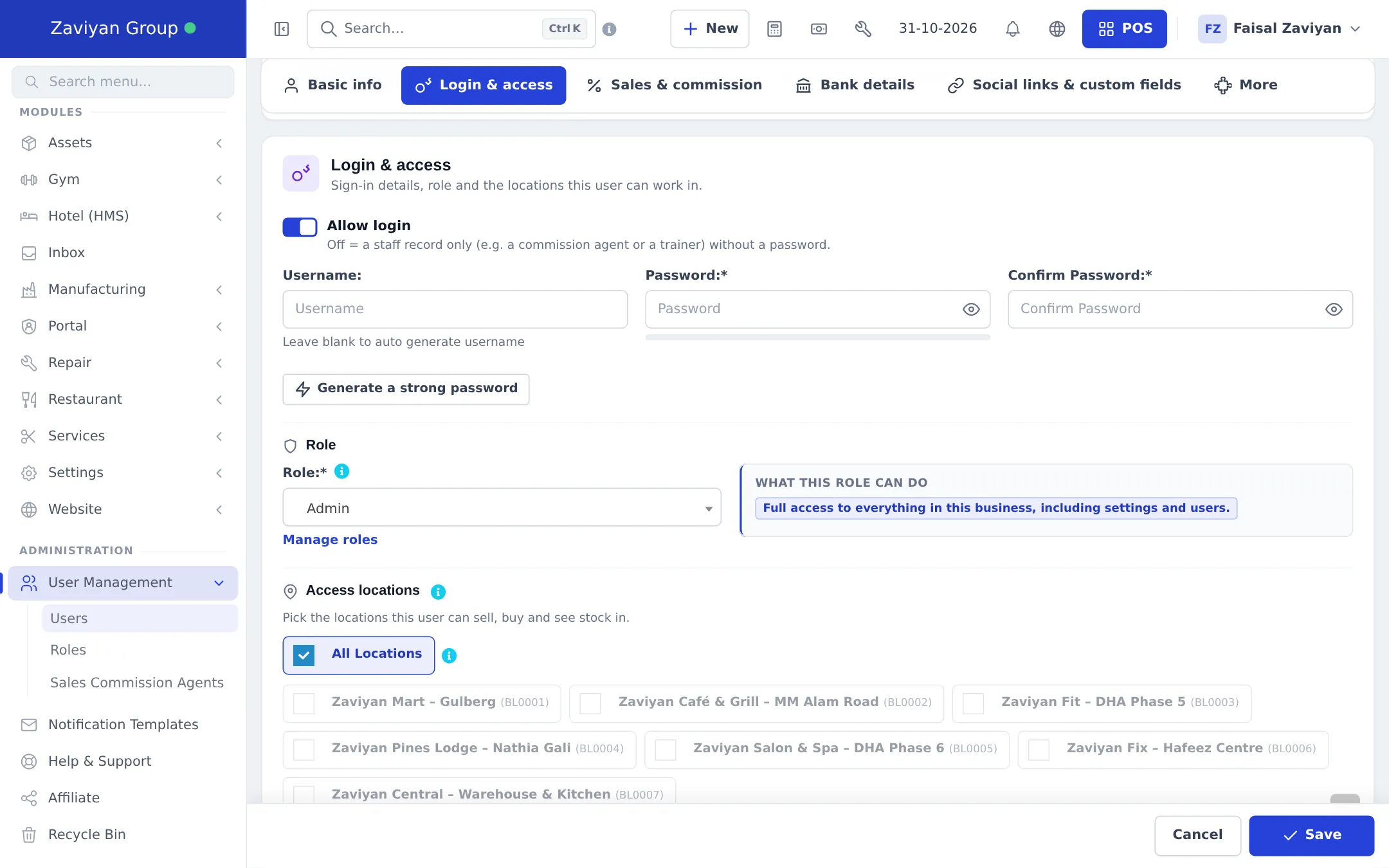
Section titled “Staff per location”Give each user only the locations they work in. On User Management › Users › Add (or Edit), under Access locations, untick All Locations and tick the branches. Users then see only those branches in the POS, sales and purchase lists, stock and reports.
More: Users, roles and location access.
Deactivate a location
Section titled “Deactivate a location”Click Deactivate Location in the list. The location disappears from the POS and sales screens, but its sales, stock and reports stay. Click Activate Location to bring it back.
Tips and mistakes to avoid
Section titled “Tips and mistakes to avoid”- Name locations clearly: “Brand – Area” (for example “Zaviyan Mart – Gulberg”) reads well on receipts and in dropdowns.
- Use a warehouse location for central stock and transfer to the shops; it keeps shop stock honest.
- Check payment methods per location. A method not ticked on a location will not appear in that location’s POS.
- Do not give cashiers All Locations unless they really work everywhere.
- One scheme per branch avoids two branches printing the same invoice number.
Related pages
Section titled “Related pages”Frequently asked questions
What counts as a business location?
Any place that keeps its own stock or sells on its own - a shop, a branch, a kiosk, a warehouse or a central kitchen. Each one has its own stock, invoice numbers, receipts, payment methods and staff access.
How many locations can I add?
Your plan sets the limit. Settings, Package Subscription shows how many you use under Usage and limits. Choose a plan with more locations to add more.
Is stock shared between locations?
No. Every location has its own stock of each product. Move stock between them with a stock transfer, and see stock per location in the stock report or the product view.
Can each branch have different prices?
Yes. Give the location a Default Selling Price Group, and set that group's prices on each product. Sales at that location then use those prices automatically.
Can I stop a branch from selling without deleting it?
Yes. Use Deactivate Location in the list. Inactive locations are hidden from the POS and sales screens, and their history stays in reports.
Can a cashier work only in one branch?
Yes. When you add or edit the user, untick All Locations and tick only the branches they work in. They will not see other branches in the POS, lists or reports.
Can each branch have its own invoice numbers?
Yes. Create an invoice scheme per branch (for example with the branch code as prefix) and choose it in the location's Invoice scheme for POS and Invoice scheme for sale.
Does a warehouse need a POS?
No. A warehouse location can hold stock only. You buy into it and transfer to the shops; just do not give cashiers access to it.
Can I sell a product only in some branches?
Yes. On the product form, Business Locations lists where the product is available. Leave a branch out and the product does not appear in that branch's POS.