
Import prebuilt categories, brands, units and more
Import prebuilt fills your setup lists in seconds. Most setup pages have an Import prebuilt button next to Add. It opens a library of ready-made items grouped by industry, so a new shop can import categories, brands, units, variations, price groups, warranties, tax rates and roles instead of typing them one by one.
Where you find the button
Section titled “Where you find the button”| Page | What you can import |
|---|---|
| Products › Categories | Categories and sub-categories (up to 3 levels) for 34 industries |
| Products › Brands | Well-known brands by industry |
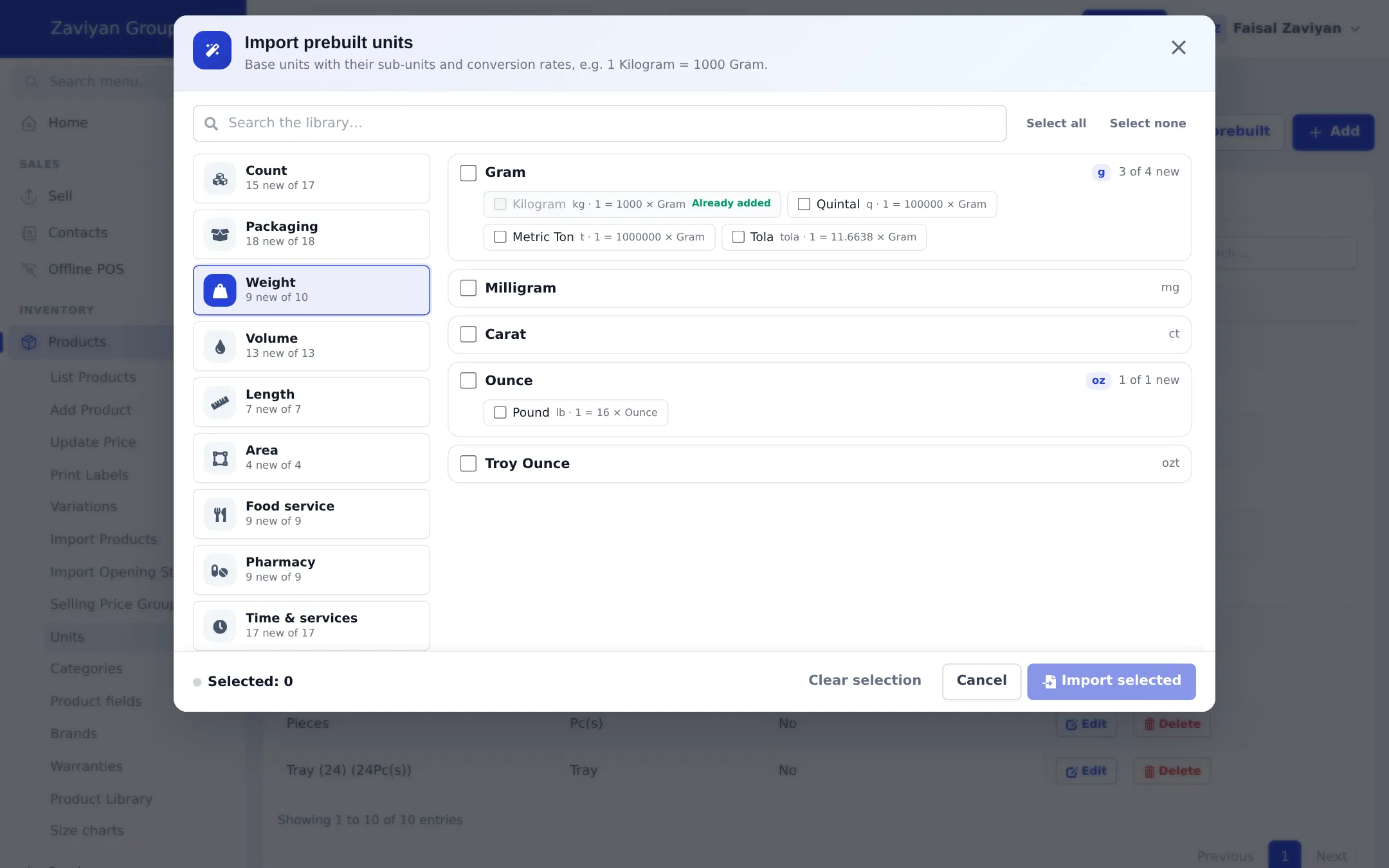
| Products › Units | Base units with sub-units and conversion rates, for example 1 Kilogram = 1000 Gram |
| Products › Variations | Variation templates with values, such as Size, Kids Size, Colour |
| Products › Selling Price Group | Price lists such as Retail, Wholesale, Distributor, Online Store |
| Products › Warranties | Warranty and return terms for electronics, mobiles, appliances, auto parts and more |
| Products › Product fields | Ready-made specification groups (for example Mobile phones) |
| Settings › Tax Rates | Tax rates and tax groups by country |
| Settings › Barcode Settings | Label and sticker sheet presets |
| Settings › Receipt Printers | Printer presets (80 mm, 58 mm, kitchen) without an IP address |
| Settings › Types of service | Dine in, takeaway, delivery and similar |
| User Management › Roles | Role templates for retail, restaurant, hotel, gym, repair and services |
| Expenses › Expense Categories, Contacts › Customer Groups, Payment Accounts account types | Common categories, groups and account types |
| Module pages | Restaurant modifiers, tables and kitchen stations; hotel amenities, room types and extras; gym classes, plans and packages; repair device categories, statuses and models; services |
You see a button only if your role may add that kind of item, and, for module lists, only when the module is on. Pages in other sections explain their own lists, for example tax rates and roles.
How to import
Section titled “How to import”- Open the page, for example Products › Categories, and click Import prebuilt.
- On the left, pick a group (an industry such as Grocery / Supermarket or Clothing / Fashion). Each group shows how many items are new, for example 143 new of 146. The group that matches your type of business is usually opened for you.
- Tick the items you want on the right. Ticking a parent ticks its children; you can untick single children. Use Search the library… to search every group at once, and Select all / Select none for what is visible.
- Click Details on an item where shown to see more, for example a role’s permissions, a tax group’s parts or a label sheet drawing.
- Check the counter at the bottom, for example Selected: 13, and click Import selected.
- A confirmation lists exactly what will be created and what will be skipped. Confirm to import, or go back.
- The list refreshes and shows your new items. You can edit or rename them right away.
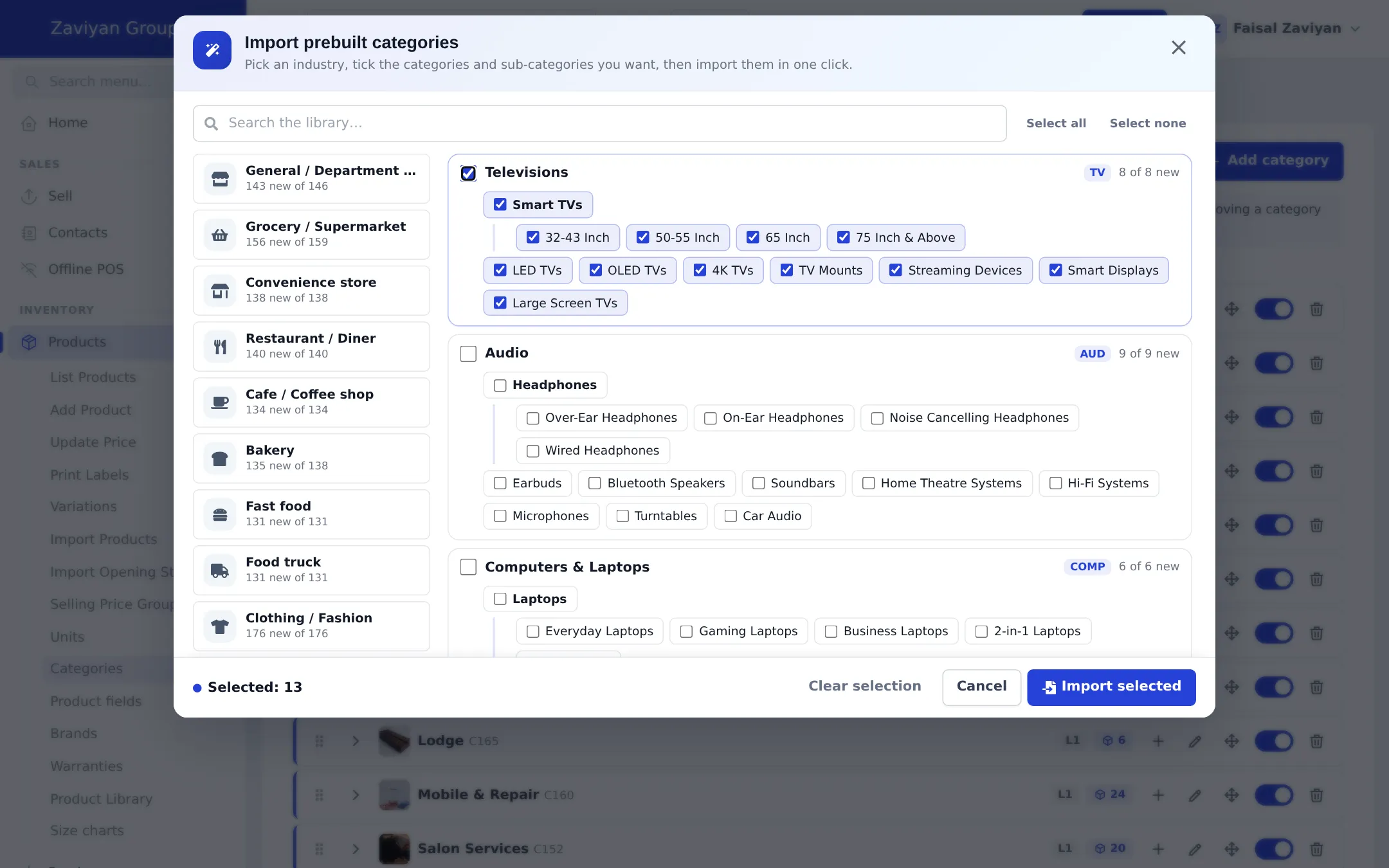
Examples
Section titled “Examples”Brands
Section titled “Brands”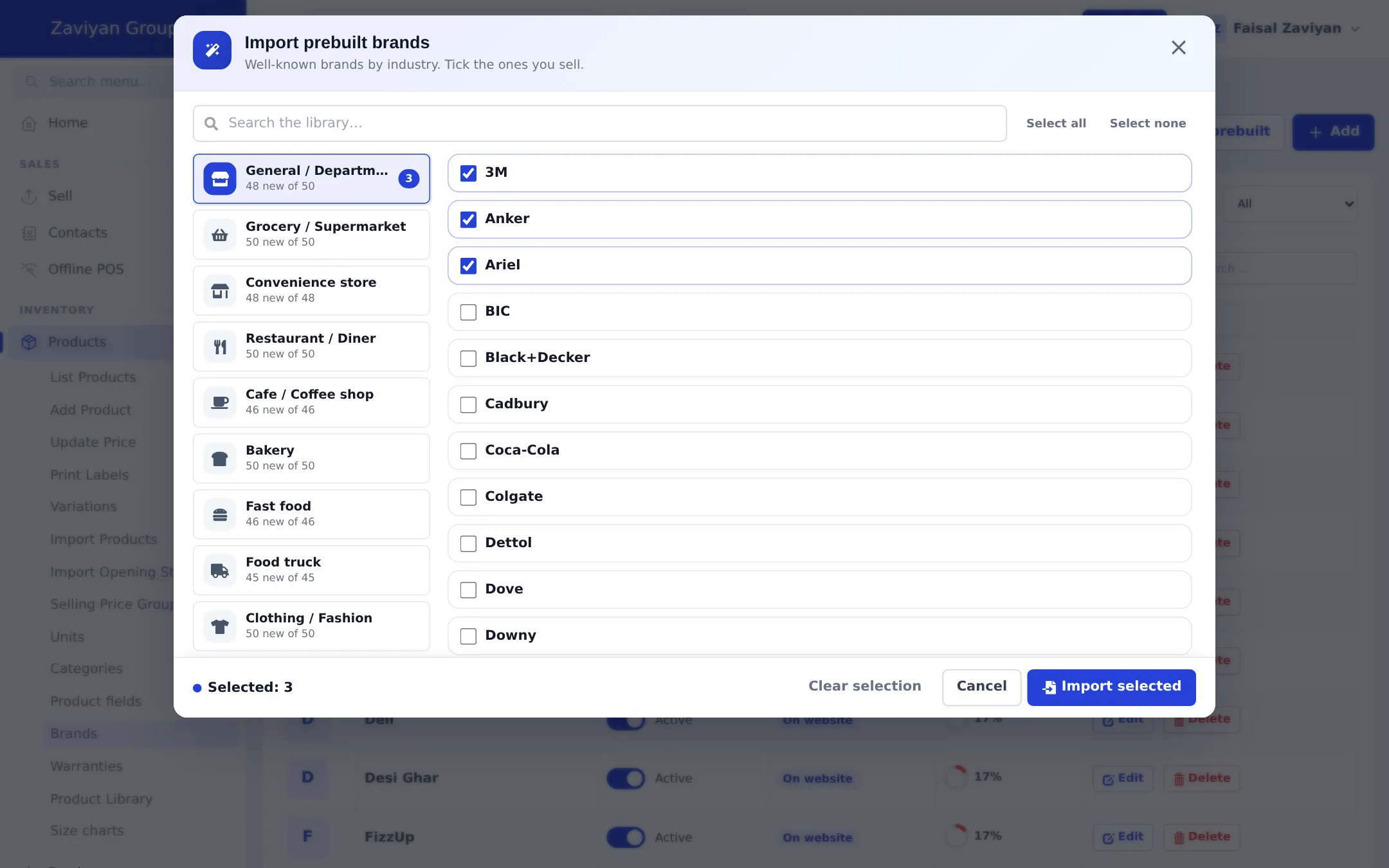
Units with sub-units
Section titled “Units with sub-units”Each base unit shows its sub-units and conversion, for example Kilogram · 1 = 1000 × Gram under Gram. Pick the units you sell in; a pharmacy can import Pharmacy units, a hardware store Length and Area units.
Variations
Section titled “Variations”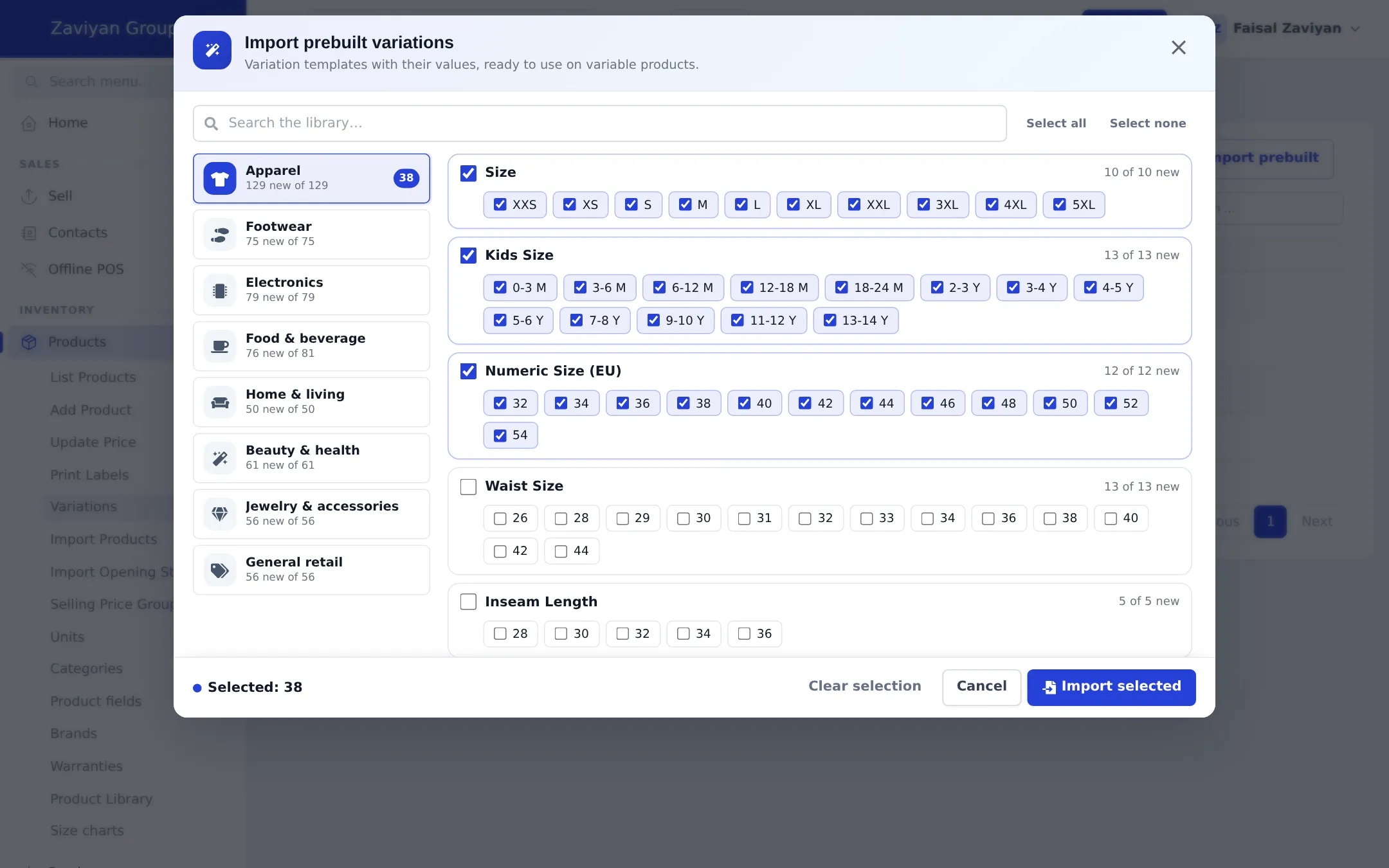
Selling price groups
Section titled “Selling price groups”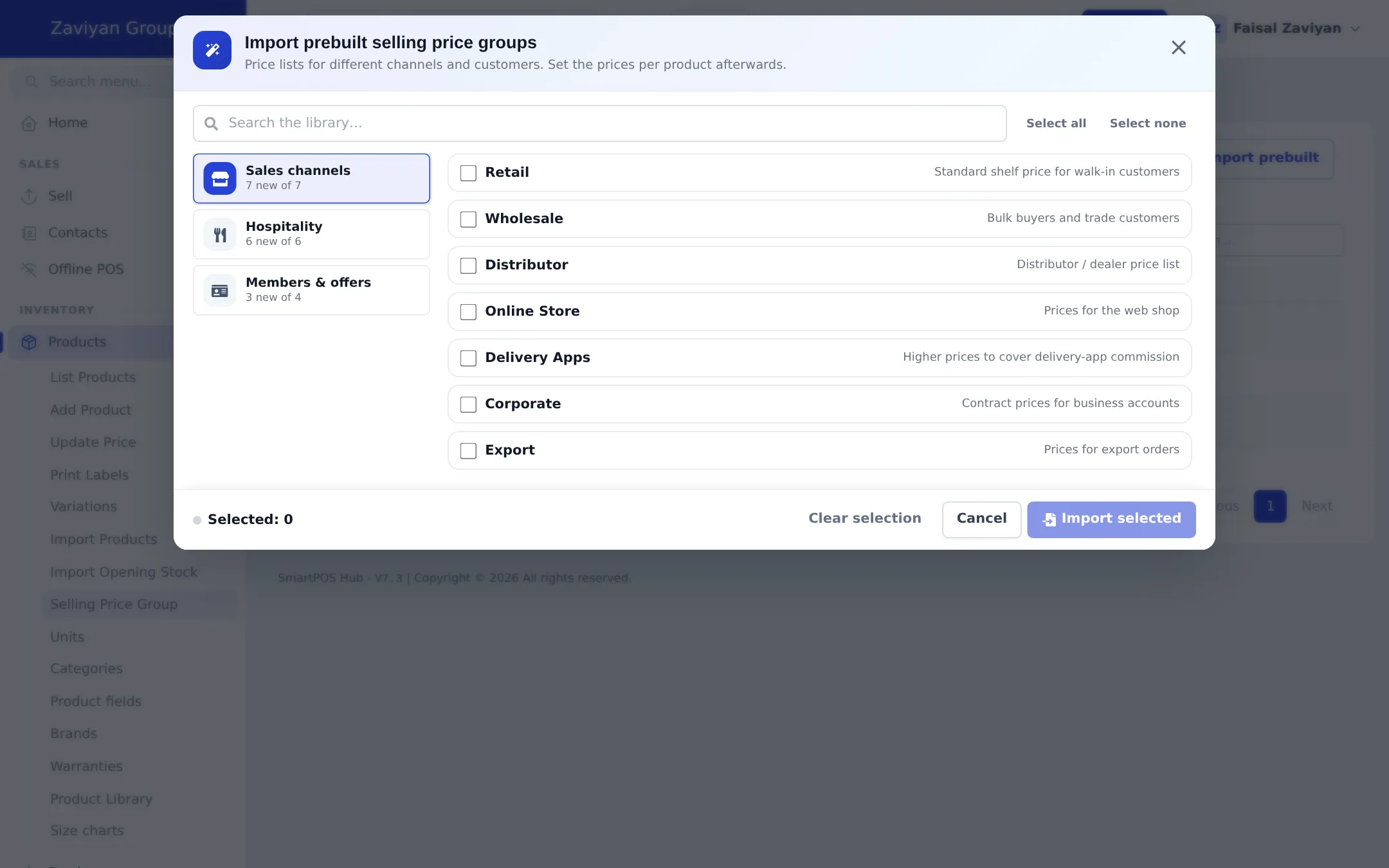
Warranties
Section titled “Warranties”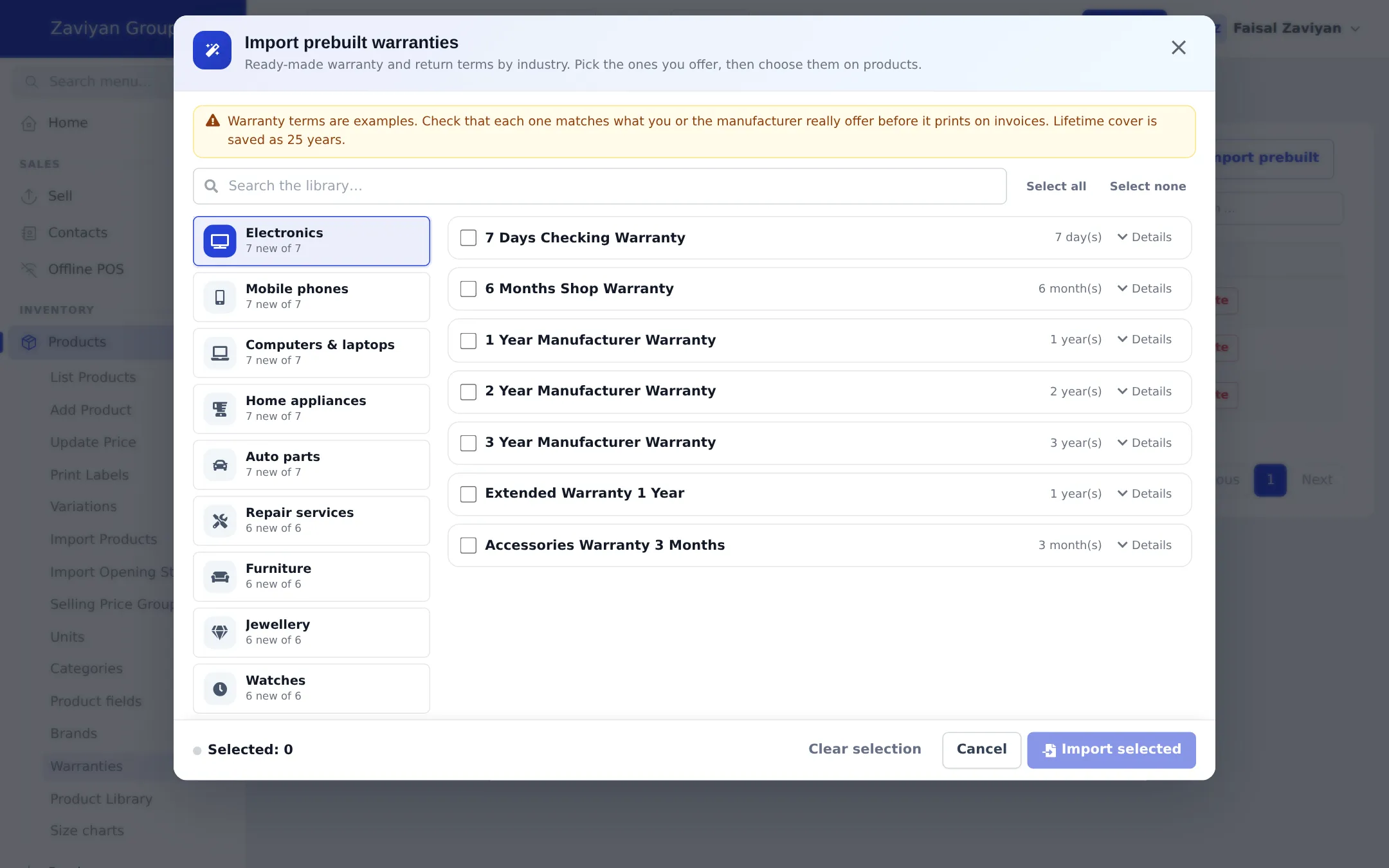
Good to know
Section titled “Good to know”- Prices and rates in the library (for example service prices) are suggested defaults in USD. Edit them after importing.
- Tax rates were checked on 21 Oct 2026 against official sources, but please verify them with your accountant. Existing tax rates are never changed.
- Printer presets never include an IP address. Edit each printer after import to add yours.
- Restaurant tables are imported into the location you choose in the window.
Related pages
Section titled “Related pages”Frequently asked questions
Does Import prebuilt change things I already set up?
No. Items you already have are greyed out with an Already added badge and skipped. Existing categories, brands, tax rates and roles are never changed.
Do I need a special plan for Import prebuilt?
No. The Import prebuilt buttons are available on every plan. You only need permission to add that kind of item, and for module lists (restaurant, hotel, gym, repair, services) the module must be on.
Can I rename imported items?
Yes. Library names are in English. After the import they are your own records, so rename or edit them like anything you added yourself.
Are the tax rates in the library correct for my country?
They were checked against official sources for each listed country, but tax rates change. The window asks you to verify them with your accountant before using them on invoices.
What is the difference between Import prebuilt and the Product Library?
Import prebuilt adds setup lists such as categories, brands, units and roles. The Product Library adds real products with barcodes, photos and descriptions.
Why can't I see the Import prebuilt button on a page?
The button is hidden when your role cannot add that kind of item, or when the module the list belongs to is not on in your plan or in Settings › Business Settings › Modules.