
Home screen, menus and search in SmartPOS Business
This page shows how to find your way around SmartPOS Business: the Home screen and its cards, the bottom tabs, the Quick menu, the More screen and search. It also explains why owners, cashiers and kitchen staff each see a different app, so you know where to look when a menu seems to be missing.
Home at a glance
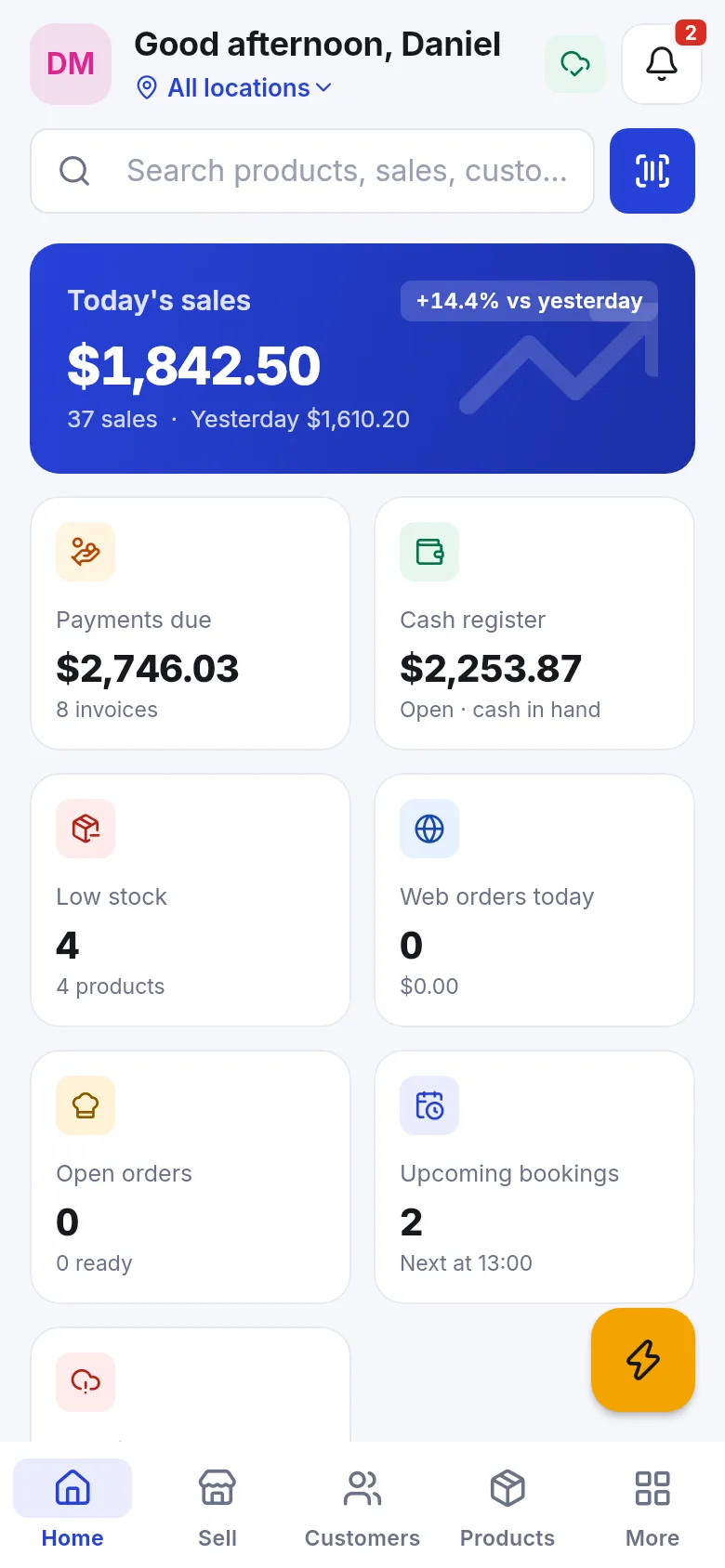
Section titled “Home at a glance”Home greets you by name and shows the location you are working in (tap it to switch, or choose All locations if you may see several). Below that:
- Search – type to find products, sales and customers, or tap the scan button to scan any code.
- Today’s sales – today’s total, the number of sales and the change vs yesterday.
- Cards that depend on your role and modules: Payments due, Cash register (open, cash in hand), Low stock, Web orders today, Open orders, Upcoming bookings, Sync issues and the Inbox.
- The yellow lightning button opens the Quick menu.
- The bell opens Notifications; the cloud icon shows the sync status.
Pull down on Home to refresh. Offline, Home shows the saved figures and says so.
Bottom tabs follow the role
Section titled “Bottom tabs follow the role”The app builds its tabs from your plan, the business switches and your role permissions. Some examples:
| Role (typical) | Bottom tabs |
|---|---|
| Owner / admin | Home · Sell · Customers · Products · More |
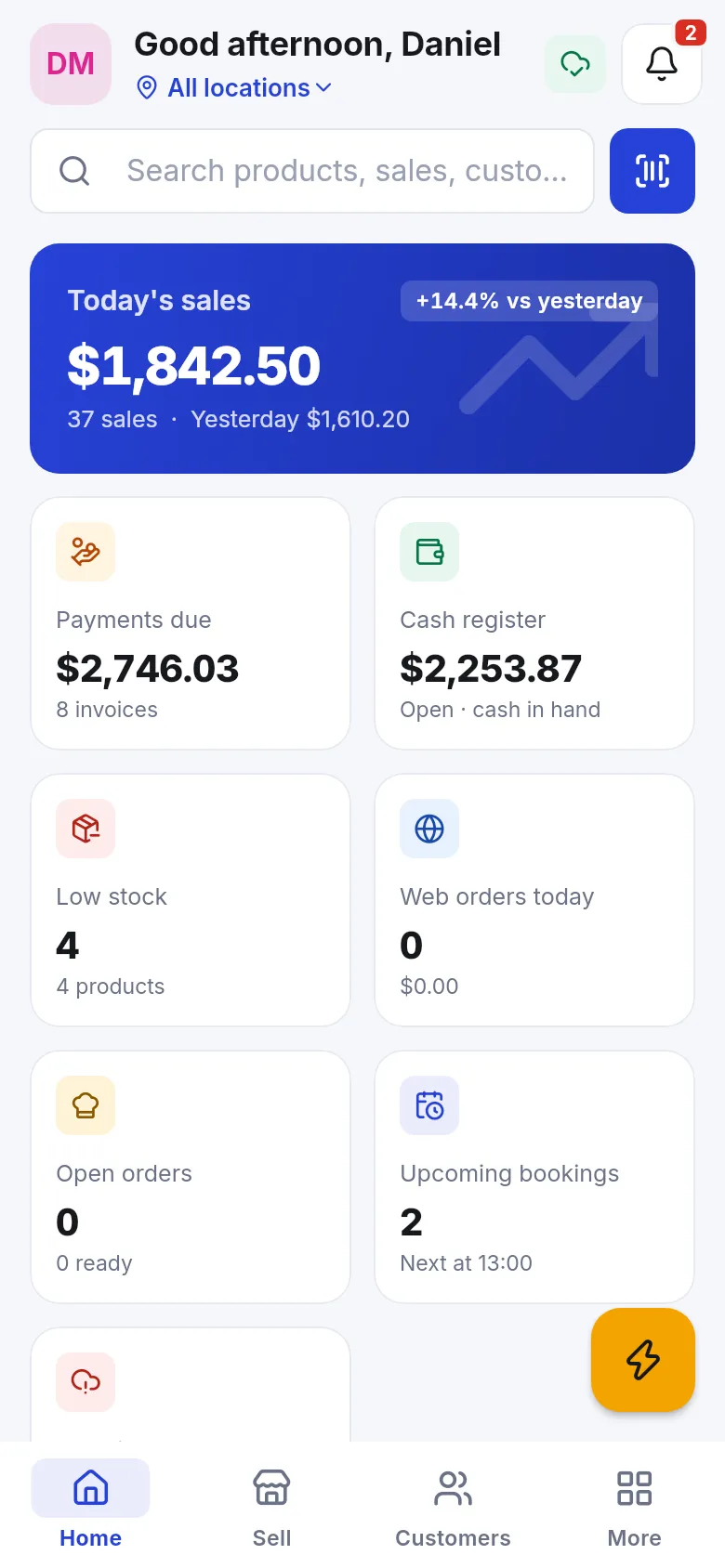
| Cashier | Home · Sell · Customers · More |
| Waiter | Home · Sell · Restaurant · Sales · More |
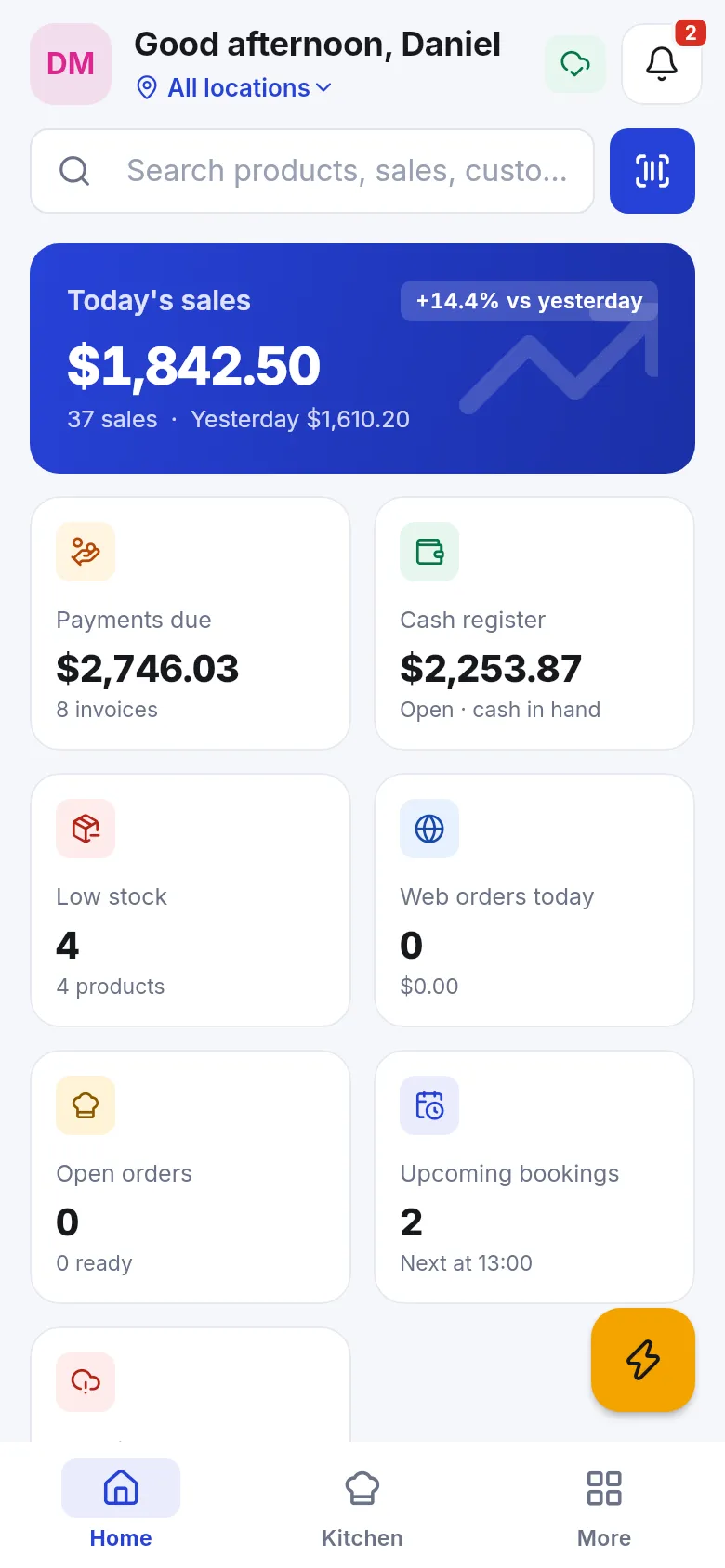
| Kitchen | Home · Kitchen · More |
| Rider | Home · Deliveries · More |
| Hotel front desk | Home · Sell · Customers · More |
More: every tool your role can use
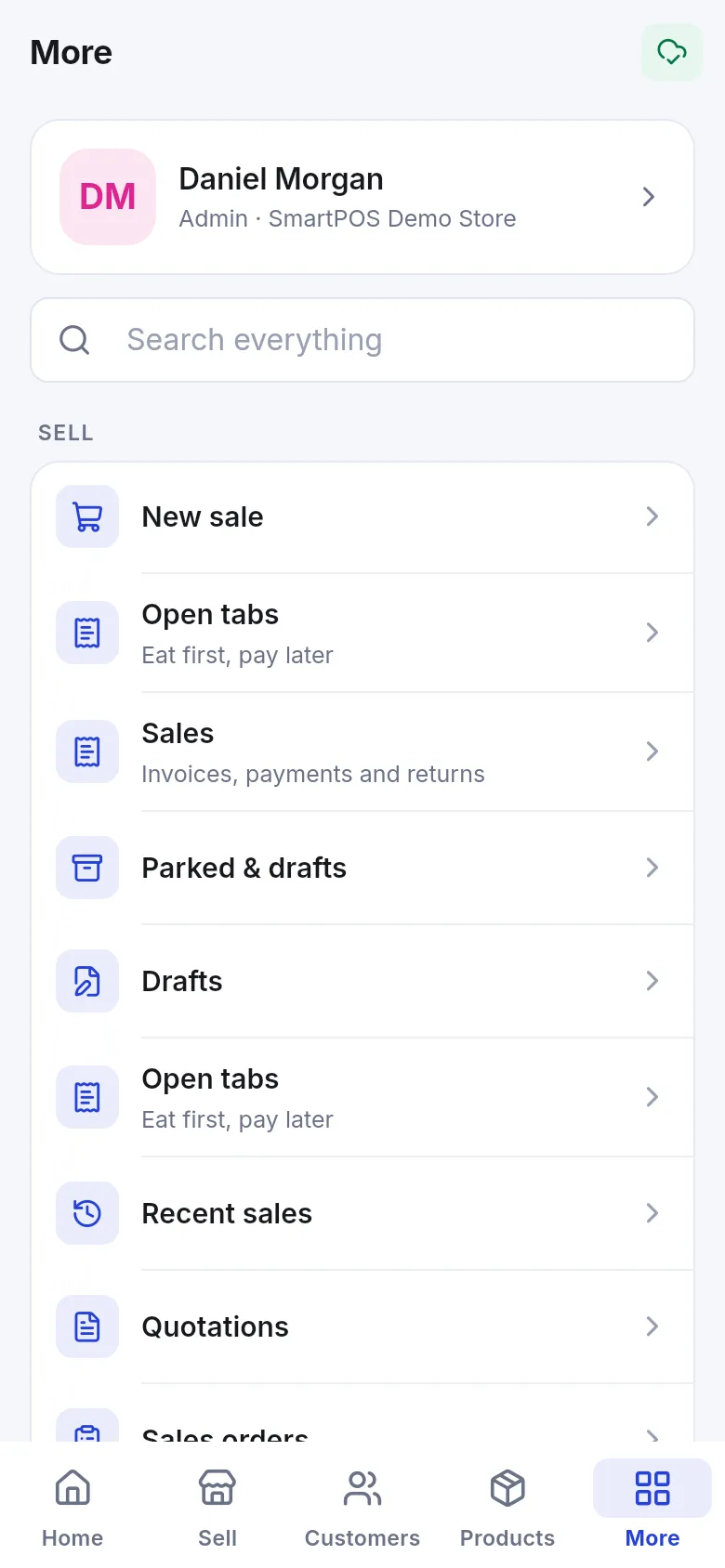
Section titled “More: every tool your role can use”More lists everything else, grouped as Sell, Products, Stock, Contacts, Operations, Purchases, Money, Reports, Tools and Settings. At the top is your name and business (tap for your profile) and Search everything. Sign out is at the bottom; if sales are still waiting to sync, the app warns you before you sign out.
Quick menu and search
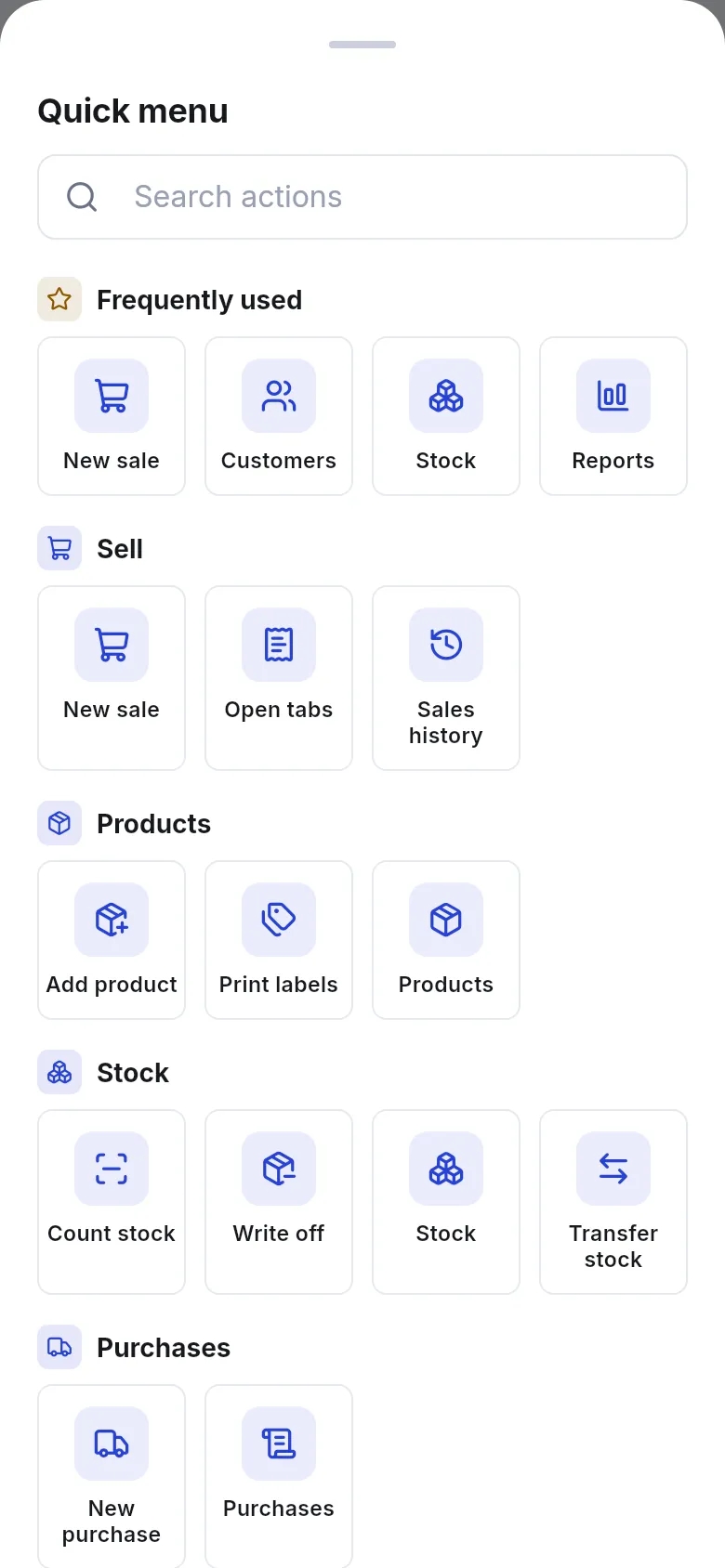
Section titled “Quick menu and search”- Tap the yellow lightning button on Home (or long-press a tab).
- Frequently used shows the actions you use most. Below are groups such as Sell, Products, Stock and Purchases.
- Type in Search actions to find an action by name, for example “transfer” or “labels”.
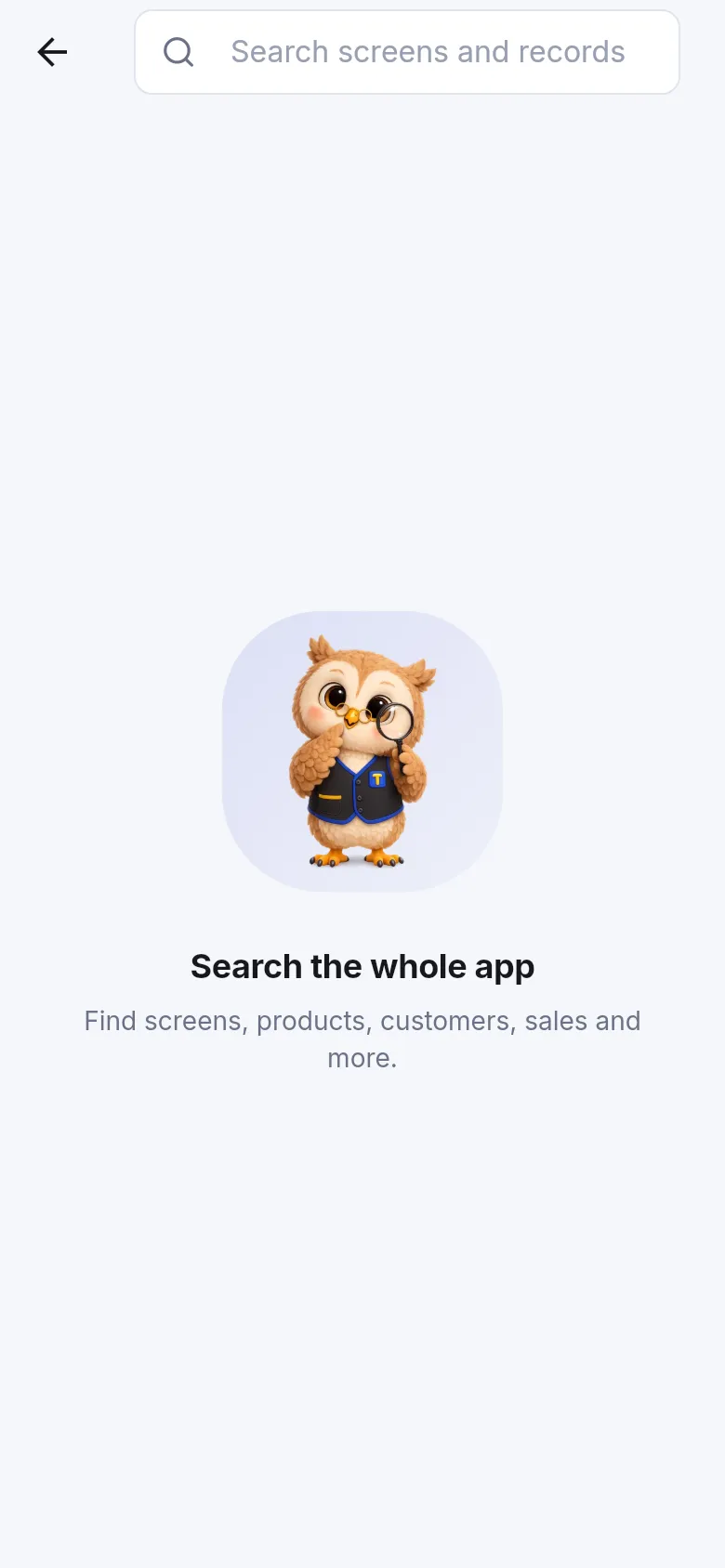
To find a record or screen, open More › Search everything (or the search box on Home) and type a product, customer, invoice number or screen name.
“You don’t have access” and hidden features
Section titled ““You don’t have access” and hidden features”If you open a link or notification for something your role can’t do, the app shows You don’t have access. If a whole module is missing, see Troubleshooting: feature not visible.
The first-run tour
Section titled “The first-run tour”Tovi the owl explains Home the first time you sign in: your location, today at a glance, the Quick menu, notifications, sync status and the tabs. To see it again, open Settings › Show me around again.
Related pages
Section titled “Related pages”Frequently asked questions
Why does my colleague see more tabs than I do?
Menus follow each person's role permissions. A cashier, a waiter, a kitchen user and an owner each see different tabs and buttons. An admin changes this in User Management › Roles on the web app.
How do I switch location in the app?
Tap the location name under your greeting on Home and pick another location. You only see the locations your user is allowed to work in.
What is the Quick menu?
The round button with a lightning bolt on Home. It opens your most-used actions grouped by Sell, Products, Stock, Purchases and more, with a search box.
Can I search for a sale or customer from anywhere?
Yes. Use the search box on Home, or Search everything in More. It finds screens, products, customers and sales.
Why does Home show “Welcome to SmartPOS Hub” and no figures?
Your role does not include dashboard figures. Use the menus to get to your work, or ask an admin for the permission if you need the numbers.
What does the green cloud icon at the top mean?
It is the sync status. Green means everything is saved. A number means changes are waiting to sync.