
Restaurant step 4: menu items and modifiers
Your menu in SmartPOS Hub is made of products (dishes, drinks, combos) and modifier sets (the choices a guest makes: size, crust, toppings, sauce, milk). This step shows how to add menu items quickly and how to build modifier sets with rules, so the cashier can’t forget a required choice.
Before you start
Section titled “Before you start”- Modifiers is switched on (step 2).
- Your menu categories exist (step 3).
- Have your menu with prices ready, ideally as a spreadsheet.
Add your menu items
Section titled “Add your menu items”- Open Products › Add Product.
- Enter the Product Name as guests see it (“Chicken Tikka Pizza”).
- Pick the Category and sub-category. The category decides which kitchen station gets the item.
- For drinks and dishes you don’t count, untick Manage Stock? For bottled drinks and retail items, keep it ticked.
- Choose Product Type:
- Single for one price.
- Variable when each size has its own price (Small 9”, Medium 12”, Large 14”).
- Combo for meal deals made of other items.
- Enter the selling price, add a photo (it shows on the POS, the online menu and the Shopper app) and save.
For a long menu, use Import products from Excel. For sizes and combos in detail see Variable products and Combo and service products.
How modifier sets work
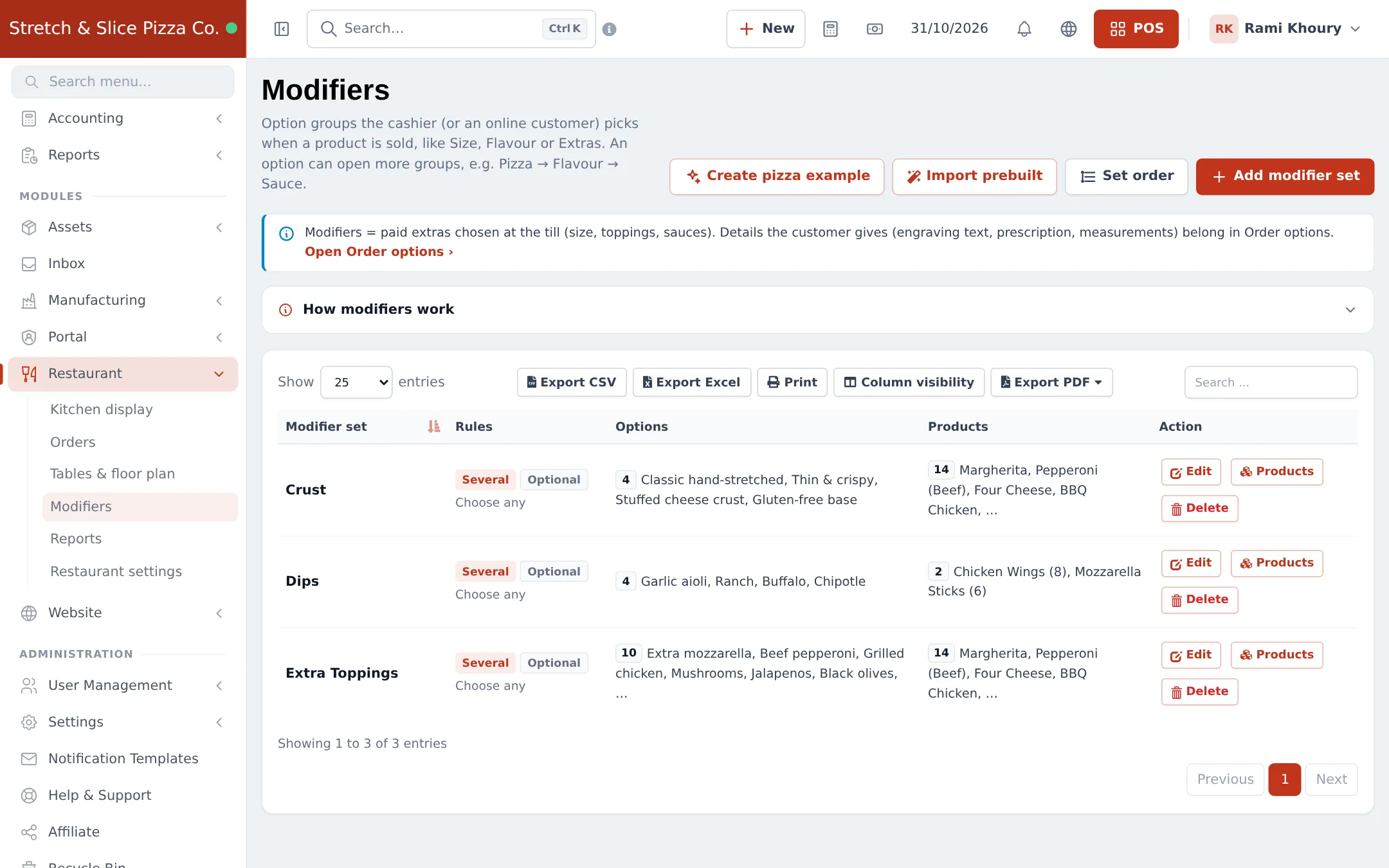
Section titled “How modifier sets work”A modifier set is one question the cashier asks: “Which crust?”, “Any extra toppings?”. Each set has:
| Part | What it does | Example |
|---|---|---|
| Options | The answers, each with a price (0 = free) | Thin & crispy (free), Stuffed cheese crust (+12.00) |
| Selection rules | One choice (radio) or Several choices (checkboxes), Required, min / max, free choices | Crust: one choice, required |
| Opens | Child sets that appear when an option is picked | Margherita › Sauce – Margherita |
| Products | The menu items that ask this question | All pizzas |
Build a modifier set
Section titled “Build a modifier set”- Open Restaurant › Modifiers and click Add modifier set (or Edit on an imported set).
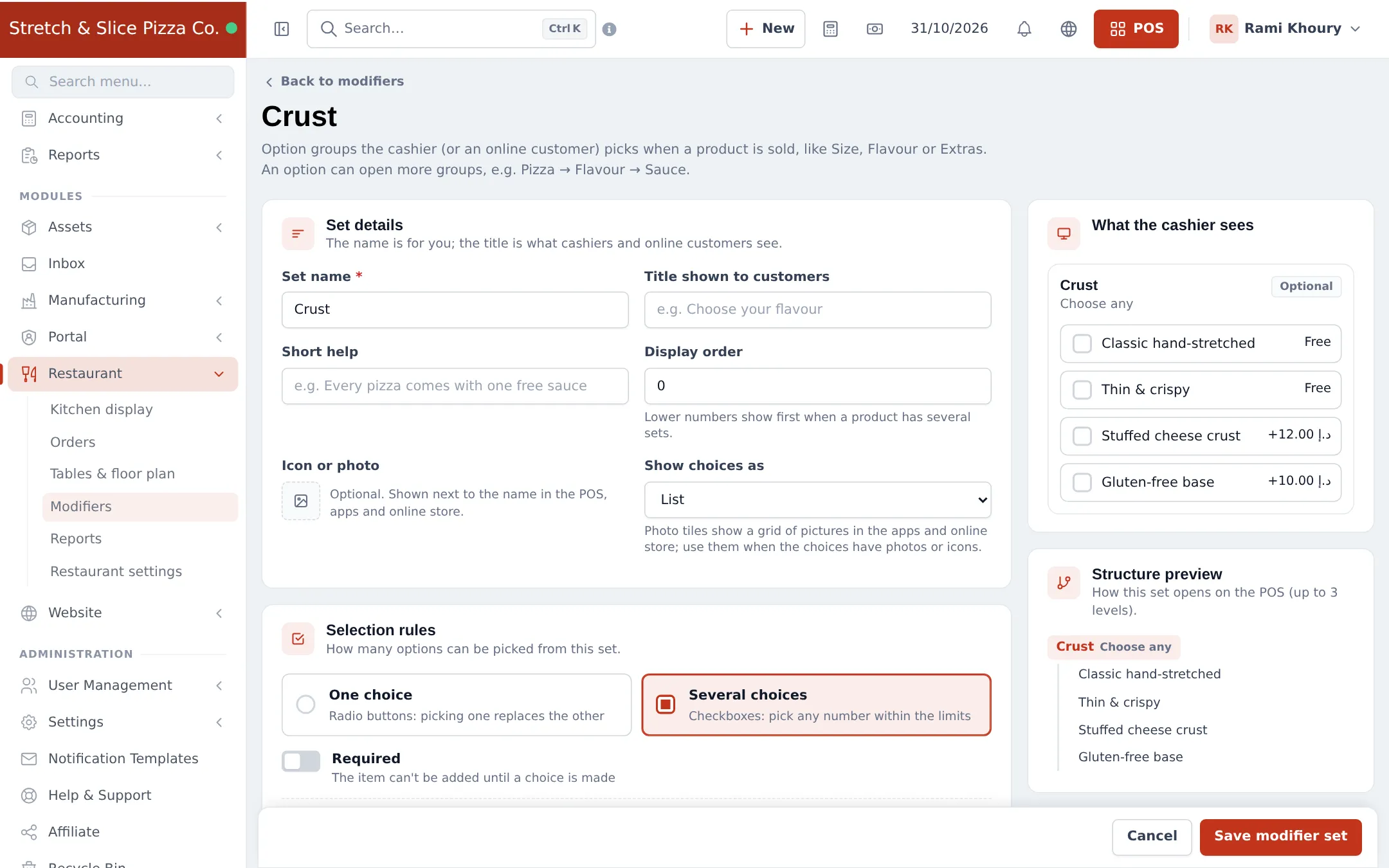
- Under Set details, enter the Set name (for staff) and, if you like, a Title shown to customers (“Choose your crust”) and Short help.
- Under Selection rules, pick One choice or Several choices. Switch on Required if the item can’t be sold without it. For several choices, set the maximum and how many are free.
- Under Options, add each option with its price. Mark a common choice as pre-selected to save taps.
- To nest options, use Opens on an option and pick the child set (for example the flavour opens its sauce set).
- Under Products, search for items or add all products of a category.
- Check the What the cashier sees preview on the right, then click Save modifier set.
What the cashier sees
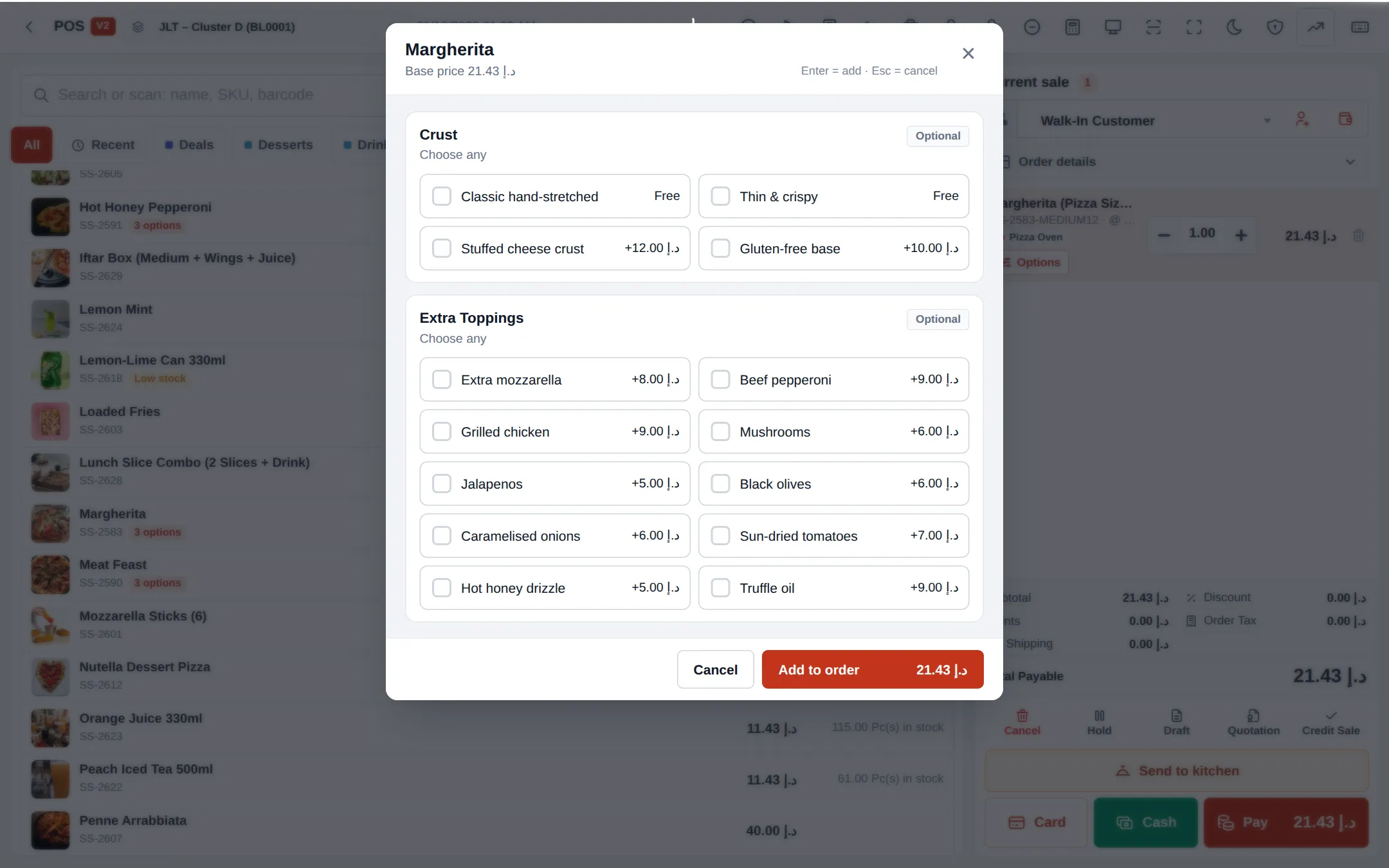
Section titled “What the cashier sees”When the cashier taps an item with modifiers, an options window opens. Required sets are marked, the counter shows how many are picked, and the footer shows the running total. The item can’t be added until the rules are met.
Tips and mistakes to avoid
Section titled “Tips and mistakes to avoid”- Don’t make every set required. Only questions the kitchen must have answered (size, cooking level) should be required.
- Keep set names unique and clear (“Sauce – Margherita”, not “Sauce 2”); staff see them in reports.
- Paid extras vs. details: paid choices are modifiers; free text the guest types (a name on a cake) belongs in Order options.
- Use Set order on the Modifiers page to control which set appears first.
Next step
Section titled “Next step”Frequently asked questions
Should pizza sizes be variations or modifiers?
Use variations when each size has its own price and you want separate sales reports per size, for example Small, Medium and Large. Use a required one-choice modifier set when the size only adds a surcharge to one base price.
Can a customer pick only one option from a group?
Yes. Set the modifier set to One choice and switch on Required. The cashier then has to pick exactly one option before the item can be added.
Can options open more options?
Yes. In the builder, use Opens on an option to link one or more child sets. For example Margherita can open its own sauces and extras. You can go up to three levels deep.
Can the first topping be free?
Yes. Set Free choices to 1 in the selection rules. The first option picked is free and the rest are charged.
Do modifiers reduce stock?
Modifier options are priced extras, not stock items. Track ingredient stock with the Manufacturing module if you need recipes.
Where do I put notes like "no onions"?
Add a set such as Dietary Requests with free options, or type a note on the cart line. For details the customer enters (a name on a cake, an allergy note), use Order options.
Do modifiers work in the online menu and the apps?
Yes. The same sets and rules show in the POS, the SmartPOS Business app, the Offline POS, the online menu widget and the Shopper app.