
Tech store step 1: branches and modules
Start your tech store with the two things every other screen depends on: a business location for each shop or lab, and the modules a phone and laptop business uses. This page is for the owner or an admin setting up the account for the first time.
Before you start
Section titled “Before you start”- You are signed in as the owner or an admin with access to Settings.
- Your business name, currency and time zone are set in Settings › Business Settings (see Business settings).
- You know the address of each branch.
Add one location per shop
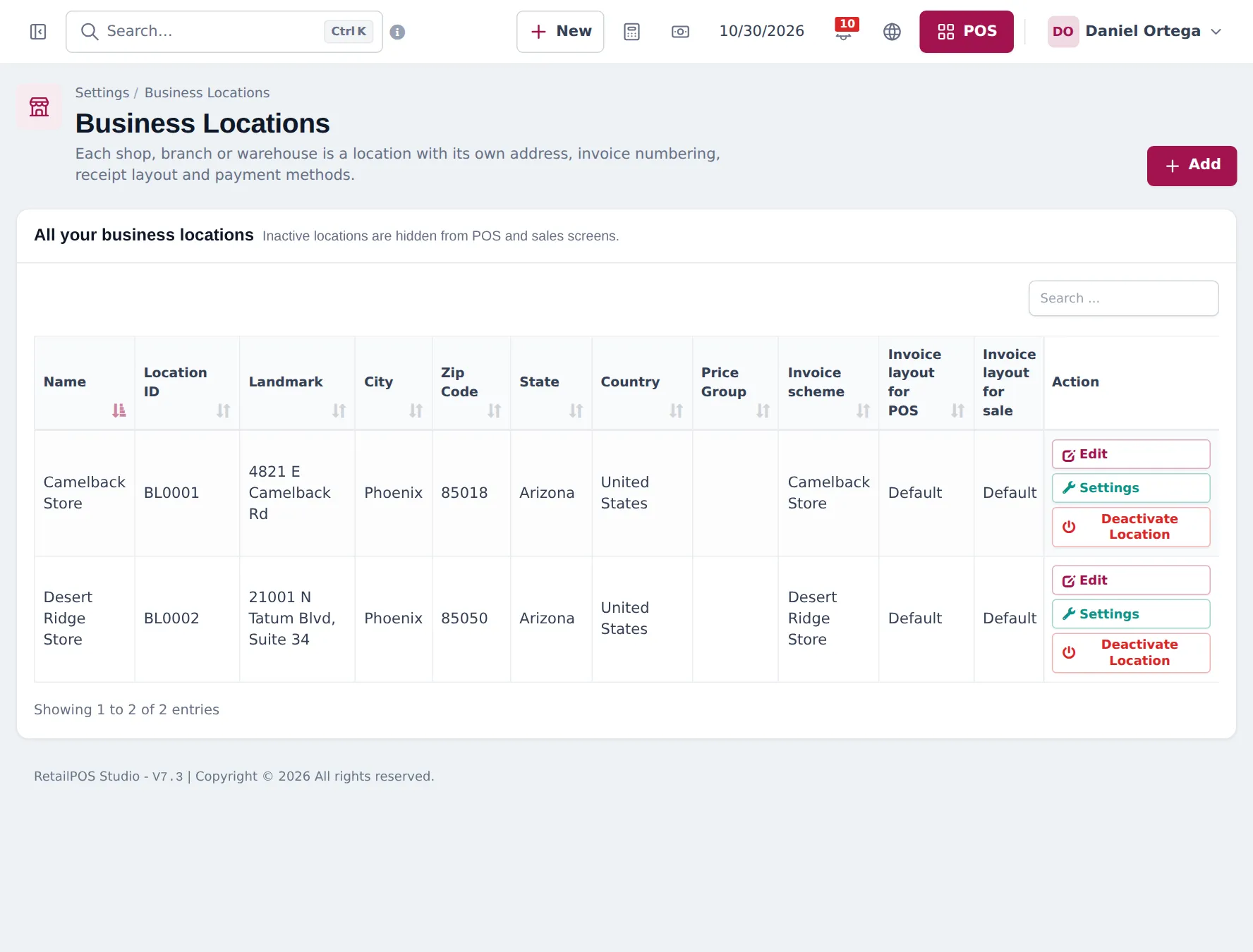
Section titled “Add one location per shop”- Open Settings › Business Locations.
- Click Add. Enter the shop name (for example “Hafeez Centre Lab” or “Mall Branch”), address, city and country.
- Choose the Invoice scheme and the invoice layouts for POS and for sales. Keep Default if you have not designed receipts yet.
- Optional: pick a Default Selling Price Group if this branch sells at its own prices.
- Save. Repeat for every branch and for a warehouse if you keep stock there.
Switch on the modules a tech store uses
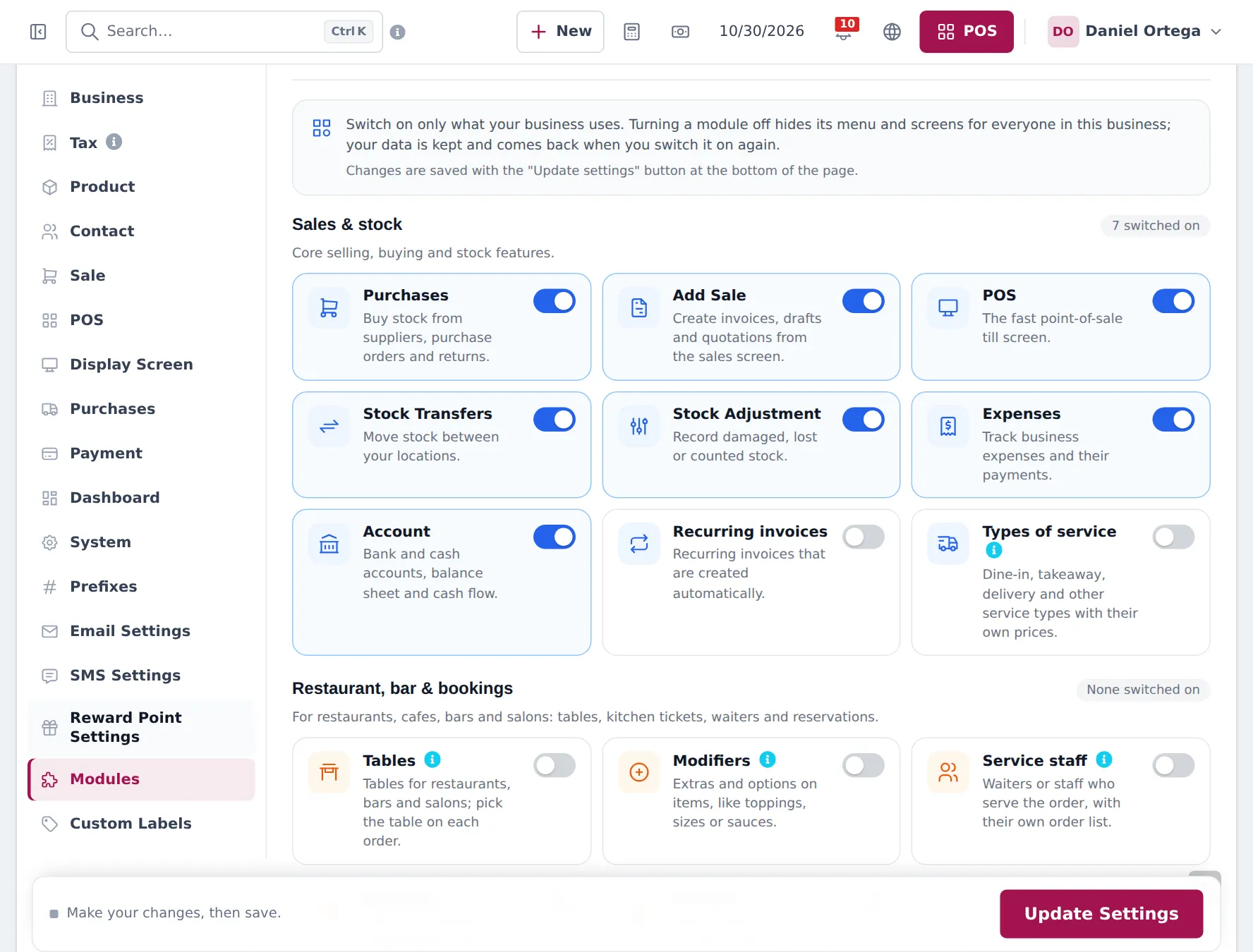
Section titled “Switch on the modules a tech store uses”- Open Settings › Business Settings and choose the Modules tab.
- Under Sales & stock, keep Purchases, Add Sale, POS, Stock Transfers and Stock Adjustment on.
- Under Industry modules, switch on:
- Repair module: job sheets, estimates, on-site visits, device models and repair reports.
- Product Library: ready-made catalogs, including Electronics.
- Order options & personalisation: if you want trade-in, device setup or warranty-claim forms on sale lines.
- Mobile app: if staff will use the SmartPOS Business app.
- Website & online store and Shopper app & Scan & Go: if you sell online.
- Click Update Settings at the bottom of the page.
Give staff the right permissions
Section titled “Give staff the right permissions”Open User Management › Roles and edit each role:
| Role | Suggested repair permissions |
|---|---|
| Owner / manager | All, including settings and reports |
| Front desk | Create and edit job sheets, record deposit, mark delivered, convert to invoice |
| Technician | View own jobs, update status and comments, repair dashboard |
| Cashier | No repair permissions needed if they only sell |
Revealing device passwords and screen PINs is a separate permission, and every reveal is logged. Give it only to people who need it. See Users and roles.
What happens next
Section titled “What happens next”The Repair menu appears in the sidebar for users with permission, and Products › Product Library becomes available. Continue with step 2: import phones and laptops.
Frequently asked questions
Should my repair lab be a separate location?
Only if it keeps its own stock of parts or sells from its own counter. A repair counter inside the shop is part of that shop's location. Job sheets and repair reports can be filtered by location.
Why can't I see the Repair menu?
Three things must be true. Your plan includes the Repair module, the Repair module switch is on in Settings › Business Settings › Modules, and your role has the Repair permissions. Business admins get all permissions automatically.
Does switching a module off delete its data?
No. Turning a module off hides its menus and screens for everyone in the business. Your job sheets and settings are kept and come back when you switch it on again.
Can each branch print its own address on receipts?
Yes. Each location has its own invoice scheme, receipt layout for POS and layout for sales, so every branch prints its own address and numbering.
Can one branch sell at different prices?
Yes. Give that location a default selling price group. See the price group steps in the Electronics guide.