
Restaurant step 7: dine-in, takeaway, delivery and riders
Most restaurants serve guests three ways: at the table, at the counter to take away, and by delivery. This step sets up those order types, shows how to follow every order on the Orders board, and how to hand delivery orders to riders.
Before you start
Section titled “Before you start”- Types of service is on in Settings › Business Settings › Modules (Sales & stock group), or you use the simple order type selector in Restaurant settings.
- For delivery riders: a Delivery driver role exists (step 3).
1. Create your types of service
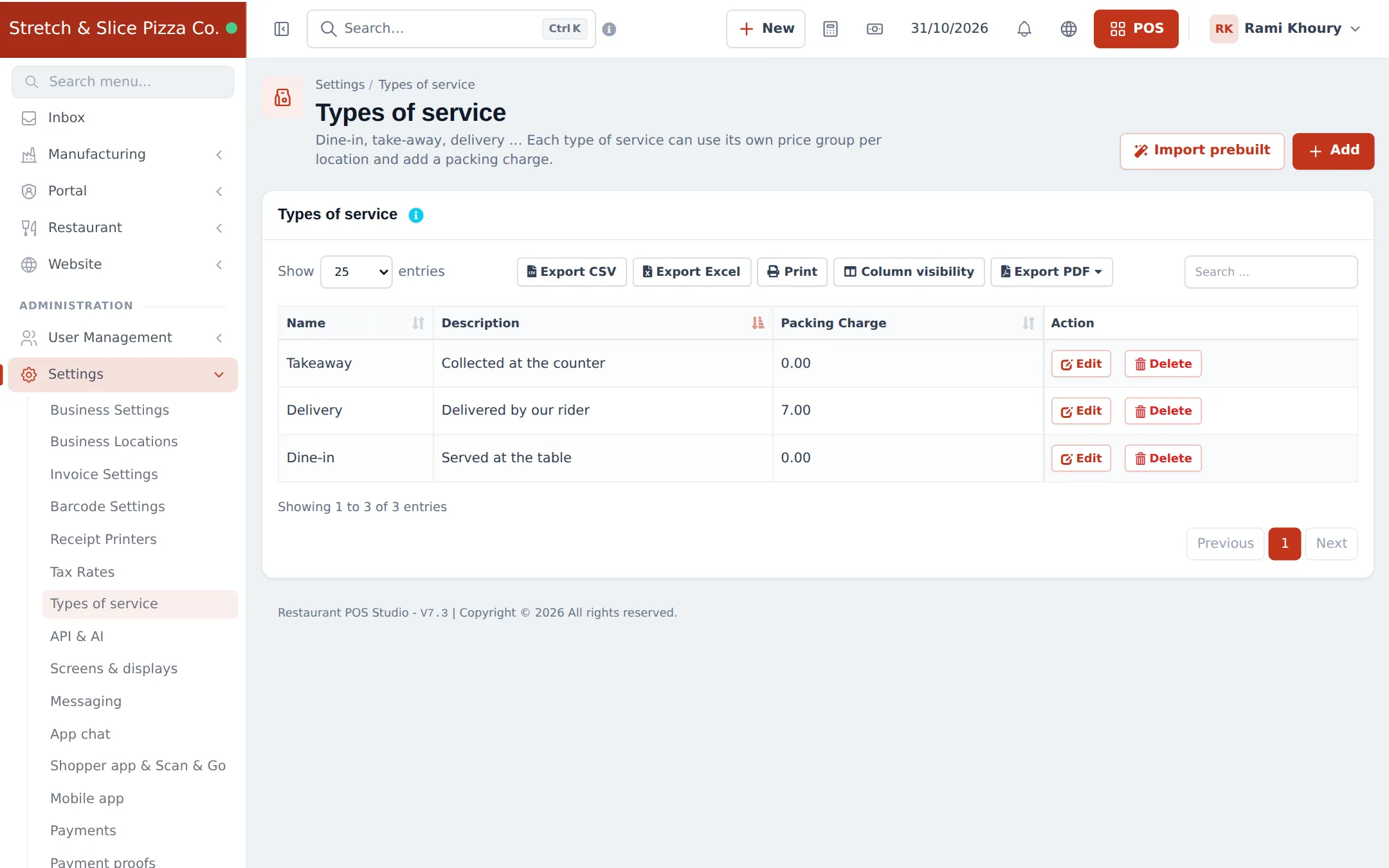
Section titled “1. Create your types of service”- Open Settings › Types of service.
- Click Add (or Import prebuilt).
- Enter the Name (Dine-in, Takeaway, Delivery), a description, and an optional Packing Charge.
- Optional: choose a selling price group per location, so delivery or third-party app orders use their own prices.
- Save. Repeat for each type.
2. Tell the restaurant flow which type is which
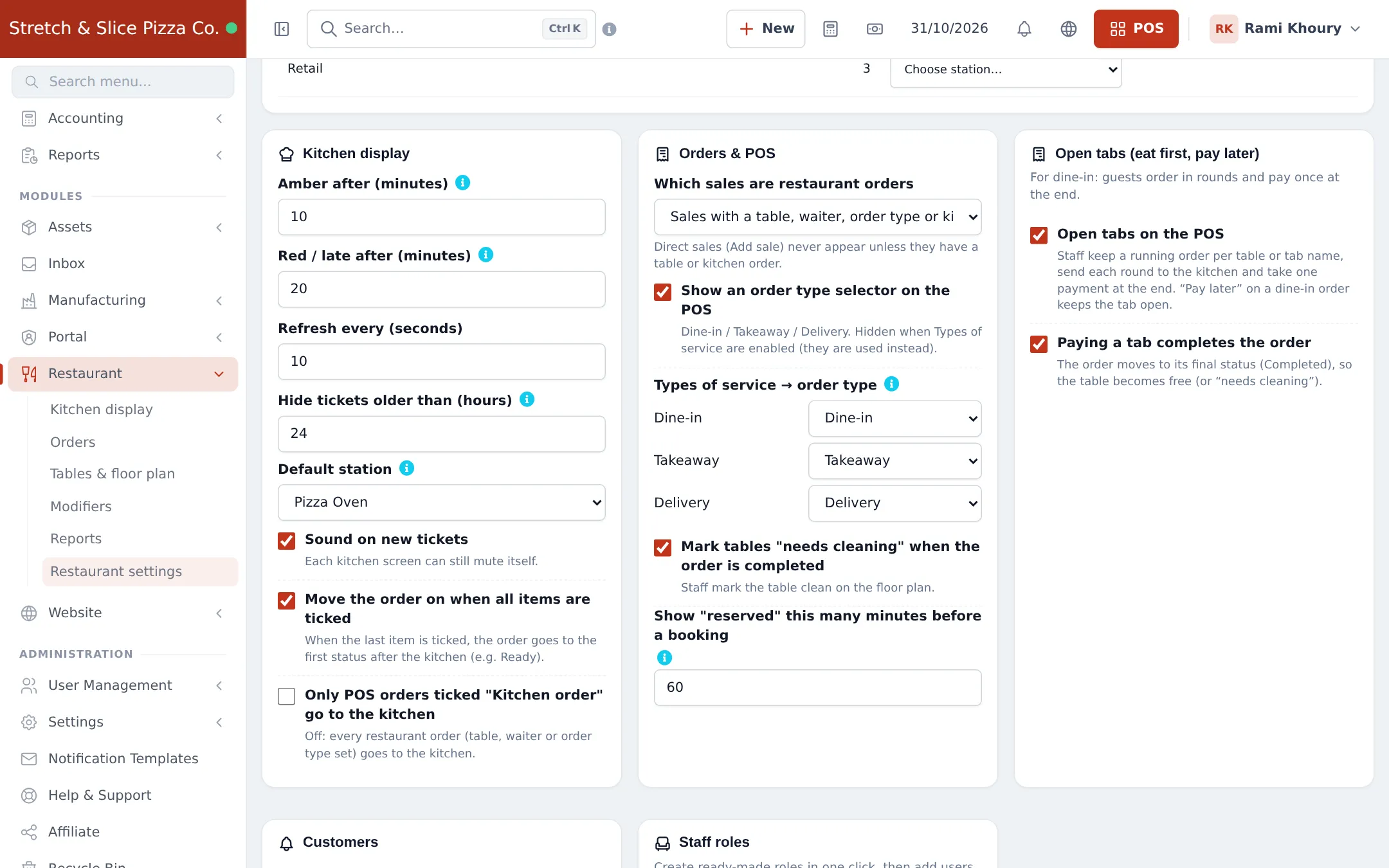
Section titled “2. Tell the restaurant flow which type is which”Open Restaurant › Restaurant settings › Orders & POS. Under Types of service → order type, map each of your types to Dine-in, Takeaway or Delivery. This decides which order statuses each order passes through (for example only deliveries go through Out for delivery). Click Save.
3. Follow orders on the Orders board
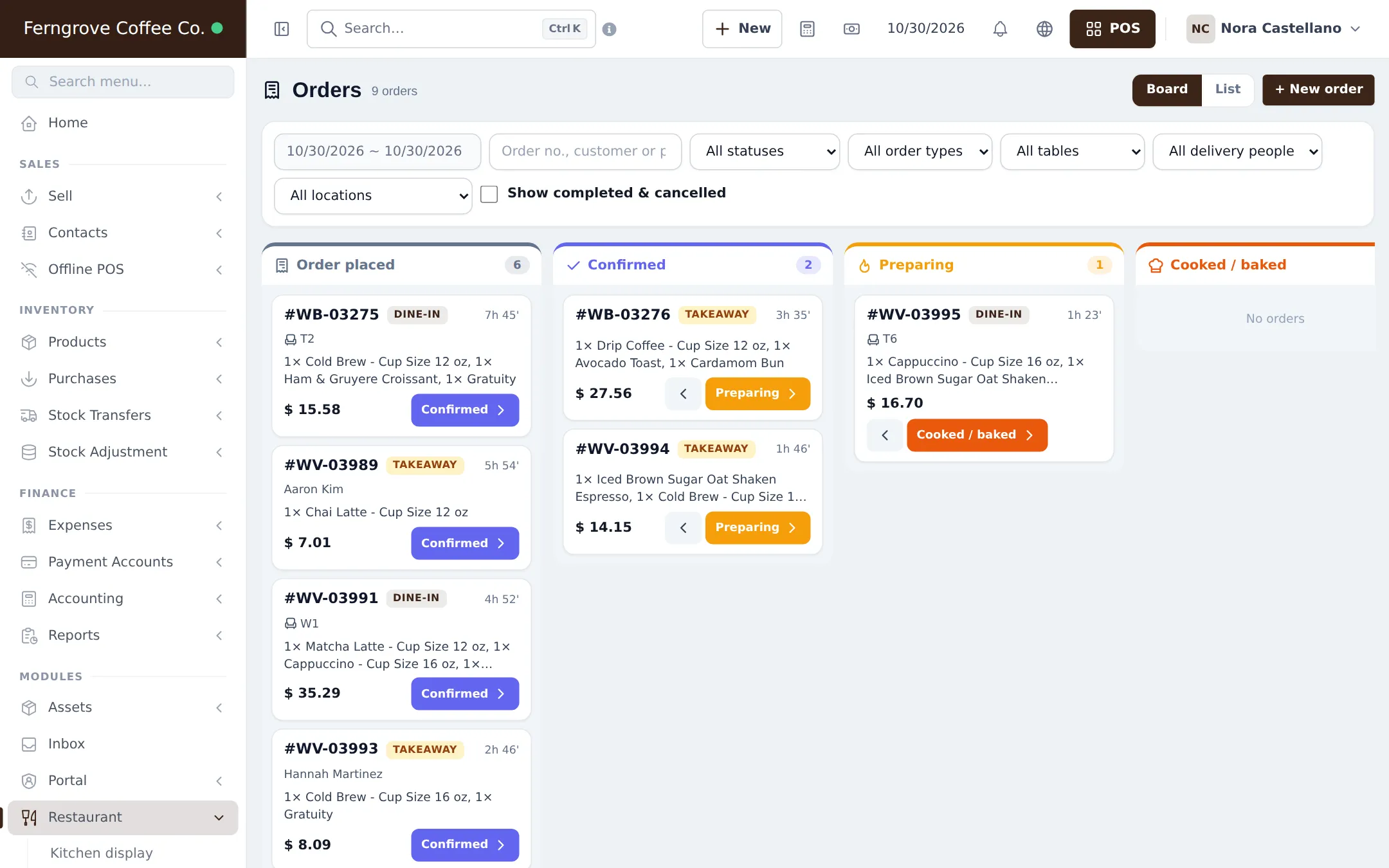
Section titled “3. Follow orders on the Orders board”Open Restaurant › Orders. The Board view shows one column per status (Order placed, Confirmed, Preparing, Cooked / baked …) with a card per order: number, order type, table, guest, items, total and time waiting. Click the status button on a card to move it on.
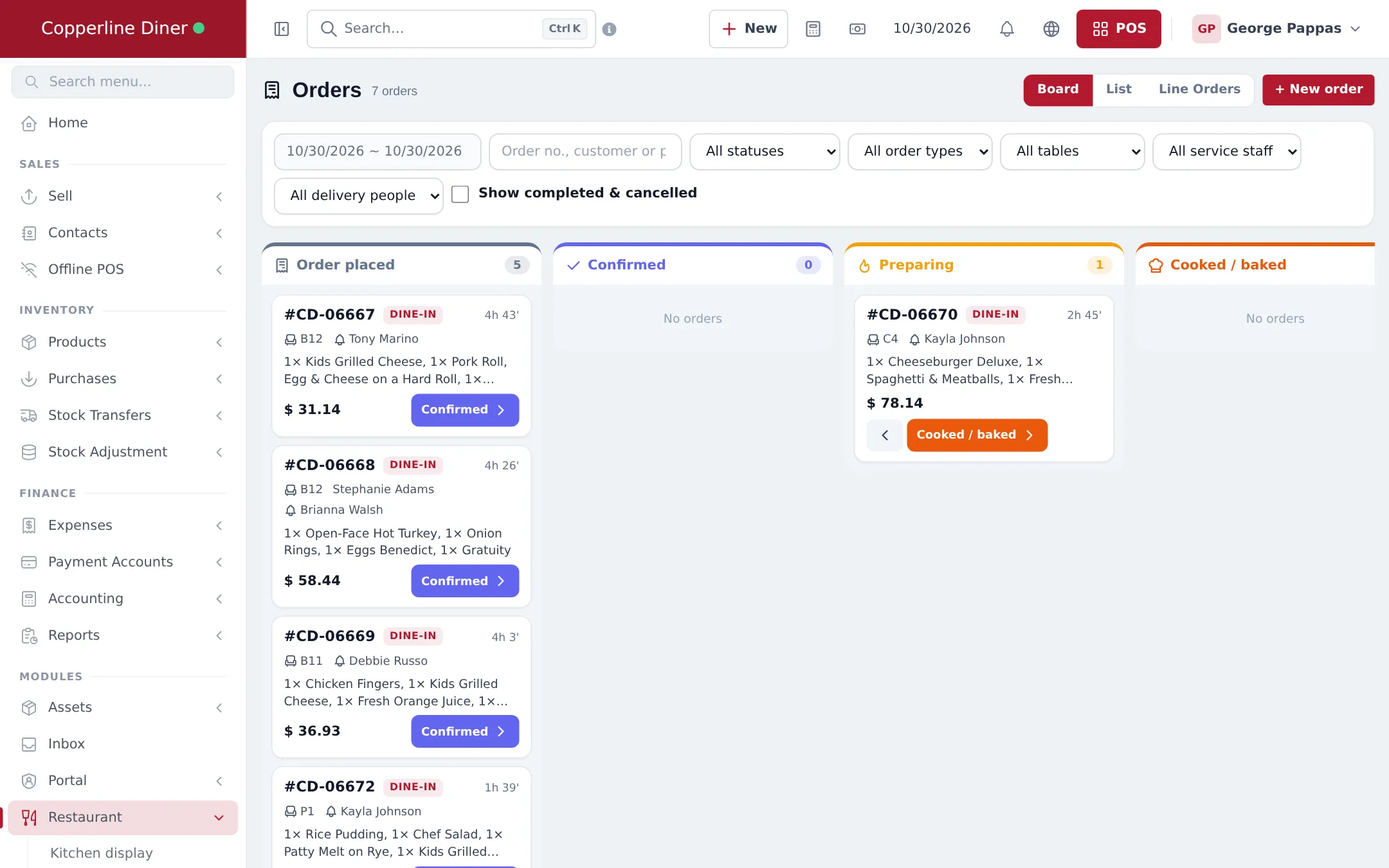
- Filter by date, status, order type, table, service staff, delivery person and location.
- Tick Show completed & cancelled to see finished orders too.
- List shows the same orders as a table; New order opens the POS.
4. Delivery orders and riders
Section titled “4. Delivery orders and riders”- Create a user for each rider in User Management › Users with the Delivery driver role.
- At the POS, pick the Delivery type of service, choose or add the customer and check the delivery address.
- When the food is ready, open the order on the Orders board and pick the Delivery person.
- The rider sees the order in their own list, marks it Out for delivery, delivers it and marks it Delivered.
- Cash collected by the rider is recorded as the payment on the sale; see Payment methods.
Next step
Section titled “Next step”Frequently asked questions
What is the difference between types of service and the order type selector?
Types of service are your own named service types with optional price groups and packing charges. The simple order type selector (Dine-in, Takeaway, Delivery) is used only when Types of service is switched off.
Can delivery cost more than dine-in?
Yes. Give the Delivery type of service a packing charge, or a different selling price group per location, so delivery prices are set automatically when the cashier picks it.
How does a rider see their deliveries?
Give the rider a user with the Delivery driver role. They see only the deliveries assigned to them and mark them Out for delivery and Delivered, on the web or in the SmartPOS Business app.
Where do I assign a rider to an order?
On the Orders board, open the order and pick the delivery person, or filter the board by All delivery people to see each rider's load.
Do online and app orders appear on the Orders board?
Yes. Orders from the online menu, widgets and the Shopper app become restaurant orders with their order type and show on the Orders board and the kitchen display.