
Returns and gift cards – return policy, store credit
The Returns & gift cards module decides what a customer gets back when they return something: a Refund, Store credit, a Gift card or an Exchange. It adds return reasons, a return window and restocking fee, gift cards you can sell and accept as payment, and a Returned items report. Clothing and shoe stores, electronics shops, marts and gift shops use it most.
First-time setup
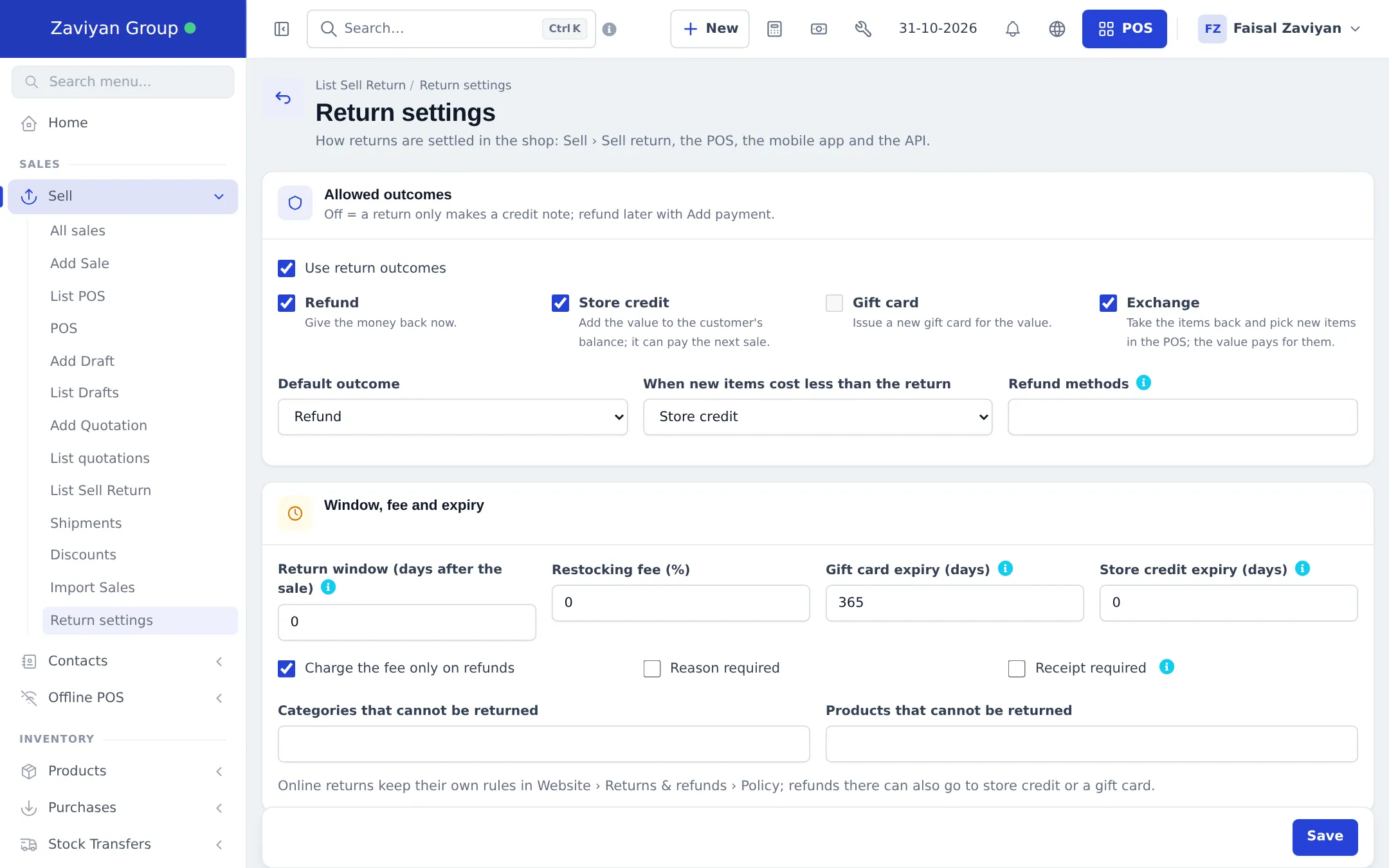
Section titled “First-time setup”- Open Sell › Return settings.
- Tick Use return outcomes, then choose the Allowed outcomes: Refund, Store credit, Gift card, Exchange.
- Pick the Default outcome and what happens When new items cost less than the return in an exchange.
- Optional: limit Refund methods (empty = every payment method of the location).
- Under Window, fee and expiry, set the Return window (days after the sale) (0 = no limit), Restocking fee (%), Gift card expiry (days) and Store credit expiry (days). Tick Charge the fee only on refunds, Reason required or Receipt required if you want them.
- Choose Categories that cannot be returned and Products that cannot be returned (for example underwear or opened software).
- Add your own Return reasons or keep the defaults (Wrong size, Damaged or faulty, Changed mind, Not as described, Wrong item). Click Save.
- To use gift cards, switch on Gift cards in Settings › Business Settings › Modules and click Update Settings.
- Give the permissions to the right roles in User Management › Roles (Returns section).
Everyday use: take a return
Section titled “Everyday use: take a return”- Find the sale and choose Sell return (from Sell › All sales or the POS recent sales).
- Enter the quantity returned for each item and pick a Reason.
- Under How does the customer get the value back? choose the outcome:
- Refund: give the money back now with an allowed refund method.
- Store credit: add the value to the customer’s balance (needs a named customer, not walk-in).
- Gift card: issue a new gift card for the value, optionally e-mailed to the customer.
- Exchange: the value becomes store credit; pick the new items in the POS and pay with Store credit.
- Credit note only: keep the credit note open and refund later.
- Check What happens and save. Stock goes back and the books are updated.
Full walkthrough: Returns and refunds.
Everyday use: gift cards
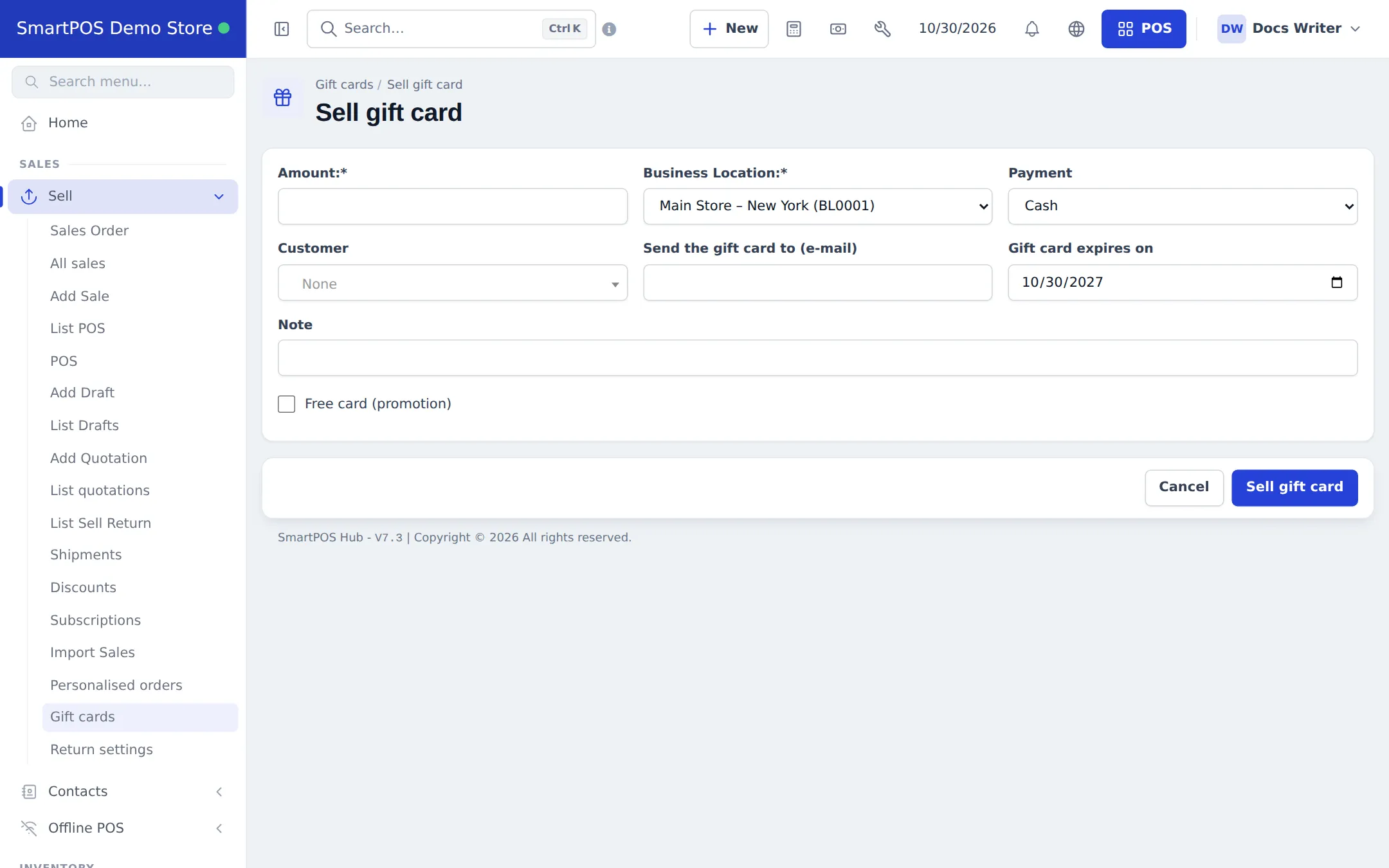
Section titled “Everyday use: gift cards”- Open Sell › Gift cards and click Sell gift card.
- Enter the Amount, Business Location and Payment method. Optionally pick a Customer, an e-mail under Send the gift card to (e-mail), an expiry date and a note. Tick Free card (promotion) for a promotional card with no payment.
- Click Sell gift card. Print the card or e-mail it from the card’s page.
- To redeem: at the POS payment, choose the gift card payment, enter or scan the Gift card code, click Check to see the balance and use part or all of it.
- To check a balance, use Check balance on the Gift cards page. Managers can Adjust balance or Void a card.
Gift card statuses: Active, Used, Expired, Void. Sources: Sold, Return, Exchange, Manual, Promotion. A gift card cannot be paid for with another gift card or store credit.
More on balances and customer credit: Gift cards and store credit.
The Returned items report
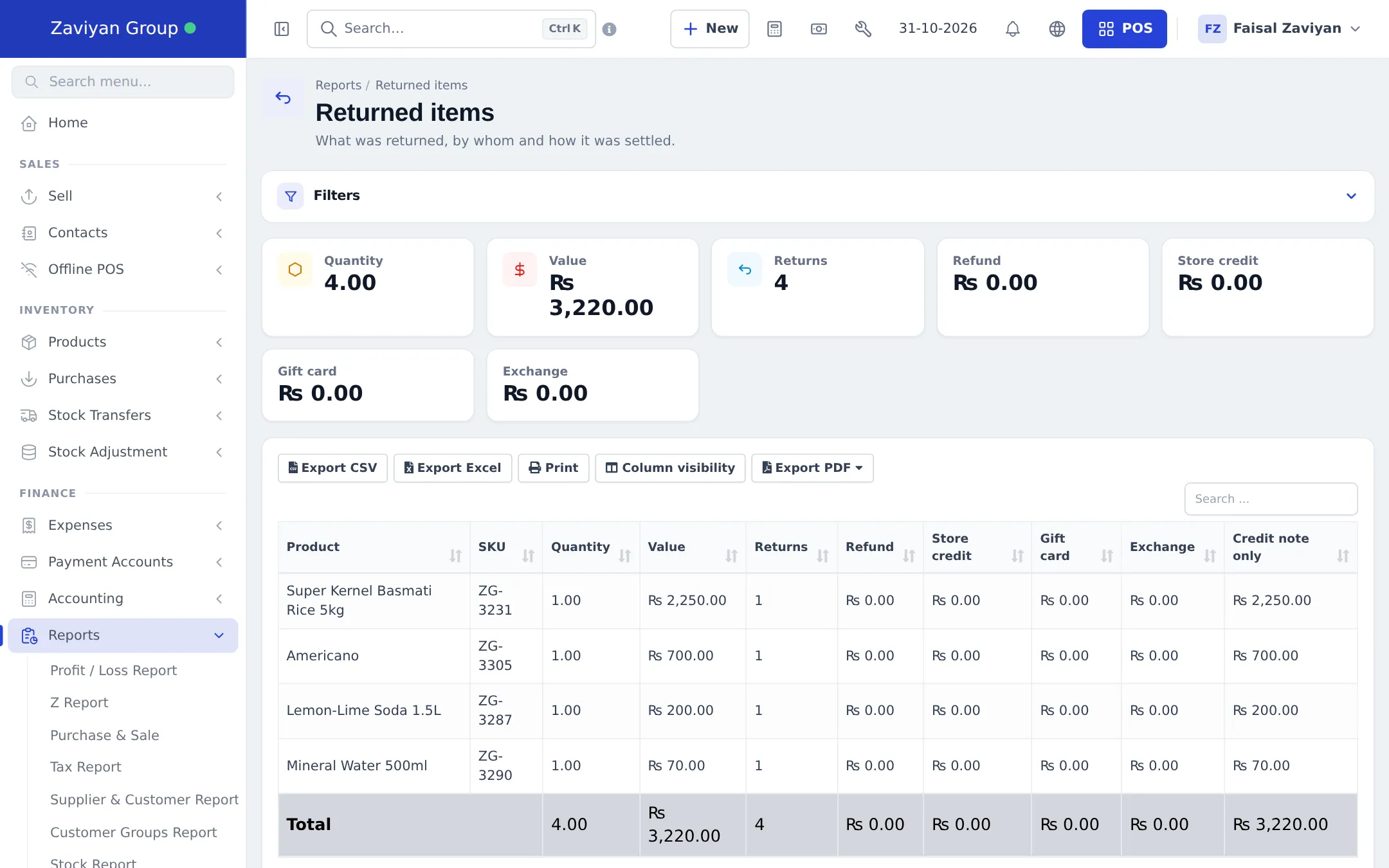
Section titled “The Returned items report”Reports › Returned items shows what was returned, by whom and how it was settled. Group it by Product, Processed by, Reason or Outcome, filter by date and location, and export to CSV, Excel or PDF.
The customer page also gets a Store credit & gift cards tab with the customer’s store credit history and cards.
Permissions
Section titled “Permissions”| Permission (Roles page, Returns section) | What it allows |
|---|---|
| Manage the return policy and reasons | Edit Return settings and return reasons |
| Override the return policy (window, exclusions, fee) | Accept a return outside the window, for an excluded item, or without the fee |
| View the Returned items report | Open Reports › Returned items |
| View gift cards | Open Sell › Gift cards and check balances |
| Sell / issue gift cards | Sell gift cards and issue them for returns |
| Take gift cards as payment | Accept a gift card at the POS or on a sale |
| Void and adjust gift cards, free cards | Void a card, adjust its balance, issue free promotional cards |
In the SmartPOS Business app
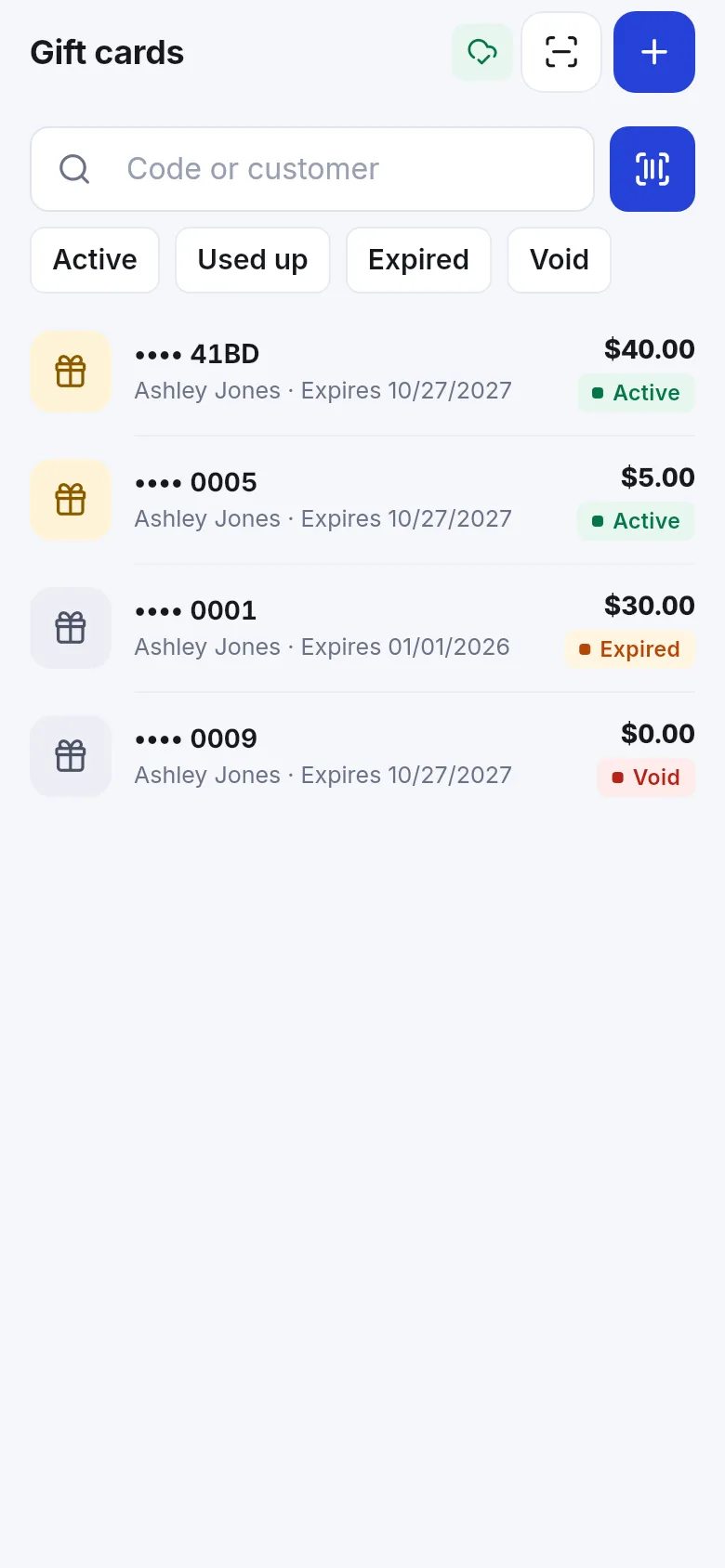
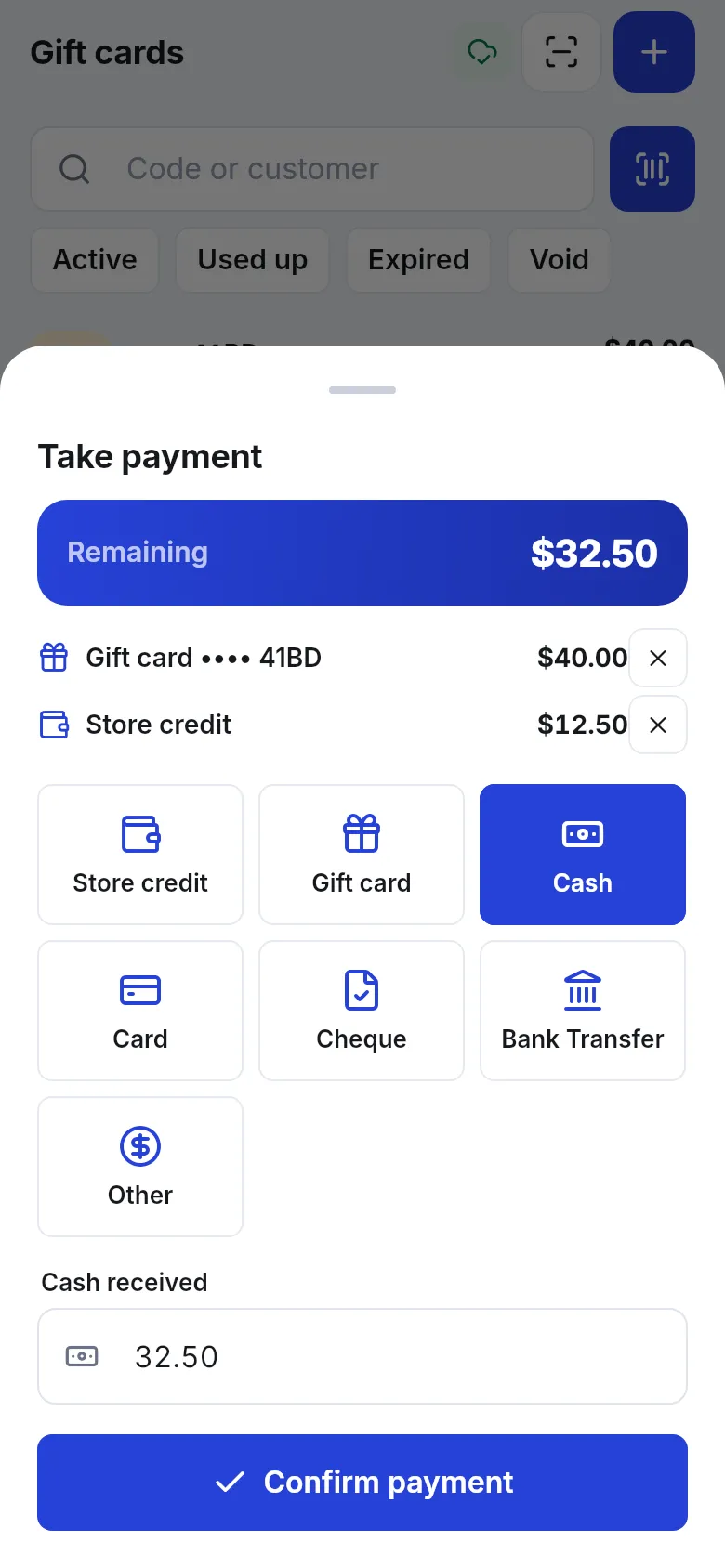
Section titled “In the SmartPOS Business app”The app lists gift cards with their status and balance, can scan a card code, and accepts Gift card and Store credit in Take payment, together with cash or card for the rest.
Related pages
Section titled “Related pages”Frequently asked questions
Are return outcomes and gift cards switched on the same way?
No. Return settings, reasons and the Returned items report are part of every plan and only need permissions. Gift cards also need a plan that includes them and the Gift cards switch in Settings › Business Settings › Modules.
What is the difference between store credit and a gift card?
Store credit is kept on the customer's account and pays their next sale, so it needs a named customer. A gift card has its own code, can be given to anyone and is used by entering or scanning the code.
Can a customer pay part of a sale with a gift card?
Yes. Enter the gift card code as a payment, use part or all of its balance, and pay the rest with cash, card or any other method.
Can I stop some products from being returned?
Yes. In Return settings choose Categories that cannot be returned and Products that cannot be returned. Staff with the Override the return policy permission can still make an exception.
What happens if Use return outcomes is off?
A return only creates a credit note. You refund the customer later with Add payment on that return.
Do gift cards expire?
Only if you want them to. Set Gift card expiry (days) in Return settings; 0 means they never expire. You can also set a date on each card when you sell it.
Can gift cards be used offline?
No. A gift-card balance cannot be checked safely without internet, so gift cards are not offered in Offline POS.
Where are online store returns handled?
Customer return requests from your website are handled in Website › Returns & refunds, which has its own policy. Refunds there can also go to store credit or a gift card.