
Electronics store step 6: online store, widgets and app
Electronics buyers research online before they buy. Put your catalog where they look: your online store, widgets on any website, and the SmartPOS Shopper app. Online orders and app orders use the same products, prices, discounts and stock as your shop.
Before you start
Section titled “Before you start”- Products have prices, photos and descriptions; the Online store section of each product has Show on website on (step 3).
- You know how customers will pay online and how you deliver.
Online store
Section titled “Online store”- Open Website › Overview to see your store status, today’s orders and the setup checklist.
- Website › Store info: name, logo, contact details.
- Website › Payments and Website › Shipping: payment methods, delivery zones and rates or pickup.
- Website › Settings & API: choose Stock and orders from, the location whose stock and discounts the website uses.
- Watch Website › Orders for new orders. Reviews and questions arrive in Website › Reviews and Website › Questions.
See Online store and Website orders for every screen.
Widgets for any website
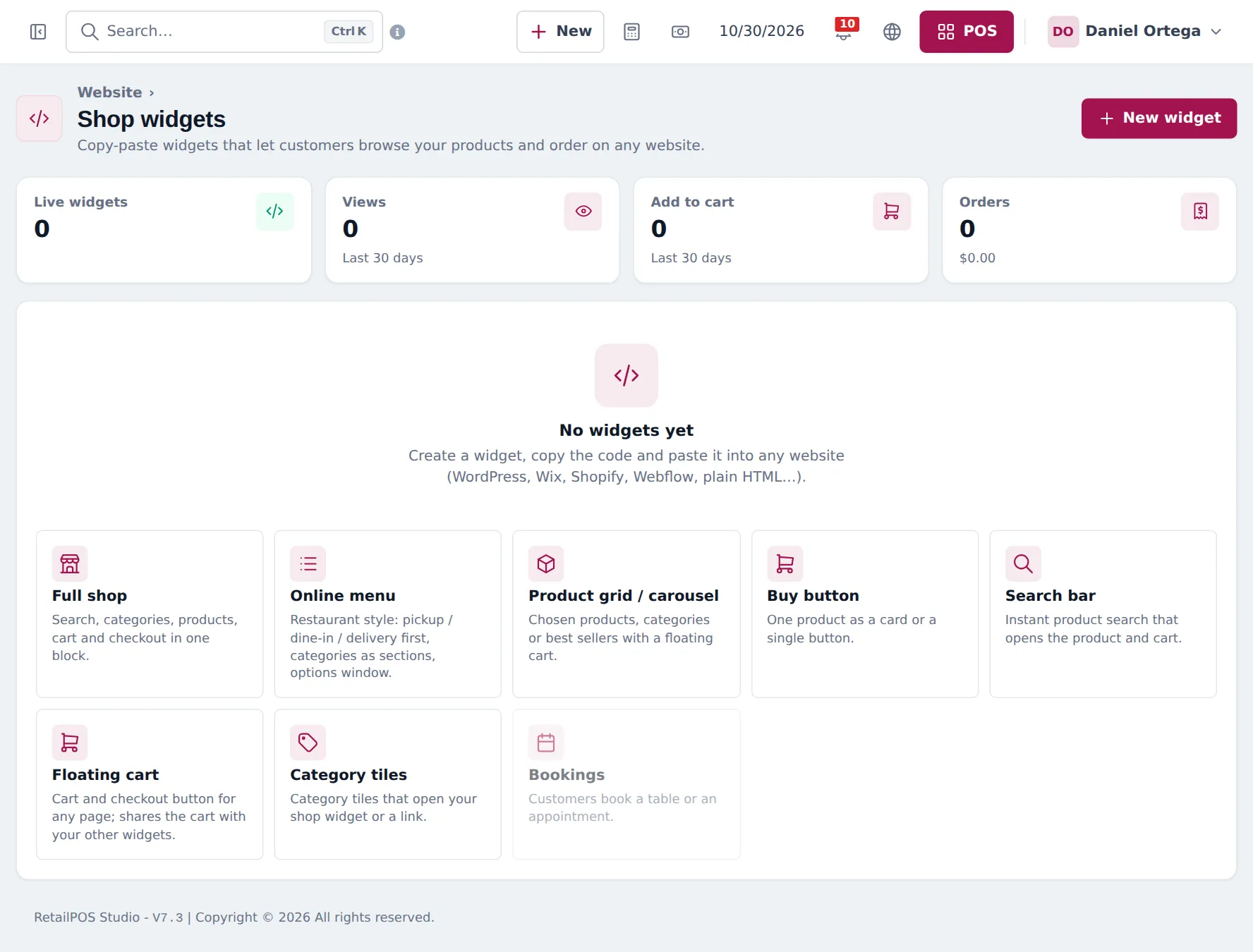
Section titled “Widgets for any website”- Open Website › Widgets and click New widget.
- Pick a type: Full shop, Product grid / carousel (great for “new phones” or “deals”), Buy button for one product, Search bar, Floating cart or Category tiles.
- Choose the products or categories and the look, then copy the code and paste it into your website.
SmartPOS Shopper app
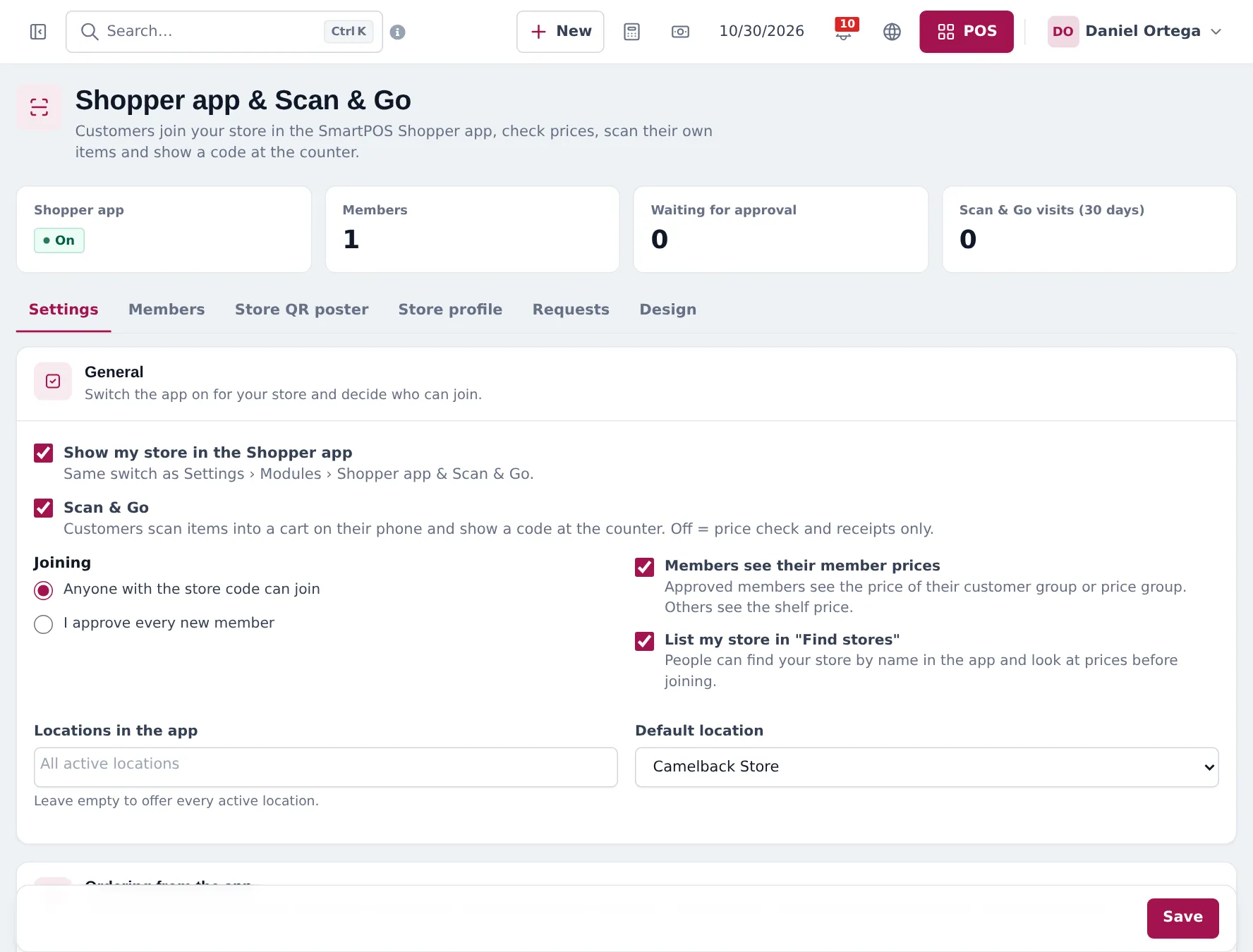
Section titled “SmartPOS Shopper app”- Open Settings › Shopper app & Scan & Go.
- Tick Show my store in the Shopper app. Tick Scan & Go to let customers scan items themselves.
- Choose Joining: Anyone with the store code can join or I approve every new member.
- Tick Members see their member prices to show customer group or price group prices to approved members.
- Tick List my store in “Find stores”, choose the Locations in the app and the Default location. Save.
- Print the Store QR poster for the counter and fill in the Store profile and Design tabs.
Customers install SmartPOS Shopper from Google Play, join your store, browse, order, and show their My store card at the counter. Customer messages arrive in your Inbox when App chat is on.
Frequently asked questions
Do I need my own website?
No. The Website module gives you an online store. If you already have a website, paste shop widgets into it instead.
Which widgets are there?
Full shop, Online menu, Product grid or carousel, Buy button, Search bar, Floating cart, Category tiles and Bookings. Create one in Website › Widgets, copy the code and paste it into WordPress, Wix, Shopify, Webflow or plain HTML.
Where do online orders appear?
In Website › Orders. Shopper app orders are online orders too, so they appear in the same list and use the same stock.
How do customers find my store in the Shopper app?
They scan your store QR poster, type your store code, or find you in Find stores if you tick List my store in Find stores.
What is Scan & Go?
Customers scan items with their phone while they shop and show a cart code at the counter. The cashier scans it and the cart becomes the sale.
Where do customers get the app?
From Google Play, search SmartPOS Shopper.