
Order stock from suppliers with purchase orders
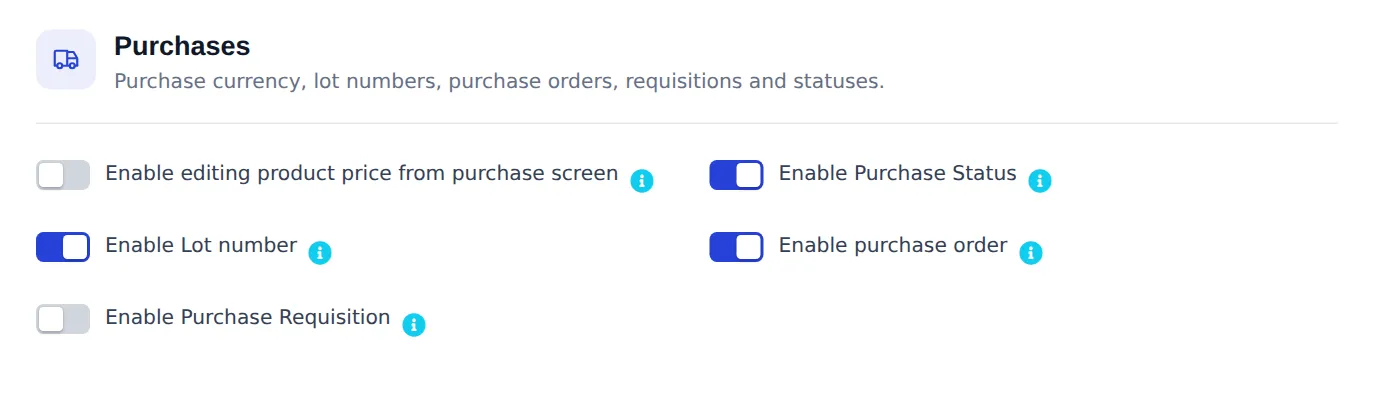
A purchase order (PO) is the order you send to a supplier before the goods arrive. Use it when you buy on agreed quantities and prices, want to track what is still to come, or need approval before buying. This page shows how to switch purchase orders on, create one, and receive it as a purchase.
Create a purchase order
Section titled “Create a purchase order”- Open Purchases › Purchase Order and click Add Purchase Order.
- Under Supplier & details, choose the Supplier, the Order date, an expected Delivery date and the Business Location that will receive the goods.
- Add products by name, SKU or barcode. Enter the quantity and the agreed Unit Cost for each line.
- Add a discount or Purchase Tax if the supplier gives one, and any Shipping Details or Shipping Charges.
- Write instructions for the supplier in Additional Notes and click Save.
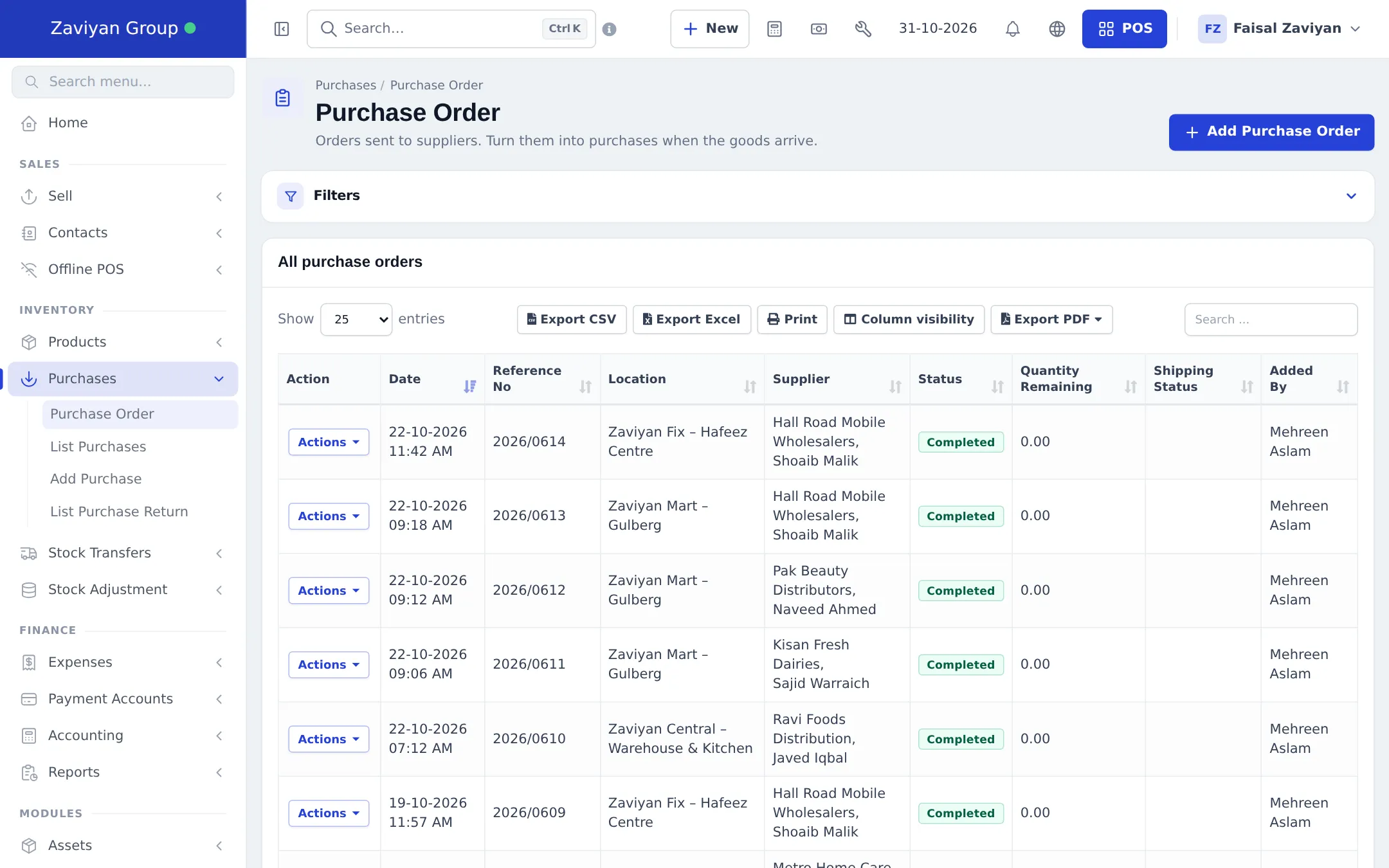
The order now shows in All purchase orders with the status Ordered and the Quantity Remaining still to be delivered.
Send the order to the supplier
Section titled “Send the order to the supplier”From Actions on the order you can:
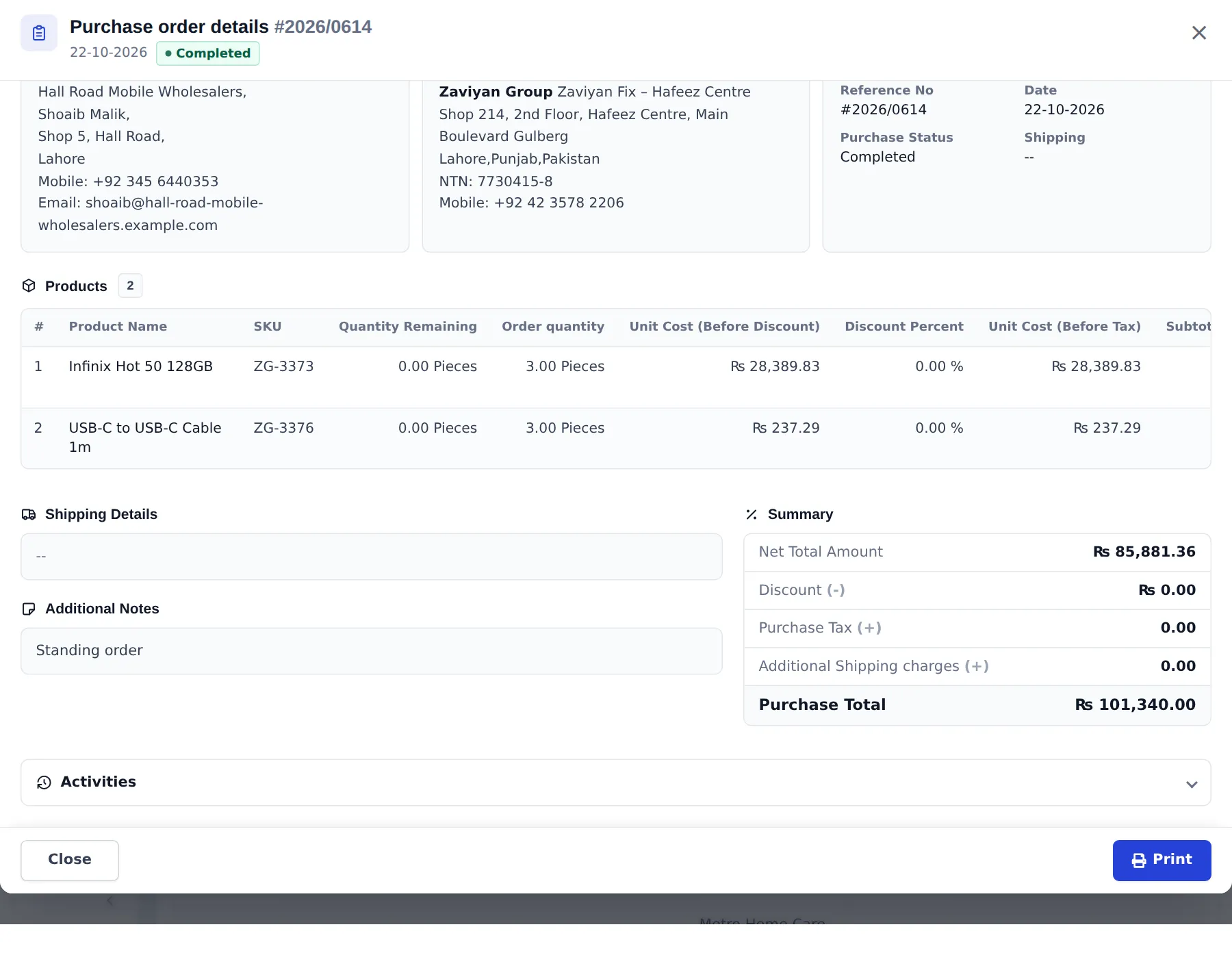
- View the order, then Print it for the supplier.
- Send Notification to e-mail it using your purchase order template (edit the wording in Notification templates).
- Edit Shipping to record how it is coming (status, delivered to, shipping documents).
Receive the goods: turn the order into a purchase
Section titled “Receive the goods: turn the order into a purchase”- When the delivery arrives, open Purchases › Add Purchase.
- Choose the same Supplier and Business Location.
- In the Purchase Order field, pick the order (or several open orders from that supplier). Their remaining lines are added to the purchase.
- Change quantities to what really arrived. Anything not delivered stays open on the order.
- Set Purchase Status to Received, record any payment and click Save.
The order status changes by itself: Partial while some quantity is still open, Completed when everything ordered has been received.
Tips and mistakes to avoid
Section titled “Tips and mistakes to avoid”- Don’t record a purchase without linking the order, or the order stays Ordered forever and its quantity keeps showing as remaining.
- Order to the location that will receive the goods. If a warehouse receives for every branch, order to the warehouse and transfer stock on.
- Agreed prices on the order are copied to the purchase, but you can still correct them when the invoice differs.
Related pages
Section titled “Related pages”Frequently asked questions
Does a purchase order change my stock?
No. A purchase order is only the order you send to a supplier. Stock goes up when you record a purchase that is linked to the order and has the status Received.
Where do I switch purchase orders on?
In Settings › Business Settings › Purchases, turn on Enable purchase order and save. The Purchase Order menu then appears under Purchases.
What do the statuses Ordered, Partial and Completed mean?
Ordered means nothing has been received yet. Partial means some of the ordered quantity has arrived on a linked purchase. Completed means everything ordered has been received.
Can one delivery cover two purchase orders?
Yes. The Purchase Order field on the Add Purchase form accepts more than one order from the same supplier, and their open lines are loaded into the purchase.
How do I send the order to my supplier?
Open Actions › Send Notification on the order to e-mail it with your notification template, or use Print from the order view to get a copy you can share.
Who can create purchase orders?
Users whose role has Create purchase order under the Purchase order group in User Management › Roles. View all or View own controls which orders they see.