
Barcode scanner, store cards and Scan & Go at the counter
The scanner is built into every part of SmartPOS Business: the POS, products, stock counts, purchases, labels, gift cards, gym check-in and repair jobs. This page explains how to scan with the camera or a Bluetooth scanner, what to do with unknown barcodes and out-of-stock items, and how to serve customers who use the SmartPOS Shopper app with a store card or a Scan & Go cart.
Scan with the camera or a Bluetooth scanner
Section titled “Scan with the camera or a Bluetooth scanner”- Tap the scan button next to any search box (on Home, New sale, Products, Stock …).
- The Scan barcode screen opens: point the camera at a barcode or QR code. Use Flashlight, Zoom and Switch camera as needed.
- Turn on Continuous to scan many items in a row; the counter shows how many were scanned.
- Can’t scan? Tap Type code and enter the barcode by hand.
Bluetooth or hand scanners work too: pair the scanner with the phone as a keyboard device, open the screen you want and scan. No setup in the app is needed.
The scanner reads all common barcode types (EAN, UPC, Code 128 and others) and QR codes, including weighing-scale labels and the prefixes some scanners add.
Unknown barcode: add or link it
Section titled “Unknown barcode: add or link it”When nothing in your catalogue uses a scanned code, the app shows No product found – Nothing in your catalogue uses this barcode yet – with:
- Add new product with this barcode – opens the new product form with the code already filled in as the SKU / barcode. Needs permission to add products.
- Link to an existing product – search for the product (and pick the variant, if any), then Link barcode. The app confirms Barcode linked to … and, in the POS, adds the item to the cart.
- Scan again – try another scan.
If you have neither permission, the app says Ask your manager to add this product or link this barcode.
Each product can have any number of Extra barcodes (supplier codes, old labels, case and unit codes). See and remove them on the product page. A barcode can belong to only one product; the app says This barcode already belongs to … if it is taken.
Permissions: adding needs add products; linking and removing needs Link barcodes to products (User Management › Roles). Learn more in Product barcodes.
Out of stock while scanning
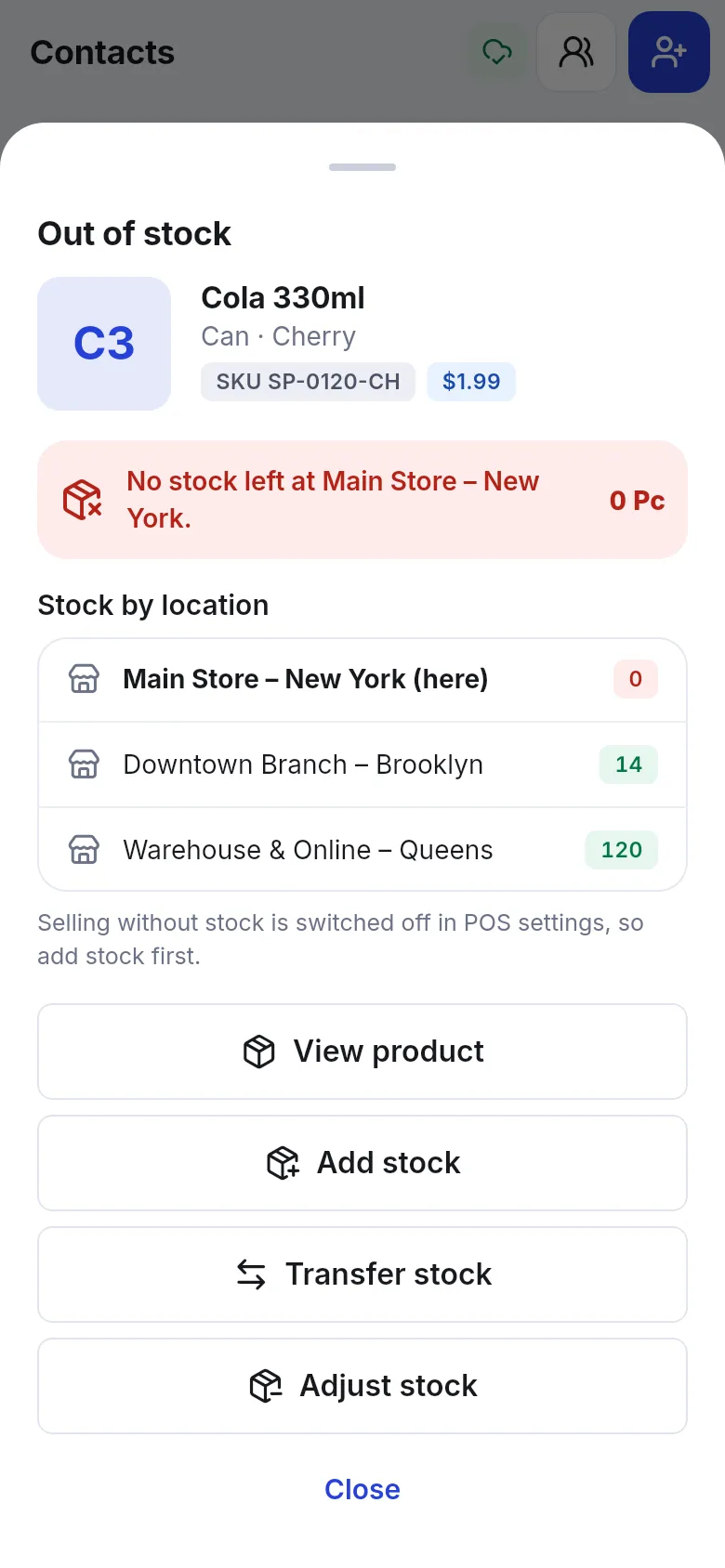
Section titled “Out of stock while scanning”If you scan or tap an item with no stock at this location and selling without stock is switched off, the app closes the camera and shows an Out of stock sheet with the product photo, name, variant, SKU and price, the stock here, and Stock by location for every location you may see. Depending on your permissions you can:
- View product
- Add stock (records a purchase)
- Transfer stock (when another location has stock)
- Adjust stock
Offline, the sheet shows the stock saved on the phone and notes that other locations appear once you are online.
Customers with the Shopper app: store card
Section titled “Customers with the Shopper app: store card”Customers who use SmartPOS Shopper can show My store card – a QR code (or 8-character code) that is valid for a few minutes and only once.
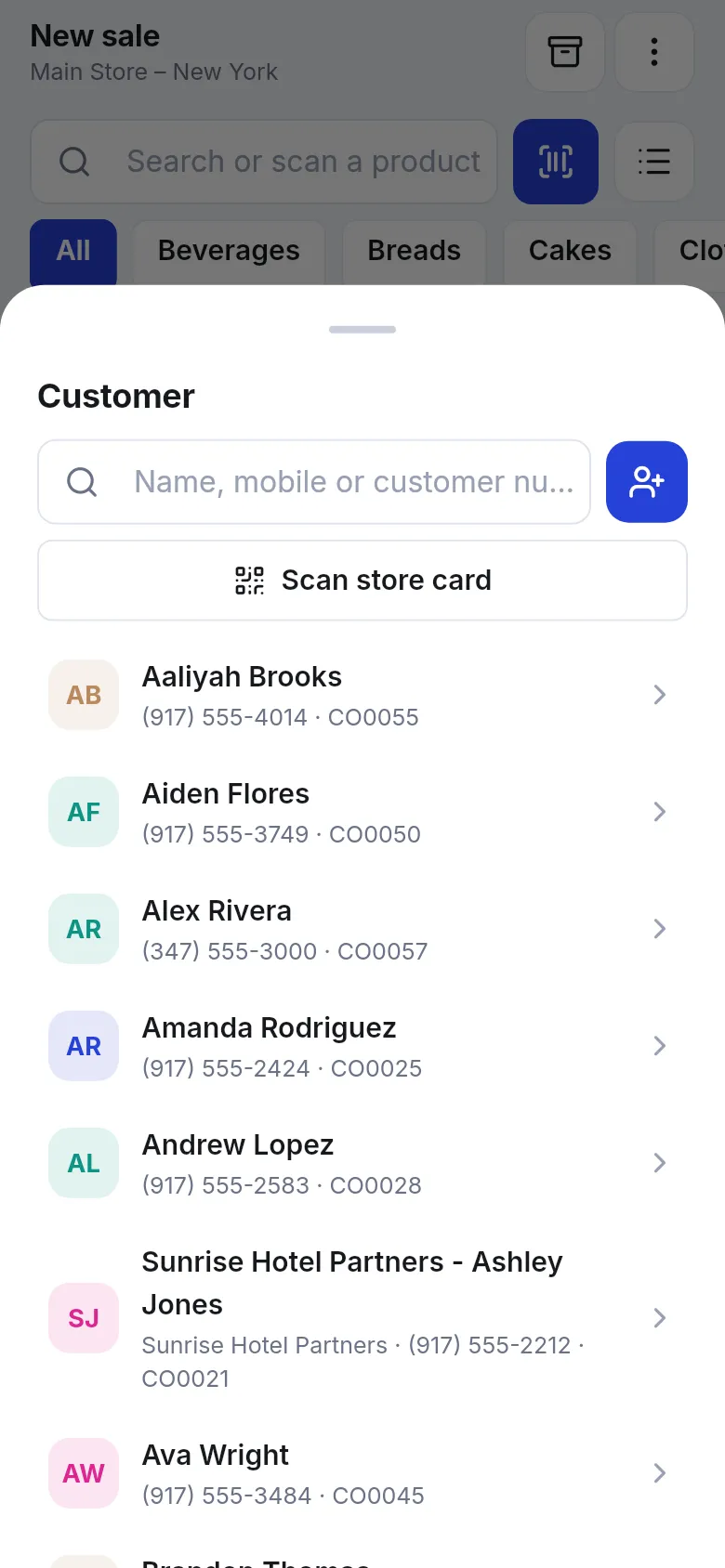
- In the sale, tap the customer bar and tap Scan store card (or scan the card from any scan field).
- Scan the QR code on the customer’s phone, or type the code.
- The customer is set on the sale. A shopper who had only joined your store becomes a customer now: the app says … is now a customer of your store.
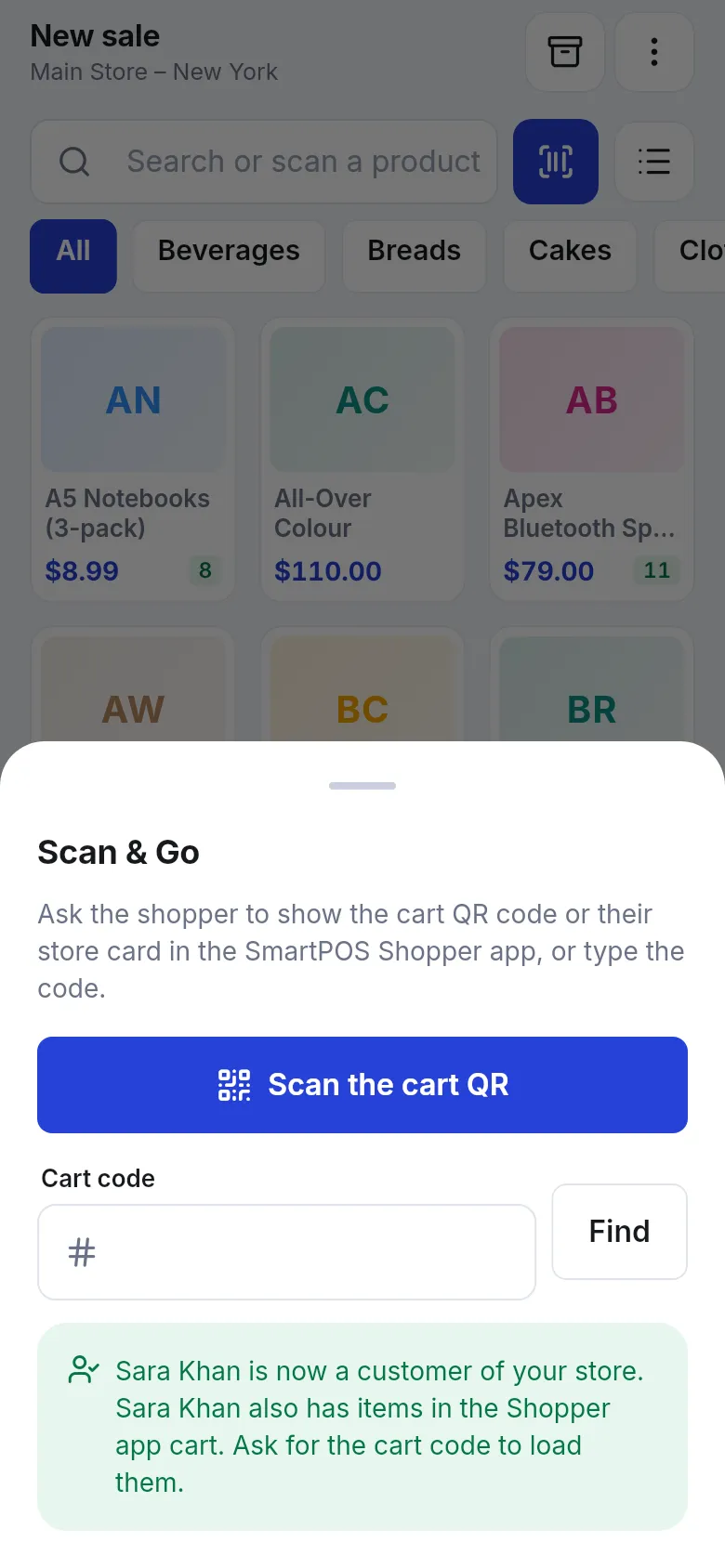
- If the shopper also has items in their app cart, the app says so: ask for the cart code to load them.
- Sell and take payment as usual.
Scan & Go carts
Section titled “Scan & Go carts”Shoppers can scan products themselves in the Shopper app and then show a cart QR code at the counter.
- On the Sell tab tap Scan & Go (or tap a Scan & Go notification).
- Tap Scan the cart QR, or type the 6-character Cart code and tap Find.
- Check the lines. The sheet may ask for Checks before payment – Bag check, ID / age check or Weigh items – depending on your store settings, and shows what the shopper’s app estimated.
- Tap Load into cart. The POS prices the items itself, so the total is always the till price.
- Tap Pay and complete the sale. The shopper receives the receipt in their app.
Related pages
Section titled “Related pages”Frequently asked questions
Can I use a Bluetooth barcode scanner with the app?
Yes. Pair the scanner with the phone as a keyboard (HID) device. On any scan screen just scan; the camera screen says A hand or Bluetooth scanner works too.
What happens when I scan a barcode that isn't in my catalogue?
The app shows No product found with Add new product with this barcode and Link to an existing product. Which buttons you see depends on your permissions.
What does linking a barcode do?
It adds the scanned code as an extra barcode of an existing product, for example a supplier code. From then on every scan of that code finds the product, in the app, the web POS and offline.
What is a store card?
A QR code your customer shows in the SmartPOS Shopper app under My store card. Scanning it at the counter picks that customer for the sale, and a shopper who had only joined becomes a customer of your store.
How long is a store card or cart code valid?
A store card is valid for about 3 minutes and can be used once. A Scan & Go cart code has 6 characters and is valid for about 15 minutes, once.
The camera stays black. What can I do?
Allow camera access for the app, close other apps that use the camera and reopen the scanner. If the camera is blocked, use Allow camera or open the phone settings. You can always Type code instead.
Can I scan the same item twice to add two?
Yes. Scan it again after moving the camera away, or use the + button in the cart.