
Restaurant step 6: kitchen display, stations and statuses
The kitchen display (KDS) replaces paper tickets: every order from the POS, the apps or the online menu appears on the kitchen screen with its table, order type, options and a timer. In this step you set the order statuses, split the kitchen into stations and open a screen for each station.
Before you start
Section titled “Before you start”- Kitchen is switched on in Settings › Business Settings › Modules.
- Your kitchen staff have a user with the Kitchen staff role (step 3). Kitchen-only users land straight on the kitchen display after signing in.
1. Review the order statuses
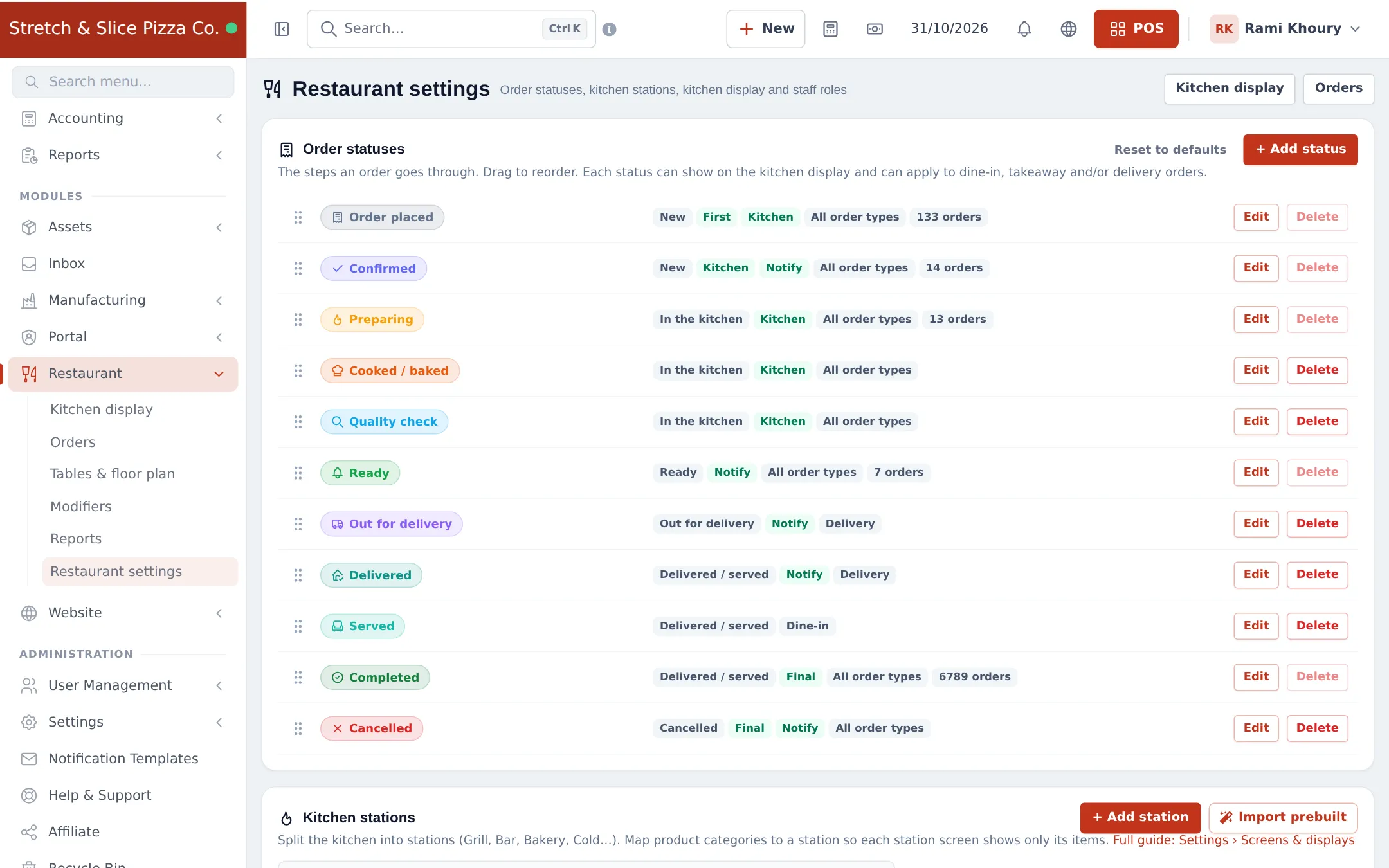
Section titled “1. Review the order statuses”Every restaurant order moves through a set of statuses. SmartPOS Hub starts you with: Order placed → Confirmed → Preparing → Cooked / baked → Quality check → Ready → Out for delivery → Delivered / Served → Completed, plus Cancelled.
- Open Restaurant › Restaurant settings. The Order statuses card is at the top.
- Drag statuses to reorder them. Use Edit to rename a status, choose whether it shows on the kitchen display, whether the customer is notified, and which order types (dine-in, takeaway, delivery) pass through it.
- Use Add status for an extra step, or Delete for one you don’t use (statuses with orders can’t be deleted).
- Reset to defaults brings back the original list.
2. Create stations and map categories
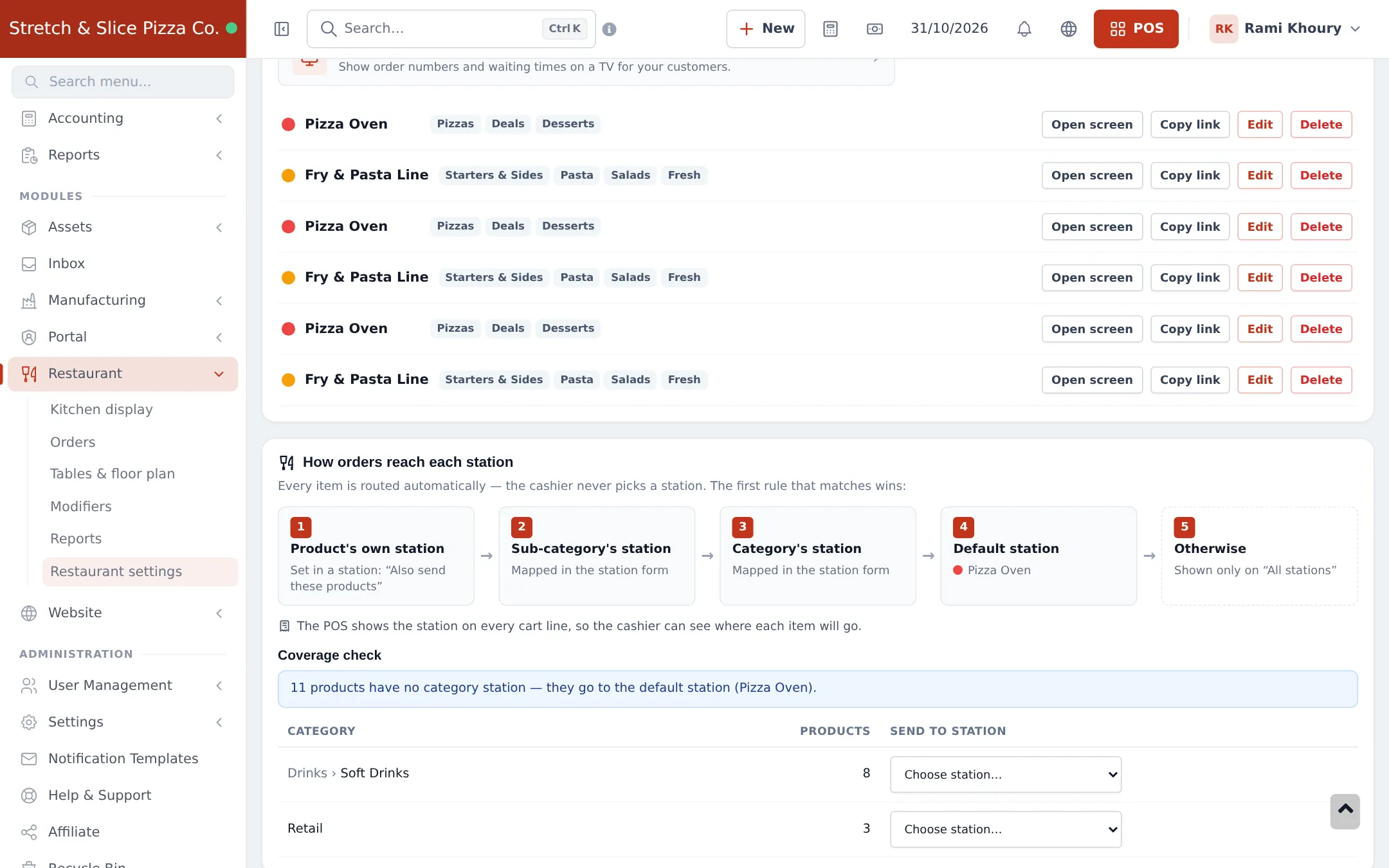
Section titled “2. Create stations and map categories”A station is one part of the kitchen with its own screen: Pizza Oven, Grill, Fry line, Bar, Desserts.
- In Restaurant settings › Kitchen stations, click Add station (or Import prebuilt).
- Name the station and pick the categories and sub-categories it prepares. Under “Also send these products” add single items that belong elsewhere.
- Save, and repeat for each station.
- Check Coverage check: it lists categories that have no station. Pick a station for each in the Send to station column.
- In the Kitchen display card, choose a Default station for anything not mapped.
3. Open a screen for each station
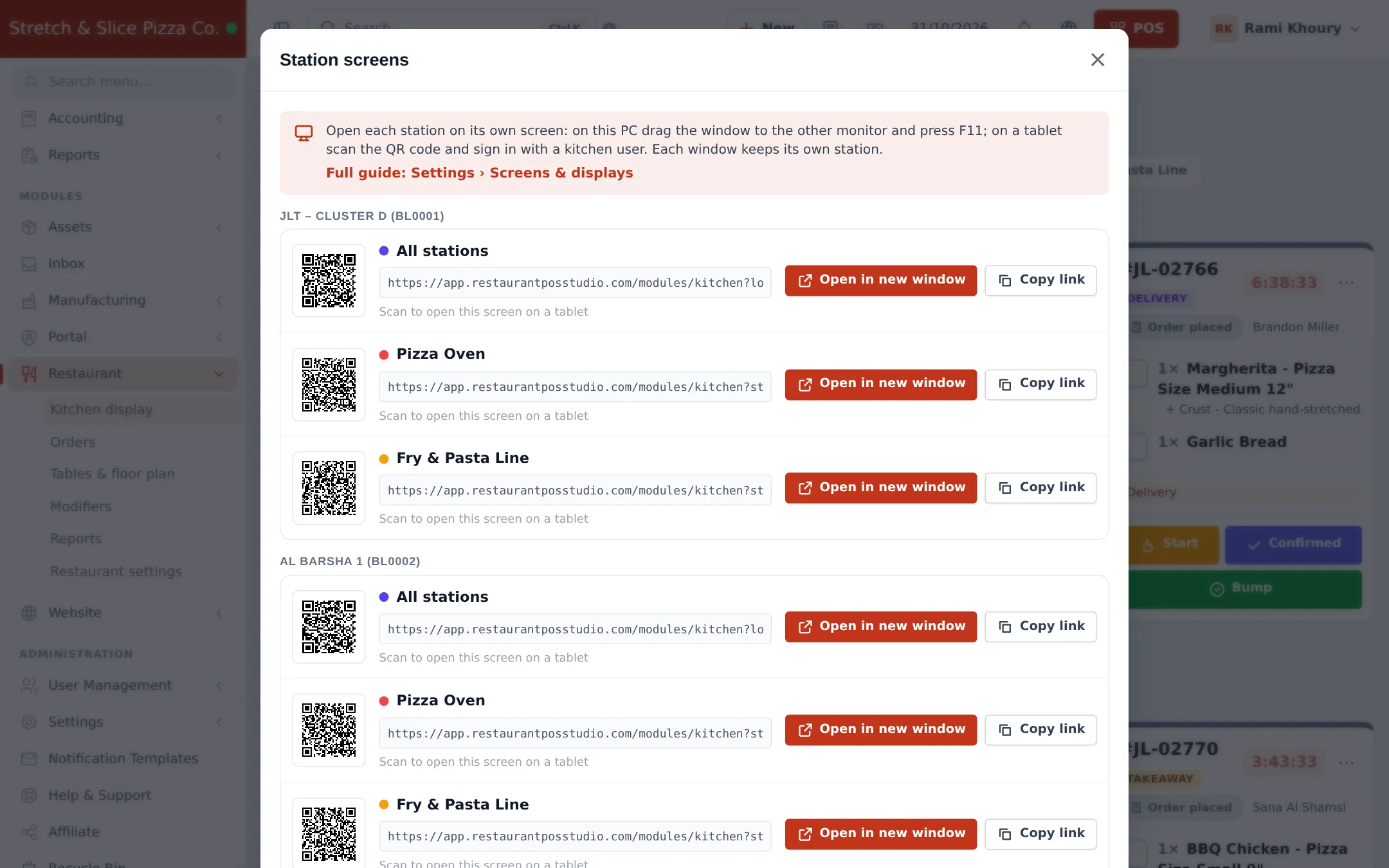
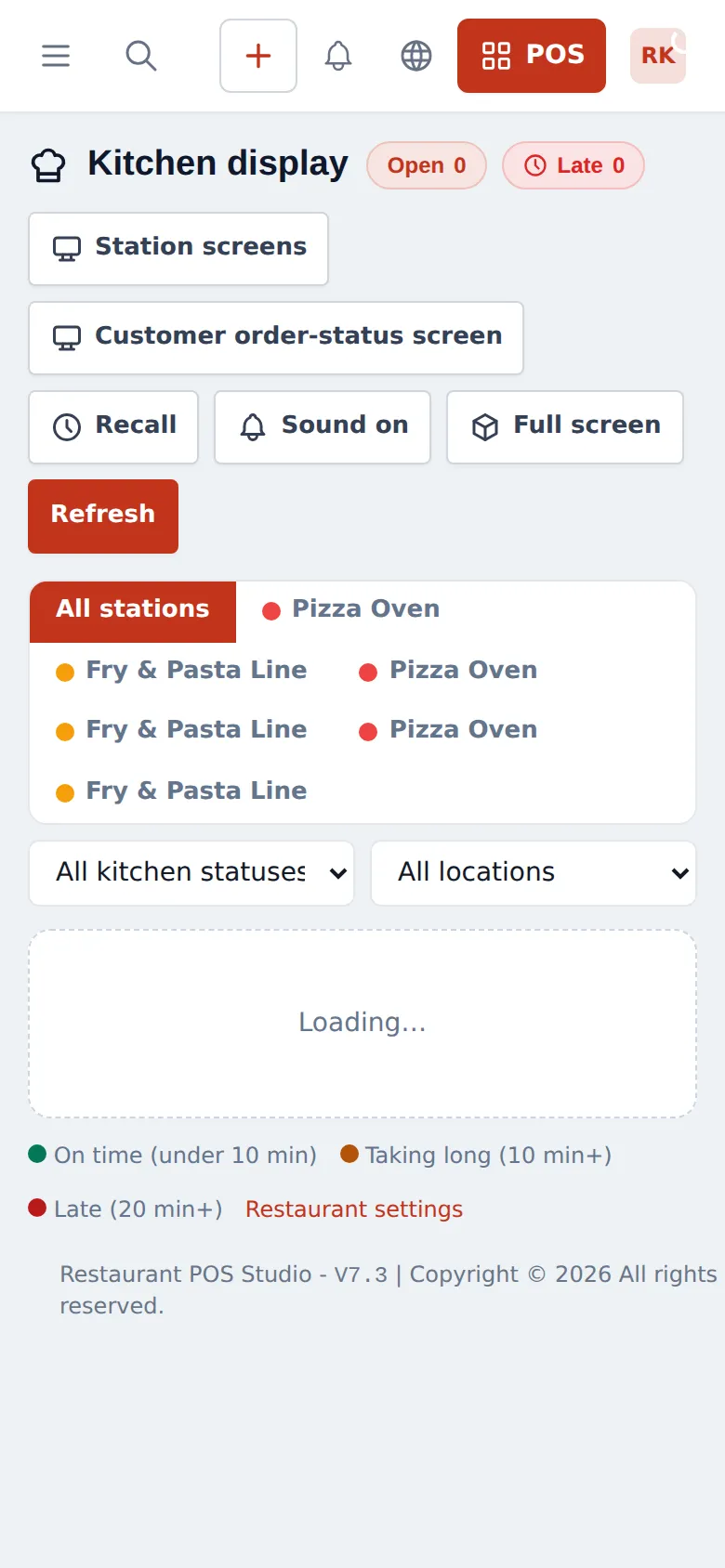
Section titled “3. Open a screen for each station”- Open Restaurant › Kitchen display and click Station screens.
- For each branch you see All stations plus one row per station, each with a QR code, Open in new window and Copy link.
- On the kitchen tablet, scan the QR code (or open the link) and sign in with the kitchen user. On a PC with a second monitor, drag the window there and press F11.
4. Work the kitchen display
Section titled “4. Work the kitchen display”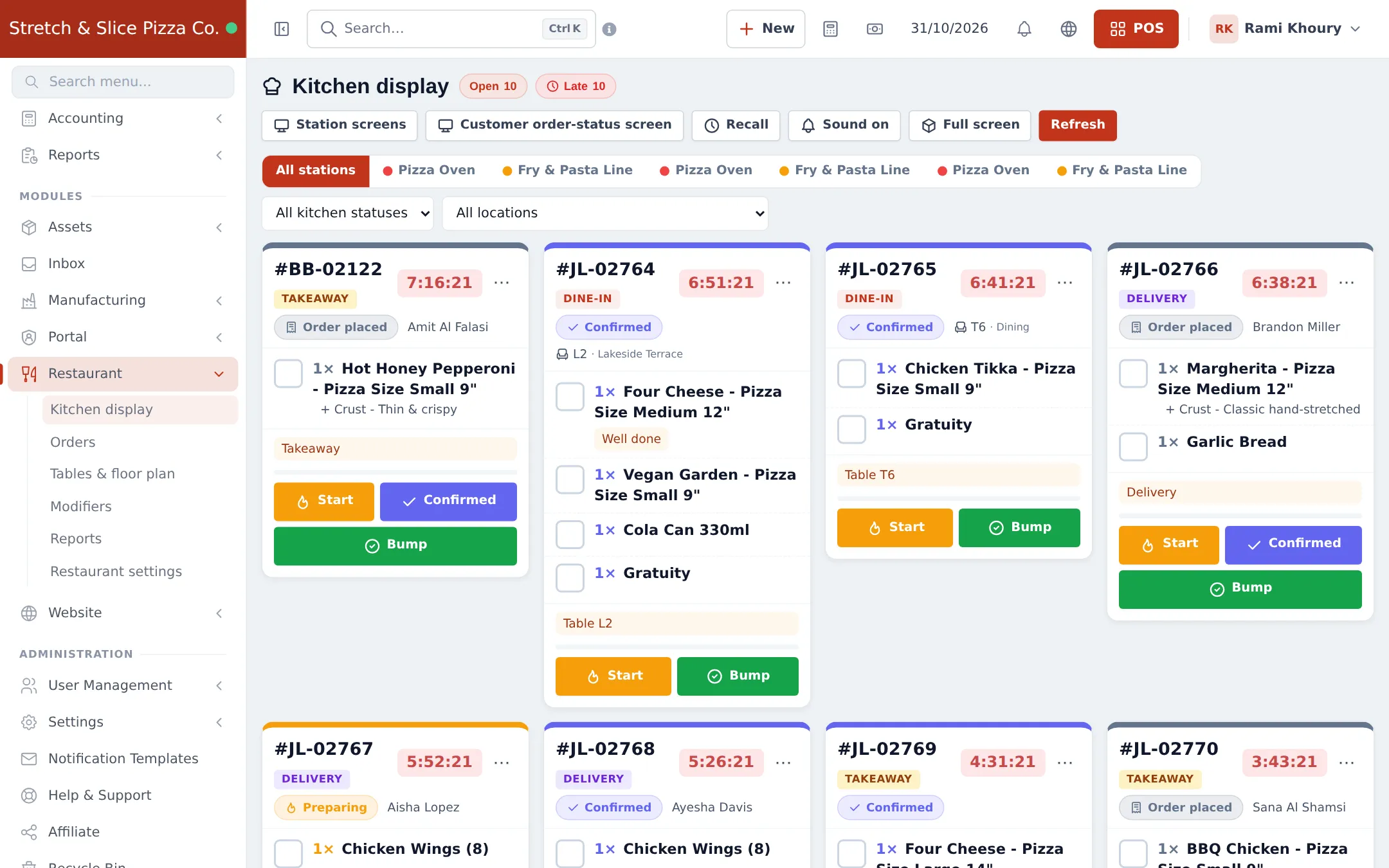
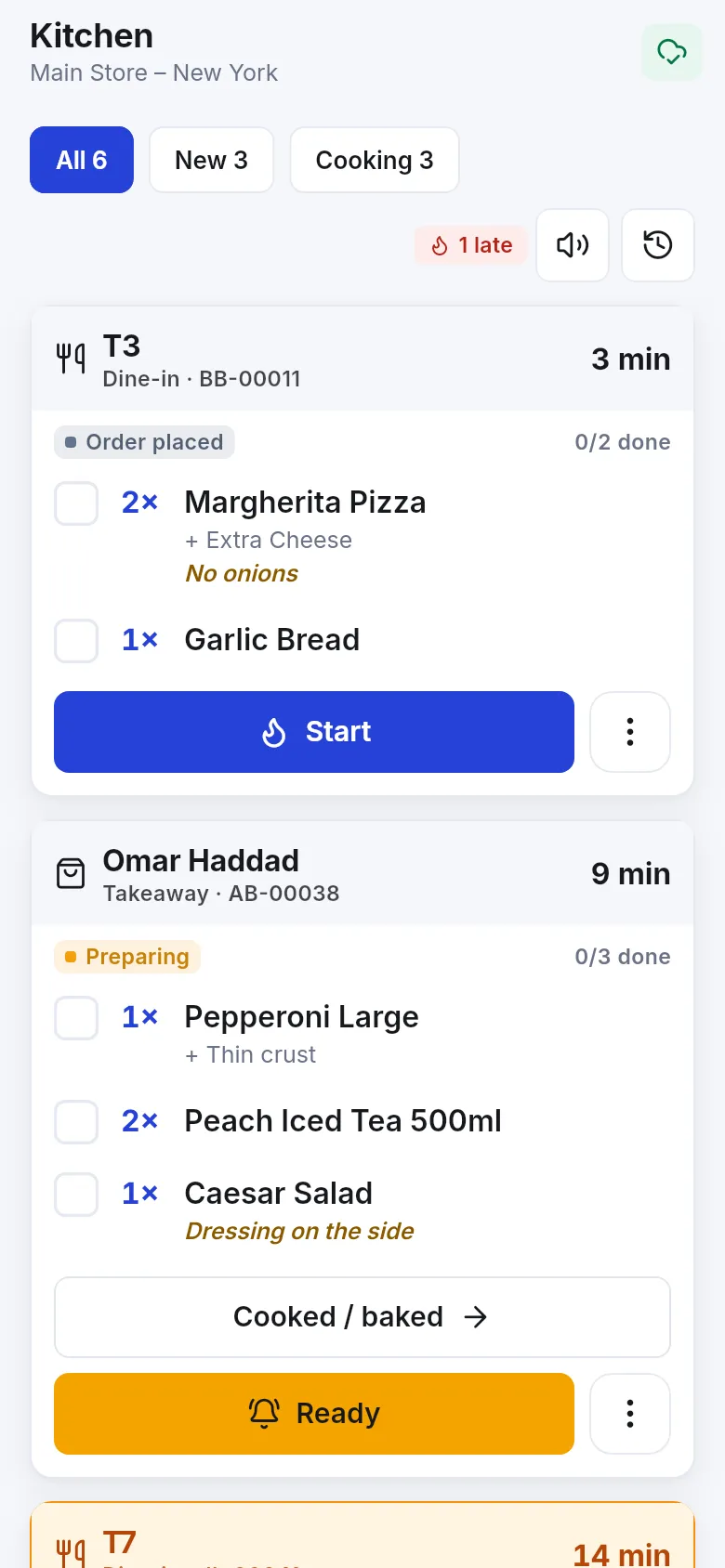
- Start moves the order to Preparing; Bump sends it on to the next status (usually Ready).
- Tick each item as it’s done. With “Move the order on when all items are ticked” on, the last tick moves the order on by itself.
- Filter by station, status or location at the top. Recall brings back a bumped order, Sound on plays a sound for new tickets, Full screen hides everything else.
- Customer order-status screen opens a board for a TV that shows order numbers and waiting times to guests.
Kitchen display settings
Section titled “Kitchen display settings”In Restaurant settings › Kitchen display you can set Amber after (minutes), Red / late after (minutes), Refresh every (seconds), Hide tickets older than (hours), the Default station, Sound on new tickets, and Only POS orders ticked “Kitchen order” go to the kitchen (leave off to send every restaurant order). Click Save at the bottom.
Next step
Section titled “Next step”Frequently asked questions
What hardware does the kitchen display need?
Any screen with a web browser, such as a tablet, a TV with a mini PC or a spare laptop. Open the station link, sign in with a kitchen user and leave it running. The screen stays awake and reconnects by itself.
How does an item know which station to go to?
The first matching rule wins - the product's own station, then its sub-category's station, then its category's station, then the default station. Items that match nothing show only on All stations.
What does Bump do?
Bump moves the order to the next status after the kitchen, usually Ready. Start moves it to Preparing. Ticking every item can also move it on automatically.
When is a ticket shown as late?
Each ticket shows a timer. It turns amber and then red (late) after the minutes you set in Restaurant settings › Kitchen display, by default 10 and 20 minutes.
Can I bring back an order that was bumped by mistake?
Yes. Click Recall on the kitchen display and pick the order.
Can I add my own status, such as Quality check?
Yes. In Restaurant settings › Order statuses click Add status, choose its stage and which order types pass through it, and drag it into place.
Can customers see their order status?
Yes. Turn on Customer order-status page to give each order a private link, and use the Customer order-status screen on a TV in the dining room or pickup area.