
Restaurant module – kitchen display, orders and tables
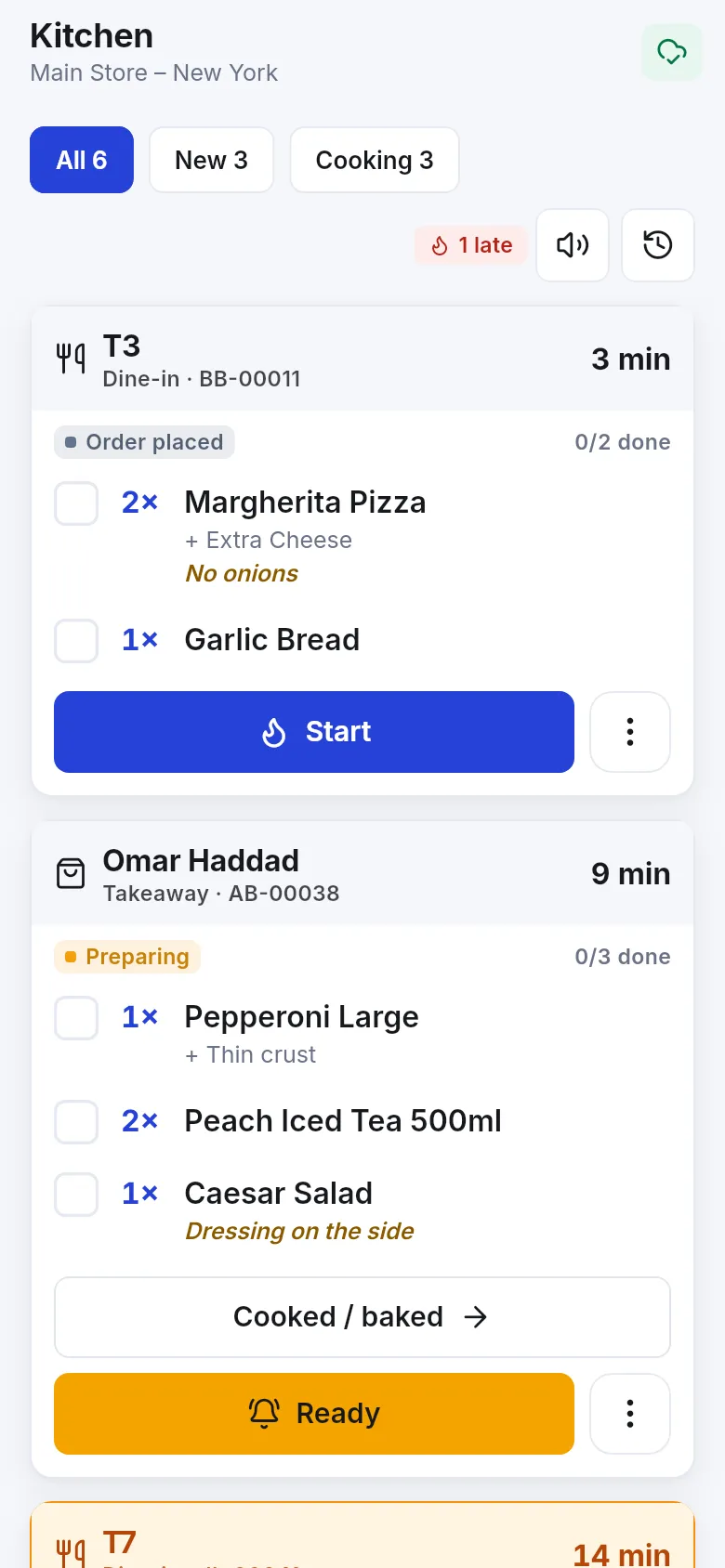
The Restaurant module runs the back of house in SmartPOS Hub: a live kitchen display, an Orders board, tables and a floor plan, your own order statuses and kitchen stations. Use it if you run a restaurant, café, pizzeria, fast-food outlet, food truck, diner or bar and want orders to flow from the till to the kitchen and back.
What the Restaurant module includes
Section titled “What the Restaurant module includes”| Part | Where you find it | What it does |
|---|---|---|
| Kitchen display | Restaurant › Kitchen display | Live tickets with timers. Cooks tick items, tap Start, move the order to the next status and Bump it when done. |
| Orders | Restaurant › Orders | Board (columns per status) or list of every restaurant order, with waiter and delivery-person assignment and filters by type, table and location. |
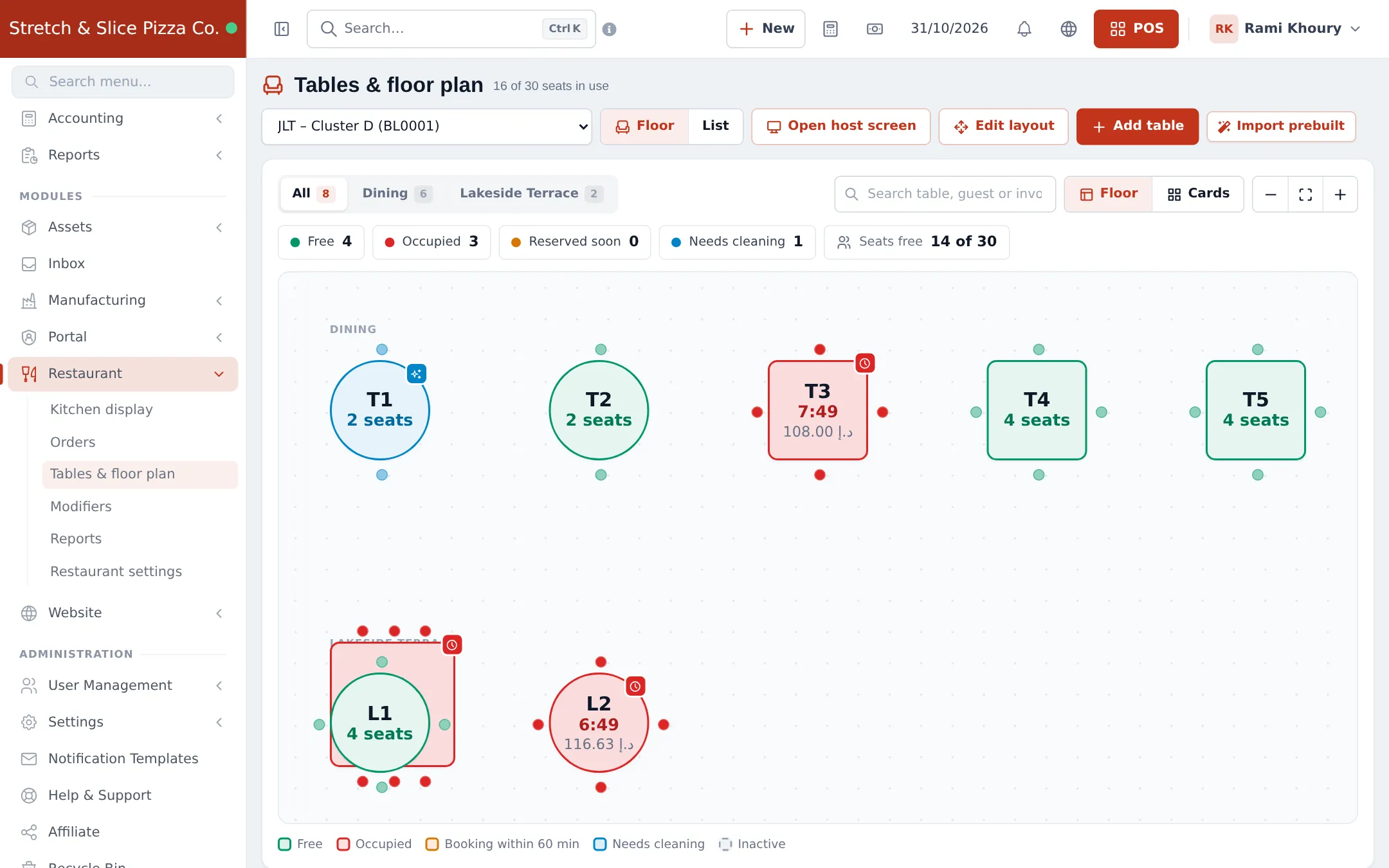
| Tables & floor plan | Restaurant › Tables & floor plan | Drag-and-drop floor per location and area. Shows free, occupied, reserved soon and needs-cleaning tables live. |
| Modifiers | Restaurant › Modifiers | Paid extras such as size, crust, toppings and sauces. See Modifiers. |
| Bookings | Restaurant › Bookings | Table reservations and walk-in waitlist. See Bookings. |
| Reports | Restaurant › Reports | Kitchen and order reports (times, volumes, staff). |
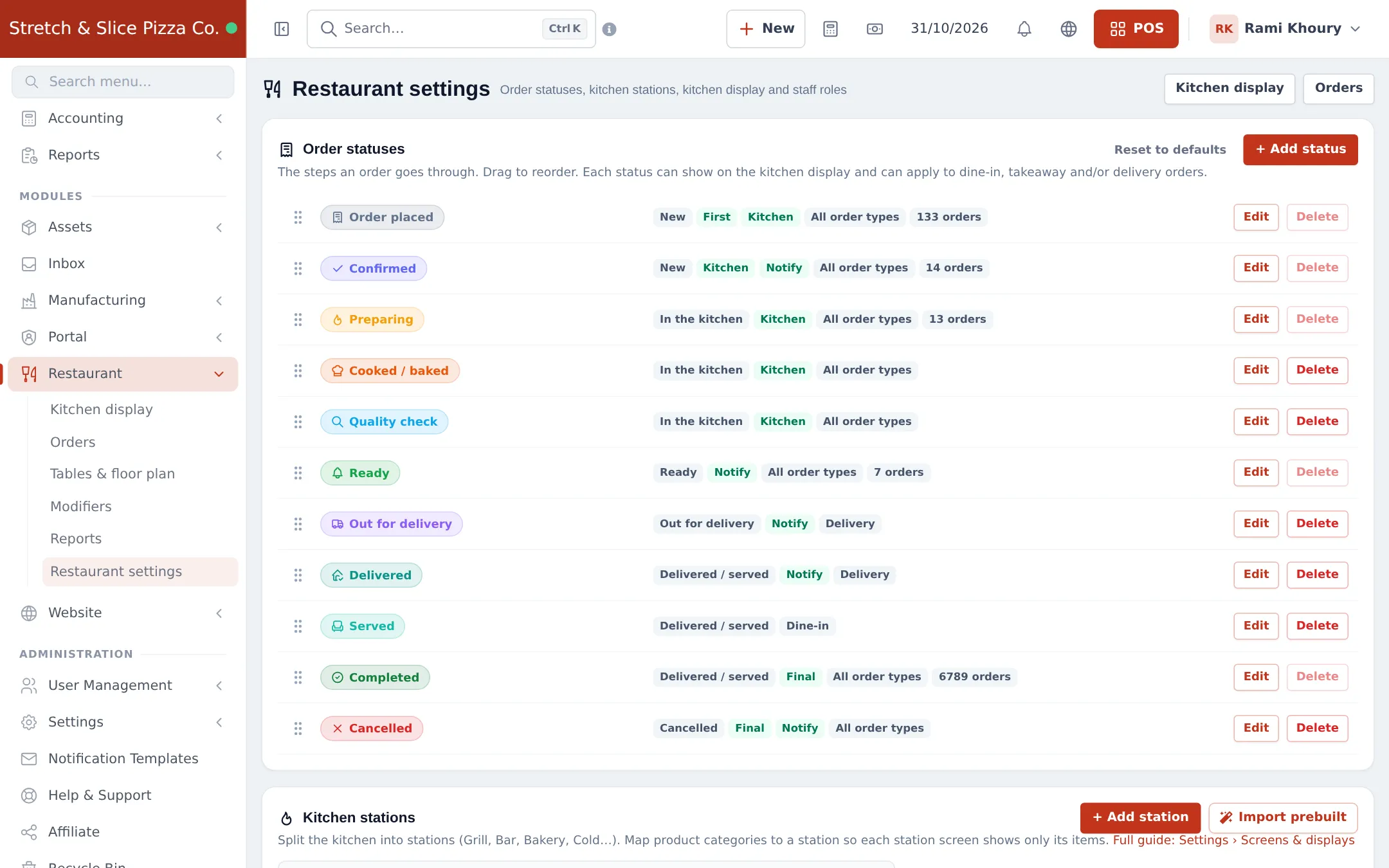
| Restaurant settings | Restaurant › Restaurant settings | Order statuses, kitchen stations, kitchen display timers, POS behaviour, open tabs, customer notifications and one-click staff roles. |
The switches in Settings › Business Settings › Modules decide which parts appear:
| Switch | Turns on |
|---|---|
| Tables | Table picker on the POS, Tables & floor plan, Table report |
| Kitchen | Kitchen display, “Send to kitchen” on the POS |
| Modifiers | Modifiers page and the options window on the POS |
| Service staff | Waiter / staff picker on each order, Service Staff Report |
| Bookings | Table reservations and appointments with a calendar |
| Types of service (in Sales & stock) | Dine-in, takeaway, delivery with their own prices and packing charge |
Before you start
Section titled “Before you start”- Your business locations are set up (each location has its own tables and kitchen screens).
- Your menu items exist as products with categories (for example Pizzas, Pasta, Drinks). Categories are how items reach the right kitchen station. See Add products or Import prebuilt.
- You are signed in as the Admin, or your role has Access business settings and Restaurant settings.
First-time setup
Section titled “First-time setup”- Switch the parts on. Open Settings › Business Settings, click the Modules tab and switch on Tables, Kitchen and Modifiers under Restaurant, bar & bookings. Add Service staff if waiters take orders and Bookings if you take reservations. Click Update Settings at the bottom of the page.
- Check your order statuses. Open Restaurant › Restaurant settings. The standard list is ready: Order placed, Confirmed, Preparing, Cooked / baked, Quality check, Ready, Out for delivery, Delivered, Served, Completed and Cancelled. Drag to reorder, click Edit to rename or to choose which order types a status applies to, or + Add status for your own step.
- Create kitchen stations. Under Kitchen stations, click + Add station (or Import prebuilt for ready-made stations such as Grill, Fry, Bar). In each station, tick the categories it makes. Set a Default station under Kitchen display for anything not mapped.
- Fix the coverage check. The Coverage check lists categories with no station. Pick a station next to each one so nothing gets lost.
- Add your tables. Open Restaurant › Tables & floor plan, choose the location, then Add table (or Import prebuilt). Click Edit layout to drag tables into place, set seats, shape and area (for example Dining, Terrace).
- Choose how the POS behaves. Back in Restaurant settings › Orders & POS, set Which sales are restaurant orders and whether to Show an order type selector on the POS (Dine-in / Takeaway / Delivery). Click Save at the bottom of the page.
- Create staff roles. Under Staff roles, click Create role next to Kitchen staff, Waiter and Delivery driver. Then add users with these roles in User Management › Users.
- Put screens in the kitchen. Go to Settings › Screens & displays and open each station’s link on the screen at that station. See Screens & displays.
Everyday use
Section titled “Everyday use”Taking an order at the till
Section titled “Taking an order at the till”- Open POS. Pick the table (the dropdown shows each table with its area, seats and whether it is occupied or reserved) and, if you use it, the order type and waiter.
- Add the items. If an item has modifiers, the options window opens. Each cart line shows the kitchen station it will go to.
- Tap Send to kitchen to keep the bill open (see Open tabs), or take payment straight away for takeaway orders.
Working the kitchen display
Section titled “Working the kitchen display”- Open Restaurant › Kitchen display (kitchen staff land here automatically after signing in).
- Pick a station at the top, or All stations for the expo / pass.
- Tick each item as it is done. Tap Start when cooking begins and the status button (for example Confirmed or Cooked / baked) to move the order on.
- Tap Bump when the order leaves the kitchen. Made a mistake? Recall brings back recently bumped orders.
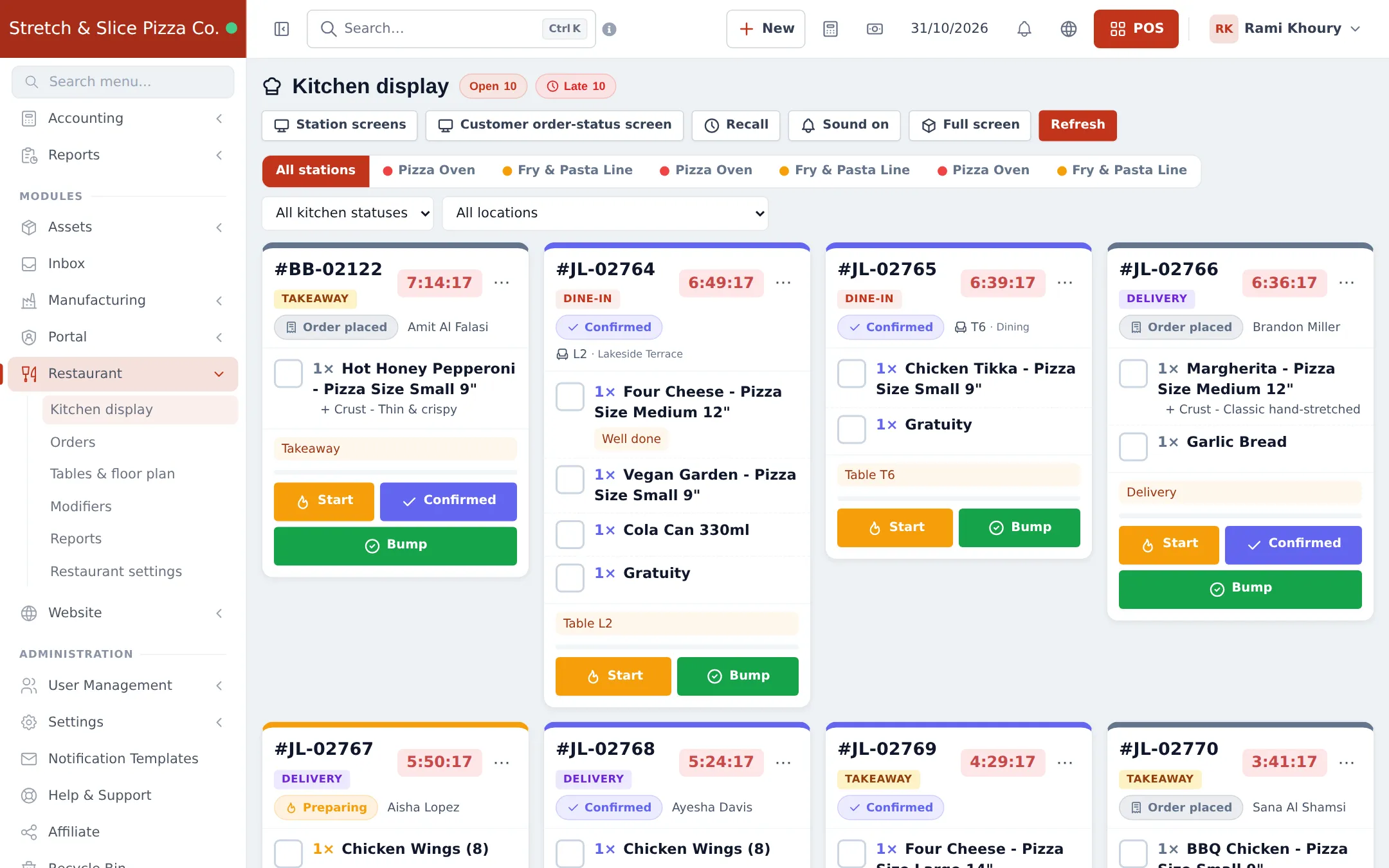
Ticket colours follow your settings: Amber after (minutes) and Red / late after (minutes). The counters at the top show how many tickets are open and late.
Following orders and tables
Section titled “Following orders and tables”- Restaurant › Orders shows every order as a board (one column per status) or a list. Filter by date, status, order type, table, delivery person or location. Tick Show completed & cancelled to see finished orders. Use it to assign a waiter or a delivery driver.
- Restaurant › Tables & floor plan shows the floor live. Click a table to seat a walk-in, start a sale, open its order, assign a booking, move an order or mark it clean. Open host screen shows the same floor full screen for the host stand.
Settings explained
Section titled “Settings explained”| Setting (Restaurant settings) | What it does |
|---|---|
| Order statuses | The steps an order goes through, which order types each applies to, and whether the customer is notified. |
| Kitchen stations | Splits the kitchen. Each station gets its own screen link. Also send these products sends single products to a station regardless of category. |
| Amber after / Red / late after (minutes) | When tickets change colour on the kitchen display. |
| Refresh every (seconds) | How often kitchen screens check for new orders. |
| Hide tickets older than (hours) | Clears forgotten tickets from the display. |
| Default station | Where items go when their category has no station. |
| Sound on new tickets | Beep on new orders (each screen can still mute itself). |
| Move the order on when all items are ticked | When the last item is ticked, the order moves to the first status after the kitchen (for example Ready). |
| Only POS orders ticked “Kitchen order” go to the kitchen | Off: every restaurant order goes to the kitchen. On: only orders sent with Send to kitchen. |
| Which sales are restaurant orders | Sales with a table, waiter, order type or kitchen order, or every POS sale. Direct sales (Add sale) never appear unless they have a table or kitchen order. |
| Show an order type selector on the POS | Dine-in / Takeaway / Delivery. Hidden when Types of service are on (they are used instead, mapped under Types of service → order type). |
| Mark tables “needs cleaning” when the order is completed | Staff then mark the table clean on the floor plan. |
| Show “reserved” this many minutes before a booking | When a booked table turns orange on the floor. |
| Open tabs (eat first, pay later) | See Open tabs. |
| Customer order-status page | Each order gets a private link the customer can follow live. |
| E-mail customers on status changes | Only for statuses marked Notify and customers with an e-mail address. Needs working e-mail settings. |
| Staff roles | One-click Kitchen staff, Waiter and Delivery driver roles. |
Permissions
Section titled “Permissions”Set these in User Management › Roles (Restaurant section). The Admin role has all of them.
| Permission (as shown on the Roles page) | Typical role |
|---|---|
| View kitchen display | Kitchen staff |
| Start / advance / bump orders on the kitchen display | Kitchen staff |
| View all restaurant orders | Manager, cashier |
| View own orders only (waiter) | Waiter |
| Change order status, assign waiter / delivery person | Manager, waiter |
| Delivery driver: see and update own deliveries | Delivery driver |
| Access tables | Waiter, cashier |
| View tables & floor plan | Waiter, host |
| Add / edit tables and arrange the floor plan | Manager |
| Restaurant settings | Manager |
| Restaurant reports | Manager |
Taking orders on the POS also needs the normal POS permissions such as Add POS sell. See Users and roles.
In the SmartPOS Business app
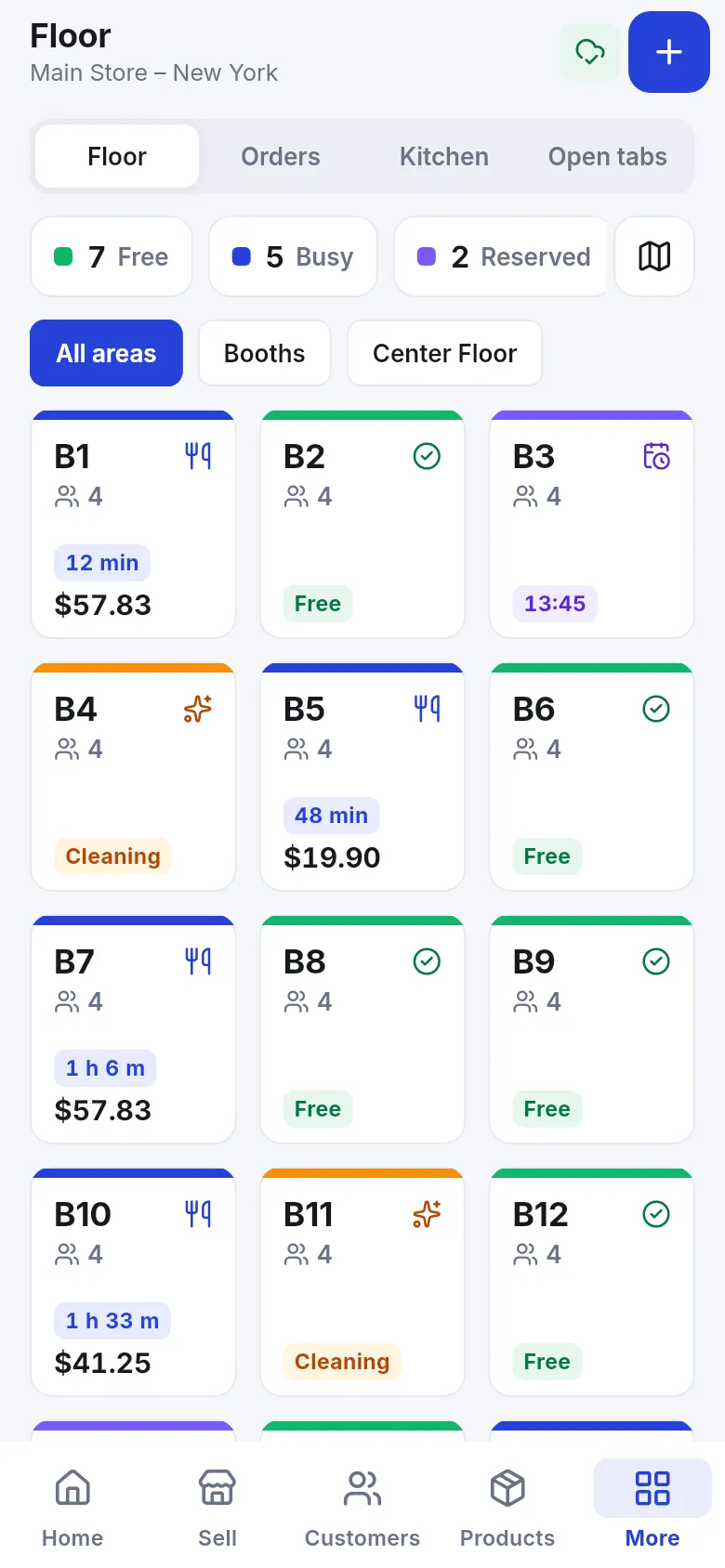
Section titled “In the SmartPOS Business app”Staff with the right role see a Restaurant tab in the SmartPOS Business app: the floor plan with live table status, the orders list, the kitchen display with Start and Ready buttons, and open tabs. Waiters get Home · Sell · Restaurant · Sales · More at the bottom; kitchen staff get Home · Restaurant · More.
Tips and mistakes to avoid
Section titled “Tips and mistakes to avoid”- Map every category to a station. Unmapped items only show on All stations, so a station-only cook never sees them. Use the coverage check after adding new categories.
- Use the one-click roles instead of building kitchen roles by hand. They contain exactly the permissions each job needs.
- Turn on Mark tables “needs cleaning” if guests are seated by a host. It stops new guests being seated at a dirty table.
- Don’t delete a status that has orders. The Delete button is greyed out for statuses in use; rename it instead.
Related pages
Section titled “Related pages”Frequently asked questions
Is the Restaurant module an extra cost?
No. The restaurant tools are part of SmartPOS Hub itself. You only switch on the parts you need (Tables, Kitchen, Modifiers, Service staff, Bookings) in Settings › Business Settings › Modules.
Why don't I see the Restaurant menu?
The Restaurant menu appears when Tables, Kitchen or Modifiers is switched on. Turning on only Service staff or only Bookings does not show it, because salons use those without a kitchen.
Can I have a separate screen for the pizza oven and the fryer?
Yes. Create kitchen stations in Restaurant settings, map product categories to each station, then open each station's own screen link from Settings › Screens & displays. Each screen shows only that station's items.
Does the cashier have to choose which station an item goes to?
No. Items are routed automatically - product's own station first, then sub-category, then category, then the default station. The POS shows the station name on every cart line.
How do I give a cook access only to the kitchen screen?
In Restaurant settings › Staff roles, click Create role next to Kitchen staff, then add a user with that role in User Management. Kitchen-only users land on the kitchen display after they sign in.
Can customers follow their order on their phone?
Yes. Turn on Customer order-status page in Restaurant settings. Each order gets a private link the customer can open to follow it live. You can also show order numbers on a TV with a customer board.
Do orders from the online store reach the kitchen?
Online orders become normal sales. Whether a sale counts as a restaurant order is set by Which sales are restaurant orders in Restaurant settings (for example, sales with a table, waiter, order type or kitchen order).
Can I change the order statuses?
Yes. In Restaurant settings › Order statuses you can add, edit, reorder (drag) and delete statuses, choose which order types they apply to and whether the customer is notified. Reset to defaults brings back the standard list.