
Restaurant step 5: tables and floor plan
Tables let you take dine-in orders per table, see at a glance which tables are busy, and keep an open tab running until the guests pay. In this step you add your tables, group them into areas and lay them out on the floor plan.
Before you start
Section titled “Before you start”- Tables is switched on in Settings › Business Settings › Modules (step 2).
- You have the role permission to manage tables (owners, admins and the Restaurant Manager role do).
Add your tables
Section titled “Add your tables”- Open Restaurant › Tables & floor plan.
- Pick the branch in the location dropdown at the top left.
- Click Add table, or Import prebuilt to start from a ready-made layout (step 3).
- Enter the table name (keep it short, like “T4” or “B2”), the area (Main Hall, Terrace, Booths), the number of seats and the shape.
- Save. Repeat for each table.
Arrange the floor plan
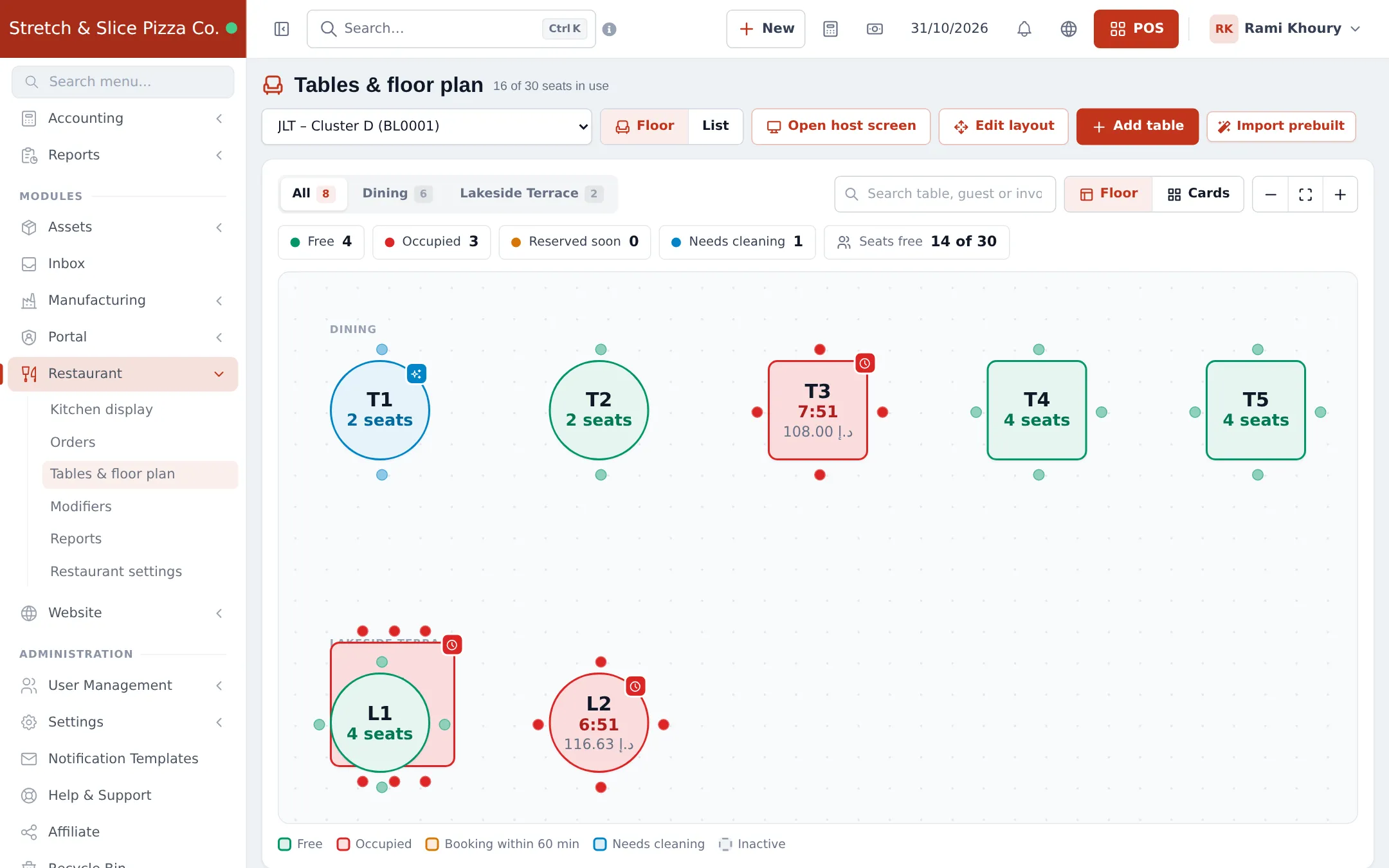
Section titled “Arrange the floor plan”- Switch to the Floor view.
- Click Edit layout.
- Drag each table to where it stands in your room. Use the area tabs (All, Dining, Terrace…) to work one area at a time.
- Save the layout.
Use the floor during service
Section titled “Use the floor during service”Click any table to open its side panel. From there you can:
- Seat a walk-in or start a sale for a free table, which opens the POS with the table already picked.
- Open the running order of an occupied table to add items or take payment.
- Assign a booking to the table.
- Move the order to another table.
- Mark the table clean after guests leave (when “needs cleaning” is on in Restaurant settings).
Open host screen gives the host or hostess a full-screen floor view on a tablet at the door. Cards and List views show the same tables as a list for small screens.
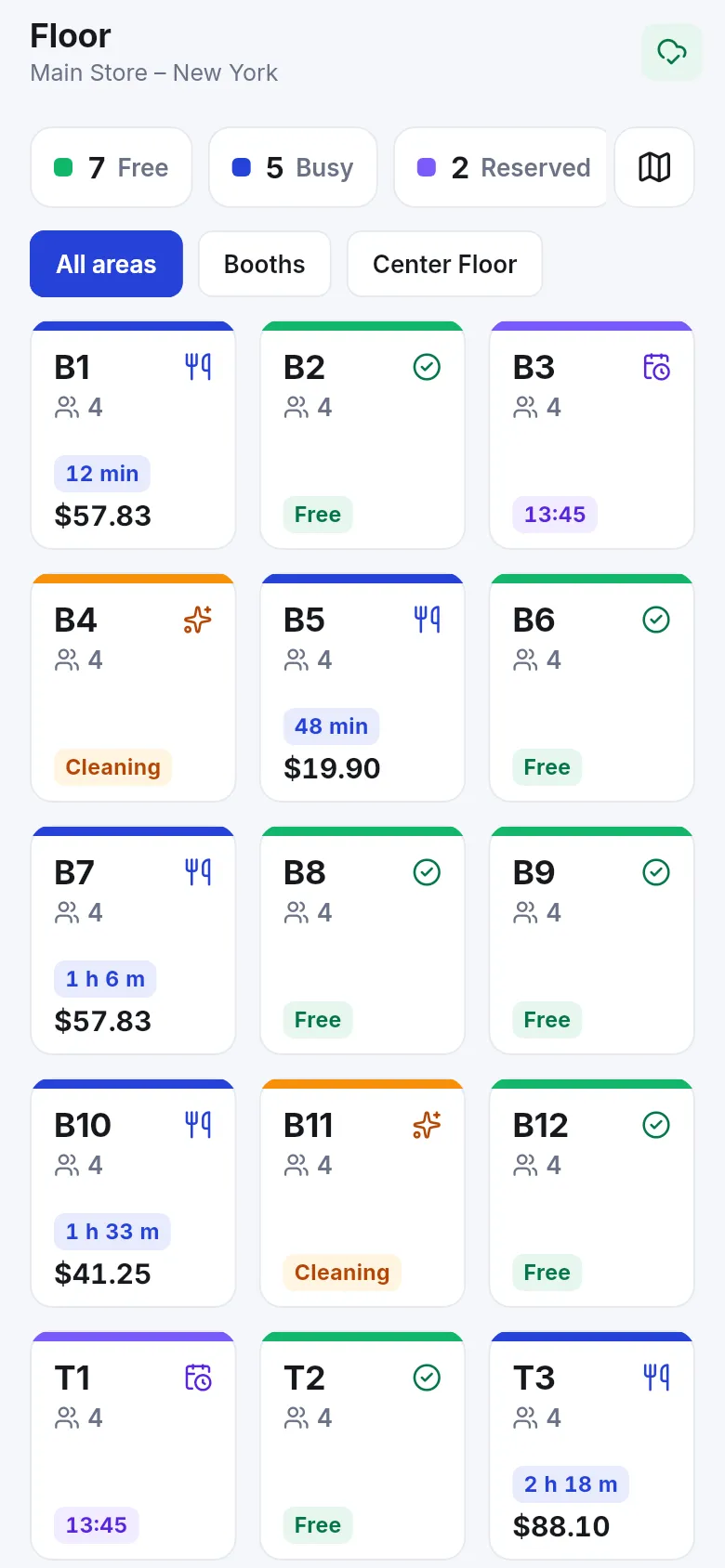
- Seats matter: the floor shows Seats free and the booking screen suggests tables by party size.
- Make seasonal tables (terrace in winter) inactive instead of deleting them, so their history stays.
- The floor states update by themselves; no need to refresh.
Next step
Section titled “Next step”Frequently asked questions
Are tables shared between branches?
No. Each table belongs to one business location. Use the location picker at the top of Tables & floor plan to switch branches.
What do the table colours mean?
Green is free, red is occupied, orange has a booking within 60 minutes, blue needs cleaning and dashed is inactive. Occupied tables also show how long guests have been seated and the running total.
How do I move guests to another table?
Open the occupied table on the floor plan and use the move order action in its side panel. The order and its kitchen tickets follow the guests.
Can I hide a table for a private event?
Yes. Edit the table and make it inactive. It stays on the plan, greyed out, and can't be picked on the POS.
Can waiters see the floor plan on a phone?
Yes. The SmartPOS Business app has a Floor view with the same live states, and the web floor plan works in a phone browser.