
Electronics store step 5: sell in the store
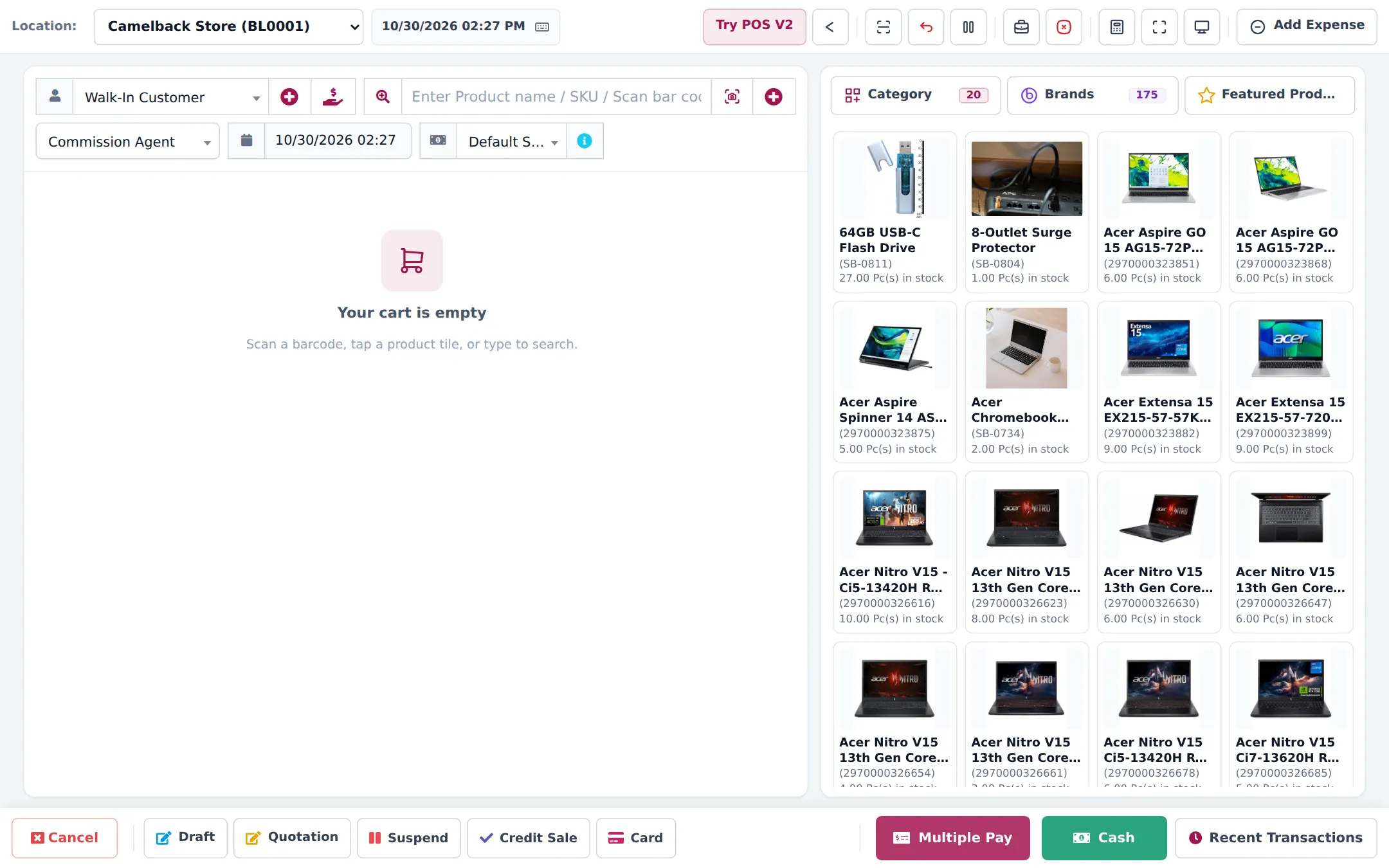
With products, prices and serials set, selling is quick. This page is the electronics store version of a sale; the POS overview explains every button.
Before you start
Section titled “Before you start”- A cash register is open (the POS asks when you first open it).
- Serial numbers and warranties are set up (step 3).
A sale at the POS
Section titled “A sale at the POS”- Open POS and check the Location.
- Choose the customer, or keep Walk-In Customer. For trade customers, choose their price group in the price group dropdown.
- Scan the barcode or search by name or SKU. A variant barcode adds that exact variant.
- For serialised items the line’s edit window opens: type or scan the serial. Each unit gets its own line.
- Add accessories and services (extended warranty, setup).
- Pay: Cash, Card, Multiple Pay for split or part payment, or Credit Sale to finalise with nothing paid.
Bigger orders with Add Sale
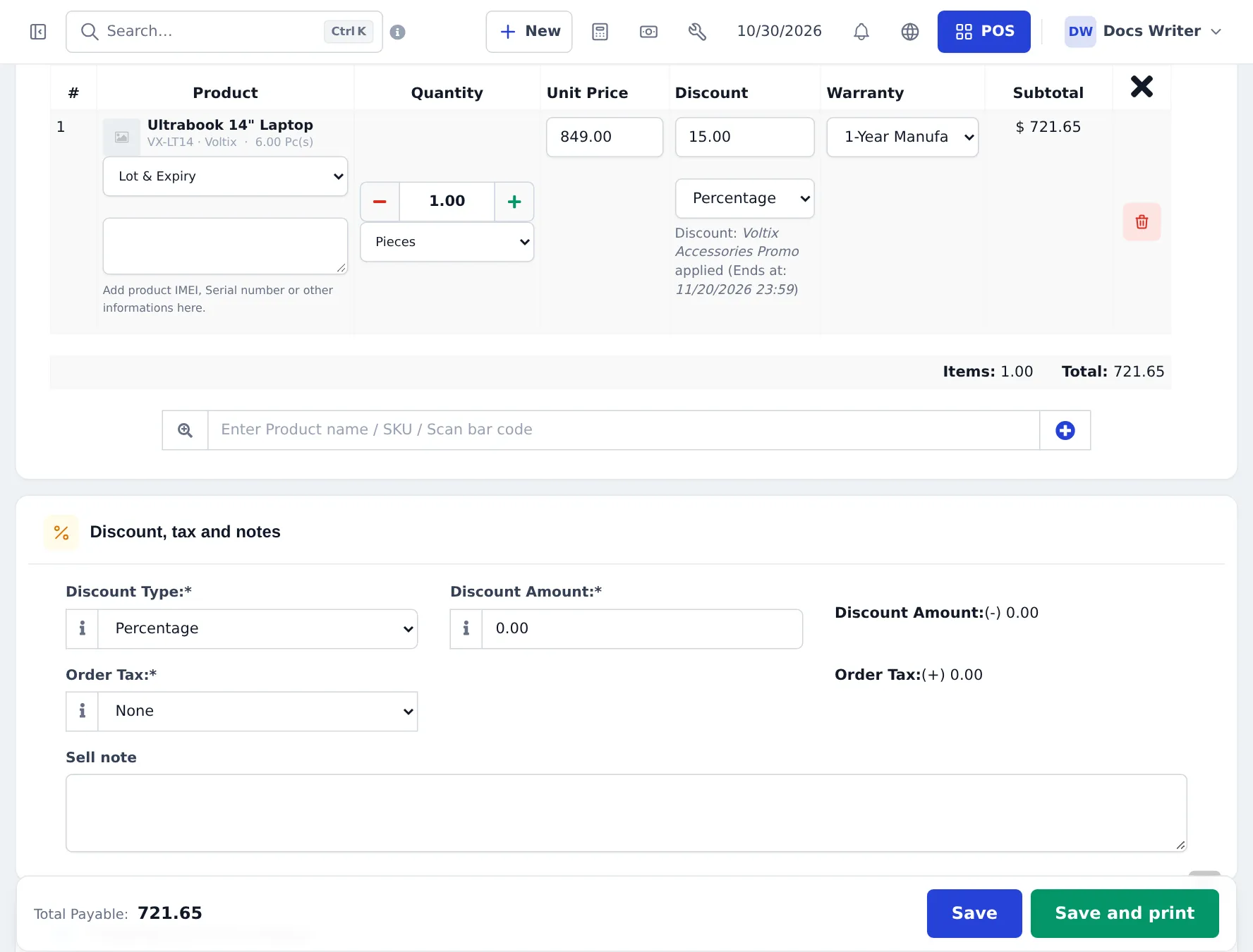
Section titled “Bigger orders with Add Sale”Sell › Add Sale shows each line with the serial box, discount and Warranty column (turn on Enable Warranty in Settings › Business Settings › Product). It also has Shipping and extra charges for delivery and a Pay term for credit.
Credit and instalments
Section titled “Credit and instalments”Corporate buyers and some customers pay later or in parts. Take a part payment with Multiple Pay (or the Add payment section of Add Sale) and collect the rest with Add payment on the invoice. The appliance instalment page shows the full flow.
Returns
Section titled “Returns”Use Sell › List Sell Return or the sale’s actions to return items; stock goes back and the refund is recorded. See Returns and refunds.
Frequently asked questions
Should I use the POS or Add Sale?
The POS for walk-in customers, fast. Add Sale for quotations and bigger orders where you want to check each line, the warranty column and shipping details.
Can a customer pay part by card and part in cash?
Yes. Use Multiple Pay and add a row per payment method.
Can I give a quotation first?
Yes. Use Quotation in the POS or Sell › Add Quotation. Convert it to a sale when the customer agrees.
What if the internet is down?
Use Offline POS (if your plan includes it) or the SmartPOS Business app's offline selling. Sales sync when the connection is back.
Can a Shopper app customer be identified at the till?
Yes. The cashier scans the customer's My store card QR or their Scan & Go cart code in the POS or the Business app, and the sale is linked to that customer.