
Receipt printers and barcode label settings
This guide covers two printer settings in SmartPOS Hub: Receipt Printers for printing receipts straight to a thermal printer, and Barcode Settings for the label sheets and rolls used when you print price and barcode labels. It is for owners and managers setting up the till and back room. Each takes about five minutes.
Receipt printers
Section titled “Receipt printers”Do you need this?
Section titled “Do you need this?”There are two ways to print receipts, chosen per location under Settings › Business Locations › Settings › Receipt Printer Type:
| Receipt Printer Type | How it works | When to use |
|---|---|---|
| Browser Based Printing | The browser’s print window opens with the receipt | Simplest; works with any installed printer |
| A configured receipt printer | The receipt goes straight to the printer you add here | Busy tills where the print window slows staff down |
Add printers from presets
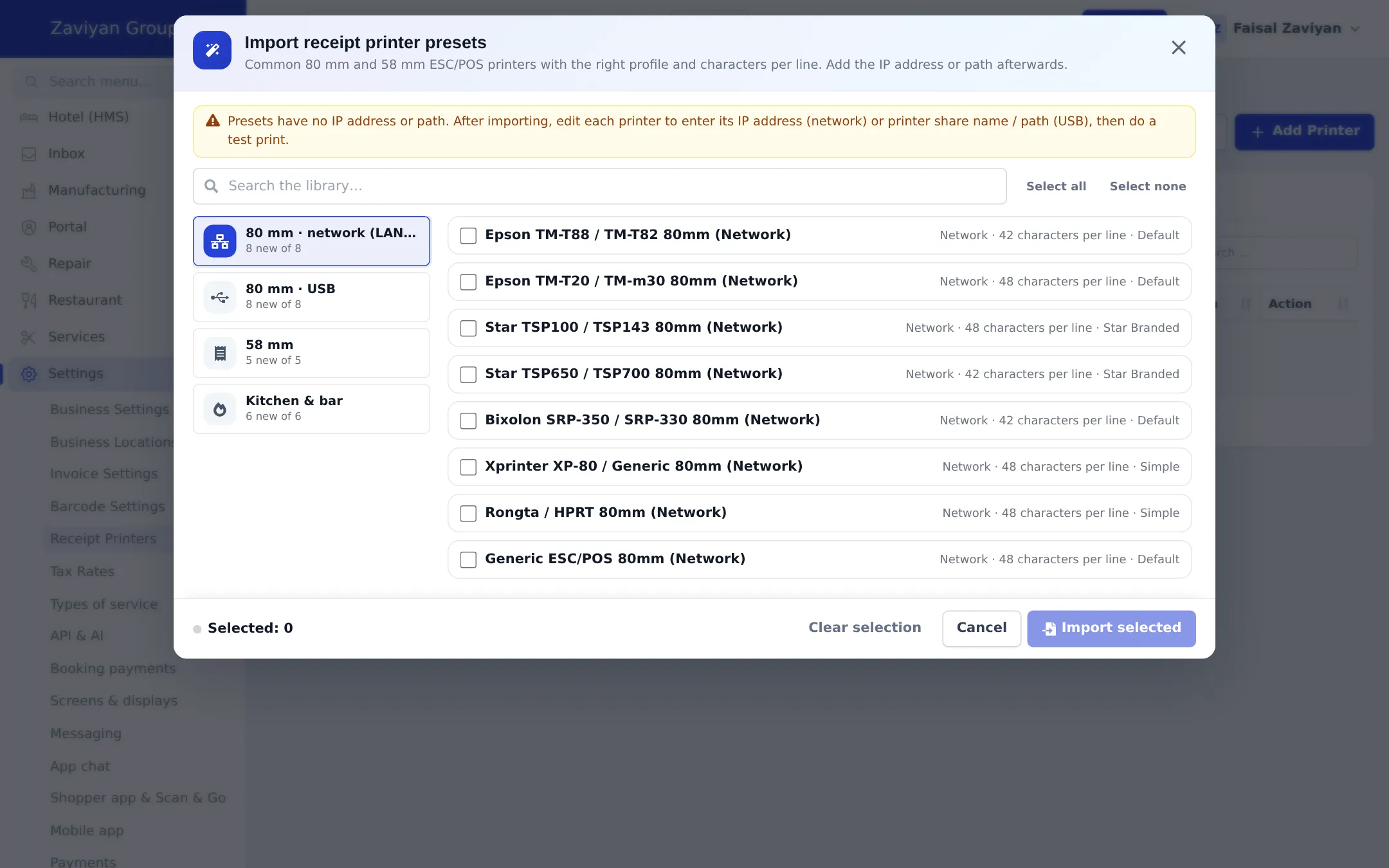
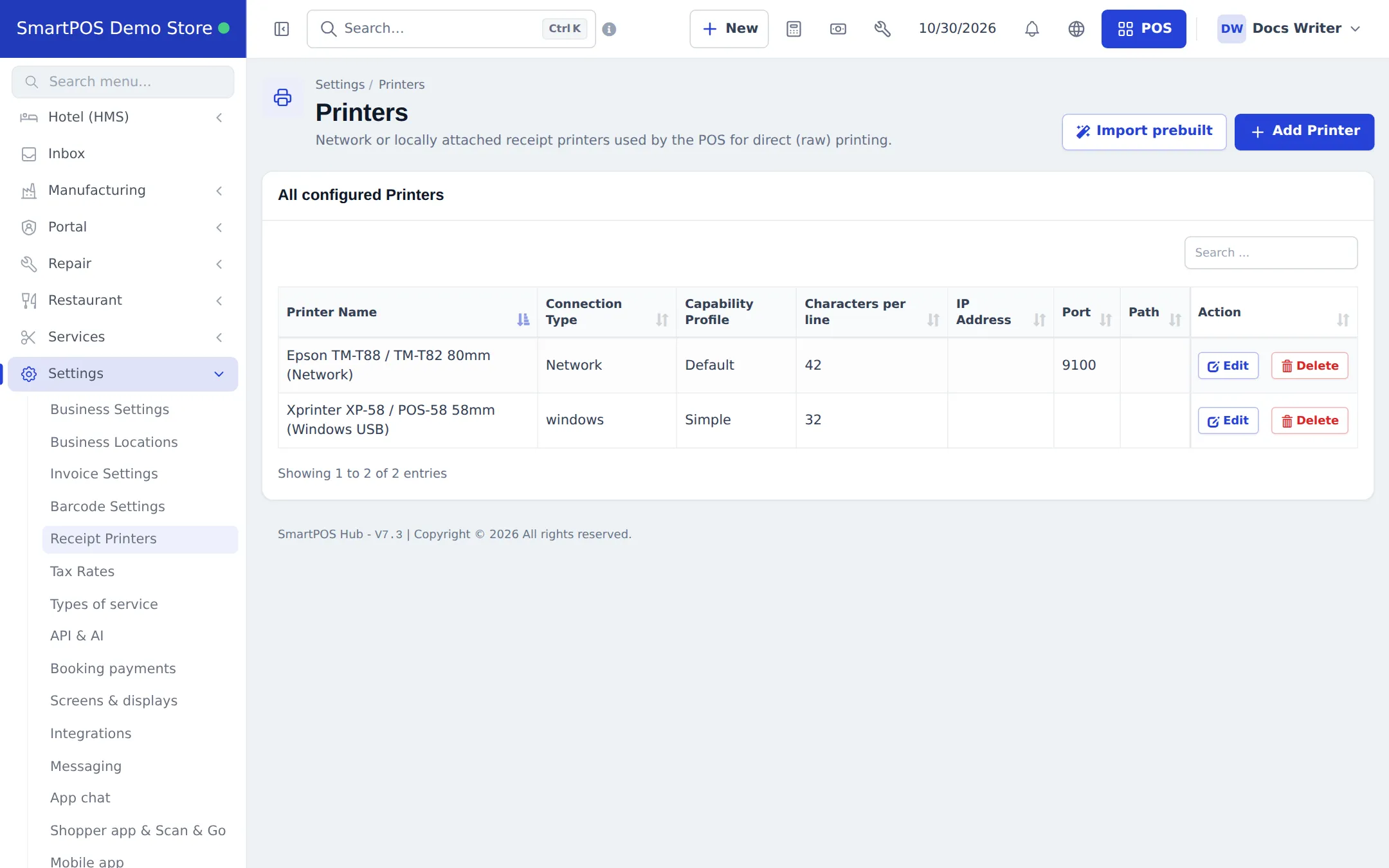
Section titled “Add printers from presets”- Open Settings › Receipt Printers and click Import prebuilt.
- Pick a group: 80 mm · network (LAN), 80 mm · USB, 58 mm or Kitchen & bar.
- Tick your printer model (or the generic ESC/POS one) and click Import selected.
- Edit each imported printer to add its IP Address (network) or path (USB), then test.
Add a printer by hand
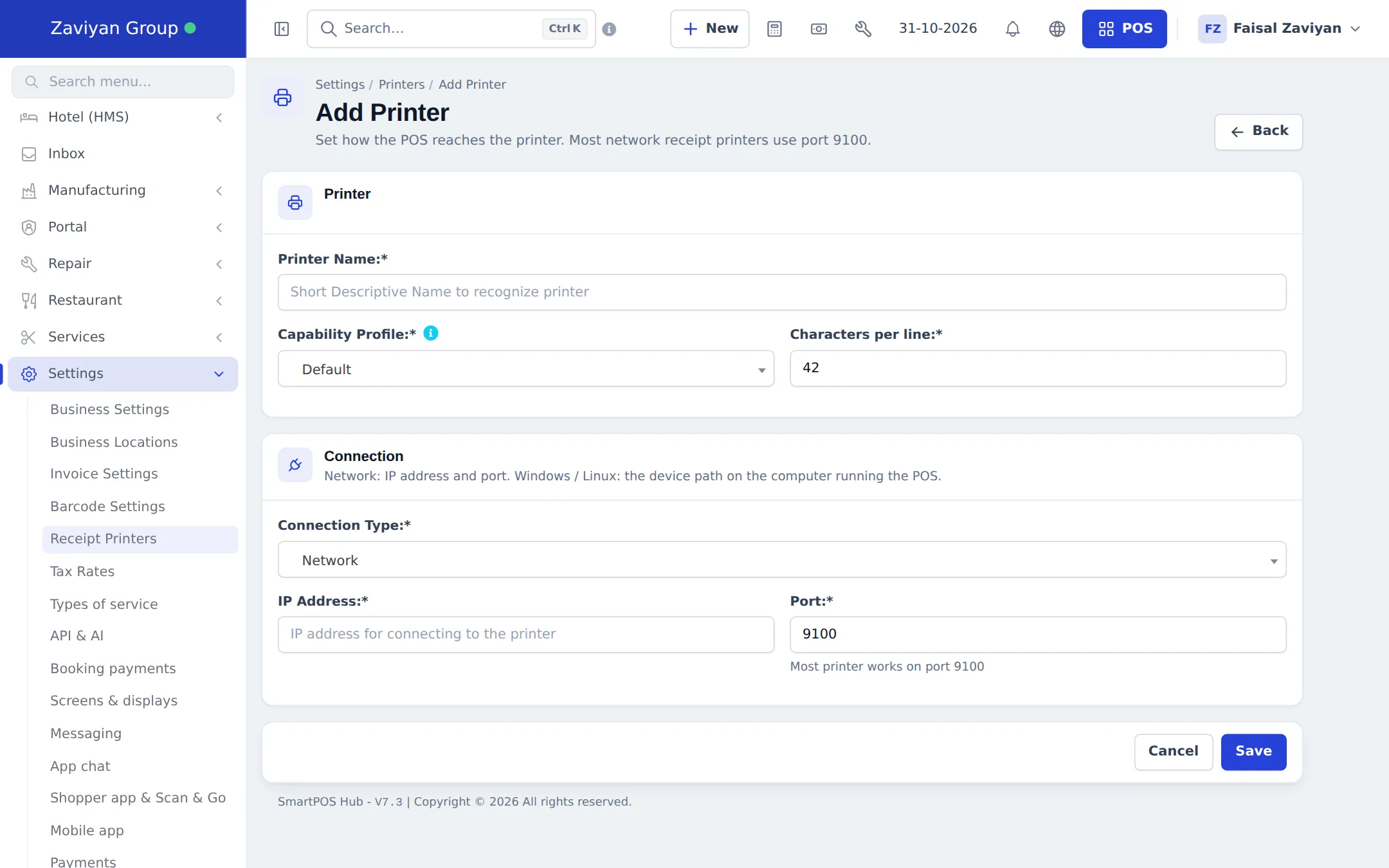
Section titled “Add a printer by hand”- Click + Add Printer.
- Printer: a Printer Name you will recognise (“Front till 80 mm”), the Capability Profile and Characters per line.
- Connection: choose the Connection Type. For Network, enter IP Address and Port (most printers use 9100). For Windows or Linux, enter the printer’s path on the computer that runs the POS.
- Click Save.
- Open Settings › Business Locations, click Settings on the location, choose this printer as the receipt printer and click Update.
Barcode label settings
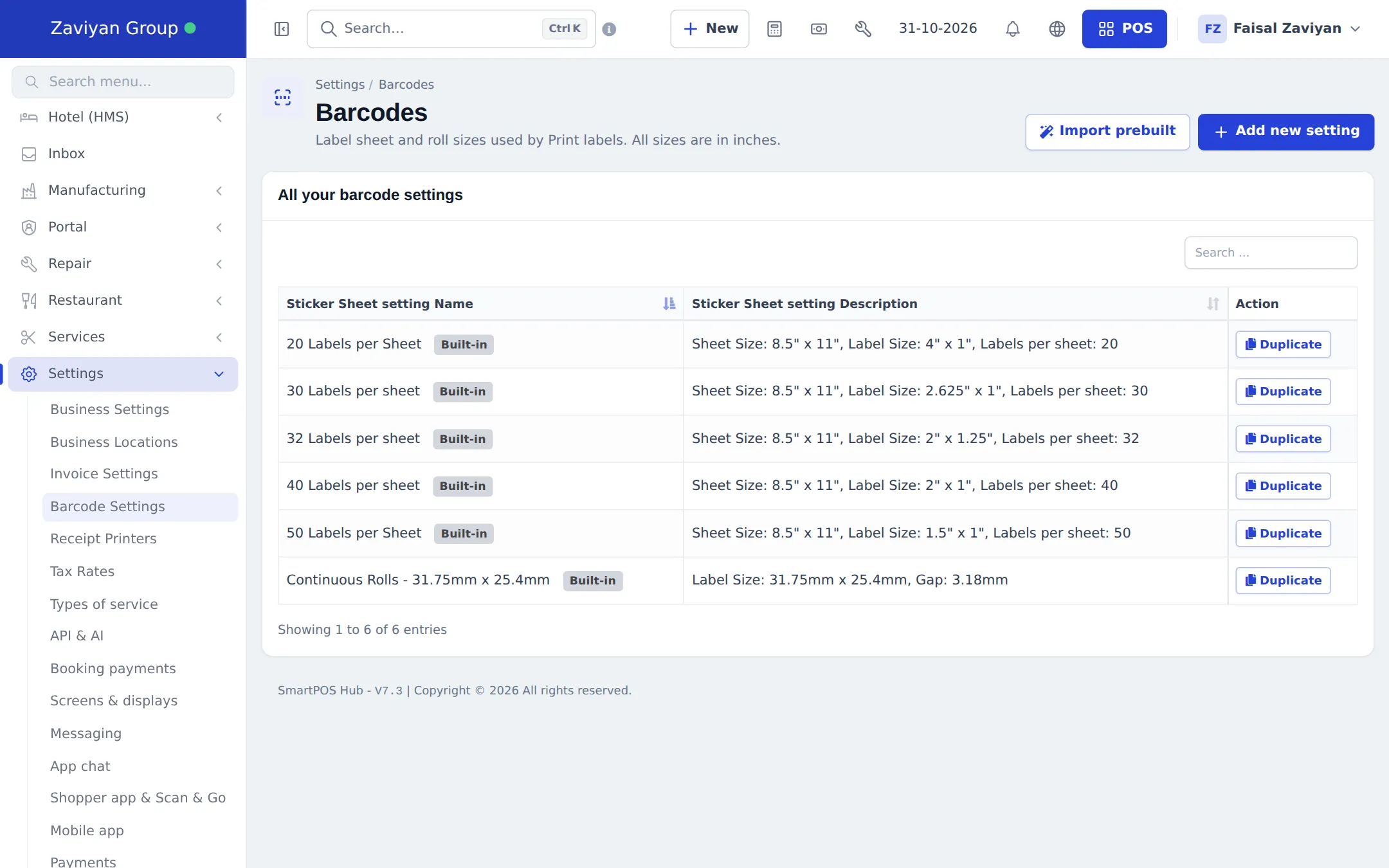
Section titled “Barcode label settings”Open Settings › Barcode Settings. The list shows the label sheets and rolls you can choose when printing labels. Built-in settings cannot be edited; click Duplicate to make your own copy.
Add your label size
Section titled “Add your label size”- Click Import prebuilt to add common rolls, A4 and Letter sheets and jewelry or shelf labels, or click + Add new setting.
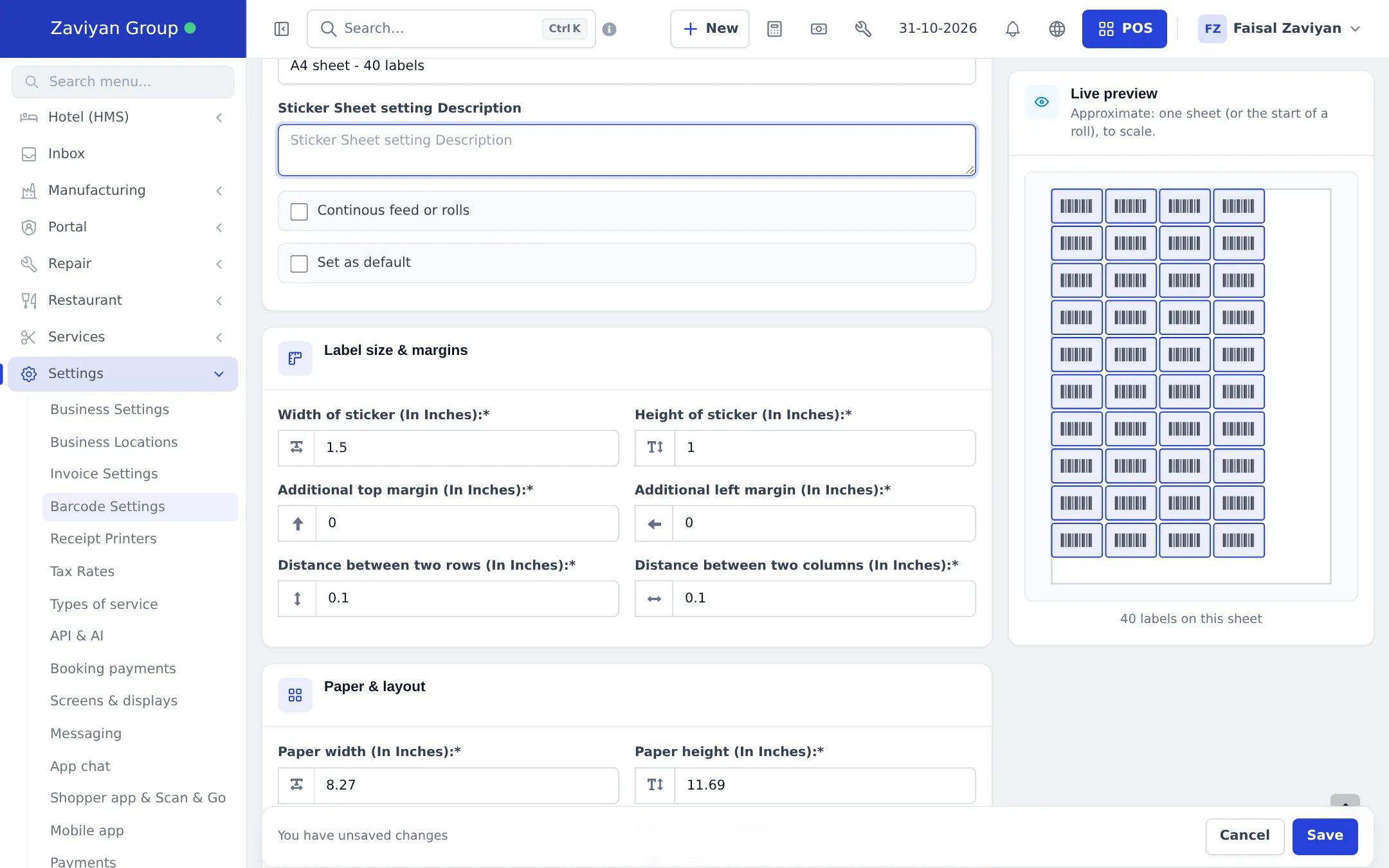
- Setting: Sticker Sheet setting Name, an optional description, Continous feed or rolls for roll printers, and Set as default.
- Label size & margins (inches): Width of sticker, Height of sticker, Additional top margin, Additional left margin, Distance between two rows, Distance between two columns.
- Paper & layout: Paper width, Paper height, Stickers in one row and No. of Stickers per sheet.
- Watch the Live preview: it draws one sheet to scale and counts the labels. Fix any size shown in red.
- Click Save.
Then print labels from Products › Print Labels. See Barcodes and labels.
Tips and mistakes to avoid
Section titled “Tips and mistakes to avoid”- Measure a real label with a ruler before entering sizes; supplier sizes are often rounded.
- Print one test sheet on plain paper and hold it against a label sheet.
- For roll printers, tick Continous feed or rolls and set the paper height to one label plus the gap.
Related pages
Section titled “Related pages”Frequently asked questions
Do I have to add my receipt printer here?
Only for direct printing. With Browser Based Printing (set on each location's Settings page) any printer installed on the computer works without adding it here.
What Characters per line should I use?
42 or 48 for 80 mm paper and 32 for 58 mm paper. If text is cut off or wraps oddly, try the other value. The printer presets fill this in for you.
Why does the printer preset have no IP address?
Every shop's network is different. After importing a preset, edit the printer and type its IP address (network) or its share name or path (USB), then do a test print.
Which label sizes are built in?
Sheets with 20, 30, 32, 40 and 50 labels on Letter paper and a continuous roll of 31.75 mm x 25.4 mm labels. Import prebuilt adds more rolls, A4 and Letter sheets, and jewelry and shelf labels.
Can I change a built-in label setting?
Built-in settings cannot be edited. Click Duplicate to make your own copy, then change it.
Are label sizes in millimetres?
The size fields are in inches. Divide millimetres by 25.4, for example 50 mm is 1.97 inches.
How do I know the labels fit on my sheet?
The Add barcode sticker setting page shows a live preview of one sheet or the start of a roll and counts the labels. Labels that do not fit are shown in red.