
Import products from Excel or CSV
If your products are already in a spreadsheet (from an old system, a supplier list or a price list), Import Products adds them all at once. This page walks you through the template, the important columns and how to fix a row that fails the check.
Before you start
Section titled “Before you start”- Create your units, tax rates and business locations first. Their names must match the file exactly.
- Brands and categories can be created by the import, but importing them first with Import prebuilt keeps names clean.
- Try a few rows first. When they import correctly, import the rest.
Import step by step
Section titled “Import step by step”- Open Products › Import Products.
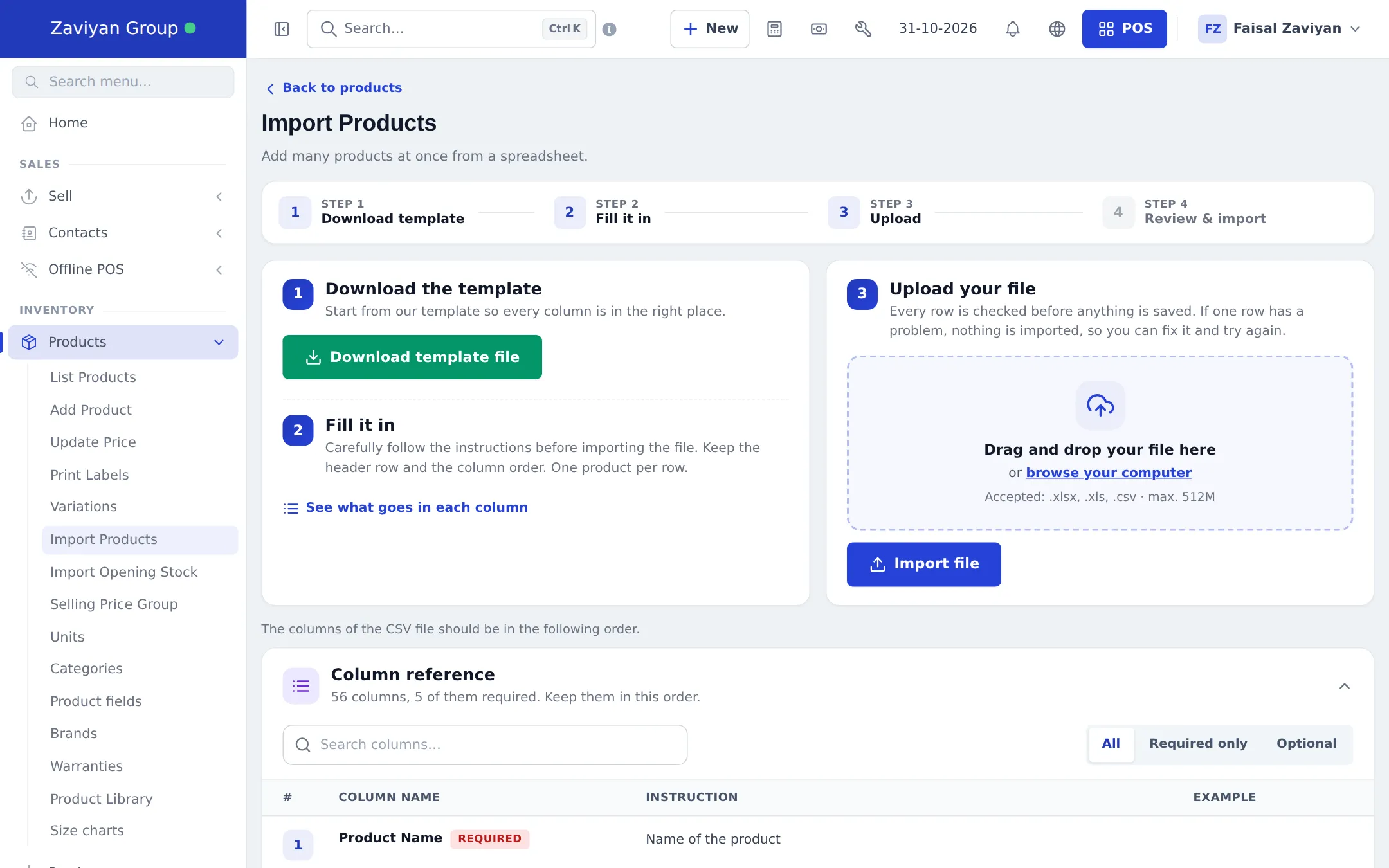
- Step 1 – Download template: click Download template file.
- Step 2 – Fill it in: keep the header row and the column order, one product per row. Click See what goes in each column to open the Column reference (searchable, with Required only and Optional filters and an example for each column).
- Step 3 – Upload: drag your file onto Drag and drop your file here or click browse your computer. Accepted: .xlsx, .xls, .csv.
- Click Import file and keep the page open while it says Importing….
- Step 4 – Review & import: you see Import finished with links to view your products, or Nothing was imported with the row number to fix.
The main columns
Section titled “The main columns”| # | Column | Required | Notes |
|---|---|---|---|
| 1 | Product Name | Yes | |
| 2 | Brand | No | Created if not found |
| 3 | Unit | Yes | Must match a unit name in the app |
| 4–5 | Category, Sub category | No | Created if not found |
| 6 | SKU | No | Blank = created automatically |
| 7 | Barcode Type | No | C128 (default), C39, EAN-13, EAN-8, UPC-A, UPC-E, ITF-14 |
| 8 | Manage Stock? | Yes | 1 = Yes, 0 = No |
| 9–11 | Alert quantity, Expires in, Expiry Period Unit | No | Expiry unit: days or months |
| 12 | Applicable Tax | No | Tax rate name |
| 13 | Selling Price Tax Type | Yes | inclusive or exclusive |
| 14 | Product Type | Yes | single or variable |
| 15–17 | Variation Name, Variation Values, Variation SKUs | For variable | Values separated by |, for example S|M|L |
| 18–19 | Purchase Price (Including Tax) / (Excluding Tax) | One of them | For variable products, | separated in the same order |
| 20–21 | Profit Margin %, Selling Price | No | Blank selling price = worked out from cost and margin |
| 22–24 | Opening Stock, Opening stock location, Expiry Date | No | Blank location = first business location |
| 25 | Enable Product description, IMEI or Serial Number | No | 1 = Yes |
| 26–29 | Weight, Rack, Row, Position | No | Rack/row/position per location separated by | |
| 30–31 | Image, Product Description | No | Image = file name or a web address of the image |
| 32–36 | Custom Field1–4, Not for selling | No | |
| 37 | Product locations | No | Comma-separated location names |
| 38–56 | Sub-sub-category, website and SEO fields, GTIN, MPN, condition, shipping size, tags, compare-at price, focus keyword, Size chart | No | Optional online-store columns |
The Column reference on the page is always the up-to-date list, with an example for every column.
When the import fails
Section titled “When the import fails”If any row has a problem, no row is saved. The result panel shows Nothing was imported, a Row N badge and the message. Data row N is spreadsheet line N+1 (because of the header). Fix that line and upload the same file again. Long technical messages are folded under Technical details.
Common causes:
- A unit, tax rate or location name spelled differently from the app.
- Text in a number column (for example “Rs 100” instead of 100).
- A variable product whose number of prices or stock values does not match the number of variation values.
- A SKU that another product already uses.
Related pages
Section titled “Related pages”Frequently asked questions
Which file types can I upload?
Excel .xlsx or .xls, or .csv, with the header row kept as the first row.
What happens if one row has a mistake?
Nothing is imported. Every row is checked first; if one row has a problem, the page shows Nothing was imported with the row number and the message, so you fix that row and upload the same file again.
Which columns are required?
Product Name, Unit, Manage Stock?, Selling Price Tax Type and Product Type are always required. Variation Name and Variation Values are needed for variable products, and one of the two purchase price columns is needed.
Will brands and categories be created if they don't exist?
Yes. A brand, category or sub-category that is not found is created with the name you typed. Units, tax rates and locations must already exist and be spelled exactly as in the app.
Can I add opening stock in the same file?
Yes. Use the Opening Stock and Opening stock location columns. For products that already exist, use Import Opening Stock instead.
Can I import products for my website at the same time?
Yes. Optional columns after Product locations cover Show on website, URL handle, meta title and description, GTIN, MPN, weight and size, tags and more.