
Account security - two-step sign-in and password rules
Account security protects every SmartPOS Hub sign-in. Each user can turn on two-step sign-in (a 6-digit code from an authenticator app after the password), see where they are signed in, sign other devices out and check their recent sign-ins. Business admins can require two-step sign-in by role and set password, session, lockout and network rules for the whole business.
Turn on two-step sign-in for your account
Section titled “Turn on two-step sign-in for your account”- Click your name at the top right and open Profile. In the Account security card click Manage security.
- Under Two-step sign-in (2FA) click Turn on two-step sign-in.
- Install an authenticator app on your phone if you don’t have one, then scan the QR code (or type the setup key).
- Enter the 6-digit code from the app and click Turn on.
- Save your recovery codes: Download, Copy or Print them and keep them somewhere safe. They are shown only once. Click I have saved my codes.
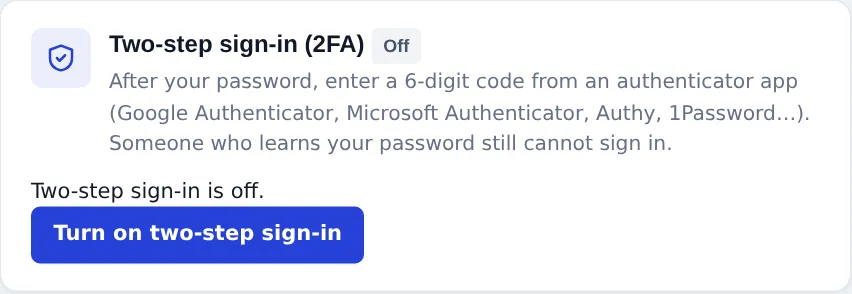
From now on, after your password you are asked for a code. Tick Don’t ask again on this device for … days on your own computer to skip the code there for a while. Lost your phone? Click Use a recovery code, or E-mail me a code if your business allows e-mail codes.
Your security page
Section titled “Your security page”The same page shows:
- Where you’re signed in: every browser and device on your account, with Sign out for one or Sign out all other sessions.
- Remembered devices: browsers that skip the code, with Forget or Forget all devices.
- Password: when you last changed it, the rules that apply and Change password.
- Security e-mails: E-mail me when my account signs in from a new device. Password changes, 2FA changes and recovery-code use are always e-mailed.
- Recent sign-ins: the last 50 sign-in events with device and method.
Business rules (admins)
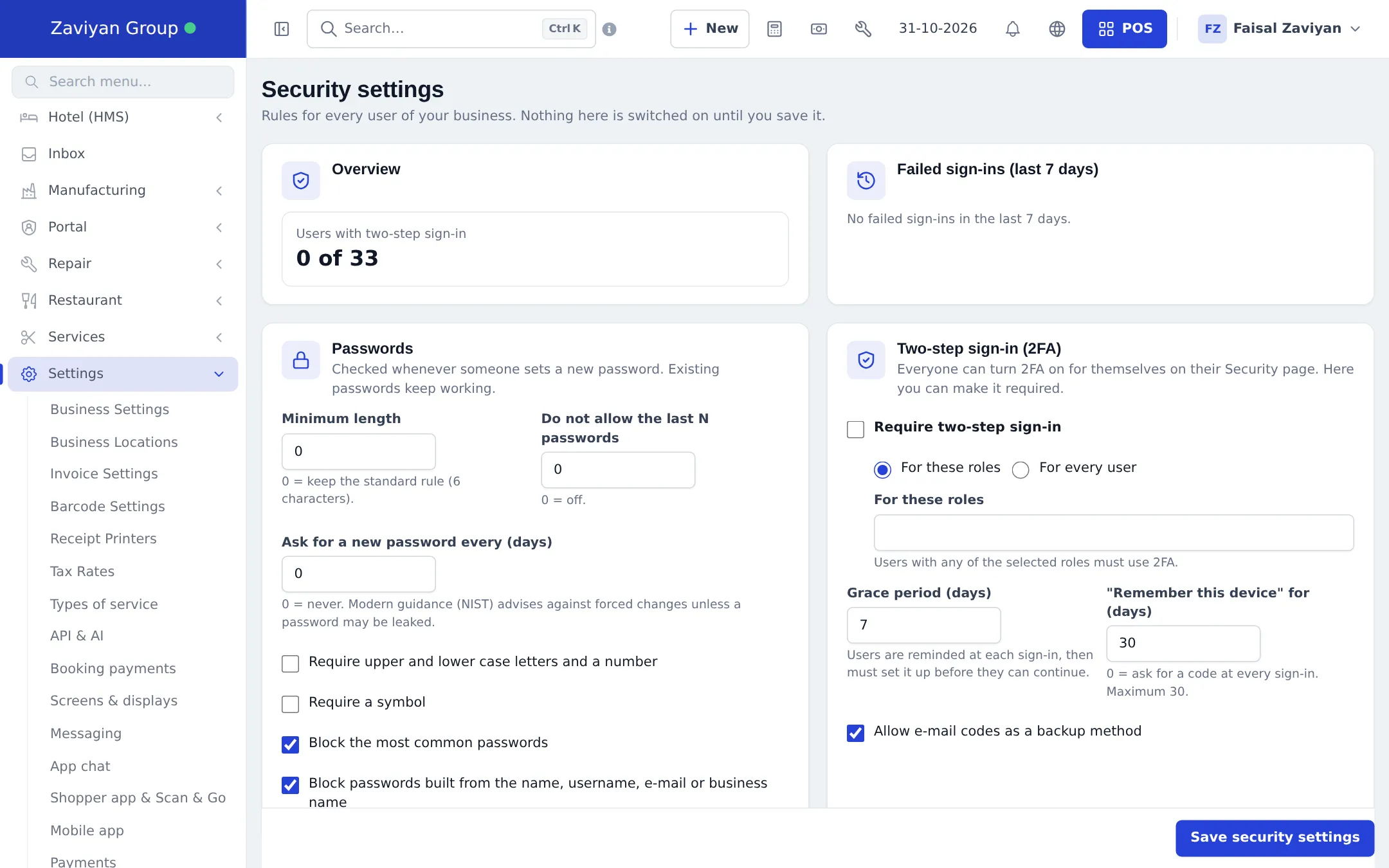
Section titled “Business rules (admins)”Open Settings › Security. The Overview shows how many users have two-step sign-in and any failed sign-ins in the last 7 days. Nothing is switched on until you click Save security settings.
| Section | Settings |
|---|---|
| Passwords | Minimum length, Do not allow the last N passwords, Ask for a new password every (days), Require upper and lower case letters and a number, Require a symbol, Block the most common passwords, Block passwords built from the name, username, e-mail or business name |
| Two-step sign-in (2FA) | Require two-step sign-in For these roles or For every user, Grace period (days), “Remember this device” for (days) (maximum 30), Allow e-mail codes as a backup method |
| Sessions | Sign out after inactivity (minutes), Maximum session length (hours) |
| Wrong-password lockout | Attempts before lockout, Lockout (minutes) (counted per username and network address) |
| Security e-mails | E-mail users when their account signs in from a new device |
| Allowed networks (IP allow-list) | Only allow sign-in from these addresses, one address or range per line; Add my address |
A good starting point for most shops: require two-step sign-in for the Admin and manager roles, keep the common-password block on, and set an inactivity sign-out on shared tills.
Help a staff member who lost their phone
Section titled “Help a staff member who lost their phone”- Open User Management › Users and open the user.
- In the Security card you see their two-step sign-in status, active sessions, last sign-in and recent activity.
- Click Reset two-step sign-in and confirm. They are signed out and can set it up again at their next sign-in.
- If a device was stolen, also click Sign out everywhere.
Permissions
Section titled “Permissions”| Who | Can |
|---|---|
| Every user | Turn their own two-step sign-in on or off (unless required), manage their sessions, devices, password and security e-mails |
| Business Admin role | Everything above, plus Settings › Security, and Reset two-step sign-in / Sign out everywhere for other users |
There are no separate Roles-page permissions for security; it follows the Admin role.
In the SmartPOS Business app
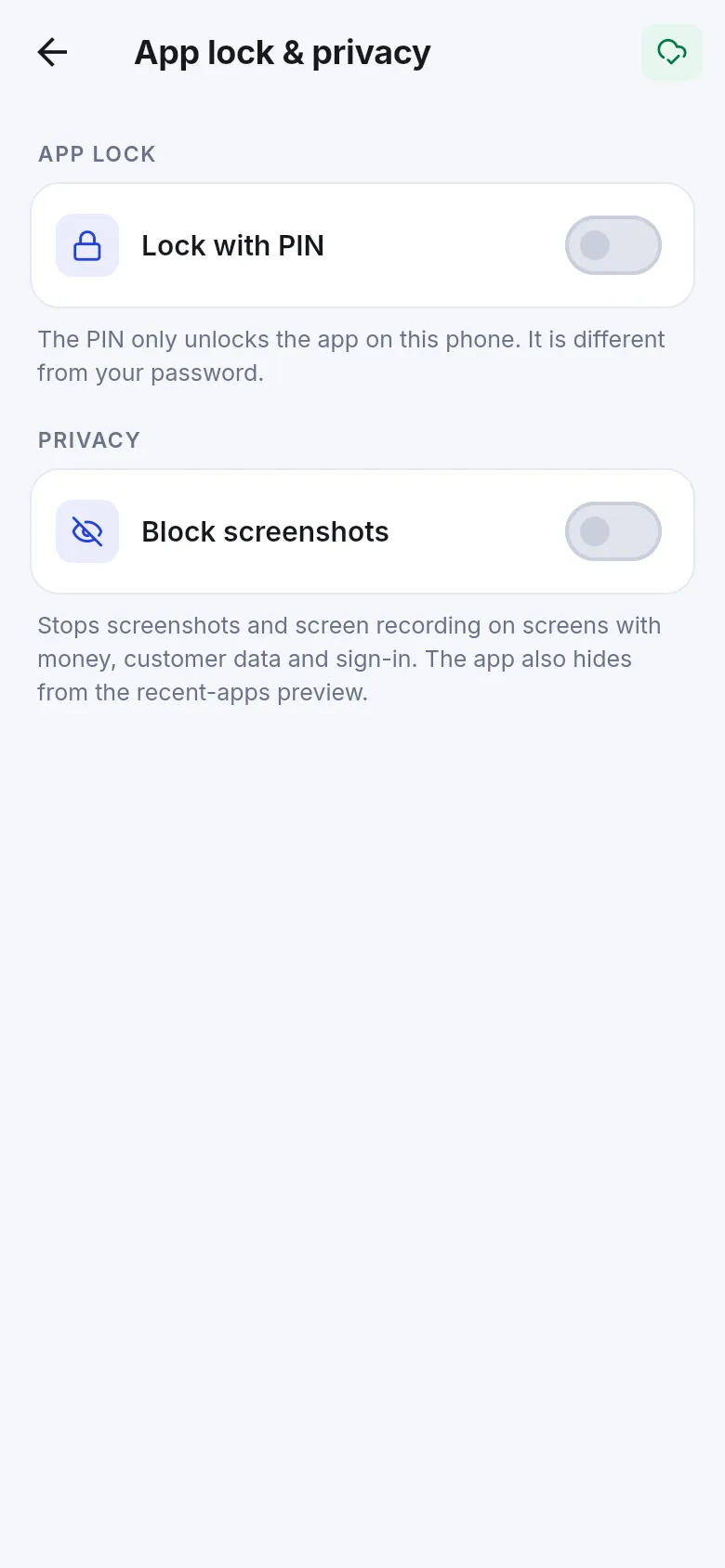
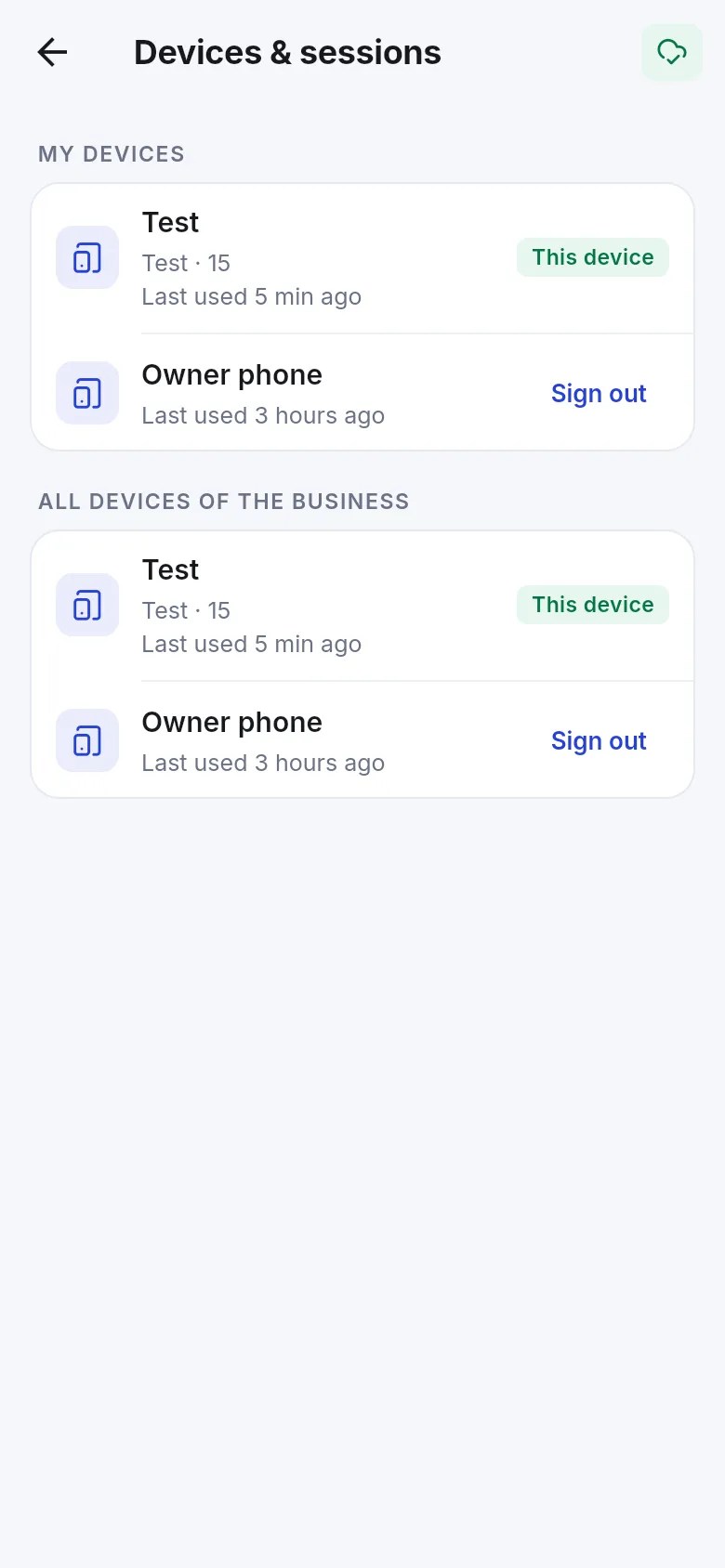
Section titled “In the SmartPOS Business app”Users with two-step sign-in get a second step in the app after their password (app code or recovery code). In the app’s settings, App lock & privacy adds a PIN lock and can block screenshots, and Devices & sessions lists your phones and all devices of the business with Sign out.
Related pages
Section titled “Related pages”Frequently asked questions
Which authenticator apps work?
Any standard authenticator app, for example Google Authenticator, Microsoft Authenticator, Authy, 1Password, Bitwarden or Aegis. You scan a QR code once and the app shows a new 6-digit code every 30 seconds.
I lost my phone. How do I sign in?
Use one of the recovery codes you saved when you turned on two-step sign-in. Each code works once. If you have no codes left, ask your business administrator to reset two-step sign-in for your account.
How does an admin reset two-step sign-in for a staff member?
Open User Management › Users, open the user and use Reset two-step sign-in in the Security card. The user is signed out and can set it up again. Sign out everywhere ends all their sessions.
Will existing staff be locked out when I save Settings › Security?
No. Nothing is switched on until you save the page, and required two-step sign-in has a grace period (7 days by default) with a reminder at each sign-in before it becomes mandatory.
Can I make the till sign out automatically?
Yes. Set Sign out after inactivity (minutes) in Settings › Security. It is useful on shared counters.
Does two-step sign-in work in the SmartPOS Business app?
Yes. Users with two-step sign-in enter their app code or a recovery code after the password when they sign in to the app.
Who can change the security settings?
Only users with the business Admin role. Every user can manage their own two-step sign-in and sessions on their own security page.