
Sell with the SmartPOS Business app (POS on your phone)
This guide shows cashiers and owners how to sell with the SmartPOS Business app: start a sale, add items by tapping or scanning, choose a customer, give discounts, take cash, card or split payments, sell on credit with part payments, print or share the receipt and close the cash register. Everything follows the same rules as the web POS.
Before you start
Section titled “Before you start”- You are signed in and the right location is selected on Home.
- Products are on sale at this location (added on the web or in the app).
- Payment methods are turned on for the location on the web (Settings › Business Locations).
- If your business uses cash registers, a register is open (the app asks).
- Optional: a Bluetooth receipt printer paired in Settings › Printers.
The Sell tab
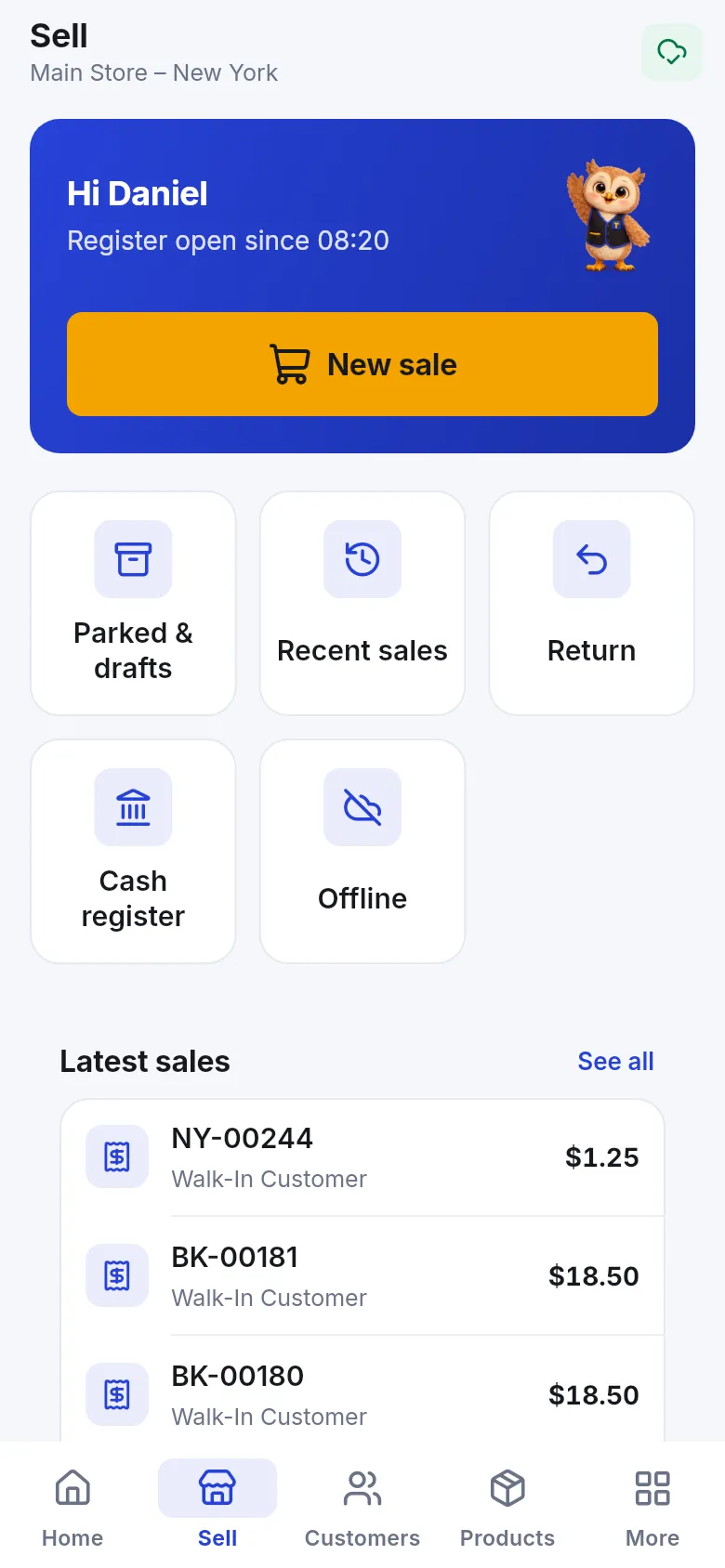
Section titled “The Sell tab”Sell is the cashier’s start screen. It shows whether the register is open, a big New sale button and shortcuts: Parked & drafts, Recent sales, Return, Cash register, Offline and Scan & Go (when your store uses the Shopper app). Latest sales lists today’s sales.
If the register is closed, tap Open register, count the cash in the drawer, enter it as Starting cash and confirm.
Ring up a sale
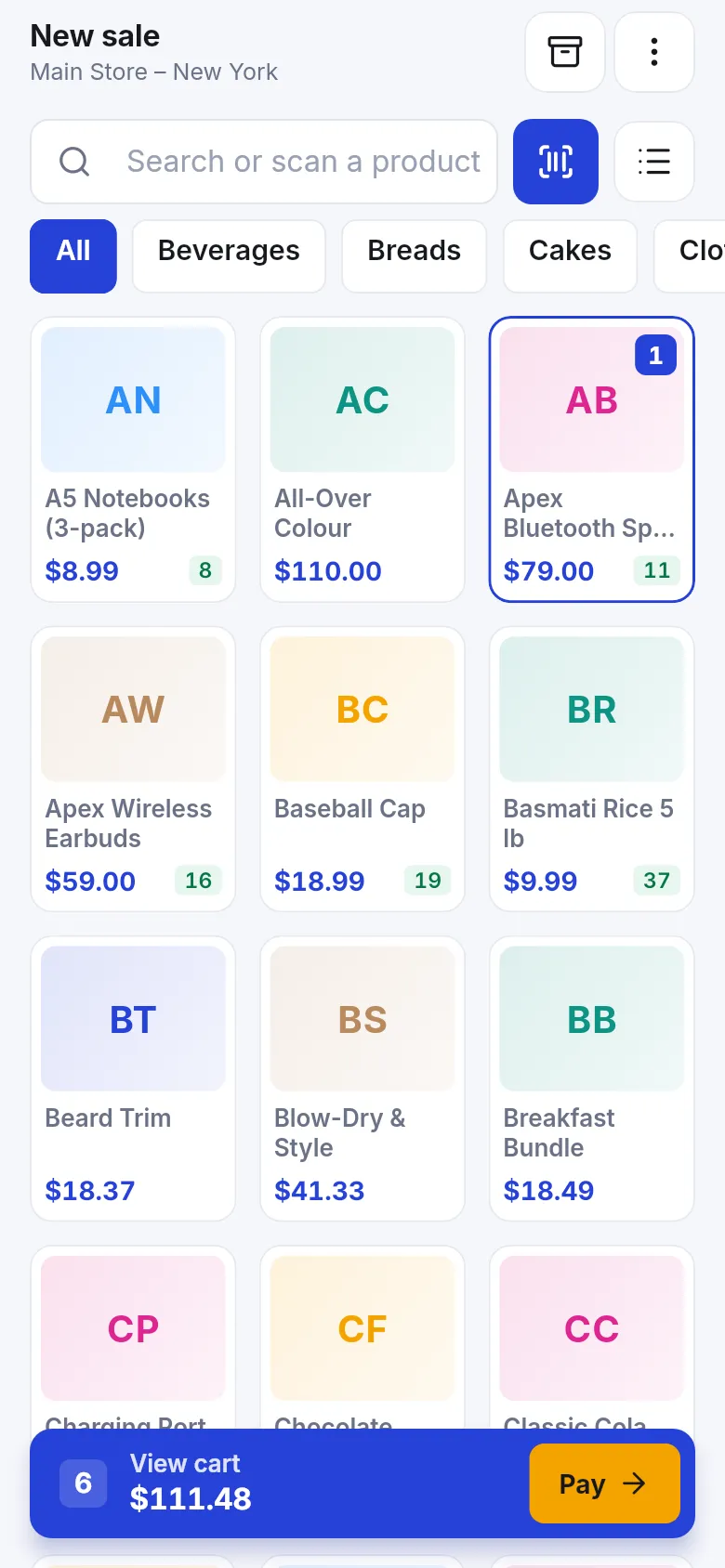
Section titled “Ring up a sale”- Tap New sale.
- Add items: tap a product tile, pick a category chip to narrow the list, type in Search or scan a product, or tap the scan button. Switch between Grid view and List view with the list icon. Each tile shows the price and stock here.
- Products with variants or options open a sheet: pick the size, colour or add-ons (Required groups must be answered), then tap Add to cart.
- Tap View cart to see the lines. Tap a line to change Quantity, Unit price (before tax), Discount or add a Note (printed on the receipt – IMEI or serial numbers go here). Tap Remove to delete it; Undo brings it back.
- Tap the customer bar (Walk-in customer) to choose a customer by name, mobile or customer number, Scan store card, or Add customer with just a name and mobile.
- Use More in the cart for Order discount, Order tax, Price group, Service staff, Table, Service type, Shipping, Sale note and Staff note, when your business uses them.
- Tap Pay.
Take the payment
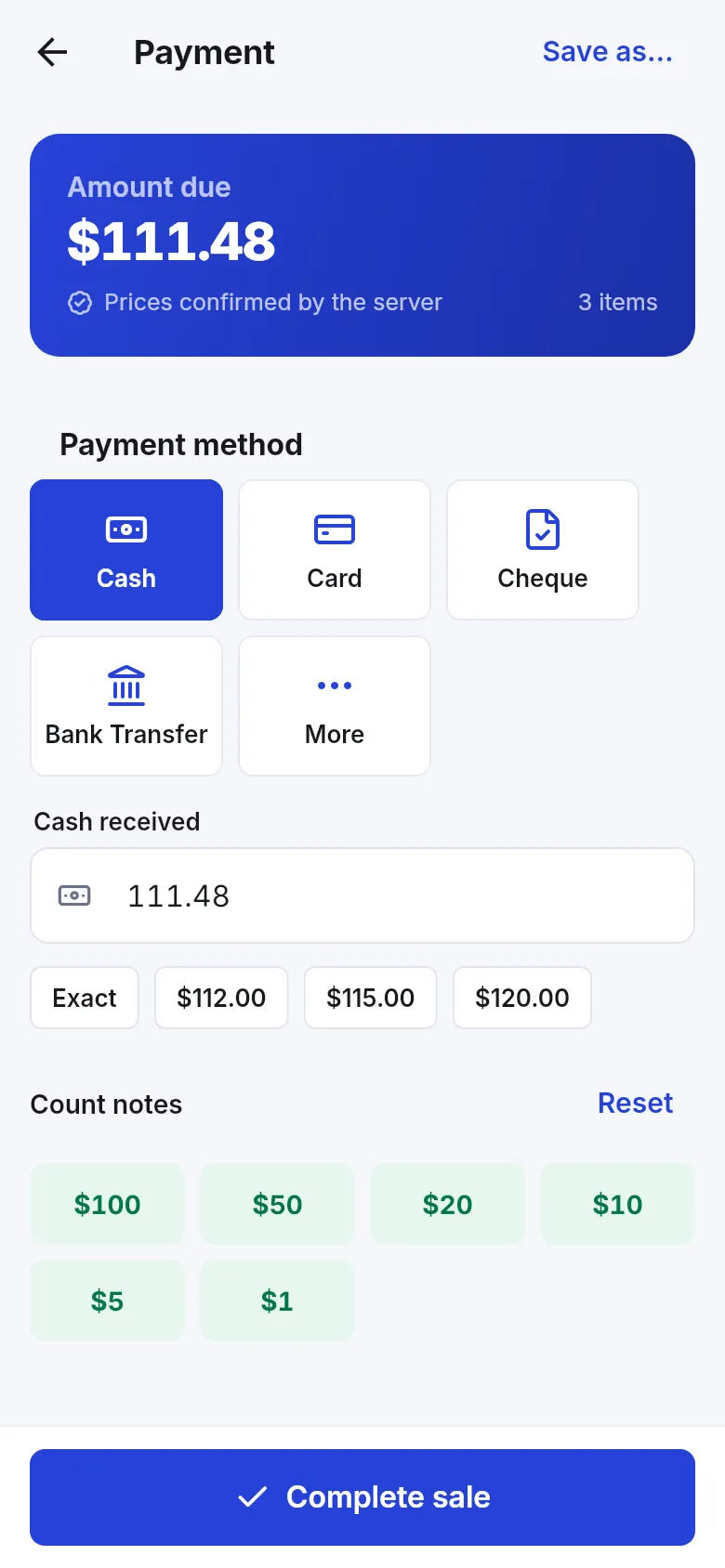
Section titled “Take the payment”- The Payment screen shows the Amount due and Prices confirmed by the server.
- Pick the Payment method: Cash, Card, Cheque, Bank Transfer, or More for the other methods of this location (gift card and store credit appear here when you use them).
- For cash, type Cash received or tap a quick amount (Exact or rounded notes). Count notes adds notes tap by tap. The app shows Change to give.
- For card, you can type the Card last 4 digits (optional) – never the full card number.
- To split, tap Split: add another payment and add the next method and amount.
- Tap Complete sale.
Tap Save as… on the Payment screen to save the cart as a Draft or Quotation instead (needs internet).
Sell on credit and take part payments
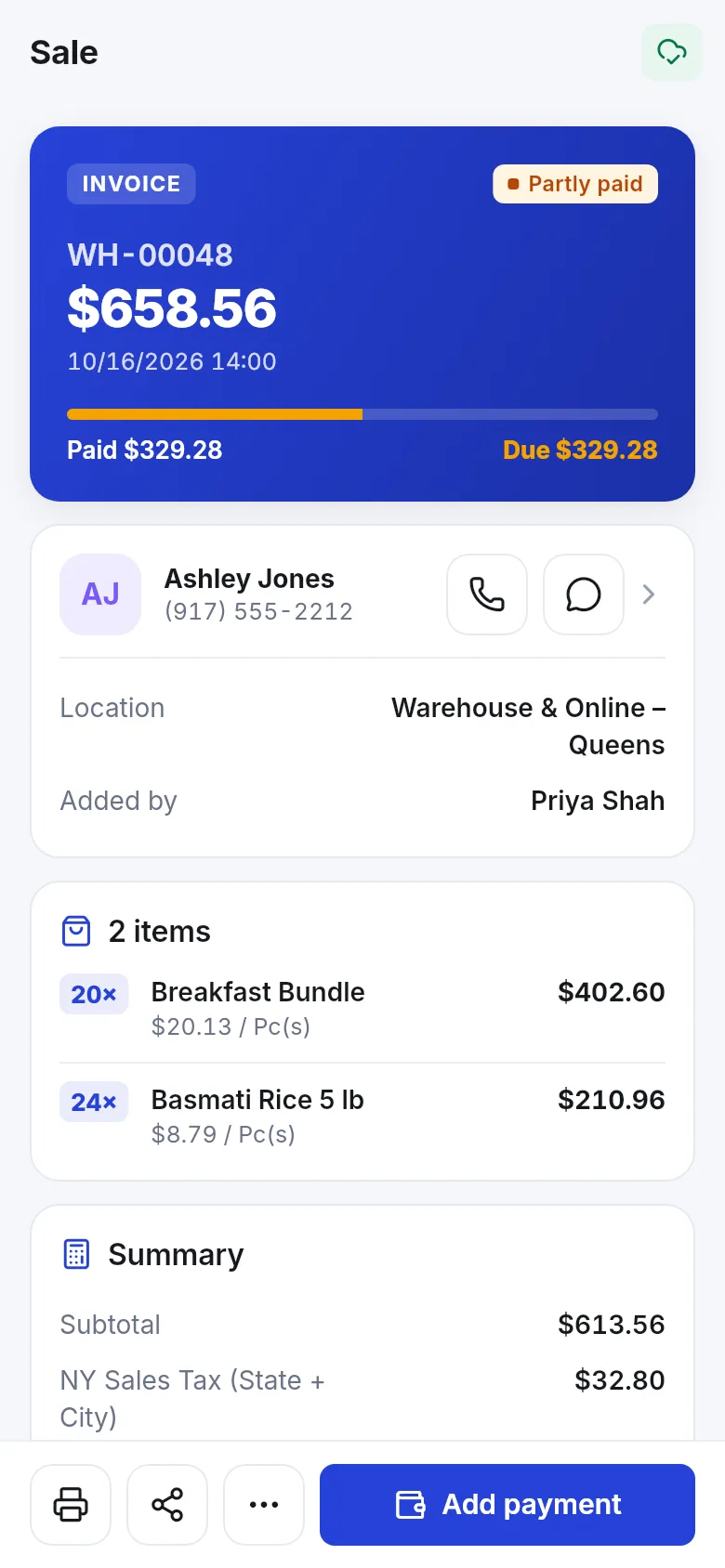
Section titled “Sell on credit and take part payments”Customers often take goods now and pay over time – for example 20 % today, 50 % next week and the rest at month-end. In the app:
- Choose the customer in the cart (credit can’t go on the walk-in customer).
- Tap Pay. On Payment, turn on Pay later (credit). The hint says The balance is added to the customer’s account.
- Enter what the customer pays today (for example 20 % of the total), or nothing at all. The screen shows … will be due.
- Tap Complete sale. The sale is saved as Partial (some paid) or Due (nothing paid).
- When the customer pays the next part, open Customers, pick the customer and tap Receive payment – or open the sale in Sales and tap Add payment. Enter the amount and method. Repeat until the balance is zero and the sale shows Paid.
If the customer has a credit limit and this sale goes over it, the app warns Over the credit limit – tap Continue anyway only if you accept the risk (the server may still refuse it).
For the full credit workflow, limits and advances, see Credit and partial payments and Customers and ledger.
Receipts, printing and sharing
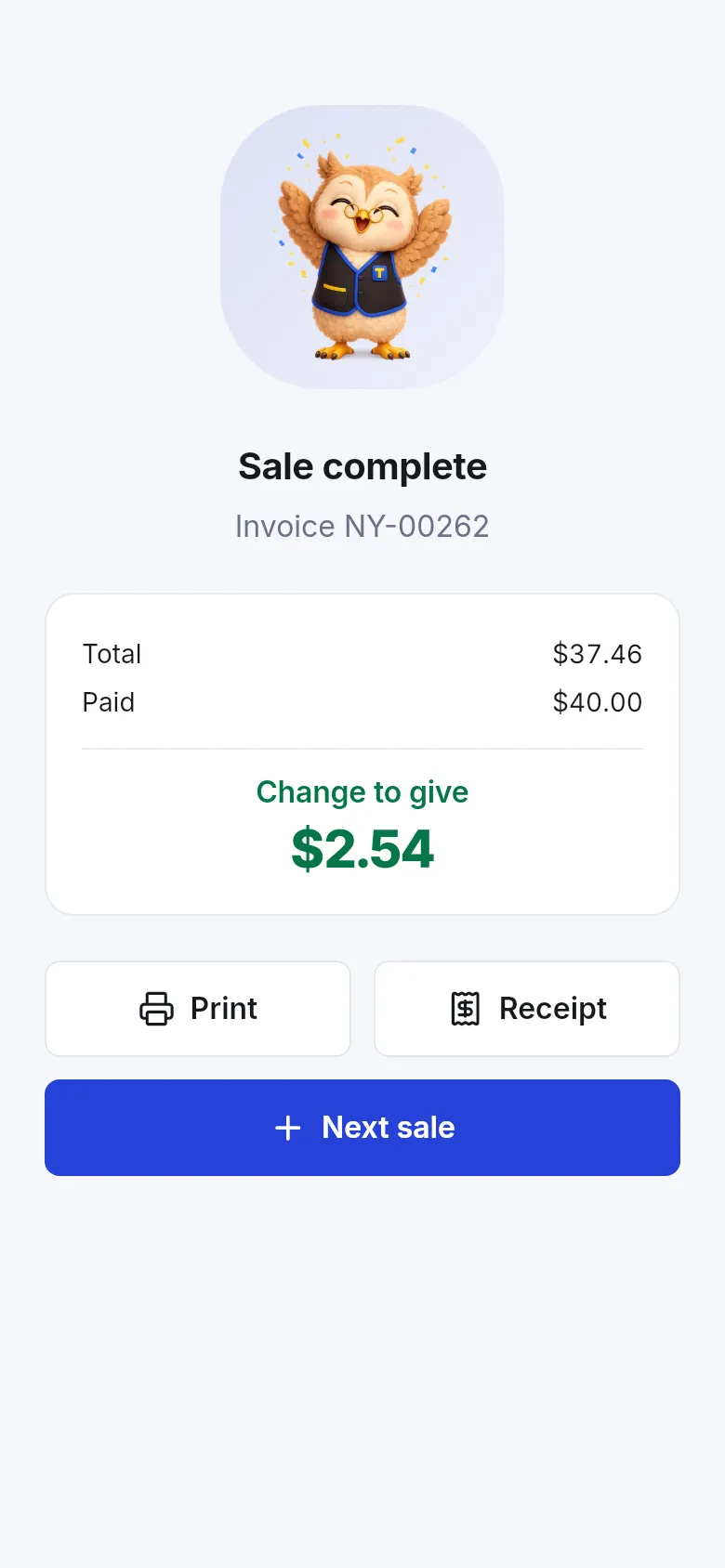
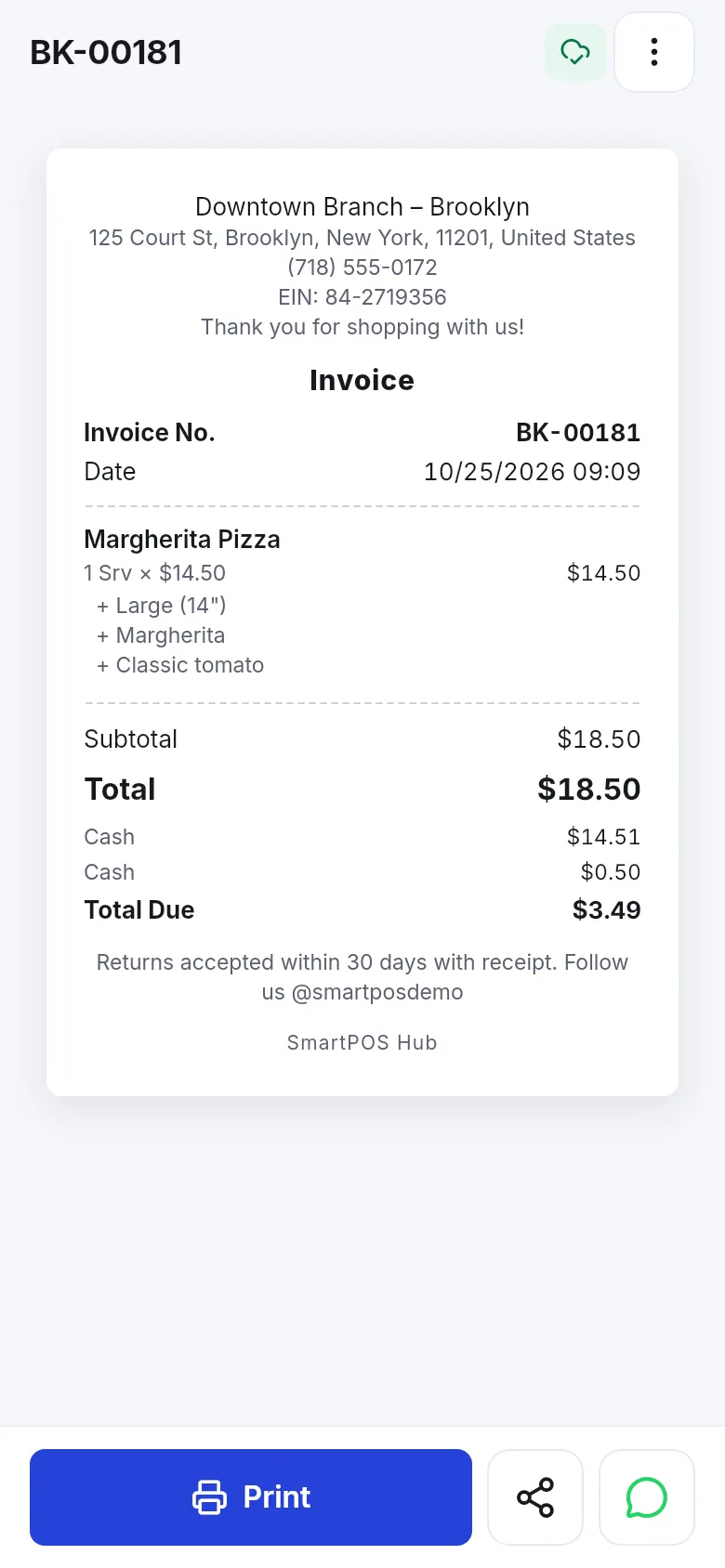
Section titled “Receipts, printing and sharing”After Sale complete tap Print (Bluetooth printer) or Receipt to open it. On the receipt screen you can Print, share it with the share button (Share as PDF, Share as image, Share invoice link, Copy invoice link) or tap the WhatsApp button (Send on WhatsApp) to send the customer a thank-you message with the invoice link. Tap Next sale to start again.
Receipts are printed on 58 mm or 80 mm Bluetooth thermal printers; Arabic and Urdu receipts print correctly. A cash drawer plugged into the receipt printer can be opened by the printer.
Park, drafts, quotations and recent sales
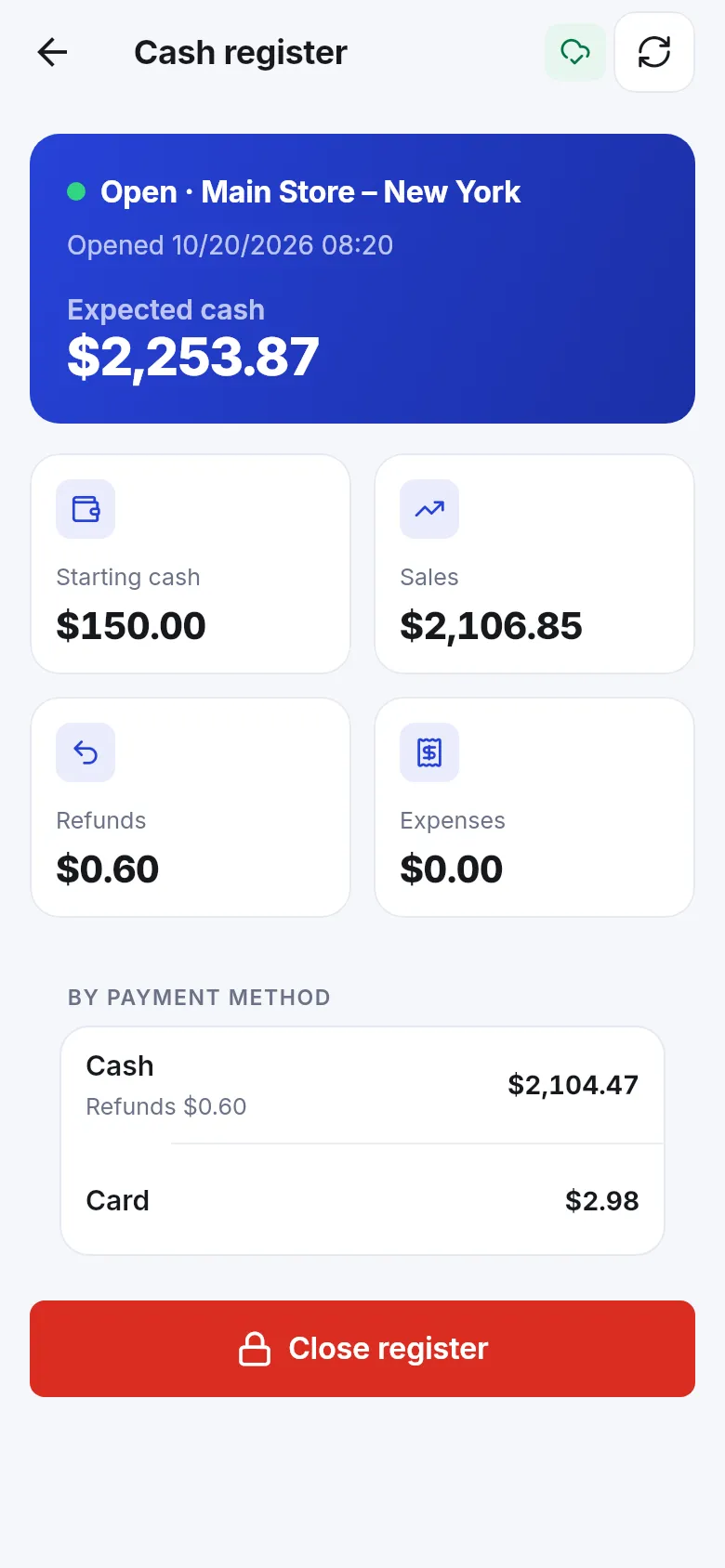
Section titled “Park, drafts, quotations and recent sales”- Park (in the cart) saves the sale on this phone with an optional name so you can serve the next customer. Recall it from Sell › Parked & drafts › Parked.
- Drafts and Quotations saved from the Payment screen are on the server and show in the other two tabs of Parked & drafts for this location.
- Recent sales lists sales with Paid, Partial or Due badges. Tap one to reprint, share, add a payment or start a return.
Close the cash register
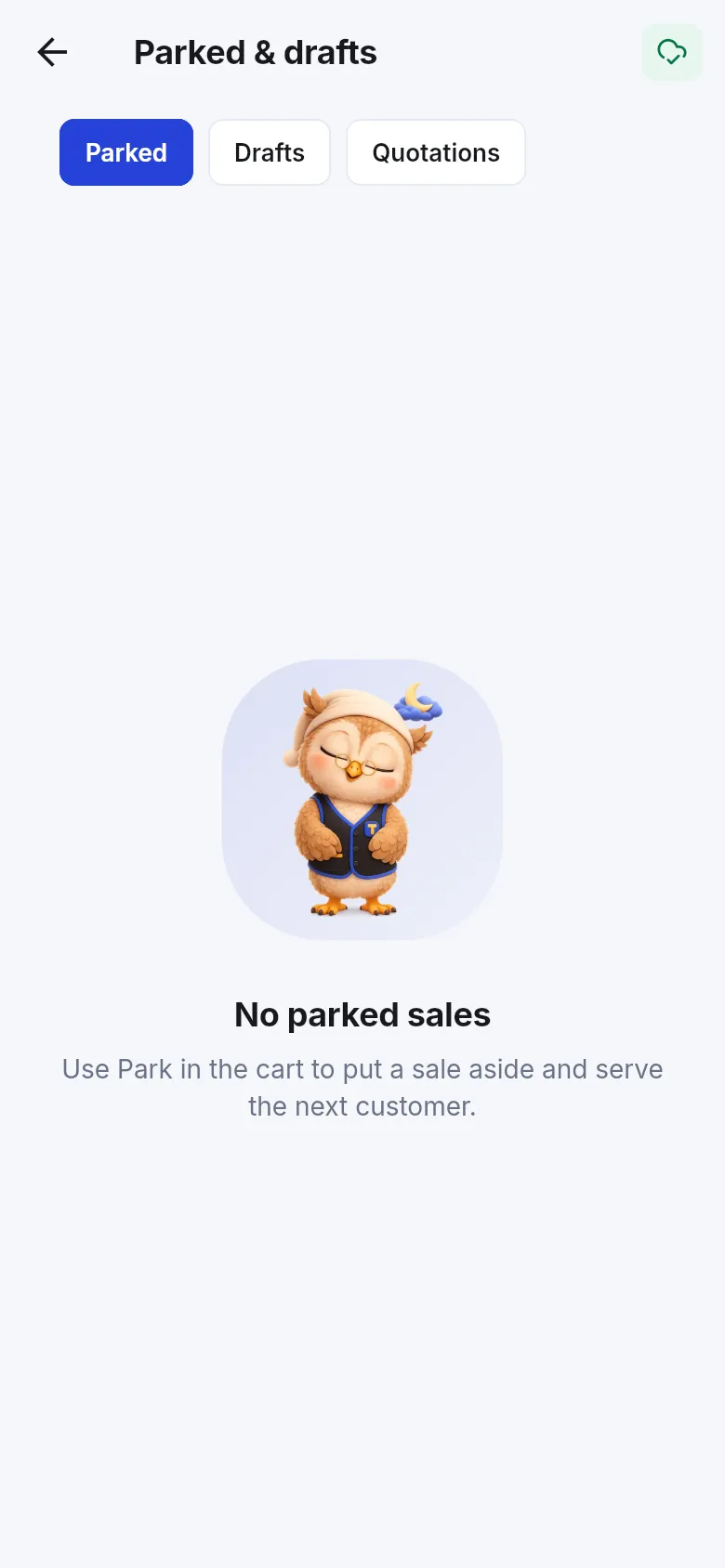
Section titled “Close the cash register”- Open Sell › Cash register. It shows Expected cash, Starting cash, Sales, Refunds, Expenses and totals By payment method (if your role may view register totals).
- Tap Close register.
- Count the drawer with Count by notes or Enter total, and add Card slips, Cheques and a Note (optional).
- The app says The drawer is balanced, More cash than expected or Cash is short. Confirm to close.
Tips and mistakes to avoid
Section titled “Tips and mistakes to avoid”- Always pick the customer before paying when you give credit.
- If the connection drops while saving, the app asks Did the sale go through? Check Recent sales before charging again – the app protects against double sales, but look first.
- Your role may have a maximum discount; the app tells you Your maximum discount is …%.
- For sales without internet, set up offline selling in advance.
Related pages
Section titled “Related pages”Frequently asked questions
How do I give a customer credit in the app?
Choose the customer first, then on Payment turn on Pay later (credit). Enter what they pay now (or nothing) and tap Complete sale. The rest is added to the customer's account as due.
The customer paid 20 percent now. How do I collect the rest later?
Sell with Pay later (credit) and enter the 20 percent as the payment. Later open the customer and tap Receive payment, or open the sale in Sales and tap Add payment. Repeat for each instalment.
Why can't I complete a sale with less than the amount due?
Without Pay later the full amount must be paid. Turn on Pay later (credit), which needs a real customer, not the walk-in customer.
How do I print a receipt?
After Complete sale tap Print. Pair a 58 mm or 80 mm Bluetooth receipt printer first in Settings › Printers. You can also share the receipt as a PDF, an image or on WhatsApp.
Can I change the price of an item?
Only if your role allows it. Tap the item in the cart to change quantity, price, discount and note. If you see You can't change prices, ask an admin.
What is Park?
Park saves the cart on this phone so you can serve the next customer and recall the sale later from Parked & drafts.
Do I need to open a cash register?
Only if your business uses cash registers. The Sell tab then shows Open register and asks for the starting cash. If no register is needed it says Ready to sell.
Why does the total change after I tap Pay?
The app asks the server to confirm the prices, automatic discounts and customer prices. The Payment screen says Prices confirmed by the server once it has done so.