
Restaurant step 10: online menu, table QR and Shopper app
Guests can order without waiting for a waiter: by scanning a QR code on the table, from an online menu on your website or social pages, or in the SmartPOS Shopper app. All three send the order to the same kitchen display and Orders board as the POS.
1. Create an online menu widget
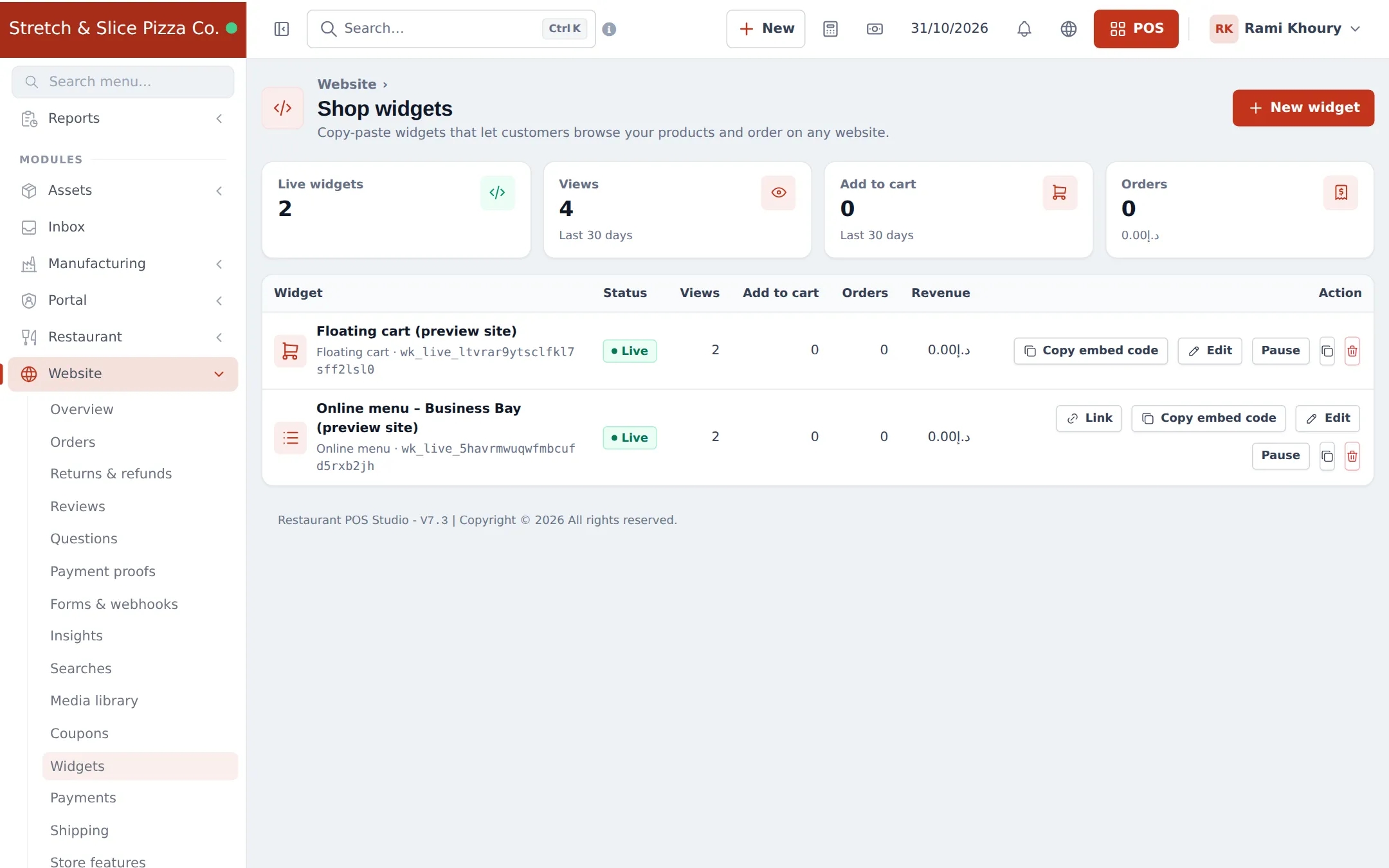
Section titled “1. Create an online menu widget”- Open Website › Widgets and click New widget.
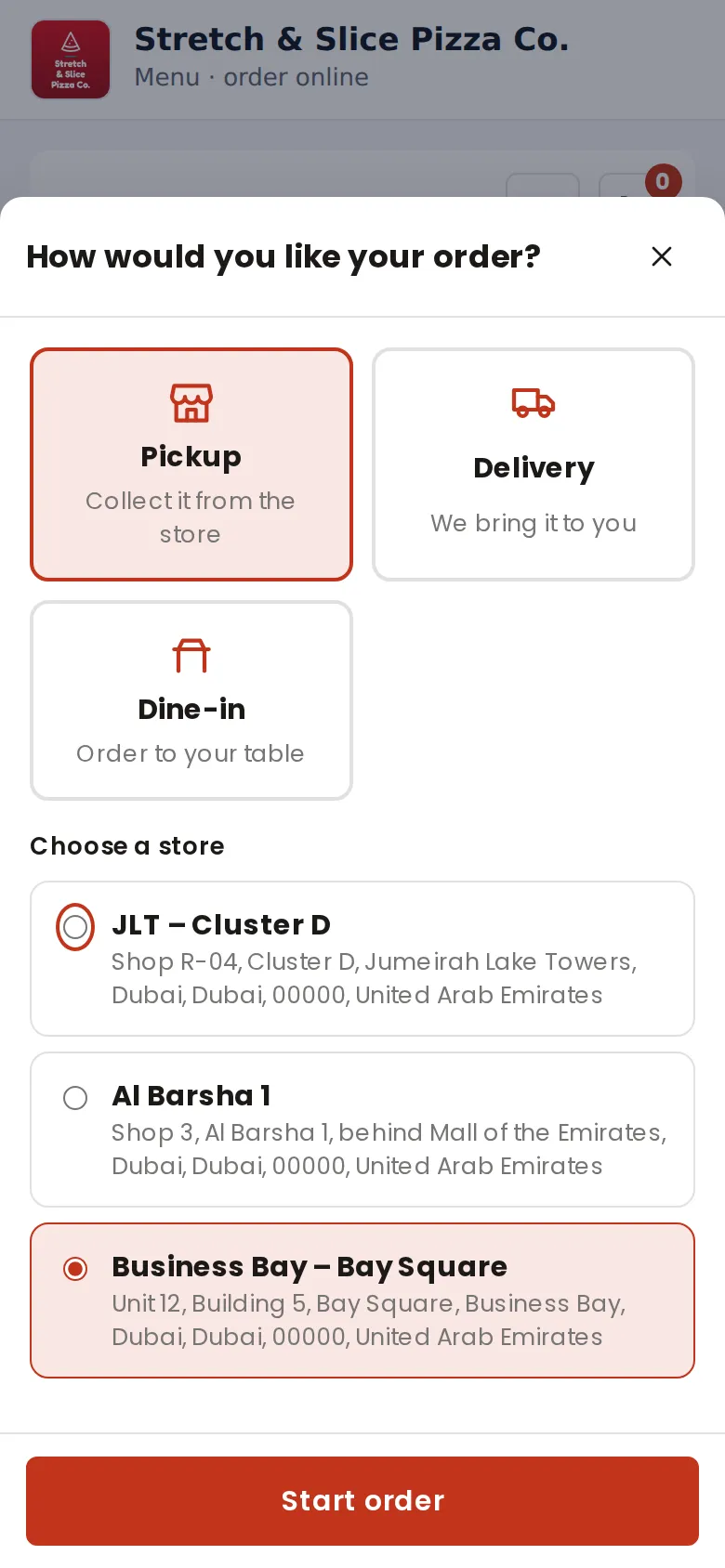
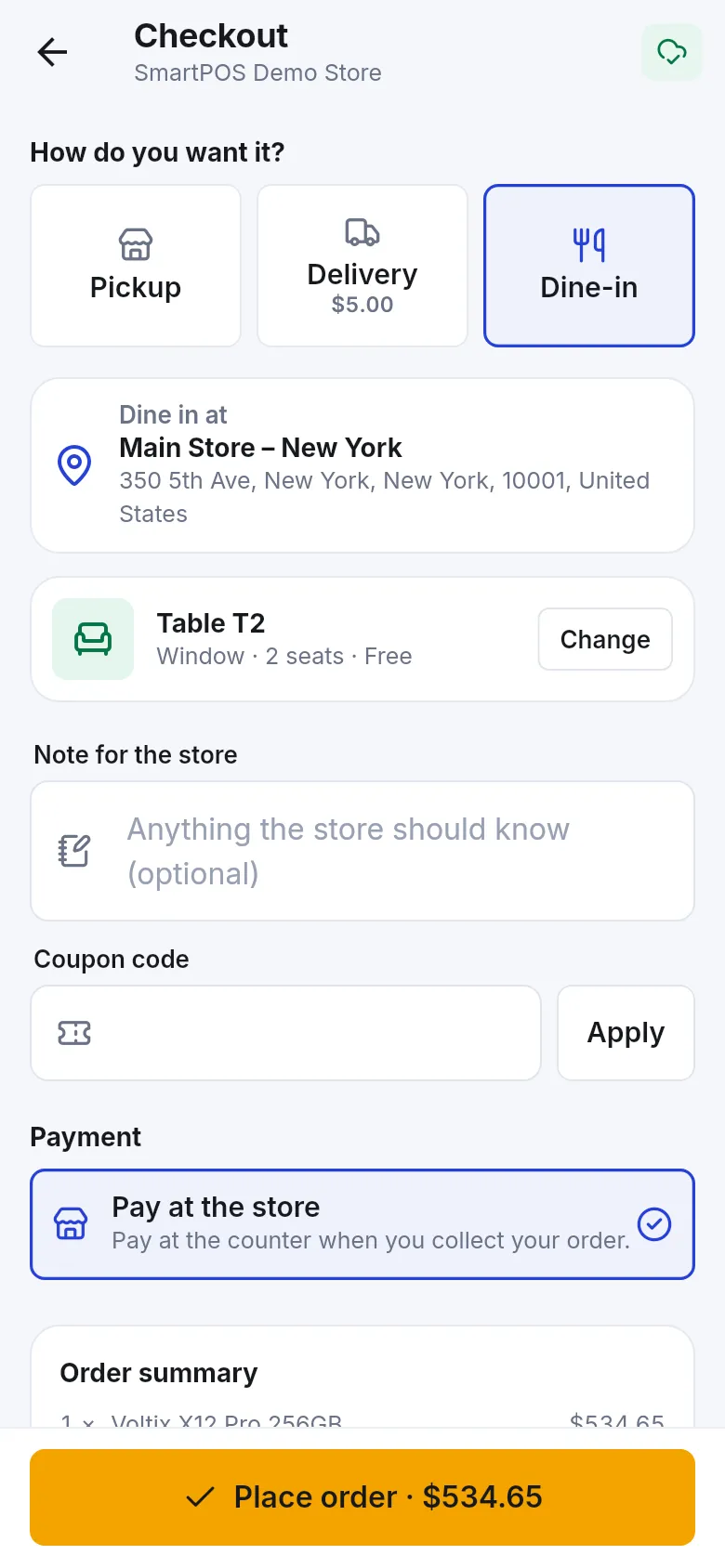
- Choose the Online menu type. It asks the guest for the order type first (Pickup, Dine-in with a table, or Delivery), then shows your categories as sections with the modifiers window.
- Pick the store (location), the categories to show, and the order types you accept.
- Check the live preview on the right (desktop, tablet and phone).
- Save, then make the widget Live.
2. Share the direct link
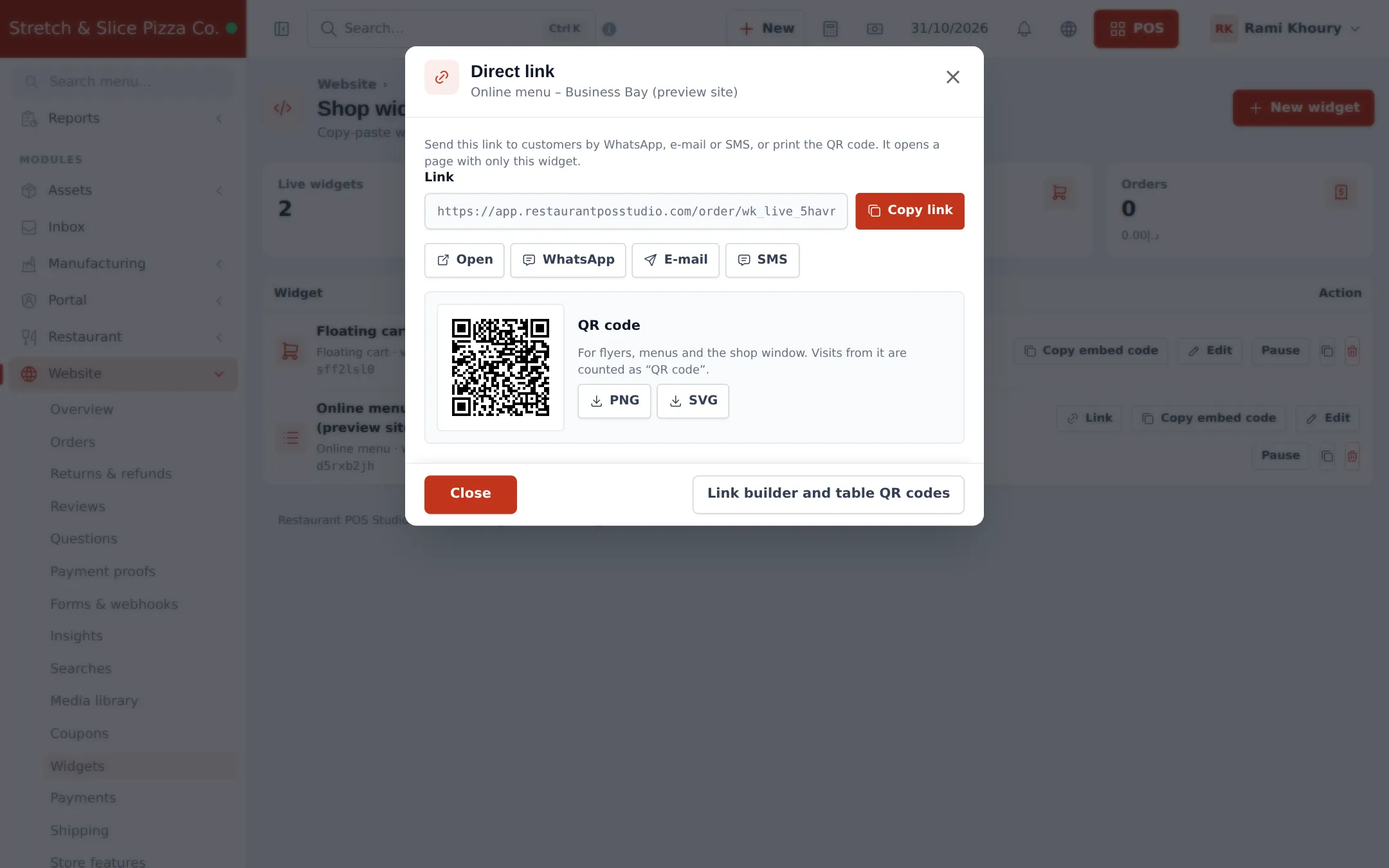
Section titled “2. Share the direct link”Click Link on the widget. You get a link to a hosted order page, buttons to share it by WhatsApp, e-mail or SMS, and a QR code to download as PNG or SVG. No website is needed.
3. Print table QR codes
Section titled “3. Print table QR codes”- In the Link window, click Link builder and table QR codes.
- In the link builder you can preset the order type, store, table, category, product and language; the link and QR update as you choose.
- Under Table QR codes, pick the store and print the A4 sheet: six cards per page, each with the table name, area, seats, QR code and “Scan to order”.
- Place each card on its table.
When a guest scans a table card, the menu opens with Dine-in · Table T4 already set, so the order-type question is skipped. The order reaches the kitchen with the table number, and Website › Orders shows it as a dine-in order for that table.
4. Put your restaurant in the SmartPOS Shopper app
Section titled “4. Put your restaurant in the SmartPOS Shopper app”- Open Settings › Shopper app & Scan & Go.
- On the Settings tab, tick Show my store in the Shopper app. Choose whether anyone with your store code can join or you approve each member, and which locations appear.
- Tick List my store in “Find stores” so people nearby can find you.
- Fill in Store profile and pick a look under Design. Print the Store QR poster for your counter.
- Save.
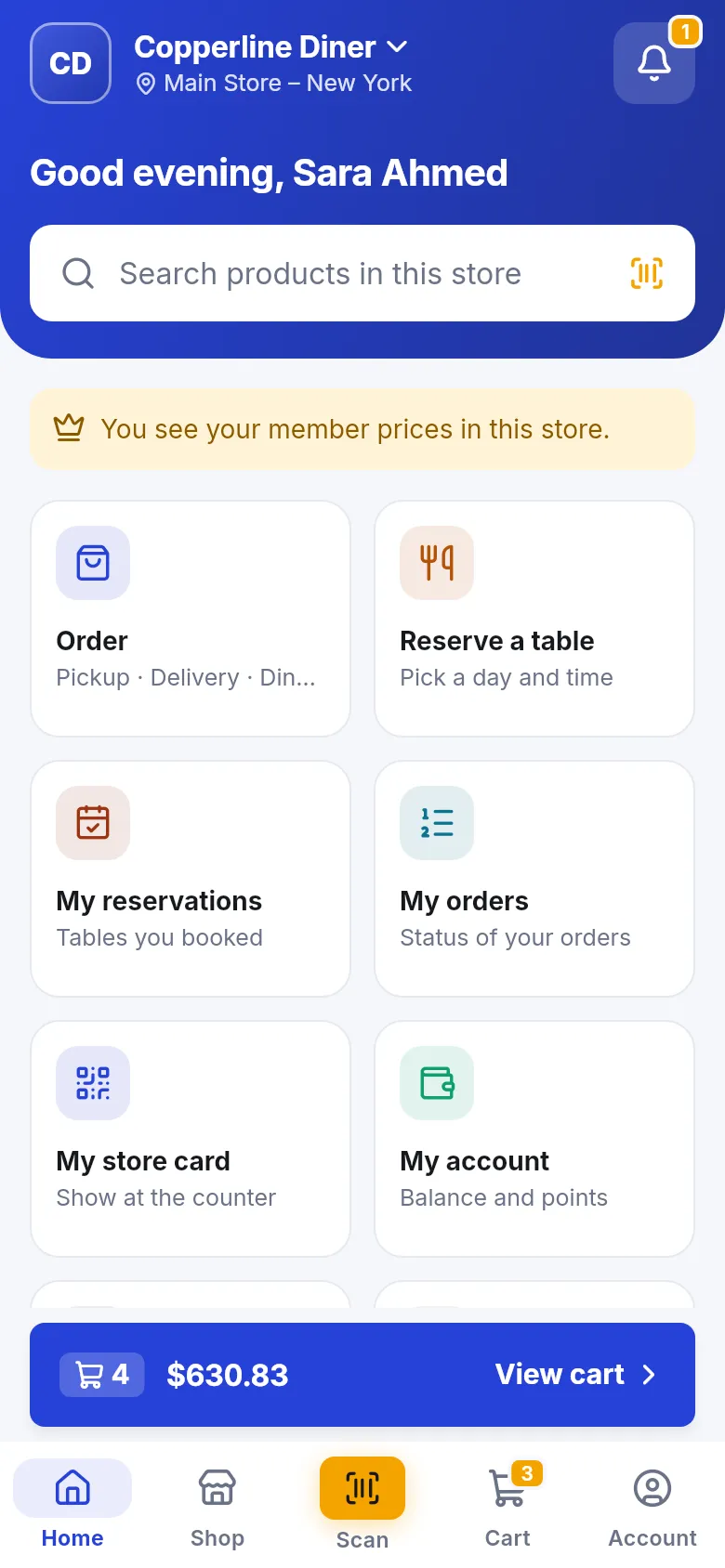
Guests install SmartPOS Shopper from Google Play and join your store. They then order for pickup, delivery or dine-in (choosing a table), reserve a table when Bookings is on, and receive receipts and push notifications.
More detail: Widgets, Order links and QR codes, Shopper app for your store and Payments for online orders.
Next step
Section titled “Next step”Frequently asked questions
Do I need my own website to take online orders?
No. Every widget has a direct link that opens a hosted order page with your name and logo. Share it on WhatsApp, social media or print it as a QR code.
How does table QR ordering work?
Each table QR code opens your online menu with Dine-in and that table already chosen. The guest orders, and the order appears on the kitchen display and the Orders board with the table number.
Do guests pay online when they order from the table?
That depends on the payment methods you turn on for online orders. Many restaurants let table orders pay at the counter or at the end; see Payments for online orders.
Where do online orders show up?
In Website › Orders, on the Orders board and on the kitchen display. Dine-in web orders show their table, for example Dine-in · Table B1.
What can guests do in the SmartPOS Shopper app?
Once your store is in the app, guests can join it, browse the menu, order for pickup, delivery or dine-in, reserve a table when Bookings is on, see receipts and chat with you.
Can I see how many orders came from QR codes?
Yes. The widget's Performance card splits views and orders by source - embedded, direct link and QR code.