
Categories, brands and units (with sub-units)
Categories, brands and units keep your catalog tidy: they drive the POS category buttons, product filters, reports, discounts and your online store menus. This page explains the 3-level category tree, brand logos, and units with sub-units (for packs, cartons, strips and weights).
Categories (3-level tree)
Section titled “Categories (3-level tree)”Open Products › Categories. You see your tree with each category’s code (for example C118), level badge (L1, L2, L3), product count, and buttons to add a sub-category (+), edit, move, switch on or off, and delete.
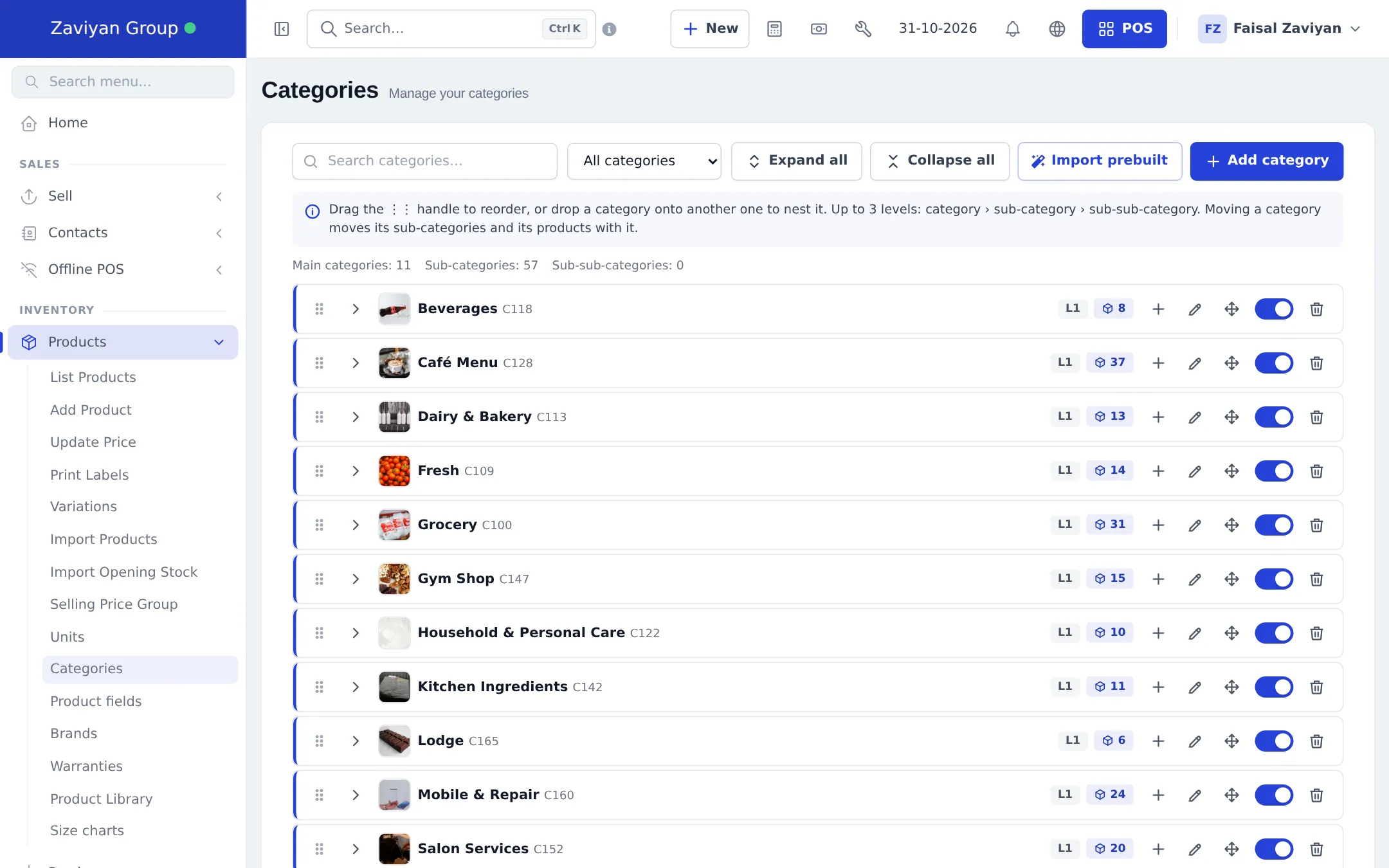
- Click Add category for a main category, or the + on a row to add a sub-category under it.
- Type the name. Optionally add a code, image and website details.
- Save. The tree refreshes.
- To reorder, drag the ⋮⋮ handle. To nest, drop a category onto another one. Moving a category moves its sub-categories and its products with it.
- Use the switch to turn a category off. Its sub-categories are switched off too. To turn one back on, its parent must be on; you are asked whether to switch on only this one or also its sub-categories.
On the product form you choose Category, Sub category and Sub-sub-category, and a product belongs to the deepest one you pick. The products list Category filter matches any level.
Brands
Section titled “Brands”Open Products › Brands. Each brand has a logo, an Active switch, a Website badge and a Web-ready score for your online store. Click Add for a new brand (name, logo, description, and website details), or Import prebuilt for well-known brands by industry.
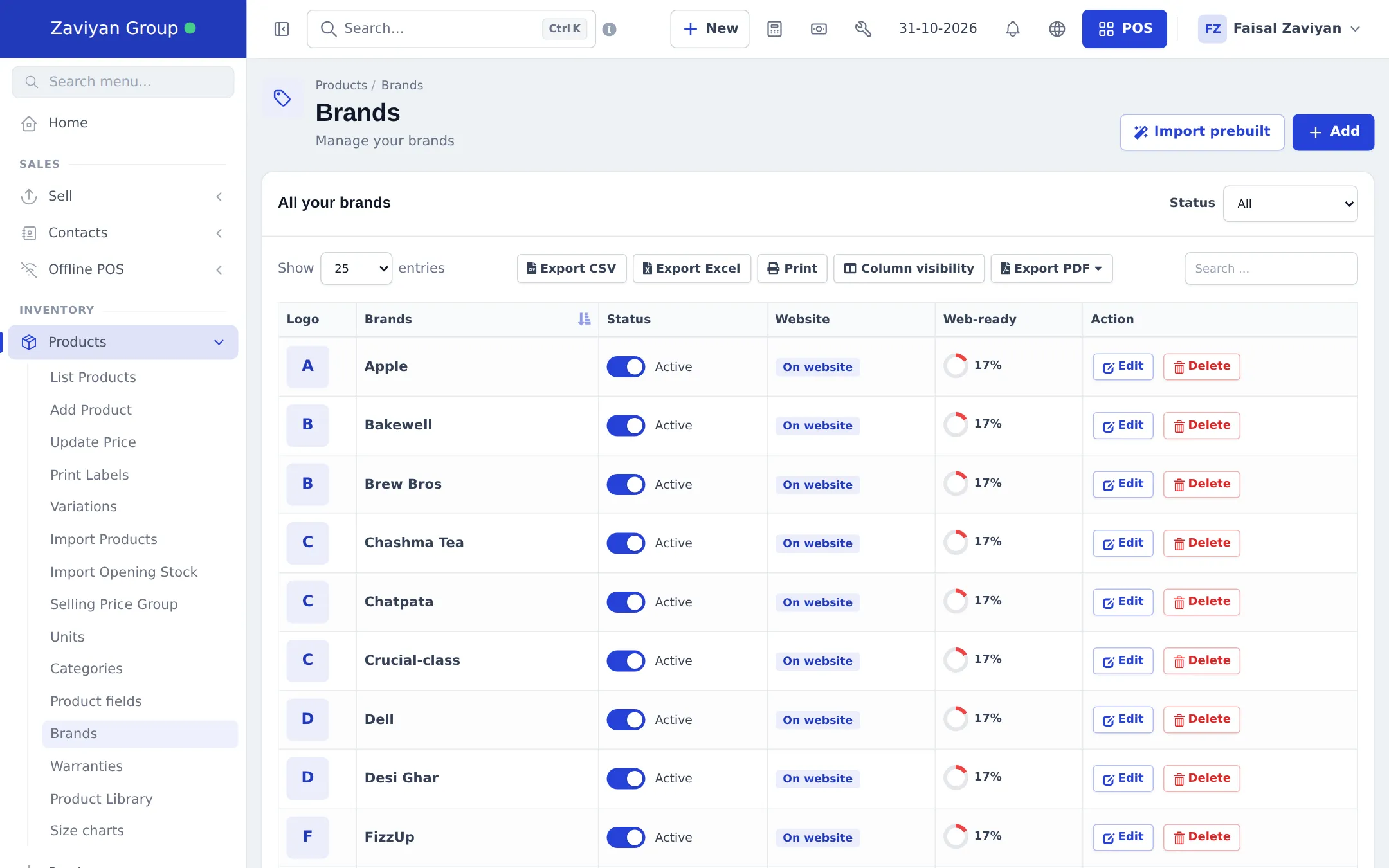
Switching a brand off hides it from the product form, the POS and the website; it stays in reports.
Units and sub-units
Section titled “Units and sub-units”Open Products › Units. The list shows Name, Short name and Allow decimal.
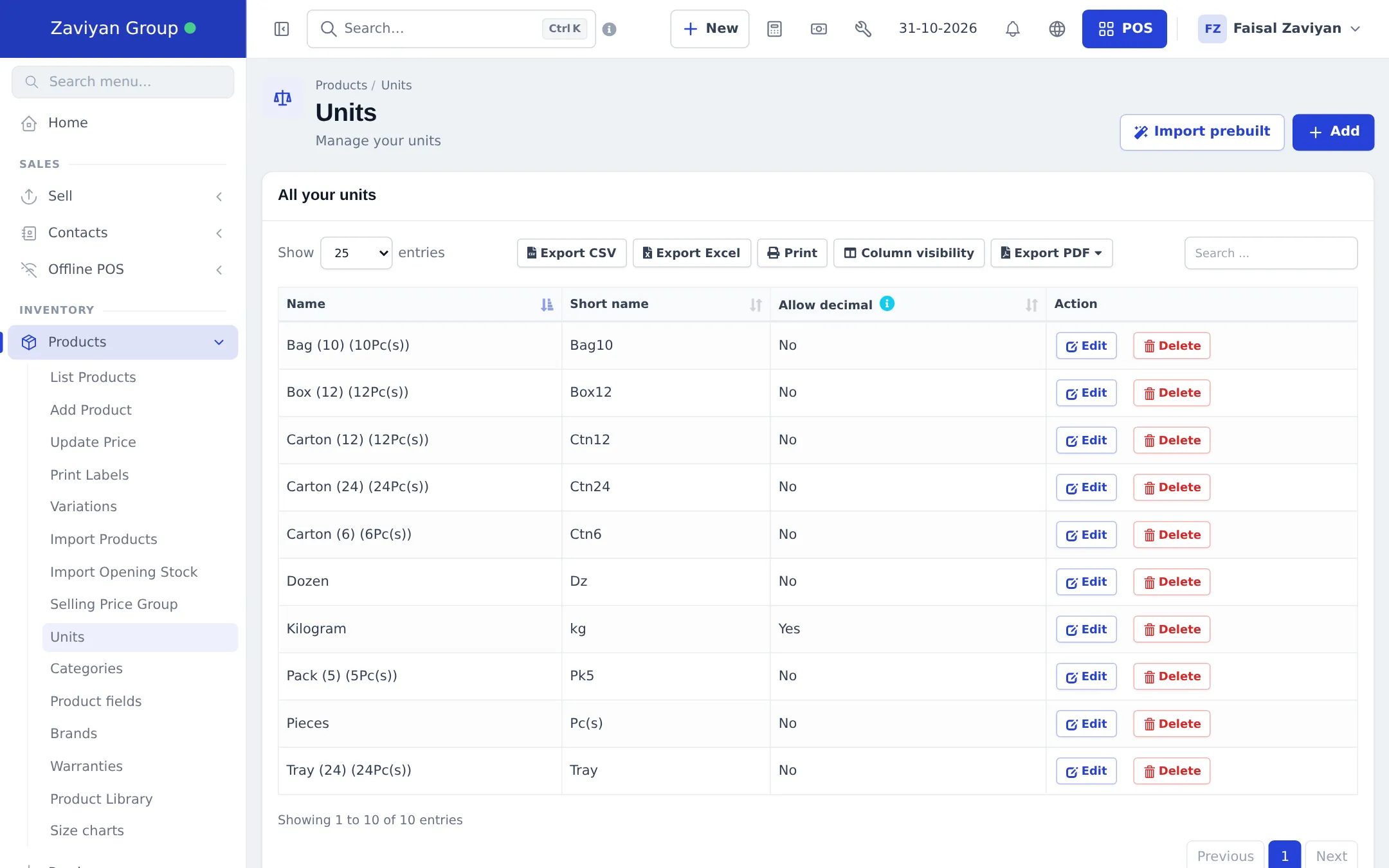
Add a base unit
Section titled “Add a base unit”- Click Add.
- Type the Name (for example Kilogram) and Short name (kg).
- Set Allow decimal to Yes for things sold by weight or length (1.25 kg), No for pieces.
- Save.
Add a sub-unit (pack, box, carton)
Section titled “Add a sub-unit (pack, box, carton)”- Make sure Enable Sub Units is ticked in Settings › Business Settings › Product.
- In Products › Units, click Add, type the name (for example Box) and short name.
- Tick Add as multiple of other unit, type how many (for example 12) times base unit and pick the base unit (Pieces).
- Save. On each product that comes in boxes, pick the box in Related Sub Units.
At the POS or on a purchase you can then choose the unit on the line: sell 1 Box and stock drops by 12 Pieces. The price per box is the piece price × 12.
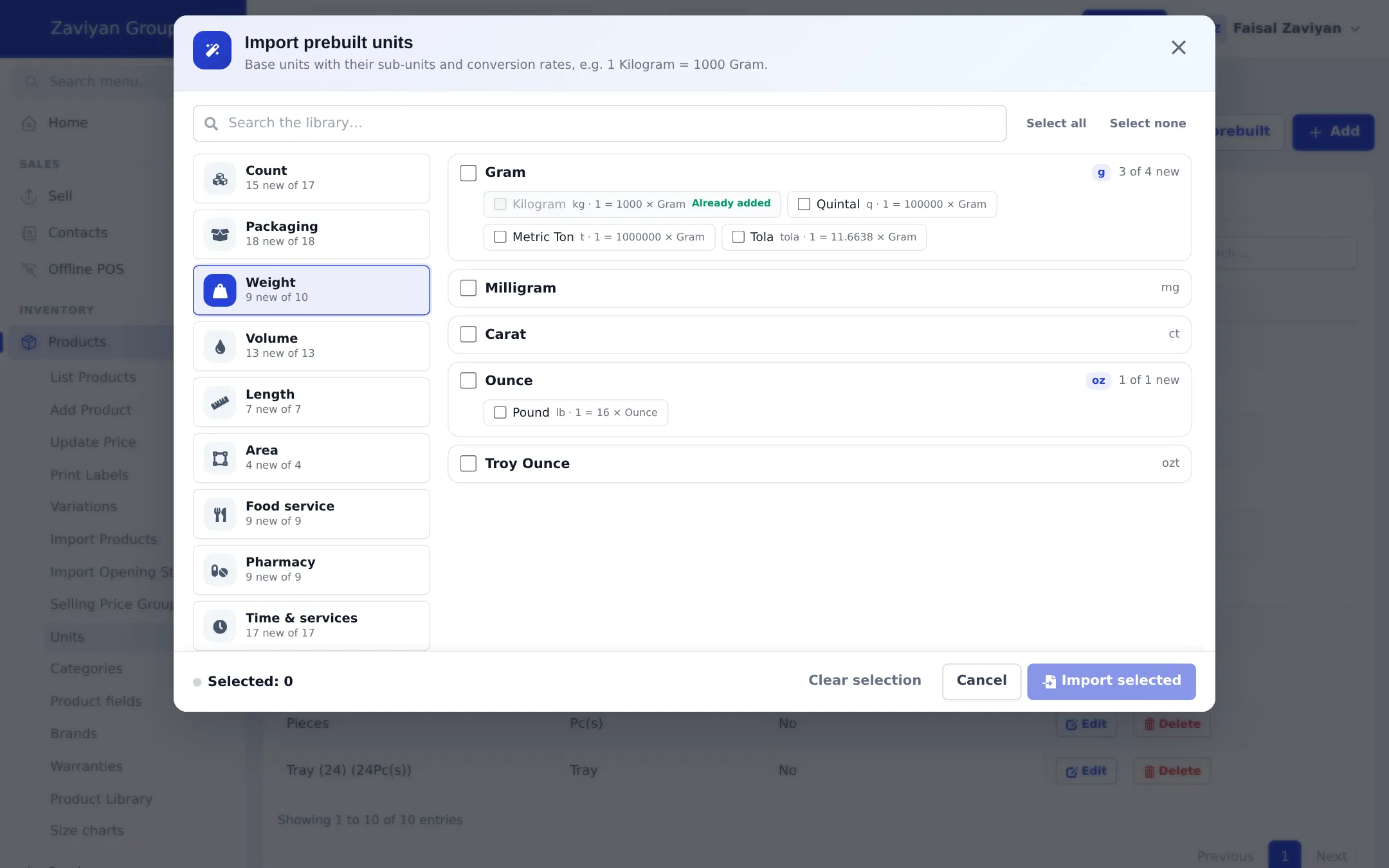
Example: pharmacy units
Section titled “Example: pharmacy units”| Unit | Type | Means |
|---|---|---|
| Tablet | Base unit | Stock is counted in tablets |
| Strip of 10 (Tablet) | Sub-unit | 1 strip = 10 tablets |
| Box of 20 (Tablet) | Sub-unit | 1 box = 20 tablets (2 strips) |
A customer can buy 3 loose tablets, 1 strip or 1 box. The selling price you set is per tablet; the strip and box prices are worked out from it.
Variations and warranties
Section titled “Variations and warranties”Two more lists live in the same menu:
- Products › Variations – templates such as Size or Colour used by variable products.
- Products › Warranties – warranty terms (name, duration) you can pick on a product and print on invoices.
Related pages
Section titled “Related pages”Frequently asked questions
How many category levels can I have?
Three levels - category, sub-category and sub-sub-category, for example Electronics › Televisions › Smart TVs.
Can I move a category under another one?
Yes. Drag the handle and drop a category onto another one. Its sub-categories and its products move with it, as long as the tree stays within 3 levels.
What happens when I switch off a category?
Switching off a category also switches off everything under it. It disappears from the product form, the POS and your website, but stays in reports.
Why can't I delete a category?
A category can't be deleted while it has sub-categories or products at any level. Move or recategorise them first, or switch the category off.
What is a sub-unit?
A sub-unit is a bigger or smaller pack of the same item, defined as a multiple of a base unit, for example Box (12) = 12 Pieces. You can sell or buy in either and stock is kept in the base unit.
How do I sell loose tablets, strips and boxes?
Use a base unit Tablet with sub-units Strip of 10 (Tablet) and Box of 20 (Tablet), and pick them in Related Sub Units on the product. Pharmacy products from the Product Library are set up this way automatically.
Where do I turn sub-units on?
In Settings › Business Settings › Product, tick Enable Sub Units. The Product Library turns it on for you the first time it imports a product with sub-units.