
Services module – appointments, staff and commission
The Services module turns SmartPOS Hub into an appointment system for salons, spas, barbers, clinics and agencies. You build a service menu with durations and prices, add staff with their working hours and commission, take appointments at the desk or online, and check them out in the POS so revenue and commission land in your reports.
What the module includes
Section titled “What the module includes”| Part | Where | What it does |
|---|---|---|
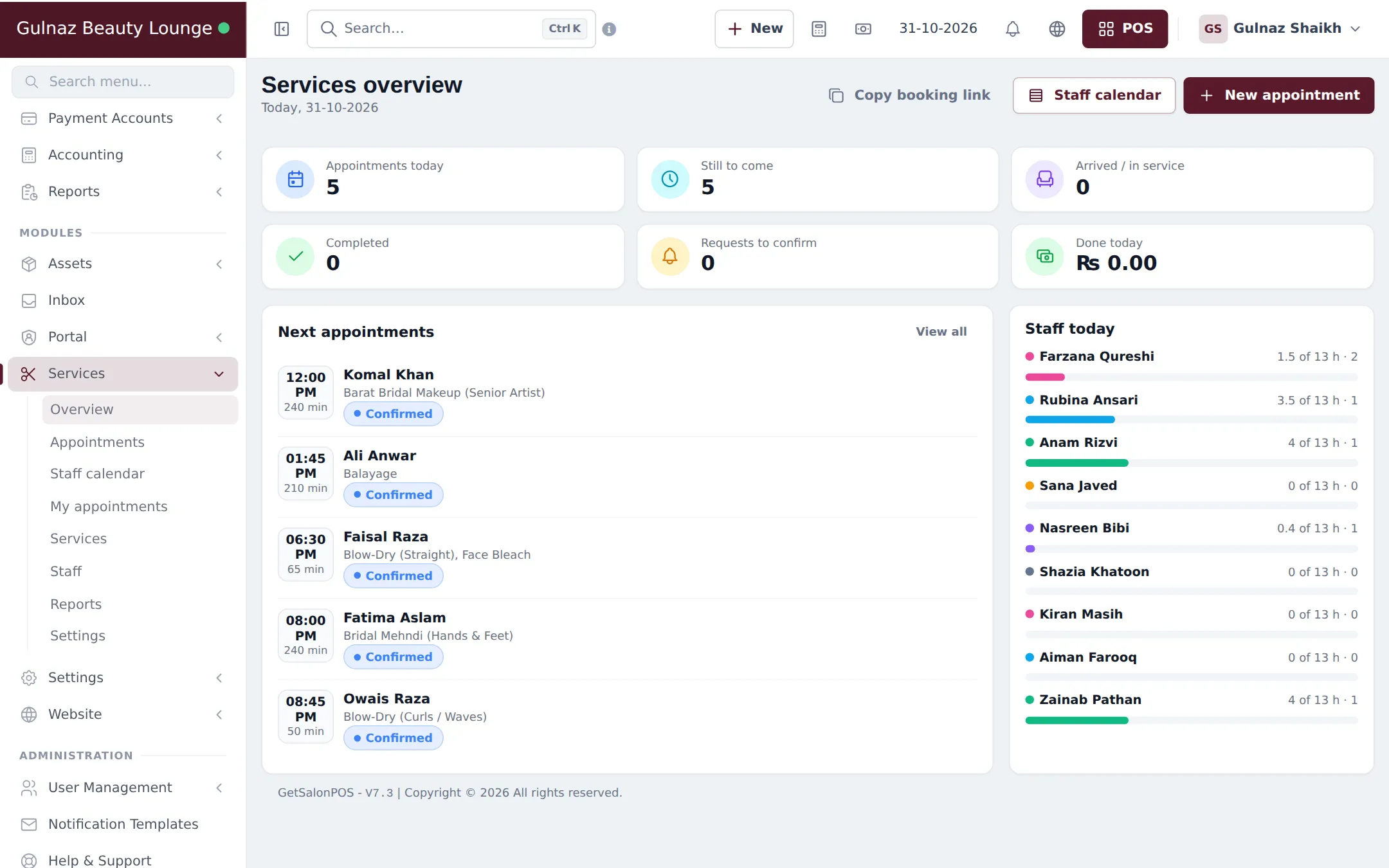
| Overview | Services › Overview | Today’s appointments, requests to confirm, staff load and a Copy booking link button |
| Appointments | Services › Appointments (the Bookings calendar) | Calendar, staff timeline and list of every appointment |
| Staff calendar | Services › Staff calendar | One column per staff member |
| My appointments | Services › My appointments | A staff member’s own appointments |
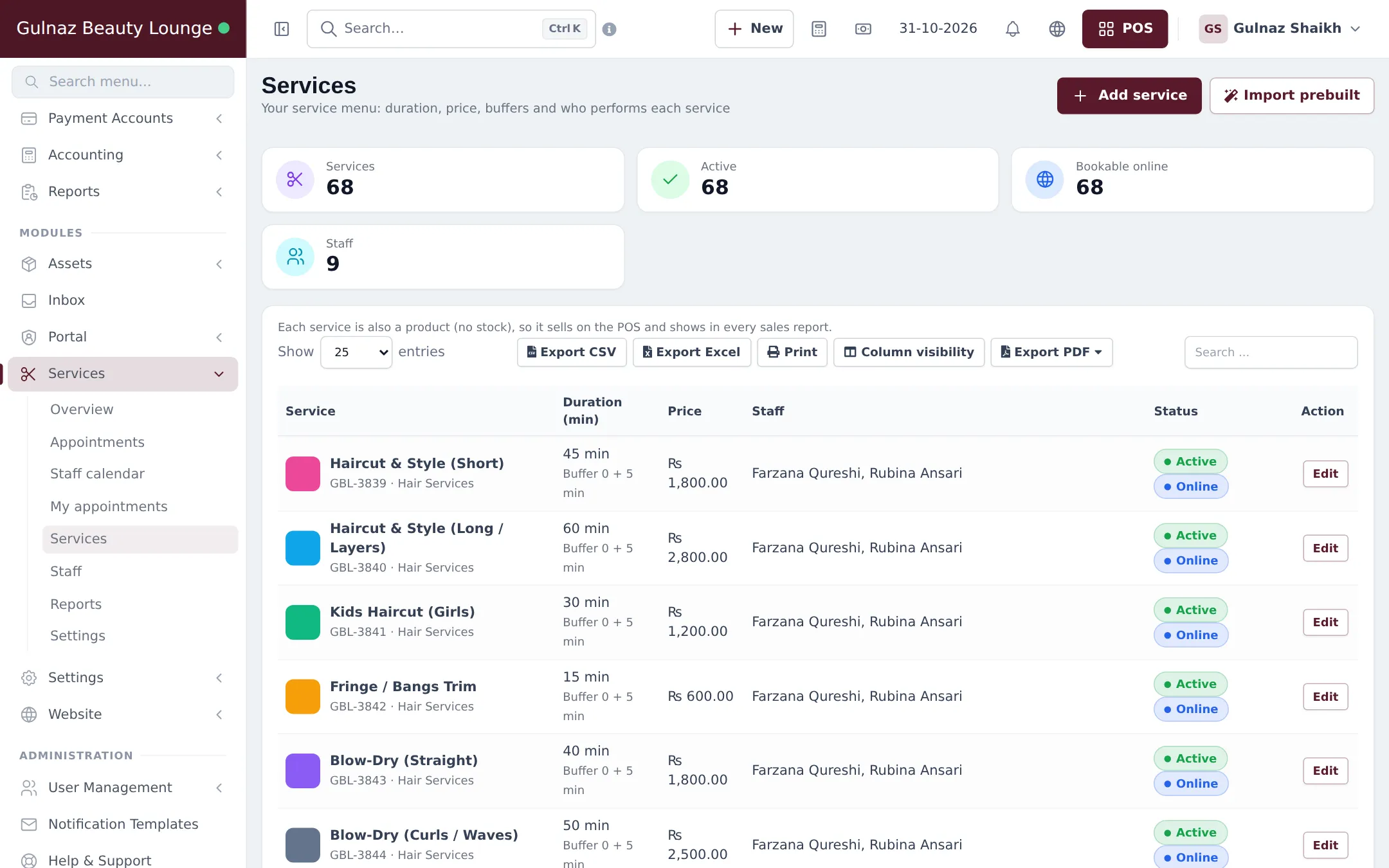
| Service menu | Services › Services | Duration, price, buffers, who performs each service, online on/off |
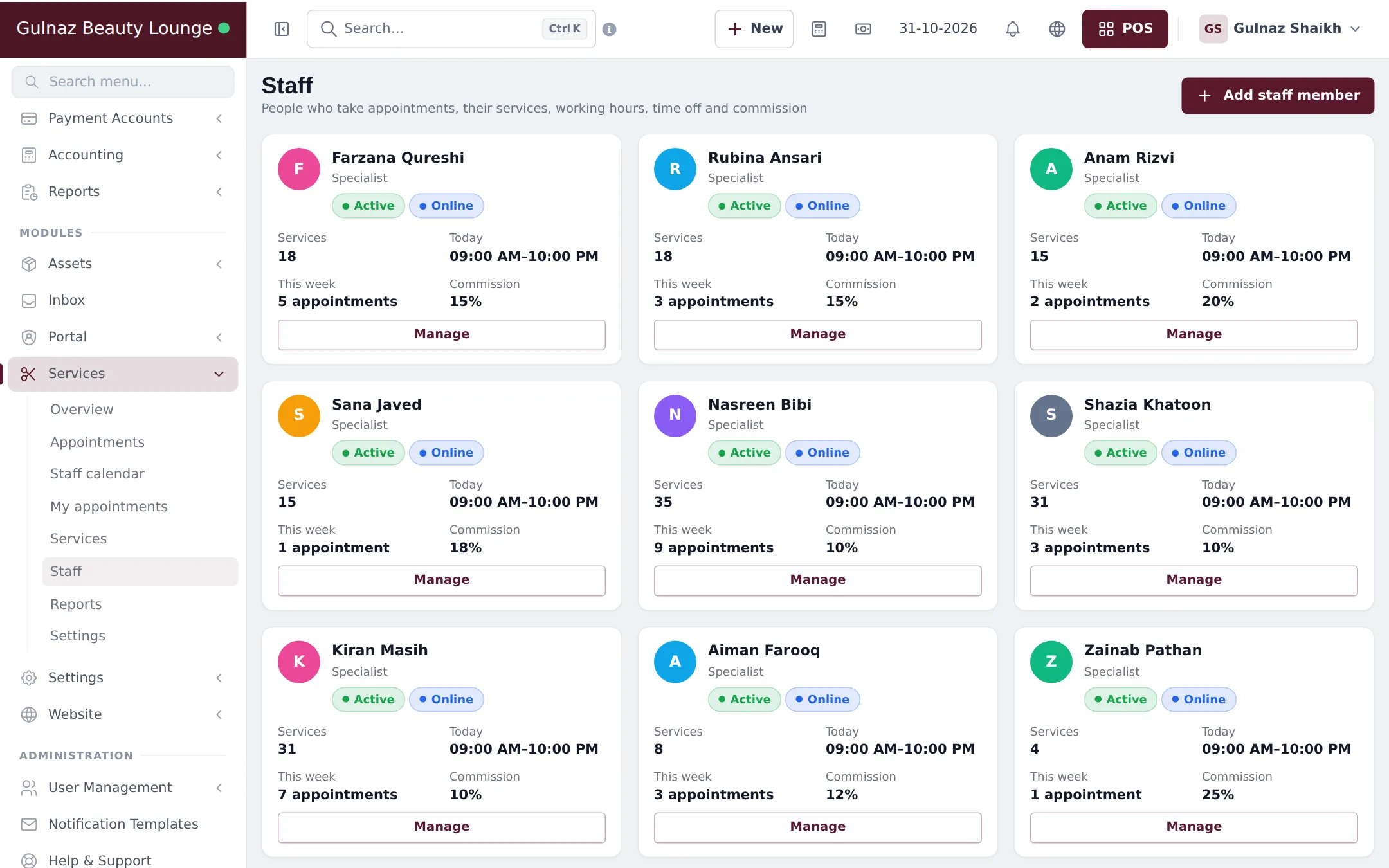
| Staff | Services › Staff | Working hours, breaks, time off, services performed, commission |
| Reports | Services › Reports | Revenue by service, staff performance and commission, no-shows, busiest hours, top customers |
| Settings | Services › Settings | Online booking, scheduling, commission default, reminders and cancellation |
Before you start
Section titled “Before you start”- Create a user login for each person who performs services (User Management › Users). Staff are your existing users.
- Set your opening hours in Bookings › Settings (used for staff without their own hours).
First-time setup
Section titled “First-time setup”The Services overview shows a Get started checklist until these three steps are done.
- Switch the module on: Settings › Business Settings › Modules, turn on Services under Industry modules, and click Update settings.
- Add your services. Open Services › Services and click Add service (or Import prebuilt to start from a ready-made menu for your type of business). Enter the Service name, Price (including tax), Duration (min), optional Prep before (min) and Clean-up after (min), Clients at once, a Colour and a Description shown online.
- Add staff and their hours. Open Services › Staff, click Add staff member, pick the user, add a Job title, choose Same as the business opening hours or Own weekly hours, add breaks, tick the Services performed, and set Commission (Percent of price or Fixed amount).
- Switch on online booking. In Services › Settings, tick Customers can book services online, choose whether Customers can choose a staff member, and whether to Show prices on the booking page. Copy the link from Copy booking link on the overview.
Everyday use
Section titled “Everyday use”- Click New appointment on the overview (or New booking on the Bookings page). Choose the customer, then one or more services; use Add another service for back-to-back services.
- Pick a staff member or Any available staff, then a free time. SmartPOS Hub checks staff hours, breaks, time off, other appointments and buffers, and tells you if someone is not free.
- When the client arrives, open the appointment and click Check in, then Start.
- Click Checkout. The POS opens with the customer, services, prices and staff already filled in. Take payment as usual.
- When the sale is paid, the appointment is marked completed (if that setting is on) and commission is recorded for the staff member.
Settings explained
Section titled “Settings explained”| Setting | What it does |
|---|---|
| Online booking page is on | One page for the whole business, also used for table reservations. |
| Customers can book services online | Lets customers pick services and a time on the booking page. Per service you can still turn Bookable online off. |
| Customers can choose a staff member | Shows a staff picker online; otherwise Anyone available. |
| Show prices on the booking page | Shows or hides prices online. |
| Start times every (min) | The step between offered appointment times. |
| Default service duration (min) / Default clean-up time (min) | Used when a service has no own value. |
| Mark the appointment completed when its sale is paid in the POS | Closes the appointment automatically at checkout. |
| Commission default | Used when neither the service nor the staff member has a commission set. |
| Reminders & cancellation | Email reminders and online cancellation (shared with Bookings). |
Online deposits per service are set on the service (Online deposit). To make customers pay before an appointment is confirmed, see Booking payments.
Permissions
Section titled “Permissions”| On the Roles page | What it allows |
|---|---|
| Services: view overview | The Services overview page. |
| Services: manage all appointments | Every appointment in the Bookings screens. |
| Services: manage own appointments (staff) | Only appointments where the user is the staff member, plus My appointments. |
| Services: manage service menu | Add, edit and archive services. |
| Services: manage staff, hours and commission | Staff, working hours, time off and commission. |
| Services: view reports | Services reports. |
| Services: settings | Services settings (also the shared online booking options). |
A typical stylist role has Services: manage own appointments (staff) plus POS selling permissions. Admins have every permission.
In the SmartPOS Business app
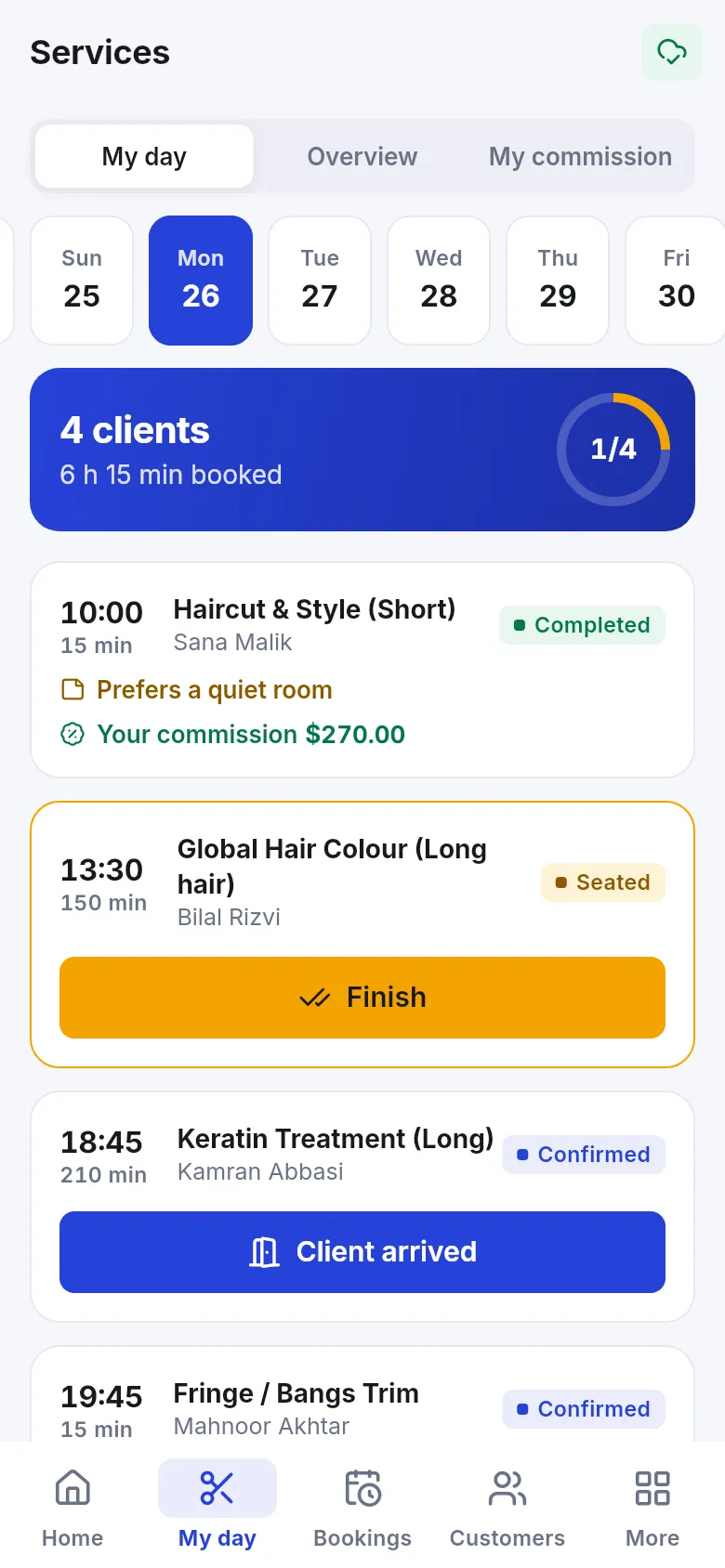
Section titled “In the SmartPOS Business app”Staff open the My day tab to see their clients, mark Client arrived and Finish, and check My commission. Managers see Overview and the Bookings tab.
Tips and mistakes to avoid
Section titled “Tips and mistakes to avoid”- Archive a service instead of deleting it: it disappears from booking and the POS, and past sales stay in reports.
- Add buffers for cleaning or preparation; the customer is not charged for them but the staff member is blocked.
- Always check out appointments through Checkout so commission is calculated.
Related pages
Section titled “Related pages”Frequently asked questions
Which businesses use the Services module?
Salons, spas, barbers, beauty and nail studios, clinics, tutors and agencies: any business that sells time with a staff member. Car washes and pet groomers use it too.
Is a service a product?
Yes. Each service is also a product with no stock, so it sells on the POS and shows in every sales report. You manage it from Services › Services, not from the product list.
How is commission calculated?
When an appointment is checked out in the POS, the staff member on each line gets commission. The order used is: the staff member's setting for that service, then the staff member's own commission, then the default in Services settings.
Can customers choose a staff member online?
Yes, when Customers can choose a staff member is on in Services settings and the staff member has Customers can pick this person online ticked. Otherwise customers book Anyone available.
What happens when a stylist is on holiday?
Add the dates under Time off & breaks on their staff page. They are then not offered for appointments on those days, online or at the desk.
Can one staff member take several clients at once?
Yes. Set Clients at once above 1 on the service, for example for a group class. The staff member can then take several clients at the same start time.
Do I need the Bookings switch as well?
No. With the Services module on, the Bookings page opens for your appointments. Switch Bookings on too if you also take table reservations.
Where do staff see their own day?
In Services › My appointments on the web, or the My day tab of the SmartPOS Business app, which also shows their commission.