
Manufacturing module (recipes and production)
The Manufacturing module lets you turn raw materials into finished products inside SmartPOS Hub. You write a recipe (bill of materials) once, plan production orders, and when a batch is completed the ingredients leave stock and the finished goods arrive with their real cost. It is for bakeries, central kitchens, food and drink makers, garment and furniture workshops, and anyone who produces what they sell.
What you get
Section titled “What you get”| Menu item | What it is for |
|---|---|
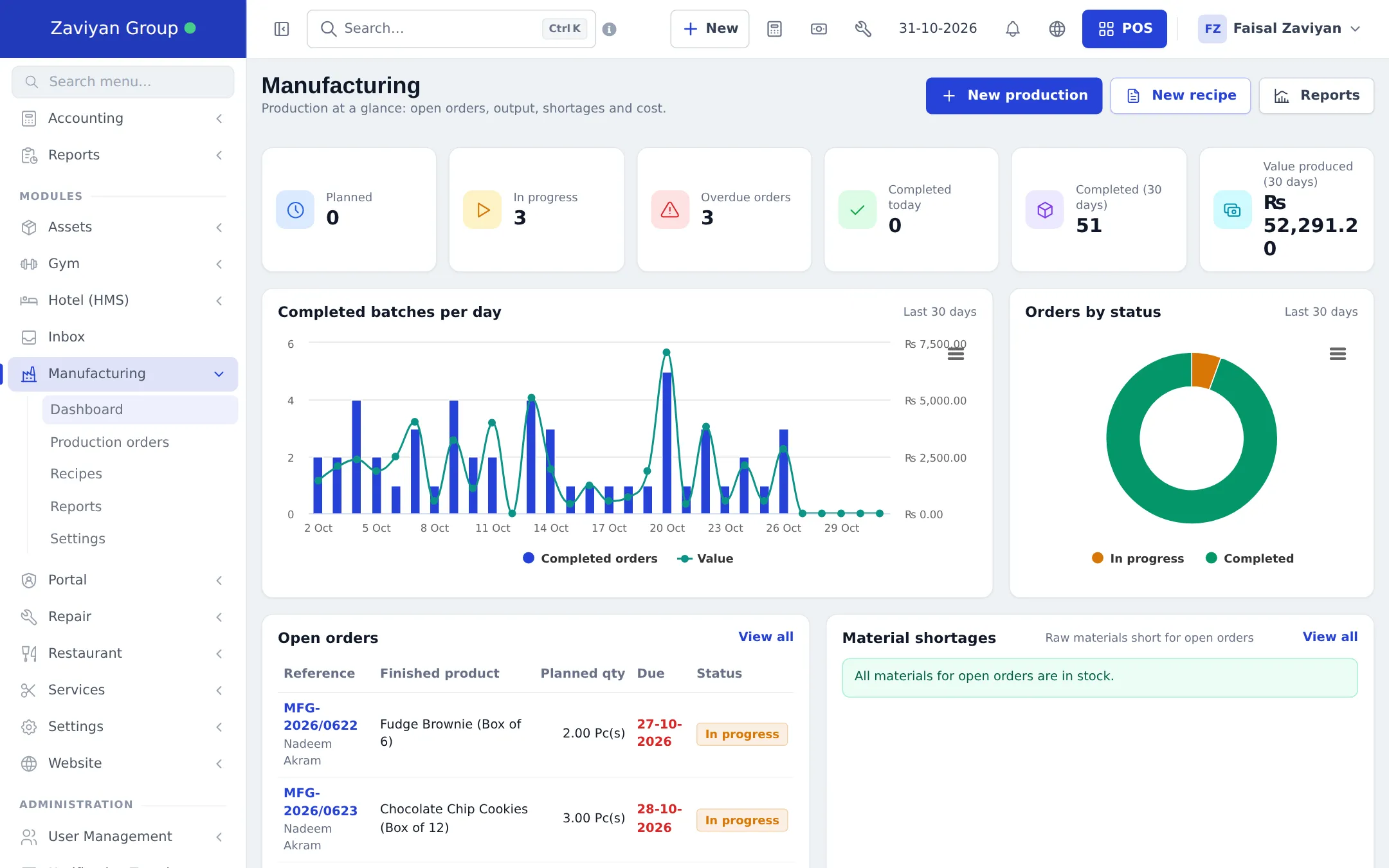
| Dashboard | Planned, in progress, overdue, completed today, completed and value produced in 30 days, charts, Open orders, Material shortages, top produced products |
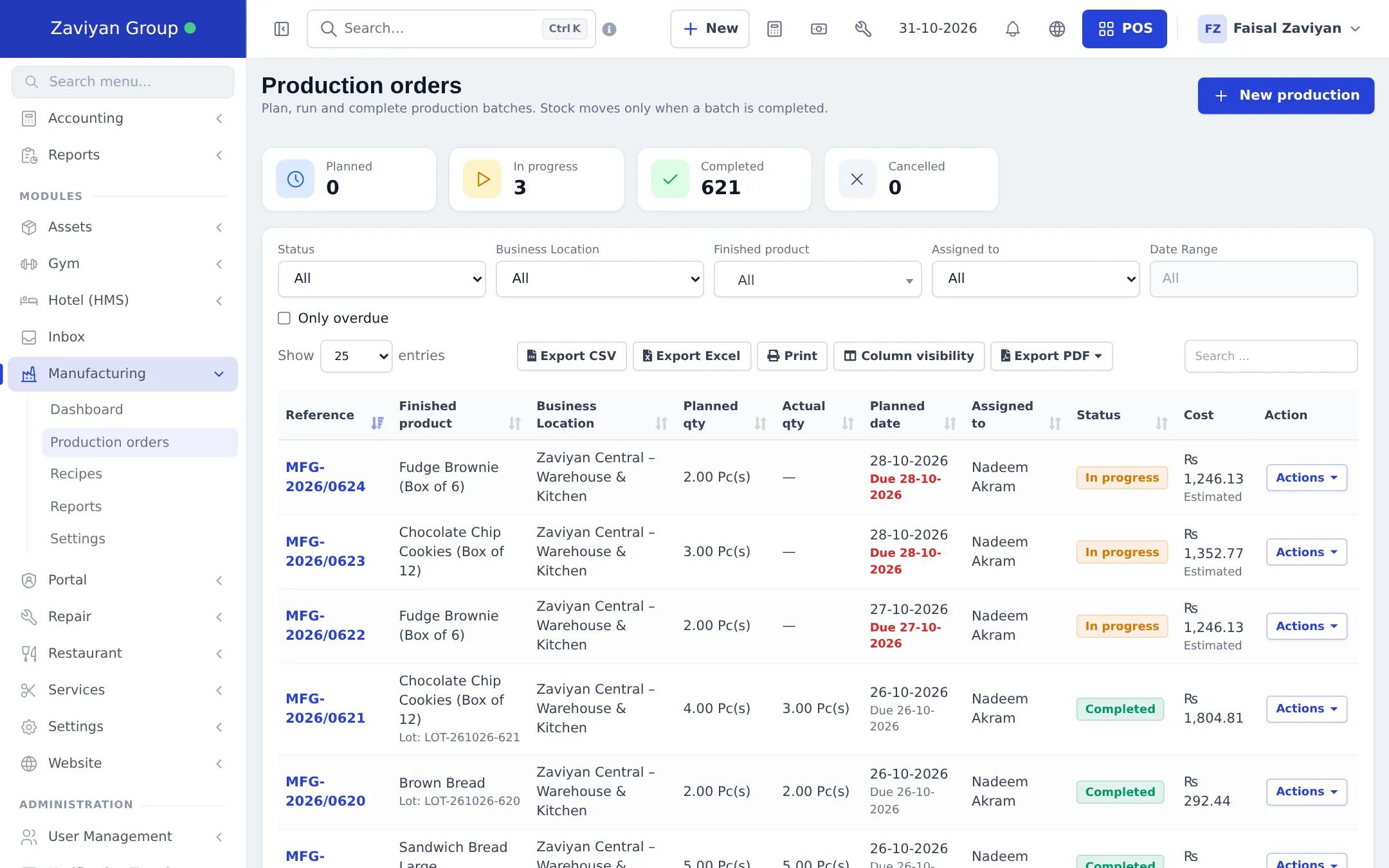
| Production orders | Plan, run and complete batches. “Stock moves only when a batch is completed.” |
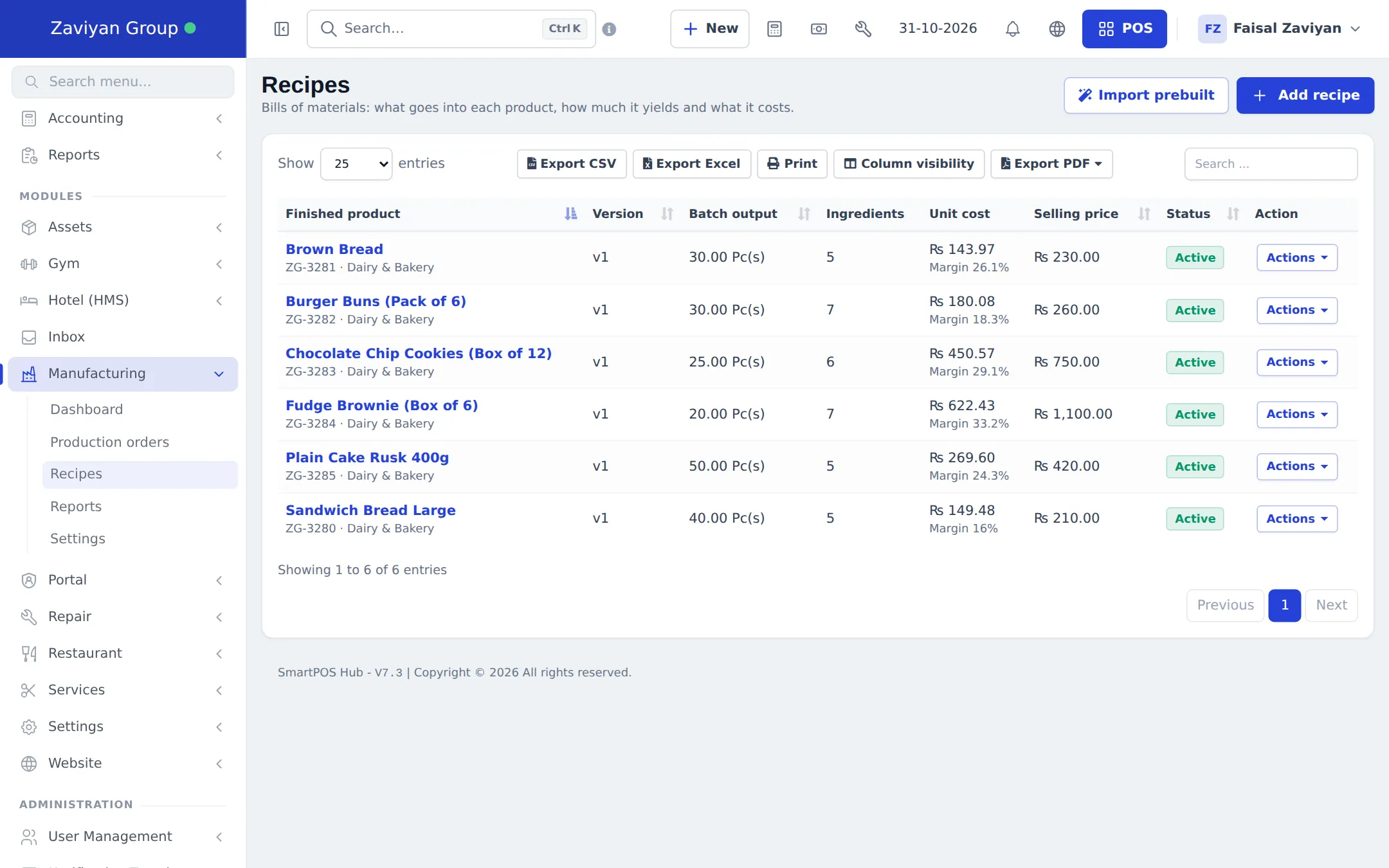
| Recipes | What goes into each product, how much one batch yields and what it costs, with margin against the selling price |
| Reports | Production, material consumption, wastage, recipe costing, planned vs actual, cost per unit trend, materials needed |
| Settings | Numbering & lots, costing, production rules, stages and waste reasons |
Before you start
Section titled “Before you start”- Add your raw materials and your finished product as normal products (finished products can be variable, each variation gets its own recipe). See Add products.
- Buy or enter opening stock of the raw materials so costs and availability are real.
- If your goods expire, switch on product expiry in Settings › Business Settings so batches get an expiry date.
First-time setup
Section titled “First-time setup”- Switch the module on in Settings › Business Settings › Modules (Manufacturing) and click Update settings.
- Open Manufacturing › Settings and check each tab:
- Numbering & lots: production order prefix and digits (for example MFG-2026/0001) and Give each completed batch a lot number automatically.
- Costing: the Material cost method, Default margin for suggested prices, Include material waste in the product cost, and default extra costs.
- Production rules: Allow production with insufficient stock, Track production stages (routing), Production orders need approval before they start, and completion notifications.
- Stages and Waste reasons: your reusable steps (mixing, baking…) and reasons staff pick when recording waste.
- Go to Manufacturing › Recipes and click Add recipe, or Import prebuilt to start from a template.
- In the recipe, pick the finished product, the batch output, each ingredient with its quantity (any unit of the product) and Waste %, optional by-products, Extra costs (labour, electricity, packaging, overhead; fixed per batch, per unit or % of material) and stages. Save.
- Check the Unit cost and Margin on the recipe list. Use a new version when the recipe changes, so old batches keep their history.
Everyday use
Section titled “Everyday use”- Click New production. Pick the recipe, location, quantity, planned and due dates and the staff member it is Assigned to. The order starts as Planned.
- If approval is switched on, an approver clicks Approve.
- Click Start production when work begins (status In progress). With stages on, update each stage as it is done.
- When the batch is finished, click Complete production. Enter what was actually used and produced (planned quantities are filled in), any wastage with its reason, rejected output, the lot number and expiry, and adjust extra costs if needed.
- Click Complete and update stock. Ingredients leave stock, the finished product arrives at its batch cost, and the order shows Completed.
What happens next: the stock report and product stock history show the batch as “Manufactured” and the ingredients as “Used in production”. When you sell the product, its cost of goods sold is the real production cost. With Accounting & Bookkeeping set up, each completed order also gets its own journal entry.
Settings explained
Section titled “Settings explained”| Setting | What it does |
|---|---|
| Material cost method | How estimates are priced: Last purchase price, Average cost of stock on hand, Stock lots in the business’s FIFO / LIFO order, or Default purchase price of the product. Completed batches always use the actual cost. |
| Default margin for suggested prices | Used to suggest a selling price from the cost |
| Include material waste in the product cost | On: waste makes the finished product dearer. Off: waste is shown as a separate loss |
| Update the product’s default purchase price with the latest batch cost | Keeps the product’s cost field current |
| Allow production with insufficient stock | Lets you complete even when the system shows less stock than needed |
| Track production stages (routing) | Shows stage progress on each order |
| Production orders need approval before they start | Approvers are users whose role has “Approve production orders” |
| Notify when production is completed | In-app notification to the creator and any users you add |
Permissions
Section titled “Permissions”| Permission (as on the Roles page) | Lets the user |
|---|---|
| Open the Manufacturing dashboard | See the dashboard |
| See production costs and margins | See costs and prices (without it, quantities only) |
| View recipes / Add recipes / Edit recipes and versions / Delete recipes | Work with recipes |
| View all production orders | See every order |
| View own production orders (assigned to or created by the user) | See only their own orders |
| Add production orders / Edit and start production orders | Plan and start batches |
| Approve production orders | Approve (these users are the approvers) |
| Update production stages | Tick off stages |
| Complete production (posts stock) | Complete batches |
| Cancel production orders / Delete production orders | Cancel or remove orders |
| View manufacturing reports | Open reports |
| Manage manufacturing settings | Settings, stages, waste reasons |
The prebuilt roles Production Manager and Production Worker are available under the roles import (see Prebuilt).
In the SmartPOS Business app
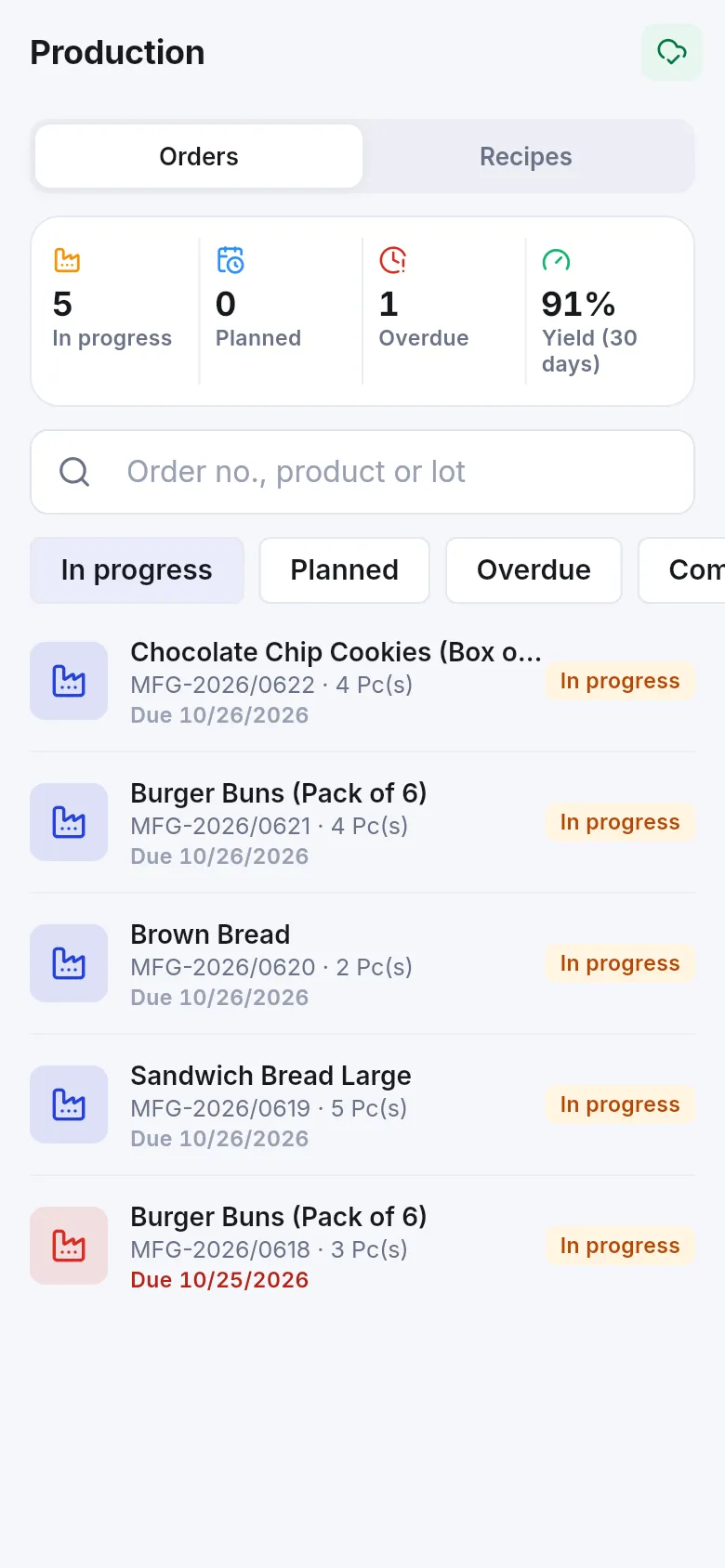
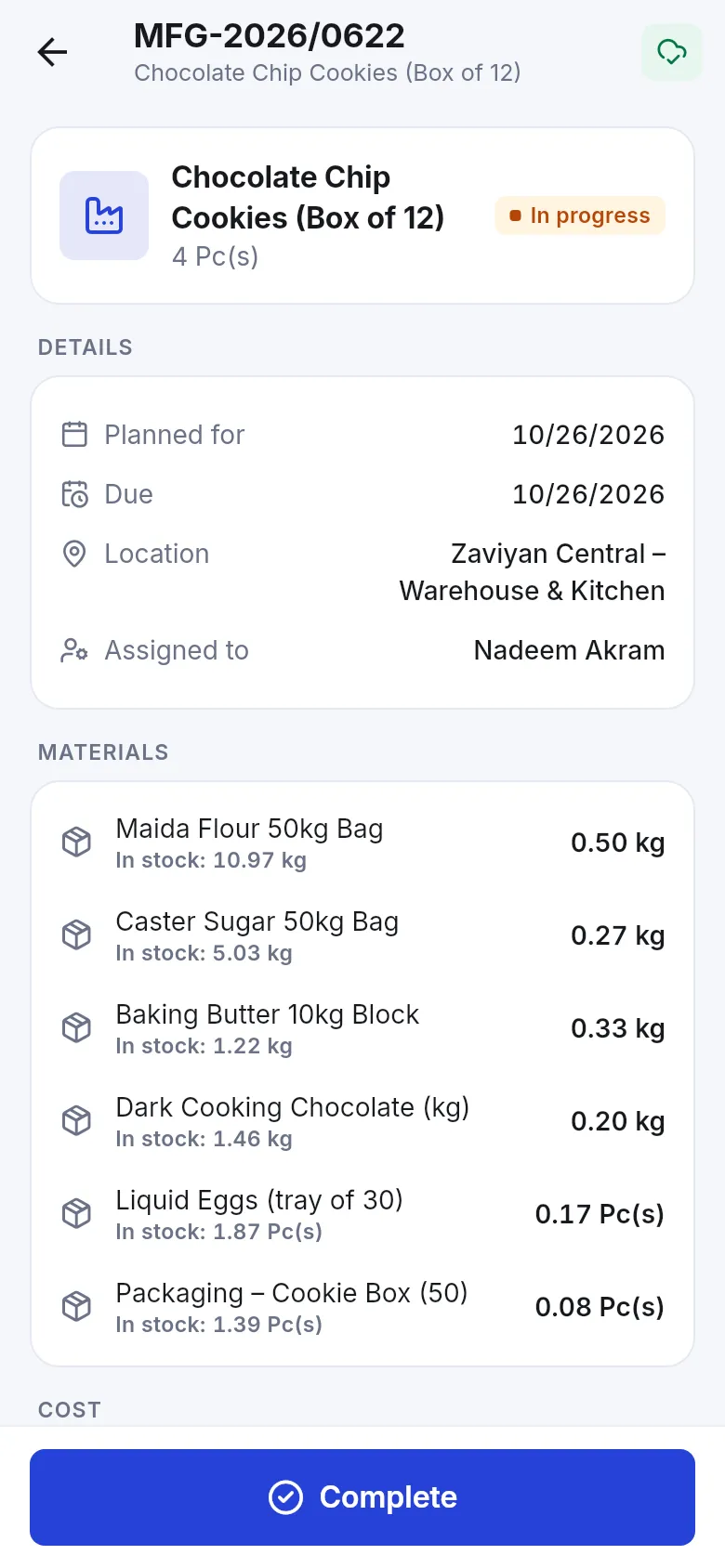
Section titled “In the SmartPOS Business app”The Production screen has Orders and Recipes tabs, counters for in progress, planned, overdue and 30-day yield, and a search by order number, product or lot. Open an order to see its materials with stock on hand, then Start, Complete (enter good and rejected output and the lot) or cancel it.
Tips and mistakes to avoid
Section titled “Tips and mistakes to avoid”- Each order makes one main product. To produce different products, create separate orders.
- Enter the actual quantities when completing; the planned ones are only a starting point.
- Reopening is only possible while none of the batch has moved, so check before you sell from it.
- Labour and electricity you enter as extra costs are part of the product cost. If you also record those bills as expenses, tell your accountant so they are not counted twice.
Related pages
Section titled “Related pages”Frequently asked questions
When does stock change, when I create the order or when I complete it?
Only when you complete it. Completing a production order takes the ingredients out of stock and adds the finished product with its real batch cost. Planned and in-progress orders only reserve materials in the availability check.
How is the cost of a finished product worked out?
Estimates use the costing method in Manufacturing settings. A completed batch always uses the actual cost of the ingredient stock it consumed, plus the extra costs such as labour or electricity, so your profit on the finished product is exact.
Can one recipe make a product in several sizes?
Each recipe belongs to one product variation, so a 400 g and an 800 g loaf have their own recipes. A recipe can also produce by-products with a share of the cost.
What if I am short of an ingredient?
The order shows a shortage and the dashboard lists Material shortages. You can buy the material first, or switch on Allow production with insufficient stock in settings.
I completed a batch by mistake. Can I undo it?
Yes, a completed order can be reopened as long as none of the produced stock has been sold, used, adjusted, returned or transferred yet. A user needs both the complete and cancel permissions.
Are there ready-made recipes?
Yes. Recipes › Import prebuilt offers recipe templates for bakeries, food processing, beverages, sweets, dairy, furniture, garments, cosmetics, cleaning chemicals and candles, plus stage and waste-reason lists.
Does the produced batch get a lot number and expiry date?
Yes. With automatic lot numbers on, each completed batch gets one like LOT-261031-001, and its expiry is worked out from the product's expiry period when product expiry is on.