
Sell offline in the app and sync when back online
When the internet drops, a phone set up for offline selling keeps working: cashiers ring up sales as usual, the app saves them encrypted on the phone and sends them to the server automatically when the connection is back. This page shows owners and cashiers how to set up a phone, sell offline, and handle sales that need a manager’s review.
Before you start
Section titled “Before you start”- The plan includes offline selling and Offline POS is switched on in Settings › Business Settings › Modules on the web. Otherwise the app says Offline selling is not part of this business’s plan or is switched off.
- The phone is online for the setup and the right location is selected.
Set up a phone for offline selling
Section titled “Set up a phone for offline selling”- Open Sell › Offline (or More › Offline selling).
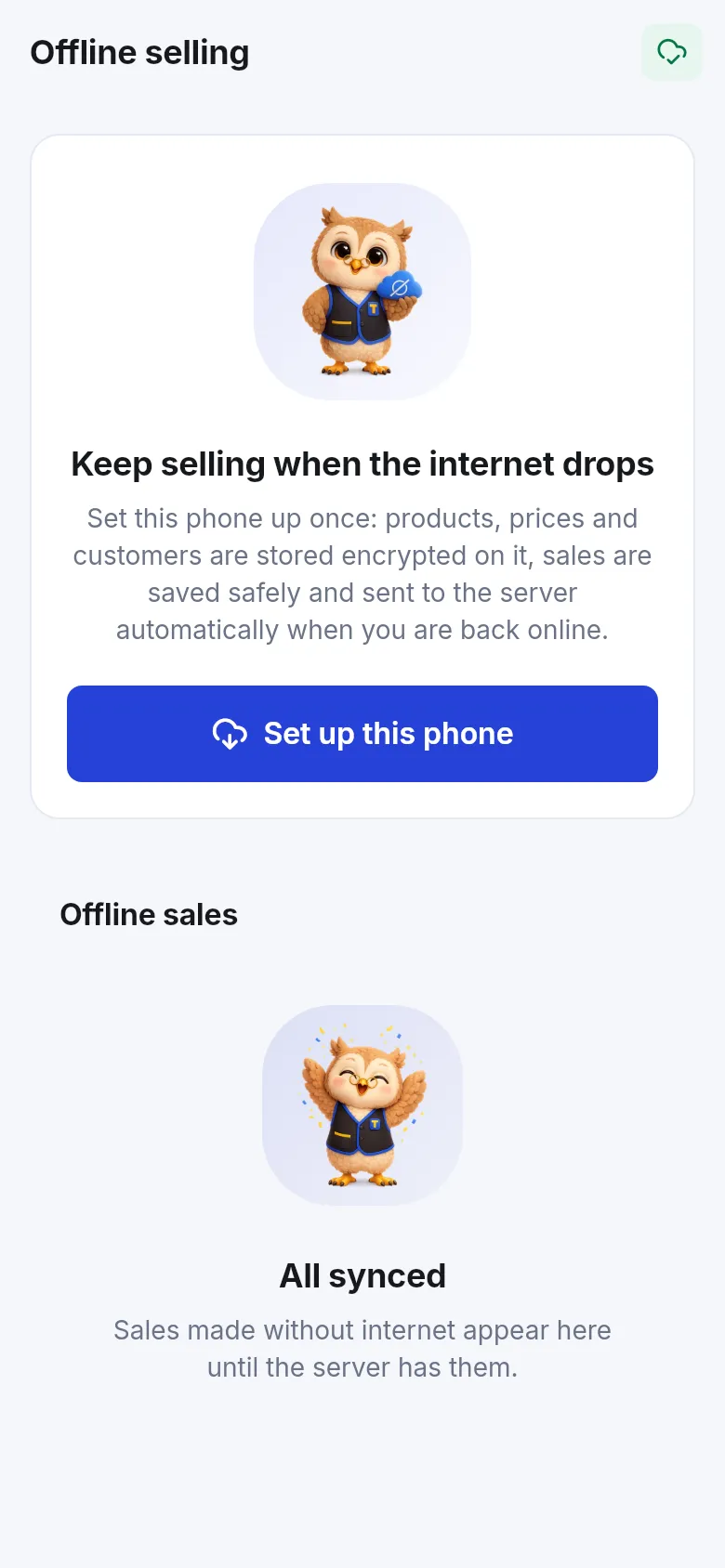
- Read Keep selling when the internet drops and tap Set up this phone.
- Give the phone a name (Name of this phone, for example Counter phone) and confirm. It sells offline at the current location.
- The app downloads the products, prices and customers. When it says Ready to sell offline, you are set. The screen shows how many products and customers are on the phone and when prices were updated.
Tap Update prices whenever prices change on the web. Offline prices stay valid for a limited number of hours (shown on screen); the app refreshes them automatically when it is online.
Selling offline
Section titled “Selling offline”Sell exactly as you do online. The difference:
- The Sell tab says You are offline. This phone can keep selling; sales sync later.
- On Payment the button reads Complete sale offline.
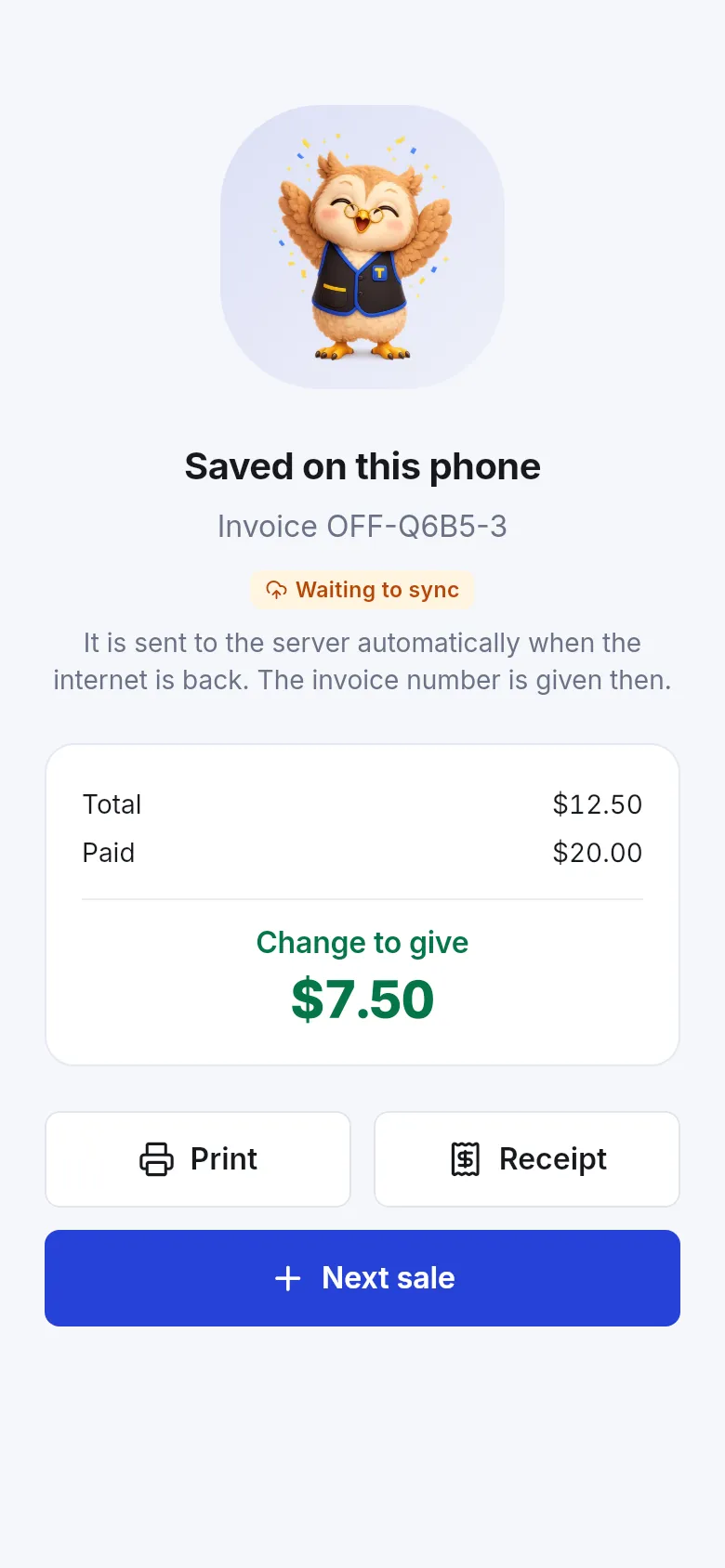
- After paying, Saved on this phone shows a temporary number and Waiting to sync. The invoice number is given when it reaches the server.
- You can print or share the receipt; it is marked NOT SYNCED YET.
- Customers saved on the phone can be chosen, and you can add a new one with a name and mobile.
- A shopper who joined your store (a lead) shows Lead · becomes a customer with this sale.
What needs a connection: drafts and quotations, returns, gift cards and store credit, Scan & Go carts and store cards, reports, and changes outside the POS.
Sync and statuses
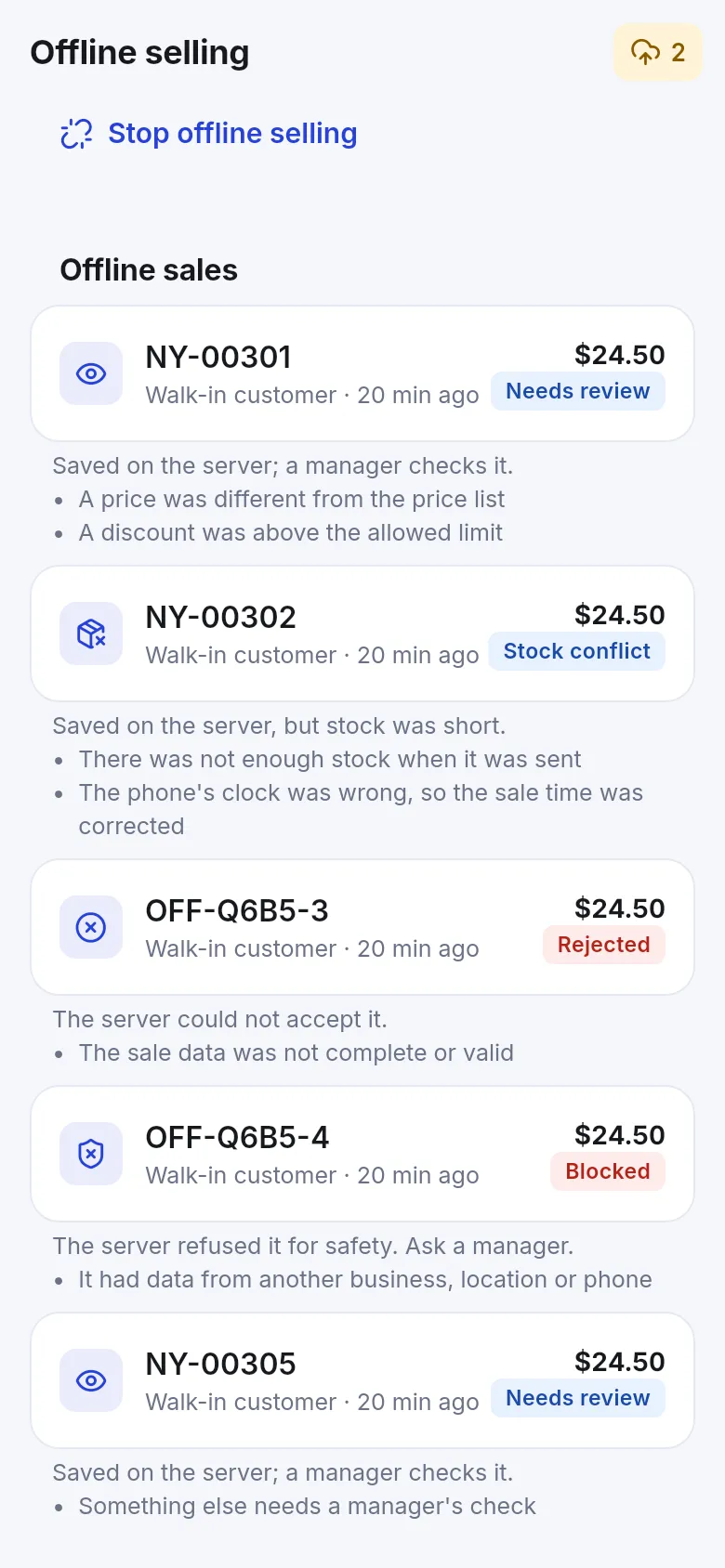
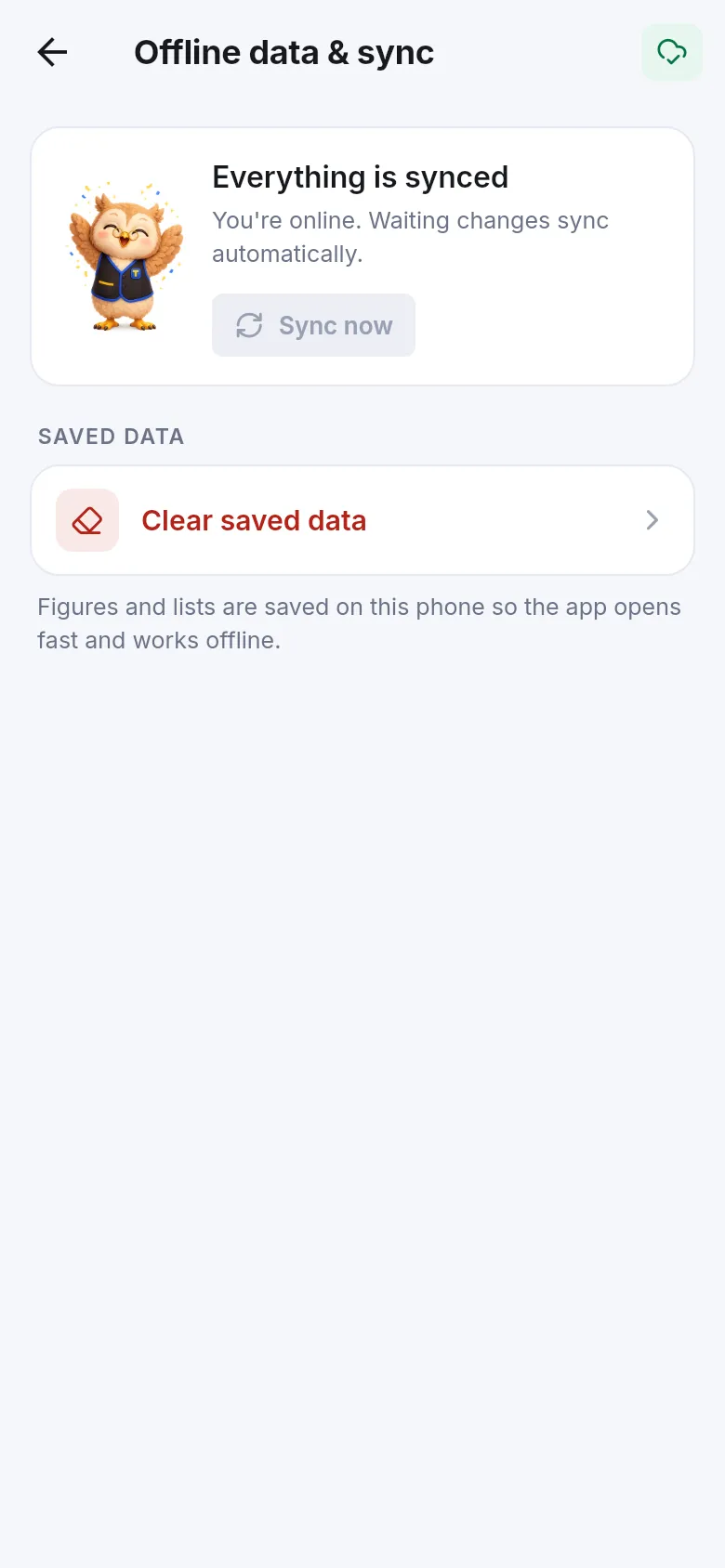
Section titled “Sync and statuses”Sales sync on their own as soon as the phone is online. To push them now, open Sell › Offline and tap Sync now. The Offline sales list shows each sale with a status:
| Status | Meaning | What to do |
|---|---|---|
| Waiting | On the phone, not sent yet | Nothing; it syncs when online. |
| Retrying | Sent, the server will try again (for example the same sale is still being saved online) | Nothing; wait. |
| Synced | On the server with its real invoice number | Nothing. |
| Needs review | Saved on the server; a manager checks it | Manager reviews on the web. |
| Stock conflict | Saved, but stock was short when it arrived | Check stock; adjust if needed. |
| Rejected | The server could not accept it | Tap Try again, or Delete from phone after checking. |
| Blocked | Refused for safety (data from another business, location or phone) | Ask a manager. |
Each problem sale lists its reasons in plain words, for example A price was different from the price list, There was not enough stock when it was sent or The phone’s clock was wrong, so the sale time was corrected.
The review queue (managers)
Section titled “The review queue (managers)”Sales marked Needs review, Stock conflict or Blocked are kept on the server – they are never lost – and appear in the offline review list of the web app for a manager to check, accept or fix. See Offline selling and the Offline POS module.
Lost answers and double sales
Section titled “Lost answers and double sales”If the connection drops while an online sale is being saved, the app retries safely. If it still can’t reach the server, it either saves the sale offline (the server later recognises it as the same sale and keeps only one) or asks Did the sale go through? – look at Recent sales; tapping Pay again repeats the same request, so the customer is not charged twice.
Stop offline selling on a phone
Section titled “Stop offline selling on a phone”Open Sell › Offline › Stop offline selling. Downloaded prices are removed. Sales still waiting stay on the phone until they are sent. A manager can also remove a phone from offline selling on the web; the app then says A manager removed this phone from offline selling.
Tips and mistakes to avoid
Section titled “Tips and mistakes to avoid”- Set up offline selling before you need it – it can’t be set up without internet.
- Keep the phone’s date and time automatic; a wrong clock causes review flags.
- Sync before signing out or uninstalling the app.
- One phone sells offline for one location. Switching location needs the phone set up again.
Related pages
Section titled “Related pages”Frequently asked questions
Can the app sell without internet?
Yes, once the phone is set up for offline selling while it was online. Products, prices and customers are stored encrypted on the phone and sales sync automatically when the internet is back.
When does an offline sale get its invoice number?
When it reaches the server. Until then the receipt shows a temporary number and NOT SYNCED YET.
What can't I do offline?
Drafts and quotations, returns, gift cards and store credit, loading Scan & Go carts and store cards, reports and most changes outside the POS need a connection.
Can a sale be counted twice if the internet drops during payment?
No. The app and the server recognise the same sale and keep only one, even if it was first tried online and then saved offline.
What does Needs review mean?
The sale is saved on the server, but something was different from the price list or rules, for example a changed price. A manager checks it in the web app. The app lists the reasons in plain words.
How long are offline prices valid?
For a limited number of hours shown on the Offline selling screen. Go online and tap Update prices to refresh them; the app also refreshes them automatically when it can.
Can I sell offline to a new customer?
Yes. Add the customer with a name and mobile; it is created on the server when the sale syncs.
What if I sign out with sales still waiting?
The app warns you that unsynced changes will be lost. Sync first.