
Mart step 2: import the Product Library Mart catalog
The Product Library is a shared catalog of ready-made products. Its Mart / Karyana / General store catalog holds more than 16,000 grocery, household and personal care products in 14 departments, with real barcodes, brands, categories and many photos. Importing from it saves days of data entry: you pick what you stock, import, then add your prices and quantities.
Before you start
Section titled “Before you start”- Your locations exist (step 1).
- Decide which tax rate, if any, applies to most of your products. You can change single products later.
1. Browse the Mart catalog
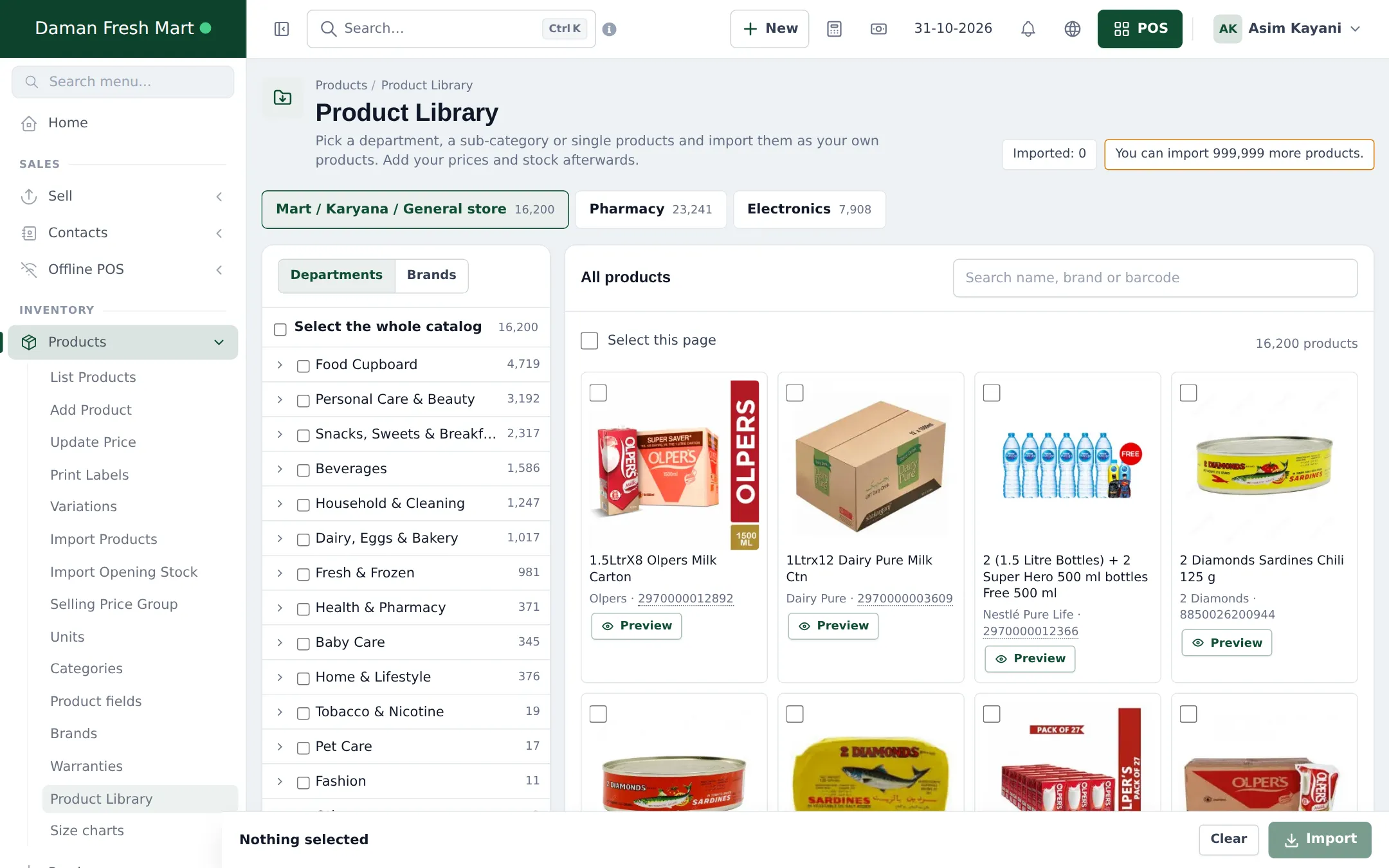
Section titled “1. Browse the Mart catalog”- Open Products › Product Library.
- Click the Mart / Karyana / General store tab at the top.
- On the left, the Departments tab shows the department tree (Food Cupboard, Personal Care & Beauty, Beverages, Dairy, Eggs & Bakery, Fresh & Frozen…) with product counts. The Brands tab lists brands instead.
- Search by name, brand or barcode in the box above the product grid.
2. Preview a product
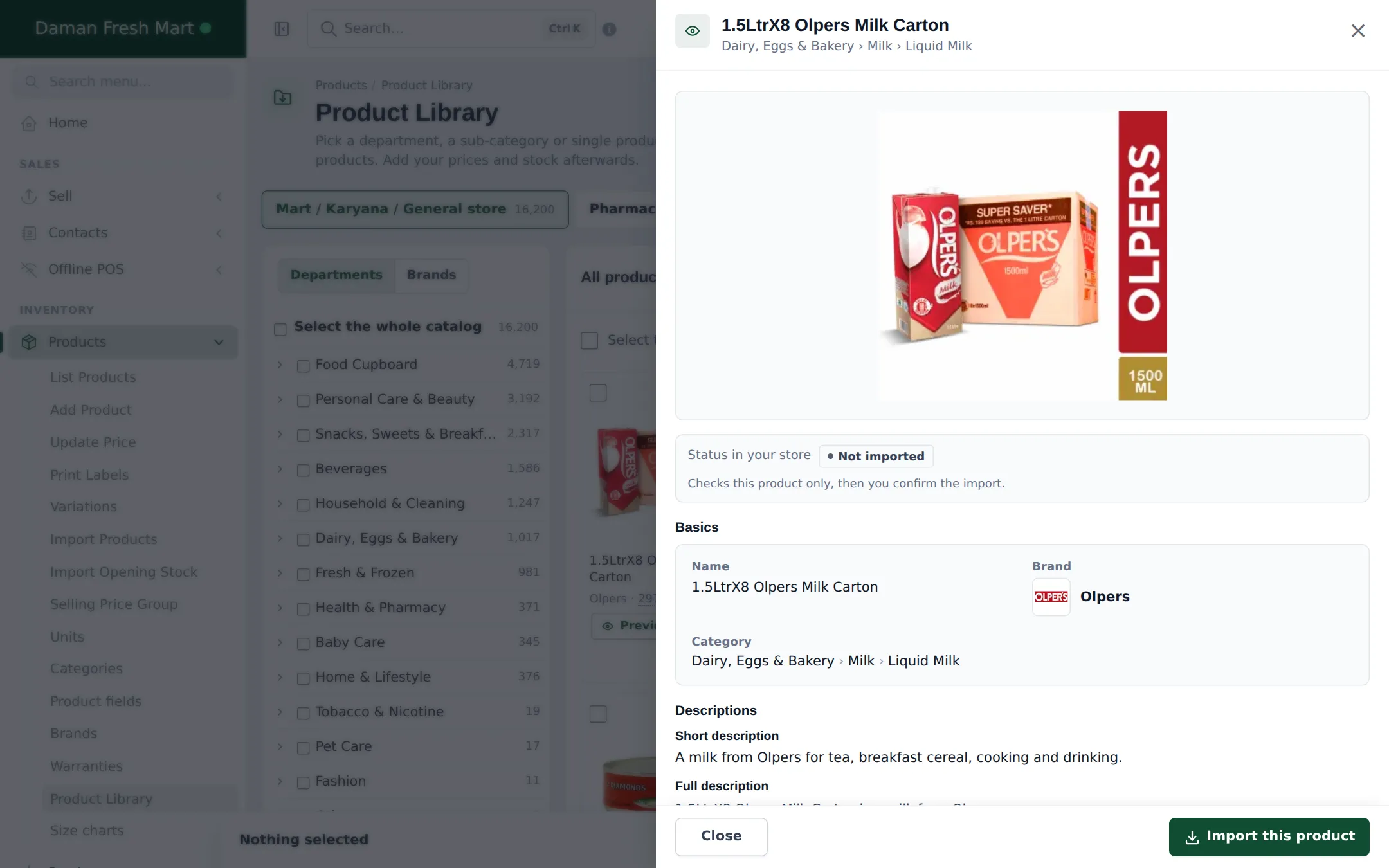
Section titled “2. Preview a product”Click Preview on any card to see everything the library holds for it: photos, status in your store (Not imported, Already in your store), name, brand, category path, descriptions, variations with barcodes, product details (including nutrition per 100 g / 100 ml where known) and the unit it will be imported with. Import this product imports just that one.
3. Select and check the import
Section titled “3. Select and check the import”- Tick departments or sub-categories in the tree, or tick product cards. Select the whole catalog ticks everything. The bar at the bottom shows how many are selected.
- Click Import in the bottom bar.
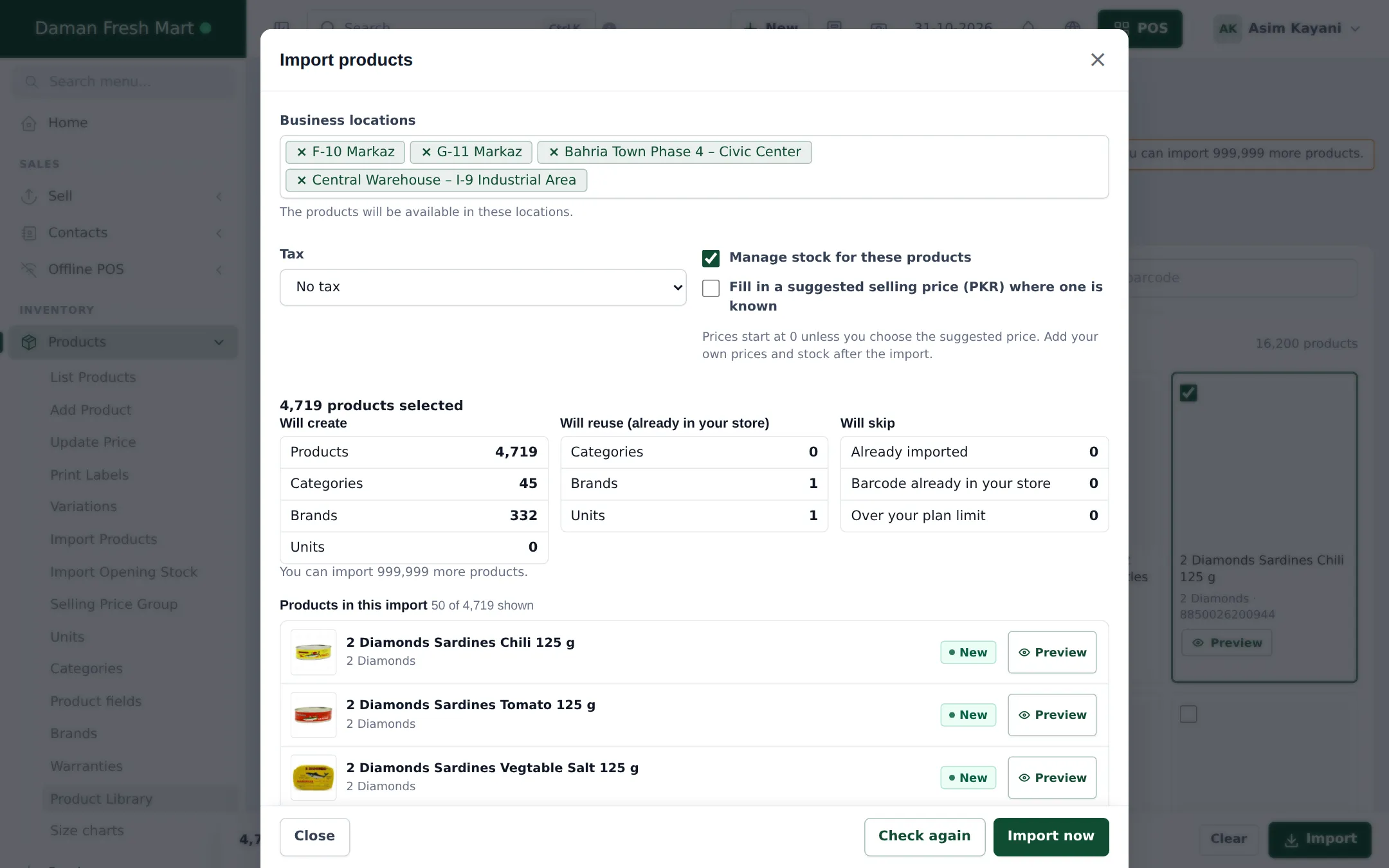
- In the Import products window:
- Business locations: the shops where the products will be sold (default: all).
- Tax: a tax rate for all imported products, or No tax.
- Manage stock for these products: keep it ticked for a grocery.
- Fill in a suggested selling price: available where the library knows a price for your currency; otherwise prices start at 0.
- Read the check table: Will create (products, categories, brands, units), Will reuse (already in your store) and Will skip (already imported, barcode already in your store, over your plan limit). The list below shows the first products, each with Preview.
- Click Import now to start, or Check again after changing options. A progress bar follows the import; you can leave the page and come back.
4. After the import
Section titled “4. After the import”- Set prices: use Products › Update Price or export and re-import prices with Excel (Prices and discounts).
- Add opening stock per location (Opening stock).
- Set alert quantities on fast movers so they appear in Product Stock Alert (step 8).
- Hide what you don’t sell by deactivating products rather than deleting them.
More on the library in general: Product Library.
Frequently asked questions
What does an imported product include?
Name, primary and extra barcodes, brand with logo, a three-level category, unit, description, product details and a photo where one exists. Prices start at 0 and stock is empty until you add them.
Will importing create duplicates of products I already have?
No. Products already imported are skipped, and so are products whose barcode is already in your store. The check window shows how many will be skipped and why.
Can I edit imported products?
Yes. After the import each product is your own and fully editable - name, price, category, photo and everything else.
Can I import only some products?
Yes. Tick a department, a sub-category or single product cards. You can also untick single products inside a ticked department.
Why don't I see Product Library in my menu?
The Product Library must be in your plan, switched on in Settings › Business Settings › Modules, and your role needs the Import products from the Product Library permission.
How are fruit and vegetables imported?
Fresh produce and fresh meat sold by weight are imported in kilograms, with grams as a sub-unit, so you can sell 0.5 kg or 250 g.
Is there a limit on how many products I can import?
Your plan's product limit applies. The Product Library page shows how many more products you can import.