
Open tabs – guests eat first and pay at the end
Open tabs let dine-in guests order, eat, order again and pay once at the end. Staff keep a running bill per table or tab name, send each round to the kitchen and take one payment when the guests leave. It is built for restaurants, cafés and bars where people pay after eating.
How a tab works
Section titled “How a tab works”| What happens | What staff do | What SmartPOS Hub does |
|---|---|---|
| Guests sit down and order | Pick the table or type a Tab / guest name (optional Guests and Phone (optional)), add items, tap Send to kitchen (or Save tab when the kitchen screen is off) | Saves an open tab: stock goes out, nothing is paid yet, the table shows as occupied and the kitchen gets the ticket |
| They order more | Open tabs button in the POS top bar → the tab → Add items, then Send new items | Sent lines are marked Sent. Only new items go to the kitchen as Round 2, marked New or +1 new |
| They ask for the bill | Open tabs → Bill | Prints a pre-bill marked “Not a receipt — payment still due” with table, tab name, guests, waiter, items and amount due |
| They pay | Open tabs → Pay | Opens the tab with the amount due filled in. Pay by cash, card or Multiple pay. The tab closes, the order goes to Completed and the table is freed |
Before you start
Section titled “Before you start”- Tables or Kitchen is switched on in Settings › Business Settings › Modules. Open tabs only appear for restaurant businesses.
- Your role can sell on the POS (Add POS sell) and the Suspend button is not hidden for you.
Turn on open tabs
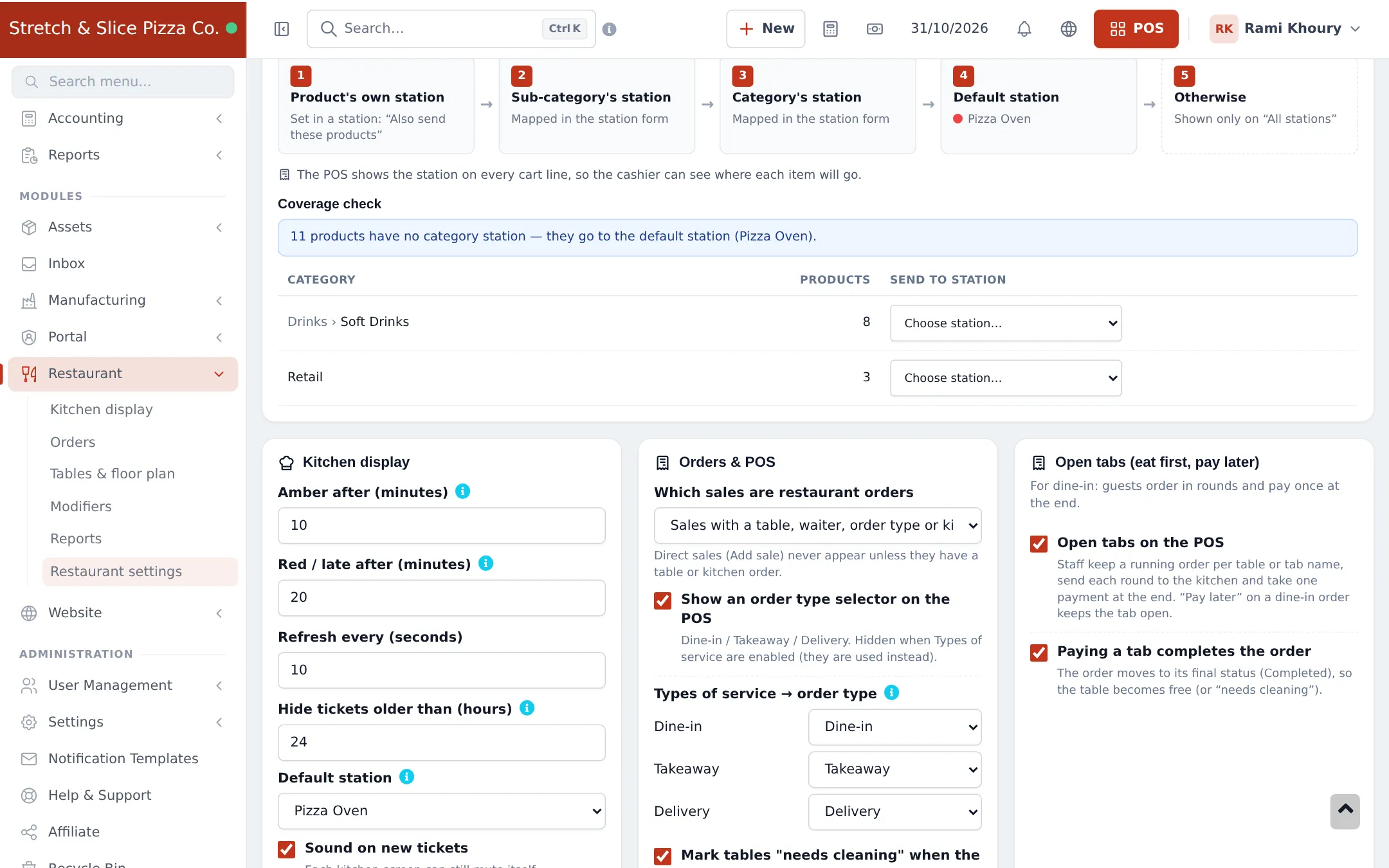
Section titled “Turn on open tabs”- Open Restaurant › Restaurant settings.
- Scroll to the Open tabs (eat first, pay later) card.
- Tick Open tabs on the POS.
- Leave Paying a tab completes the order ticked so the order moves to Completed and the table becomes free when the bill is paid.
- Click Save at the bottom of the page.
Open a tab
Section titled “Open a tab”- Open POS (V1 or V2 both work).
- Pick the table. If the guests are at the bar or have no table, type a Tab / guest name instead (on POS V2 the tab fields are inside Order details).
- Optionally enter Guests and Phone (optional).
- Add the items. Modifiers and notes work as usual.
- Tap Send to kitchen. If the kitchen screen is off, the button reads Save tab.
If you pick a table that already has an open tab, you see This table already has an open tab with two choices: Open that tab to add to it, or Start a separate order.
Add a round
Section titled “Add a round”- Tap the Open tabs button in the POS top bar. A badge shows how many tabs are open.
- Search by table, name or invoice, then tap Add items on the tab.
- The tab opens with a banner. Items already sent show Sent.
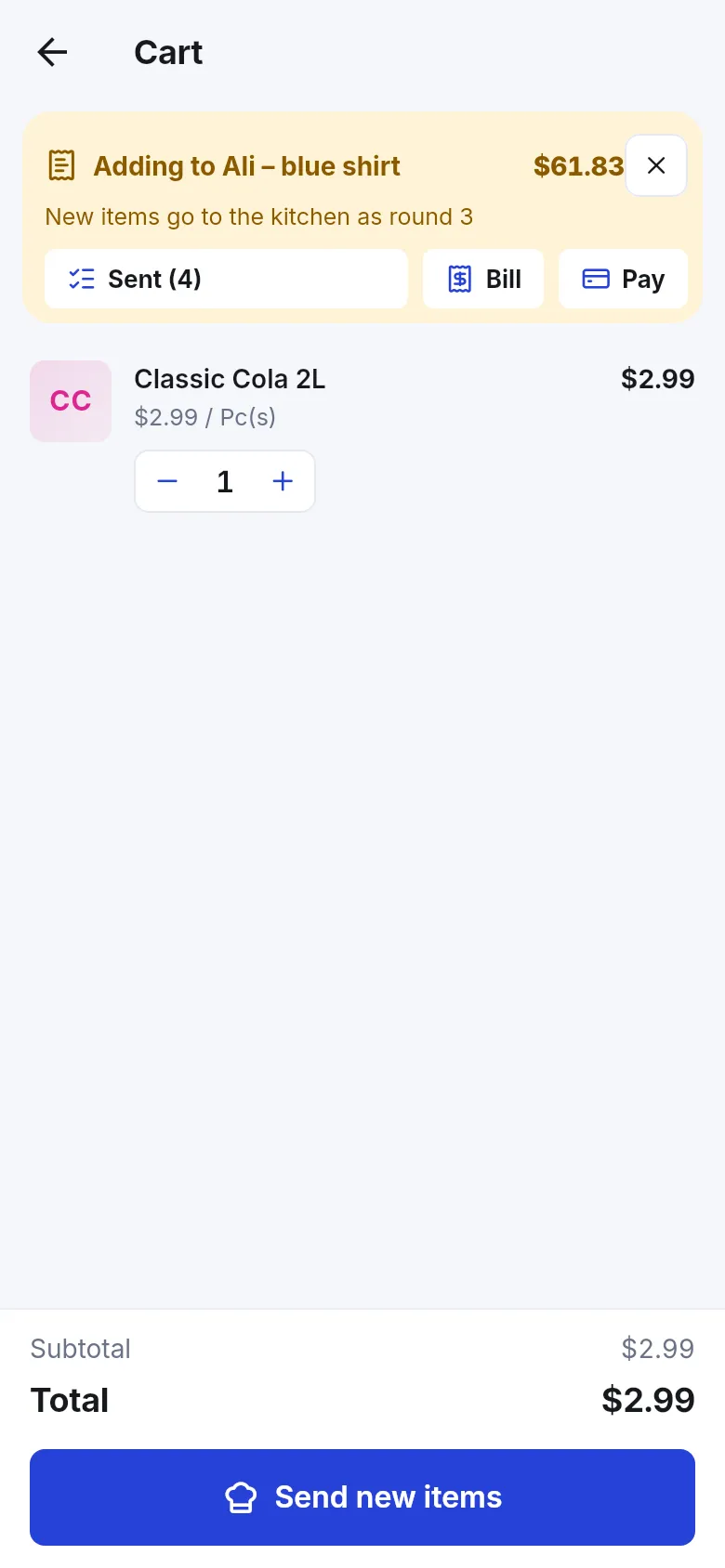
- Add the new items and tap Send new items.
The kitchen ticket gets a Round 2 chip, with new items on top marked New (or +1 new when you raised the quantity of a sent item). The printed kitchen ticket for that round lists only the new items.
Print the bill and take payment
Section titled “Print the bill and take payment”- Tap Open tabs → Bill to print the pre-bill. If there are unsent items, send them first.
- When guests pay, tap Pay on the tab. The payment window opens with the amount due already filled in.
- Take cash, card or use Multiple pay to split by method. Complete the sale.
The receipt shows the tab name instead of “Walk-In Customer”. The payment goes into the cash register like any other sale.
Credit and “Pay later”
Section titled “Credit and “Pay later””| Situation | What you see |
|---|---|
| Pay later on a dine-in order | The button reads Keep tab open and saves the tab. No credit, no customer needed. |
| A real credit sale with Walk-in selected | Pay later needs a customer: add a name and phone (an existing customer with that phone is reused), or Pick an existing customer. On a dine-in order, Keep tab open is offered too. |
| Customer is over their credit limit | A clear message with the limit, what is already due and this sale. Take a payment now, or raise the limit on the customer page. |
See Credit and part payments for normal credit sales.
Settings explained
Section titled “Settings explained”| Setting | Where | Effect |
|---|---|---|
| Open tabs on the POS | Restaurant settings › Open tabs | Adds the tab fields, Send to kitchen / Save tab and the Open tabs panel to the POS. Off: the POS works as before. |
| Paying a tab completes the order | Restaurant settings › Open tabs | Paid tab → order status Completed → table free (or “needs cleaning”). |
| Mark tables “needs cleaning” when the order is completed | Restaurant settings › Orders & POS | After payment the table shows Needs cleaning on the floor plan. |
| Disable Suspend Sale / Disable credit sale button | User Management › Roles › POS | Hides the tab or credit buttons for that role. |
Permissions
Section titled “Permissions”| Permission (Roles page) | Needed for |
|---|---|
| Add POS sell | Opening tabs, adding rounds, paying |
| View own orders only (waiter) | Waiters see and reopen only their own tabs |
| View all sell | Seeing every open tab |
| Disable Suspend Sale | Tick to hide tab buttons from a role |
In the SmartPOS Business app
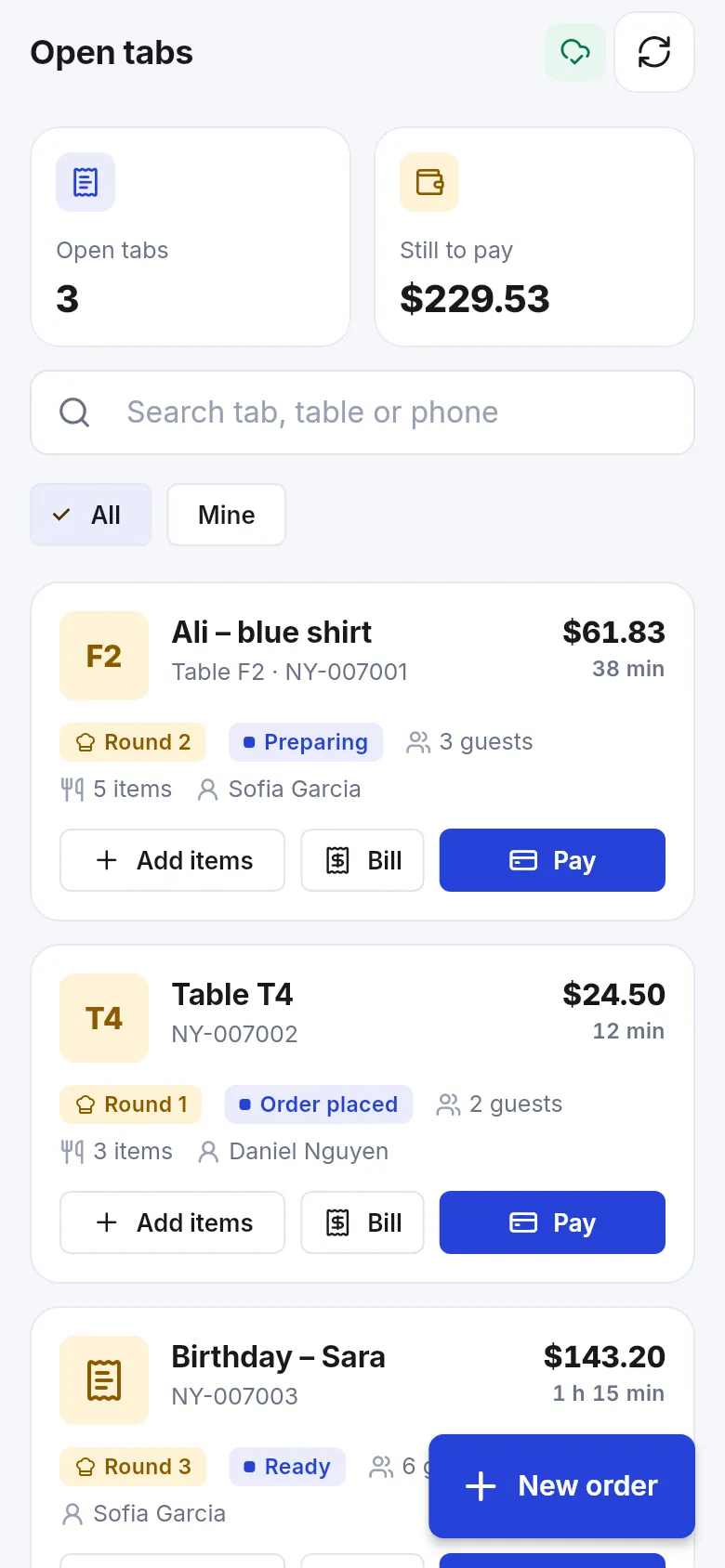
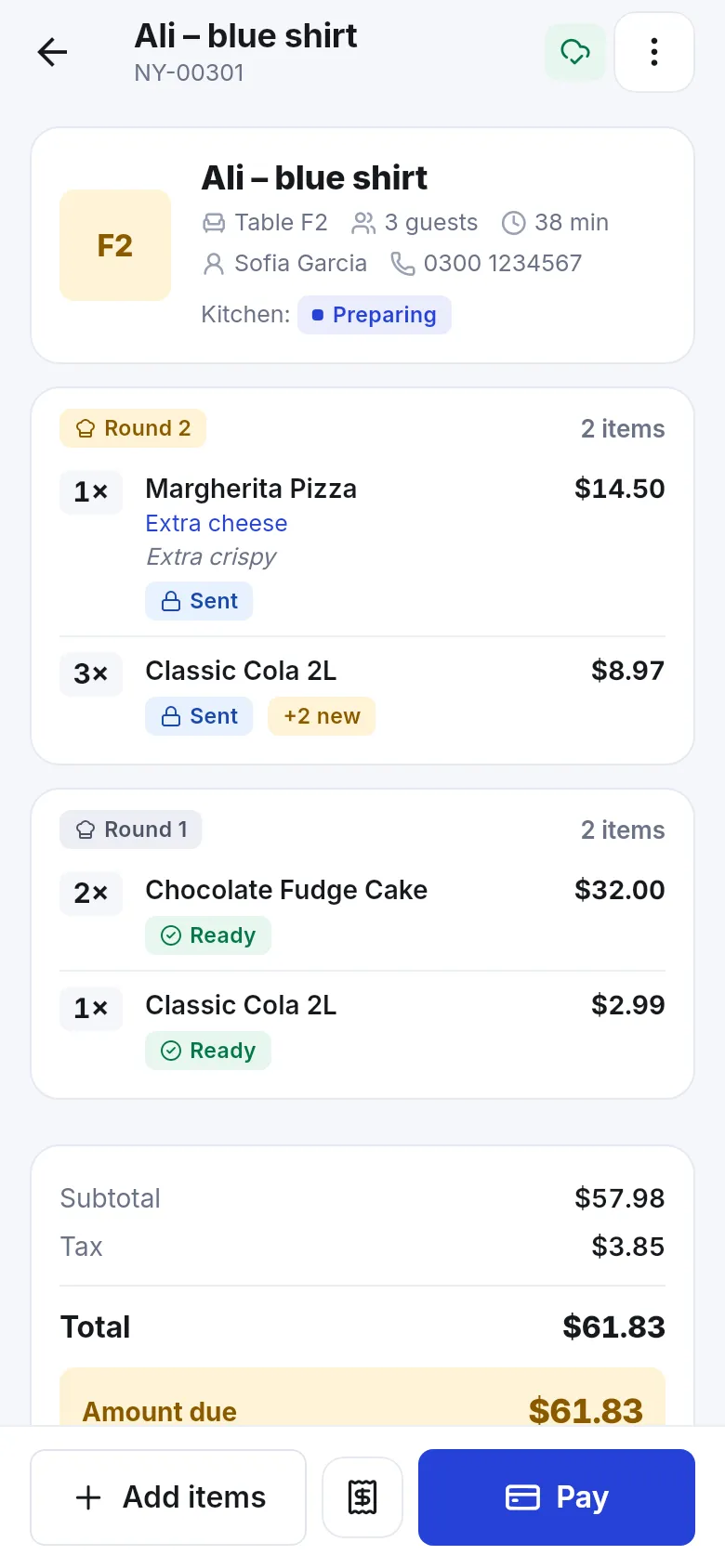
Section titled “In the SmartPOS Business app”Waiters can run tabs from a phone. The Open tabs screen shows how many are open and how much is still to pay. Each tab lists its rounds with Sent and Ready marks, and Add items, Bill and Pay buttons. New items go to the kitchen as the next round with Send new items.
Tips and mistakes to avoid
Section titled “Tips and mistakes to avoid”- Use descriptive tab names at the bar (“Ali – blue shirt”, “Bar 2”). They print on the kitchen ticket, bill and receipt.
- Don’t use a credit sale for dine-in guests. Keep the tab open instead; credit is for customers who pay another day.
- Send new items before printing the bill. Unsent items are not on the bill.
- Moving guests to another table: use the floor plan’s move order option in Restaurant › Tables & floor plan.
Related pages
Section titled “Related pages”Frequently asked questions
Does an open tab need a customer name?
No. The customer can stay Walk-in. Pick a table or type a free tab name such as "Ali - blue shirt" or "Bar 2". The name is saved on the sale only, no contact is created.
Why did Pay later say the credit limit was reached?
That was a credit sale for Walk-in, which is not allowed. With Open tabs on, Pay later on a dine-in order shows Keep tab open instead and simply saves the tab, with no customer and no credit.
Are items taken out of stock when the tab is opened?
Yes. An open tab is a saved sale with no payment yet, so stock goes out when the items are sent. The payment and cash register entry are recorded when the tab is paid.
Will the kitchen cook the first round twice when guests order more?
No. Lines already sent are marked Sent and are never merged with new ones. Only the new items (or extra quantity) go to the kitchen as Round 2, and the printed kitchen ticket lists only those items.
Can guests split the bill?
You can split the payment by method or amount with Multiple pay (for example part cash, part card). Splitting by items into separate checks per guest is not available.
Can a waiter reopen another waiter's tab?
Waiters with View own orders only see and reopen only their own tabs. Managers who can view all sales see every tab.
What happens to the table after payment?
With Paying a tab completes the order switched on, the order moves to Completed and the table becomes free, or "needs cleaning" if you use that option.