
First login tour - dashboard, menu, search and POS
This tour explains what you see the first time you sign in to SmartPOS Hub: the home dashboard, the left menu, the top bar with Ctrl + K search and the POS button, and the Getting started checklist. It is for owners, managers and staff who are new to the app. Reading it takes about five minutes.
The welcome window and Getting started guide
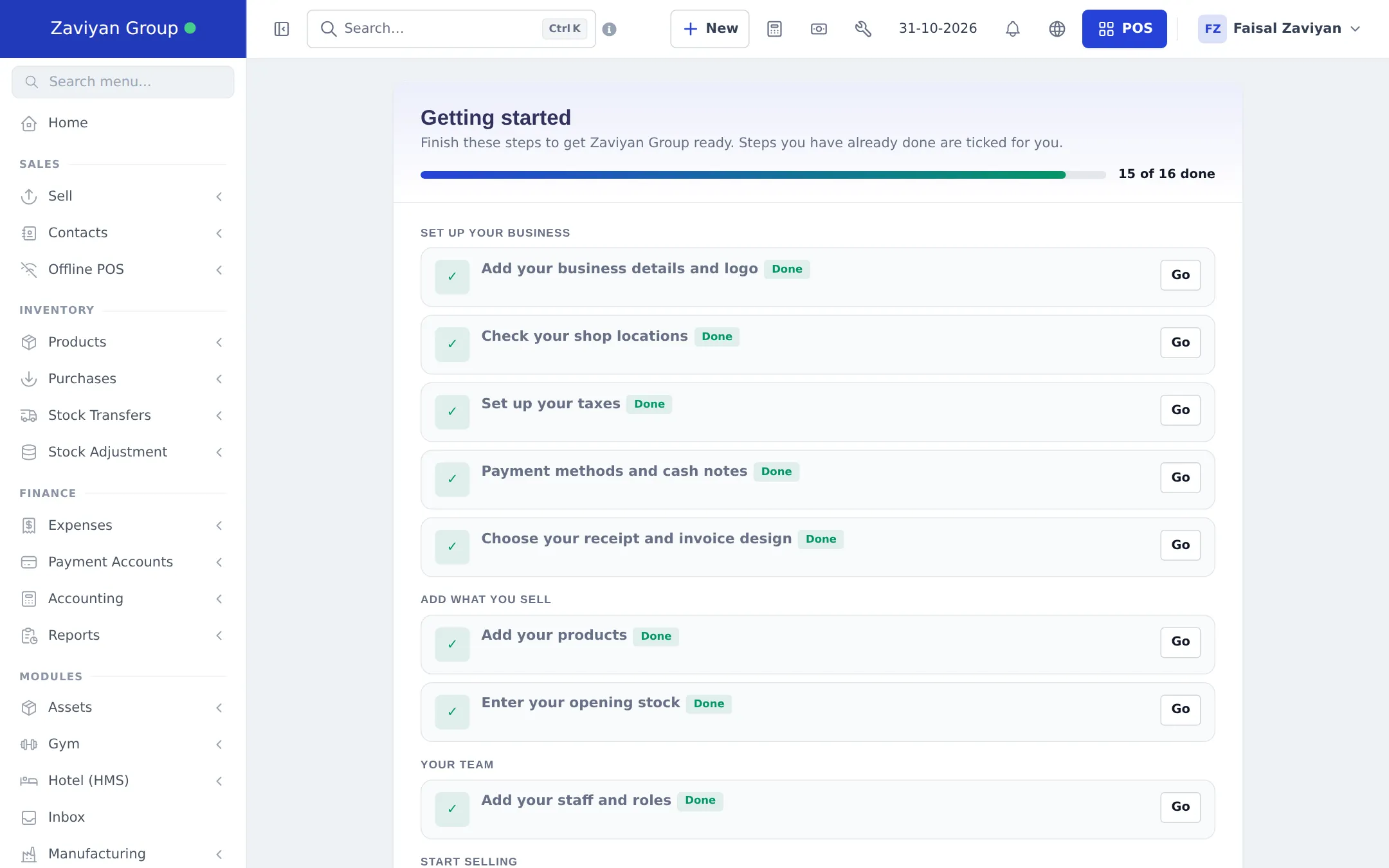
Section titled “The welcome window and Getting started guide”The first time the owner of a new business signs in, a welcome window appears with two choices:
- Take the quick tour: five short slides about the dashboard, products, the POS, settings and reports.
- Go to the checklist: the Getting started checklist.
The checklist groups setup into Set up your business, Add what you sell, Your team, Start selling and Tools for your trade (only the steps that fit your plan and modules). Steps tick themselves when you finish them. Each step has Go (opens the right page), Show me (points at the right button on that page), Mark as done and Skip.
The home dashboard
Section titled “The home dashboard”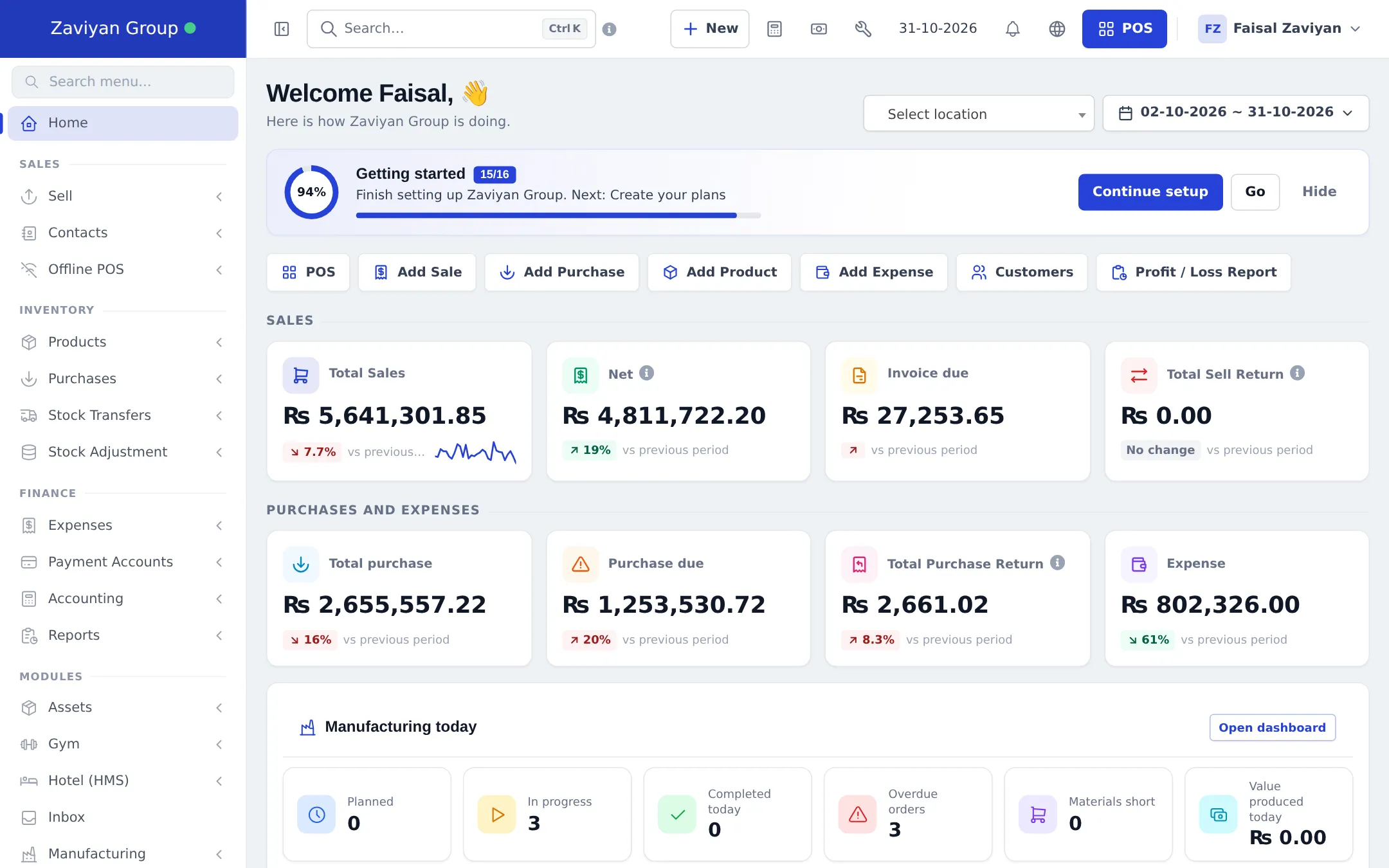
From top to bottom:
- Location and date filters (top right). Select location shows one branch or all; the date filter offers Today, Yesterday, Last 7 Days, Last 30 Days, This Month and custom ranges.
- Getting started card with your progress and Continue setup.
- Quick actions: POS, Add Sale, Add Purchase, Add Product, Add Expense, Customers, Profit / Loss Report (only the ones your role allows).
- Sales cards: Total Sales, Net, Invoice due, Total Sell Return, each with the change against the previous period of the same length.
- Purchases and expenses cards: Total purchase, Purchase due, Total Purchase Return, Expense.
- Further down: sales charts, payment dues, stock alerts, expiring stock, sales orders and pending shipments. Modules add their own cards (for example Manufacturing today).
Staff without dashboard permission see a welcome card and only the quick actions they may use.
The left menu
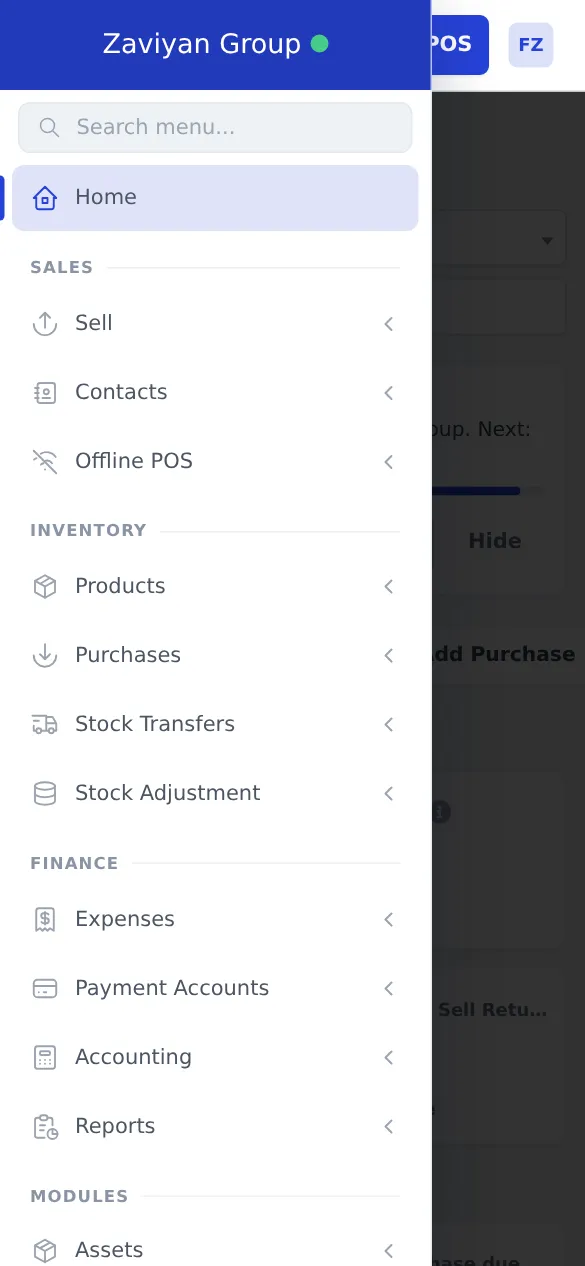
Section titled “The left menu”The menu is grouped into Sales (Sell, Contacts, Offline POS), Inventory (Products, Purchases, Stock Transfers, Stock Adjustment), Finance (Expenses, Payment Accounts, Accounting, Reports), Modules (the industry modules you switched on, such as Restaurant, Repair, Hotel or Gym) and Administration (Settings, Website, User Management, Notification Templates, Help & Support, Recycle Bin).
- Click a group with an arrow to open its sub-menu.
- Type in Search menu… at the top of the menu to filter it.
- The button at the left of the top bar collapses the menu to icons for more space.
The top bar
Section titled “The top bar”
| Item | What it does |
|---|---|
| Search… Ctrl K | Opens global search for menus, settings, products and customers |
| + New | Quick add: sale, purchase, product, expense (what your role allows) |
| Calculator | A pop-up calculator |
| Today’s profit | Today’s profit summary (owners and managers) |
| Bell | Notifications, with a count of unread ones |
| Globe | Language for your user |
| POS | Opens the point-of-sale screen |
| Your name | Profile, the Getting started guide and Sign out |
Search everything with Ctrl + K
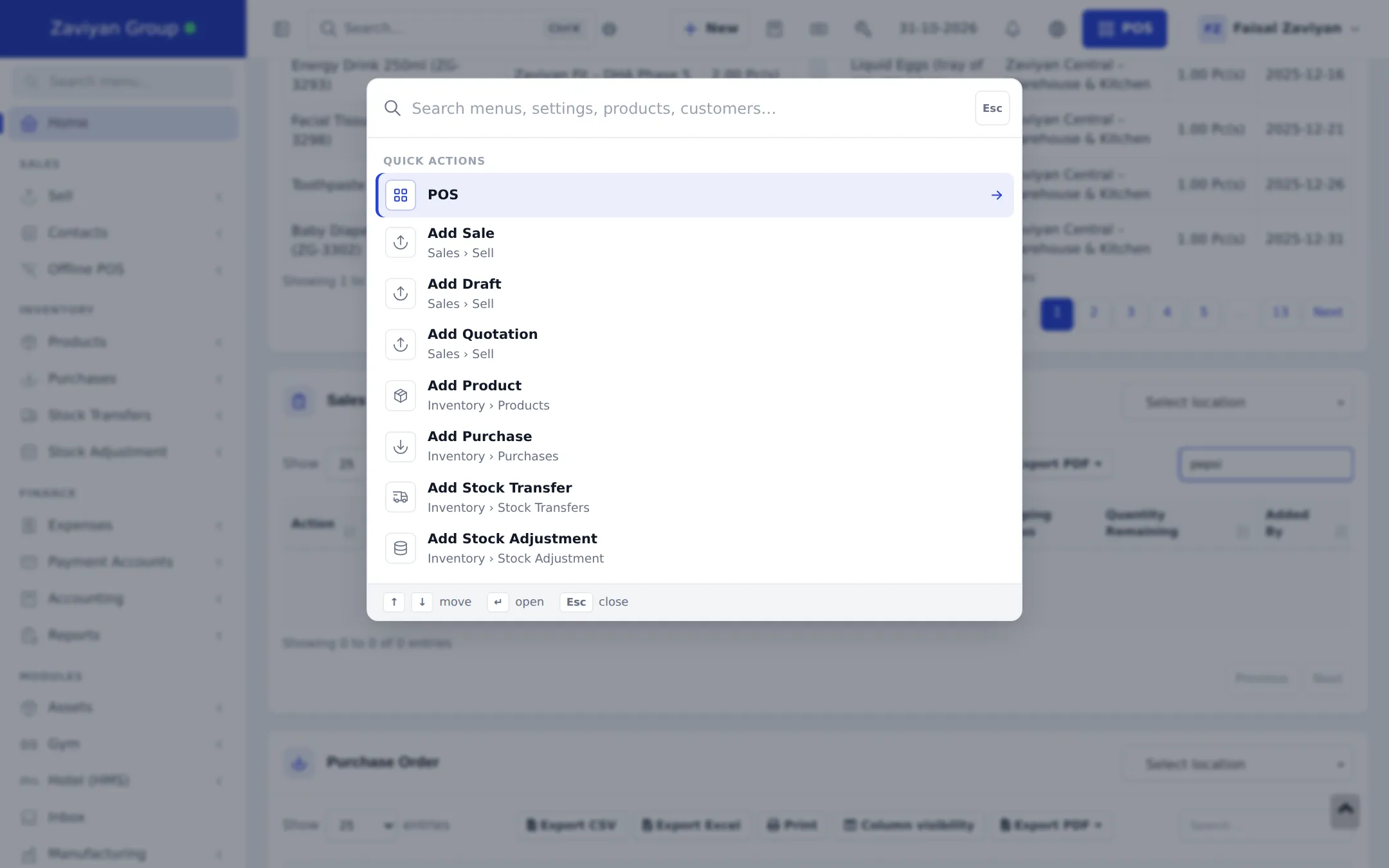
Section titled “Search everything with Ctrl + K”- Press Ctrl + K (Windows) or Cmd + K (Mac), or click Search… in the top bar.
- Without typing, you see Quick actions such as POS, Add Sale, Add Product and Add Stock Transfer.
- Type part of a menu name, setting, product or customer.
- Use ↑ ↓ to move, Enter to open, Esc to close.
The POS button
Section titled “The POS button”The blue POS button opens the selling screen for the location you choose. If the cash register is not open yet, you are asked for the opening cash first. Learn the screen in POS overview.
On a phone or tablet
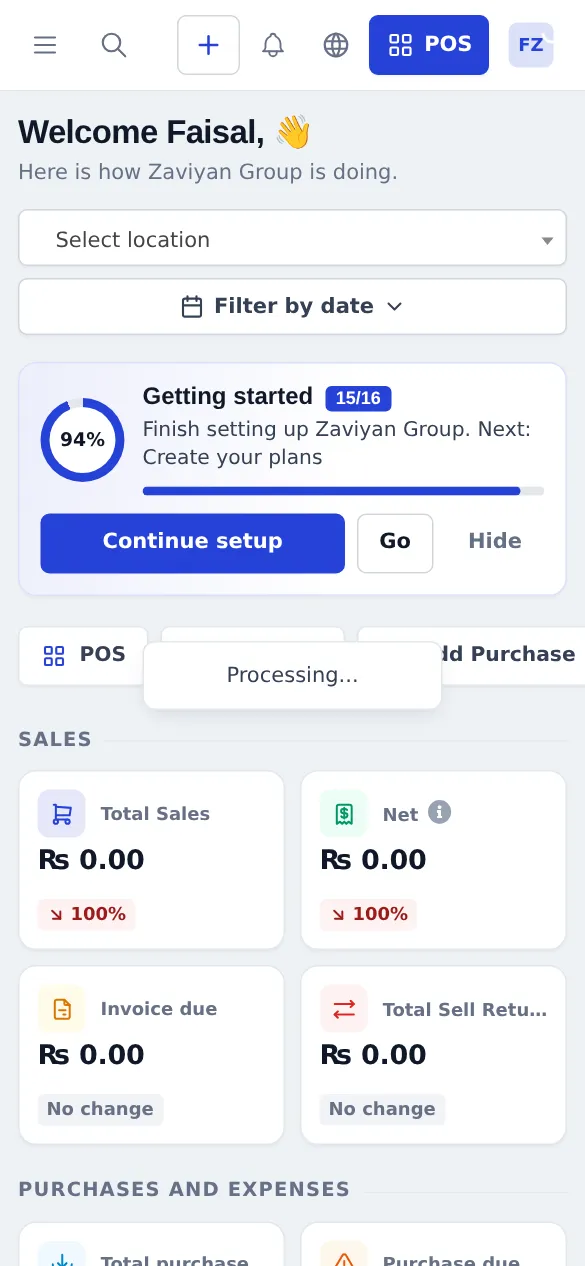
Section titled “On a phone or tablet”The menu hides behind the menu button at the top left; the top bar keeps search, + New, notifications, language and POS. Cards stack in one or two columns.
- Bookmark the POS. Cashiers can bookmark the POS page and go straight to it after sign-in.
- Use Ctrl + K instead of menus. It is the fastest way to reach any setting.
- Pick the right location on the dashboard before reading the numbers; “All locations” adds every branch together.
Related pages
Section titled “Related pages”Frequently asked questions
Why is my dashboard showing zero sales?
The dashboard shows the dates picked in the date filter at the top right, and today has no sales yet. Pick Last 30 Days or This Month to see older sales, and choose a location or leave it on all locations.
How do I open the POS quickly?
Click the blue POS button in the top bar, on any page. You can also press Ctrl + K (Cmd + K on a Mac) and pick POS from Quick actions.
What can I find with Ctrl + K?
Menus, settings pages, products and customers. Type a few letters, use the arrow keys to move and Enter to open the result.
Why do I see fewer menus than the screenshots?
Menus follow your plan, the modules switched on in Business Settings and your role. A cashier sees much less than the owner. Ask the account owner if something you need is missing.
How do I bring back the Getting started card after hiding it?
Open the user menu at the top right and choose the getting started guide, or go to the Getting started page from the dashboard card while it is still visible.
Can I change the language of the app?
Yes. Click the globe icon in the top bar and choose one of the 17 languages. The choice is saved for your user only.
Does the app work on a phone?
Yes. The menu folds into the menu button at the top left and every page fits a phone screen. For selling and scanning on a phone, the SmartPOS Business app is faster.