
Add users, roles and location access for staff
This guide shows how to give each staff member their own login, control what they can do with roles, and limit them to the locations where they work. It is for owners and managers. Setting up a cashier takes about three minutes; a custom role takes about ten.
How access works
Section titled “How access works”- A user is one person with a username and password.
- A role is a list of permissions (for example “can sell”, “can see purchase prices”, “can edit products”).
- Access locations on the user decides which shops and warehouses they can work in.
- The Admin role has full access to everything, including settings and users. Keep it for owners.
Menus a user sees also depend on your plan and the modules switched on. See Getting started.
Before you start
Section titled “Before you start”- Decide the roles you need (for example Cashier, Store manager, Storekeeper, Accountant).
- Check your plan’s user limit under Settings › Package Subscription.
- Add your locations first: Multiple locations.
Step 1: Create roles
Section titled “Step 1: Create roles”Option A: import ready-made roles
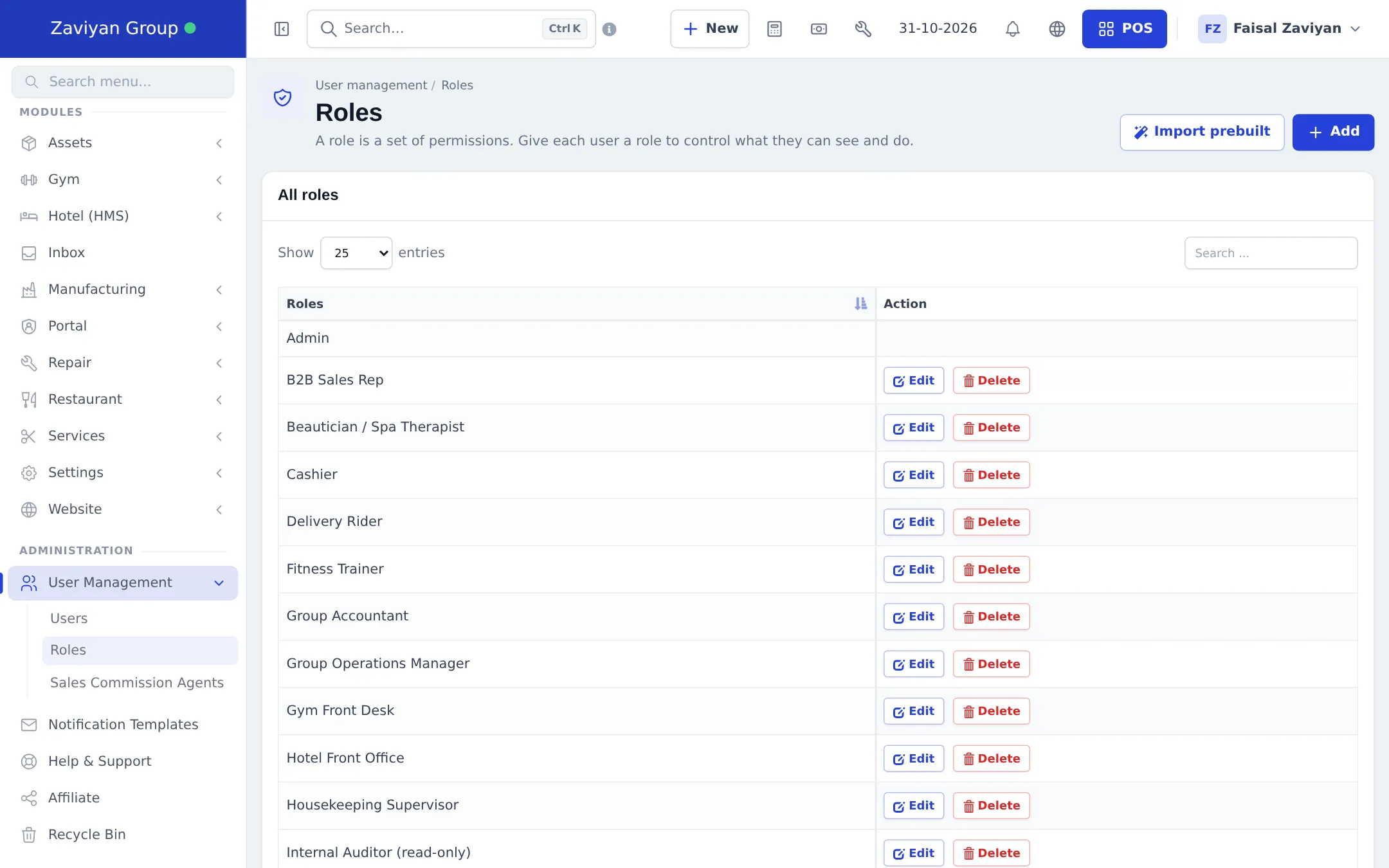
Section titled “Option A: import ready-made roles”- Open User Management › Roles.
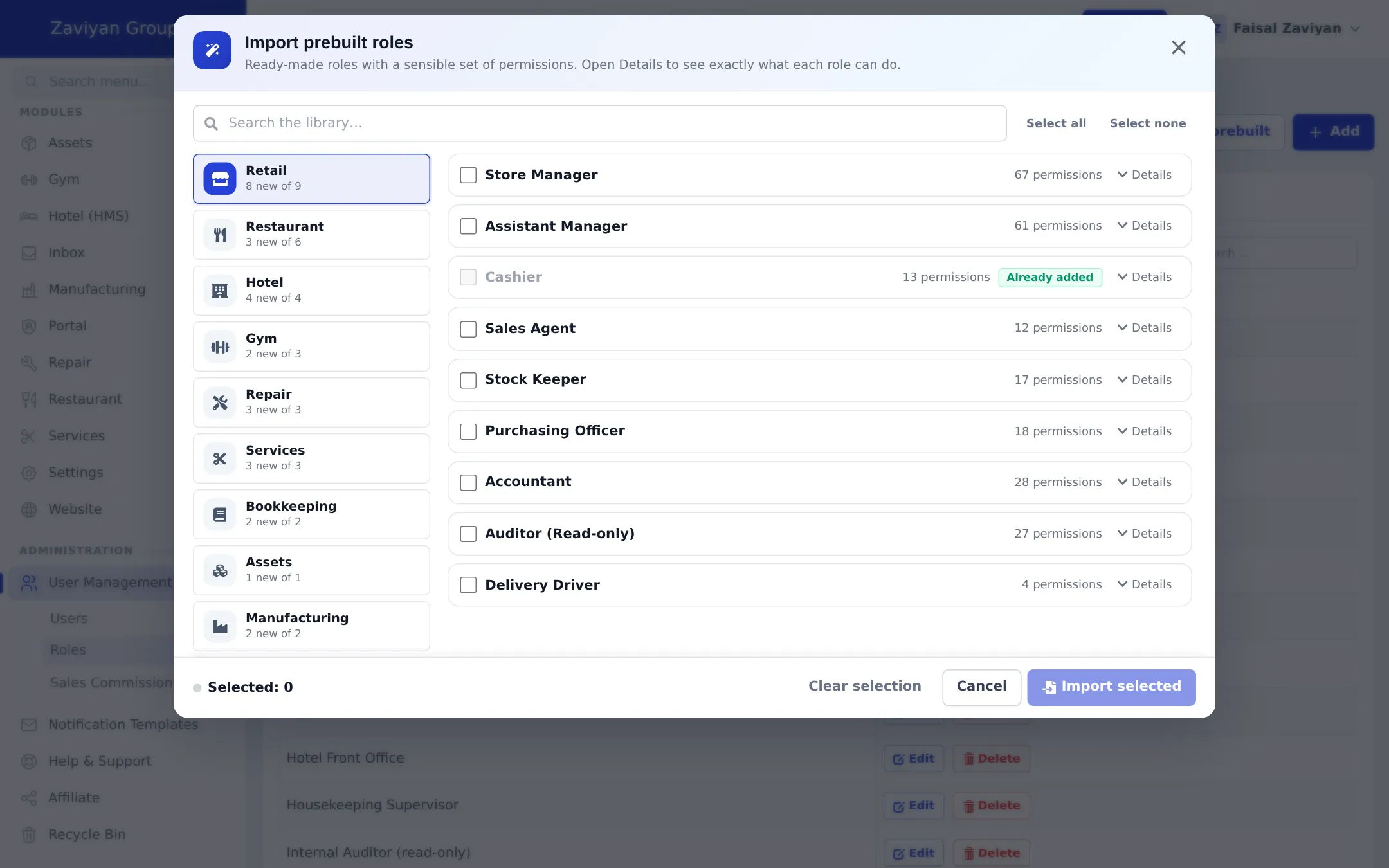
- Click Import prebuilt. Templates are grouped by trade (retail, restaurant, hotel, gym, repair, services, bookkeeping, support).
- Tick the roles you want. Click Details on a role to see its permissions.
- Click Import selected, check the confirmation list and confirm. Roles you already have are marked Already added and skipped.
Option B: create your own role
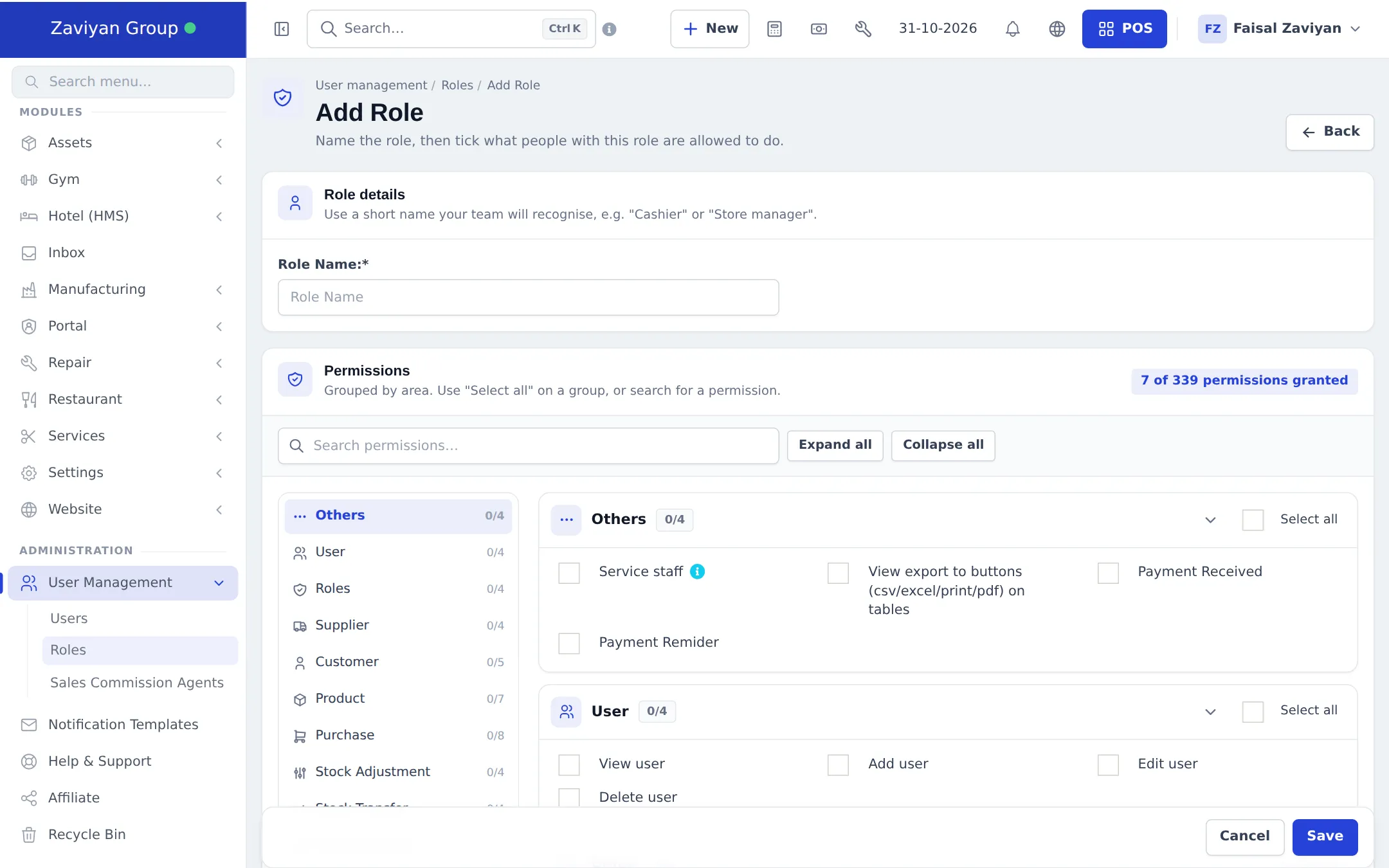
Section titled “Option B: create your own role”- On User Management › Roles, click + Add.
- Under Role details, type a Role Name your team will recognise, such as “Cashier” or “Store manager”.
- Under Permissions, open each group (for example User, Supplier, Customer, Product, Purchase, Stock Adjustment, Sell, Reports) and tick what this role may do. Use Select all on a group, or the Search permissions… box.
- Where a group says “Choose one” (for example view all sales or only own sales), pick one option.
- The counter at the top shows how many permissions are granted. Click Save.
Step 2: Add a user
Section titled “Step 2: Add a user”- Open User Management › Users and click + Add.
- Basic info: First Name, Last Name, Email (required), phone numbers, and Is active ? (inactive users cannot sign in).
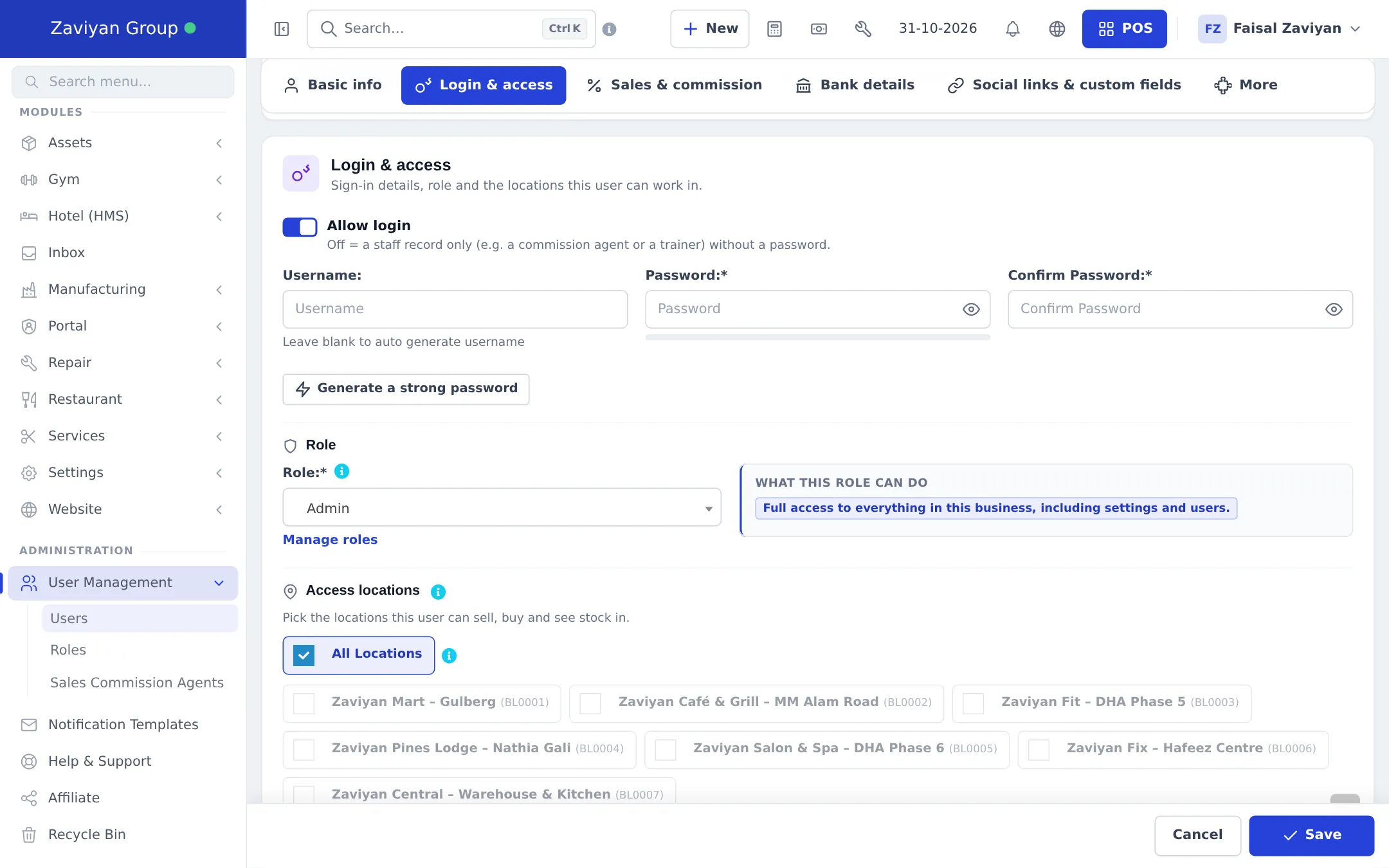
- Login & access: keep Allow login on. Type a Username (or leave blank to generate one), then a Password and Confirm Password, or click Generate a strong password.
- Role: pick the role. The box What this role can do summarises its permissions.
- Access locations: untick All Locations and tick the locations this person works in. With All Locations on, they can also work in any location you add later.
- Optional: Enable service staff pin for a short PIN to switch users quickly on the POS.
- Sales & commission: Sales Commission Percentage (%), Max sales discount percent, and Allow Selected Contacts if this user may sell only to certain customers.
- Optional: Bank Details and Social links & custom fields.
- Click Save in the bar at the bottom.
Give the person their username and password. They sign in at the same address you use, or in the SmartPOS Business app.
Step 3: Check the users list
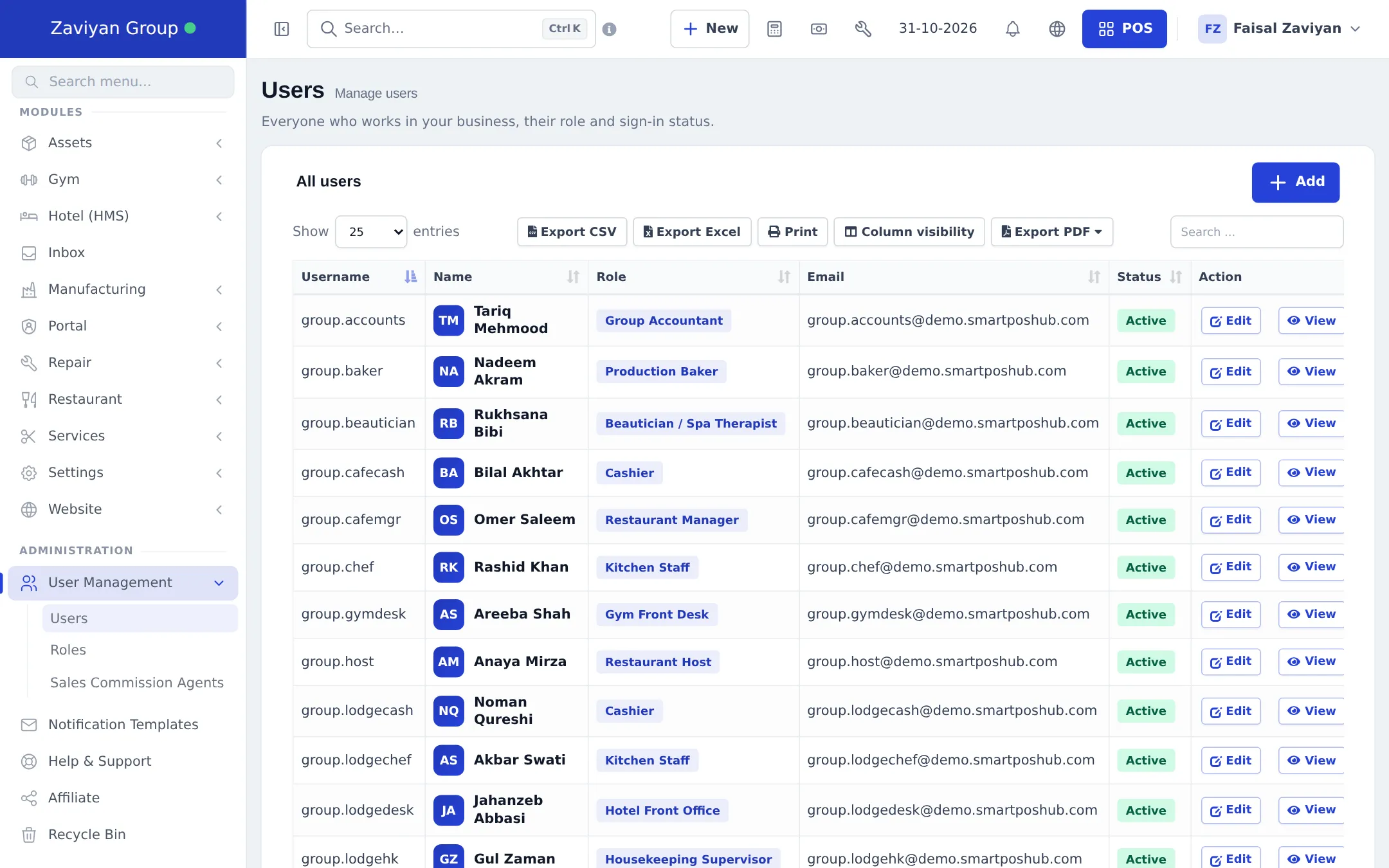
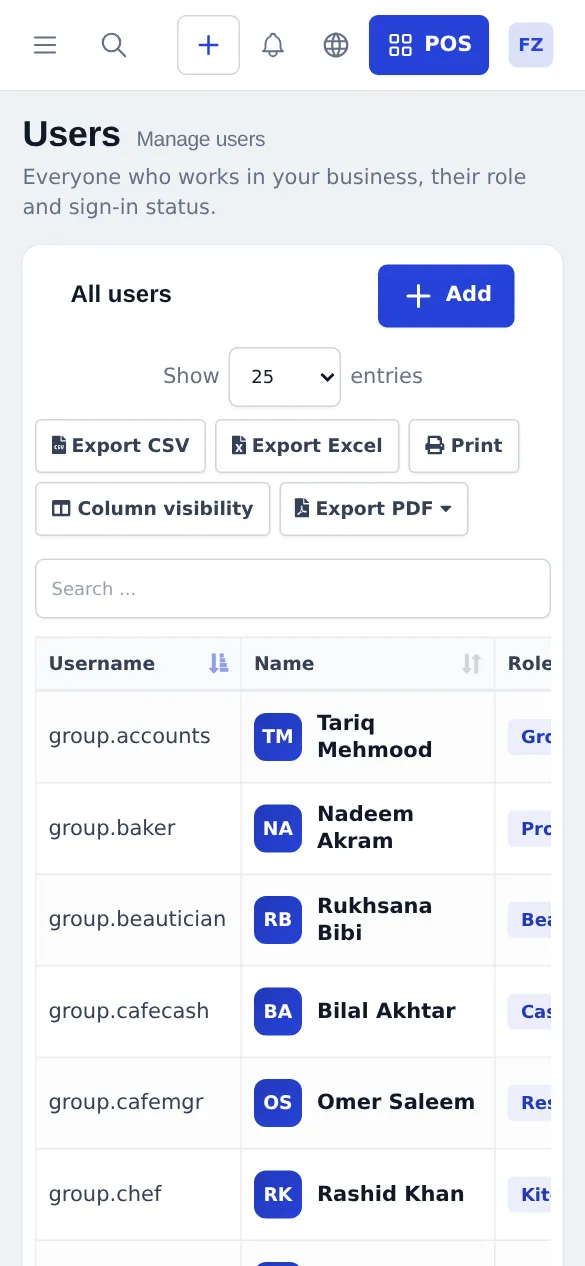
Section titled “Step 3: Check the users list”User Management › Users shows each user’s name, role and Status (Active or Inactive). Click a name to see their profile, sales this month, commission and last sign-in, and to Deactivate or Edit them.
Example setups
Section titled “Example setups”| Business | Roles | Location access |
|---|---|---|
| One shop | Admin (owner), Cashier | All Locations |
| Three branches + warehouse | Admin, Branch manager, Cashier, Storekeeper | Each cashier and manager: their branch. Storekeeper: warehouse |
| Restaurant | Admin, Restaurant Manager, Waiter, Kitchen Staff, Cashier | The restaurant location |
Tips and mistakes to avoid
Section titled “Tips and mistakes to avoid”- One login per person. Shared logins make the activity log and cash register reports useless.
- Remove access the day someone leaves: switch off Is active ?.
- Do not give Admin to cashiers. Admin can see costs, change prices and delete records.
- Edit a role, not each user. Changing a role updates everyone who has it.
- Mobile app access follows the same role and locations. See Devices and printers.
Related pages
Section titled “Related pages”Frequently asked questions
What is the difference between a user and a role?
A user is one person with their own login. A role is a set of permissions, such as Cashier or Store manager. You give each user one role, and many users can share the same role.
Can a cashier be limited to one branch?
Yes. On the user form, under Access locations, untick All Locations and tick only that branch. The cashier then sells, buys and sees stock only there.
Can I stop a cashier from seeing purchase prices or profit?
Yes. Create or edit their role and leave the purchase price and profit permissions unticked. Search the permission list on the role form to find them quickly.
Is there a ready-made set of roles?
Yes. On User Management, Roles click Import prebuilt to add role templates for retail, restaurant, hotel, gym, repair, services, bookkeeping and support. You can edit them after import.
How do I stop someone from signing in?
Edit the user and switch off Is active, or switch off Allow login. Their past sales and records stay.
Can staff use the mobile app with the same login?
Yes. Staff sign in to the SmartPOS Business app with the same username or e-mail and password. Under Settings, Mobile app you can allow the app for everyone who can sign in or only for chosen roles.
Do users count against my plan?
Yes. Your plan has a staff user limit. Settings, Package Subscription shows how many you use.
Can a user have a limit on discounts?
Yes. Set Max sales discount percent on the user form, under Sales and commission.