
Move stock between locations with stock transfers
A stock transfer moves products from one of your locations to another, for example from the central warehouse to a shop, or between two branches. Stock is tracked per location in SmartPOS Hub, so a transfer is how you refill a branch without buying again. This page is for owners, warehouse staff and branch managers.
Before you start
Section titled “Before you start”- You have at least two locations in Settings › Business Locations (see Add multiple locations).
- The products are assigned to both locations and have stock at the sending one.
- Your role has Add stock transfer (and Edit stock transfer to change the status), group Stock Transfer in User Management › Roles. The user must have access to both locations.
Transfer statuses
Section titled “Transfer statuses”| Status | Stock at From | Stock at To | Can still edit? |
|---|---|---|---|
| Pending | unchanged | unchanged | yes |
| In Transit | unchanged | unchanged | yes |
| Completed | goes down | goes up | no, locked |
Create a transfer
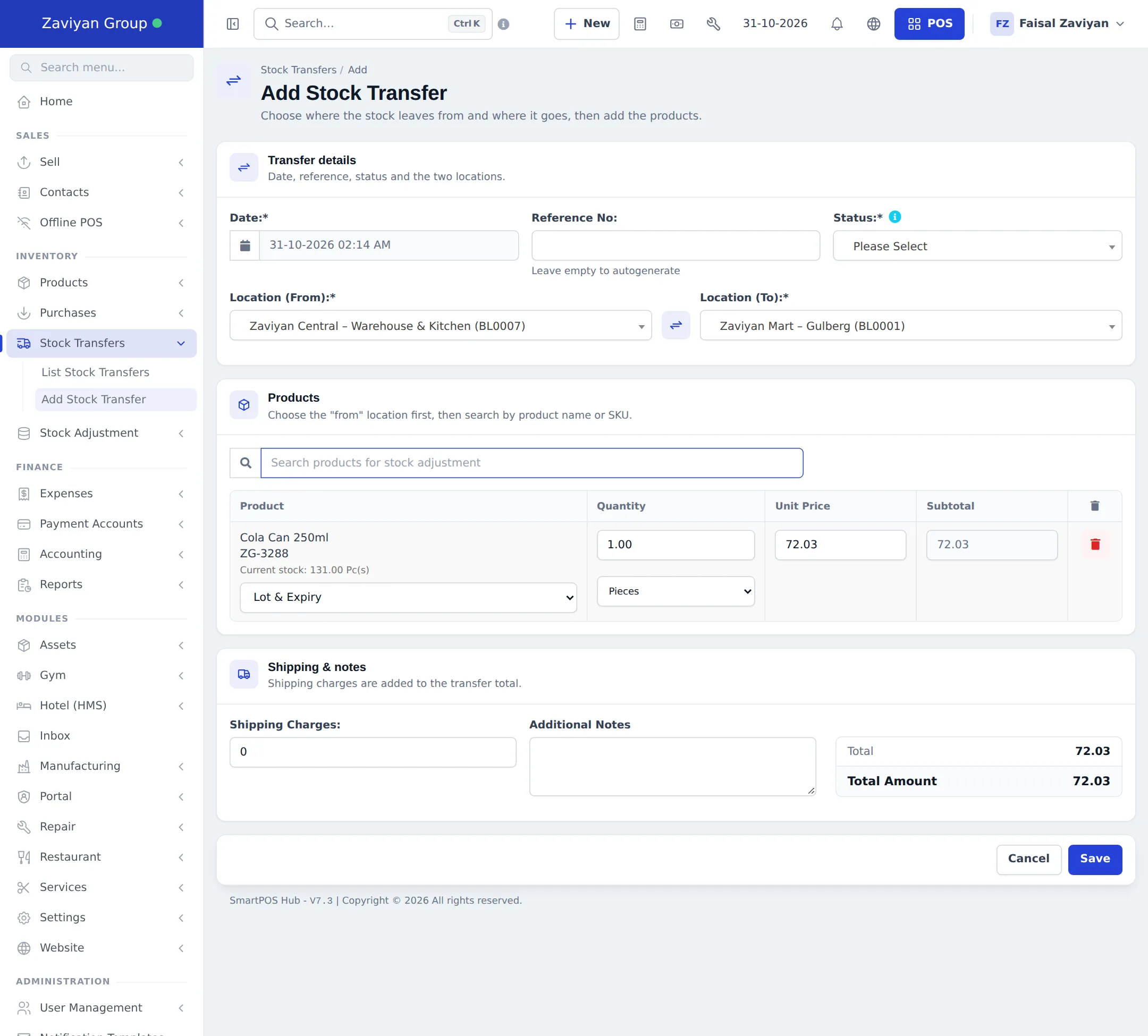
Section titled “Create a transfer”- Open Stock Transfers › Add Stock Transfer.
- Under Transfer details, check the Date and leave Reference No empty to number it automatically.
- Choose the Status: Completed if the goods move right now (for example between two shelves of the same building), In Transit if they are on the truck, or Pending if they still have to be packed.
- Choose Location (From) (where the stock leaves) and Location (To) (where it arrives). The arrows button between them swaps the two.
- Under Products, search by product name or SKU. Each line shows the Current stock at the From location. Enter the Quantity and, if lots or expiry are on, pick the batch under Lot & Expiry.
- Add Shipping Charges (fuel, courier) and Additional Notes if needed, then click Save.
Follow and complete a transfer
Section titled “Follow and complete a transfer”Stock Transfers › List Stock Transfers shows every transfer with both locations, the status, shipping charges and total amount.
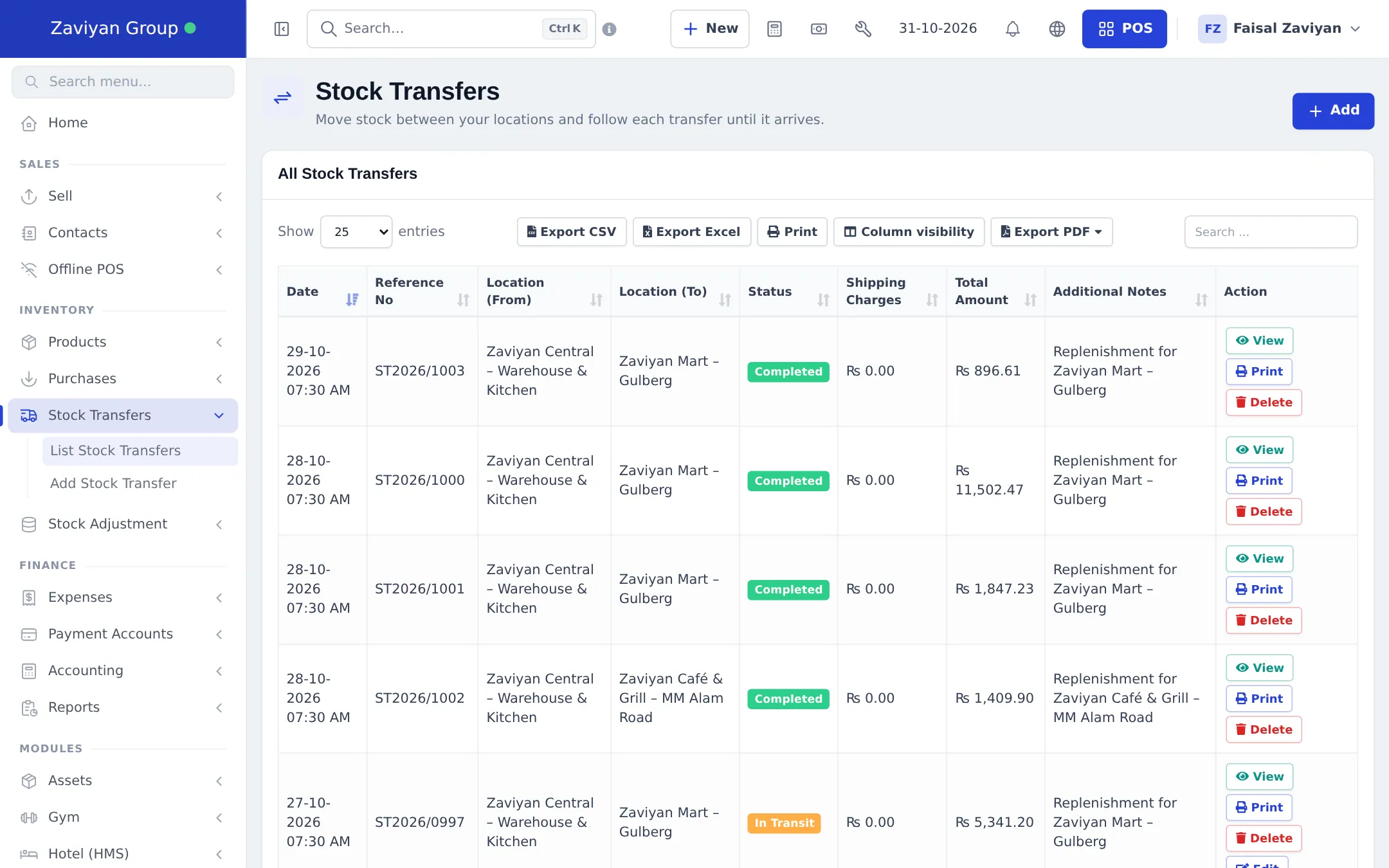
- Find the transfer marked In Transit or Pending.
- Click its status badge, choose Completed and save.
- The stock leaves the From location and is added to the To location. The transfer can no longer be edited.
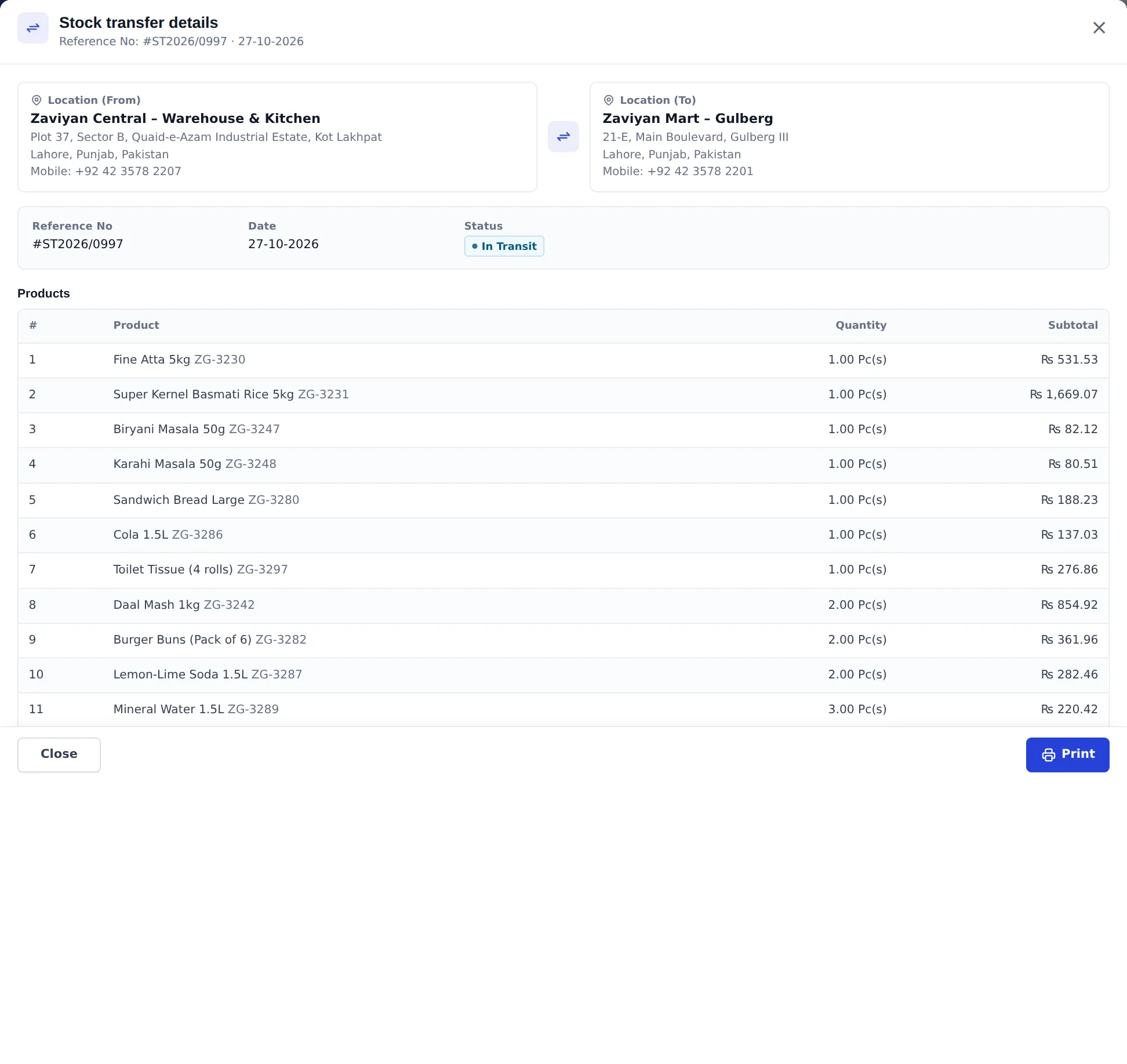
View opens the transfer with both addresses, the status and every product line. Print gives a delivery note to send with the goods so the branch can check what arrived.
Transfer from the Business app
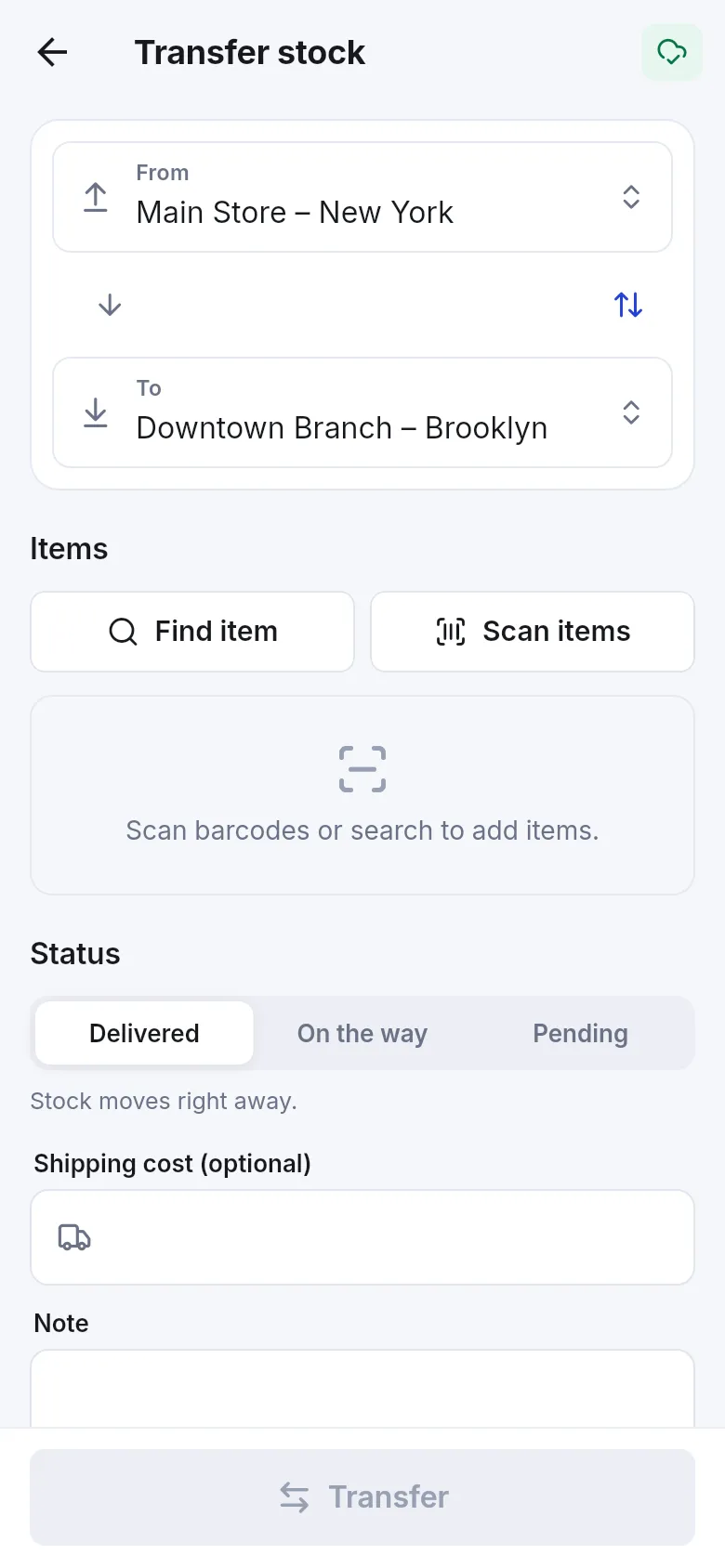
Section titled “Transfer from the Business app”In the SmartPOS Business app, open Stock › Transfer. Pick From and To, add items with Find item or Scan items, choose Delivered (stock moves right away), On the way or Pending, and tap Transfer.
Tips and mistakes to avoid
Section titled “Tips and mistakes to avoid”- Deleting a transfer reverses it; use it only for mistakes, not for returns from a branch. Send goods back with a new transfer the other way.
- A product must be enabled at the To location to be sold there. If it isn’t, edit the product and add the location.
- Check the Stock Report per location afterwards (see Stock reports).
Related pages
Section titled “Related pages”Frequently asked questions
When does the stock actually move?
Only when the transfer status is Completed. While a transfer is Pending or In Transit, the goods still count at the sending location and are not yet available at the receiving one.
How do I mark a transfer as arrived?
In Stock Transfers › List Stock Transfers, click the status badge of the transfer (Pending or In Transit), choose Completed and save. The stock then leaves the From location and is added to the To location.
Can I edit a completed transfer?
No. A completed transfer is locked so stock history stays correct. If something was wrong, record a new transfer back, or adjust the stock at the location.
Do I need two locations for transfers?
Yes. Transfers move stock between your own business locations. Add more locations in Settings › Business Locations; your plan sets how many you can have.
Is the transfer value a sale or expense?
No. Moving stock between your own locations is not a sale. Products move at their purchase price; only Shipping Charges add a cost.
Can I transfer stock from my phone?
Yes. In the SmartPOS Business app open Stock › Transfer, choose From and To, scan or find items, pick Delivered, On the way or Pending, and tap Transfer.
Do lots and expiry dates follow the transfer?
Yes. When lots or expiry are switched on, each transfer line has a Lot & Expiry choice so you send a specific batch.