
Electronics store step 7: move stock between stores
When one store runs out of a TV the other has, move it with a stock transfer instead of selling from the wrong location. Transfers keep each store’s stock and value correct.
Before you start
Section titled “Before you start”- Stock Transfers is switched on in Settings › Business Settings › Modules (step 1).
- You have stock in the sending location.
Create a transfer
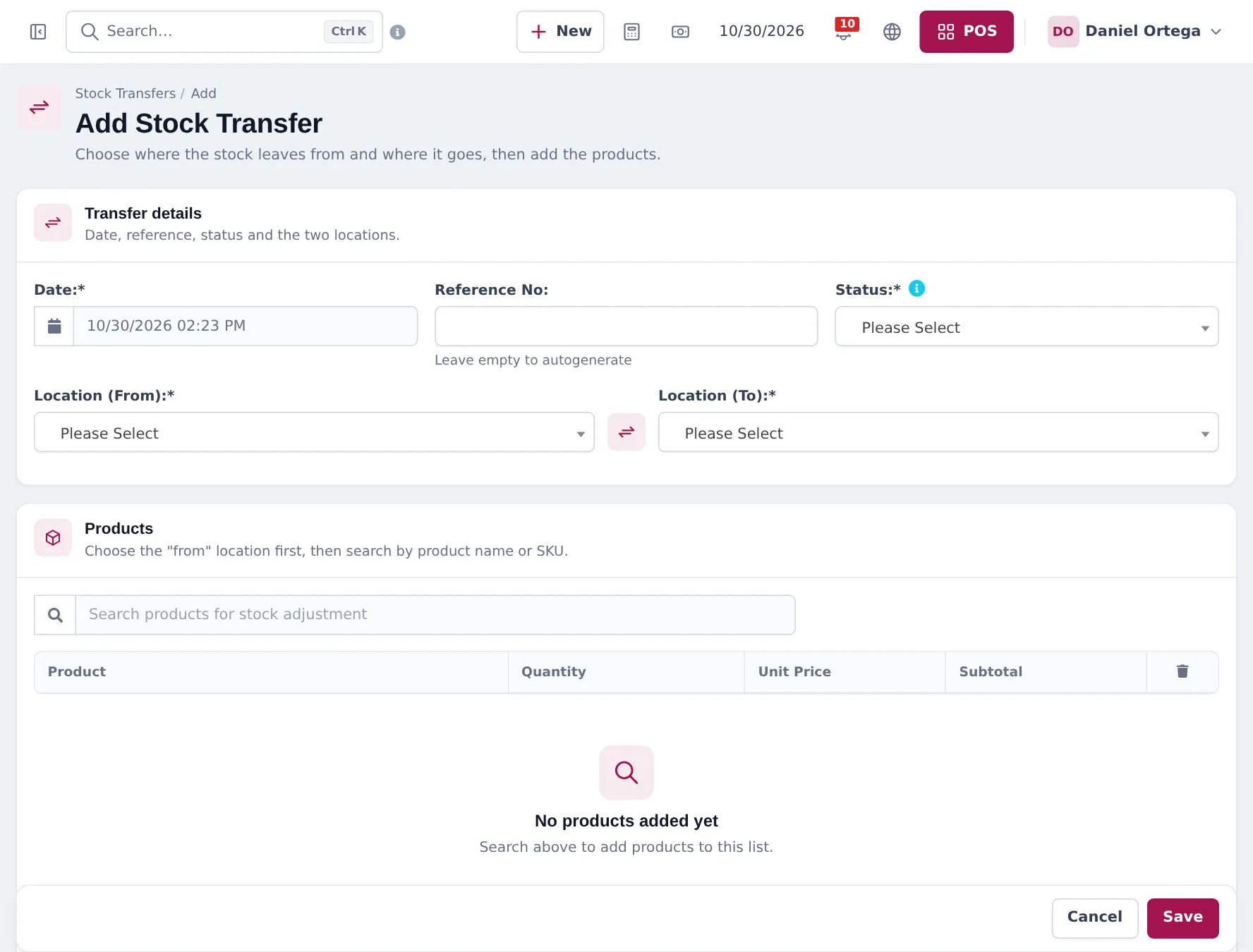
Section titled “Create a transfer”- Open Stock Transfers › Add Stock Transfer.
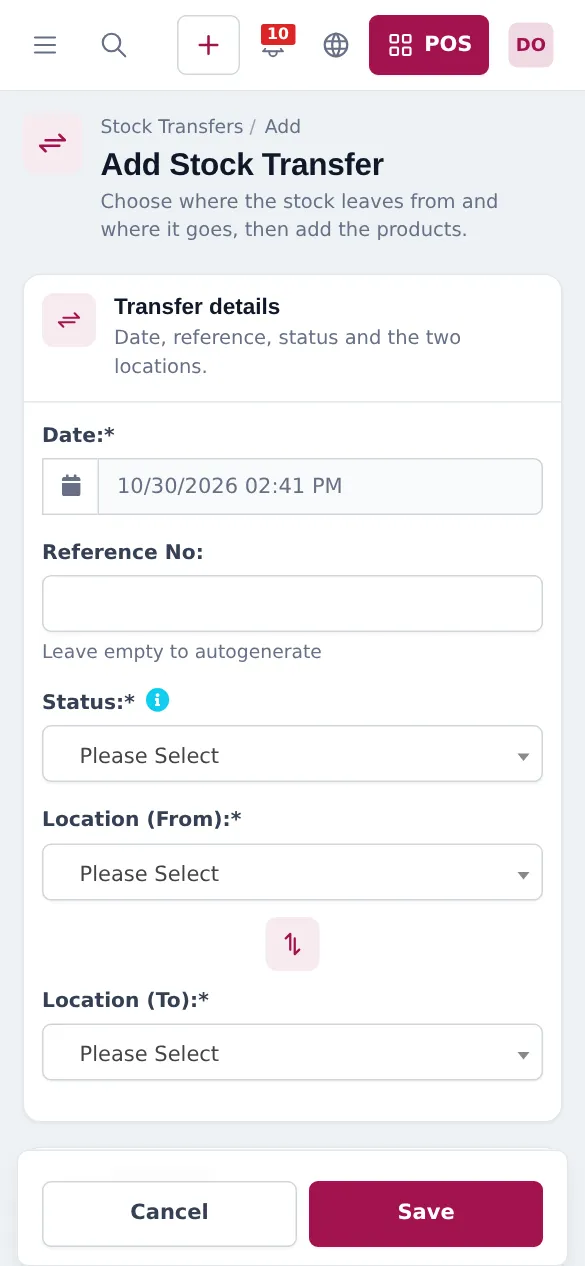
- Set the Date, an optional Reference No and the Status.
- Choose Location (From) and Location (To).
- Search the products (variants by barcode) and enter quantities.
- Add shipping charges and notes if needed, then Save.
- When the goods arrive, edit the transfer and set it to Completed.
Stock Transfers › List Stock Transfers shows every transfer with its status, so the receiving store knows what is coming.
Next: step 8: reports.
Frequently asked questions
When does stock leave one store and arrive in the other?
When the transfer status is Completed. Use Pending while you prepare it and In Transit while it is on the way.
Can I add shipping costs to a transfer?
Yes. A transfer has shipping charges, which are recorded with the transfer.
Can I transfer serialised items?
Yes, by quantity. Serial numbers are recorded at the sale, so transfers move quantities of the product or variant.
How do I see stock in every store for one product?
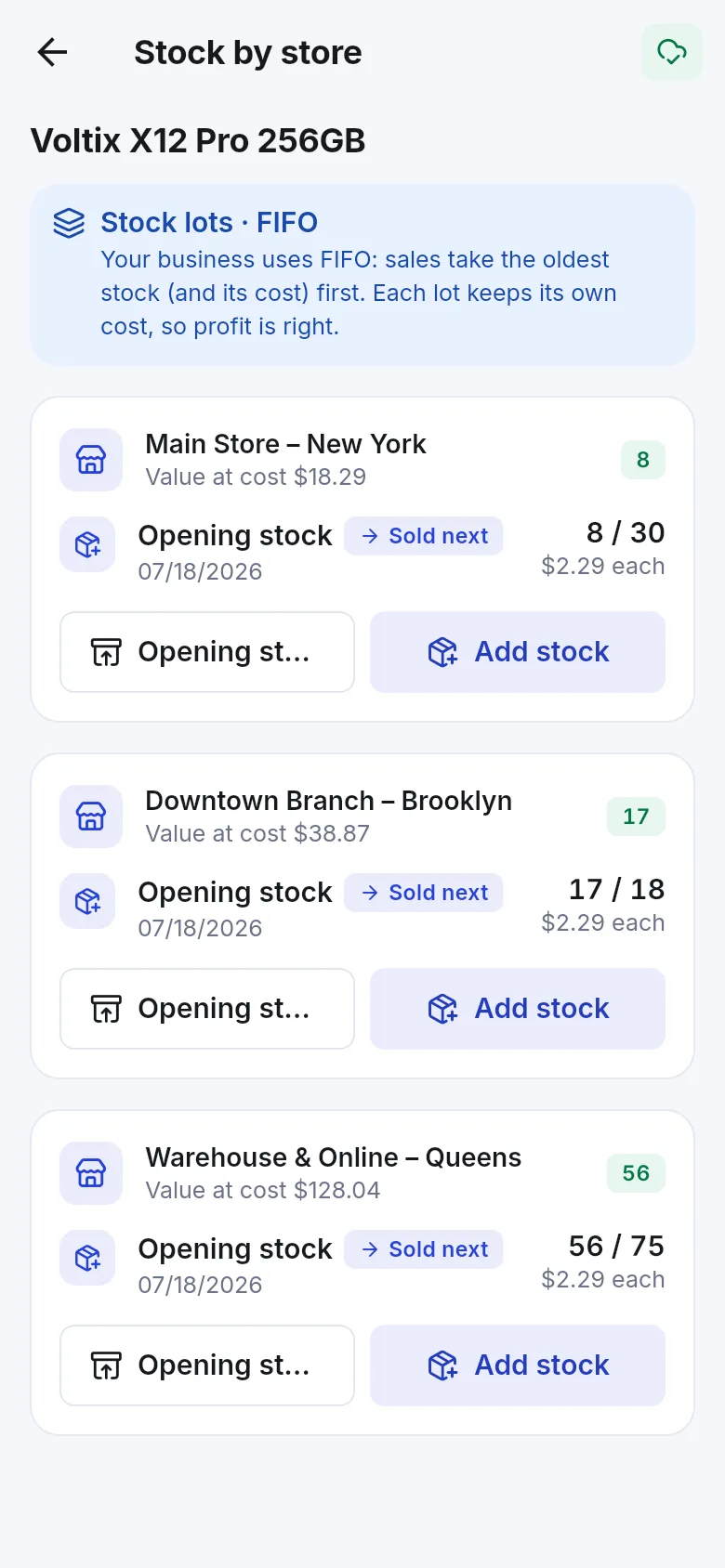
In the SmartPOS Business app, open the product and Stock by store. On the web, use Reports › Stock Report with the location filter.