
Tech store step 2: import phones and laptops
The fastest way to fill a phone and laptop shop is the Electronics catalog in the Product Library. Each product arrives with its name, brand, category, barcode, photo, description and, for phones and laptops, one variant per storage and colour. You add your own prices and stock afterwards.
Before you start
Section titled “Before you start”- Step 1 is done: your locations exist and the Product Library switch is on.
- Decide which departments you sell. A phone shop usually needs Mobiles & Tablets, Accessories, Wearables and Audio; a laptop shop adds Computers.
Pick what to import
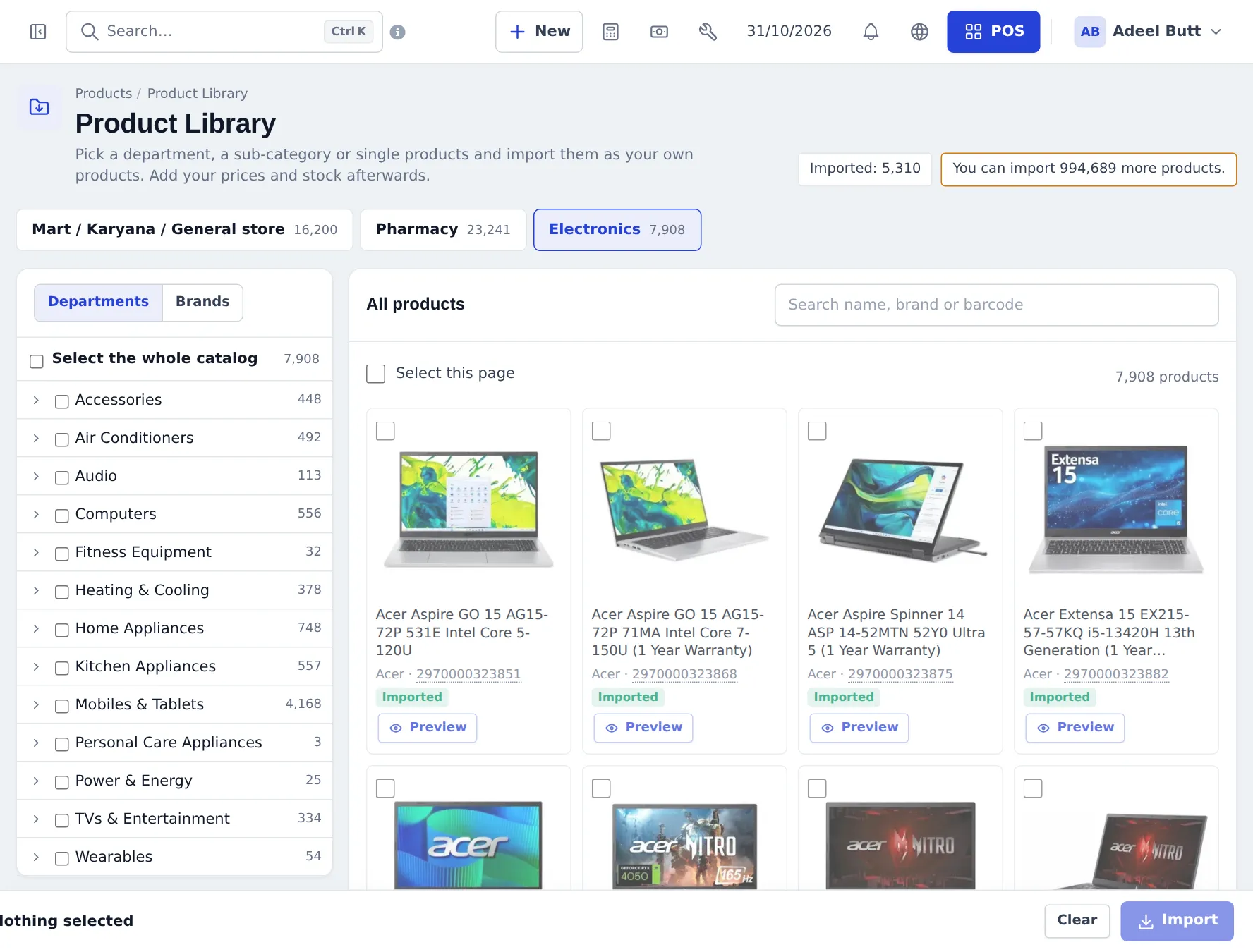
Section titled “Pick what to import”- Open Products › Product Library and choose the Electronics tab.
- In Departments, open Mobiles & Tablets to see Smartphones, Feature Phones and Tablets, then brands. Tick a whole department or a sub-category.
- To pick single products, search by name, brand or barcode in the product grid and tick the cards you want.
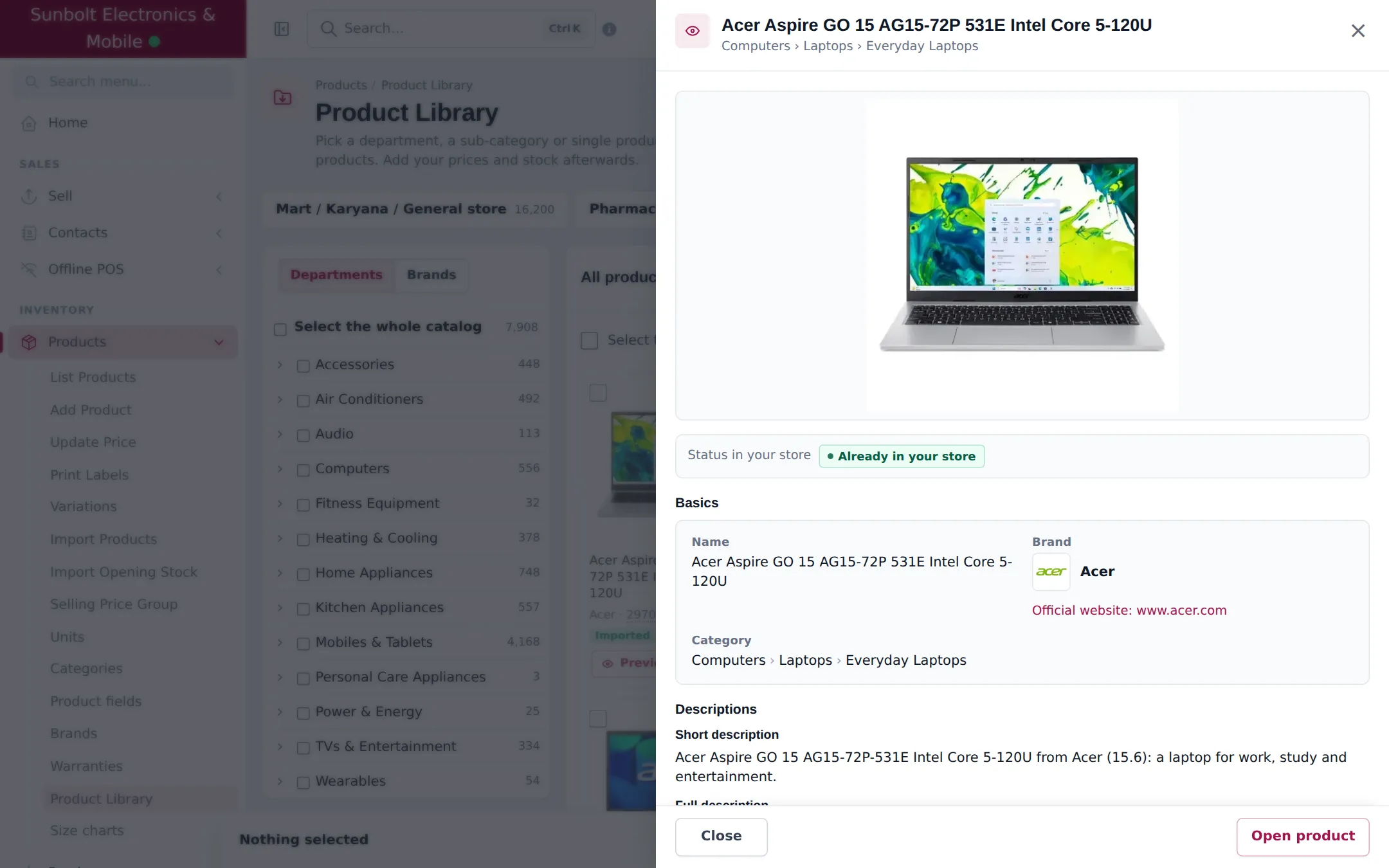
- Click Preview on any card to see everything the library holds for that product before you import it.
- Check the selection bar at the bottom, then click Import.
Choose the import options
Section titled “Choose the import options”The Import products window asks for:
| Option | What to choose |
|---|---|
| Business locations | The branches that will sell these products. Default is all. |
| Tax | Your sales tax rate, or No tax. |
| Manage stock for these products | Keep it ticked for phones, laptops and accessories. |
| Suggested selling price | Only shown for PKR businesses. Leave it off if you set your own prices. |
The window then shows a preview: Will create, Will reuse (already in your store) and Will skip, with reasons such as Already imported, Barcode already in your store or Over your plan limit. Click Import now and follow the progress bar. You can leave the page; the import keeps running and Recent imports shows the result.
What you get
Section titled “What you get”- Phones and laptops with several options become variable products, with one variant per option, for example “8GB / 256GB / Black”. Each variant has its own barcode and photo.
- Categories, sub-categories and brands are created if you do not have them yet, and matched by name if you do.
- Products without a manufacturer barcode get a generated barcode that starts with 297. You can print labels for them in Products › Print Labels.
- Import in small batches (one department at a time) so you can check prices as you go.
- Repair parts and labour are not in the Electronics catalog. Add them yourself as products (parts) and service products (labour), see step 6.
- Next: step 3: variants, warranties and IMEI.
Frequently asked questions
Does importing from the Product Library cost extra?
No extra fee, but the Product Library must be in your plan and your plan's product limit still applies. The page shows how many more products you can import.
Do imported products come with prices?
No, prices start at 0 so you set your own. In businesses that use PKR, the import dialog can fill a suggested selling price where one is known.
Will the import create duplicates of products I already have?
No. Products you already imported, and products whose barcode already exists in your store, are skipped. The preview shows what will be created, reused and skipped before anything happens.
Can I edit an imported product?
Yes. After the import the product is yours. Change the name, price, category, photos or variants like any other product.
Can I import only one brand?
Yes. Use the Brands tab, or tick a department and untick the products you do not want, or search and tick single products.
What if a phone I sell is not in the library?
Add it yourself with Products › Add Product. Use a variable product for storage and colour options.