
Size charts for clothing, shoes and rings
Size charts help your customers pick the right size and cut down on returns. You build a table of sizes (INT XS to 5XL, US, UK, EU, JP and more) with body measurements such as chest, waist or foot length, then attach it to products, categories or brands. Clothing boutiques, shoe stores, uniform and kidswear shops, jewelers (ring sizes) and abaya or shalwar kameez stores use it.
What a size chart contains
Section titled “What a size chart contains”- Columns: size systems (INT, US, UK, EU, IT, FR, DE, ES, JP, CN, KR, AU, BR, MX, RU, IN, PK, Mondopoint), body measurements (chest, bust, waist, hips, inseam, foot length, finger circumference and many more) or your own columns.
- Rows: one per size. Ranges are written like
86-91. - Unit: cm or inches, with an option to Let shoppers switch between cm and inches.
- How to measure and a Fit note, plus an optional image.
- Applies to: categories, brands, or brand + category combinations.
First-time setup
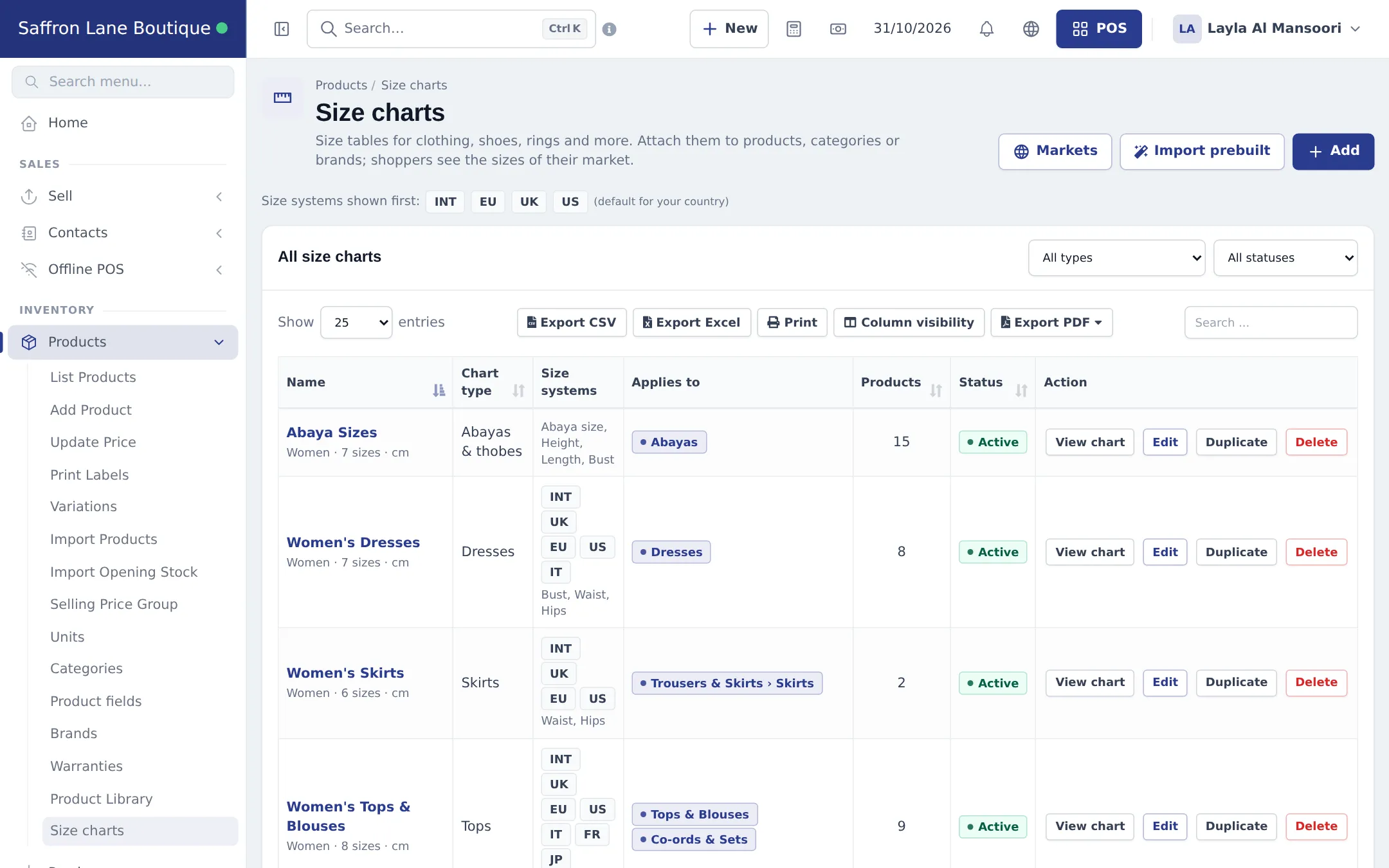
Section titled “First-time setup”- Open Products › Size charts.
- Click Import prebuilt to start from ready-made charts: women’s, men’s, kids and baby, shoes, lingerie, accessories (rings, belts, hats), South Asian wear and Middle Eastern wear. Tick the charts you need and import them. Imported charts are active but not attached yet.
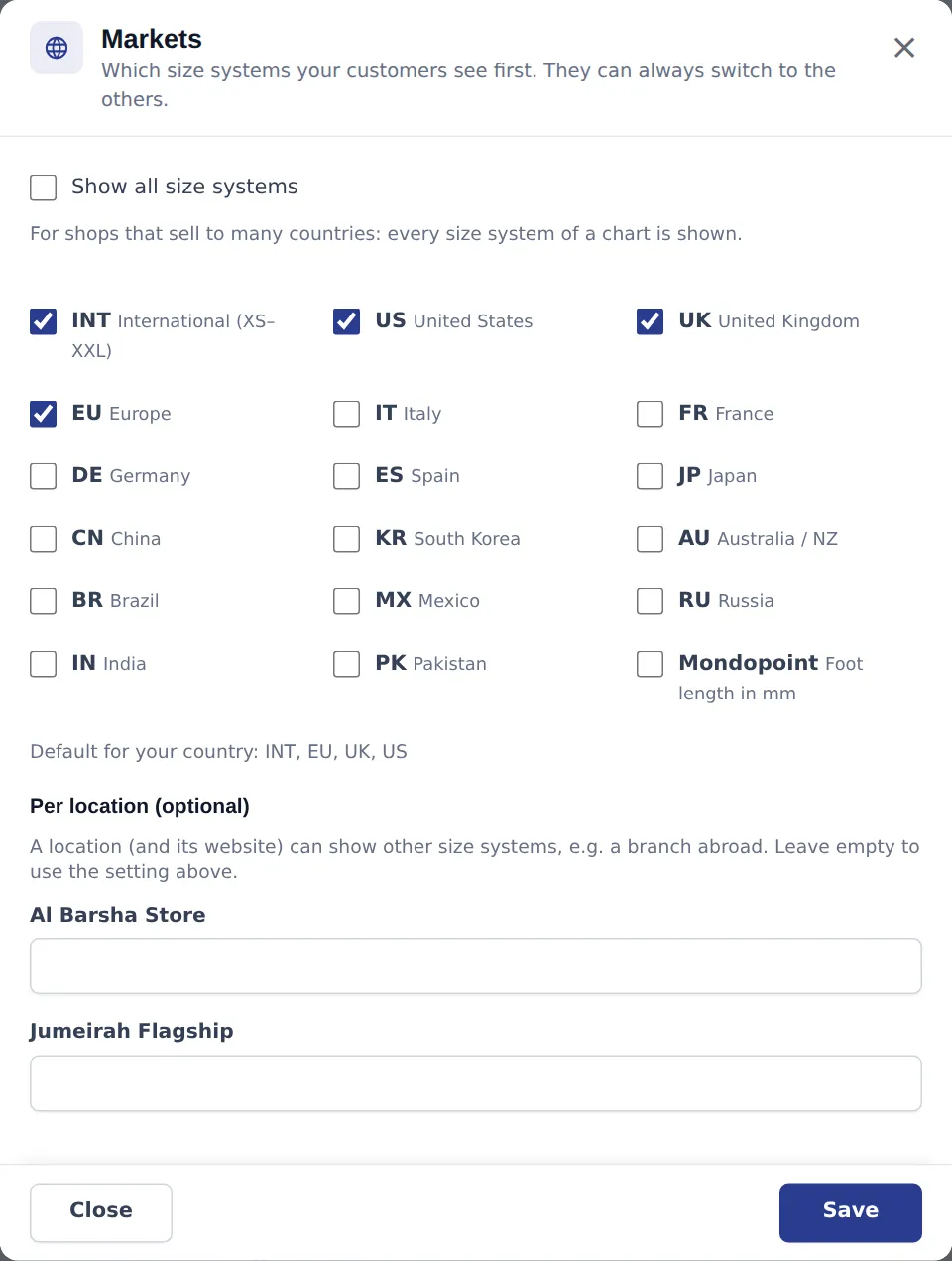
- Click Markets and choose which size systems your customers see first. The default for your country is ticked already. Tick Show all size systems if you sell to many countries. Under Per location (optional) you can give a branch abroad its own systems.
- Click Edit on each chart and set Applies to: pick the categories and brands it covers. The page shows how many products it applies to.
Everyday use
Section titled “Everyday use”Add or edit a chart
Section titled “Add or edit a chart”- Click Add (or Edit on a chart).
- Fill in the name, chart type and who it is for.
- In the grid, add columns from size systems, measurements or a custom column, then add a row per size. You can paste a block straight from Excel or Google Sheets, or use Paste from spreadsheet.
- Set Applies to, add How to measure and a Fit note if useful.
- Save. The message tells you how many products the chart now applies to.
Choose a chart on one product
Section titled “Choose a chart on one product”On the product form, the Size chart field sits next to Warranty:
| Choice | Result |
|---|---|
| Automatic (from category or brand) | Uses the chart of its sub-category, category or brand. The hint shows which chart, for example Shows “Women’s Dresses” (from category Dresses). |
| No size chart | This product never shows a size chart. |
| A chart name | Always shows that chart. |
When several rules match, the most specific wins: product, then brand + category, then sub-category, then category, then brand.
At the till and online
Section titled “At the till and online”- In the POS, click the product name in the cart row to open its window, then Size chart to show the chart with that row’s size highlighted.
- In your online store and shop widgets the product shows a Size guide in your Markets size systems.
- You can also set a chart per product in Import Products with the SIZE CHART (name) column.
Permissions
Section titled “Permissions”| Permission (Roles page, SizeCharts section) | What it allows |
|---|---|
| View size charts | Open Products › Size charts and view charts |
| Add, edit and delete size charts | Add, edit, duplicate, delete, import prebuilt charts and change Markets |
Staff who can view products or sell can always open a chart from the product view or the POS without these permissions.
- Brands fit differently. Duplicate a chart and adjust it for a brand that runs small, then attach it to that brand + category.
- Use Duplicate to make a kids version of an adult chart quickly.
- Keep variation names matching the size column (S, M, L or 38, 40, 42) so the right row is highlighted.
Related pages
Section titled “Related pages”Frequently asked questions
Do size charts cost extra?
No. Size charts are part of every plan and have no module switch. You only need the View size charts and Add, edit and delete size charts permissions.
Is a size chart the same as variations?
No. Variations are the sizes you sell, each with its own stock and price. A size chart only describes what each size means (chest, waist, EU or US size). The chart links to your variations by size name.
Do I have to attach a chart to every product?
No. Attach a chart to a category, a sub-category, a brand or a brand plus category, and every matching product shows it automatically. Pick a chart on a single product only for exceptions.
Which size systems will my customers see?
The ones set under Markets, which start from a default for your country. A location can show different systems, and customers can always switch to the others on the chart.
Can I stop a product from showing a chart?
Yes. On the product form choose No size chart in the Size chart field. The product will never show one, even if its category has a chart.
Where do customers see the size chart?
On the product page of your online store and in shop widgets as a Size guide. Staff can also open it at the till from the product row in the POS.
What happens when I delete a chart?
It moves to the Recycle Bin and products stop showing it. You can restore it from the Recycle Bin.