
Opening stock – enter the stock you already have
Opening stock is the stock you already have on your shelves and in your stores the day you start with SmartPOS Hub. Entering it, per location and at the right cost, makes your stock counts, low-stock alerts and profit correct from day one. This page shows the four ways to add it.
Before you start
Section titled “Before you start”- The product must have Manage Stock? ticked and be available in the location.
- Know the unit cost (before tax) of what you have. If you don’t know it exactly, use your last purchase price.
- To record lot numbers or expiry dates, turn on Enable Lot number and Enable Product Expiry in Business settings. See Expiry and batches.
- Your role needs the opening stock permission.
Option 1: while adding the product
Section titled “Option 1: while adding the product”On Products › Add Product, after choosing the Business Locations in Stock, the Opening stock part shows one row per location. Type the quantity you have and check the Stock date. See Add a product.
Option 2: for one existing product
Section titled “Option 2: for one existing product”- Open Products › List Products.
- On the product, choose Actions › Add or edit opening stock.
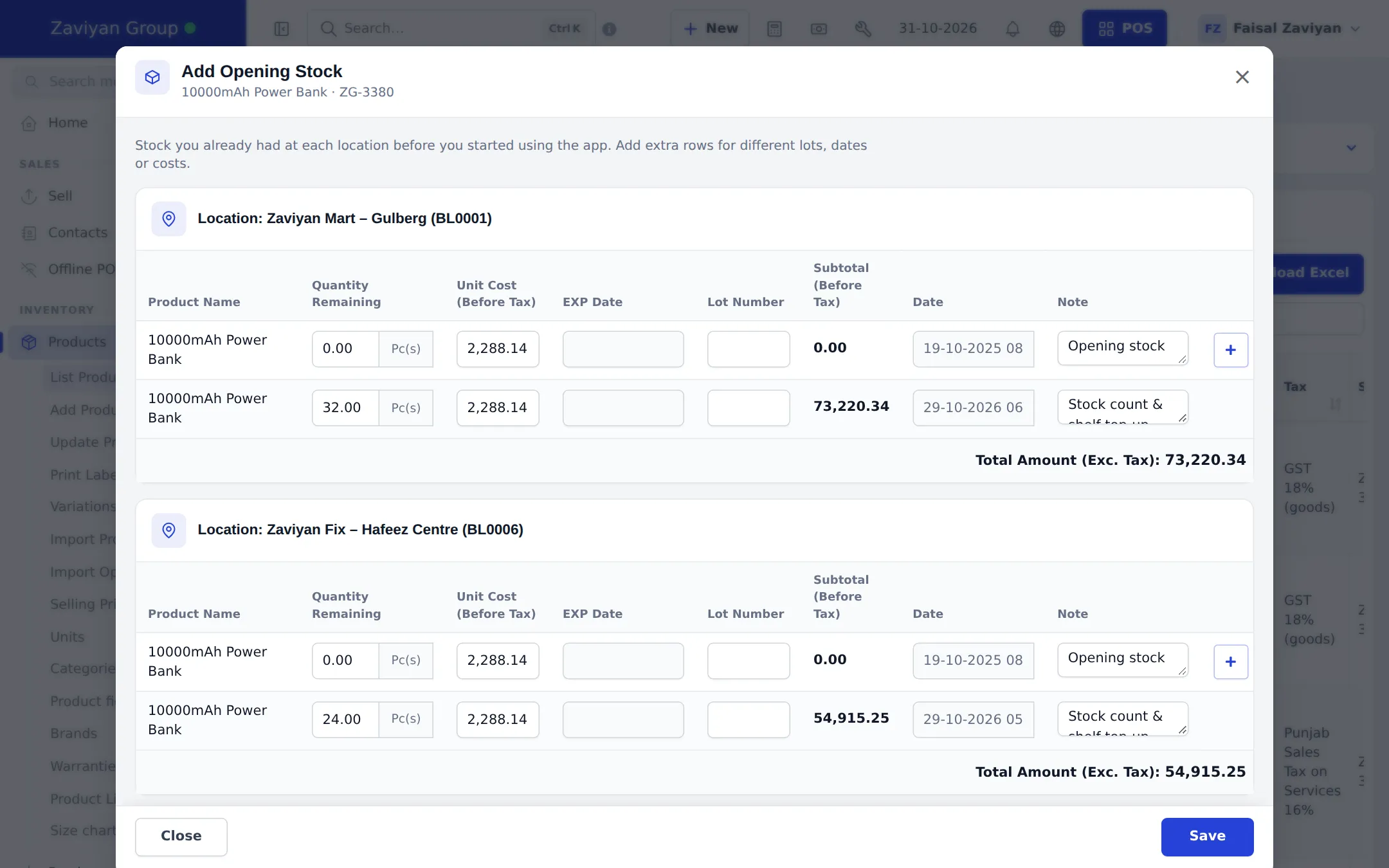
- The Add Opening Stock window shows one card per location. For each location enter Quantity Remaining and Unit Cost (Before Tax). Add EXP Date and Lot Number if you use them, the Date and a Note.
- Click + to add another row for a different lot, expiry date or cost.
- Check Total Amount (Exc. Tax) for each location and click Save.
Option 3: many products from Excel
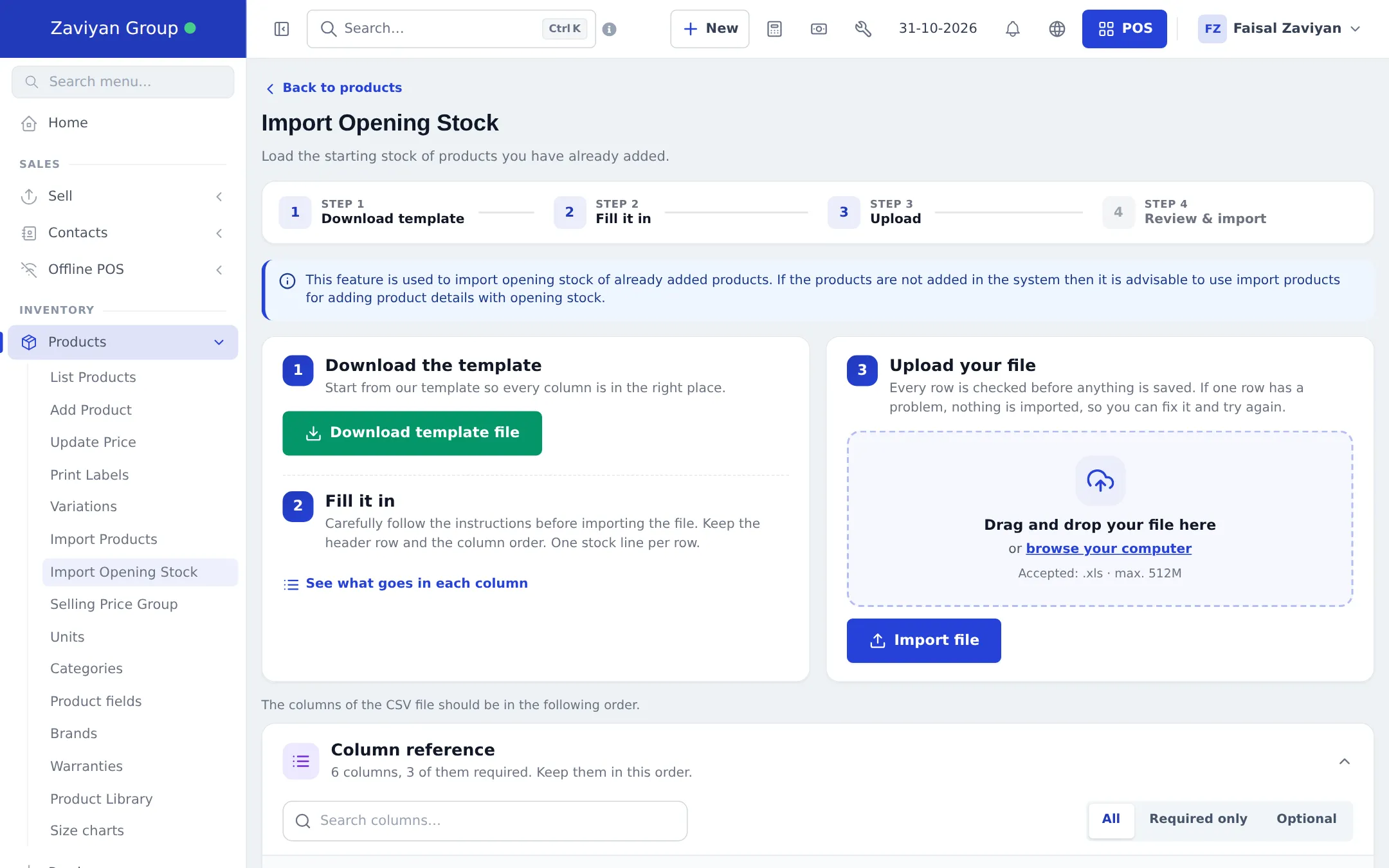
Section titled “Option 3: many products from Excel”- Open Products › Import Opening Stock.
- Click Download template file.
- Fill one stock line per row: SKU (required; for a variable product use the variant’s SKU), Location (blank = first location), Quantity (required), Unit Cost (Before Tax) (required), Lot Number, Expiry Date.
- Upload the file and click Import file. If any row has a problem, nothing is saved and you see the row to fix.
Option 4: in the SmartPOS Business app
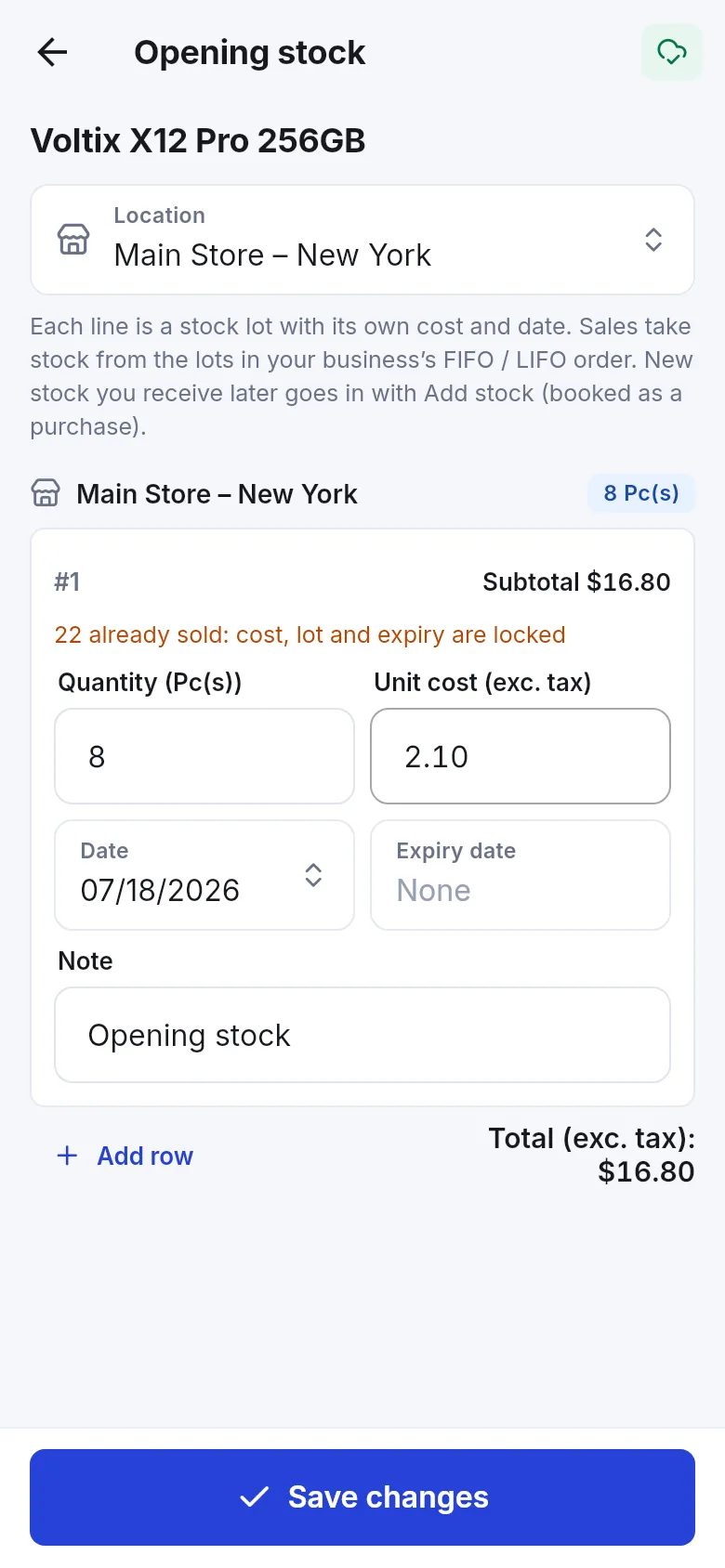
Section titled “Option 4: in the SmartPOS Business app”Open the product and tap Opening stock. Pick the Location, then enter the Quantity, Unit cost (exc. tax), Date, Expiry date and a Note for each lot. Tap Add row for another lot and Save changes. Once part of a lot has been sold, its cost, lot and expiry are locked.
After you save
Section titled “After you save”- Current stock in the product list and the stock report update for each location.
- The stock is valued at the cost you entered, and sales take stock from the lots in your business’s FIFO or LIFO order.
- Later deliveries go in as purchases; corrections after a count go in as stock adjustments or a stock count.
Related pages
Section titled “Related pages”Frequently asked questions
What is opening stock?
The quantity of a product you already had in each location before you started using SmartPOS Hub, with its unit cost. It is the starting point for stock and profit.
Should new deliveries be entered as opening stock?
No. Opening stock is only for what you had at the start. Stock you receive later is entered as a purchase, so your supplier balance and costs stay right.
Why does the unit cost matter?
Profit is worked out from the cost of the stock you sell. With a wrong or zero cost, your profit report will be wrong.
Can I enter different lots or expiry dates?
Yes. Click + to add another row for the same product with its own quantity, cost, lot number and expiry date.
Can I import opening stock from Excel?
Yes. Products › Import Opening Stock takes SKU, Location, Quantity, Unit Cost (Before Tax), Lot Number and Expiry Date for products that already exist.