
Payment methods - cash, card, split pay and payment links
SmartPOS Hub records how every sale is paid: cash, card, cheque, bank transfer, your own custom methods, store credit and gift cards, plus online payments through payment links. This page explains each way to take payment at the POS and how to set the methods up for each shop.
Quick buttons at the POS
Section titled “Quick buttons at the POS”| Button | Result |
|---|---|
| Cash | Sale paid in full in cash (express checkout) |
| Card | Sale paid in full by card (the card details window may open) |
| Multiple Pay (V2: Pay) | Payment window: any method, split, part payment, notes and change |
| Credit Sale | Nothing paid now; the total becomes due (credit sales) |
The payment window (Multiple Pay)
Section titled “The payment window (Multiple Pay)”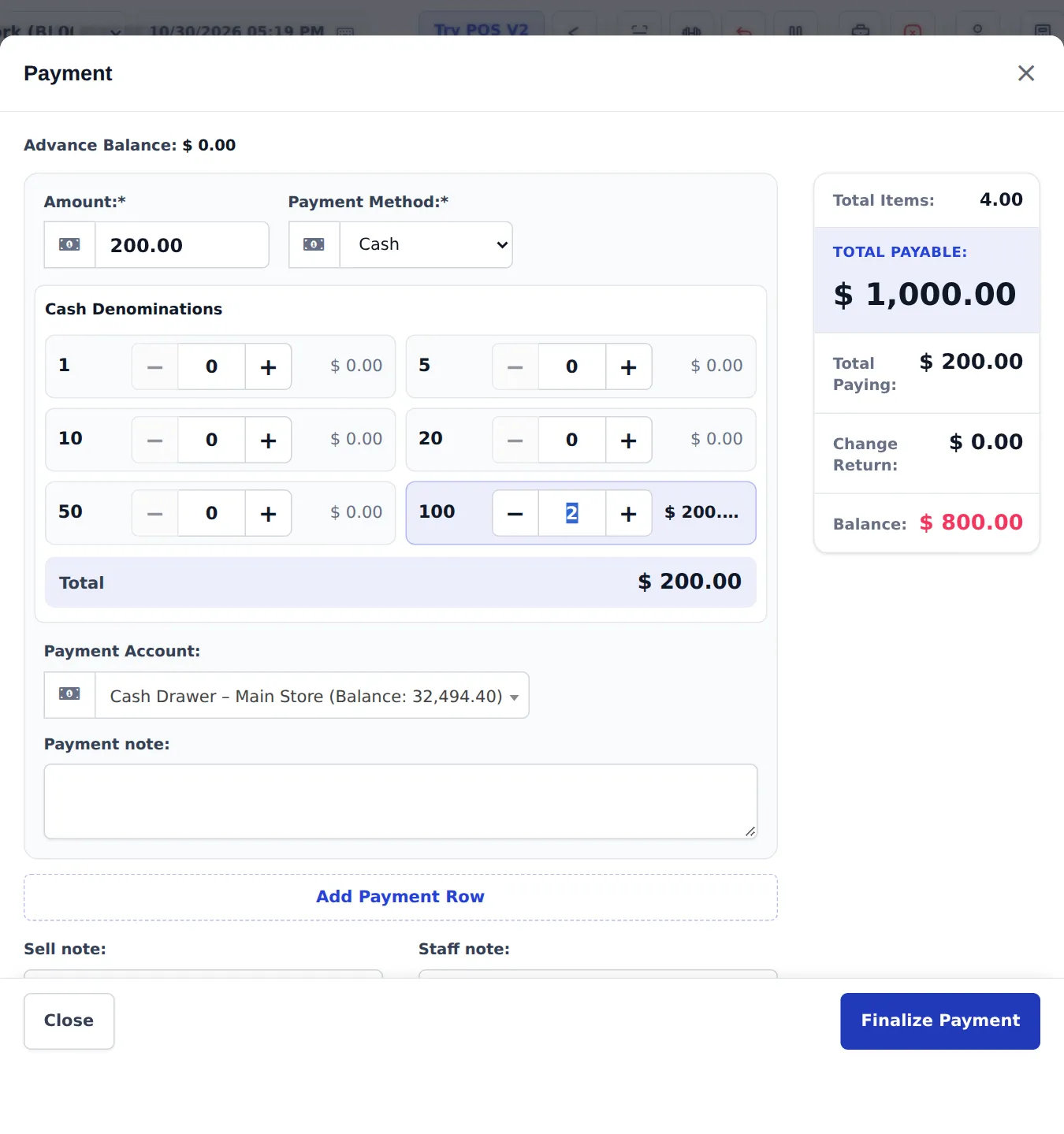
- Amount — what the customer pays with this method.
- Payment Method — Cash, Card, Cheque, Bank Transfer, Other, your custom methods, Store credit (advance) or Gift card (when switched on). Each method asks for its own details (card number and type, cheque number, bank account, transaction number, gift card code).
- Cash Denominations — tap + / − for each note you received; the amount fills in by itself.
- Payment Account — the cash drawer or bank account that receives the money (pre-filled from the location’s defaults).
- Add Payment Row — add a second method to split the payment.
- Check the summary: Total Payable, Total Paying, Change Return (money to give back) and Balance (left due).
- Add a Sell note or Staff note if needed, then Finalize Payment.
If Balance is above zero, the POS asks you to confirm; the rest becomes due on the customer’s account.
Set up payment methods for a shop
Section titled “Set up payment methods for a shop”- Turn methods on per location: Settings › Business Locations › edit the location › Payment Options — tick the methods this shop accepts and pick the default Payment Account for each.
- Rename custom methods: Settings › Business Settings › Custom Labels › Labels for custom payments (for example Mobile wallet, Voucher).
- Cash denominations: Settings › Business Settings › Payment — enter your notes (for example
10,20,50,100,500,1000,5000), choose on which screens and for which methods the counter shows, and whether the count must match the amount exactly. - Accounts: money lands in the accounts of Payment accounts.
Online payments and payment links (Settings › Payments)
Section titled “Online payments and payment links (Settings › Payments)”Settings › Payments is the one place for your payment gateways (Stripe, PayPal, Square and many regional providers) and offline methods such as bank transfer details with a QR code. For each one you choose where it is used: online store, Shopper app, invoice pay links, bookings and more.
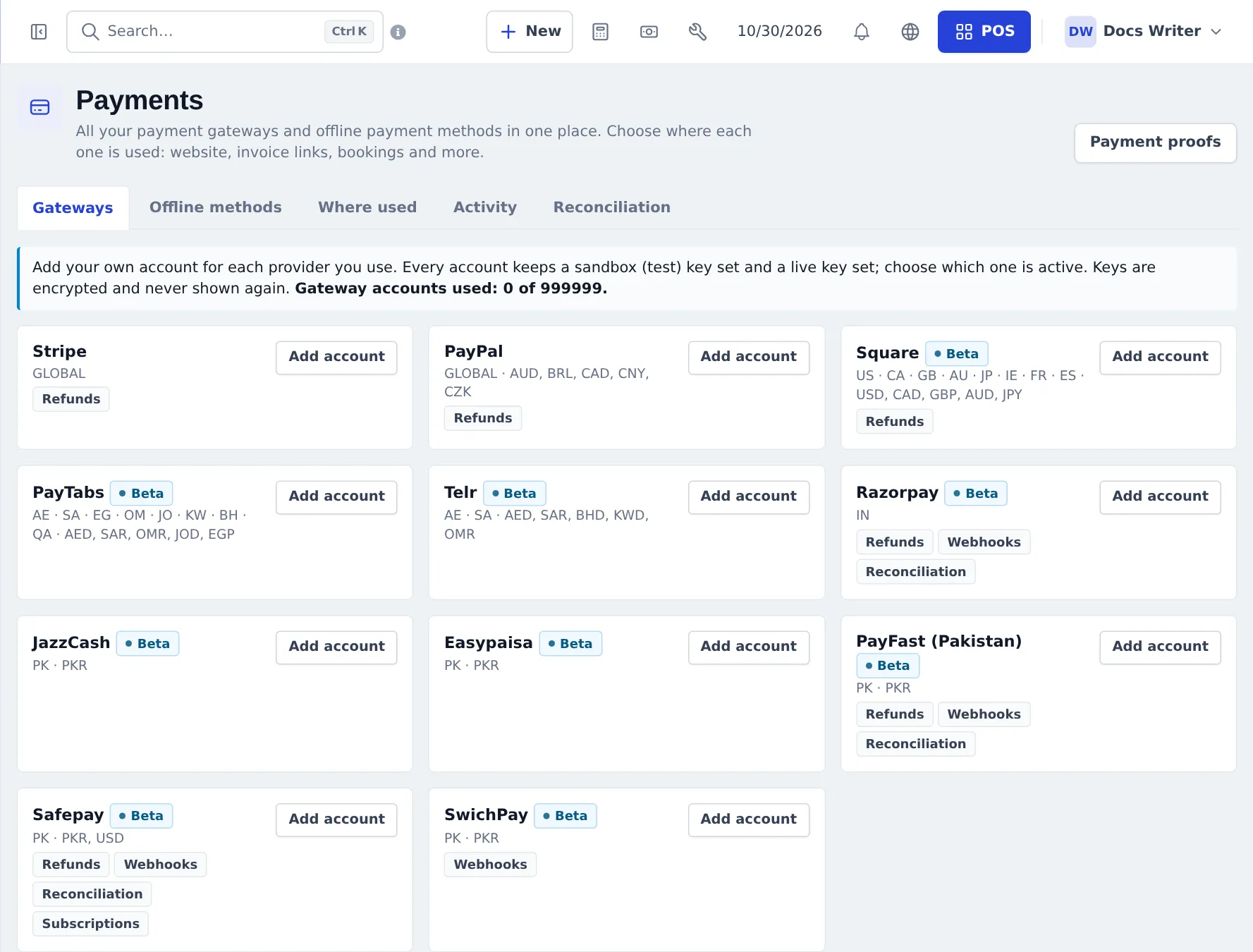
- Open Settings › Payments › Gateways, press Add account on your provider, enter the sandbox and live keys and press Test.
- In Where used, tick Invoice pay links (and the website or app if you sell online).
- For bank transfers, add an Offline methods entry with your bank details and instructions; tick requires receipt if customers must upload proof. Proofs are checked under Settings › Payment proofs.
- Share the invoice: Sell › All sales › Actions › Invoice URL. The customer opens it, picks a method and pays. The payment is added to the sale automatically, just like Add payment.
Who can see and change this: roles need the payments permissions (view, manage, review proofs) in User Management › Roles. More in Payments hub and Payments for online orders.
In the SmartPOS Business app
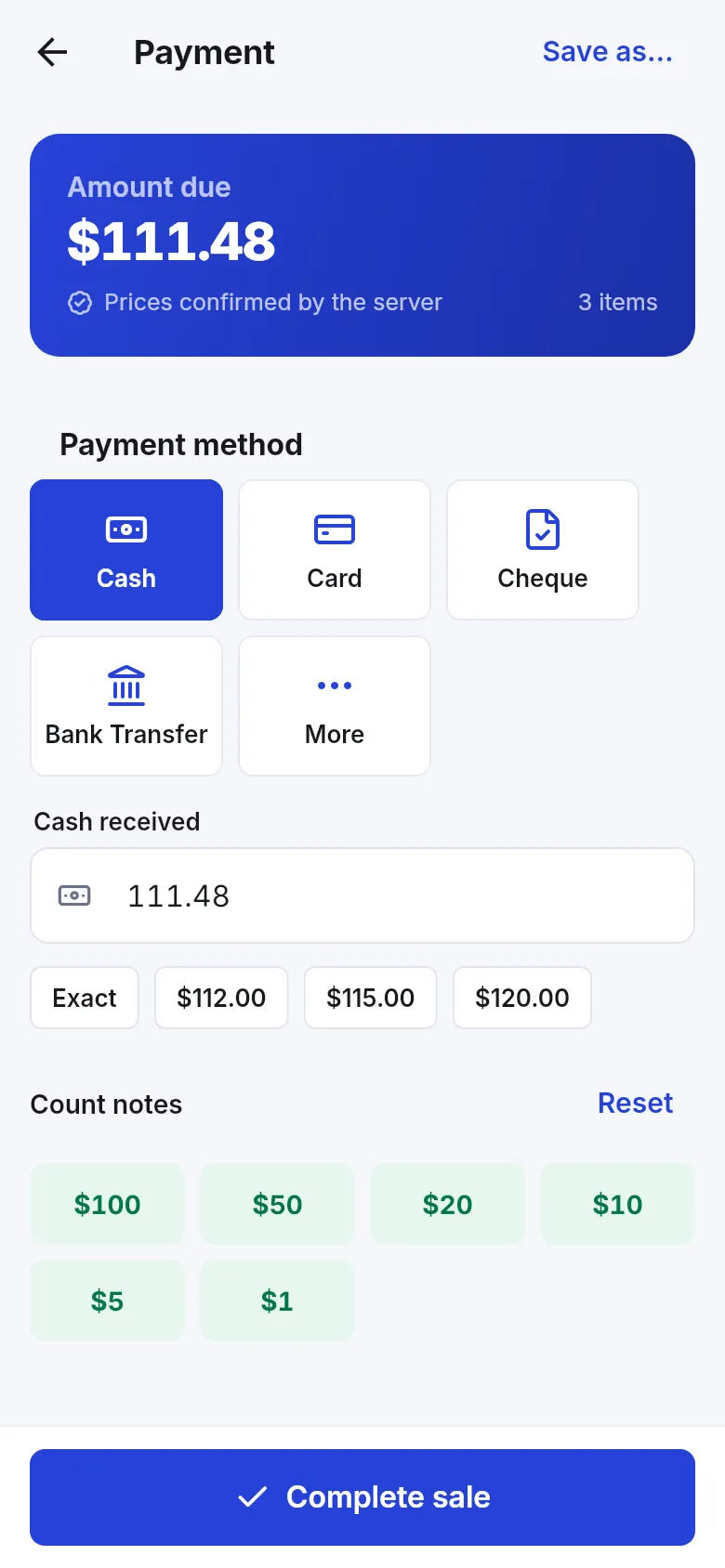
Section titled “In the SmartPOS Business app”The app’s Payment screen shows the Amount due, method tiles (Cash, Card, Cheque, Bank Transfer, More), quick cash amounts, a note counter, Split: add another payment, and Pay later (credit).
- Pick the right Payment Account — the cash register and account balances depend on it.
- Use the denomination counter for cash: fewer counting mistakes at closing.
- Record payments made on a separate card terminal as Card, with the terminal’s transaction number.
Frequently asked questions
How do I split one sale between cash and card?
Press Multiple Pay, enter the cash amount in the first row, press Add Payment Row, choose Card and enter the rest, then Finalize Payment.
How do I rename Custom Payment 1 to something like a mobile wallet?
Go to Settings › Business Settings › Custom Labels and fill in Labels for custom payments. The new name shows in the POS and reports.
Why is a payment method missing at one shop?
Payment methods are switched on per location. Open Settings › Business Locations, edit the location and tick the method under Payment Options, with its default account.
What are cash denominations?
The notes and coins your cashiers count. When they are set up, the payment window shows a counter for each note so the cashier counts the cash and the amount fills in by itself.
Can customers pay an invoice online?
Yes, when you add a payment gateway or offline method in Settings › Payments and attach it to Invoice pay links. The customer opens the invoice link and pays, and the payment is added to the sale.
Which payment method do I use for store credit?
Store credit (advance). It takes the money from the customer's advance balance.
Can I take a gift card as payment?
Yes, when gift cards are switched on. Choose Gift card as the method and enter the card code; it can pay the whole sale or part of it.