
Shop widgets - sell on any website with copy and paste
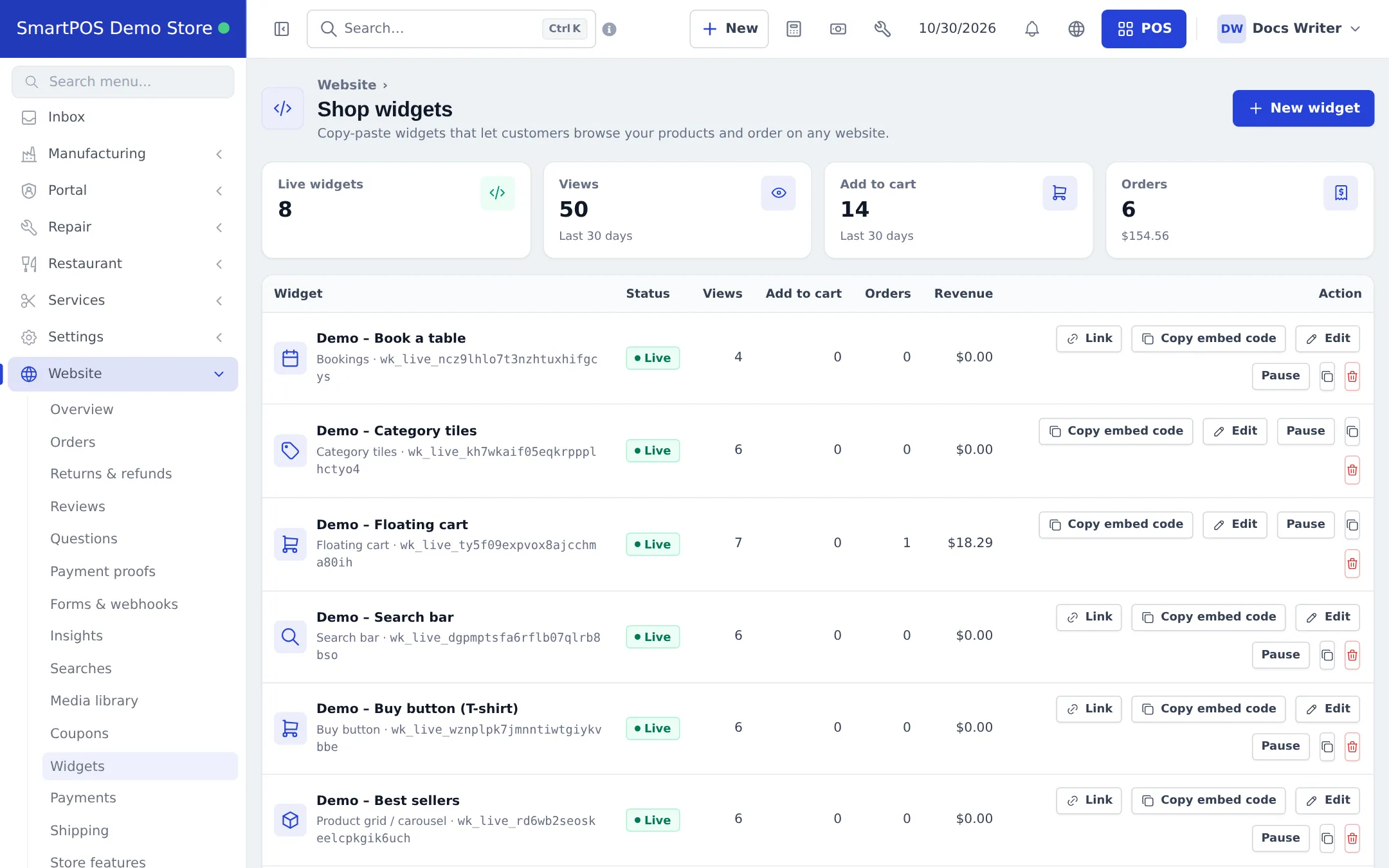
Shop widgets let customers browse your products and order on any website you already have. You build a widget in SmartPOS Hub, watch it in a live preview, copy one short code and paste it into your site. Orders go straight into SmartPOS Hub as online orders and sales. This page shows how.
The eight widget types
Section titled “The eight widget types”| Type | What the visitor sees | Good for |
|---|---|---|
| Full shop | Search, categories, products, cart and checkout in one block | A shop page on your existing website |
| Online menu | Restaurant style: pickup / dine-in / delivery first, categories as sections, options window | Restaurants, cafés, bakeries |
| Product grid / carousel | Chosen products, categories or best sellers with a floating cart | Home page, landing pages, blog posts |
| Buy button | One product as a card or a single button | Selling one hero product |
| Search bar | Instant product search that opens the product and cart | Header of a content site |
| Floating cart | Cart and checkout button for any page; shares the cart with your other widgets | Every page of a site that has grid or buy-button widgets |
| Category tiles | Category tiles that open your shop widget or a link | Navigation on the home page |
| Bookings | Customers book a table or an appointment | Restaurants (Bookings) and salons, clinics, studios (Services) |
Types your business cannot use yet are greyed out with the reason, for example “Turn on Bookings (Settings › Business Settings › Modules) or the Services module to use this widget.”
Before you start
Section titled “Before you start”- Products are marked to show on the website (or Show all sellable products is on) and have prices; photos make widgets look much better.
- At least one location is shown on the website with an address.
- You have a way to get orders: pickup, a delivery zone with a price in Website › Shipping, or tables for dine-in.
- You have at least one way to pay in Website › Payments (see Payments for online orders).
Create a widget
Section titled “Create a widget”- Open Website › Widgets and press New widget.
- Choose a type, for example Online menu, and give it a Widget name only you see (for example “Homepage menu”).
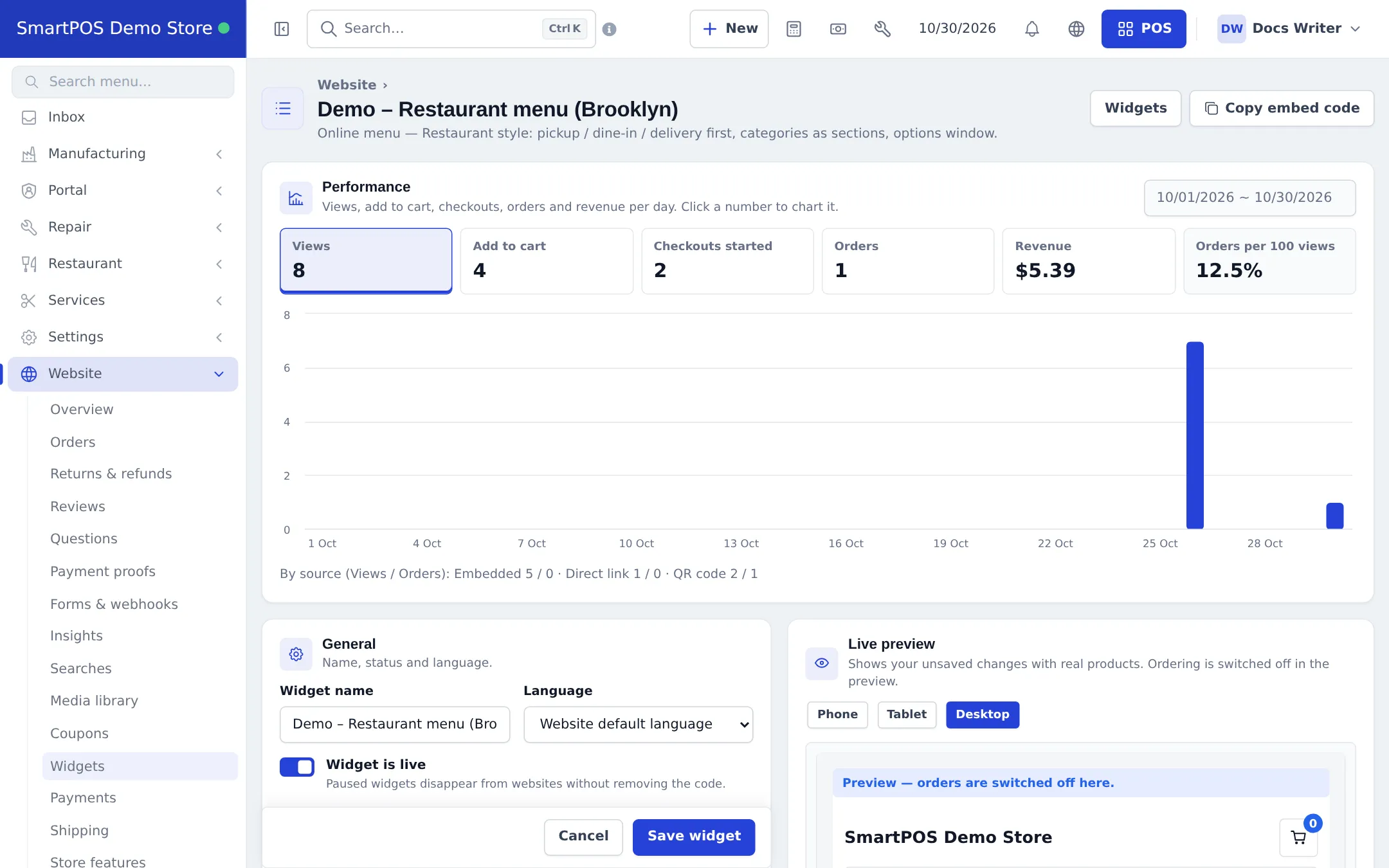
- The editor opens. Settings are on the left, the Live preview on the right. Work down the sections below.
- Press Save widget.
Set up the widget (the configurator)
Section titled “Set up the widget (the configurator)”The editor starts with a Performance card (views, add to cart, checkouts started, orders, revenue and orders per 100 views for the chosen dates, split by Embedded, Direct link and QR code), then these sections:
| Section | What you choose |
|---|---|
| General | Name, Widget is live, language (or Website default language) |
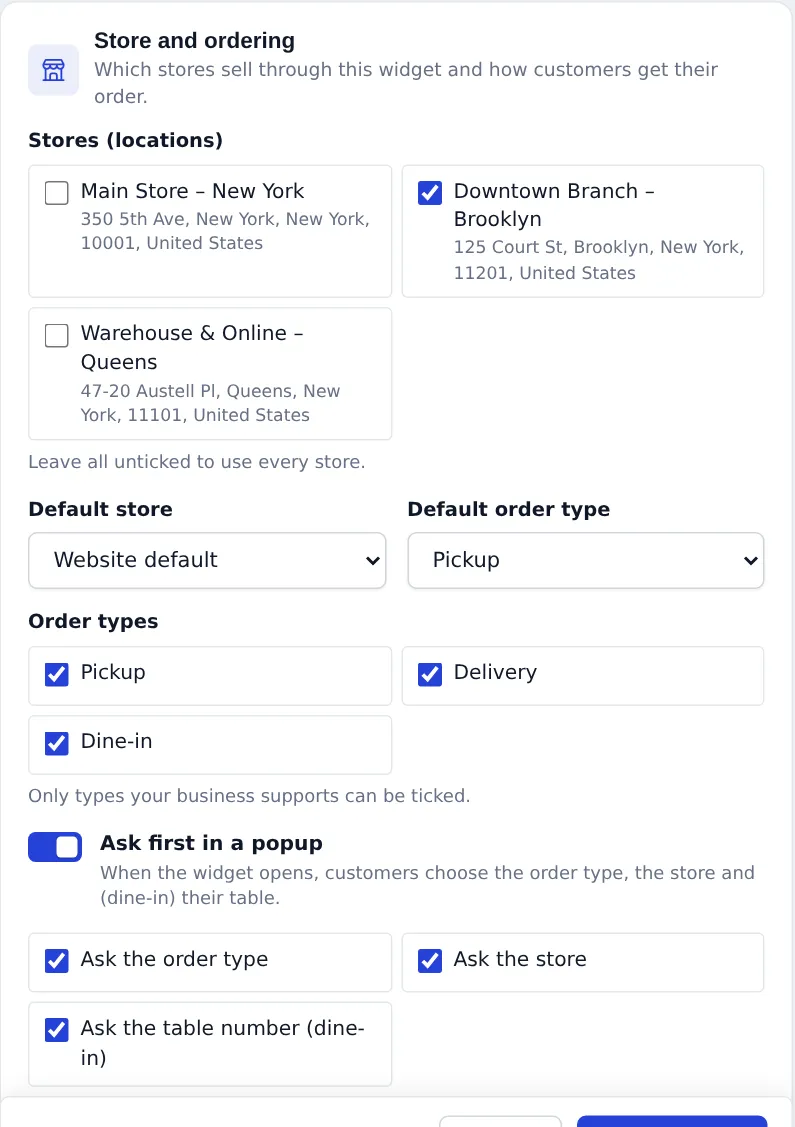
| Store and ordering | Which Stores (locations) sell through it, the Default store, Order types (Pickup, Delivery, Dine-in), the Default order type, and Ask first in a popup (order type, store, table number) |
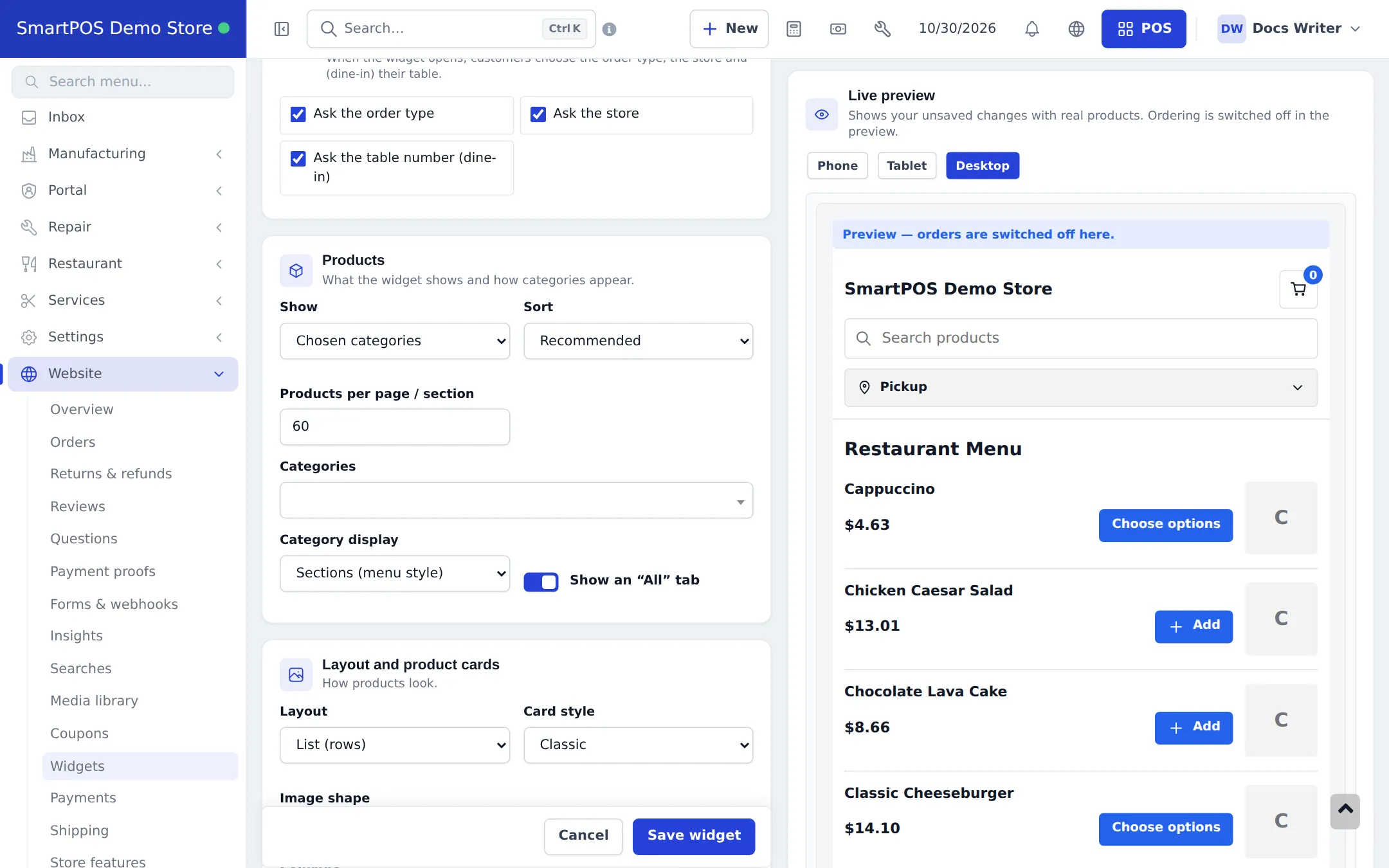
| Products | Show all products, chosen categories, brands or products, featured, best sellers, newest or on sale; Sort; products per page; Category display (tabs, sidebar, chips, sections in menu style) and an “All” tab |
| Layout and product cards | Grid, list (rows) or carousel; Card style; Image shape; columns for phone, tablet and desktop; show price, stock status, badges, short description; spacing; maximum width |
| Search | Show the search box and its placeholder |
| Checkout | Phone number required, Order notes field, Discount code field, Let customers pick a time (time slots), Terms page link, Payment methods (leave all unticked to offer every method of the store), Message after the order, a bot check, and Customer accounts (Off, Optional or Required) |
| Colours, fonts and texts | Colour mode (light, dark or follow the visitor’s device), Main colour, background, text, Corner radius, Font, Button texts, price display and the floating cart position |
| Link page | The text shown when the direct link is shared, and whether search engines may show it |
| Allowed websites | Which domains may show the widget |
Check it in the live preview
Section titled “Check it in the live preview”The Live preview shows your unsaved changes with your real products. Switch between Phone, Tablet and Desktop to see how it looks for each visitor. Ordering is switched off in the preview (“Preview - orders are switched off here.”).
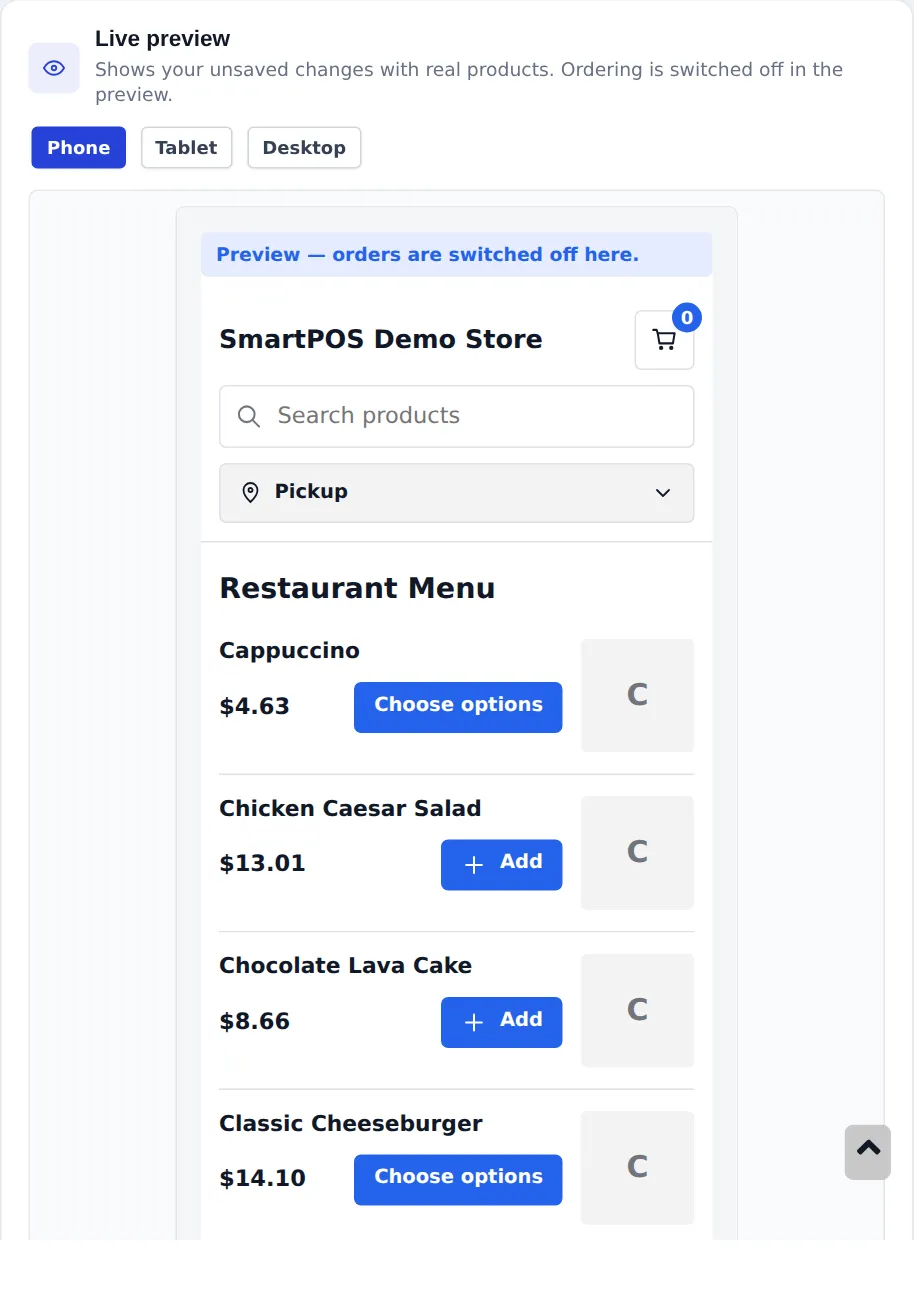
If the widget would show no products, a warning card above the preview names the cause (no products on the website, nothing at that store, or the chosen categories are empty) with buttons to fix it, such as Show all sellable products.
Copy the code and paste it into your website
Section titled “Copy the code and paste it into your website”- In the Embed code card, press Copy embed code under Script (recommended). (On the widgets list, Copy embed code does the same.)
- In your website builder, add an HTML or “custom code” block where the widget should appear and paste the code.
- Publish the page. The widget appears and stays up to date by itself - prices, stock and settings change as soon as you save in SmartPOS Hub.
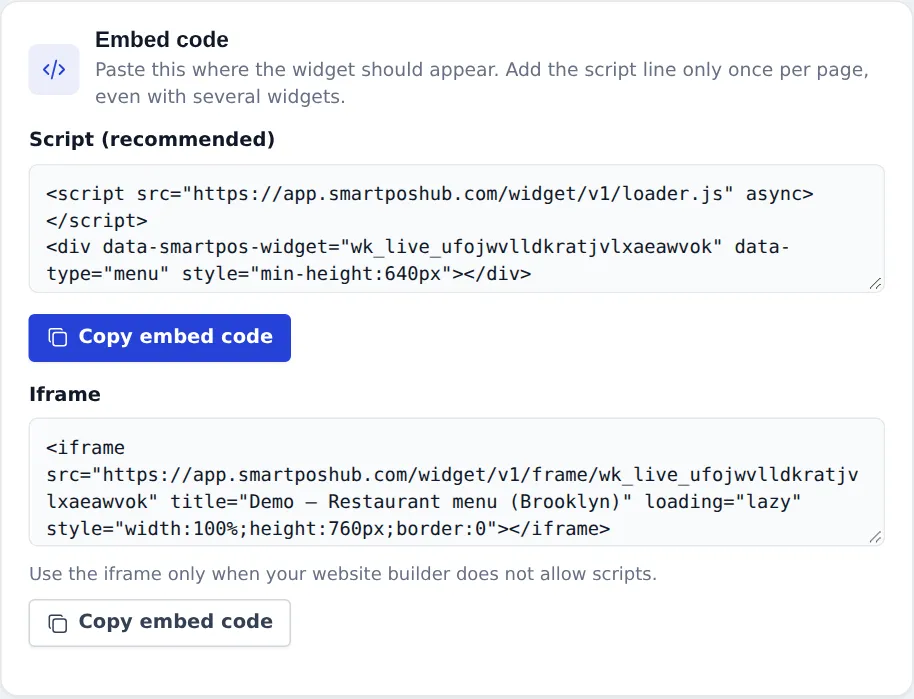
</body> or inside your page content.Protect the widget: Allowed websites
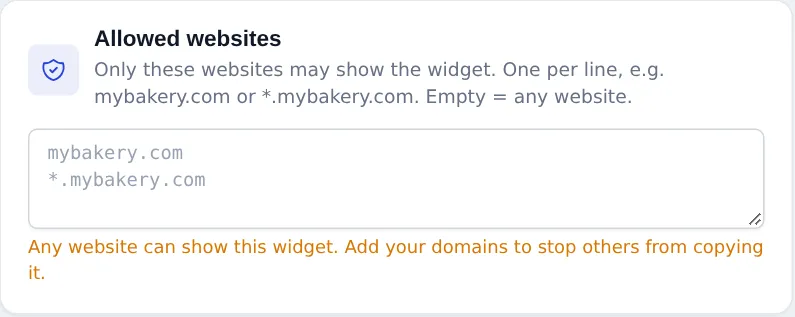
Section titled “Protect the widget: Allowed websites”By default any website can show the widget. Type your own domains in Allowed websites, one per line - for example mybakery.com (which also covers www.mybakery.com) and *.mybakery.com for other sub-domains. Other sites then cannot show it. Your direct link always works.
Manage widgets
Section titled “Manage widgets”- Pause / Activate: hide a widget everywhere without removing its code.
- Duplicate: copy a widget to make a variant (for example one per branch).
- New key: makes a new code. The old code stops working, so replace it on your websites.
- Delete: removes the widget; websites that use its code stop showing it.
Tips and mistakes to avoid
Section titled “Tips and mistakes to avoid”- One store, one cart: grid, buy-button, search and floating-cart widgets on the same site share a cart. Add a Floating cart on pages that have no shop or menu widget.
- Guest checkout is always available in widgets; with Customer accounts set to Optional or Required, customers can also sign in and see their orders and saved addresses.
- Prices and totals are always worked out by SmartPOS Hub, so a changed page cannot change a price.
- Need a link instead of a website? Every widget except the floating cart has a direct link and QR code.
Related pages
Section titled “Related pages”Frequently asked questions
Which websites can show a SmartPOS Hub widget?
Any website where you can paste HTML - WordPress, Wix, Shopify, Webflow, Squarespace or plain HTML. If your site builder does not allow scripts, use the Iframe version of the embed code.
How many widget types are there?
Eight - Full shop, Online menu, Product grid / carousel, Buy button, Search bar, Floating cart, Category tiles and Bookings. The Bookings type is only offered when Bookings or the Services module is on.
Can I put several widgets on one page?
Yes. Paste the script line once per page and one widget line for each widget. Widgets of the same store share one cart, so a customer can add from a product grid and check out from the floating cart.
Do widget orders reduce stock?
Yes. A widget order is a normal online order and a normal sale at the chosen store, so stock, tax and reports work exactly as for any sale.
Can someone copy my widget to their own website?
Only if you leave Allowed websites empty. Add your own domains there (for example mybakery.com and *.mybakery.com) and other websites cannot show it.
Why does my widget show "No products here yet"?
Usually because no product is marked to show on the website, or the widget's chosen categories or store have no products. The editor shows a warning with the cause and a one-click fix such as "Show all sellable products".
Does the live preview place real orders?
No. The preview uses your real products and unsaved settings, but ordering is switched off in it.
What happens if I pause a widget?
It disappears from every website that uses it, without removing the code. Activate it again and it comes back. Its direct link shows "not available" while paused.