
Salon step 7: client history, reminders, reports
A salon or spa lives on repeat clients. This page shows where each client’s visit history is, how reminders go out, and which reports tell you how stylists, services and the booking page are doing. It is for owners and managers.
Client history
Section titled “Client history”- Open Contacts › Customers and click the client, or search them from the top bar.
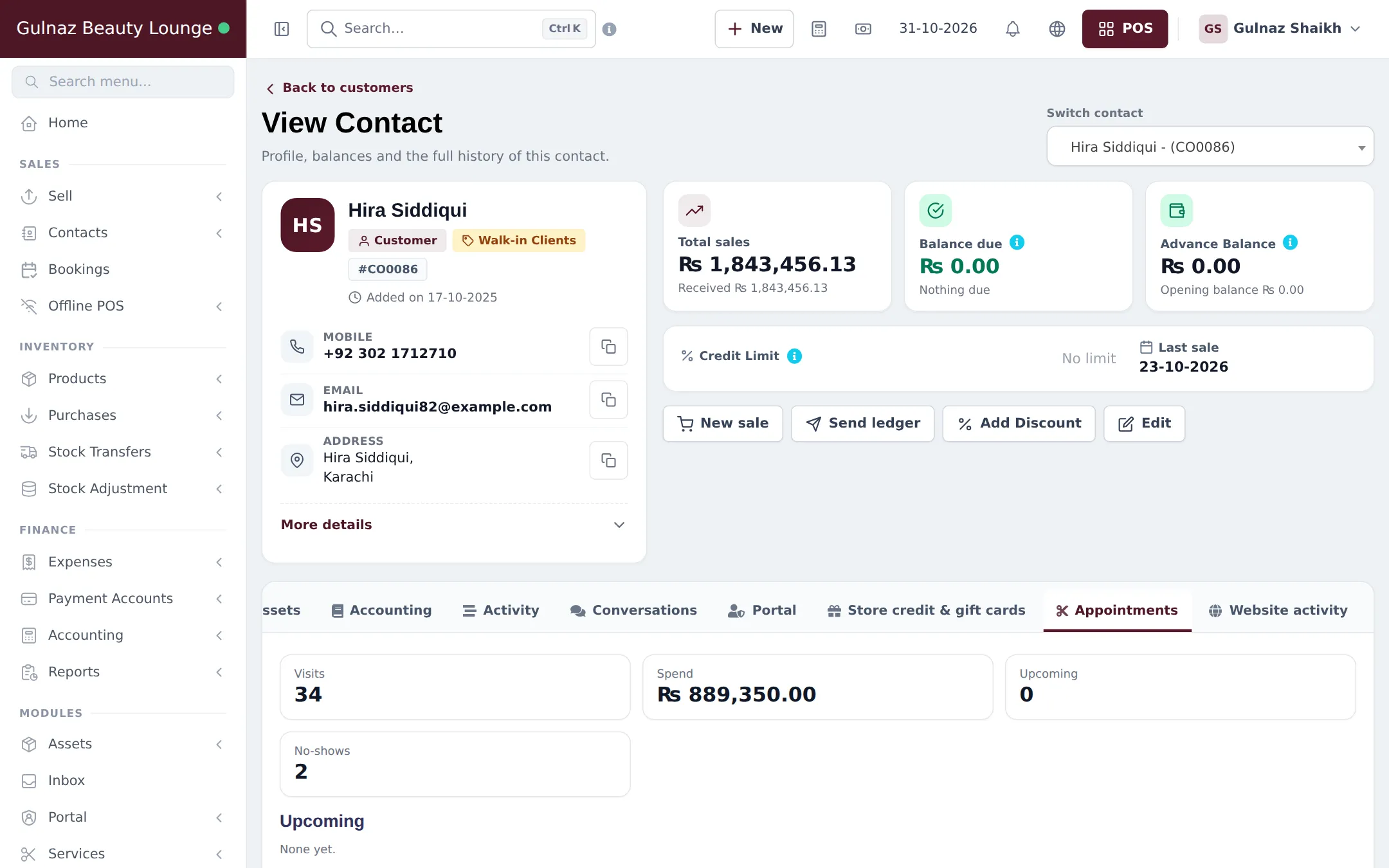
- The top of the page shows total sales, balance due and advance balance (for example an unused deposit).
- Click the Appointments tab. It shows Visits, Spend, Upcoming and No-shows, then the Upcoming list and the full History with each appointment’s reference, date, services and status.
Write notes that matter (allergies, colour formula, preferred stylist) as the customer note on the appointment, so the stylist sees them on the next visit. Use customer groups for VIP or bridal clients and reward points for loyalty.
Reminders and confirmations
Section titled “Reminders and confirmations”- Turn on Send email reminders in Services › Settings and set Reminder (hours before), for example 24. Each reminder is sent once.
- Clients get a confirmation email with a link to view or cancel their booking (if you allow online cancellation).
- On any appointment, Reminder and Confirmation send the email again, for example after a time change.
- If you take deposits, the six Booking payment messages (waiting for payment, receipt received, paid and confirmed, and so on) are in Notification Templates.
Salon and spa reports
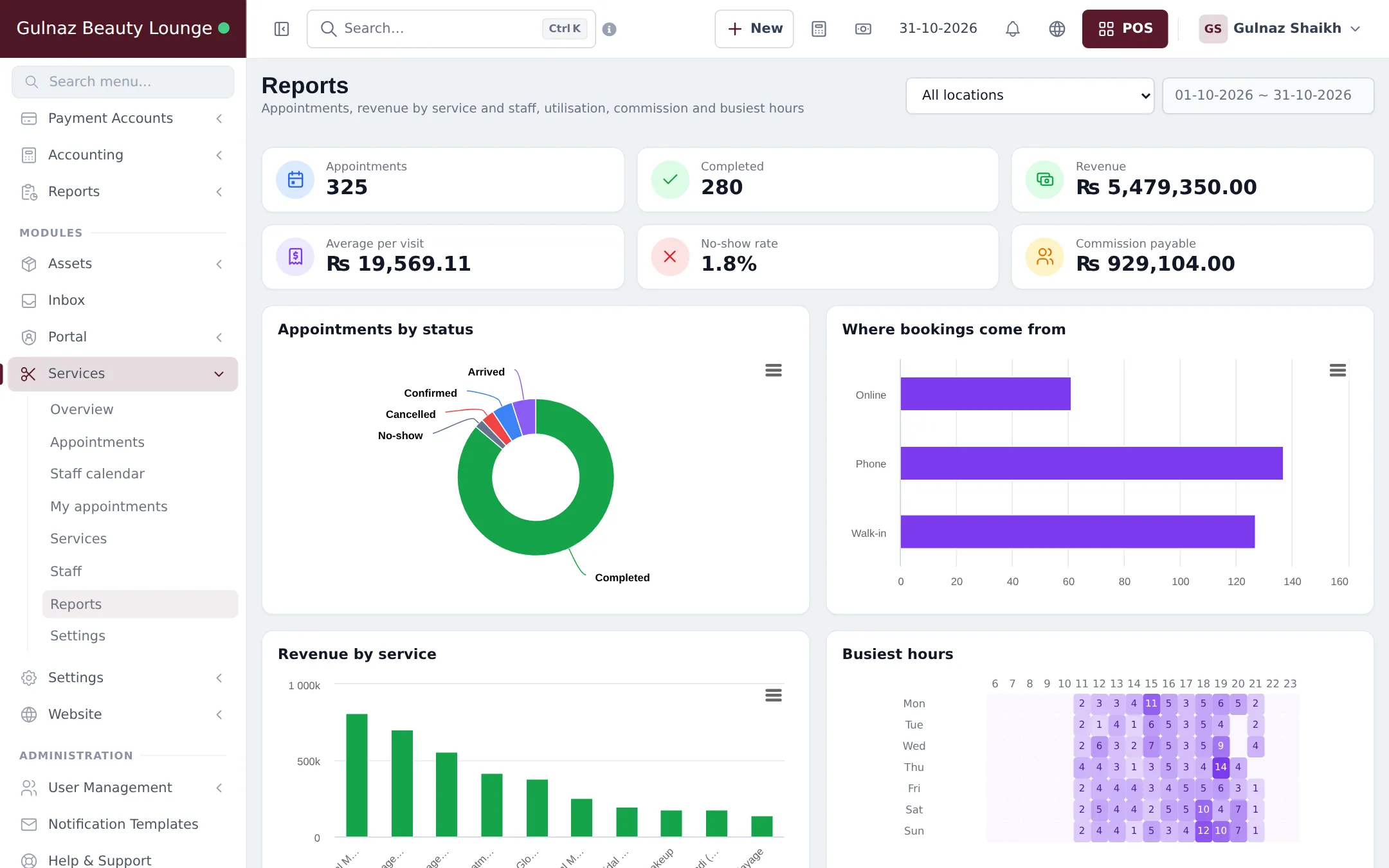
Section titled “Salon and spa reports”Open Services › Reports and pick the branch and dates. You see:
| Section | What it tells you |
|---|---|
| Appointments, Completed, Revenue, Average per visit, No-show rate, Commission payable | The headline numbers for the period |
| Appointments by status | How many were completed, cancelled or no-shows |
| Where bookings come from | Online, phone or walk-in: is your booking link working? |
| Revenue by service | Your best earners |
| Busiest hours | A weekday by hour grid, for staff rotas |
| Staff performance & commission | Appointments, booked and working hours, utilisation, revenue and commission per stylist |
| Top customers | Visits and spend of your best clients |
For money and stock, use the core reports: Reports › Profit / Loss Report, Register Report, Stock Report and Reports › Service Staff Report for POS sales that named a stylist. See Reports overview.
What happens next
Section titled “What happens next”You are set up. Read the daily routine and tick the go-live checklist.
Frequently asked questions
Where do I see what a client had last time?
Open the client under Contacts and click the Appointments tab. The History table lists every appointment with date, services and status, and each reference opens the appointment with its staff and notes.
Are reminders sent by SMS?
Appointment reminders and confirmations are sent by email when email is set up for your business. Staff can resend them with the Reminder and Confirmation buttons on the appointment.
How do I see how much commission each stylist earned?
Services › Reports has Staff performance & commission with appointments, completed, no-shows, booked and working hours, utilisation, revenue and commission for the chosen dates and branch.
Which services make the most money?
Services › Reports shows Revenue by service for the period. For product and service sales together, use Reports › Product Sell Report or Trending Products.
Can I reward loyal clients?
Yes. Use reward points so clients earn points on every bill, and customer groups such as VIP or Bridal to give a group discount. Both are core features.