
Handle website orders from checkout to sale
This page shows you how to handle online orders in SmartPOS Hub, from the moment a customer checks out until the money is in and the goods are collected or delivered. It applies to orders from your online store, widgets, direct links, table QR codes and the SmartPOS Shopper app.
How an online order flows
Section titled “How an online order flows”- The customer checks out. SmartPOS Hub works out prices, tax, delivery and stock itself - the website cannot change them.
- The order appears in Website › Orders and as a sale in Sell › All sales at the chosen location. Stock goes down there.
- Staff are notified (and the kitchen display shows restaurant orders).
- You collect the payment (online, transfer proof, cash on delivery or at pickup), prepare the order, and hand it over or ship it.
Order statuses
Section titled “Order statuses”| Status | What it means | What you do |
|---|---|---|
| Placed | The order is in and recorded. Payment may still be Due (pickup, cash on delivery) | Prepare it; take the payment on collection or delivery |
| Awaiting payment | The customer chose an online gateway or bank transfer and has not paid yet | Wait, or check Payment proofs |
| Paid | The money is recorded on the sale | Prepare and hand over |
| Cancelled | Cancelled by you, by the customer within the cancel window, or automatically (no proof in time) | Nothing - stock is back |
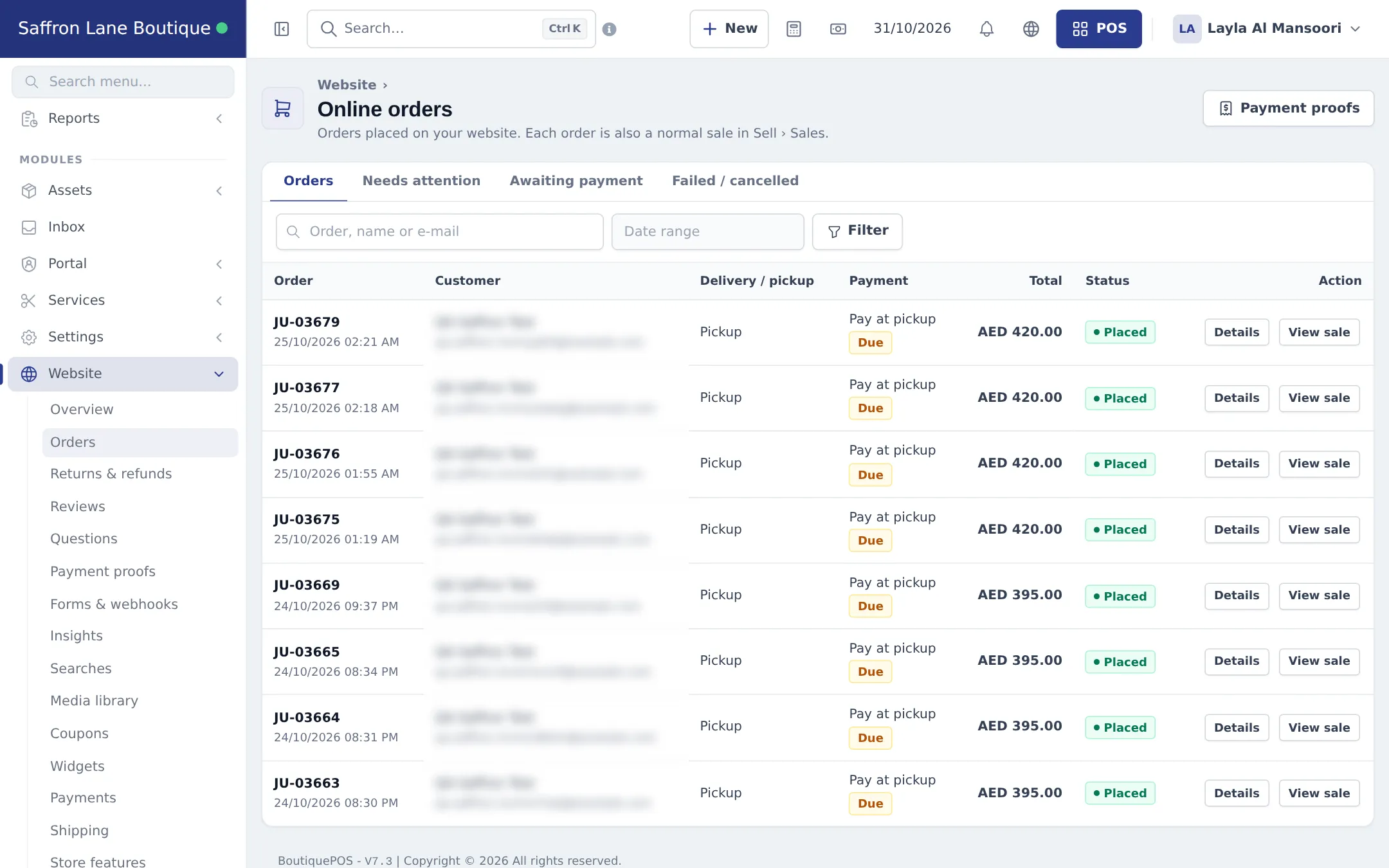
The list tabs help you work: Orders (everything), Needs attention (for example a payment proof received or a prescription to check), Awaiting payment, and Failed / cancelled.
Work through today’s orders
Section titled “Work through today’s orders”- Open Website › Orders. Use the search box (Order, name or e-mail), the Date range and Filter to narrow the list.
- Check the Delivery / pickup column (pickup, delivery with its time slot, or dine-in with the table) and the Payment column (method and whether it is Due).
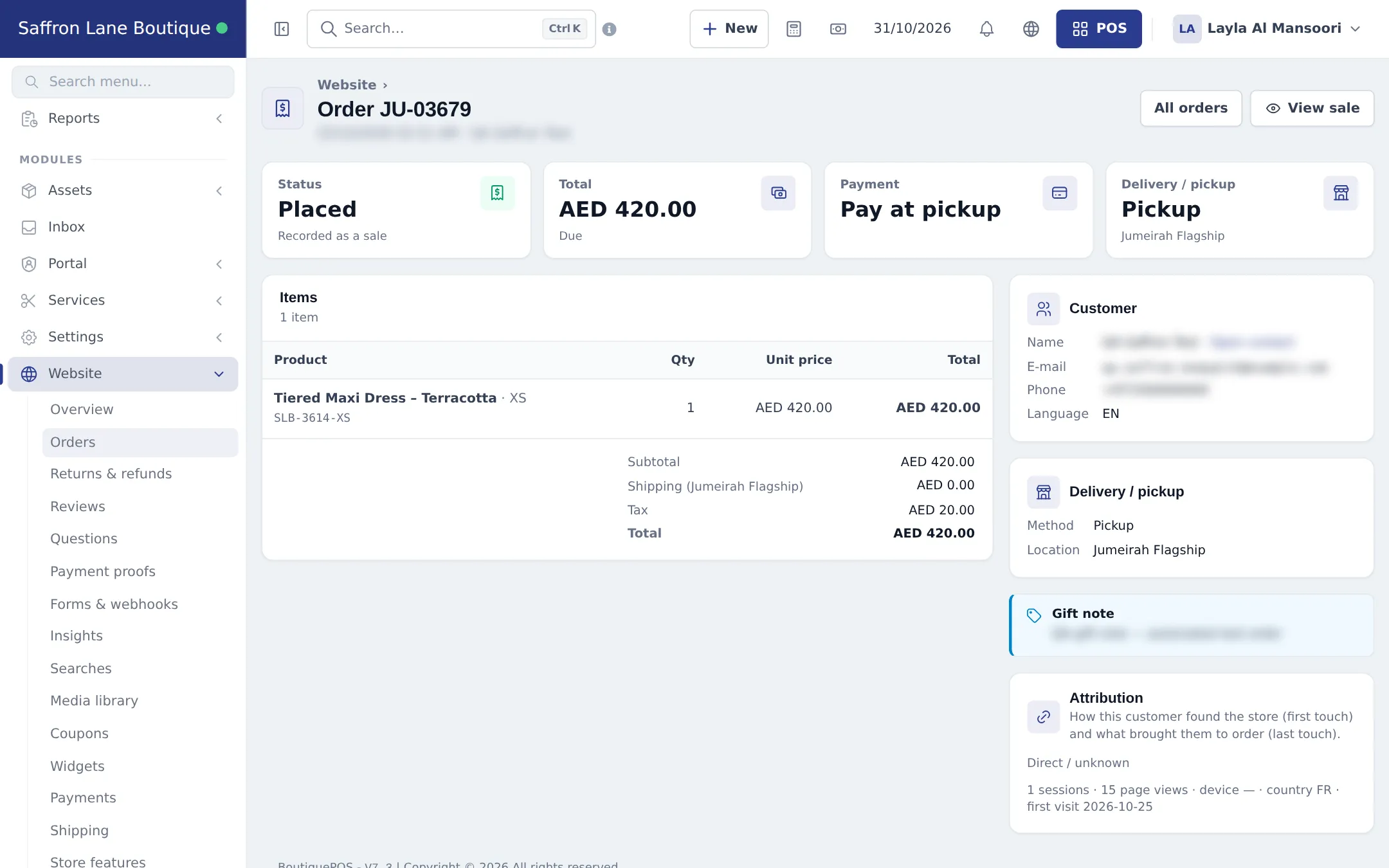
- Press Details to open the order page: items with options, totals, customer, delivery or pickup, payment, gift note and Attribution (where the customer came from, including campaign links).
- Press View sale to open the sale. Print the invoice, add a payment, or create a shipment from there.
- When the order is handed over and paid, it needs nothing more. Orders in Needs attention show a Mark as done button once you have dealt with them.
Approve bank-transfer receipts (payment proofs)
Section titled “Approve bank-transfer receipts (payment proofs)”When a customer pays by bank transfer or mobile wallet, they upload a receipt and the transaction ID.
- Open Website › Payment proofs (or the Payment proofs button on the orders page). Proofs to check are under To check.
- Open the receipt and compare the amount and reference with your bank or wallet.
- Press Approve. The payment is recorded on the sale and the order shows Paid.
- If the money did not arrive, press Reject. The customer can upload again.
Pharmacies: check prescriptions first
Section titled “Pharmacies: check prescriptions first”When Prescriptions is on in Website › Store features, items that need a prescription ask the customer to upload one at checkout.
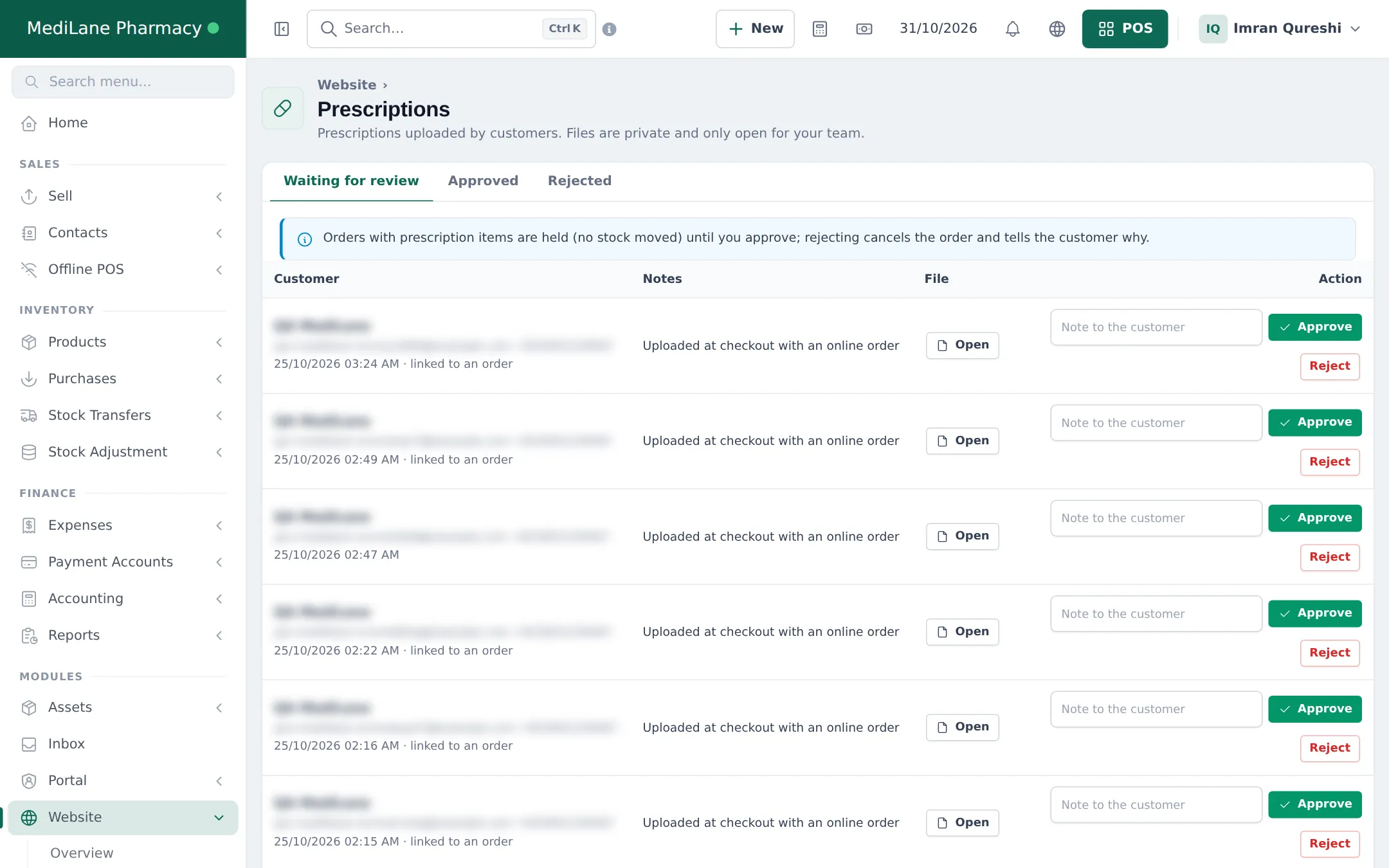
- Open Website › Prescriptions. New uploads are under Waiting for review.
- Press Open to view the file. Files are private to your team.
- Optional: type a Note to the customer.
- Press Approve to release the order, or Reject to cancel it and tell the customer why.
Returns and refunds
Section titled “Returns and refunds”Customers can ask for a return from their account on your store (reasons such as Damaged or faulty, Wrong item sent, Not as described, Changed my mind).
- Open Website › Returns & refunds. New requests show Requested.
- Approve or Reject the request.
- When the goods come back, mark them Items received.
- Refund. A card payment is refunded through the gateway when it supports refunds; otherwise record the refund. The status becomes Refunded, and stock, the credit note and the books are updated.
Set the window and the rules under Website › Returns & refunds › return policy.
On a phone
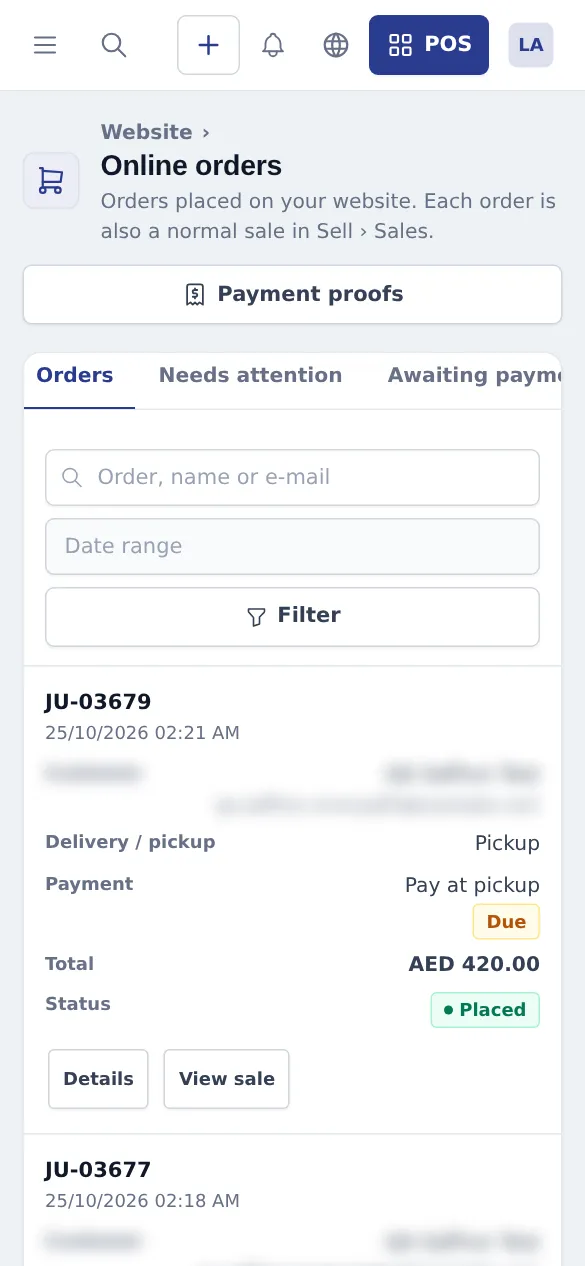
Section titled “On a phone”The orders list turns into cards on a phone, so you can check orders anywhere. Staff can also follow new web orders in the SmartPOS Business app’s notifications.
Tips and mistakes to avoid
Section titled “Tips and mistakes to avoid”- Don’t create a second sale for an online order. It is already a sale - open it with View sale and add the payment.
- Cash on delivery with riders? Create a shipment from the sale; see Shipping & delivery.
- Customer says they paid but the order shows Awaiting payment? Check Payment proofs first, then the gateway’s dashboard. Never mark it paid without seeing the money.
- Stock looks wrong for online orders? Check Stock and orders from in Website › Settings & API › Checkout - online orders use that location unless the customer chose a store.
Related pages
Section titled “Related pages”Frequently asked questions
Is an online order also a sale?
Yes. Every online order is recorded as a normal sale in Sell › Sales, with stock, tax, payments, reward points and accounting, exactly like a POS sale. Website › Orders shows the online side of the same order.
Where do Shopper app and widget orders go?
To the same Website › Orders list. Widget orders carry a Widget badge, and app orders arrive like website orders. Restaurant orders also appear on the kitchen display.
How do I mark a cash on delivery order as paid?
Open the sale (View sale) and add the payment as you would for any sale. The online order then shows Paid automatically.
What does "Due" mean in the Payment column?
The customer has not paid yet - for example pay at pickup or cash on delivery. Collect the money when they collect the order and add the payment to the sale.
A customer paid by bank transfer. What do I do?
Open Website › Payment proofs, check the receipt and the transaction ID against your bank, then approve it. The payment is recorded on the sale. Reject it if the money did not arrive.
What happens if a customer never uploads a transfer receipt?
You can set an automatic cancel time for transfer payments. When no proof arrives in time, the order is cancelled and you are notified. 0 means never cancel automatically.
How do I cancel an online order?
Delete or cancel the sale in Sell › Sales as usual. The online order follows and shows Cancelled, and stock goes back.
How do refunds work for online orders?
Customers send a return request from the store. In Website › Returns & refunds you approve it, mark the items received and refund. Stock, a credit note and the books are updated.