
Update prices in bulk and set up discounts
This page explains how to set and change selling prices, one by one or in bulk with a spreadsheet, and how to run automatic discounts such as “10 % off fresh fruit this weekend” in the POS and on your website. For different price lists per customer type, see Selling price groups.
Change one product’s price
Section titled “Change one product’s price”Open the product (Products › List Products › Actions › Edit), go to Pricing (or Variations & pricing), change the purchase price, margin or Default Selling Price, and click Update. See Add a product.
Change many prices with Update Price
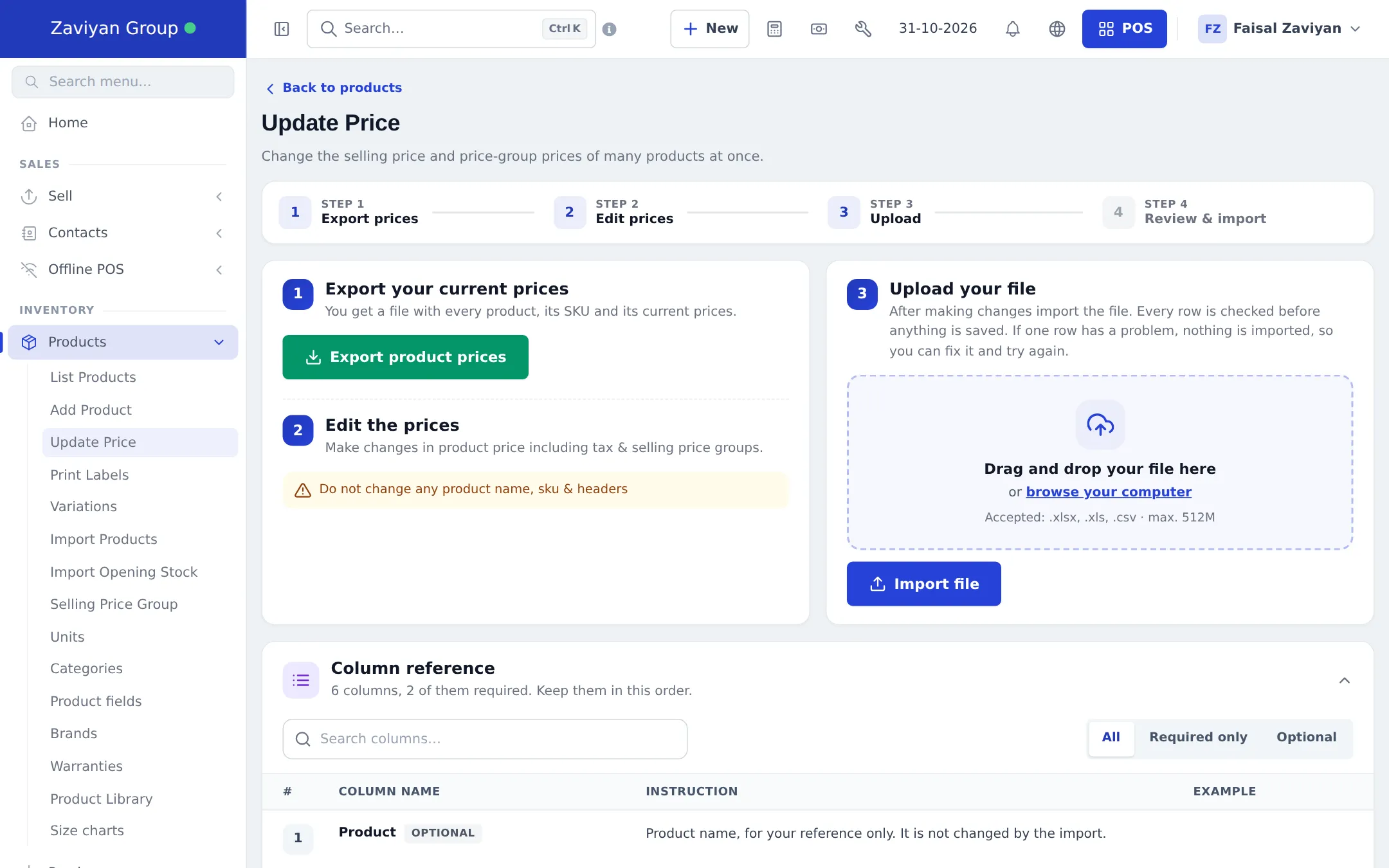
Section titled “Change many prices with Update Price”- Open Products › Update Price.
- Step 1 – Export prices: click Export product prices. You get a file with every product, its SKU and its current prices, plus a column for each active selling price group.
- Step 2 – Edit prices: change the selling price (including tax) and any group prices. Do not change any product name, SKU or headers. Leave a price-group cell empty to keep its current price.
- Step 3 – Upload: drag the file onto the upload area and click Import file.
- Step 4 – Review & import: every row is checked first. If one row has a problem, nothing is saved and you see the row to fix.
Automatic discounts
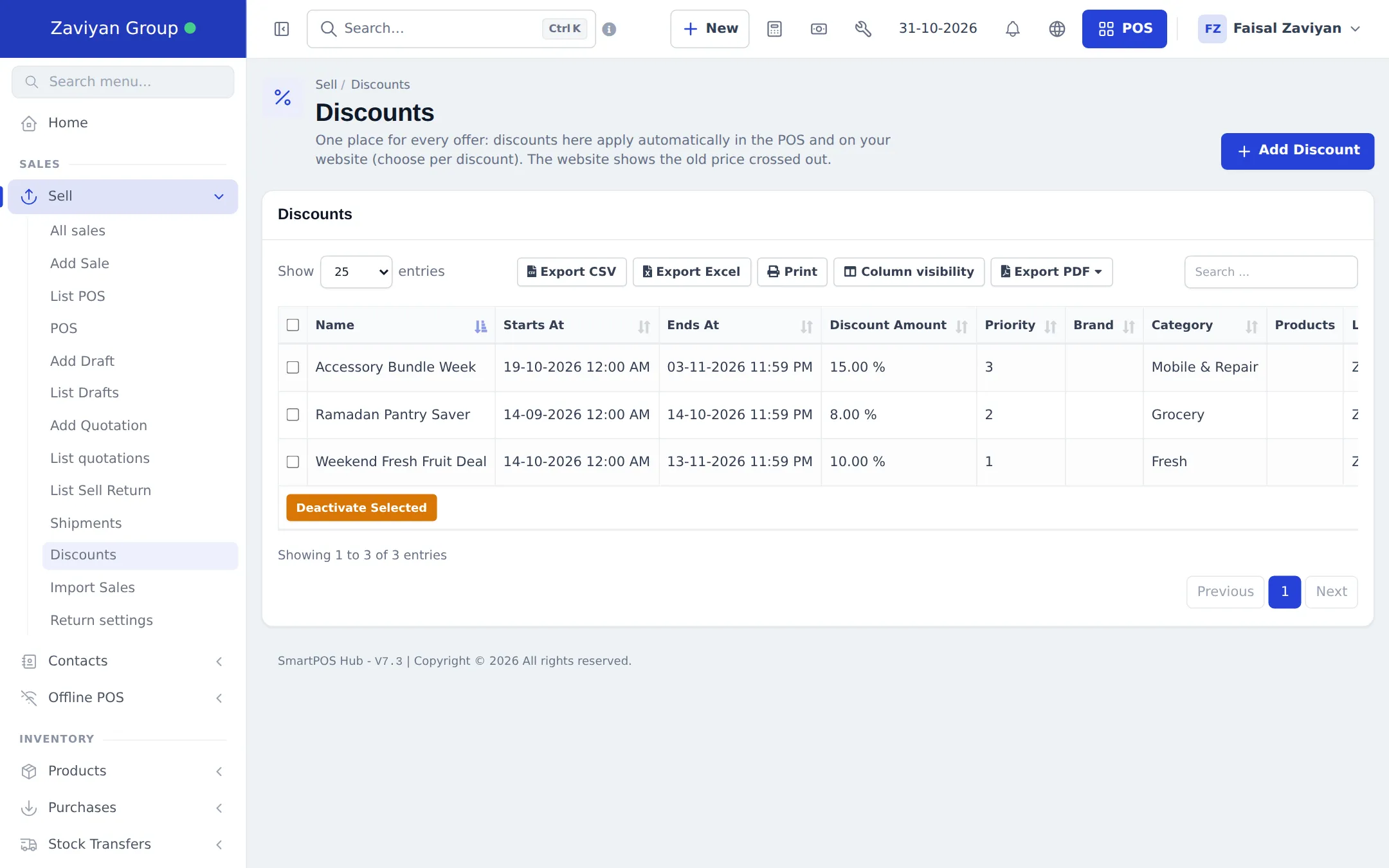
Section titled “Automatic discounts”Discounts live in Sell › Discounts. It is the one place for every offer: a discount here applies automatically in the POS and, if you choose, on your website, where the old price is shown crossed out.
Create a discount
Section titled “Create a discount”- Open Sell › Discounts and click Add Discount.
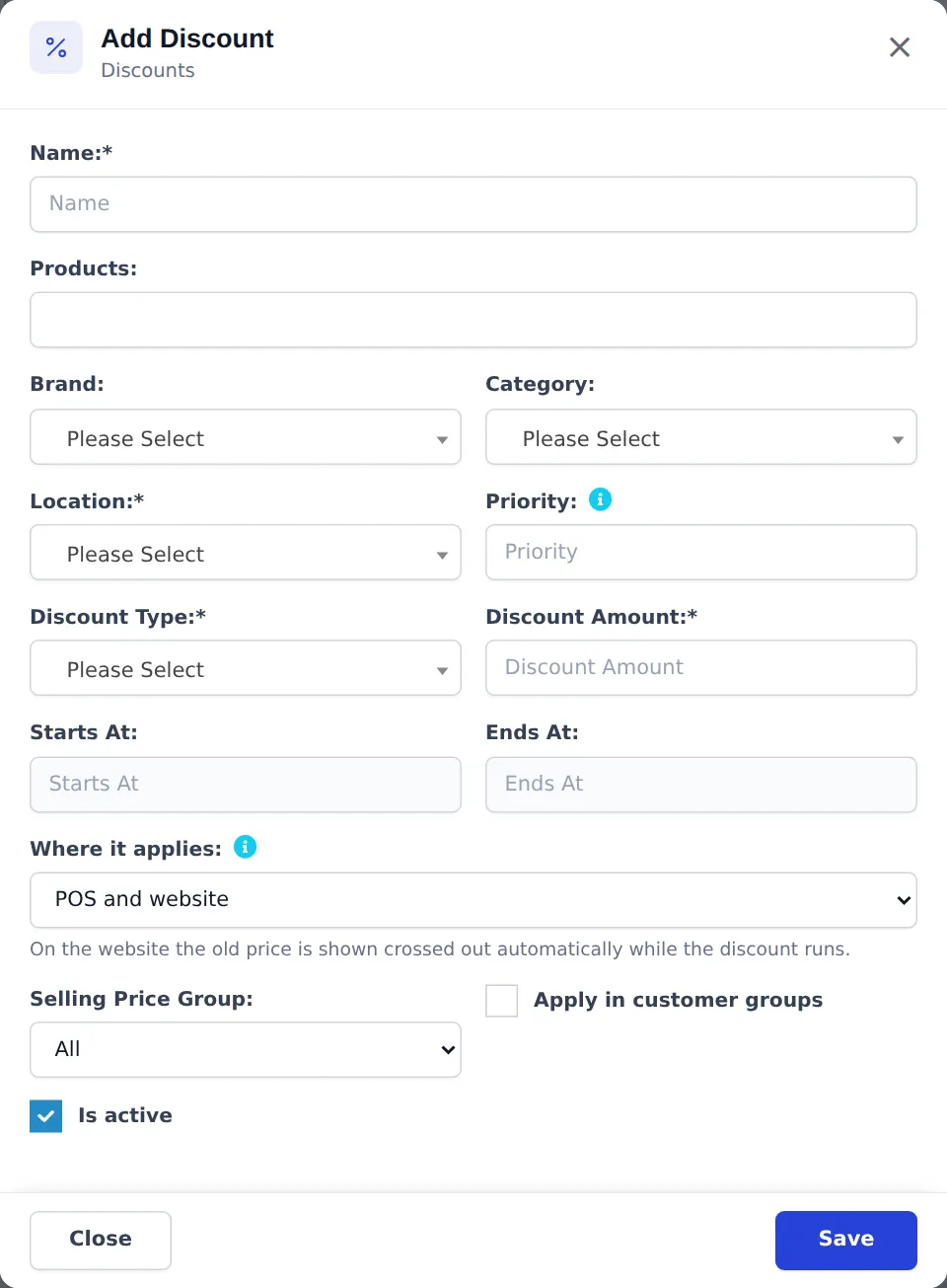
- Type a Name customers and staff will recognise, for example “Weekend Fresh Fruit Deal”.
- Choose what it applies to: specific Products, or a Brand and/or Category.
- Pick the Location where it runs.
- Set the Priority (higher wins when two discounts match).
- Choose the Discount Type (fixed amount or percentage) and the Discount Amount.
- Set Starts At and Ends At.
- In Where it applies, choose POS and website, POS only (in store) or Website only (online store).
- Optionally limit it to a Selling Price Group, or tick Apply in customer groups.
- Keep Is active ticked and click Save.
To stop a discount early, edit it and untick Is active, or tick several in the list and click Deactivate Selected.
Other ways to give a lower price
Section titled “Other ways to give a lower price”| Need | Use |
|---|---|
| A different price list for wholesale, staff or corporate customers | Selling price groups |
| An automatic % for a group of customers | Contacts › Customer Groups – see Customer groups |
| A one-off discount on a single sale | The discount field in the POS, limited by the user’s maximum discount – see POS overview |
| A manufacturer’s list price shown crossed out on the website | The RRP / list price option in the product’s Online store card |
Related pages
Section titled “Related pages”Frequently asked questions
How do I change the price of many products at once?
Open Products › Update Price, click Export product prices, edit the selling prices in the file without changing names, SKUs or headers, and upload it with Import file.
Do discounts apply automatically at the till?
Yes. An active discount applies by itself to matching products in the POS during its dates and in the chosen location. You can choose POS only, Website only, or POS and website.
What if two discounts match the same product?
The discount with the higher Priority wins. Priority is not considered when a discount names the exact product.
Can a discount be only for wholesale or member customers?
Yes. Pick a Selling Price Group on the discount, or tick Apply in customer groups so it also applies to customers in a customer group.
Can cashiers give their own discount?
Yes, if their role allows it, cashiers can add a line or order discount at the POS, up to the maximum discount set on their user. Automatic discounts are set here.
Where do I set the crossed-out price on my website?
You don't need to. While a discount runs on the website, the old price is shown crossed out automatically.