
Go-live checklist before your first real sale
Use this checklist the day before you start selling with SmartPOS Hub. It is for the owner or manager who did the setup. Each item links to the guide that explains it. Going through the list takes about 30 minutes and catches most first-day problems.
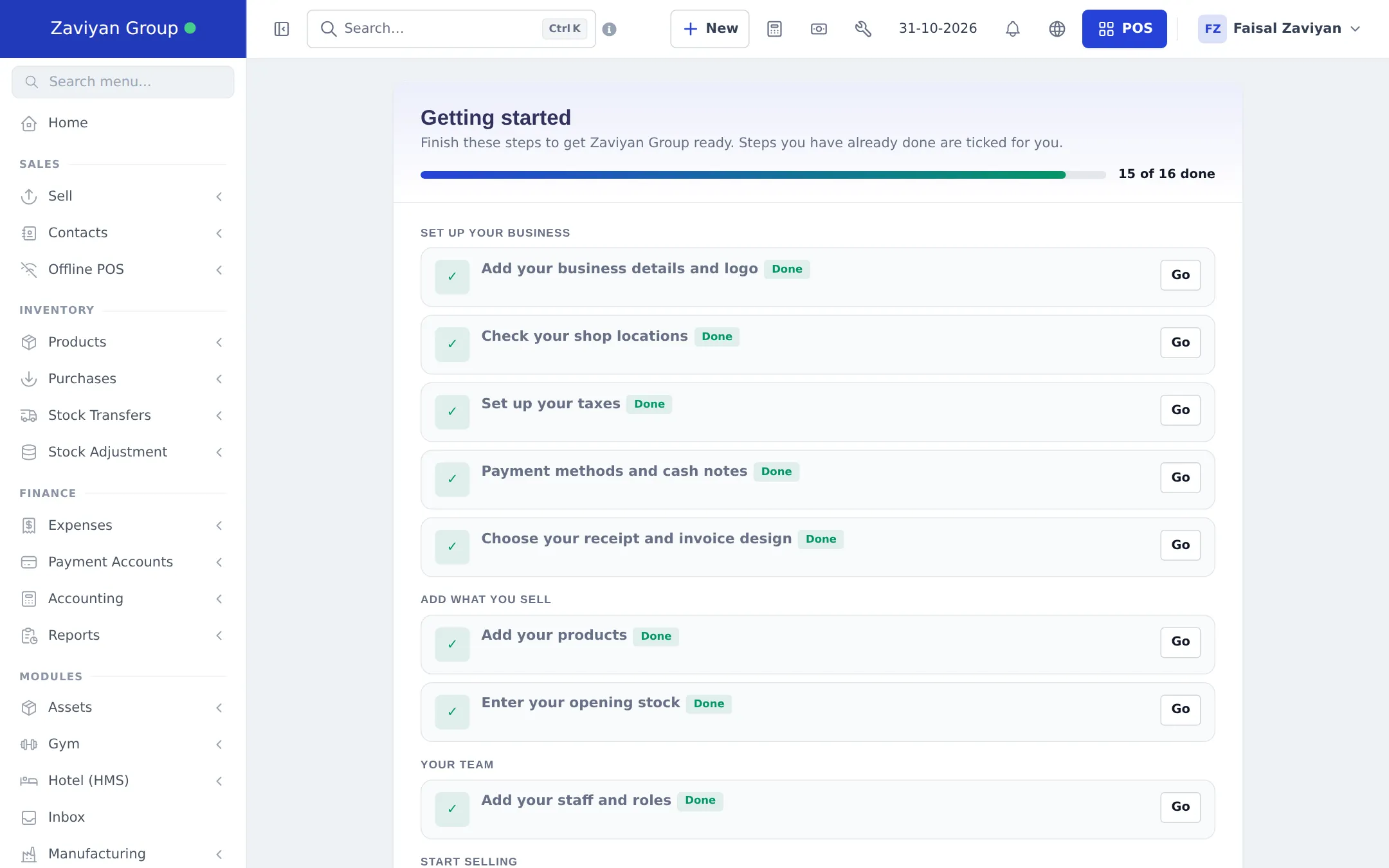
1. Business and plan
Section titled “1. Business and plan”- Business name, logo, currency and time zone are right: Settings › Business Settings › Business. See Business settings.
- Tax name and number print on invoices (Tax tab), and your tax rates exist: Tax rates.
- Only the modules you use are switched on: Settings › Business Settings › Modules.
- Your plan covers your number of locations and users: Settings › Package Subscription. See Subscription and billing.
2. Locations
Section titled “2. Locations”- Every shop and warehouse exists, with address and phone: Multiple locations.
- Each location has the right invoice scheme (numbering) and invoice layout (receipt design).
- Each location accepts the right payment methods.
- Location prices are set if a branch sells at different prices: Selling price groups.
3. Products and stock
Section titled “3. Products and stock”- Products are added with name, price, unit, category and barcode: Add products or Product Library.
- Barcodes scan correctly at the till; labels are printed for items without a maker’s barcode: Barcodes and labels.
- Opening stock is entered per location: Opening stock.
- Spot-check five products: price, tax and stock on the POS match the shelf.
4. Staff
Section titled “4. Staff”- Every person has their own login and the right role: Users and roles.
- Cashiers have access only to their location and a sensible Max sales discount percent.
- Staff who use phones have the SmartPOS Business app installed and can sign in: Devices and printers.
5. Devices
Section titled “5. Devices”- The receipt printer prints from the POS (browser printing or a configured printer): Receipt printers.
- The barcode scanner types into the POS search and adds the product.
- The customer display opens on the second screen, if you use one.
- Kitchen screens or printers receive orders, if you run a restaurant.
6. Test sale
Section titled “6. Test sale”- Open the POS and the cash register with a test amount.
- Sell one product with cash, one with card and one on credit to a test customer. See Credit and partial payments.
- Print or send each receipt and check the logo, address, tax and invoice number.
- Return the test sales: Returns and refunds.
- Close the register and read the register report: Cash register and closing.
7. First day
Section titled “7. First day”- Open the register with the real starting cash in each location.
- Keep this page open for staff questions.
- At closing, count the cash, close the register and check Reports › Register Report and Profit / Loss Report. See Reports overview.
Related pages
Section titled “Related pages”Frequently asked questions
Should I make a test sale before going live?
Yes. Make one test sale with each payment method you accept, print or send the receipt, then return or cancel it so it does not stay in your sales.
How do I remove test sales?
Use a sell return for a finished test sale, or delete it from Sell, All sales if your role allows deleting. Deleted records go to the Recycle Bin first.
Do I need opening stock before selling?
Only for products whose stock you manage. Without stock, the POS refuses the sale unless Allow Overselling is on in Business Settings, Sale.
What should I do on the first day?
Open the cash register with the real starting cash, sell normally, and close the register at the end of the day. Compare the counted cash with the register report.
Who should have the Admin role on day one?
Only the owner, and perhaps one trusted manager. Everyone else gets a role with just the permissions they need.
Can I keep using my old system in parallel?
You can for a short time, but stock will drift apart. Pick a cut-over day, count stock that morning, enter it as opening stock and sell only in SmartPOS Hub from then on.