
Boutique step 4: barcodes and price labels per size
A tag with a barcode on every piece makes the till fast and stops cashiers picking the wrong size. Each variant already has its own SKU; this step prints the labels.
Before you start
Section titled “Before you start”- Your products and sizes exist (step 2).
- Your label size is set in Settings › Barcode Settings (sheet or roll, label width and height). See Barcodes and labels.
Print labels for a product
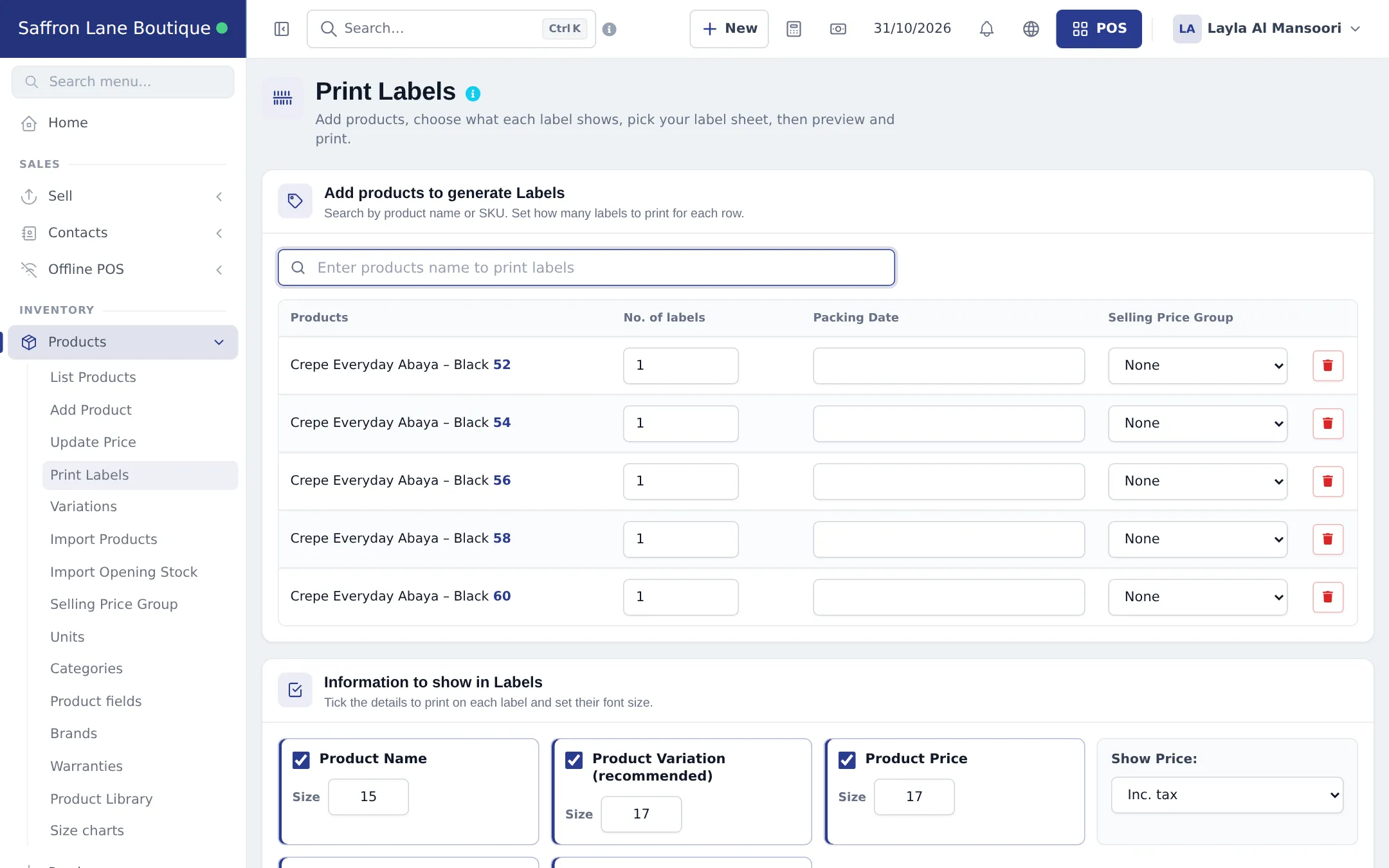
Section titled “Print labels for a product”- Open Products › Print Labels (or Actions › Labels on a product in the list).
- Type the product name or SKU. Every size is added as its own row.
- Set No. of labels per row (one per piece in stock), and optionally a Packing Date or a Selling Price Group price.
- Under Information to show in Labels, tick Product Name, Product Variation (recommended) and Product Price, and choose Show Price inc. or exc. tax.
- In Label sheet & preview, choose the Barcode setting that matches your labels, click Preview and print from the new tab.
Print labels after a delivery
Section titled “Print labels after a delivery”Open the purchase in Purchases › List Purchases and choose Labels from its Actions menu. The quantities from the purchase are filled in, so you print exactly one tag per piece received. See Purchases.
- Always tick Product Variation. A tag without the size is the most common cause of wrong-size sales.
- Re-price with care. After a price change, reprint the tags or use a discount instead (step 6), so the tag and the till agree.
- Scan, don’t search. At the till, scanning the tag adds the exact variant; searching by name lists every size.
Frequently asked questions
Does every size need its own barcode?
Yes, and SmartPOS Hub gives each variant its own SKU automatically. Scanning the tag adds exactly that size and color to the sale.
Can I use the supplier's barcodes?
Yes. Type or scan the supplier barcode into the SKU of each variant. Otherwise keep the generated SKU and print your own labels.
How many labels should I print?
One per piece. After a purchase you can print labels for exactly the quantities received from the purchase.
Can the label show a sale price?
Yes. Pick a Selling Price Group on each label row to print that group's price, for example a VIP price.
Which label printer works?
Any printer your computer can print to. Choose the label sheet or roll size that matches your labels in the Barcode Settings.