
Change the colour theme of SmartPOS Hub
This guide shows how to change the colours of SmartPOS Hub for your whole business: the menu, buttons, POS screens and kitchen screens. It is for owners who want the system to match their brand. Choosing a theme takes about two minutes.
Before you start
Section titled “Before you start”- Permission: business settings (owners and Admin have it).
- Optional: your brand’s main colour as a hex code (for example
#1F7A4C).
Choose a palette
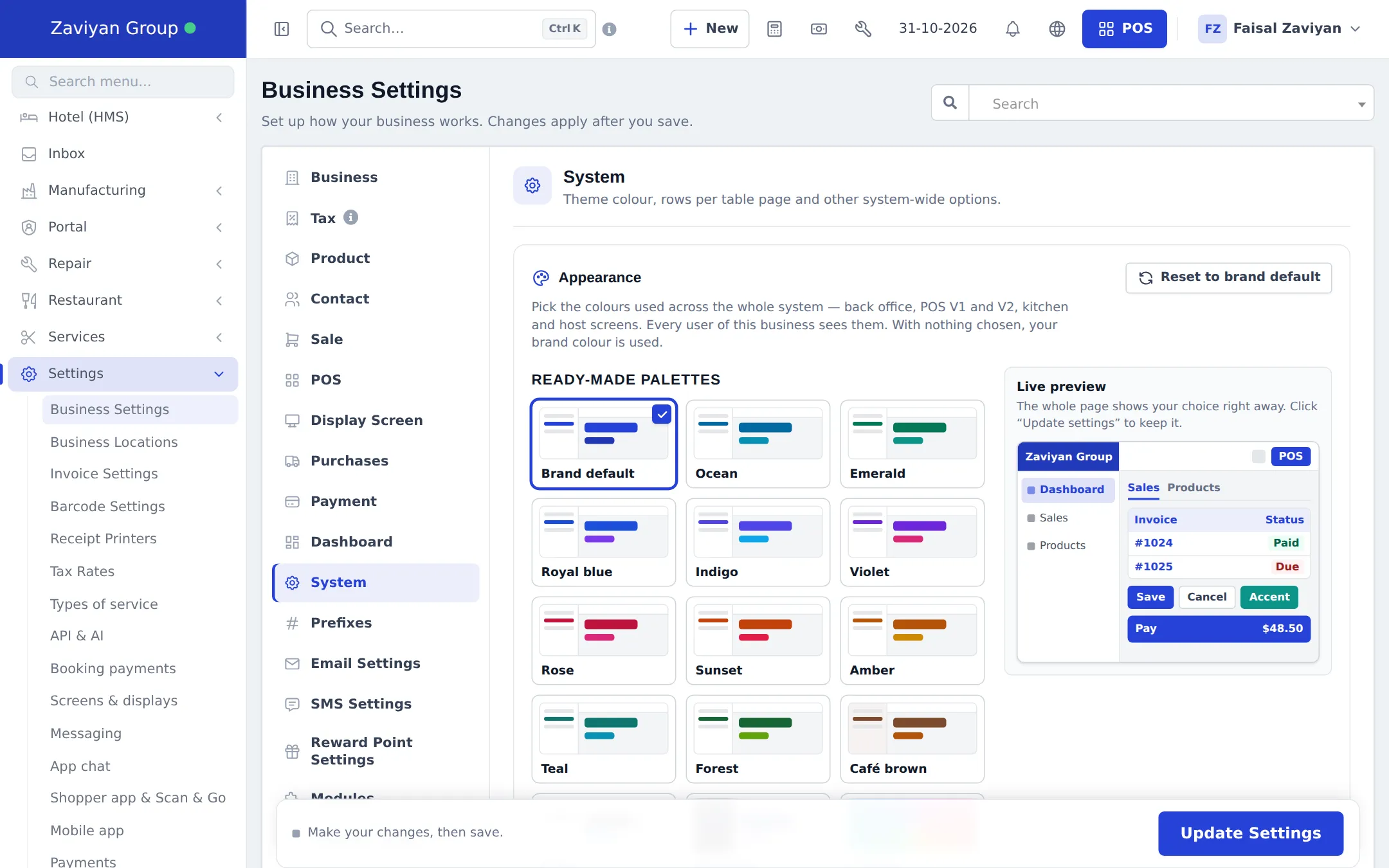
Section titled “Choose a palette”- Open Settings › Business Settings and click the System tab.
- In Appearance, click one of the Ready-made palettes: Brand default, Ocean, Emerald, Royal blue, Indigo, Violet, Rose, Sunset, Amber, Teal, Forest, Café brown, Slate or Midnight.
- Or choose Custom and set the Main colour and Accent colour with the colour pickers.
- Under Sidebar, choose Light, Tinted, Brand colour or Dark. Under Top bar, choose White or Brand colour.
- The Live preview card, and the whole page, change colour right away so you can judge it.
- Click Update Settings at the bottom to keep it.
Where the colours apply
Section titled “Where the colours apply”The back office (all pages and menus), POS V1 and POS V2 (light and dark), the Offline POS screen, kitchen screens, the restaurant host screen and the hotel room board. Everyone in the business sees the new colours on their next page load.
Other options on the System tab
Section titled “Other options on the System tab”- Default datatable page entries: how many rows each list shows per page.
- Show help text: show or hide the small help texts under fields.
- Pick a calm colour. Very bright main colours tire cashiers over a long shift.
- Check contrast. The Custom option warns when white text on your colour would be hard to read.
- Match your receipts separately with the accent colour in the invoice layout. See Invoice and receipt settings.
Related pages
Section titled “Related pages”Frequently asked questions
Where do I change the colours?
Settings, Business Settings, System tab, Appearance section. Pick a palette and click Update Settings.
Does the theme change for every user?
Yes. The colours apply to everyone in your business, on the back office, POS V1 and V2, kitchen and host screens.
Can I use my exact brand colours?
Yes. Choose Custom and pick a Main colour and an Accent colour. A message warns you if text on that colour would be hard to read.
How do I go back to the original colours?
Click Reset to brand default, then Update Settings.
Does the theme change my receipts or website?
No. Receipt colours are set on the invoice layout, and the online store has its own design settings.
Is there a dark mode?
The POS V2 screen has its own light and dark mode. For the menu you can choose a Dark sidebar under Appearance.