
Boutique step 5: sell, exchange sizes and give store credit
Selling clothes is fast; the work is in what comes back. This step covers the boutique till and a clear return policy: exchanges for another size, store credit instead of cash, gift cards, a return window and items that can’t be returned.
Sell at the till
Section titled “Sell at the till”- Open Sell › POS (it opens your default POS version).
- Pick the customer, or keep Walk-In Customer. Pick a named customer if they may need store credit later, or if you give reward points.
- Scan the tag or tap the product tile. Each size is its own tile with its stock.
- Take payment with Cash, Card or Multiple Pay (for example part card, part store credit).
- Print or e-mail the receipt. The receipt is the customer’s proof for returns.
Selling basics: POS overview and payment methods.
Set your return policy once
Section titled “Set your return policy once”- Open Sell › Return settings and tick Use return outcomes.
- Tick the Allowed outcomes: Refund, Store credit, Gift card (if the module is on) and Exchange.
- Set Default outcome (many boutiques use Store credit or Exchange) and When new items cost less than the return (for example Store credit).
- Under Window, fee and expiry, set the Return window (days after the sale), an optional Restocking fee (%), and Store credit expiry (days) (0 = never).
- Tick Receipt required if you only accept returns with a receipt, and Reason required to learn why items come back.
- Pick Categories that cannot be returned (for example lingerie, earrings) and click Save.
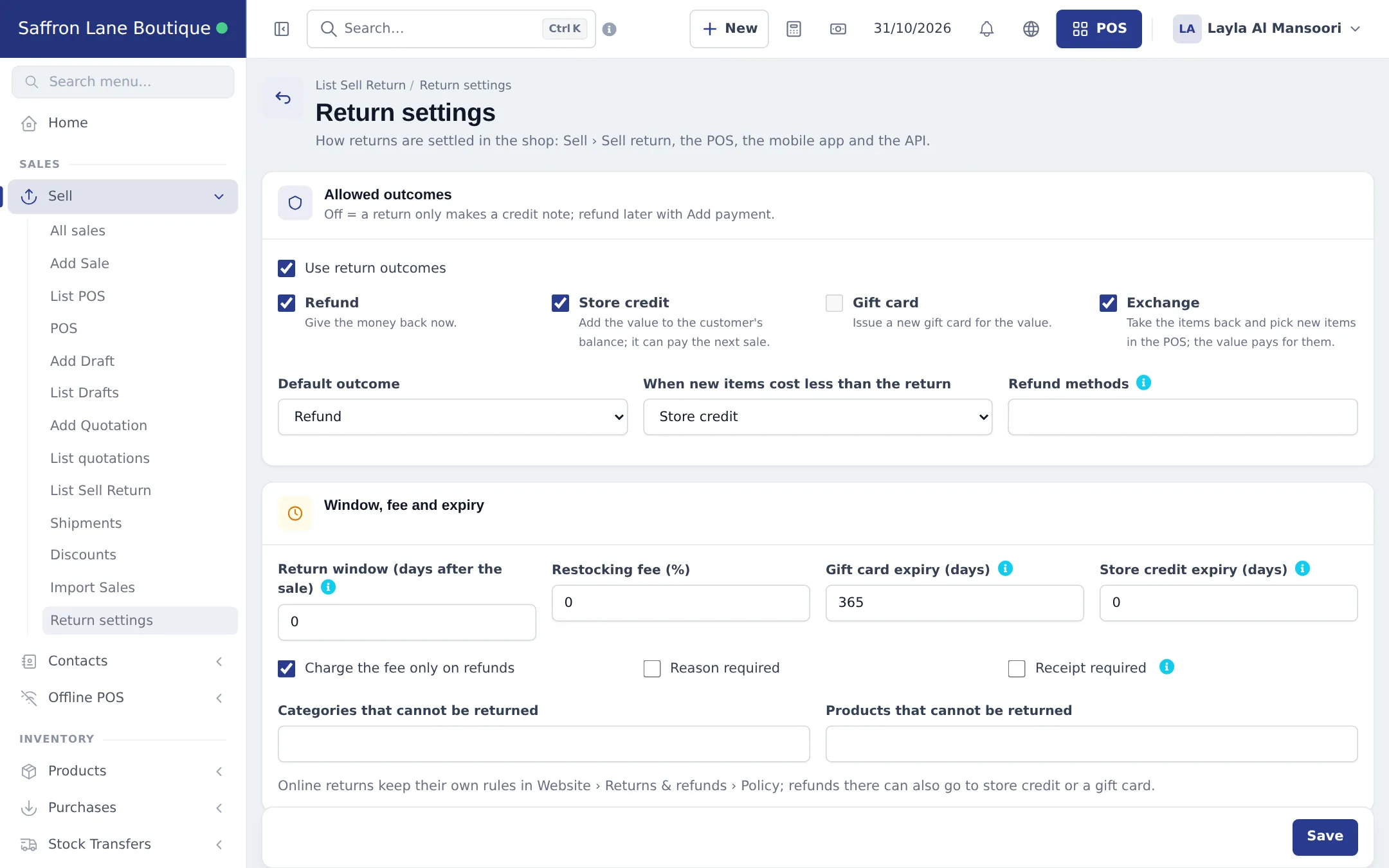
Online returns have their own rules in Website › Returns & refunds › Policy.
Exchange a size
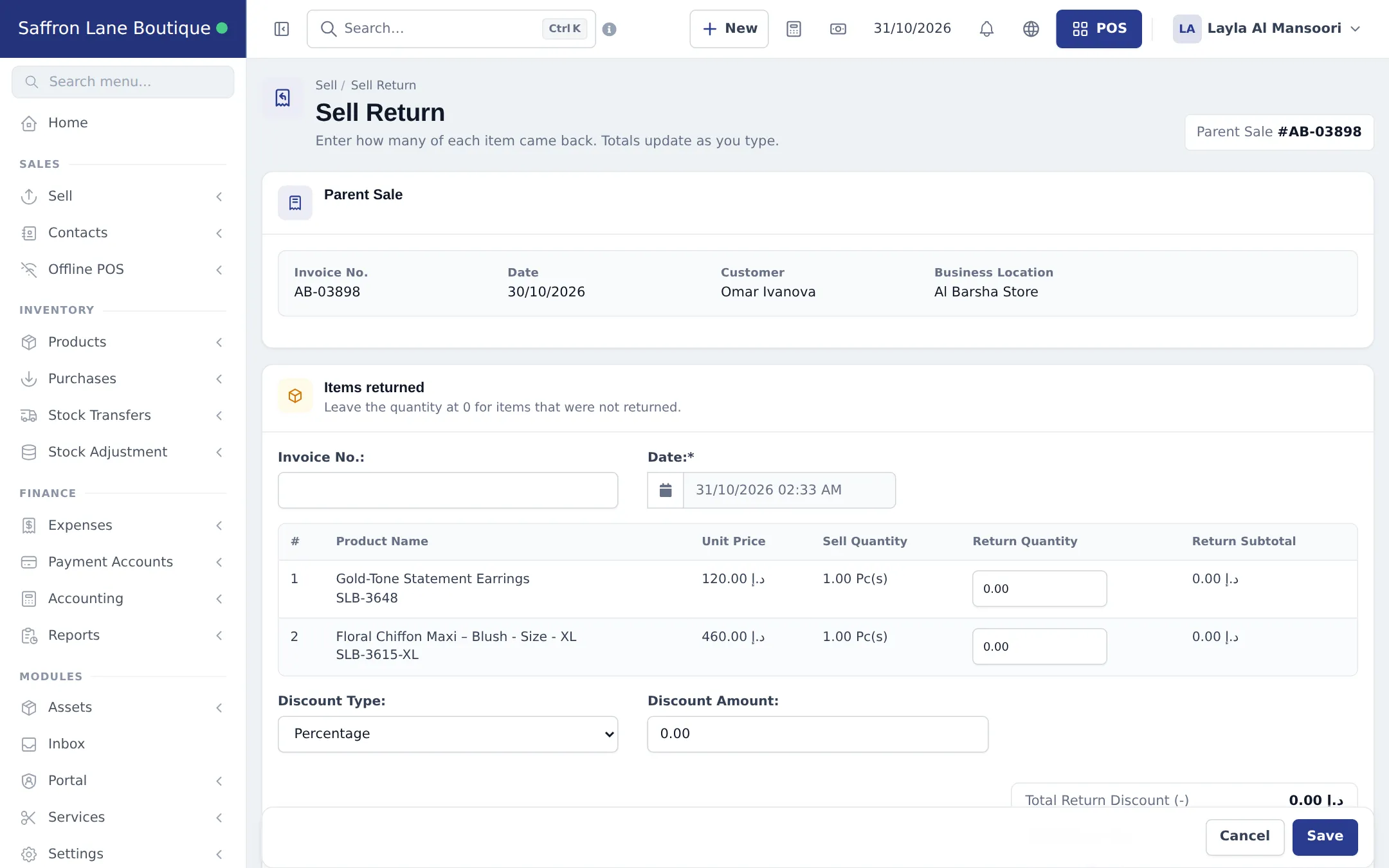
Section titled “Exchange a size”- Find the sale in Sell › All sales (or Recent Transactions in the POS) and choose Sell Return.
- Enter Return Quantity for the item that comes back and pick a reason such as Wrong size.
- Choose Exchange as the outcome and save. The value goes on the customer’s store credit and the item goes back into stock.
- In the POS, add the new size for the same customer and pay with Store credit. Any difference is paid as usual.
Gift cards
Section titled “Gift cards”With Gift cards switched on, sell cards in Sell › Gift cards › Sell gift card, give a gift card as a return outcome, and accept cards at the POS payment with Check to see the balance. Steps: Gift cards and store credit.
Check what comes back
Section titled “Check what comes back”Reports › Returned items groups returns by Product, Reason or Outcome. If one dress keeps coming back as Wrong size, check its size chart (step 3).
Next: step 6: seasonal discounts.
Frequently asked questions
A customer wants a different size. How do I exchange it?
Take a return of the original item with the outcome Exchange. Its value becomes store credit. Add the new size in the POS and pay with Store credit. If the new item costs more, the customer pays the difference.
What if the new item is cheaper than the returned one?
The setting When new items cost less than the return decides. With Store credit, the rest stays on the customer's balance for next time.
Can I refuse returns after 14 days?
Yes. Set Return window (days after the sale) to 14 in Sell › Return settings. A manager with the Override the return policy permission can still accept a late return.
Can I stop returns of underwear or sale items?
Yes. Pick them under Categories that cannot be returned or Products that cannot be returned.
Does store credit expire?
Only if you set Store credit expiry (days). 0 means it never expires.
Can a walk-in customer get store credit?
No. Store credit sits on a customer record, so select or add the customer first. Give a gift card instead if they don't want to register.
Can I sell gift cards?
Yes, if your plan includes Gift cards and you switch the module on. Sell them in Sell › Gift cards and accept them as payment in the POS.