
Install SmartPOS Business and sign in your staff
This guide takes you from zero to a signed-in phone: turn on the mobile app for your business, decide who may use it, install SmartPOS Business on Android and sign in with an existing staff login. It is for owners and admins setting up the team, and for staff installing the app on their own phone.
Before you start
Section titled “Before you start”- You are the owner or an admin of the business (or have Manage mobile app devices permission) for the web steps.
- Each person who will use the app has a staff login on the web app with the right role and locations. See Users and roles.
- The phone runs Android and has an internet connection for the first sign-in.
Step 1: Switch the mobile app on (web app)
Section titled “Step 1: Switch the mobile app on (web app)”- Sign in to the web app and open Settings › Business Settings › Modules. Make sure Mobile app is switched on. If its card is greyed out with Not in your plan, your plan does not include it: check the Subscription page or contact support.
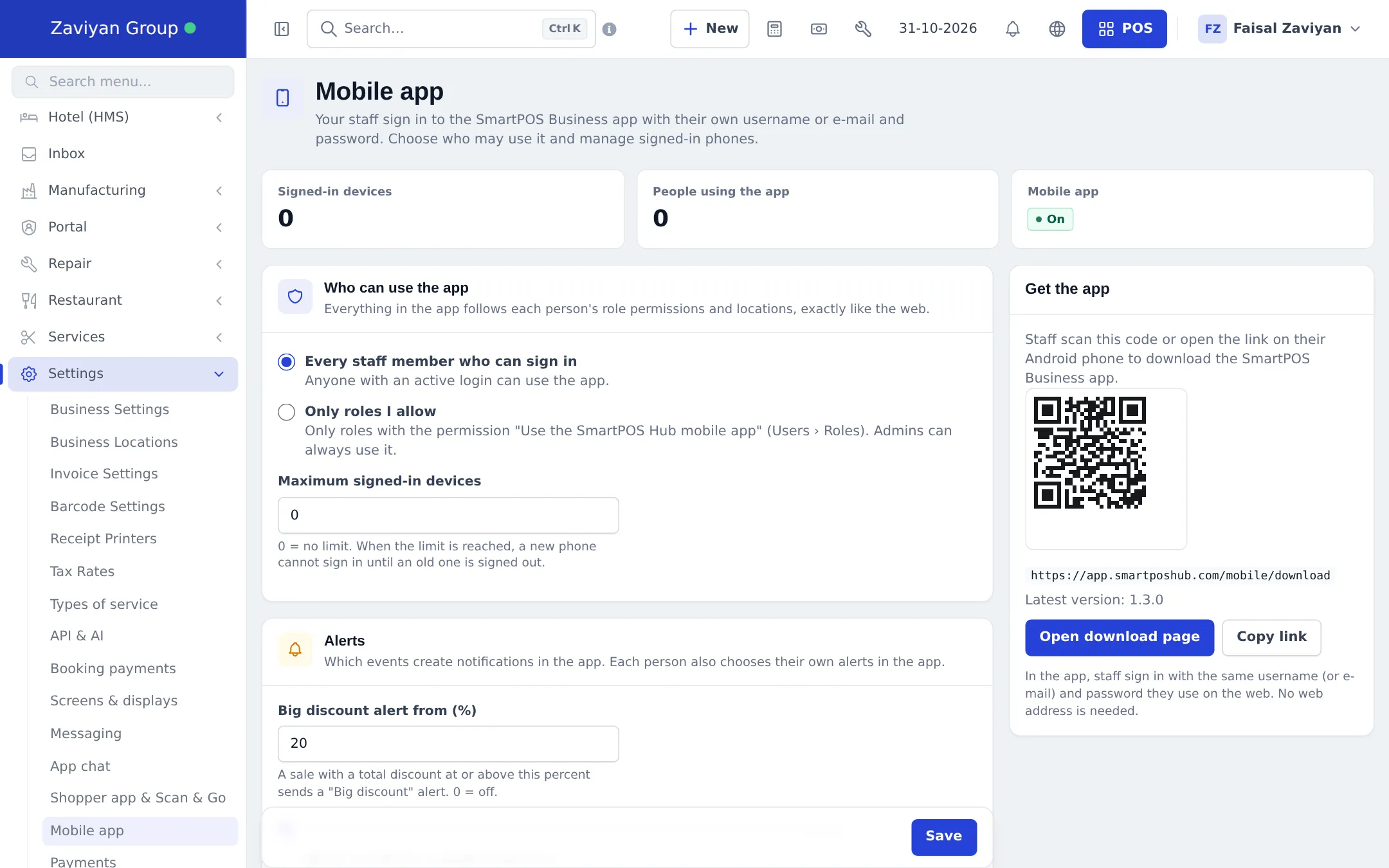
- Open Settings › Mobile app. The cards at the top show Signed-in devices, People using the app and whether Mobile app is On.
- Under Who can use the app, choose:
- Every staff member who can sign in – anyone with an active login can use the app, or
- Only roles I allow – only roles with the permission Use the SmartPOS Hub mobile app (set in User Management › Roles). Admins can always use it.
- Set Maximum signed-in devices. 0 means no limit. When the limit is reached, a new phone cannot sign in until an old one is signed out.
- Under Alerts, set Big discount alert from (%) and whether to send low-stock alerts. Each person still chooses their own alerts in the app.
- Click Save.
Step 2: Install the app on the phone
Section titled “Step 2: Install the app on the phone”- On the Android phone, open SmartPOS Business on Google Play, or open Google Play and search for SmartPOS Business.
- Tap Install and wait until it finishes.
- Open SmartPOS Business. You can swipe through the welcome slides or tap Skip.
Step 3: Sign in
Section titled “Step 3: Sign in”- On Welcome back, type your Username or e-mail and Password – the same as on the web.
- Tap Sign in.
- If your e-mail belongs to staff accounts in more than one business, Choose a business appears. Tap the business you want to open.
- If you use two-step verification, Two-step verification asks for the 6-digit code from your authenticator app. Tap Use a recovery code if you don’t have the phone with the authenticator.
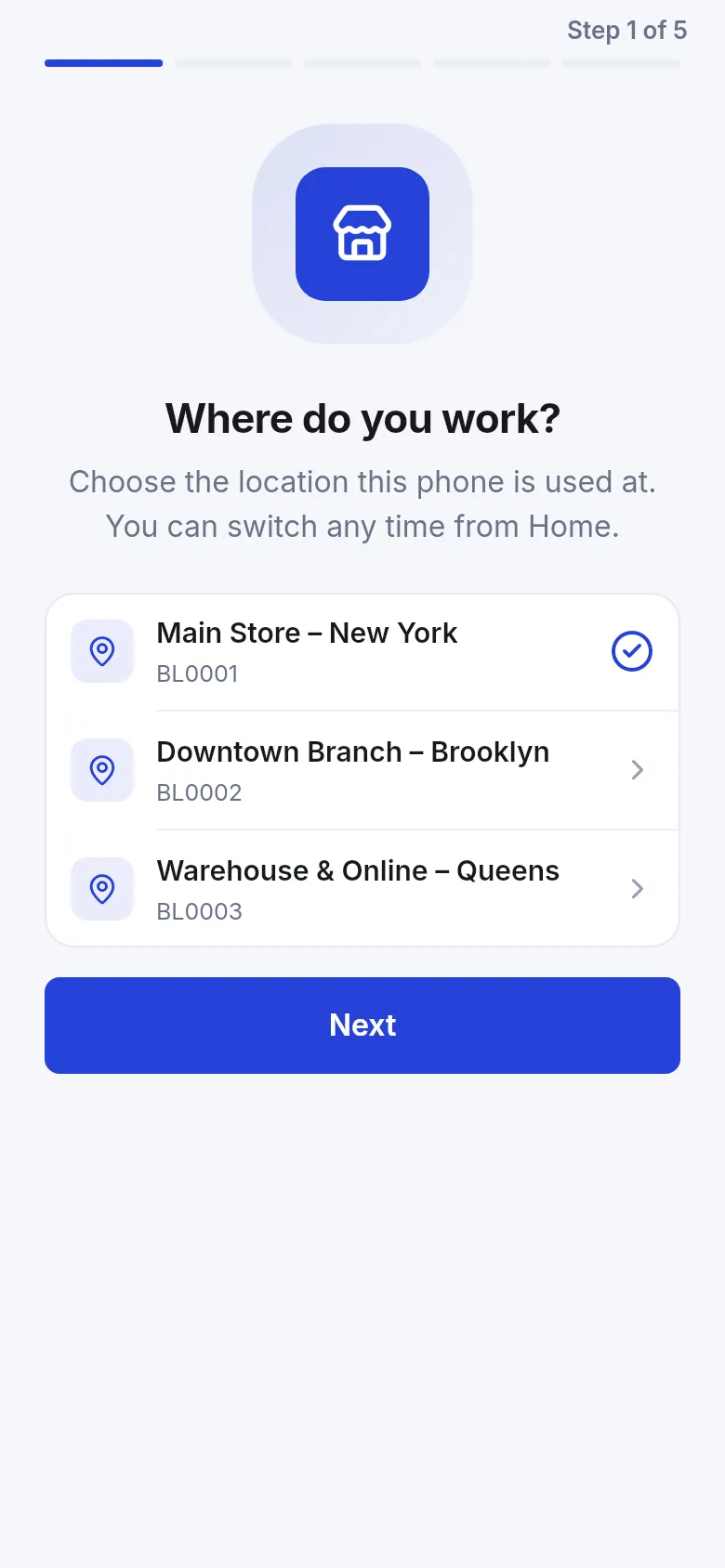
- The first time, Set up this phone walks you through a few steps: Where do you work? (pick your location), Protect the app (PIN or fingerprint lock), Stay in the loop (notifications), Receipt printer and Make it yours (language and look). Tap Skip for now on any step you want to do later.
- On You’re all set!, tap to open the app. Tovi the owl shows you around Home in a few quick steps.
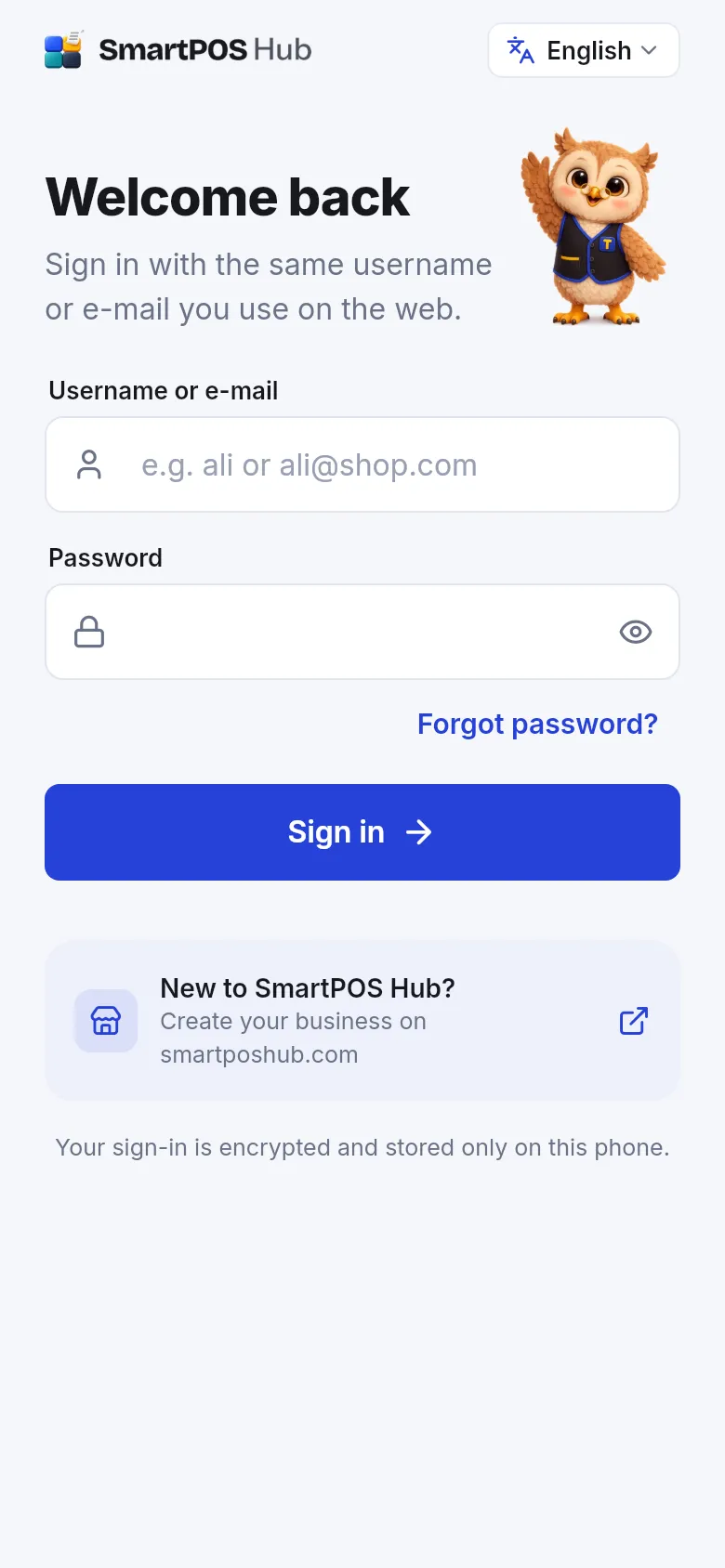
Forgot your password? Tap Forgot password?, enter your username or e-mail and tap Send reset link. If an account matches, a reset link arrives by e-mail.
What happens next
Section titled “What happens next”- The phone appears in Settings › Mobile app › Signed-in devices on the web and in Settings › Devices & sessions in the app.
- Menus follow the person’s role and locations. See Home screen and menus.
- The session stays signed in; owners can sign the phone out remotely at any time. See Devices, sessions and security.
Sign-in messages and what they mean
Section titled “Sign-in messages and what they mean”| Message in the app | What to do |
|---|---|
| That username/e-mail and password don’t match | Check spelling and caps; use the same login as the web. |
| Too many attempts. Try again in … minutes | Wait the time shown; ask an admin to reset the password if needed. |
| Your user account is switched off | Ask the owner to activate your user on the web. |
| The mobile app isn’t included in this business’s plan | The owner upgrades the plan, or contacts support. |
| The mobile app is turned off for this business | The owner switches on Mobile app in Settings › Business Settings › Modules. |
| This business has reached its limit of signed-in phones | Sign out an old phone in Settings › Mobile app, or raise the limit. |
| This business has no active subscription | The owner renews the subscription on the web. |
Tips and mistakes to avoid
Section titled “Tips and mistakes to avoid”- Give every person their own login. Shared logins make sales reports by user, cash registers and chat assignment useless.
- Set each user’s permitted locations on the web before they sign in; the app only offers those locations.
- If someone leaves, deactivate their user on the web and sign out their phones in Settings › Mobile app.
Related pages
Section titled “Related pages”Frequently asked questions
Where do I download the SmartPOS Business app?
From Google Play: open Google Play on the Android phone and search for SmartPOS Business, or open play.google.com/store/apps/details?id=com.smartposhub.business. The app is free; your plan decides what it can do.
What do staff type to sign in?
Their own username or e-mail and password, the same ones they use on the web app. No shop domain or web address is needed.
My e-mail is used in two businesses. Which one opens?
The app shows Choose a business with every business linked to your e-mail. Pick one. You can change later in Settings › Switch business.
The app says the mobile app isn't included in this business's plan. What now?
The owner needs a plan that includes the mobile app. Upgrade from the Subscription page on the web or contact support.
How do I limit how many phones can sign in?
On the web, open Settings › Mobile app and set Maximum signed-in devices. 0 means no limit. When the limit is reached, a new phone cannot sign in until an old one is signed out.
Can I stop some roles from using the app?
Yes. In Settings › Mobile app choose Only roles I allow, then give the permission Use the SmartPOS Hub mobile app to the roles that may use it in User Management › Roles. Admins can always use it.
What happens after five wrong passwords?
Sign-in is paused for that login for about 10 minutes. The app shows how long to wait.
Does the app support two-step verification?
Yes. If the user has two-step verification turned on for the web, the app asks for the 6-digit code from the authenticator app, or a recovery code.